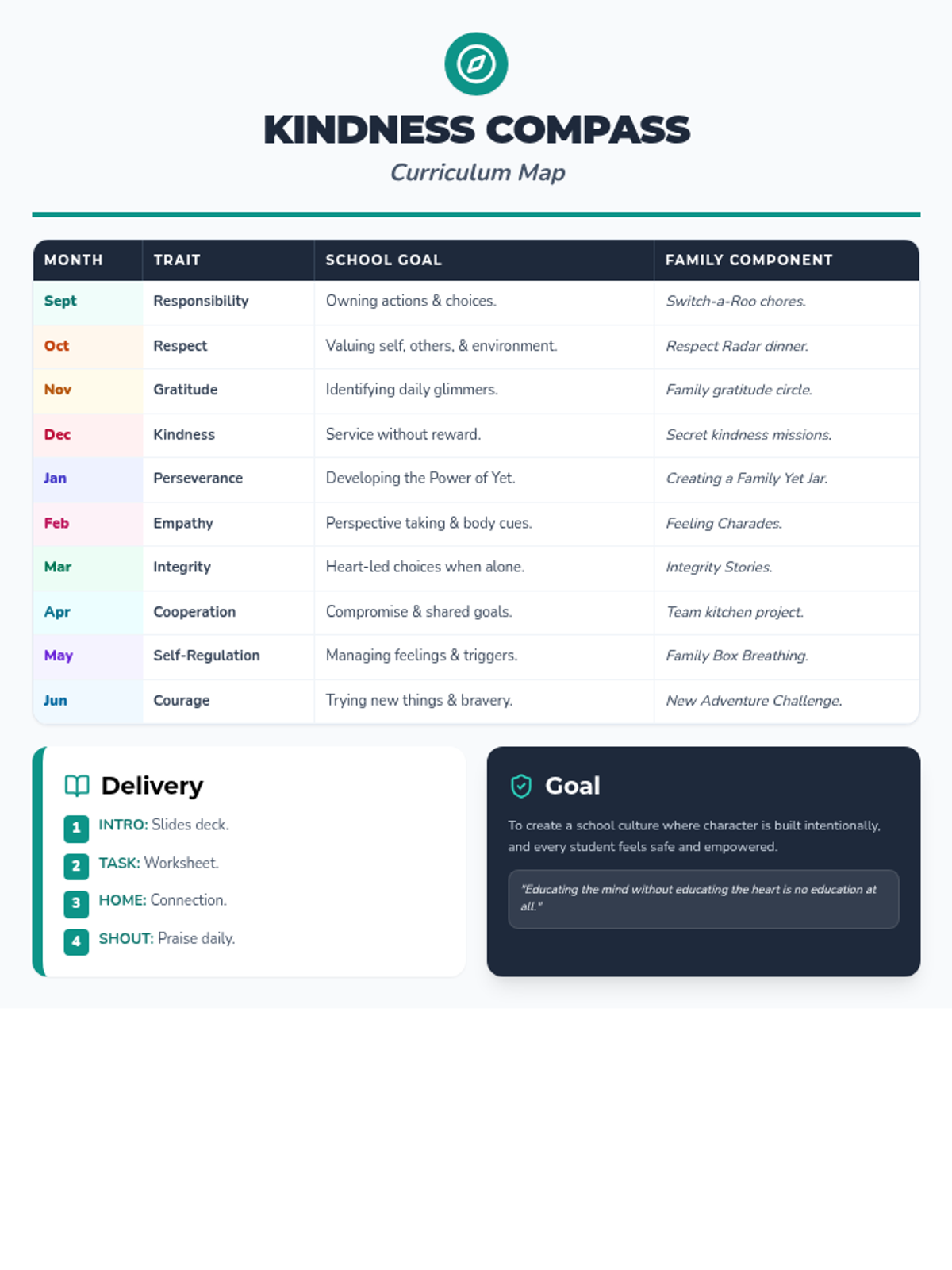
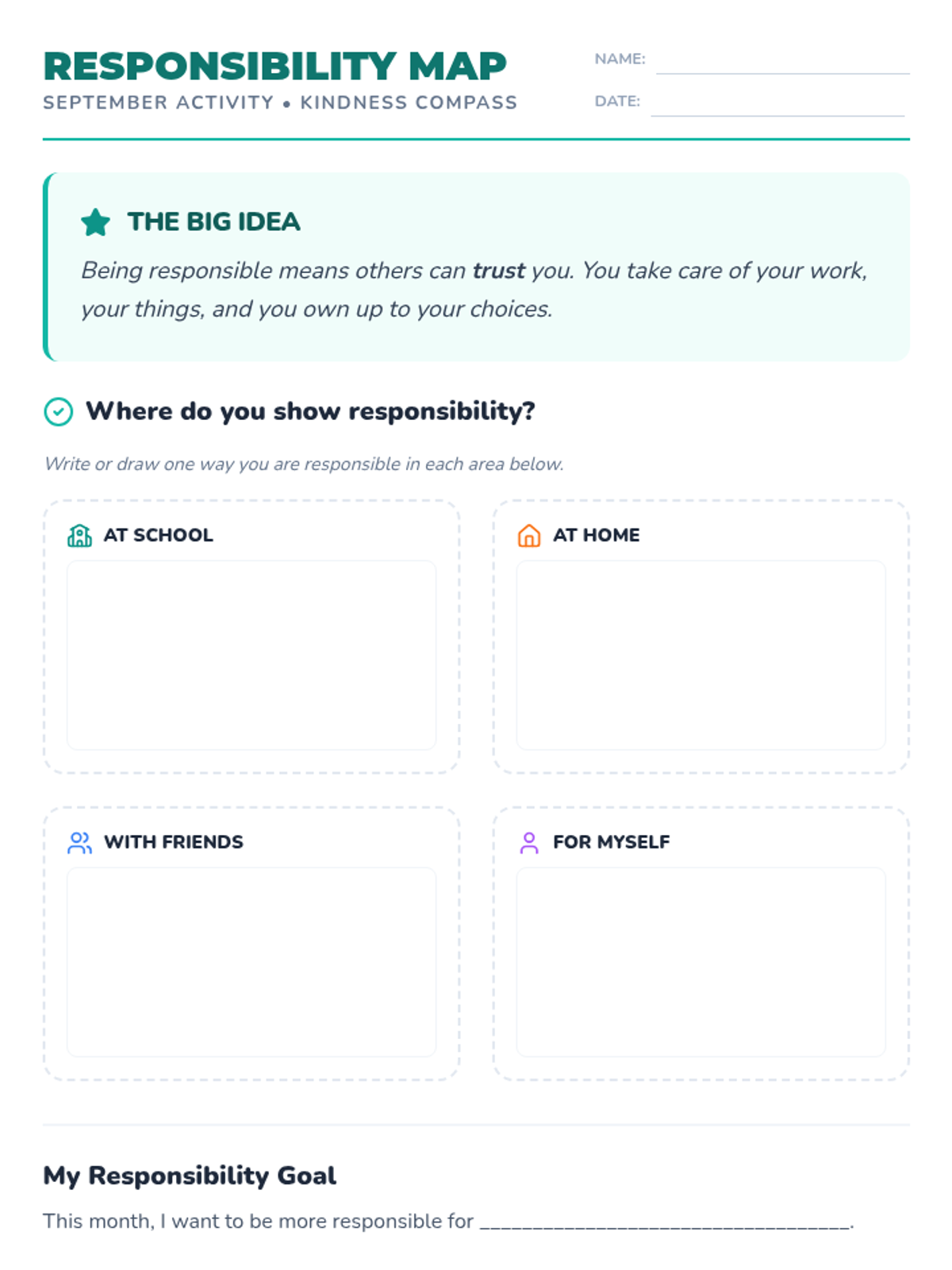
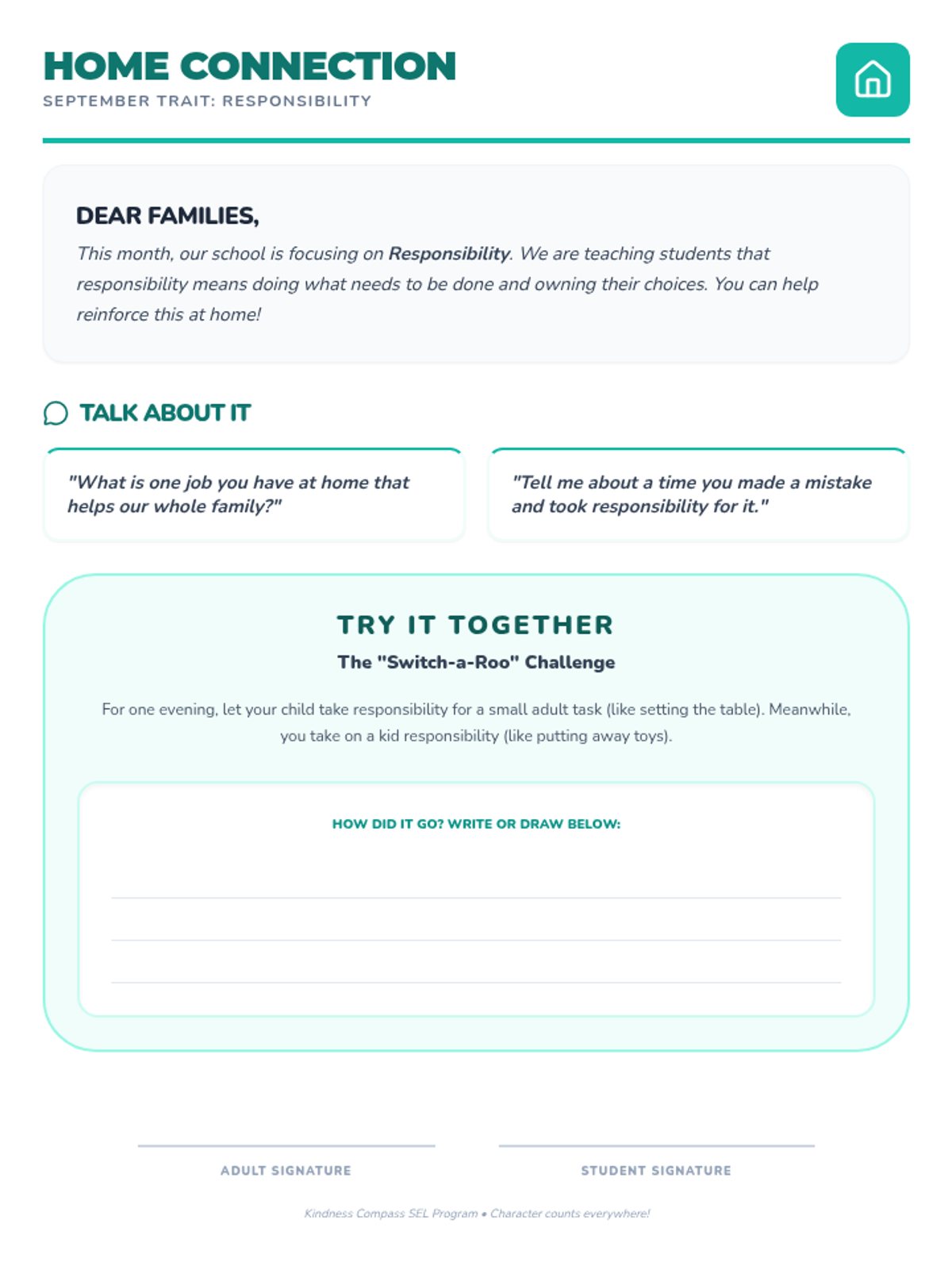
Permission Power Slides Permission Power
How do we start using technology?
The Big Question
"Can I use this device, please?"
Who should we ask before we touch a screen?
Who do we ask?
🏫
Teacher
🏠
Parents
👵
Grown-ups
The Puppet Show!
Let's watch what happens when our puppet friends want to play a game!
Permission Power Teacher Guide Permission Power
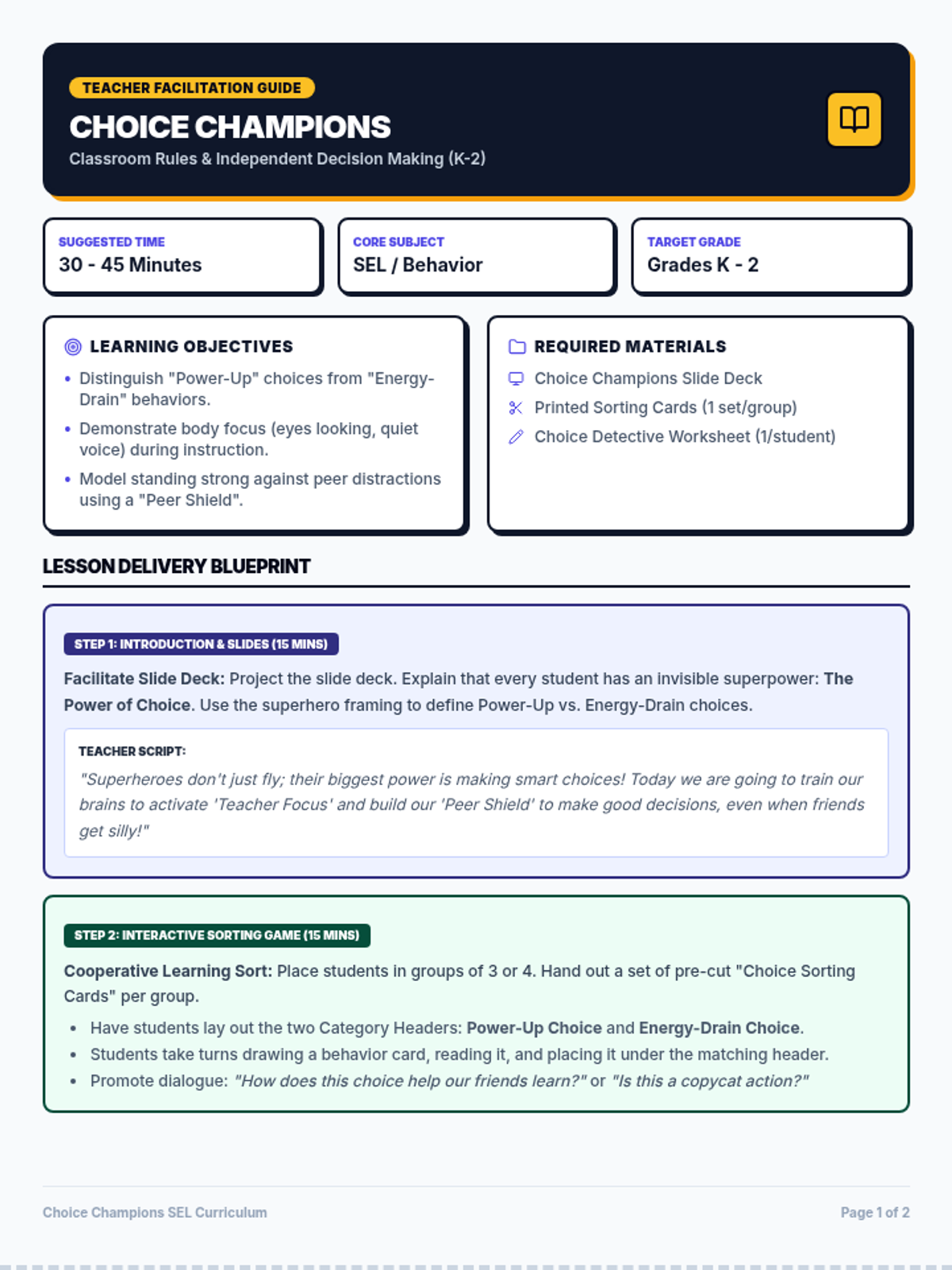
Teacher Facilitation Guide
Lesson 1: Asking Permission
Pre-K Digital Literacy
Learning Goal
Students will understand and demonstrate the rule: "Ask a grown-up before using any device." They will identify appropriate people to ask and practice the phrasing.
Materials Needed
Permission Power Slides
Two Puppets (or stuffed animals)
A Tablet or Smartphone (prop or real)
"Ask First" Student Worksheet
Lesson Procedure
1 The Hook: The Puppet Mistake (5 mins)
Puppet Script Sketch:
Puppet A (Zippy): Sees a tablet on the table. "Oh look! A shiny game! I'm going to play it right now!" (Grabs it and starts tapping).
Puppet B (Luna): "Wait, Zippy! Did you ask Teacher if you could use that?"
Zippy: "No, I just wanted to play!"
Luna: "But that's not the rule. We always ask first so we stay safe!"
2 Discussion & Modeling (10 mins)
Key Questions:
Why did Zippy need to ask Luna or a teacher?
What words can we use when we want to use a tablet?
Who are the "Safe Grown-ups" in your house?
Target Phrase:
"Can I use this, please?"
3 Simulation: The "Ask First" Line (5 mins)
Have students line up. Place a device at the end of the line. Each student must approach you, make eye contact, and say the target phrase before "starting" their imaginary turn.
Support
Provide a visual card with a picture of a hand and a tablet for non-verbal students to point to when asking.
Extension
Ask students to brainstorm *why* grown-ups might say "not right now" (e.g., dinner time, bedtime).
Ask First Worksheet Ask First!
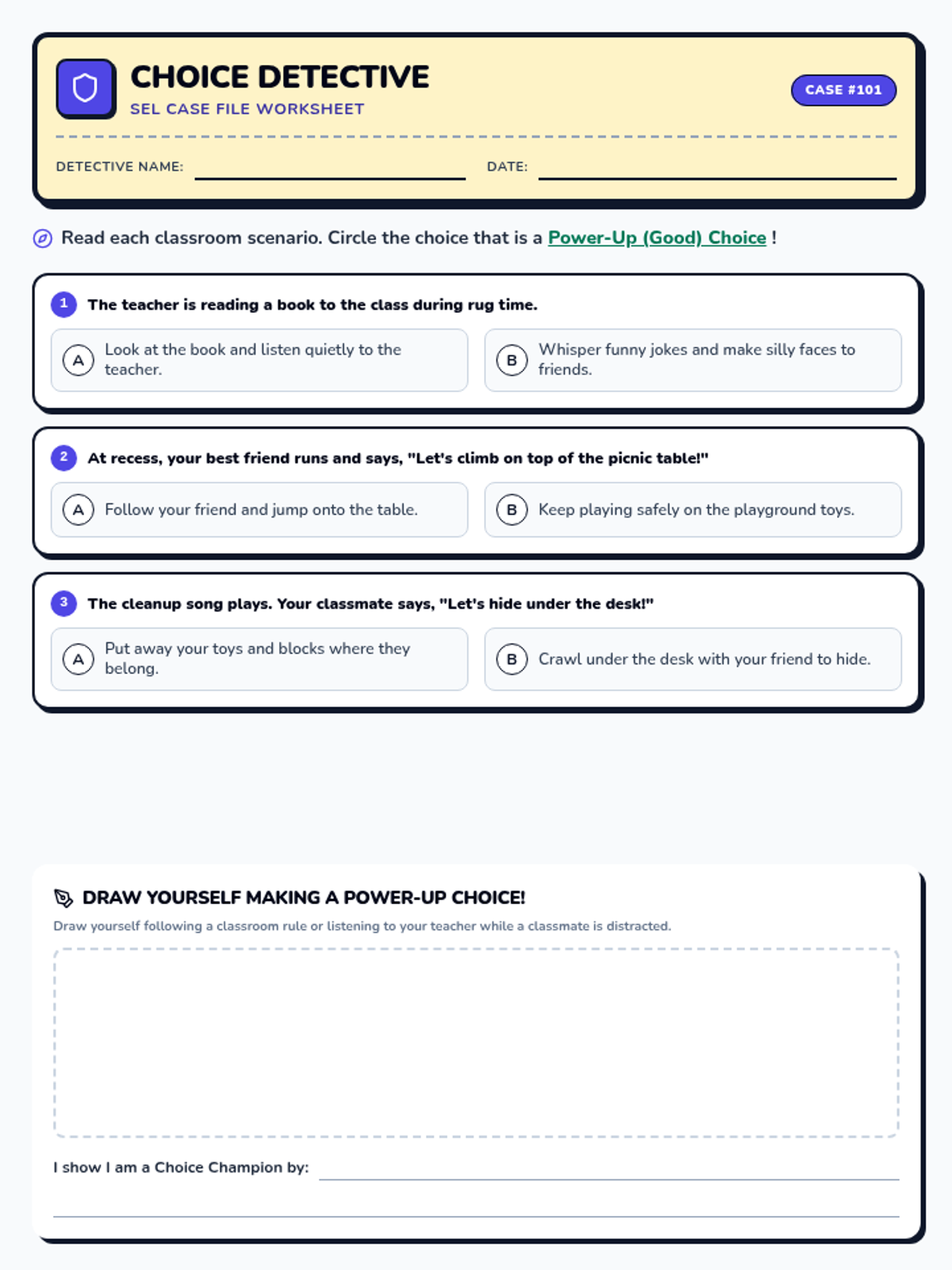
Lesson 1: Permission Power
Name: ____________________
Date: ____________________
Circle the grown-ups you can ask before using a tablet!
👩🏫
Teacher
🐕
Doggy
🧸
Teddy Bear
👨👩-
Family
Color the tablet when you are done!
Screen Timer Slides The Screen Timer
How long should we play?
A Time for Everything
Start Time
When we ask first!
Stop Time
When the timer dings!
Freeze Dance Challenge!
Music ON
Screen Time (Dance!)
Music OFF
Time to Stop (Freeze!)
The Next Best Thing
🌳
Outside Play
🎨
Drawing
🧱
Blocks
Moving our bodies is fun!
Screen Timer Teacher Guide The Screen Timer
Teacher Facilitation Guide
Lesson 2: Balancing Time
Pre-K Digital Literacy
Learning Goal
Students will recognize that digital play has a set duration and practice transitioning away from devices without emotional distress when a timer finishes.
Materials Needed
Screen Timer Slides
A Physical Kitchen Timer or Visual Timer app
Upbeat Music for Freeze Dance
"Next Best Thing" Worksheet
Lesson Procedure
1 The Hook: Freeze Dance Transitions (10 mins)
Play the Freeze Dance game.
Music Playing: Students "Play Games/Watch Videos" (dance vigorously).
Music Stops: Students "Turn off the screen" (freeze instantly).
Explain: "Just like the music stops, our screen time has a stop time too. We want to be 'Screen Superstars' who can stop when the timer says so!"
2 The Timer Warning (5 mins)
Teach the "One More Minute" concept. Show students how a timer looks when it's almost done.
Teacher Script:
"When I say 'One more minute,' it's time to find a good stopping place. You can say, 'Okay!' and get ready to do something else."
3 Planning the "Next Best Thing" (10 mins)
Discuss what students do after technology. This helps reduce the "loss" of the screen by providing an immediate, exciting alternative. Use the worksheet to help them visualize these activities.
Pro-Tip: Use "Visual Countdowns"
For Pre-K students, a visual sand timer or a red-wedge timer (like Time Timer) is much more effective than a digital clock. It allows them to "see" time disappearing.
Next Best Thing Worksheet The Next Best Thing
Lesson 2: Balancing Time
Name: ____________________
Date: ____________________
When the timer goes DING, what will you play? Draw your favorite thing to do without a screen!
⚽
Play Ball
🎨
Coloring
📖
Reading
🧩
Puzzles
Stop Sign Rule Slides The Stop Sign Rule
What do we do when things get weird?
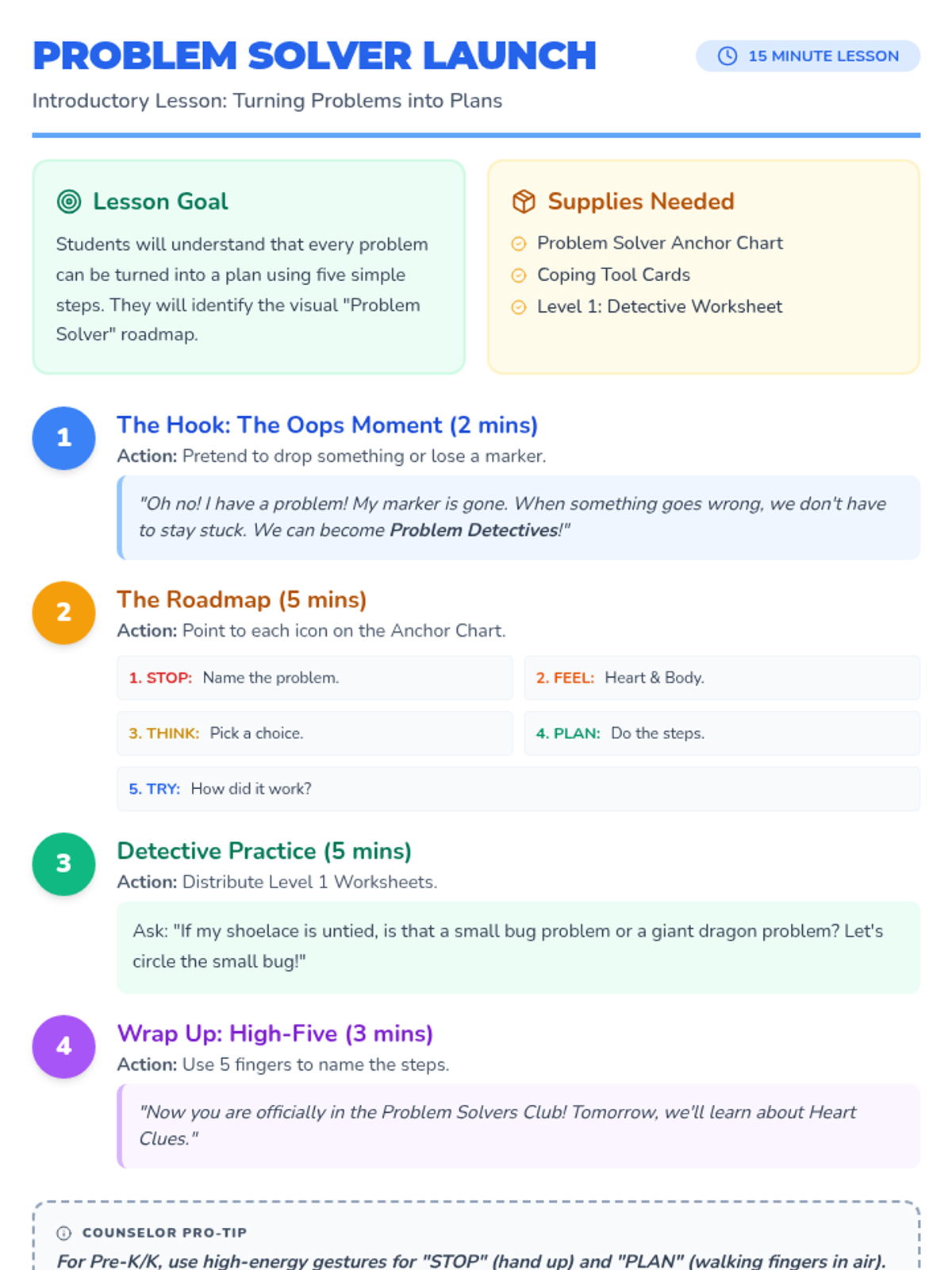
Stop, Look, and Tell!
STOP
Hands off the screen!
LOOK
Close your eyes or look away!
TELL
Call a grown-up right away!
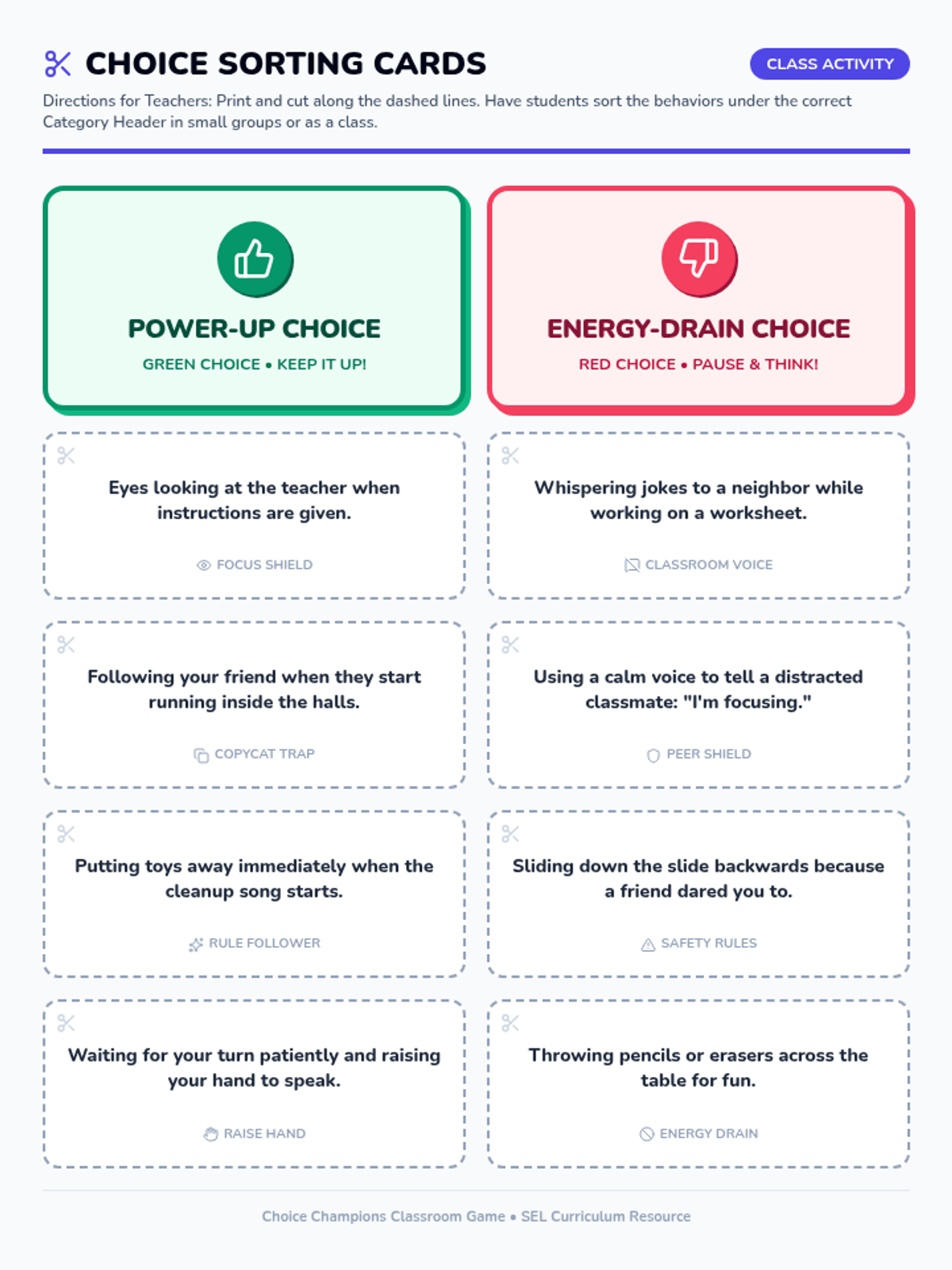
Is it Weird or Scary?
👻
Something Scary
❓
A Weird Pop-up
Use your Stop Sign Power!
Stop Look Tell Teacher Guide Stop, Look, and Tell
Teacher Facilitation Guide
Lesson 3: Unexpected Screens
Pre-K Digital Literacy
Learning Goal
Students will memorize and practice the 3-step safety response for unexpected, scary, or confusing digital content: Stop (hand off), Look (away), Tell (a grown-up).
Materials Needed
Stop Sign Rule Slides
"Mystery Cards" (Printed emojis/icons)
"Stop Sign" recognition worksheet
Lesson Procedure
1 The Hook: Mystery Cards (10 mins)
Show students "Mystery Cards" one by one.
- **Happy Card** (Happy Face, Rainbow, Kitten): Students cheer and say "Yay!"
- **Mystery Card** (Scary Ghost, Weird Pop-up Window, Giant Question Mark): Students must immediately perform the **Stop, Look, and Tell** action.
Practice this several times until the reaction is muscle memory.
2 Defining "Weird or Scary" (10 mins)
Help students identify what triggers the rule. It's not just "bad" things, but anything that wasn't supposed to happen.
A video that wasn't the one you picked.
A pop-up box with a button you don't know.
A face or image that makes your tummy feel funny.
The device making a loud, scary noise.
3 Guided Practice: Calling for Help (5 mins)
Practice the "TELL" part. Have students practice saying loudly and clearly: "Teacher, I see a weird screen!" or "Mom, help please!"
Safety Concept: No Blame
"Remind students that if a weird screen pops up, it is NOT their fault. They are not in trouble! The grown-up is there to help them get back to a safe place."
Stop Look Tell Worksheet Stop, Look, and Tell!
Lesson 3: Unexpected Screens
Name: ____________________
Date: ____________________
Circle the screens that mean you should STOP and tell a grown-up!
🐱
Cute Kitty Video
ERROR ????
A Weird Pop-up!
👹
Scary Picture!
☀️
Happy Coloring Game
!
Who do you tell?
Tech Stretch Slides The Tech Stretch
How does your body feel?
How do we sit?
🍮
Wobbly Jelly
Slumping and slumping...
🌳
Strong Tree
Back straight, feet down!
Time to Stretch!
Reach for the Sky
Roll Your Shoulders
Look Far Away
Listen to Your Body
If your eyes feel tired
or your neck feels stiff...
TAKE A BREAK!
Tech Stretch Teacher Guide Listening to Our Bodies
Teacher Facilitation Guide
Lesson 4: Physical Health
Pre-K Digital Literacy
Learning Goal
Students will identify comfortable posture for device use and demonstrate three specific "tech stretches" to prevent physical strain.
Materials Needed
Tech Stretch Slides
A comfortable chair and a tablet (for demonstration)
"Strong Tree Stretches" Checklist
Lesson Procedure
1 The Hook: Wobbly Jelly vs. Strong Tree (5 mins)
Ask students to pretend to be a "Wobbly Jelly" (slumped over, no bones, floppy). Then, tell them to turn into a "Strong Tree" (sit up tall, shoulders back, feet planted).
Ask: "Which one is better for our bodies when we use a tablet?" Explain that trees are strong and help us not get a sore neck!
2 The Three Tech Stretches (10 mins)
The Reach:
Arms up high like reaching for a cloud. Wiggle fingers.
The Roll:
Roll shoulders back 5 times slowly like a wheel.
The Far-Look:
Look out the window at something far away for 10 seconds.
3 Body Scan: "How do you feel?" (5 mins)
Teach students to do a "Mini Body Scan." Have them touch their neck, then their eyes, then their tummy. If any part feels "yucky" or "stiff," it's time for a break!
Eye Health Tip: The 20-20-20 Rule (Simplified)
"Every time we stop using a device, tell the children to look at the farthest thing they can see in the room. This helps their little eye muscles relax after looking at a close screen."
Strong Tree Checklist Strong Tree Stretches
Lesson 4: Physical Health
Name: ____________________
Date: ____________________
Do each stretch and color the circle when you are done!
Reach Up High!
Touch the clouds with your fingers.
Shoulder Rolls!
Make big circles with your shoulders.
Look Far Away!
Look out the window for 10 seconds.
My body feels... 😊 👍 ✨
Digital Neighborhood Slides The Digital Neighborhood
How are we all connected?
A Big Giant Web
🏠
My House
🏫
School
🏬
Library
Devices help us talk and learn from everywhere!
Staying in "Safe Spots"
SAFE SPOTS
Apps Teacher Picked
STAY AWAY
Unknown Sites
Being a Kind Neighbor
🤝
Sharing Devices
🗣️
Kind Words
👐
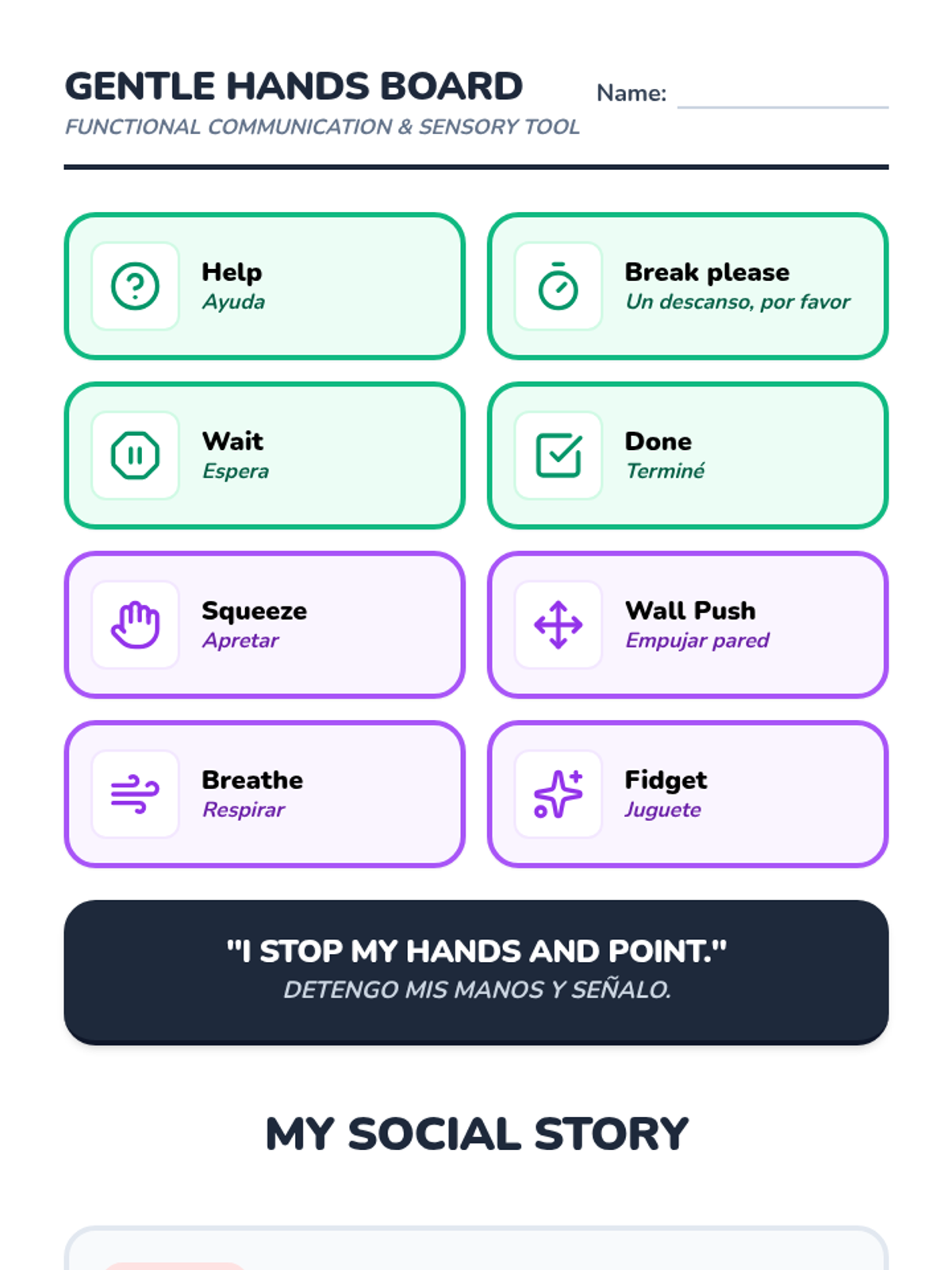
Gentle Hands
Digital Neighborhood Teacher Guide The Digital Neighborhood
Teacher Facilitation Guide
Lesson 5: Digital Connectivity
Pre-K Digital Literacy
Learning Goal
Students will understand the internet as a "neighborhood" of connected places and commit to staying within teacher-approved "Safe Spots" (apps/websites).
Materials Needed
Digital Neighborhood Slides
A ball of blue yarn
"Safe Spots Map" coloring worksheet
Lesson Procedure
1 The Hook: The Yarn Web (10 mins)
Have students sit in a circle. Hold a ball of yarn.
"I am the teacher computer. I want to send a picture to Leo!" (Toss yarn to Leo while holding the end). Leo tosses to Mia, and so on.
Explain: "See how we are all connected? This is like the internet! It's a big neighborhood where we can share things."
2 Safe Spots vs. Wild Places (10 mins)
Compare the internet to a real neighborhood. There are places we go (playground, library) and places we don't go alone (construction sites, deep woods).
The "Safe Spot" Rule:
"On our tablets, we only click the apps that have the 'Teacher Stamp' or the ones we use in class. If we get lost, we use the Stop, Look, and Tell rule!"
3 Kind Neighbors (5 mins)
Discuss how to treat others in the digital neighborhood. Use the Three G's:
1. **Gentle Hands** (with the devices)
2. **Good Words** (when talking about games)
3. **Giving Turns** (sharing devices fairly)
Social-Emotional Connection
"Remind students that even though we can't see the people on the other side of the 'yarn web,' they are still real people with real feelings. Being a digital neighbor means being a good friend."
Safe Spot Map Worksheet My Safe Spot Map
Lesson 5: Digital Neighborhood
Name: ____________________
Date: ____________________
Circle the Safe Spots where your teacher says it's okay to play!
School App
Library Book
Unknown Site
Art Game
"I stay in the Safe Spots!"