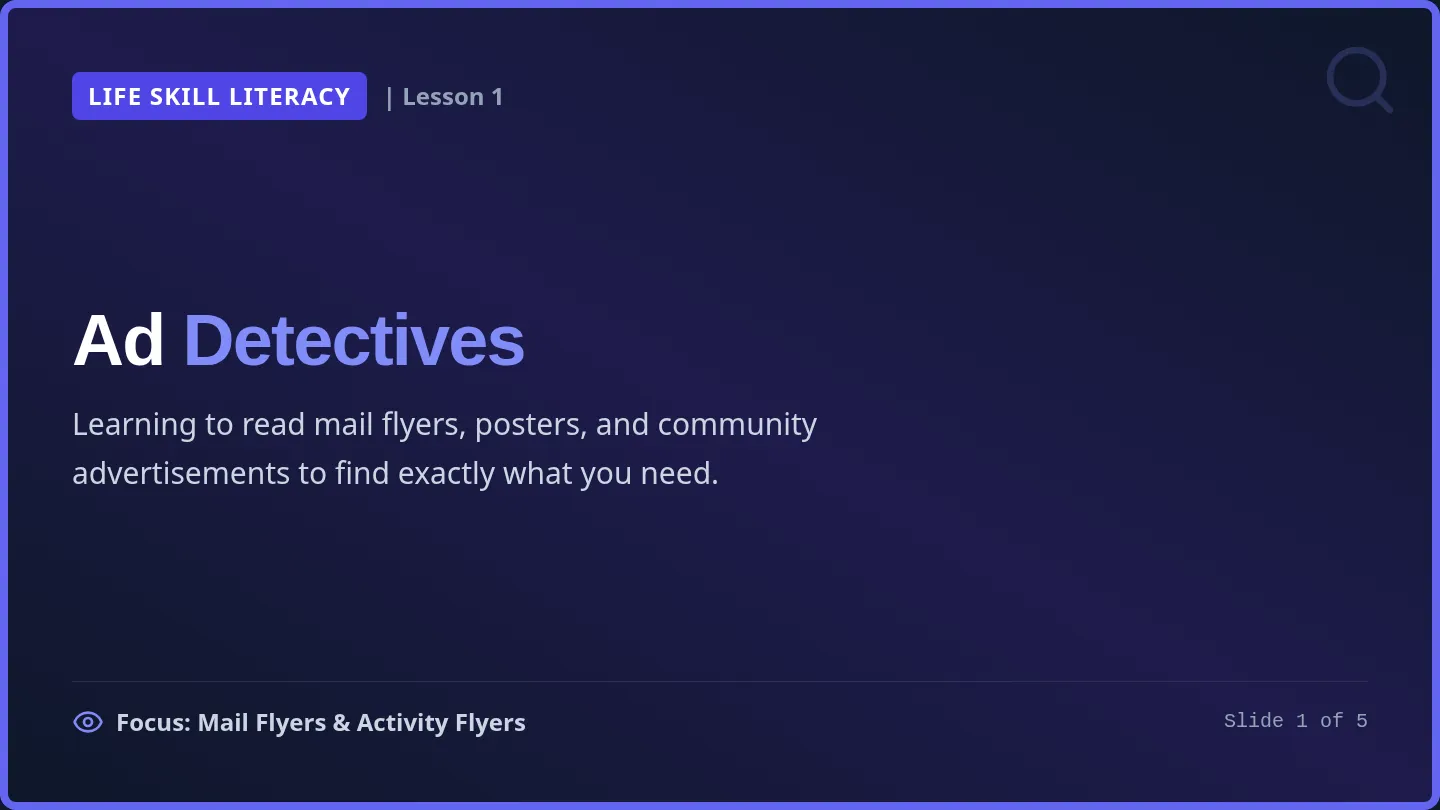
Digital Eyes Slides DIGITAL EYES
K-12 Accessibility Series
Assistive Tech & Inclusion
How Screen Readers
Open the Web
Let's explore how blind and low-vision individuals experience the digital world, and how we can design for everyone.
Press Space or Right Arrow to advance
SLIDE 1/6
01 . THE BASICS
SLIDE 2/6
What is a Screen Reader?
A screen reader is assistive software that reads out loud the text, buttons, images, and code appearing on a screen.
It converts digital elements into synthesized speech or output on a refreshable braille display, allowing blind and low-vision users to use computers, phones, and websites with absolute independence.
Fun Fact: Advanced screen reader users often listen to synthesized speech at over 400 words per minute—almost double normal human speech!
Website Output HEARD BY USER
Heading Level 1
"Welcome to our library catalog."
Button (1 of 3)
"Search books. Double tap to activate."
Discussion: What devices in your home might have screen reading features built-in?
02 . NAVIGATION
SLIDE 3/6
Navigating Without
a Screen or Mouse
How do you click a button when you can't see where the cursor is pointing?
Screen reader users do not use a mouse. Instead, they navigate entirely using specific keyboard commands.
Tab Key: Jumps forward between interactive buttons and links.Shift + Tab: Jumps backward to the previous element.H Key: Skips directly to the next major heading section.
Try It Right Now!
The Eyes-Closed Challenge
Close your eyes tightly for the next 15 seconds. Try to imagine navigating to your school website or favorite game using only your ears and keyboard arrows.
Inclusion Obstacle:
If a website developer didn't make a button "focusable" with the keyboard, a screen reader user can never reach it!
Discussion: Why do clear titles and headers matter more when you listen instead of look?
03 . ALT TEXT
SLIDE 4/6
The Power of "Alt Text"
How does a screen reader "see" an image? It doesn't! It relies on Alternative Text (alt text) —a short text description embedded in the website code.
If an image doesn't have alt text, the screen reader will simply read the file name (like "IMG_84329_final_v2.png") or completely ignore it, leaving the user confused.
Alt Text Rules of Thumb:
Be specific, describe what's happening, keep it under 125 characters, and don't start with "Image of..." (the screen reader already says "graphic" or "image" automatically!).
Evaluating Alt Text
Poor Example Alt Code: "dog.jpg"
Screen reader says: "Graphic, dog dot J-P-G"
Why it fails: Gives no details. Which dog? What is it doing? Where is it?
Excellent Example Alt Code: "Golden retriever wearing yellow boots in puddle"
Screen reader says: "Graphic, Golden retriever wearing yellow rain boots sitting happily in a muddy puddle."
Why it works: Paints a clear mental image of the specific scene.
Discussion: Why is "Golden retriever" better than just "cute animal"?
04 . STUDENT MISSION
SLIDE 5/6
Today's Interactive Challenge
Alt Text Detectives
Now it's your turn to make the web accessible! You will receive an activity sheet with images that are "invisible" to screen readers.
Step 1: Inspect
Look closely at the mystery images on your sheet. Pay attention to context and specific details.
Step 2: Describe
Write down clear, concise, and helpful alt text descriptions in the blanks provided.
Our Detective Goal
"To build digital empathy, write alt text description codes that allow any listener to fully comprehend what's happening in every image without ever seeing it."
Discussion: Why does writing screen reader descriptions make us better communicators?
05 . WRAP UP
SLIDE 6/6
Digital Accessibility
is a Human Right
The internet is a tool for learning, connection, play, and work. When we build websites, we must design them so every single person has equal access.
We can all do our part: write alt text on social media posts, use clear text headers, and support inclusive technologies!
Three Main Takeaways
1
Empathy First: Design with the understanding that everyone navigates the world differently.
2
Code Matters: Correct semantic code (headings, alt text) is what powers assistive tech software.
3
Inclusive Design: Making things accessible for people with visual disabilities actually makes the experience better for everyone.
Let's start our Hands-on Alt Text Detective Challenge!
Web For Everyone Worksheet Student Activity Sheet
A Web for Everyone
Lesson: Digital Eyes CORE STUDY
Name:
Date:
Class:
1
Digital Check-In
Think about how you use screen devices. Check the boxes that describe your experience, then answer the question below.
I rely on touchscreens to click icons
I look at colorful buttons to navigate
I use game sound effects to know my progress
I quickly read text instructions on slides
Imagine you had to browse your favorite website with your eyes closed. What is the single biggest challenge you would face?
2
The Keyboard-Only Quest
Screen readers use Tab to jump forward between links, and Shift + Tab to go backward. Non-interactive text is skipped.
Simulated Website Header Layout Order: Left-to-Right, Top-to-Bottom
[1] Logo Home
[2] About Us
[3] Help Center
[4] Search Input
Non-interactive text paragraph about our school library...
[5] Audio Play
[6] Newsletter Sign Up
[7] Submit Button
A. Starting at [1] Logo, how many times do you press Tab to reach the [5] Audio Play Button?
B. If your keyboard focus is currently at [4] Search Input, what command jumps you back to [3] Help Center?
C. Focused on [5] Audio Play Button, you press Tab once. Which element is highlighted next?
D. Why does pressing Tab skip past the informational library text paragraph entirely?
Unit: Assistive Design & Inclusion Activity Sheet: Web for Everyone Page 1 of 2
Cooperative Partner Activity
Sound Navigator Simulation
Lesson: Digital Eyes COLLABORATIVE
3
How to Play: The Human Screen Reader
👂 Partner A (The User): Closes their eyes completely. They must navigate the mockup below solely by listening to Partner B's vocal screen reader outputs.
🗣️ Partner B (The Screen Reader): Acts as the computer. Read exactly what is in the "Website Map" boxes from top-to-bottom. Example: "Heading 2: Meet Barnaby. Button: Adopt."
Website Wireframe Map
Logo: Pet Shelter
Link: Adopt Link: Donate Link: Volunteer
MISSING DESCRIPTION CODE (Alt tag missing!) File: IMG_9883_AdoptMe.jpg
[ No Alt Text ]
Heading 2: Meet Barnaby
This friendly, energetic three-year-old pup is looking for a forever home. He loves walks, chew toys, and belly rubs!
Alt Text Detectives Activity Accessibility Inspector Mission
Alt Text Detectives
Case File #849 ACTIVE MISSION
Detective Name:
Date:
Class:
Detective Rules of Alt Text
An internet detective writes clear image code descriptions so visually-impaired readers can "see" images using screen-reader sound. Follow these rules for maximum accessibility:
🔍 Rule 1: Be Specific Describe colors, emotions, actions, and locations. Focus on what's actually happening!
⏱️ Rule 2: Keep It Brief Focus on the core message. Avoid overly long sentences. Keep descriptions under 125 characters.
🚫 Rule 3: No "Image Of" Never write "image of..." or "photo of...". The screen-reader software automatically announces "Graphic" or "Image" first!
! Inspect & Rewrite the Code
IMAGE 01
🐱🍕
CAT ON KITCHEN FLOOR
FAILING ALT CODE: "cat.jpg"
Clue: The picture shows a fluffy grey cat sleeping soundly on top of a leftover pizza box.
Write Your Accessibility Alt Text Code:
IMAGE 02
👩🚀🚀
ASTRONAUT IN SPACE
FAILING ALT CODE: "Image of astronaut floating in space"
Clue: The picture shows a female astronaut smiling inside her helmet, floating in zero-gravity with Earth visible behind.
Write Your Accessibility Alt Text Code:
IMAGE 03
🚴♂️🌧️
CYCLIST IN THE RAIN
FAILING ALT CODE: "IMG_4021.jpg"
Clue: A male cyclist wearing a bright neon orange jacket pedaling his racing bike uphill through heavy rain.
Write Your Accessibility Alt Text Code:
Unit: Assistive Design & Inclusion Activity: Alt Text Detectives Case Solved Checklist [ ]
Digital Eyes Teacher Guide Educator Facilitation Guide
Lesson Plan: Digital Eyes
Scope: K-12 Inclusion TEACHER PATH
DURATION 50-60 Minutes total
GRADES 4 - 12 (Adjustable)
FORMAT Hands-on / Slides
OBJECTIVES Tactile & Code Inclusion
1. Lesson Setup & Materials
This lesson introduces student programmers, designers, and creators to assistive technologies (screen readers) and the basic coding elements that support them. Students build digital empathy, learn standard keyboard navigation mechanics, and practice writing high-quality alternative image description codes (alt text) and tactile Braille letters.
REQUIRED USER ASSETS:
Projector with the Digital Eyes Slides
Copies of Web for Everyone & Alt Text Detectives
Copies of the tactile Braille Mad Libs Activity
PREP NEEDED:
Arrange desks in student pairs for Partner Activity
Turn on projector and load Slide Deck
2. Pacing & Instructional Strategy
Time Phase Key Teacher Actions & Prompts 00 - 05 min Warm-up / Hook Display Slide 1. Ask students to cover their eyes. Have them write their names with eyes closed to feel the separation of action and visual feedback. 05 - 15 min Direct Delivery Present Slides 2-4. Explain how screen reader tools read semantic HTML. Demo keyboard navigation using the Tab key. Focus on the core definition of "Alt Text". 15 - 30 min Keyboard Simulation Distribute Web for Everyone Worksheet . Guide students through Part 1 and 2 individually. Ensure they understand how tab flow moves. 30 - 40 min Auditory Team Activity Launch Part 3 (Sound Navigator). Have students pair up to take turns role-playing as the visual screen reader and the blindfolded listener. 40 - 55 min Braille & Alt Text Distribute Braille Mad Libs Activity . Students translate tactile codes and shade cell dots. Hand out Alt Text Detectives for final visual analysis. 55 - 60 min Synthesis & Pledge Group share of Braille words and accessibility pledges. Highlight that web creators are accessibility advocates. Collect sheets.
Braille Mad Libs Activity Accessible Study Resource
Braille Mad Libs
Activity Sheet Screen Reader Friendly
Student Name:
Date:
Class:
Directions: This sheet is optimized for high-contrast reading and screen readers. Review the simple guide of Braille letters A through J below. Then write your own custom funny words in Braille using a braille writer (or slate and stylus), or type them out!
Braille Dots Reference Chart (Letters A to J)
Letter Active Raised Dots Letter Active Raised Dots A Dot 1 (Top Left) F Dots 1, 2, 4 (Top/Mid Left, Top Right) B Dots 1, 2 (Top/Mid Left) G Dots 1, 2, 4, 5 (Top/Mid Left & Right) C Dots 1, 4 (Top Left, Top Right) H Dots 1, 2, 5 (Top/Mid Left, Mid Right) D Dots 1, 4, 5 (Top Left, Top/Mid Right) I Dots 2, 4 (Mid Left, Top Right) E Dots 1, 5 (Top Left, Mid Right) J Dots 2, 4, 5 (Mid Left, Top/Mid Right)
The Glitched Robot Mad Libs Story
"My screen reader started acting silly today! Instead of reading the normal website text, it started screaming out loud in a very __________ (Word A: Adjective) voice. The computer screen turned a bright shade of __________ (Word B: Color), and then a giant __________ (Word C: Animal) landed on top of my keyboard!"
Word A: Choose a 3-letter adjective using A to J (e.g., BAD, SAD, GAD) Spell your word in Braille dots:
Braille dots:
Word B: Choose a 3-letter word (e.g., CAB, FAD, BEE) Spell your word in Braille dots:
Braille dots:
Word C: Choose a 3-letter animal/noun (e.g., CAT, BED, BAG, BAT) Spell your word in Braille dots:
Braille dots:
Lesson: Digital Eyes Activity: Braille Mad Libs (Accessible) Universal Access Series
Braille Geography Mad Libs Activity Accessible Geography Series
Braille Map Explorer
Tactile Geography Screen Reader Approved
Explorer Name:
Date:
Class:
Directions: This activity combines geography world maps and tactile language coding. Review the simple guide of Braille letters A through J below. Then complete the geography story by spelling out the missing world landmarks and countries in Braille code!
Braille Reference Key (Letters A to J)
Letter Active Raised Dots Letter Active Raised Dots A Dot 1 (Top Left) F Dots 1, 2, 4 (Top/Mid Left, Top Right) B Dots 1, 2 (Top/Mid Left) G Dots 1, 2, 4, 5 (Top/Mid Left & Right) C Dots 1, 4 (Top Left, Top Right) H Dots 1, 2, 5 (Top/Mid Left, Mid Right) D Dots 1, 4, 5 (Top Left, Top/Mid Right) I Dots 2, 4 (Mid Left, Top Right) E Dots 1, 5 (Top Left, Mid Right) J Dots 2, 4, 5 (Mid Left, Top/Mid Right)
The Glitched World Map Story
"We are going on a virtual world trip! First, we pack our maps and fly over the beautiful deserts of north-central Africa to visit the country of __________ (Word A: Country). Next, we head to the freezing polar regions to study the massive glaciers of solid __________ (Word B: Landform). Finally, we hike up a steep trail into the snowy alpine elevations of a __________ (Word C: Adjective) mountain plateau, mapping new territory!"
Word A: Write "CHAD" in Braille code (C - H - A - D) Spell out the dots used for each letter:
Braille dots:
Word B: Write "ICE" in Braille code (I - C - E) Spell out the dots used for each letter:
Braille dots:
Word C: Write "HIGH" in Braille code (H - I - G - H) Spell out the dots used for each letter:
Braille dots:
Lesson: Digital Eyes Activity: Geography Braille Explorer Universal Geography Series
ZoomText Training Guide Assistive Technology Reference
ZoomText Self-Training Guide
For Blind/Low-Vision Educators FACILITATOR TOOL
Freedom Scientific’s ZoomText is a premier screen magnification and reading program designed for computer users with low vision. It enlarges everything on the screen, echoes typing, and speaks out loud to reduce eye strain. This reference gathers the top official and community-approved self-training portals to help you master the software.
1. Essential Training Websites
Freedom Scientific Training Center
The official central training hub. Offers structured video modules, basic/advanced webinars, and self-paced HTML training guides.
support.freedomscientific.com/Training
Hadley School for the Blind
Free, highly-structured interactive online tutorials specifically designed for teachers and individuals learning assistive tech.
hadleyhelps.org/learning-hub
Perkins "Paths to Technology"
A massive educator-led blogging community sharing ZoomText lesson plans, school integration strategies, and classroom tips.
perkins.org/paths-to-technology
FS YouTube Channel
Search "Freedom Scientific Training" on YouTube. Features dedicated playlists for screen magnifiers, updates, and how-tos.
youtube.com/user/FreedomScientific
2. Certified Learning Pathways
1
Free ZoomText Certification:
Freedom Scientific offers a free online certification exam. Reviewing their official "ZoomText Certification Prep Book" is the fastest way to learn all features and parameters systematically.
2
"FSCast" Assistive Technology Podcast:
Freedom Scientific's monthly podcast covers new ZoomText builds, accessibility settings, and real-world interviews with professional users. Perfect for learning on the go.
3. Essential Keyboard Shortcuts (Practice Cheat Sheet)
Learning keyboard commands is essential so you do not rely on your computer mouse while navigating a highly magnified screen!
Action Command Shortcut What It Does Start / Enable ZoomText Ctrl + Alt + Z Launches ZoomText from anywhere in Windows. Increase Zoom Factor Caps Lock + Up Arrow Increases screen magnification level step-by-step. Decrease Zoom Factor Caps Lock + Down Arrow
Rideshare Independence Guide Accessible Life Skills Series
Ride-Share Independence
Transit Reading Guide LARGE PRINT (18pt)
Name:
Date:
Class:
1. Freedom of Travel
For high schoolers with visual impairments, getting around town is a core part of building independent adult lives. While public buses and subways are excellent, ride-sharing applications like Uber and Lyft provide rapid, door-to-door transportation options. They allow low-vision travelers to commute to work, go to social events, or attend college classes on their own schedule without having to rely on friends or family for rides.
2. Screen and App Settings
Both Uber and Lyft apps are highly compatible with smartphone assistive technologies. Before booking your first ride, make sure your phone’s screen reader (VoiceOver on iOS or TalkBack on Android) is enabled. You can also increase the display text size or use Zoom screen magnification . These features make it easy to input addresses, review driver profiles, select ride types, and watch your driver move along the map.
3. Pinpointing Pickups
When booking, always type in the exact street address and double-check your pickup point. If you are standing at a busy shopping center or school entrance, try to stand near a specific landmark (like a main archway or a bench). You can use the app's messaging features to send your driver a quick text note: "Hi, I am wearing a red jacket and standing next to the flagpole." This ensures a smooth connection.
Travel Independence Guide Section 1: Accessible Mobility Page 1 of 2
Safety & Verification Protocol
Rideshare Safety Checks
Transit Guide CRUCIAL SAFETY
The 3-Point Rider Safety Check
Before entering any vehicle, always run through these three vital steps:
Verify the License Plate: Have your screen reader read the car's plate number aloud from your app. Ask the driver to confirm their license plate if you have difficulty reading it visually.Ask "Who are you picking up?": Never say the driver's name first. Instead, ask the driver: "Who is your passenger?" They should speak your name clearly before you step inside.Share Your Trip Status: Both Uber and Lyft let you share your live GPS route with a parent or trusted friend with a single click. This lets others watch your vehicle's progress in real-time.
Assignment: Comprehension Check
Read the passages on both pages, then write out your responses in the spaces provided below.
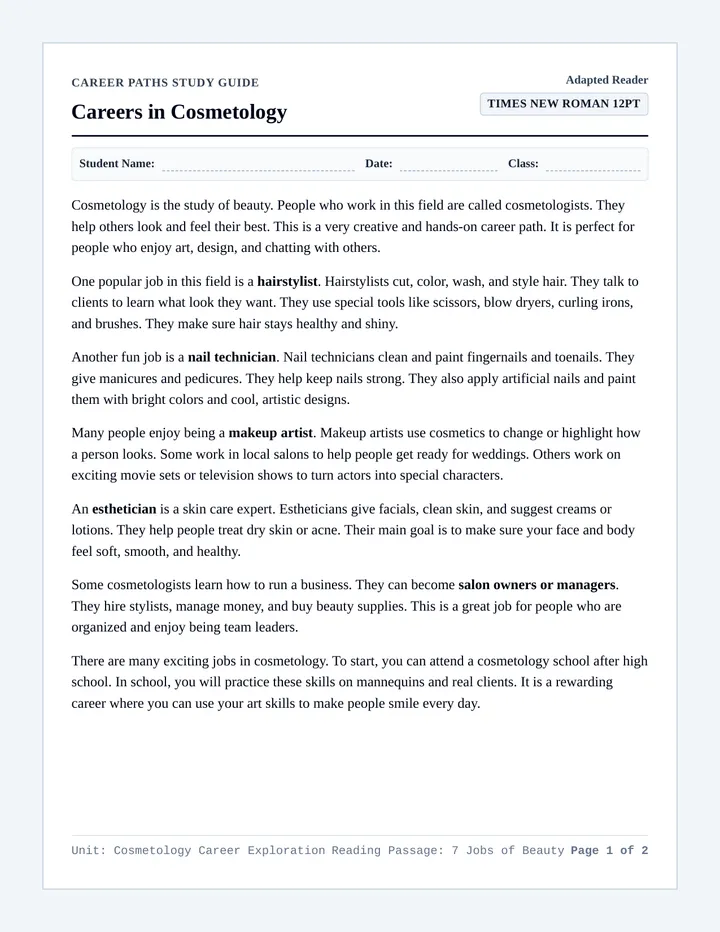
Cosmetology Careers Article Career Paths Study Guide
Careers in Cosmetology
Adapted Reader Times New Roman 12pt
Student Name:
Date:
Class:
Cosmetology is the study of beauty. People who work in this field are called cosmetologists. They help others look and feel their best. This is a very creative and hands-on career path. It is perfect for people who enjoy art, design, and chatting with others.
One popular job in this field is a hairstylist . Hairstylists cut, color, wash, and style hair. They talk to clients to learn what look they want. They use special tools like scissors, blow dryers, curling irons, and brushes. They make sure hair stays healthy and shiny.
Another fun job is a nail technician . Nail technicians clean and paint fingernails and toenails. They give manicures and pedicures. They help keep nails strong. They also apply artificial nails and paint them with bright colors and cool, artistic designs.
Many people enjoy being a makeup artist . Makeup artists use cosmetics to change or highlight how a person looks. Some work in local salons to help people get ready for weddings. Others work on exciting movie sets or television shows to turn actors into special characters.
An esthetician is a skin care expert. Estheticians give facials, clean skin, and suggest creams or lotions. They help people treat dry skin or acne. Their main goal is to make sure your face and body feel soft, smooth, and healthy.
Some cosmetologists learn how to run a business. They can become salon owners or managers . They hire stylists, manage money, and buy beauty supplies. This is a great job for people who are organized and enjoy being team leaders.
There are many exciting jobs in cosmetology. To start, you can attend a cosmetology school after high school. In school, you will practice these skills on mannequins and real clients. It is a rewarding career where you can use your art skills to make people smile every day.
Unit: Cosmetology Career Exploration Reading Passage: 7 Jobs of Beauty Page 1 of 2
Comprehension & Key Details
Idea & Details Check
Student Assignment Times New Roman 12pt
Reading Comprehension Check: Answer the questions below to show your understanding of the **main idea** (the big picture) and **supporting details** (the facts that support the big picture).
Part 1: The Main Idea 1. What is the single main idea of the entire article? (Select the best option below)
A. Hairstylists use curling irons and scissors to style the hair of high school students.
B. There are many creative jobs in cosmetology that help people look and feel their best.