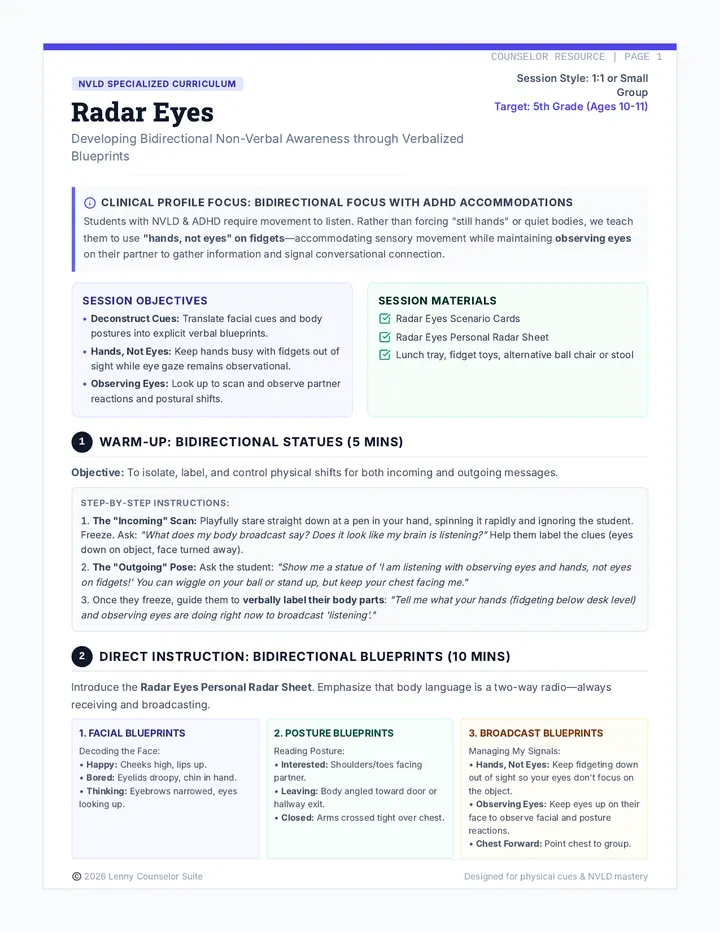
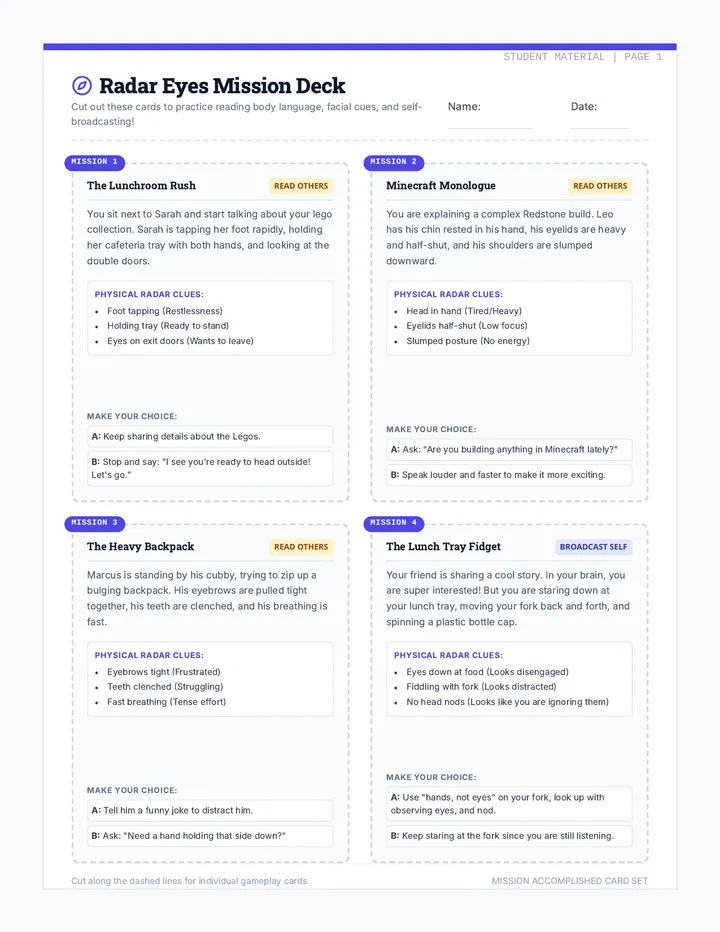
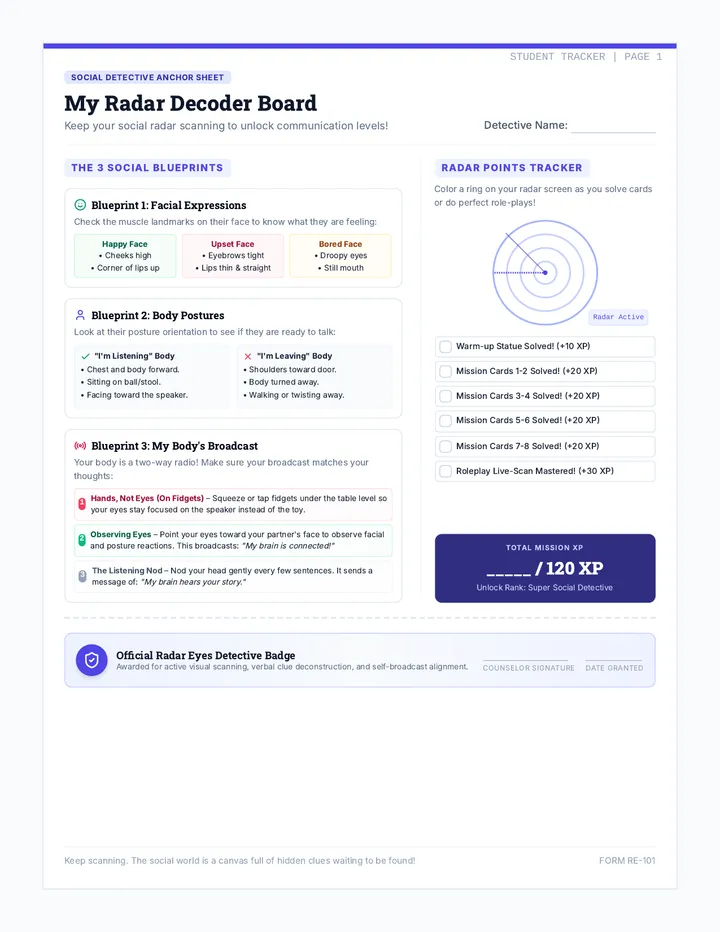
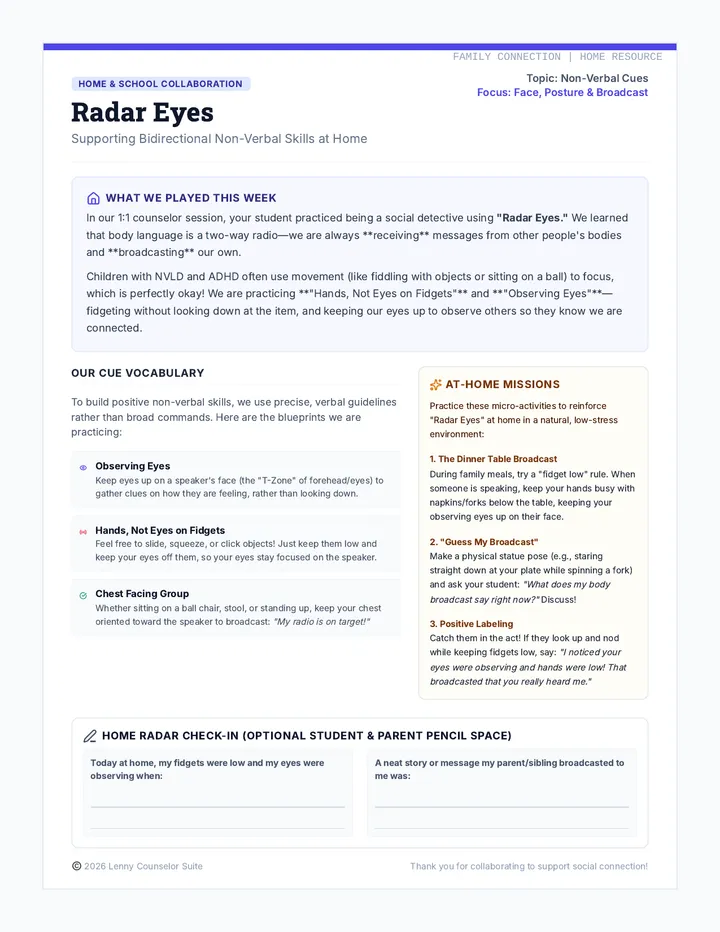
Interface Explorers Slides INTERFACE EXPLORERS
Mastering the Text-to-Speech Control Center
Module 01 // TTS Basics
What is TTS?
Text-to-Speech
Technology that reads digital text aloud. It turns words on a screen into spoken audio.
Why use it?
Helps focus on meaning
Catches tricky words
Gives your eyes a break
Visual Input → Auditory Output
THE COMMAND CENTER
PLAY
Starts reading from the beginning or where you left off.
PAUSE
Holds your place so you can stop and think or take a note.
STOP
Ends the reading session and resets the cursor.
Look for the Floating Toolbar or the Browser Extension icon!
LAUNCH SEQUENCE
1
Open a Document
Could be a PDF, Google Doc, or a website.
2
Locate the Icon
Look at the top right of your browser or your sidebar.
3
Activate
Click to reveal the toolbar. You're ready to read!
Pro Tip
"If you can't find it, check the Extensions puzzle piece icon at the top of Chrome!"
Icon Treasure Hunt Worksheet Icon Treasure Hunt
Unlock the Secret Code using your TTS Toolbar!
Explorer:
Date:
Your mission is to explore your device's Text-to-Speech (TTS) toolbar. Locate the icons described below. Once you find each one, write the Secret Letter in the box. Collect all 5 letters to solve the mystery word!
1. THE GEAR
Find the SETTINGS icon. What is the first letter of the word "Settings"? Write it in the box.
2. THE RUNNER
Find the PLAY button. What is the first letter of the word "Play"? Write it in the box.
3. THE AMPLIFIER
Find the AUDIO or VOLUME icon. What is the first letter of the word "Audio"? Write it in the box.
4. THE BRAIN
Find the INFO or HELP icon. What is the letter inside the circle? Write it in the box.
5. THE EXIT
Find the CLOSE or X button. What is the 11th letter of the alphabet? (A-B-C-D-E-F-G-H-I-J-? ) Write it in the box.
The Mystery Word
Hint: This is what you do when you use TTS! (S _ _ _ _)
Interface Basics Teacher Guide Teacher Resource
Interface Basics Guide
Lesson 01: Introduction to Text-to-Speech Interfaces
Learning Objectives
Identify core TTS icons (Play, Pause, Stop, Settings).
Demonstrate how to launch the TTS toolbar on different document types (PDFs, Webpages).
Understand the purpose of TTS as a focus and comprehension tool.
Lesson Flow
1
The Hook (5-10 min)
Ask: "Have you ever wanted a personal narrator for your books?" Introduce the idea of TTS as a 'Voice Command' center for their computer.
2
Direct Instruction (10-15 min)
Use the Interface Explorers Slides . Model how to find the extension icon and launch the toolbar. Demonstrate Play, Pause, and Stop.
3
Guided Practice (20 min)
Distribute the Icon Treasure Hunt Worksheet . Students explore the actual software on their devices to find the 'secret letters'.
Tech Prep
Ensure the district-approved TTS extension (e.g., Read&Write, Snap&Read) is pinned to the browser for all students before the lesson begins.
Mystery Word Key
SPEAK
1. S (Settings)
2. P (Play)
3. E (Exit/X - 5th clue)
4. A (Audio)
5. K (Knowledge/Info - 4th clue)
Note: Clue order on worksheet is Gear(1), Play(2), Audio(3), Info(4), Exit(5).
Common Misconceptions
"The play button isn't working!"
Students often forget to click on the page first. Remind them to click where they want the reading to start.
"I can't see the toolbar."
Sometimes the toolbar is minimized. Look for a small purple or blue tab on the side of the screen.
Perfect Pitch Slides Perfect Pitch
Customizing Your Sound Experience
Your Ears, Your Rules
Processing Speed
Everyone's brain processes sounds at different speeds. Some like it fast; some like it slow.
Voice Character
Higher or lower voices can be easier for some students to understand or stay focused on.
"The best voice is the one that makes you forget you're using a computer."
THE THREE BIG DIALS
Rate (Speed)
Measured in 'Words Per Minute'. Most people read at 1.0x or 1.25x speed.
Pitch
How high or low the voice sounds. Adjusting pitch makes voices sound more natural.
Voice Name
Switch between names like 'Alex', 'Samantha', or 'Daniel' (UK Accent).
PREMIUM
SYSTEM
LAB TIME!
You are about to become a sound scientist. Your job is to find your "Comprehension Sweet Spot."
The Speed Test:
Can you summarize what the computer said when it was at 2.0x speed? Probably not! Find the speed where you can hear AND think .
Step 1
Pick a short paragraph in your browser.
Step 2
Try Speed A (Slow) vs Speed B (Fast).
Step 3
Log your results in the Voice Lab Report!
Voice Lab Experiment Log Auditory Science Lab
Voice Lab Report
Scientist:
Device ID:
Mission: To find the exact combination of speed and pitch that helps you understand text the best. Listen to the same paragraph using three different settings and record your findings below.
Test
Voice Name
Reading Speed
Pitch / Tone
Understanding
1
0.5x
1.0x
LOW
MID
HIGH
2
1.0x
2.0x
LOW
MID
HIGH
3
Set your own...
My Perfect Profile
Based on my lab results, the best setting for my brain to understand complex text is:
Voice Name:
Speed Rate:
Why this works for me:
Optimal Audio Teacher Guide Teacher Resource
Optimal Audio Guide
Lesson 02: Customizing Voice and Reading Rate
Learning Objectives
Identify personal auditory preferences for voice gender, pitch, and accent.
Calibrate reading rate (words per minute) to maximize comprehension.
Compare the effectiveness of different audio profiles using A/B testing.
Facilitating the Lab
1. The "Too Fast" Trap
Students often try to set the speed to maximum to "finish faster." Monitor for this. Remind them that if they can't summarize what they heard, the tool isn't actually helping.
2. Choice Matters
Allow students to pick an article of their choice for the lab. Interest in the topic makes the comprehension testing more accurate.
3. Accent Exploration
Many TTS tools offer regional accents (UK, Australia, India). For some students, these provide a distinct audio texture that increases engagement.
Discussion Starters
"Does a robotic voice make you feel bored? Why?"
"When would you want to use a SLOW speed? (e.g., hard science text)"
"When would you want a FAST speed? (e.g., scanning for a specific name)"
Pro Tip
Encourage students to close their eyes during Test 3. This forces them to focus entirely on the audio quality and their internal processing without visual distractions.
Differentiating the Lab
For students with significant processing delays, start all tests at 0.75x speed and work downwards. For students with ADHD, try 1.25x speed to match their internal processing rhythm and maintain focus.
Jump To It Slides Jump To It
Mastering Selective Playback
The Efficiency Trap
The Old Way
Click Play at the top...
Wait through the title...
Wait through the menu...
Fall asleep before the facts.
The JUMP-TO Way
Instead of reading everything, we tell the computer exactly where to start. We are the bosses of the voice!
"Read only what I need."
TWO POWER METHODS
Click-to-Speak
1. Activate the 'Speech Pointer' icon.
2. Click the specific sentence or paragraph you want to hear.
3. The computer starts reading instantly .
Select-to-Read
1. Use your mouse to highlight a section.
2. Press the Play button on the toolbar.
3. The computer only reads the selected text.
DON'T BE A ROBOT
Use your eyes to SCAN for keywords (dates, bold words, names). Then use your TTS to READ the details.
Scan First
TTS Second
Jump To Fact Challenge Fact Finder Challenge
Jump to the right paragraph and listen for the answer!
Navigator:
Your Mission: Do not read the whole page! Use Selective Playback (Highlight or Click-to-Read) to find the specific facts below. Check off the method you used for each one.
1
Find the paragraph about Bioluminescence . How does a Jellyfish use its light?
Highlight & Play
Click-to-Speak
2
Look for The Abyss . How many meters deep is the 'Midnight Zone'?
Highlight & Play
Click-to-Speak
3
Find the section on Giant Squids . What is the length of their longest tentacle?
Highlight & Play
Click-to-Speak
Teacher Note: Use the 'Deep Sea Explorers' article (provided in the link) for this activity.
Navigation Strategies Teacher Guide Teacher Resource
Navigation Strategies
Lesson 03: Navigating Specific Text Selections
Learning Objectives
Demonstrate the "Click-to-Speak" (hover) method for targeted reading.
Demonstrate the "Highlight-to-Read" method for specific selections.
Explain why selective reading is more efficient than reading a whole page.
Facilitation Tips
The "Eyes-First" Rule
Model how to scan for bold headings or capitalized keywords before activating the audio. TTS should support the eye's natural search process, not replace it entirely.
Managing the "Hover" Icon
Remind students to turn OFF the Click-to-Speak tool when they are done. Leaving it on can cause accidental reading when they are trying to navigate or click links.
Recommended Text
For the Jump To Fact Challenge , use a text with 4-5 distinct, labeled paragraphs.
Example: National Geographic Kids - "Life in the Deep Sea"
Activity Key
Bioluminescence: "Used to attract prey, hide from predators, or find a mate."
The Abyss: "Begins at 1,000 meters deep (3,280 feet)."
Giant Squids: "Their longest tentacles can be 10 meters long (33 feet)."
Discussion Questions
"When is it better to read the WHOLE page instead of jumping around?"
(Answer: When reading a story or a new topic where order matters.)
"How does jumping around help you when you are doing research for a project?"
(Answer: Saves time, prevents frustration, helps find specific data points.)
Word Wizardry Slides Word Wizardry
Dictionary & Translation Power
STUCK ON A WORD?
"You're reading about volcanoes and you see the word STRATOVOLCANO . You have no idea what it means or how to say it."
Don't just skip it!
Use your Word Wizard tools!
TTS → VOCABULARY
Your TTS tool can read the definition to you, not just the story.
THE DICTIONARY
Select a word and click the book. It gives you the text definition AND a play button to hear it!
PICTURE DICTIONARY
Visual learners: Click the image icon. It shows you what the word looks like (e.g., 'Volcano').
TRANSLATION
Reading in a new language? Highlight a word to hear it translated into your home language.
THE SECRET AGENT TEST
Mission 04
"Your mission is to decode a message filled with 'nonsense' words."
"The PROBOSCIS of the agent was CONSPICUOUS as he searched for the CRYPTIC file."
1
Highlight each underlined word.
2
Use the Dictionary to find the meaning.
3
Write the "real" sentence on your worksheet!
Decoded Definitions Activity Mission: Decode
Use your Word Wizard tools to solve the cryptic message!
Agent ID
Top Secret Transmission
"The PROBOSCIS of the agent was CONSPICUOUS as he searched for the CRYPTIC file."
The Decoder Log
Word
PROBOSCIS
Definition (What the TTS read to me)
Picture Clue
Word
CONSPICUOUS
Definition (What the TTS read to me)
Picture Clue
Word
CRYPTIC
Definition (What the TTS read to me)
Picture Clue
International Agent Bonus
Use the Translation tool. Pick one word and translate it into another language. What language did you pick? What is the word now?
Language:
New Word:
Vocabulary Navigator Teacher Guide Teacher Resource
Vocabulary Navigator
Lesson 04: Utilizing Embedded Dictionaries and Translation
Learning Objectives
Utilize the embedded dictionary to access word definitions and audio pronunciation.
Use the picture dictionary to support visual comprehension of concrete nouns.
Apply translation tools to support vocabulary acquisition in a primary or secondary language.
Facilitation Tips
Picture Dictionary Limits
Remind students that abstract words (like 'justice' or 'cryptic') might not have a clear picture. For those, the text dictionary + audio playback is the primary tool.
Audio Definitions
Model how to click the 'Play' button inside the dictionary window. This helps students who can read the story but struggle with the high-level vocabulary used in definitions.
Activity Key
PROBOSCIS A long, flexible snout or trunk (like an elephant's trunk or an insect's mouthpart).
CONSPICUOUS Easily seen; standing out so as to be clearly visible.
CRYPTIC Having a meaning that is mysterious or obscure.
ELL Support
The translation tool is a game-changer for English Language Learners. Ensure they know how to set their "Home Language" in the TTS settings menu before starting the activity.
Follow-Up Strategy
Have students find a word in their current Science or Social Studies textbook and "Wizard it." They should share the word, the definition they heard, and the picture (if available) with a partner. This bridges the technical skill to real-world academic content.
Tech Troubleshooter Slides GLITCH BUSTERS
Mastering Digital Independence
THE TECH WALL
Technology is great—until it STOPS working.
"I can't hear anything."
"The play button is gone."
"It's reading the wrong language."
YOU ARE THE EXPERT
Today, we learn how to fix our own problems so we can get back to reading without waiting for help!
THE "BIG 3" CHECKLIST
1. PLUGS
• Are headphones plugged in?
• Is the volume up?
• Is the 'Mute' key off?
2. REFRESH
• Click the 'Reload' arrow.
• Close and reopen the tab.
• This fixes 90% of glitches!
3. SETTINGS
• Check voice speed.
• Check language choice.
• Is the extension ON?
ROLE PLAY TIME
A partner has a problem. You are the Tech Support Hero.
The Hero Rule
"Don't do it for them. Guide them through the steps!"
The Goal
Complete your 'Quick Fix Handbook' to keep for later.
Quick Fix Handbook Template Quick Fix Handbook
My TTS Support Guide
1
THE "I CAN'T HEAR IT" CHECKLIST
Check Headphone Plug
Check Device Volume
Check TTS Toolbar Volume
My "Silent Fix" Tip:
2
THE "IT'S GLITCHING" REFRESH
If the voice sounds weird, stops mid-sentence, or doesn't start, try the Power Refresh :
Reload Page
Close & Reopen Tab
Restart Browser
Scenario Solver
Scenario: "The voice is way too fast and I can't understand it!"
Fix:
Open Settings → Adjust Speed to 1.0x
Scenario: "The toolbar is gone!"
Fix:
Scenario: "It's reading the wrong language!"
Fix:
Troubleshooting Teacher Guide Teacher Resource
Troubleshooting Guide
Lesson 05: Troubleshooting and Independent Access
Learning Objectives
Independently solve common hardware issues (plugs, volume, mute).
Demonstrate software recovery steps (refresh, reload, settings check).
Foster digital resilience by attempting three fixes before asking for teacher help.
Role Play: The Tech Hero
Pair students up. Assign one as the "User" and one as the "Tech Support Hero."
Give the "User" one of the scenarios below to 'stage' on their device. The "Hero" must use their handbook to guide the "User" to the fix.
Rule for Heroes:
"Keep your hands behind your back! You can only use your VOICE to tell them what to click."
Staged Glitches
1. The Ghost Voice Unplug headphones halfway. Fix: Push plug in all the way.
2. The Speed Demon Set reading rate to 2.0x. Fix: Go to Settings and reset to 1.0x.
3. The Vanishing Act Minimize the toolbar or close the extension. Fix: Click the 'Puzzle Piece' extension icon and pin/launch TTS.
4. Lost in Translation Change the language to a random one. Fix: Go to Settings → Language → English (US).
Developing the "Ask 3, Then Me" Rule
Transition your classroom management to the "Ask 3, Then Me" model for TTS. Before a student raises their hand for a technical issue, they must have tried: 1. The Plug/Volume Check • 2. The Page Refresh • 3. The Settings Check Only after these three steps should they seek adult intervention. This builds massive confidence in students who use Assistive Technology!