Ignition Slides Ignition and Launch
"Finding your computer's secret voice."
The Secret Button
Did you know your computer has a secret voice ?
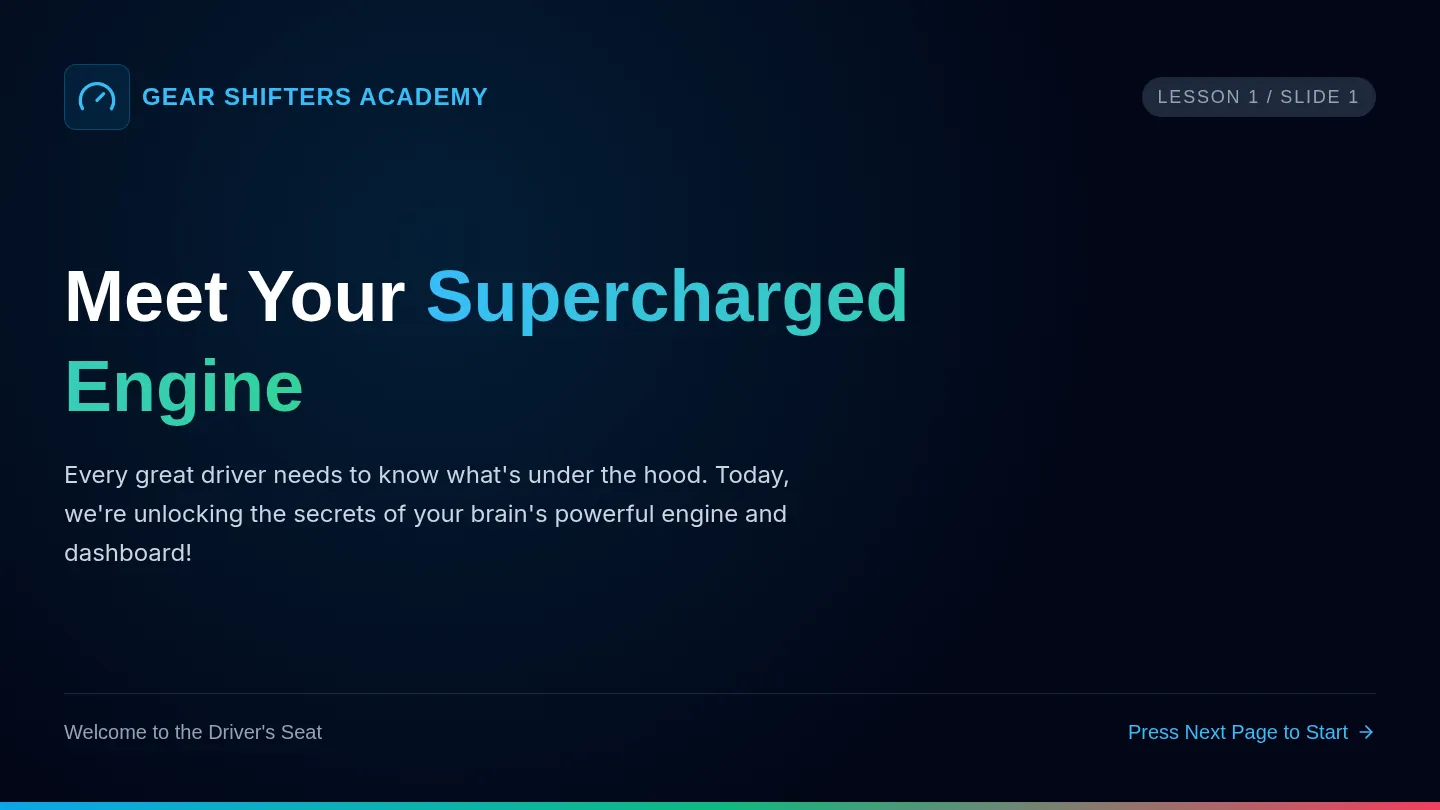
It can read any word on the screen out loud to you. Today, we become pilots and learn how to turn the engines on!
Your Mission Dashboard
The Launch
Look for the "Play" triangle to start the voice.
The Extension
Look at the top of your screen for the voice icon.
The Click
One click wakes up the voice pilot.
Pre-Flight Checklist
1
Open your Chrome browser or reading app.
2
Find the Read&Write or Immersive Reader icon.
3
Click it once to watch the toolbar slide down.
Pilot Challenge!
Can you turn your "reading engines" on in under 10 seconds?
Wait for the teacher's signal... Go!
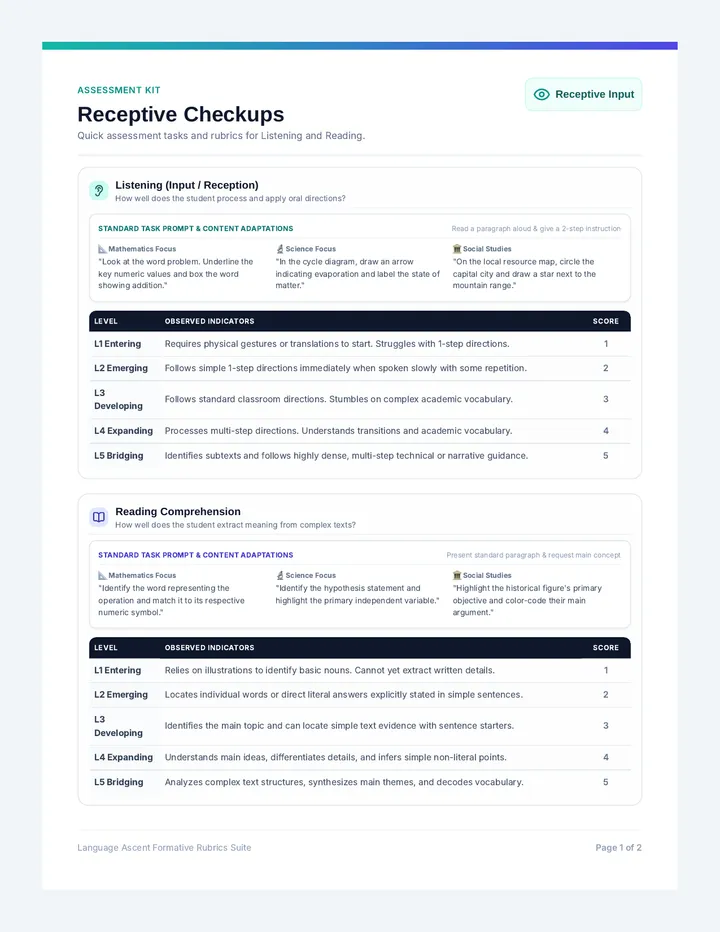
Launch Log Worksheet Launch Log
TTS Mission #1: Ignition & Launch
Pilot Name:
Date:
1
Tool Identification
Which icon looks like the TTS tool on your device? Circle the one that launches your reading engine.
A
B
C
D
2
The Activation Routine
Write down the steps you take to start your TTS tool. Use the words: Find , Click , and Wait .
Step 1:
Step 2:
Step 3:
Mission Challenge: Speed Test
Practice opening your tool. How fast can you do it? Record your times below.
Attempt 1
Attempt 2
Attempt 3
Ignition Teacher Guide Teacher Facilitation Guide
Lesson 1: Ignition and Launch
"Establishing Technical Foundations for TTS"
Target Grade: 4th Grade
Duration: 30-45 mins
Objectives
Locate the TTS extension/feature icon.
Activate the TTS toolbar independently.
Identify common icons (Play, Pause, Stop).
Materials
Ignition Slides
Launch Log Worksheet
Student devices with TTS enabled
Instructional Sequence
0-5 mins
The Hook:
Ask: "Who knows a secret button that makes computers talk?" Introduce the concept of a 'Reading Engine' or 'Voice Pilot'. Use Slide 2.
5-15 mins
Direct Instruction:
Teacher Note: Ensure you are modeling on a projector screen that matches what students see.
Demonstrate locating the icon (e.g., Read&Write purple puzzle piece).
Show the "Launch" process: Click once and wait for the toolbar.
Highlight that clicking multiple times often crashes or hides the tool.
15-35 mins
Guided & Independent Practice:
Distribute the Launch Log Worksheet . Have students identify the icon on paper first, then perform the "Speed Test" on their actual devices. Circulate to troubleshoot technical hurdles.
35-45 mins
Closing:
Group Challenge: Everyone "Launch" at the same time. Check for toolbar presence across the room.
Common Pitfalls
The "Double Click":
Students often click repeatedly if the tool is slow. Teach "One Click and Breath" to allow the tool to load.
Missing Extension:
Ensure extensions are pinned to the taskbar. Demonstrate how to find "missing" extensions in the puzzle-piece menu.
Voice Control Pilot • Lesson 1 Teacher Resource
Playback Power Slides Play & Pause Power
"Controlling the flow of your reading."
"Red Light... Green Light!"
Today, you are in charge of the computer's voice. We are going to practice stopping and starting exactly when we need to.
The Power of the Pause
Wait for me!
Pause if the voice is reading faster than you can think.
What was that?
Pause when you hear a tricky word you don't know.
Let me see...
Pause to look at a picture that matches the words.
Pausing is a
Pro Move
for great readers!
Pilot Simulation #1
"The giant blue whale swam through the deep ocean. It let out a loud song that traveled for miles."
Challenge: Stop the voice after the word whale.
Ready to Race?
In our worksheet, we are going to play Red Light Green Light. You'll need to hit PAUSE at the exact right moment to win.
Keep your mouse over the Pause button!
Red Light Worksheet Red Light Master
Mission #2: Play & Pause Practice
Pilot:
Icon Identification
Draw a line to match the button to its name.
Pause
Stop
Play
The Red Light Challenge
Listen to the teacher read the secret passage with the TTS tool. Your goal is to hit the Pause button exactly after the target word. Check the box if you caught it!
1
Target Word: Adventure
2
Target Word: Scientist
3
Target Word: Suddenly
Why did you need to pause?
Circle the best reason for YOU today:
To think about a word
To catch my breath
To look at a picture
Playback Teacher Guide Teacher Guide
Lesson 2: Play and Pause Power
Focus: Playback Control
Duration: 40 mins
Skill Focus
Students shift from merely turning the tool on to managing the audio stream. The goal is active listening rather than passive consumption.
Immediate reaction to 'Pause' command.
Resuming playback from the same point.
Self-monitoring for comprehension.
Key Vocabulary
Playback: The act of the computer reading the words aloud.
Self-Monitoring: Checking in with yourself to see if you understand the story.
Facilitation: Red Light, Green Light
Setup:
Provide students with a digital copy of a short, high-interest passage (e.g., an article about space or animals).
Gameplay:
Green Light: Students hit "Play" and the computer begins reading.
Red Light: Teacher calls out "Red Light - [Target Word]!" Students must hit "Pause" immediately after that word is read.
Accuracy Check: Have students look at the visual highlight on their screen. Is the highlight on the target word?
Phase 1
Teacher leads the whole class in sync.
Phase 2
Students work in pairs, calling "Red Light" for each other.
Phase 3
Independent practice with reflection on the worksheet.
Discussion Prompts
"What happens to the story in your brain when the computer reads too fast without stopping?"
"How did you feel when you caught the word exactly on time? How did your mouse hand have to be ready?"
Voice Control Pilot • Lesson 2 Teacher Resource
Selection Slides Targeted Selection
"Picking only the words you want to hear."
The Cereal Rule
Imagine you have a bowl of cereal with marshmallows. You don't want to eat the whole bowl—you just want the marshmallows !
Reading with TTS is the same. We don't always need the computer to read the whole page. Sometimes we just need one sentence or one word.
Pick the Best!
The Click-and-Drag Routine
1
Click
Put your mouse at the start of the word.
2
Hold & Drag
Keep holding the button and slide across the words.
3
Play
Let go! Now hit Play to hear only those words.
Selection Challenge
"The golden retriever ran across the green grass to catch the ball."
Challenge: Highlight only the dog's name and listen to it.
Pro Pilot Tip
If you highlight a whole paragraph, the voice will read the whole thing. If you highlight one word, it will read just that one.
You are the Boss of the Voice!
Word Picker Worksheet Word Picker
Mission #3: Targeted Text Selection
Pilot:
How to Select
Click at the start → Hold & Drag → Release at the end.
Part 1: Selective Hearing
Open the digital practice file. Use your mouse to highlight ONLY the words listed below. Once highlighted, hit **Play** to check your work.
Select the word: Astronaut
Did it work?
Select the sentence: The rocket blasted off.
Did it work?
Select the numbers: 3, 2, 1, Liftoff!
Did it work?
Part 2: Marshmallow Mission
Read the text on your screen. You ONLY need to hear the answer to this question:
"What color was the alien's spaceship?"
My Answer:
I used selection to find just this answer. (Check box) [ ]
Bonus Skill
Double-click a single word. Does your computer select just that one word? Try it out!
Selection Teacher Guide Teacher Guide
Lesson 3: Targeted Text Selection
Focus: Mouse Precision
Duration: 45 mins
Instructional Goal
Selection is the bridge between "the computer reading to me" and "me using the computer to read." This lesson moves students from linear reading (beginning to end) to non-linear reading (targeted information seeking).
The "Marshmallow" Analogy:
Emphasize that we only select what we NEED. Reading the whole page takes too long if we just need one fact.
Modeling the "Targeted Tap"
1
Show how to place the cursor at the exact start of a word. Many students start in the middle of the word, which results in partial selection.
2
Model the "Click-and-Drag" motion slowly. Show what happens when you accidentally let go too soon (the "oops" moment).
3
Demonstrate the Double-Click Shortcut to select a single word instantly. This is a high-engagement 'pro tip'.
Differentiation
For Fine-Motor Struggles:
Encourage the use of the Shift + Arrow keys to select text if clicking and dragging is too difficult.
Use text with larger font sizes and wider line spacing.
For Quick Learners:
Challenge them to select text that spans across two different lines.
Teach the "Triple Click" shortcut to select an entire paragraph.
Check for Understanding
"I can tell a student has mastered this if they can highlight a specific 3-word phrase on command and play it back within 5 seconds."
Voice Control Pilot • Lesson 3 Teacher Resource
Navigation Slides Navigation Pro
"Jumping through time and text."
The Time Machine
Have you ever missed a clue in a movie and had to rewind?
Great readers do the same thing! If you miss a word or a sentence, you don't start the whole book over. You just jump back .
Navigation Controls
Jump Back
Takes the voice back to the previous sentence.
Use for: Re-listening
Jump Forward
Skips the voice to the next sentence.
Use for: Skimming
Pro Pilot Strategy: The Re-Listen
1
Hear a confusing word or sentence? Hit Pause .
2
Click Jump Back once to go back one sentence.
3
Hit Play and listen again carefully.
Treasure Hunt!
In our next activity, I will hide clues in a story. You'll need to jump forward to find them and jump back if you miss one!
Navigator Mode: ACTIVATED
Clue Hunter Worksheet Clue Hunter
Mission #4: Navigation Pro
Navigator Name:
Jump Back
Go back 1 sentence
Jump Forward
Go forward 1 sentence
The Mystery of the Missing Key
"The old castle was dark and quiet. Leo walked through the heavy wooden doors. Suddenly, he heard a strange metallic sound. It was coming from the silver box on the table. Inside the box, he found a map made of gold."
— End of Passage —
Navigation Tasks:
1
Play the whole story. As soon as it finishes, use Jump Back until you hear the word metallic again. What made that sound?
2
Use Jump Forward to skip the first two sentences. What was the map made of?
Navigator's Log
How many times did you have to "Jump Back" today to understand the story?
0 Times
1-3 Times
4+ Times
Great navigators jump back whenever they need to!
Navigation Teacher Guide Teacher Guide
Lesson 4: Navigation Pro Master
Focus: Navigational Fluency
Duration: 40 mins
The "Jump" Concept
Navigation is often the most overlooked TTS skill. Students tend to either listen to everything from the start or stop entirely when confused. "Jumping" introduces the idea that digital reading is dynamic and controlled .
Mastering the "Jump" Buttons
Jump Back (Skip Back):
Model this as the "I missed it" button. Show students that clicking it once moves the highlight bar up to the start of the current or previous sentence.
Jump Forward (Skip Forward):
Model this as the "Boring" or "Already Know It" button. Show how it allows them to skim through text to find specific keywords.
Managing the "Clue Hunter" Activity
Check for Listening:
Students must have the passage open digitally to perform the jump tasks. The physical worksheet is for recording their findings.
Observation Tip:
Watch students' screens. Are they clicking "Jump Back" multiple times to find a specific sentence, or are they getting frustrated and starting from the beginning? Intervene to model "Incremental Jumping."
Questions to Ask
"Why is jumping back faster than highlighting the word again?"
"When you jump forward, how do you know you didn't skip the important part?"
Voice Control Pilot • Lesson 4 Teacher Resource
Routine Slides Solo Flight Routine
"Becoming an independent Navigator."
Mission: Independence
Today, you are the pilot in command. You don't need a co-pilot to tell you when to turn on your engines or how to navigate.
Are you ready for take-off?
The Pre-Flight Routine
Open
Find your digital document.
Activate
Launch your TTS toolbar.
Check
Ensure your volume is ready.
Read
Start with your target text.
Today's Solo Mission
1. Open the "Earth Day Facts" document.
2. Set up your tools without asking for help.
3. Use selection to read 3 facts.
4. Use navigation to hear one fact twice.
Pilot Check-in
"I can use my tools to understand what I'm reading—all by myself!"
Wings Earned!
Once you complete your solo flight, you will be a certified Voice Control Pilot. You can use these tools whenever you need them.
Mission Accomplished
Pre-Flight Checklist Pre-Flight Checklist
Independence Mission
Pilot:
Mission Ready
I have opened the correct website or document for reading.
Engine Ignition
I have clicked my TTS icon and my toolbar is visible.
Audio Check
My headphones are plugged in and my volume is comfortable.
Target Selection
I have highlighted the words I want to hear first.
Solo Pilot Reflection
What was the hardest part of setting up your flight today?
I set up my tools... (Circle one)
Completely on my own!
With 1 small hint.
Pilot Assessment Guide Performance Assessment
Lesson 5: Solo Flight Routine
Focus: Mastery & Independence
Grade: 4th Grade
Assessment Goal
This is a performance-based assessment. Instead of a written test, observe students during a natural reading task. Grade them on their ability to execute the routine independently .
Skill Area Developing (1) Proficient (2) Mastery (3) Setup/Activation Needs multiple prompts to find/launch icon. Launches tool independently with minor hesitation. Launches tool immediately and correctly. Selection Struggles to highlight specific target words. Highlights correct sentences most of the time. Precise selection of target text with high accuracy. Navigation Restarts whole page instead of jumping back. Uses "Jump Back" with teacher suggestion. Spontaneously uses "Jump Back" for re-listening. Playback Control Passive listening; rarely uses pause button. Pauses occasionally to look at pictures. Actively uses play/pause to match comprehension.
Observation Clipboard
Student Name:
Score:
Technical Hurdles Observed:
Student is ready for independent reading time.
Voice Control Pilot • Lesson 5 Teacher Resource