TTS Interface Explorer Slides TTS INTERFACE EXPLORER
Mastering the controls and layouts of assistive reading technology.
System Version 1.0 // Unit: TTS Mastery
The Silent Challenge
[Video Placeholder: A UI without labels]
Look at the screen. Without any sound or words, can you identify:
1
Where do you click to START?
2
Where do you click to STOP?
3
Where is the "Settings" gear?
Universal Controls
Play
Starts the reading from the cursor.
Pause
Temporarily stops the audio.
Stop
Ends the session and resets.
Options
Voice, speed, and highlight settings.
Anatomy of the Toolbar
1
Hover vs. Selection
Does it read where you click, or what you highlight?
2
Visual Tracking
Does it highlight the word, the sentence, or both?
3
Floating vs. Docked
Can you move the toolbar, or is it stuck at the top?
Your Mission
Compare 2 different TTS tools on your device. Which one is less distracting? Which one has better icons?
Open your "Interface Matchup Activity" to begin.
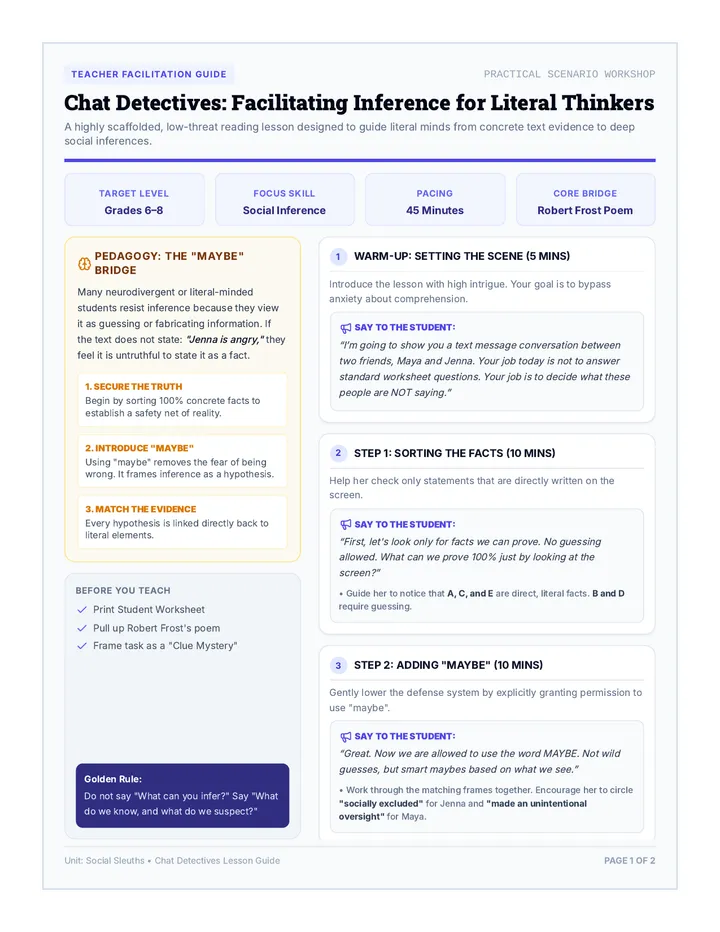
Interface Matchup Activity Interface Matchup
UNIT: TTS TECHNICAL MASTERY // LESSON 1
Student:
Date:
The Objective
Every Text-to-Speech (TTS) tool looks different. Your job is to test two different tools and decide which interface helps you focus best.
Feature
Tool A: __________
Tool B: __________
Icon Clarity
Are the play/pause/stop icons easy to find?
Toolbar Position
Is it at the top, bottom, or floating?
Tracking Style
How does it highlight words as it reads?
One-Click Start
Can you start it with just 1 click?
Final Selection
Which tool has the better interface for you?
Tool A
Tool B
Why did you choose this tool? (Mention specifically: icons, location, or distractions)
Favorite Feature
Most Distracting Part
FILE: TTS_MATCHUP_V1.PDF // MASTERING INTERFACES
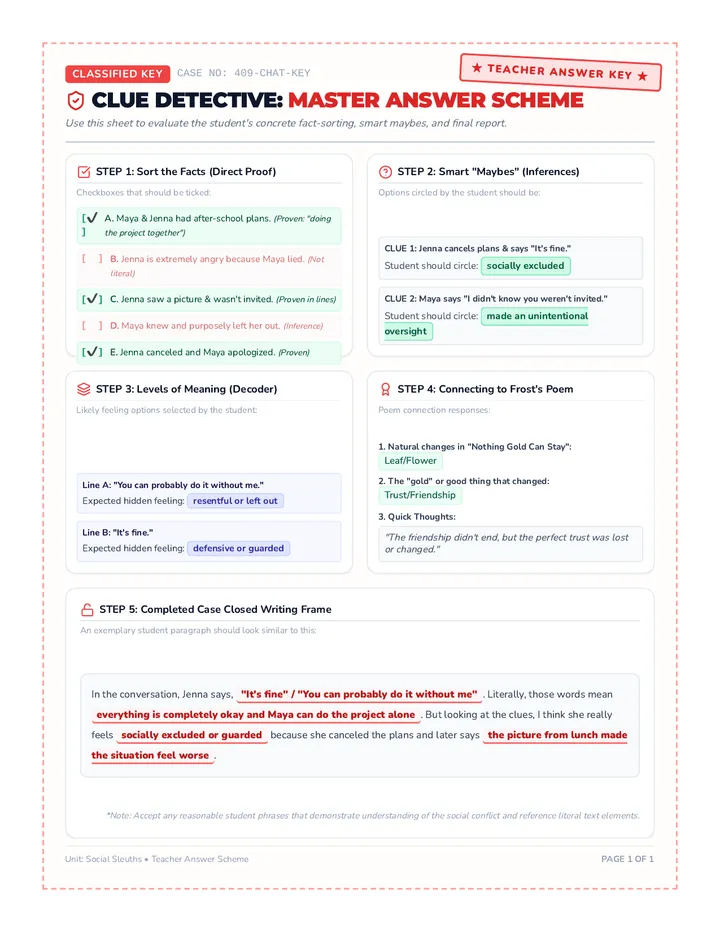
TTS Discovery Teacher Guide Teacher Guide
Lesson 1: Interface Explorer
SKILL: SOFTWARE NAV
TIME: 45 MIN
Lesson Objective
Students will deconstruct the visual components of Text-to-Speech (TTS) tools to understand how interface design affects their ability to focus and read. By the end of this lesson, students will have selected a "primary" tool based on visual ergonomics.
Key Vocabulary
• Interface (UI)
• Toolbar
• Tracking/Highlighting
• Floating vs. Docked
• Distraction-Free
The Hook: The Silent Challenge (10 min)
Setup: Project a screen recording of a TTS tool in action, but mute the computer and cover any text labels with digital sticky notes (if possible).
Question: "If you didn't know how to read, could you still use this tool?" Have students guess what each icon does based solely on its shape. This builds empathy for the importance of clear iconography.
Guided Discovery (15 min)
1. Identify Platform Tools: List the TTS tools available (e.g., Read&Write, Immersive Reader, ChromeVox, Speak Selection).
2. Demonstrate Anatomy: Show the difference between a Floating Toolbar (which can move) and a Docked Toolbar (which stays at the top).
3. Tracking Check: Ask students: "Does the highlight jump word-by-word, or is it a whole line?" Note which one is easier for their eyes to follow.
The Matchup Activity (20 min)
Teacher Tip: Common Misconception
Students often pick the tool with the most "cool" buttons. Encourage them to pick the one with the least distractions. Explain that "Busy" interfaces can make reading harder for the brain to process.
Differentiation Strategies
For Students with Visual Impairments
Focus on keyboard shortcuts (Lesson 3) early. Compare high-contrast mode vs. standard mode in the interfaces.
For ELL/Multilingual Learners
Look for tools that offer interface labels in their home language, or icons that are culturally universal.
Audio Optimization Slides AUDIO TUNING
Finding Your Personal Listening Comprehension Zone
Speed Racer Challenge
How fast can you listen and still LEARN?
Live Test
Level 1: 150 WPM
Average conversational speed. Great for new information.
Level 2: 250 WPM
Brisk and efficient. Good for reviewing familiar text.
Level 3: 400+ WPM
"Scanning" speed. Used to find specific keywords quickly.
Finding the "Sweet Spot"
Too slow? Your mind wanders.
Too fast? You miss the facts.
Voice Personalities
The Naturalist
High-quality, human-like voices with natural inflection. Best for stories and literature.
The Precisionist
System voices that are very clear but a bit robotic. Best for technical facts and math.
The Specialist
Voices with different accents or languages. Helps match the tone of the text.
The Hidden Settings
Voice Pitch
High pitch can feel "energetic," while low pitch can feel "calming." Which helps you stay awake?
Inter-Sentence Pause
Adding a small gap between sentences gives your brain time to process what it just heard.
Expert Tip
The best setting for a Science Textbook might be different than the setting for a Poem . Expert users change their settings based on what they are reading!
Speed Racer Tracking Sheet Speed Racer Log
Auditory Processing Experiment
Pilot:
Date:
Mission Briefing
Listen to the same paragraph at three different speeds. After each round, answer one fact question. This will help you find your Optimal Processing Zone .
ROUND 1: Baseline Speed (150-175 WPM)
Easy / Conversational
Comprehension Question Answer
How did it feel?
Too Slow
Just Right
Too Fast
ROUND 2: Challenge Speed (225-275 WPM)
Focused / Brisk
Comprehension Question Answer
How did it feel?
Too Slow
Just Right
Too Fast
ROUND 3: Extreme Speed (350+ WPM)
Scanning Only
Comprehension Question Answer
How did it feel?
Too Slow
Just Right
Too Fast
The Winning Tuning
My Optimal WPM for learning:
____ WPM
This is where I can understand the facts without getting bored or overwhelmed.
My Favorite Voice Type:
____________________
Example: "Samantha (Natural)" or "Microsoft David (System)"
Proprietary Data Log // Optimal Audio Tuning // v2.0
My Audio Profile Reference Card My Audio Profile
TTS System Calibration
NAME: ___________________
OPTIMAL SPEED: ______ WPM
GO-TO VOICE: ___________________
PITCH SETTING:
Low
Med
High
Special Adjustments
MUTE
Profile Active
Cut Here
My Audio Profile
TTS System Calibration
Duplicate Card
Shortcut Power Slides CTRL
ALT
SHORTCUT POWER
Navigate complex documents like a pro. Forget the mouse; master the keys.
Level 3: Expert Navigation
The "Non-Stop" Trap
Standard Reading
The computer starts at the very top of the page. It reads the Header , the Page Number , and the Caption before it ever gets to the actual lesson.
"Result: You lose focus before the first sentence."
The Power Move: Skipping
Expert TTS users don't listen to everything. They use shortcuts to jump straight to the content they need.
Skip Paragraph
Skip Heading
Read Selection Only
The "Big Three" Commands
Start / Stop
Toggle the reading on and off instantly.
Ctrl + Alt + P
Speed +/-
Change the rate without opening settings.
Ctrl + Alt + > / <
Jump Forward
Skip to the next sentence or paragraph.
Ctrl + Alt + K
*Shortcuts vary by tool (Read&Write shown). Check your specific tool's guide!*
Document Scavenger Hunt
I am giving you a 5-page PDF with charts, sidebars, and captions. Your mission: Find the secret keyword using ONLY shortcuts.
NO MOUSE ALLOWED
Keep your hands on the home row.
SPEED IS KEY
Skip the headers to find the gold.
Document Scavenger Hunt Activity Document Hunt
Technical Skill: Non-Linear Navigation
NAME: ____________________
TIME LIMIT: 15 MINUTES
Your Mission
Using the provided "Complex Document PDF," use your TTS shortcuts to navigate and find the information below. Bonus: Keep your mouse hands behind your back!
Task 1: Skip the Noise
Navigate to Page 3. Skip the header and the sidebar. What is the first word of the second paragraph?
Answer...
Task 2: Sidebar Hunter
Find the "Fun Fact" sidebar on Page 2. What is the year mentioned in the second sentence?
Answer...
Task 3: Speed Shift
Use shortcuts to increase your speed to 2.0x. Listen to the caption under the main image. What color is the ship?
Answer...
Task 4: Selection Scan
Highlight ONLY the last paragraph of the document. What is the final word of the text?
Answer...
Navigation Reflection
Which shortcut was most useful today?
What part of the document was hardest to "Skip"?
TTS Shortcut Desk Cards Shortcut
Power Card
Play/Pause Ctrl+Alt+P
Stop Ctrl+Alt+S
Faster Ctrl+Alt+>
Slower Ctrl+Alt+<
Skip Fwd Ctrl+Alt+K
Screenshot Ctrl+Alt+R
Expert Reader Tool
Shortcut
Power Card
Play/Pause Ctrl+Alt+P
Stop Ctrl+Alt+S
Faster Ctrl+Alt+>
Slower Ctrl+Alt+<
Skip Fwd Ctrl+Alt+K
Screenshot Ctrl+Alt+R
Expert Reader Tool
Print and tape to student desks or keyboards for quick reference.
OCR Magic Slides OCR MAGIC
Unlocking Static Text
Image -> Text -> Audio
The "Dead" Document
The Inaccessible File
Have you ever tried to use TTS on a document and it says "No text found" ?
Photos of textbooks
Old scanned PDFs
Screenshots of articles
To the computer, this is just a picture, not words.
How OCR Works
1. Capture
Take a high-quality photo or scan of the text.
2. Recognize
OCR software "reads" the shapes and turns them into letters.
3. Listen
Now your TTS tool can see the text and read it aloud.
Power Tool: Screenshot Reader
Sometimes you don't need to convert the whole file. Just use the Screenshot Reader tool to "draw" a box around the text you want to hear.
When to use it:
Captions, complicated charts, or text inside a video.
Drawing the box...
Text Unlocker Workshop Activity Text Unlocker
OCR Workshop // Lesson 4
Technician:
System Date:
01
Spot the "Dead" Text
Which of these items would REQUIRE an OCR tool to read? Circle all that apply.
A Word Doc
Photo of a Page
Website Graphic
An Email
02
The Screenshot Test
Follow your teacher's link to the "Image Puzzle." Use your Screenshot Reader to read the words hidden inside the image.
Hidden Sentence 1:
Hidden Sentence 2:
03
Full File Conversion
What are the 3 steps to convert a physical handout into a digital file you can listen to?
Step 1
Step 2
Step 3
Pro Tech Tip
If OCR isn't working, make sure your photo is bright and not blurry .
Status: Mastering System
Troubleshooting Pro Slides TECH SAVER
Mastering Independence
The Panic Moment
The teacher says: "Start reading now."
You click play. Nothing happens.
Don't Raise Your Hand... Yet.
Every minute you wait for a teacher to help is a minute you aren't learning. Expert users are their own tech support.
The "Big 4" Glitches
1. Silent Audio
Check: Headphones, System Mute, and Browser Tab Mute.
2. No Text Found
Solution: Use the OCR Screenshot Reader (Lesson 4).
3. Reading Too Fast
Solution: Reset your speed to 1.0x and start over.
4. Frozen Toolbar
Solution: Refresh the page (Ctrl + R).
TTS Escape Room
I have sabotaged your computer. You have 15 minutes to solve 3 technical glitches to "unlock" the final audio message.
STATION A: THE MUTE
STATION B: THE PIC
STATION C: THE SPEED
My Quick Fix Guide Handout Quick Fix Guide
Technical Independence Protocol
Technician:
No Sound?
Check physical headphone plug.
Check system volume bar.
Check browser tab mute icon.
Check TTS voice volume.
Status: Offline
No Text?
Use Screenshot Reader (Scan box).
Refresh the page (Ctrl + R).
Check if page is still loading.
Select text first, then Play.
Status: Searching
Acting Odd?
Change Voice (Try Naturalist).
Slow down speed to 1.0x.
Log out and Log back in.
Close extra browser tabs.
Status: Recalibrating
My 1-Minute Rule
If you can't fix it in 60 seconds using the guide above, what is your next professional step?
End of Technical Training // Personal Independence Guide // v1.0
TTS Escape Room Challenge Assessment Final Assessment
TTS Escape Room Challenge
ID: ____________________
CLEARANCE: LEVEL 5
System Override Protocol
You have 15 minutes to solve the following 3 glitches. Once a glitch is solved, it will reveal a "Success Word." Write them down to unlock the final message.
Challenge 1: Silence
"The audio is working, but it's playing on MUTE in the browser."
Success Word...
Challenge 2: Invisible
"The text is trapped inside a PNG image on the screen."
Success Word...
Challenge 3: Rocket
"The voice is set to 500 WPM. You must slow it down to 1.5x."
Success Word...
Independence Check
"How has customizing your TTS settings changed the way you read digital documents? Give 2 specific examples."
Essential Question Response:
Why is knowing how to fix your own technology a "lifelong skill"?
Mastery Verified
You are now an Expert TTS Operator.
Final Clearance // TTS Technical Mastery // Mission Complete