Cloud Comms Study Guide Intro to Business • Study Guide
Cloud Comms Study Guide
30-Minute Reference
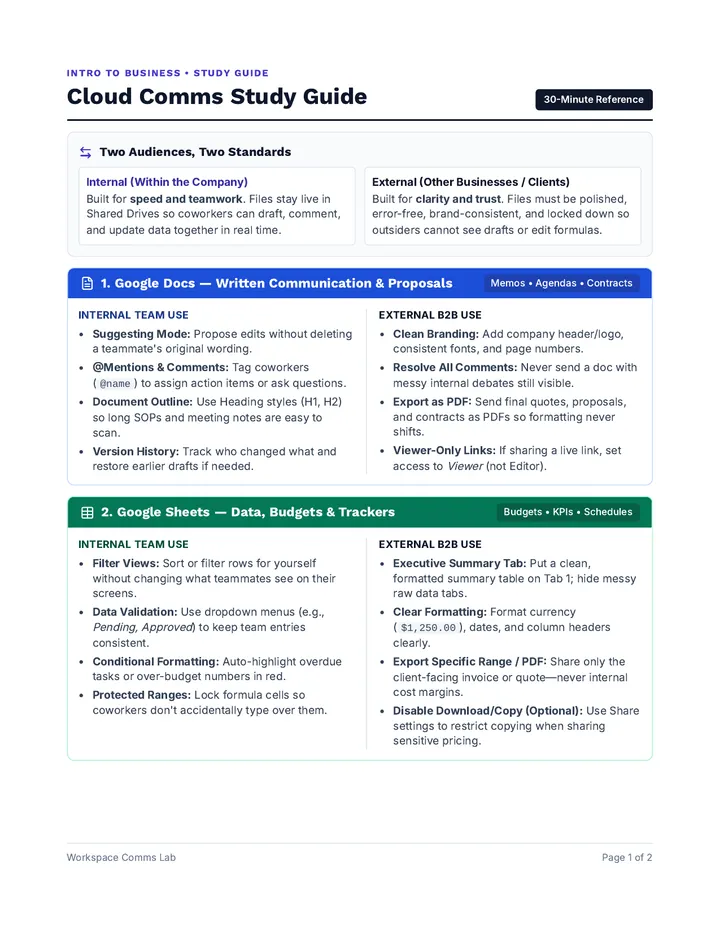
Two Audiences, Two Standards
Internal (Within the Company)
Built for speed and teamwork . Files stay live in Shared Drives so coworkers can draft, comment, and update data together in real time.
External (Other Businesses / Clients)
Built for clarity and trust . Files must be polished, error-free, brand-consistent, and locked down so outsiders cannot see drafts or edit formulas.
1. Google Docs — Written Communication & Proposals
Memos • Agendas • Contracts
Internal Team Use
Suggesting Mode: Propose edits without deleting a teammate's original wording.@Mentions & Comments: Tag coworkers (@name) to assign action items or ask questions.Document Outline: Use Heading styles (H1, H2) so long SOPs and meeting notes are easy to scan.Version History: Track who changed what and restore earlier drafts if needed.
External B2B Use
Clean Branding: Add company header/logo, consistent fonts, and page numbers.Resolve All Comments: Never send a doc with messy internal debates still visible.Export as PDF: Send final quotes, proposals, and contracts as PDFs so formatting never shifts.Viewer-Only Links: If sharing a live link, set access to Viewer (not Editor).
2. Google Sheets — Data, Budgets & Trackers
Budgets • KPIs • Schedules
Internal Team Use
Filter Views: Sort or filter rows for yourself without changing what teammates see on their screens.Data Validation: Use dropdown menus (e.g., Pending, Approved ) to keep team entries consistent.Conditional Formatting: Auto-highlight overdue tasks or over-budget numbers in red.Protected Ranges: Lock formula cells so coworkers don't accidentally type over them.
External B2B Use
Executive Summary Tab: Put a clean, formatted summary table on Tab 1; hide messy raw data tabs.Clear Formatting: Format currency ($1,250.00), dates, and column headers clearly.Export Specific Range / PDF: Share only the client-facing invoice or quote—never internal cost margins.Disable Download/Copy (Optional): Use Share settings to restrict copying when sharing sensitive pricing.
Workspace Comms Lab Page 1 of 2
Cloud Comms Study Guide (Continued) Slides, Sharing Rules & Tool Selection
3. Google Slides — Presentations & Visual Pitches
Pitches • Reviews • Training
Internal Team Use
Speaker Notes: Write talking points below the slide so teammates can present your deck seamlessly.Slide Comments: Leave feedback on specific charts or headlines without crowding the slide canvas.Linked Charts: Paste charts from Google Sheets with Link to spreadsheet so numbers update in one click.
External B2B Use
One Idea Per Slide: Keep text brief (bullet fragments, not paragraphs) and use large, readable fonts.Master Theme Consistency: Use one cohesive color palette and logo placement across every slide.PDF or Viewer Link: Send a PDF leave-behind after a pitch meeting, or a Viewer link for remote viewing.
The Golden Rules of Sharing & Permissions
Standard
Internal Team (Coworkers)
External (Clients / Partners)
Access Level
Editor or Commenter inside a company Shared Drive.Viewer (or Commenter only during active contract review).
Link Settings
Restricted to Your Company Domain .
Share with specific email addresses —avoid "Anyone with the link" for confidential files.
Best Format
Live Google Doc / Sheet / Slide link for real-time updates.
PDF export for final proposals, invoices, and pitch leave-behinds.
Pre-Send Check
Clear title, named tabs, and @mentions for owners.
Zero unresolved comments, no draft notes, spelling checked, brand logo intact.
Quick Decision Matrix: Which Tool Should I Use?
Choose Docs when...
You need detailed paragraphs, policies, meeting notes, or a formal written proposal.
Choose Sheets when...
You need calculations, budgets, timelines, inventory lists, or sortable tables.
Choose Slides when...
You are pitching an idea, leading a meeting, or summarizing visuals for executives.
Workspace Comms Lab Page 2 of 2
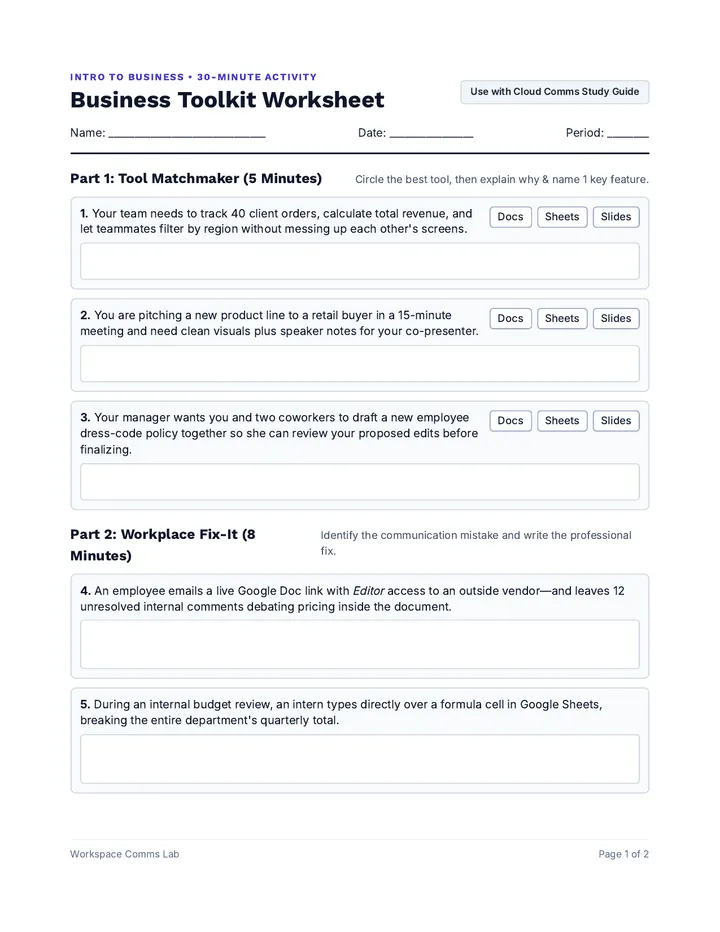
Business Toolkit Worksheet Intro to Business • 30-Minute Activity
Business Toolkit Worksheet
Use with Cloud Comms Study Guide
Name: ______________________________
Date: ________________
Period: ________
Part 1: Tool Matchmaker (5 Minutes)
Circle the best tool, then explain why & name 1 key feature.
1. Your team needs to track 40 client orders, calculate total revenue, and let teammates filter by region without messing up each other's screens.
Docs Sheets Slides
2. You are pitching a new product line to a retail buyer in a 15-minute meeting and need clean visuals plus speaker notes for your co-presenter.
Docs Sheets Slides
3. Your manager wants you and two coworkers to draft a new employee dress-code policy together so she can review your proposed edits before finalizing.
Docs Sheets Slides
Part 2: Workplace Fix-It (8 Minutes)
Identify the communication mistake and write the professional fix.
4. An employee emails a live Google Doc link with Editor access to an outside vendor—and leaves 12 unresolved internal comments debating pricing inside the document.
5. During an internal budget review, an intern types directly over a formula cell in Google Sheets, breaking the entire department's quarterly total.
Workspace Comms Lab Page 1 of 2
Business Toolkit Worksheet (Continued) Name: ________________________
Part 3: Real-World Case — BrightPath Marketing (12 Minutes)
Scenario:
You work at BrightPath Marketing . Your 3-person team needs to (A) collaborate internally to build a Q4 campaign budget in Google Sheets and write a campaign brief in Google Docs, and (B) deliver a polished external pitch deck in Google Slides to a new client, Apex Retail .
6. Internal Teamwork: Name two specific Google Docs or Sheets features your 3-person team should use while building the brief and budget so nobody overwrites each other's work.
7. External Delivery: Before sharing the Google Slides pitch deck with Apex Retail, what two steps should you take regarding formatting, file format, or sharing permissions?
8. Client Message: Write a brief 3–4 sentence professional email to the Apex Retail team introducing your attached PDF pitch deck and explaining how to reach out with questions.
30-Second Self-Check Before Turning In:
[ ] Named specific tool features [ ] Checked internal vs. external permissions [ ] Professional client tone
Workspace Comms Lab Page 2 of 2
Business Toolkit Answer Key Teacher Resource • Answer Key & Pacing
Business Toolkit Answer Key
30-Minute Lesson Plan
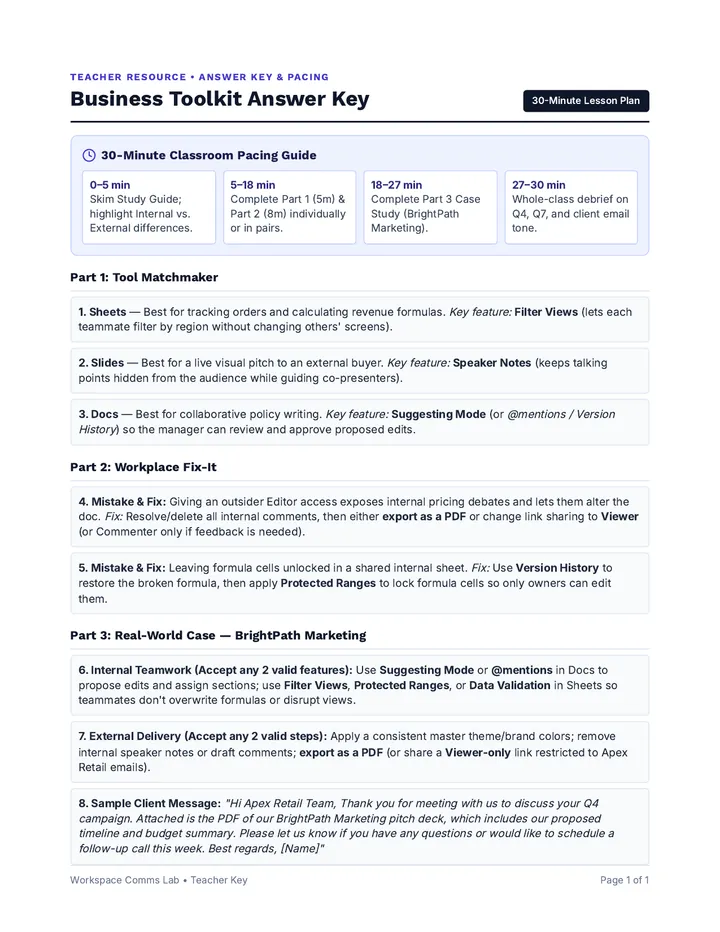
30-Minute Classroom Pacing Guide
0–5 min
Skim Study Guide; highlight Internal vs. External differences.
5–18 min
Complete Part 1 (5m) & Part 2 (8m) individually or in pairs.
18–27 min
Complete Part 3 Case Study (BrightPath Marketing).
27–30 min
Whole-class debrief on Q4, Q7, and client email tone.
Part 1: Tool Matchmaker
1. Sheets — Best for tracking orders and calculating revenue formulas. Key feature: Filter Views (lets each teammate filter by region without changing others' screens).
2. Slides — Best for a live visual pitch to an external buyer. Key feature: Speaker Notes (keeps talking points hidden from the audience while guiding co-presenters).
3. Docs — Best for collaborative policy writing. Key feature: Suggesting Mode (or @mentions / Version History ) so the manager can review and approve proposed edits.
Part 2: Workplace Fix-It
4. Mistake & Fix: Giving an outsider Editor access exposes internal pricing debates and lets them alter the doc. Fix: Resolve/delete all internal comments, then either export as a PDF or change link sharing to Viewer (or Commenter only if feedback is needed).
5. Mistake & Fix: Leaving formula cells unlocked in a shared internal sheet. Fix: Use Version History to restore the broken formula, then apply Protected Ranges to lock formula cells so only owners can edit them.
Part 3: Real-World Case — BrightPath Marketing
6. Internal Teamwork (Accept any 2 valid features): Use Suggesting Mode or @mentions in Docs to propose edits and assign sections; use Filter Views , Protected Ranges , or Data Validation in Sheets so teammates don't overwrite formulas or disrupt views.
7. External Delivery (Accept any 2 valid steps): Apply a consistent master theme/brand colors; remove internal speaker notes or draft comments; export as a PDF (or share a Viewer-only link restricted to Apex Retail emails).
8. Sample Client Message: "Hi Apex Retail Team, Thank you for meeting with us to discuss your Q4 campaign. Attached is the PDF of our BrightPath Marketing pitch deck, which includes our proposed timeline and budget summary. Please let us know if you have any questions or would like to schedule a follow-up call this week. Best regards, [Name]"
Workspace Comms Lab • Teacher Key Page 1 of 1