Construct It Slides Unit 5, Lesson 3 Grades 7–8 Computer Science
Construct It!
Program Flow & Python Control Structures
1. Sequence
2. Selection
3. Iteration
Construct 1
What Is Program Flow?
Program Flow
The order in which lines of code are executed.
Sequence
Running code line by line from top to bottom without skipping around.
Line 1 print("Step 1")
Line 2 print("Step 2")
Line 3 print("Step 3")
Construct 2
Selection: Making Choices
Everyday Logic
The average person makes about 35,000 choices every day using if conditions.
☔ If it is raining, wear a jacket.
📱 If a friend texts me, text back.
In Python
We make choices through the selection construct using an if statement.
Python Syntax
Writing an if Statement
name = input("What is your name?")
if name == "Spiderman":
print("That's my name too!")
== vs =
Use == to compare values; = stores a value.
Colon :
Every if statement must end with a colon.
Indent (Tab)
Indent the next line to put it inside the if block.
Two Paths
Or Else! Adding else
name = input("What is your name?")
if name == "Spiderman":
print("That's my name too!")
else:
print("That's a cool name.")
When False
else: runs only when the if condition is false.
Alignment
Line up else: with if, and indent its print line.
Construct 3
Iteration: Looping Code
Iteration means repetition. Instead of writing 10 separate print statements, use a loop!
for Loop
Best when you know the exact number of times you want to repeat.
while Loop
Best when you don't know how many times the loop needs to repeat.
Iteration
The for Loop & range()
for i in range(1, 11):
print(i)
Variable i
Holds the current number on each pass of the loop.
Why 11?
Python stops counting at 1 less than the end number.
Output
Prints numbers 1 through 10 cleanly.
Pro Tip
Range Tip: Starting at Zero
Using a single number in range() always starts counting at 0.
range(10)
Prints 0 – 9
10 numbers total
range(15)
Prints 0 – 14
15 numbers total
range(20, 31)
Prints 20 – 30
Custom start & stop
Iteration
Counting with a while Loop
count = 1
while count <= 10:
print(count)
count = count + 1
Manual Counter
You must create count and add 1 yourself.
for vs while
A for loop updates automatically, making it shorter for counting.
Unknown Repeats
Looping Until Correct
answer = int(input("What is 12 x 13?"))
while answer != 156:
answer = int(input("Incorrect! Try again. 12 x 13 = ?"))
print("You got it!")
int()
Converts user input into a whole number (integer).
!=
Means "not equal to" (! means not).
Outside Loop
"You got it!" runs only after exiting the loop.
Put It All Together
Plan Your Quiz Game First!
Planning before coding helps you avoid mistakes.
Set a variable named points to 0.
Ask a question and store the input in answer.
Use a loop to give the user three tries to guess.
If correct, add 1 to points and break out of the loop.
Print the final points at the end of the program.
Many Solutions
Two Ways to Code the Quiz
Option A: for + break
for i in range(2):
if answer == "nucleus":
points = points + 1
break
else:
answer = input("Try again...")
Option B: while + guesses
guesses = 0
while guesses < 3 and answer != 2:
answer = int(input("Try again..."))
guesses = guesses + 1
if answer == 2:
points = points + 1
Just like chefs creating their own recipes, programmers often find different ways to solve the same problem!
Construct It Guided Notes Unit 5, Lesson 3 • Grades 7–8 Computer Science
Construct It! Guided Notes
Name:
Date:
Part 1
Program Flow & Sequence
1. Program Flow is the in which lines of code are executed.
2. Sequence means running code line by line from to without skipping around.
3. The three programming constructs are:
Part 2
Selection: Making Choices (if / else)
4. Selection lets a program make choices using an statement.
5. Comparing vs. Storing: Use to compare two values, and to store a value in a variable.
6. Syntax Rules: Every if and else line must end with a , and the code inside must be (using the Tab key).
7. Complete the Python code below by filling in the missing syntax:
name = input("What is your name?")
name "Spiderman"
print("That's my name too!")
print("That's a cool name.")
8. When does the else block run?
Part 3
Iteration: Looping Code (for & while)
9. Iteration means or looping.
Use a for loop when you how many times to repeat. Use a while loop when you how many times to repeat.
11. Practice with range()
range(1, 11) prints to
range(10) prints to
range(20, 31) prints to
12. Key while Loop Tools
int() converts input into a .
!= means .
In a while loop, update the counter .
Part 4
Put It All Together: Quiz Game Plan
13. Fill in the 5 steps to plan the quiz game before coding:
Step 1: Set a variable named to .
Step 2: Ask a question and store the user's input in .
Step 3: Use a to give the user tries to guess.
Step 4: If correct, add 1 to points and out of the loop.
Step 5: the total points at the end of the program.
14. Design Your Own Question:
Write one trivia question you want to add to your quiz game and write the Python if statement that checks for the right answer:
Construct It Answer Key Unit 5, Lesson 3 • Teacher Resource
Construct It! Answer Key
ANSWER KEY
Part 1
Program Flow & Sequence
1. Program Flow is the order in which lines of code are executed.
2. Sequence means running code line by line from top to bottom without skipping around.
3. The three programming constructs are:
Sequence
Selection
Iteration
Part 2
Selection: Making Choices (if / else)
4. Selection lets a program make choices using an if statement.
5. Comparing vs. Storing: Use == to compare two values, and = to store a value in a variable.
6. Syntax Rules: Every if and else line must end with a colon (:), and the code inside must be indented (using the Tab key).
7. Completed Python code:
name = input("What is your name?")
if name == "Spiderman":
print("That's my name too!")
else:
print("That's a cool name.")
8. When does the else block run?
It runs only when the if condition is false (when the name is not "Spiderman").
Part 3
Iteration: Looping Code (for & while)
9. Iteration means repetition or looping.
Use a for loop when you know how many times to repeat. Use a while loop when you don't know how many times to repeat.
11. Practice with range()
range(1, 11) prints 1 to 10
range(10) prints 0 to 9
range(20, 31) prints 20 to 30
12. Key while Loop Tools
int() converts input into a whole number.
!= means not equal to.
In a while loop, update the counter yourself.
Part 4
Put It All Together: Quiz Game Plan
13. Completed 5-step quiz game plan:
Step 1: Set a variable named points to 0.
Step 2: Ask a question and store the user's input in answer.
Step 3: Use a loop to give the user three tries to guess.
Step 4: If correct, add 1 to points and break out of the loop.
Step 5: Print the total points at the end of the program.
14. Sample Student Response (Answers will vary):
answer = input("What is the center of an atom called?")
if answer == "nucleus":
points = points + 1
Construct It Teacher Guide Unit 5, Lesson 3 • Grades 7–8 Computer Science
Construct It! Teacher Guide
LESSON PLAN
Learning Objectives
Define program flow and the three constructs: sequence, selection, and iteration.
Write if/else statements using ==, colons, and indentation in CodeSkulptor3.
Use for loops with range() and while loops with != and int().
Plan and build a multi-question trivia quiz game with a points counter.
Lesson Materials
• Construct It Slides (12 slides)
• Construct It Guided Notes
• Construct It Answer Key
• CodeSkulptor3 Quiz Lab
• Computers with CodeSkulptor3 open
50-Minute Pacing Guide
Time
Segment
Teacher & Student Actions
0–5 min
Hook & Sequence
Slides 1–2
Introduce Unit 5, Lesson 3. Contrast top-to-bottom sequence with branching and looping. Students complete Part 1 of Guided Notes.
5–17 min
Selection (if/else)
Slides 3–5
Discuss everyday "if" choices. Live-code the Spiderman if/else program in CodeSkulptor3. Students test it in Lab 1 and complete Part 2 of Guided Notes.
17–32 min
Iteration (for & while)
Slides 6–10
Model range(1, 11) vs range(10), then contrast with while and int(input()). Students run Lab 2 experiments and complete Part 3 of Guided Notes.
32–47 min
Quiz Game Build
Slides 11–12
Walk through the 5-step plan before coding. Students plan 3 trivia questions in Lab 3, code their quiz in CodeSkulptor3, and test each other's games.
47–50 min
Wrap-Up & Save
Have students Save and Download their CodeSkulptor3 file and share one debugging tip they discovered.
CodeSkulptor3 Facilitation Tips
Have students clear the default template in CodeSkulptor3 before typing new programs so old code does not interfere.
Remind students that CodeSkulptor3 auto-indents after a colon (:); if they lose indentation, press Tab.
When using input(), remind students to click into the pop-up prompt box, type their answer, and press Enter.
Common Misconceptions & Quick Fixes
1. Using = instead of ==
Students often write if name = "Spiderman":. Remind them: 1 equals sign sets a value; 2 equals signs ask a question.
2. range(1, 10) stops at 9
Python's range() always stops 1 before the end number. To include 10, students must write range(1, 11).
3. Forgetting int() for numbers
input() returns text (a string). Comparing "156" != 156 is always True unless wrapped in int().
4. Infinite while loops
If students forget count = count + 1 or guesses = guesses + 1, the loop never ends. Trace the counter aloud.
Differentiation Strategies
Support & Scaffolding
Provide the sample for + break quiz structure from Slide 12 as a starter template.
Pair students as Driver/Navigator in CodeSkulptor3 to catch missing colons and typos early.
Keep Guided Notes open as a syntax reference while coding.
Extension Challenges
Add .lower() to input() so answers work regardless of capitalization.
Add custom feedback messages using if/elif/else based on final points.
Wrap the entire quiz in an outer while loop to let players play again.
Debrief & Check for Understanding
Construct Check: How does adding an if statement or a loop change a program's flow compared to sequence alone?
Loop Choice: When would you choose a while loop instead of a for loop in a game?
Different Solutions: Both a for loop with break and a while loop with guesses can limit tries to 3—which did you prefer and why?
CodeSkulptor3 Quiz Lab Unit 5, Lesson 3 • CodeSkulptor3 Coding Lab
CodeSkulptor3 Quiz Lab
Name:
Date:
Lab 1
Test Selection (if / else) in CodeSkulptor3
Open a clear editor in CodeSkulptor3, type the code below, and click Run:
name = input("What is your name?")
if name == "Spiderman":
print("That's my name too!")
else:
print("That's a cool name.")
1. Run the program twice—once typing Spiderman and once typing your own name. What happens if you type spiderman (all lowercase)? Explain why:
Lab 2
Experiment with for and while Loops
2. Clear the editor and test a for loop. Change range(1, 11) to range(10) and run it again. What is the first and last number printed?
range(1, 11)
First: Last:
range(10)
First: Last:
3. Now test the while loop math checker in CodeSkulptor3:
answer = int(input("What is 12 x 13?"))
while answer != 156:
answer = int(input("Incorrect! Try again. 12 x 13 = ?"))
print("You got it!")
Why do we need int() around input() in this program?
Lab 3
Build Your Trivia Quiz Game
Before you code in CodeSkulptor3, plan your 3 trivia questions below. Each question should give the player up to 3 tries and award 1 point for a correct answer.
#
Trivia Question
Correct Answer
Loop Type (for / while)
Q1
Q2
Q3
CodeSkulptor3 Build Checklist
Start by setting points = 0 at the top of your program.
Use at least one for loop with break when the user guesses correctly.
Use at least one while loop with a guesses counter variable.
Print the player's final points at the end of the quiz.
Test all 3 questions (both right and wrong answers), then Save and Download your file.
4. Test & Debug Log:
Trade seats with a classmate and play each other's quiz! Write one bug you fixed or one improvement you made after testing:
Quiz Lab Answer Key Unit 5, Lesson 3 • Teacher Resource
Quiz Lab Answer Key
ANSWER KEY
Lab 1
Selection (if / else) Check
1. What happens if you type spiderman (all lowercase)? Explain why:
It prints "That's a cool name." because Python string comparisons (==) are case-sensitive. "spiderman" with a lowercase s does not match "Spiderman" with a capital S, so the if condition is False and the else block runs.
Lab 2
Iteration (for and while) Check
2. First and last numbers printed for each range():
range(1, 11)
First: 1 Last: 10
range(10)
First: 0 Last: 9
3. Why do we need int() around input() in the math checker?
input() always returns text (a string). Wrapping it in int() tells Python to convert the user's typing into a whole number (integer) so answer != 156 can compare numbers properly.
Lab 3
Sample Quiz Plan & Reference Code
Student questions and topics will vary. Below is a sample 3-question plan and working CodeSkulptor3 solution:
#
Sample Trivia Question
Correct Answer
Loop Type
Q1
What is the center of an atom called?
"nucleus"
for + break
Q2
What is the smallest prime number?
2
while + guesses
Q3
How many legs does a spider have?
8
for + break
Sample CodeSkulptor3 Reference Program
points = 0
# Question 1 (for loop + break)
answer = input("What is the center of an atom called?")
for i in range(2):
if answer == "nucleus":
points = points + 1
break
else:
answer = input("Try again. What is the center of an atom called?")
# Question 2 (while loop + guesses)
answer = int(input("What is the smallest prime number?"))
guesses = 1
while guesses < 3 and answer != 2:
answer = int(input("Try again. Smallest prime number?"))
guesses = guesses + 1
if answer == 2:
points = points + 1
print("That's the end of the quiz. You got", points, "point(s).")
4. Sample Test & Debug Log: "I forgot int() on my number question, so typing 2 kept saying incorrect until I added int(input(...))."
Grade 6 Construct It Slides Unit 5, Lesson 3 Grade 6 Computer Science
Construct It!
The 3 Building Blocks of Python Code
1. Sequence
2. Selection
3. Iteration
Building Block 1
Sequence: Step by Step
What Is Sequence?
Running lines of code in order from top to bottom—just like following a recipe!
No skipping around: Line 1 runs first, then Line 2, then Line 3.
1 print("Get bread")
2 print("Add peanut butter")
3 print("Enjoy sandwich!")
Building Block 2
Selection: Making Choices
You Use "If" Every Day!
☔ If it is raining, wear a jacket.
🎮 If you finish homework, play games.
In Python
An if statement lets your program decide which code to run!
Python Practice
Try an if Statement
name = input("What is your name?")
if name == "Spiderman":
print("That's my name too!")
==
Two equals signs check if two things match.
Colon :
Always put a colon at the end of the if line.
Tab
Indent the next line so Python knows it belongs inside!
Backup Plan
Or Else! Adding else
name = input("What is your name?")
if name == "Spiderman":
print("That's my name too!")
else:
print("That's a cool name.")
How else Works
If the name is not Spiderman, Python jumps to else: and prints the backup message!
Building Block 3
Iteration: Looping Code
Iteration means repeating! Loops save you from typing the same line over and over.
for Loop
Use when you know how many times to repeat (like counting 1 to 10).
while Loop
Use when you don't know how many tries it will take!
Counting Loop
The for Loop
for i in range(1, 11):
print(i)
What is i?
i is a counter variable that holds the current number (1, then 2, then 3...).
Why 11?
Python stops 1 number early! range(1, 11) prints 1 through 10.
Quick Tip
Python Starts at Zero!
If you put just one number in range(), Python starts counting at 0.
range(5)
Prints: 0, 1, 2, 3, 4
range(10)
Prints: 0 – 9 (10 numbers!)
Guessing Loop
The while Loop
answer = int(input("What is 12 x 13?"))
while answer != 156:
answer = int(input("Try again! 12 x 13 = ?"))
print("You got it!")
int()
Turns typed text into a whole number.
!=
Means "not equal to" (keep looping until they get 156!).
Your Turn in CodeSkulptor3
Build Your Trivia Quiz Game!
Start with points = 0.
Ask a fun trivia question using input().
Use a loop to give 3 tries and add 1 point if right!
Print the final points at the end!
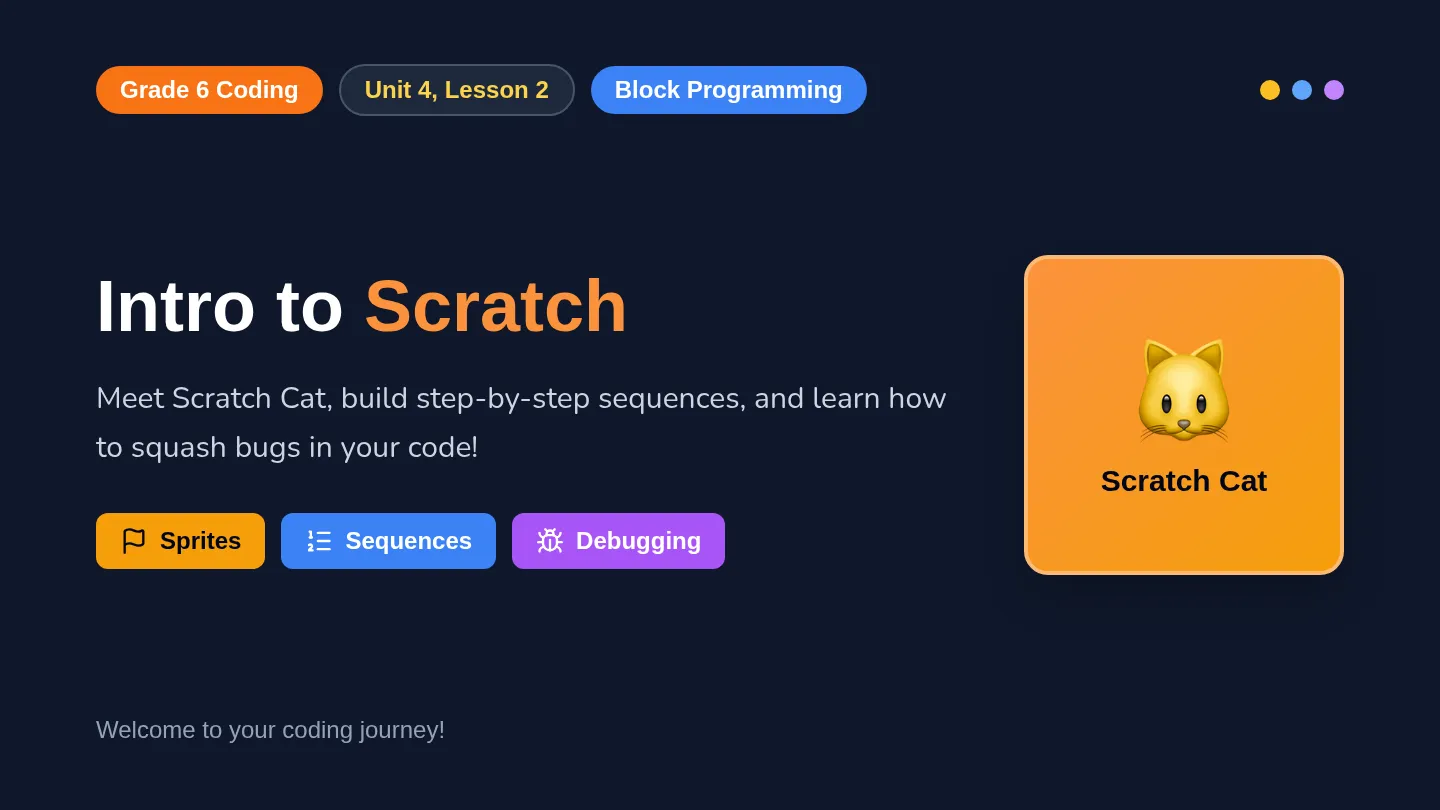
Intro to Scratch Slides Unit 4, Lesson 2 Block-Based Coding
Intro to Scratch
Meet Scratch Cat, Sequences & Debugging
1. Sprites
2. Sequences
3. Debugging
Visual Coding
Welcome to Scratch!
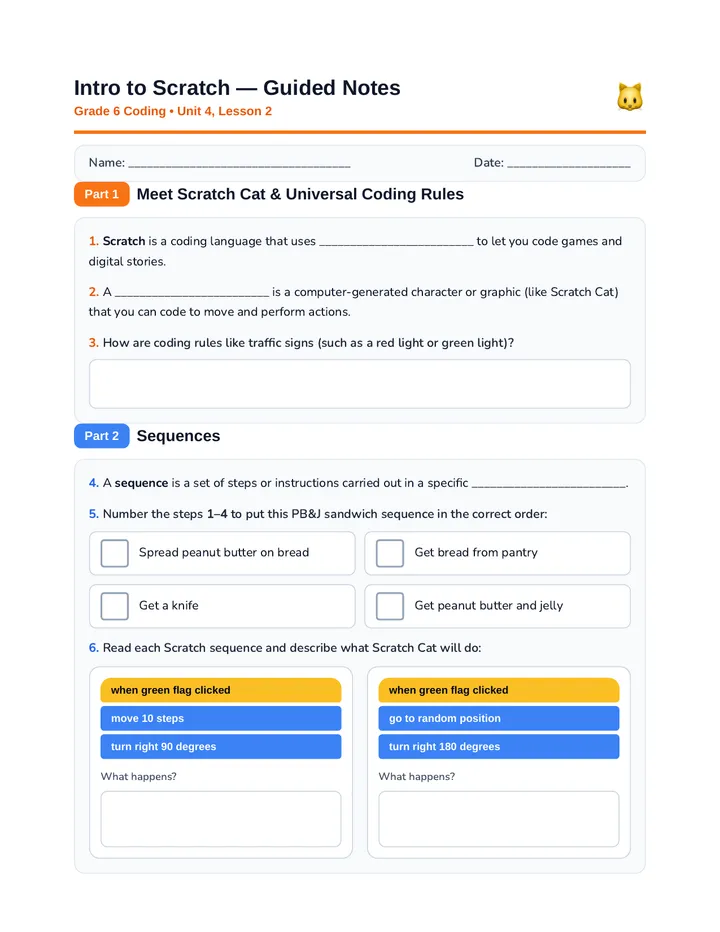
What Is Scratch?
A coding language that uses visual blocks to let you code games and digital stories.
🐱
Meet Scratch Cat!
Scratch Cat is a sprite—a computer-generated character we can code to move and perform actions!
Big Idea
Universal Coding Rules
🚦
Like Traffic Lights
A red light always means stop and a green light always means go—no matter where you are.
In Programming
Core commands and rules stay the same across different coding languages—even beyond Scratch!
Core Concept
Sequences: Order Matters!
A sequence is a set of steps carried out in a specific order—just like making a PB&J sandwich!
Step 1
Get bread
Step 2
Get PB & jelly
Step 3
Get a knife
Step 4
Spread PB
Step 5
Spread jelly
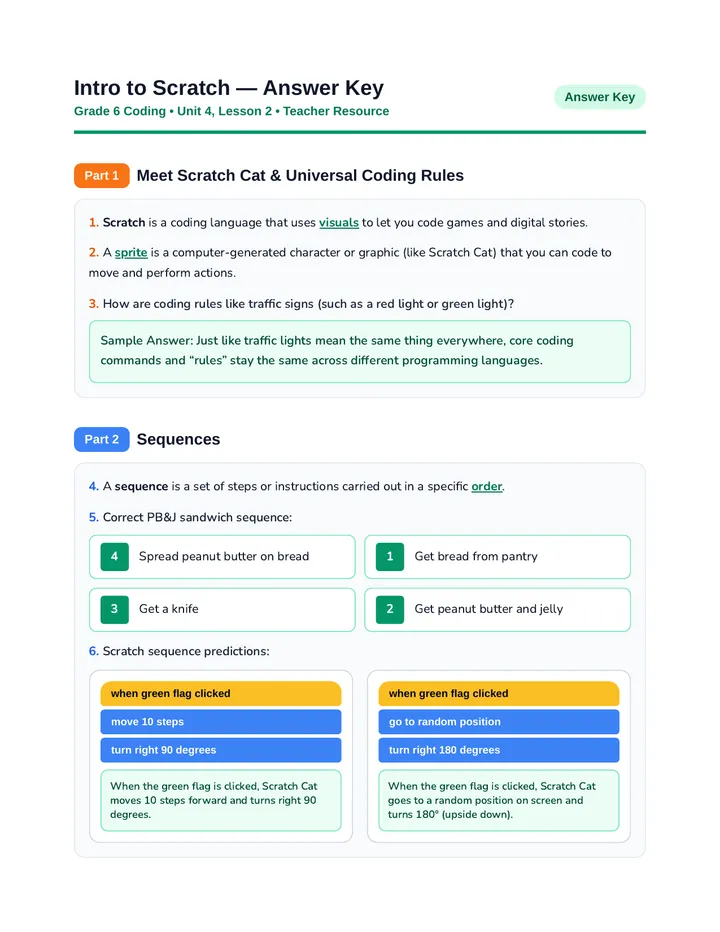
Scratch Example 1
Moving Scratch Cat
🚩 when green flag clicked
move 10 steps
turn ↻ 90 degrees
What Happens?
When you click the green flag, Scratch Cat moves forward 10 steps and then turns right 90°.
Scratch Example 2
Where Is Scratch Cat Going?
🚩 when green flag clicked
go to random position
turn ↻ 180 degrees
What Happens?
Scratch Cat jumps to a random spot on the screen and turns 180° (upside down!).
Developer Skill
What Is Debugging?
Finding & Fixing Bugs
Debugging is finding and removing mistakes (called bugs) in your algorithm.
Test As You Go!
Don't wait until the end—test your code while building so you can catch mistakes right away.
Challenge
Spot the Bug!
🦴
🐶
Will this algorithm get the dog 🐶 to the bone 🦴?
➡️ ➡️ ➡️ ⬆️ ⬆️ ⬅️
Debugged!
Bug Found & Fixed!
The Bug: Three right arrows take the dog off the mat! Removing the extra ➡️ fixes it.
Correct Algorithm:
➡️ ➡️ ⬆️ ⬆️ ⬅️
Test every small change as your algorithms grow!