Color Vision Slides
Scratch Sensing Category
Middle School Computer Science
Interactive Coding
Color Sensing
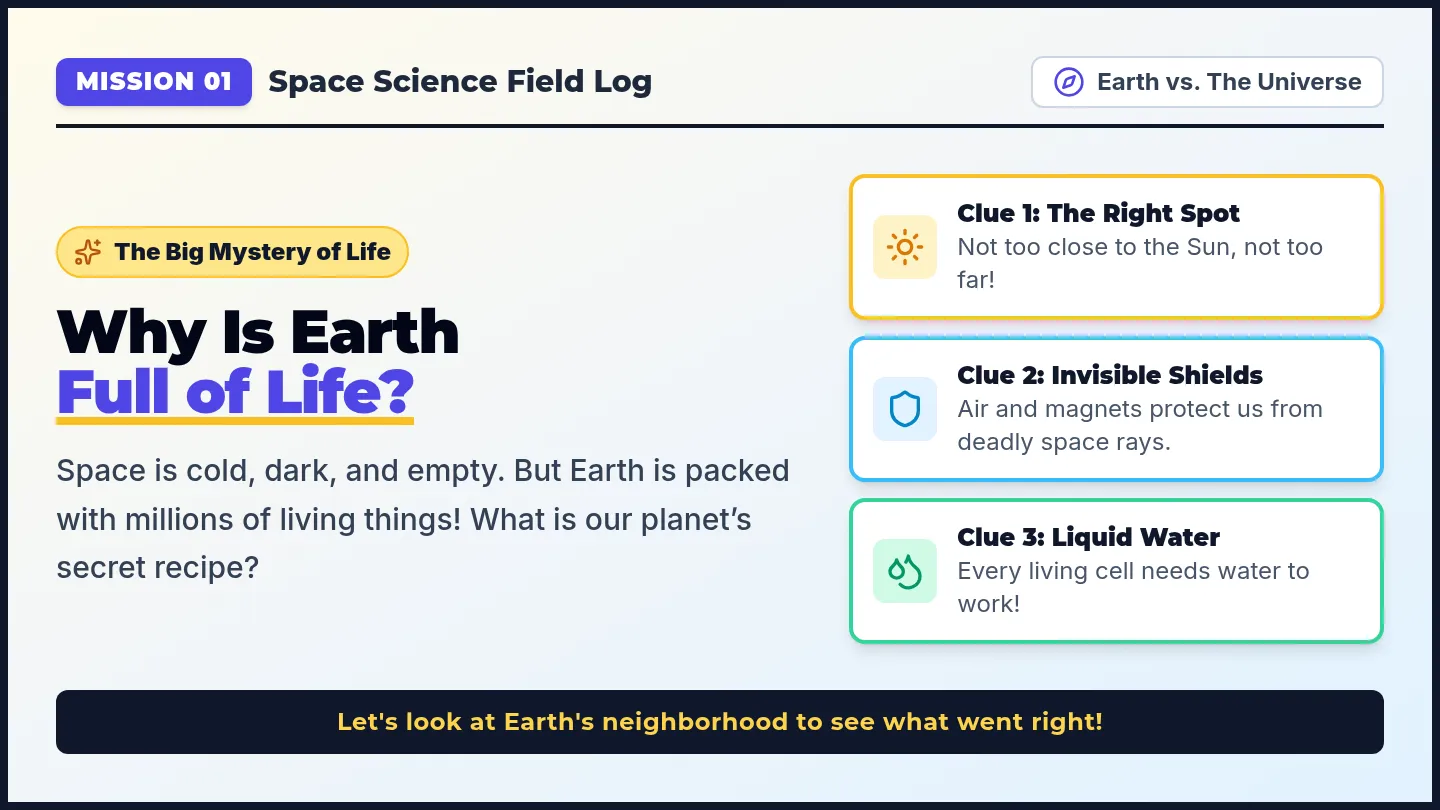
Superpowers in Scratch
Give your sprites eyes! Detect walls, build bouncy trampolines, avoid red-hot lava, and steer robots using color detection.
Hazard Detection
Goal Lines
Speed Boosts
Press space or click to begin
Block Architecture
Meet the Two Color Sensors
Both blocks are hexagonal Boolean reporters: they report either true or false inside if < > then blocks.
Sensor 1: Whole Sprite
< touching color ? >
Sprite vs. Color
Checks if any pixel of the current sprite touches this target color on the backdrop or another sprite.
Best for: Lava pits, coins, finish lines
Sensor 2: Precision Zones
< color touching ? >
Color vs. Color
Checks if a specific color on this sprite (e.g. shoes, antenna) is touching a specific background color.
Best for: Line follower wheels, player feet
Tip: You find both blocks in the cyan Sensing drawer. 02 / 07
Practical Application #1
Hazard Detection (Lava Maze)
Use <touching color [red]?> to restart the player whenever they touch dangerous terrain.
Sprite Script: Player
when ⚑ clicked
forever
if touching color ? then
go to x: ( -180 ) y: ( 120 )
say [Ouch! Lava!] for ( 1 ) secs
end
Why Forever?
Computers check conditions instantly. Without the forever loop, Scratch tests the color once in 0.001s and then stops!
Add a Finish Line
Add a second if <touching [green]?> to broadcast You Win! when touching the exit flag.
Key Rule: One color block per unique action (Lava = reset, Green = victory). 03 / 07
Advanced Precision
Color Touching Color (Hitboxes)
What if you only want the character's feet to trigger jumping on ground, but not their head?
Sprite Design in Costume Editor
Player Sprite
Sensor
Sensor
Platform Ground (Green)
Only Blue Boots trigger the ground detector!
How the Logic Works:
< color is touching ? >
Color 1: On your sprite (the boots).
Color 2: On the stage (the grass platform).
Why this prevents glitches:
If you bumped your head on a ceiling, normal touching color would think you're standing on the floor and let you jump in mid-air!
Pro Trick: Make sensor dots tiny and blend them into the sprite outline! 04 / 07
Crucial Technique
Never Guess: Use the Eyedropper!
The #1 bug in Scratch color sensing: colors that look identical to humans are different numbers to computers.
1
Click Color Circle
Click directly on the colored circle inside your Scratch sensing block. The slider popup will appear.
Color / Sat / Bright
2
Click Eyedropper
Click the pipette icon at the bottom of the slider menu. The stage will zoom in with a round magnifying lens.
Sample Tool
3
Pick Exact Pixel
Move the lens over your backdrop or sprite, line up the crosshair on the center, and click. 100% exact match guaranteed!
Pixel Perfect
Beware of Gradients and Antialiasing: Soft-edged circles or blurry shadows have hundreds of slightly different shades. Use solid, flat colors for sensors!
Real-World Robotics Demo
Autonomous Line-Following Car
How factory robots and self-driving shuttles follow paths painted on the warehouse floor.
Dual Color Sensor Setup
Car Chassis
Left (Red)
Right (Yellow)
Black Road
1
If Left Sensor (Red) touches Road:
Robot is drifting right! Turn Left 5 degrees to get back on track.
2
If Right Sensor (Yellow) touches Road:
Robot is drifting left! Turn Right 5 degrees to re-center.
3
Neither sensor touches road:
Robot is centered! Move 4 steps forward.
Result: Continuous, smooth steering without human input! 06 / 07
Hands-On Mission
Today's Coding Sprint: Color Speedway
Open Scratch and build a top-down track using at least 3 distinct color mechanics!
Red Wall
If touching Red: reset car to starting line and subtract 1 life.
Hazard Zone
Yellow Boost
If touching Yellow: set speed to 10 for 2 seconds (turbo boost!).
Power-Up Zone
Green Finish
If touching Green: stop all scripts and celebrate victory sound!
Goal Zone
Remember: Use the eyedropper tool on your stage track so your code never misses!
Happy Coding!
Color Sense Notes Sheet
Scratch Coding • Unit Notes
Color Sensing Superpowers
Name:
Date:
Period:
Part 1: The Sensing Superpower
1. Category & Color: Color sensing blocks are located in the light blue / drawer in Scratch.
2. Block Shape: These blocks have pointed, hexagonal ends. In computer science, this shape is called a reporter.
3. Output Values: A color sensing block answers a yes/no question and can only return either or .
Part 2: The Two Color Sensing Blocks
< touching color ? >
Whole-Sprite Detection
Detects when any part of the current sprite touches the chosen color.
Best game use:
< color touching ? >
Color-on-Color Detection
Detects when a specific color on this sprite touches a target color on stage.
Best game use:
Part 3: The Hazard Script Breakdown
when ⚑ clicked
forever
if <touching [red]?> then
go to x: (-180) y: (120)
Why is the FOREVER block required?
What happens if we remove the forever block?
Part 4: Platformer Hitbox Design
Body
Boots
Grass Floor
The Problem: If your whole sprite detects green grass, what glitch happens when your character jumps and bumps its head against the bottom of a floating platform?
Scratch Color Sensing • Guided Student Notes Page 1 of 2
Scratch Coding • Part II
Advanced Techniques & Project Blueprint
Color Vision Quest
Part 5: Mastering the Eyedropper Tool
Human eyes and computers see colors differently. Number the three steps below in order (1, 2, 3):
[ ]
Sample Target:
Hover the round magnifying lens over the stage sprite and click the center pixel.
[ ]
Open Palette:
Click the color circle inside the sensing block to reveal the color sliders.
[ ]
Activate Pipette:
Click the eyedropper icon at the bottom of the popup to activate zoom.
BUG TRAP Why should you avoid using gradients (color fades) or blurry brushes for sensor lines?
Chameleon Camouflage Worksheet
Science + Computer Science Integration
Chameleon Camouflage Simulation
Name:
Date:
Class:
Life Science Connection: In nature, chameleons adjust their skin color using specialized light-reflecting cells called iridophores and chromatophores. By detecting ambient colors in their environment (leaves, branches, sand), they camouflage themselves to avoid predators. Today, you will use Scratch color sensing to program a digital chameleon that adapts in real time!
Part 1: Nature’s Sensors vs. Scratch Code
Compare how biological organisms and Scratch computer programs process environmental color:
Biological Chameleon
- Eye photoreceptors detect wavelengths of light reflected from surrounding plants.
- Nervous system sends electrical nerve impulses to skin cells.
- Chromatophores expand or contract pigments to change skin appearance.
Scratch Sprite Simulation
- <touching color [ ]?> checks pixel RGB coordinates on the stage.
- if < > then processes conditional Boolean logic.
- switch costume to [ ] visually updates the chameleon sprite graphics.
Question 1: How is Scratch’s <touching color [ ]?> block similar to an animal’s sensory receptors (like photoreceptor cells in the eye)?
Part 2: Habitat Adaptation Table
The chameleon explores three distinct rainforest biomes. Complete the missing Scratch conditional statements:
| Rainforest Biome | Stage Color Condition | Chameleon Adaptation (Action) |
|---|
| Jungle Canopy | touching color ? | switch costume to [] |
| Tree Trunk (Bark) | touching color ? | switch costume to [] |
| River Sandbank | touching color ? | switch costume to [] |
Biomimicry & Code • Life Science Integration Page 1 of 2
Science + Computer Science • Part II
Predator-Prey Simulation Logic
NGSS MS-LS2: Ecosystem Dynamics
Part 3: The Hawk Predator Algorithm
A predatory Hawk sprite flies across the canopy looking for dinner. Study the hawk's vision script below: