Canvas Sharing Handout Canvas Quick Guide FLOW-REF-2026
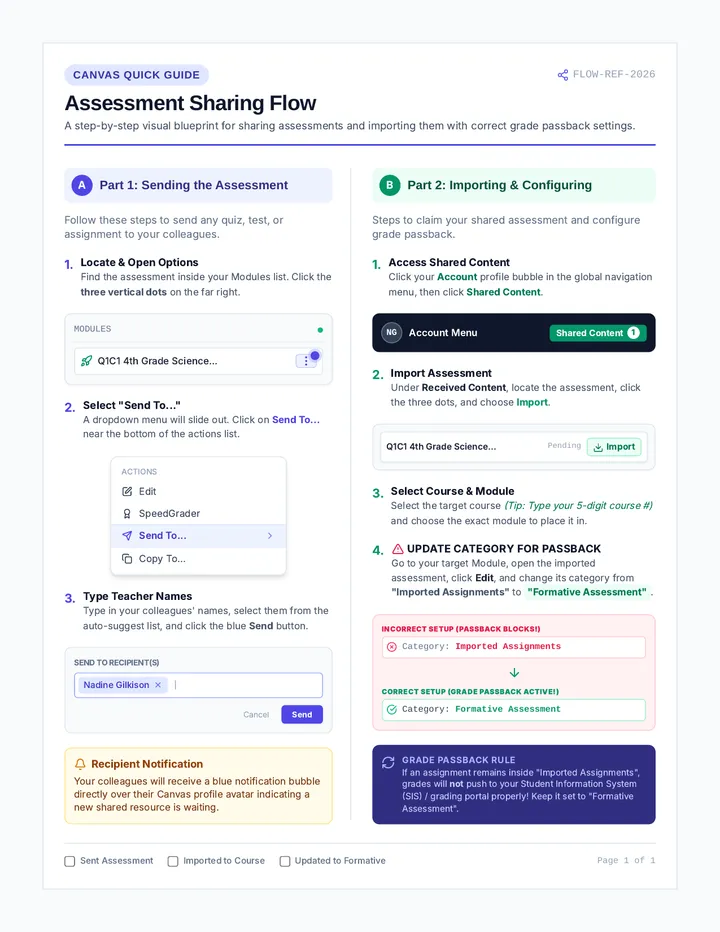
Assessment Sharing Flow
A step-by-step visual blueprint for sharing assessments and importing them with correct grade passback settings.
A
Part 1: Sending the Assessment
Follow these steps to send any quiz, test, or assignment to your colleagues.
Locate & Open Options
Find the assessment inside your Modules list. Click the three vertical dots on the far right.
MODULES
Q1C1 4th Grade Science...
Select "Send To..."
A dropdown menu will slide out. Click on Send To... near the bottom of the actions list.
ACTIONS
Edit
SpeedGrader
Send To...
Copy To...
Type Teacher Names
Type in your colleagues' names, select them from the auto-suggest list, and click the blue Send button.
Send to Recipient(s)
Nadine Gilkison |
Cancel Send
Recipient Notification
Your colleagues will receive a blue notification bubble directly over their Canvas profile avatar indicating a new shared resource is waiting.
B
Part 2: Importing & Configuring
Steps to claim your shared assessment and configure grade passback.
Access Shared Content
Click your Account profile bubble in the global navigation menu, then click Shared Content .
NG
Account Menu
Shared Content 1
Import Assessment
Under Received Content , locate the assessment, click the three dots, and choose Import .
Q1C1 4th Grade Science...
Pending
Import
Select Course & Module
Select the target course (Tip: Type your 5-digit course #) and choose the exact module to place it in.
Update Category for Passback
Go to your target Module, open the imported assessment, click Edit , and change its category from "Imported Assignments" to "Formative Assessment" .
Incorrect Setup (Passback Blocks!)
Category: Imported Assignments
Correct Setup (Grade Passback Active!)
Category: Formative Assessment
Grade Passback Rule
If an assignment remains inside "Imported Assignments", grades will not push to your Student Information System (SIS) / grading portal properly! Keep it set to "Formative Assessment".
Sent Assessment Imported to Course Updated to Formative
Page 1 of 1
Canvas Sharing Slides Canvas Guide FLOW-REF-2026
Canvas Assessment
Sharing & Syncing
A step-by-step masterclass on sending assessments, importing shared content, and configuring grade passback correctly.
Seamless Teacher Collaboration
Slide 1 of 8
The Sharing Lifecycle
A
The Sender's Path
How to instantly package and dispatch any assessment to any colleague within your district.
Locate assessment in modules
Trigger "Send To..." utility
Select specific teacher names
B
The Receiver's Path
How to safely receive, import, and reconfigure assessments to preserve grading workflows.
Access the Shared Content drawer
Import into target course & module
Fix Category for Grade Passback
Collaborating with Colleagues Slide 2 of 8
Part 1 Initiating the Share
Steps 1 & 2
Find the Assessment Options
Go to your Modules list, locate the assessment, and click the three vertical dots on the right.
Select "Send To..."
A sliding action panel will appear. Choose Send To... from the bottom half of the list.
Canvas modules
Chapter 1 Quiz (Science)
Actions
Edit
Send To...
Action: Dropdown Panel Selection Slide 3 of 8
Part 1 Addressing & Dispatching
Steps 3 & 4
Target Your Colleagues
Type in the names of the teachers you need to share with. Choose them from the automatic lookup list.
Complete & Notify
Click Send . The recipient teachers will receive an instant in-app notification bubble.
Recipient Window
Search Recipient Name
Nadine Gilkison |
Cancel Send
Check: Verify recipient spelling if they don't appear instantly in the dropdown list.
Action: Search and Dispatch Slide 4 of 8
Part 2 Accessing Received Content
Steps 1 & 2
Click Account Profile
Log into Canvas and look at the far-left global navigation panel. Click your
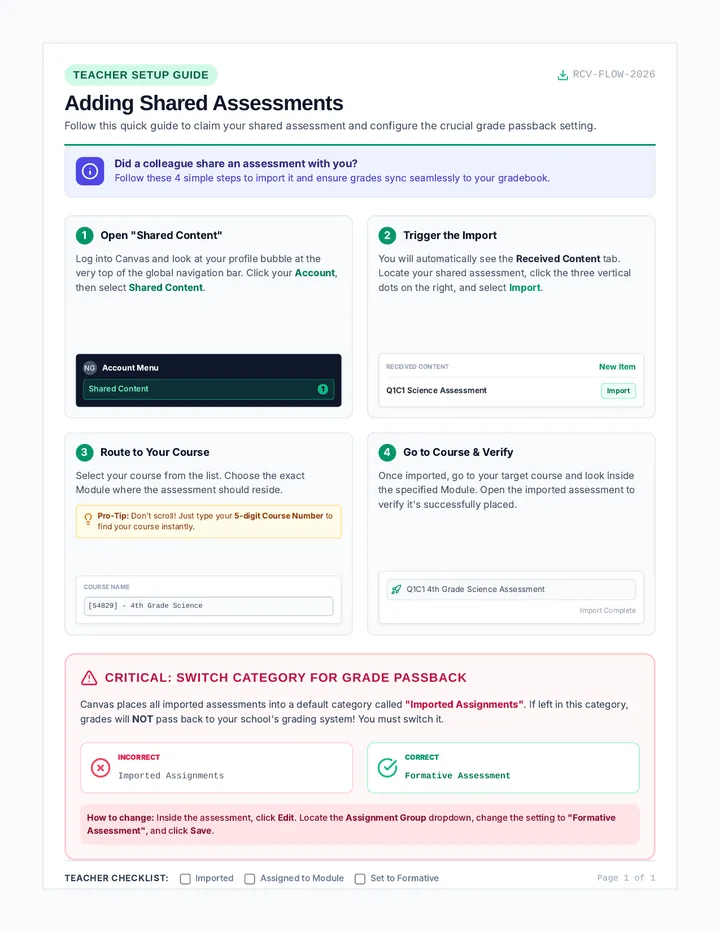
Canvas Importing Handout Teacher Setup Guide RCV-FLOW-2026
Adding Shared Assessments
Follow this quick guide to claim your shared assessment and configure the crucial grade passback setting.
Did a colleague share an assessment with you?
Follow these 4 simple steps to import it and ensure grades sync seamlessly to your gradebook.
1
Open "Shared Content"
Log into Canvas and look at your profile bubble at the very top of the global navigation bar. Click your Account , then select Shared Content .
NG
Account Menu
Shared Content 1
2
Trigger the Import
You will automatically see the Received Content tab. Locate your shared assessment, click the three vertical dots on the right, and select Import .
Received Content New Item
Q1C1 Science Assessment Import
3
Route to Your Course
Select your course from the list. Choose the exact Module where the assessment should reside.
Pro-Tip: Don't scroll! Just type your 5-digit Course Number to find your course instantly.
COURSE NAME
[54829] - 4th Grade Science
4
Go to Course & Verify
Once imported, go to your target course and look inside the specified Module. Open the imported assessment to verify it's successfully placed.
Q1C1 4th Grade Science Assessment
Import Complete
CRITICAL: Switch Category for Grade Passback
Canvas places all imported assessments into a default category called "Imported Assignments" . If left in this category, grades will NOT pass back to your school's grading system! You must switch it.
Incorrect Imported Assignments
Correct Formative Assessment
How to change: Inside the assessment, click Edit . Locate the Assignment Group dropdown, change the setting to "Formative Assessment" , and click Save .
Teacher Checklist: Imported Assigned to Module Set to Formative
Page 1 of 1
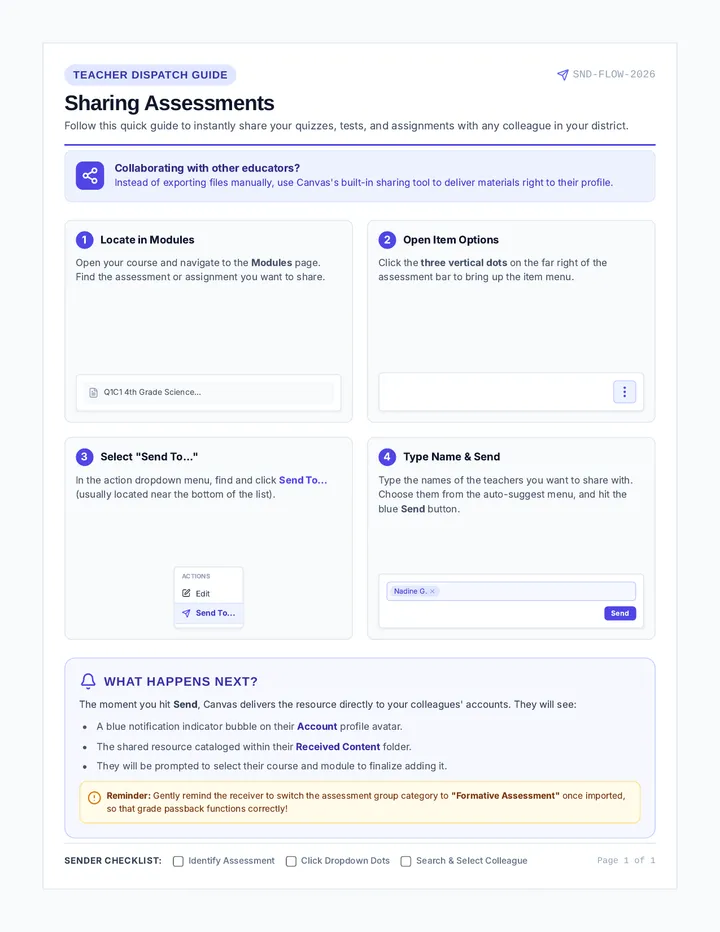
Canvas Sending Handout Teacher Dispatch Guide SND-FLOW-2026
Sharing Assessments
Follow this quick guide to instantly share your quizzes, tests, and assignments with any colleague in your district.
Collaborating with other educators?
Instead of exporting files manually, use Canvas's built-in sharing tool to deliver materials right to their profile.
1
Locate in Modules
Open your course and navigate to the Modules page. Find the assessment or assignment you want to share.
Q1C1 4th Grade Science...
2
Open Item Options
Click the three vertical dots on the far right of the assessment bar to bring up the item menu.
3
Select "Send To..."
In the action dropdown menu, find and click Send To... (usually located near the bottom of the list).
ACTIONS
Edit
Send To...
4
Type Name & Send
Type the names of the teachers you want to share with. Choose them from the auto-suggest menu, and hit the blue Send button.
Nadine G.
Send
What Happens Next?
The moment you hit Send , Canvas delivers the resource directly to your colleagues' accounts. They will see:
A blue notification indicator bubble on their Account profile avatar.
The shared resource cataloged within their Received Content folder.
They will be prompted to select their course and module to finalize adding it.
Reminder: Gently remind the receiver to switch the assessment group category to "Formative Assessment" once imported, so that grade passback functions correctly!
Sender Checklist: Identify Assessment Click Dropdown Dots Search & Select Colleague
Page 1 of 1