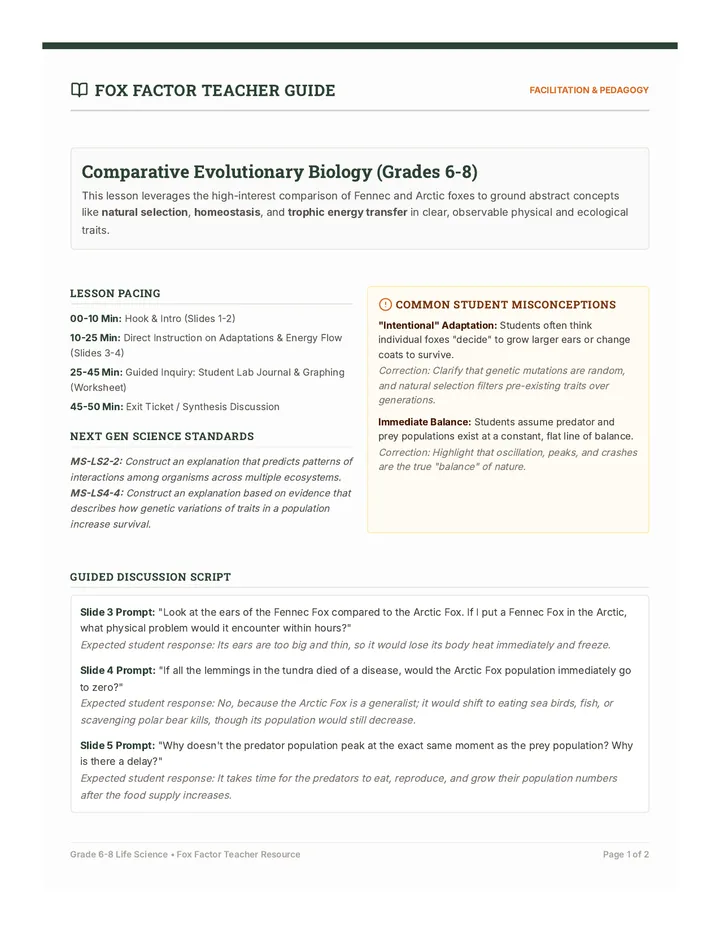
Peripheral Investigation Slides Case File: 01
PERIPHERAL SORT
Investigating how computers sense and speak to the world.
Input
Process
Output
The Mystery Pile
Look at the gadgets on your table. They are called peripherals.
Challenge:
Can you sort these into devices that act like Ears & Eyes versus devices that act like Mouths?
Mouse
Monitor
Microphone
Speaker
Phase 1
INPUT
01
Input is data sent to the computer.
02
It allows the computer to receive information from humans or the environment.
Examples
Keyboard, Mouse, Touchscreen, Camera, Sensor
Phase 2
Output
Output is data sent from the computer.
01
It allows the computer to show or tell us what it has done.
02
Examples
Monitor, Speaker, Printer, Vibrating Motor, Robot Arm
Detective Debrief
Scenario A
You press a key on a keyboard. The letter 'A' appears on the screen.
Question
Which is the input and which is the output?
Scenario B
A smart light turns on because a motion sensor detects you in the room.
Question
What is the "sensor" input here?
Hardware Hunt Worksheet Hardware Hunt
Peripheral Classification Report
Detective:
Date:
Mission Objective
A computer is like a brain, but it needs "senses" to know what's happening and "tools" to respond. Your mission is to categorize the devices (peripherals) in your investigation pile as either INPUT (data going in) or OUTPUT (data coming out).
The Investigation Log
Peripheral Name Type What data does it send or receive? Wireless Mouse Input
Output
| |
| LCD Monitor |
Input
Output
| |
| Digital Camera |
Input
Output
| |
| Inkjet Printer |
Input
Output
| |
| |
Input
Output
| |
Analysis & Deduction
1. The "Secret Agent" Device: Some devices can be BOTH input and output. Look at a Touchscreen Tablet. How does it act as both?
2. Sensory Evolution: Human bodies have 5 senses. If you were building a robot that could sense "Temperature," what kind of peripheral would you need to invent? Is it Input or Output?
End of Report Summary
In your own words, what is the biggest difference between a "input" device and an "output" device?
Peripheral Facilitation Guide Facilitation Guide
Lesson 01: Peripheral Sorting
Core Objective
Students will categorize hardware devices based on the direction of data flow (into or out of the computer) to understand the first and third stages of the IPOS model.
Key Vocabulary
Peripheral: Any device connected to a computer to expand its capabilities.
Input: Data sent to a computer system for processing.
Output: Data received from a computer system.
Sensor: An input device that detects physical environmental changes.
Materials Needed
A "Mystery Pile" of physical peripherals (mice, keyboards, monitors, speakers, etc.)
Digital Investigation Slides
Hardware Hunt Worksheets
Post-it notes for labeling
Lesson Sequence
1
The Mystery Pile (10 mins)
Place the gadgets in a central location. Ask students to approach and observe. Use the "human senses" analogy: "If the computer were a person, which of these are its ears/eyes and which are its mouth?"
2
Direct Instruction (15 mins)
Use the Peripheral Investigation Slides to formalize the definitions of Input and Output. Emphasize the "Data Flow Direction" as the key indicator.
Discussion Tip: Ask students if a "USB Cable" is input or output. (Correct answer: It's a medium for flow, neither input nor output itself!)
3
Investigation (20 mins)
Students work in pairs with the Hardware Hunt Worksheet . They should handle the physical devices if possible, looking for ports and buttons to understand functionality.
Common Misconceptions
Q:
"Is a printer input because I put paper in it?"
A:
No. Focus on the digital data . The computer sends a digital image (data) out to the printer to be made physical. Paper is just the material.
Q:
"What about a headset with a microphone?"
A:
These are Hybrid Devices . The microphone component is input, while the earpieces are output. Challenge advanced students to find other examples (e.g., Touchscreens, Game Controllers with rumble).
Binary Basics Slides 0101
1100
0011
1010
1111
0000
1001
0110
1011
0101
1100
0011
BINARY CODE
The Language of Two
The Flashlight Challenge
Imagine you only have a flashlight to send a message across a dark field.
OFF
OR
ON
How could you use these two states to send a complex message like "HELLO"?
This is exactly how computers "think" using electricity.
BITS & BYTES
BIT
The smallest unit of data. Just a single 0 or 1.
0
OFF / False / No Electricity
1
ON / True / Has Electricity
A BYTE is a group of 8 BITS.
Translating to Binary
To represent a letter, computers use a 1-byte code (8 bits).
A 01000001
B 01000010
Processing means turning these patterns into the things you see on screen.
READY TO DECODE?
You are about to become a human processor. You will take raw binary input and turn it into meaningful data.
I
Input
P
Process
O
Output
Binary Decoder Worksheet Binary Decoder
Protocol: [SECURE_MESSAGE_DECODE]
AGENT: _________________________
DATE: 01.17.2026
Binary Translation Key (1-Byte / ASCII)
A 01000001
D 01000100
E 01000101
H 01001000
I 01001001
L 01001100
O 01001111
T 01010100
Mission 1: Decoding the Word
Turn these raw binary bytes into letters using the key above.
01001000
01001001
Mission 2: Encoding Your Name
If your name has the letters D, A, T, or A, try to encode them into binary below.
?
Example letter: ______
THE "WHY" QUESTION
A single bit (0 or 1) can only represent 2 things (On/Off). An 8-bit byte can represent 256 different combinations. Why do we need so many combinations just to represent our language? Think about letters, numbers, and symbols.
Binary Basics Teacher Guide Binary Basics Guide
Lesson 02: Secret Code Processing
55 Minutes Approx.
The Teacher's "Bits"
Computers don't actually see the letter "A". They use transistors (tiny switches) that are either ON (allowing current) or OFF (blocking current). We represent these states as 1 and 0.
Processing in Lesson 2 focuses on how the computer translates physical inputs into this digital language before it can do anything else.
The Hook: Flashlight Secret Message
Facilitation Steps
01
Dim the lights. Show a flashlight. Ask: "If I blink this once, it means 'Yes'. Twice means 'No'. How do I say 'Maybe'?"
02
Challenge students to come up with a code for 4 different colors using only the flashlight being ON or OFF.
03
Solution: Use sequences! (e.g., ON-ON = Red, ON-OFF = Blue, OFF-ON = Green, OFF-OFF = Yellow). Explain that this is how we get complex data from simple switches.
Worksheet Answer Key
Mission 1: Word Decoding
01001000 H
01001001 I
Result: HI
The "Why" Question Guidance
Students should realize that our language has more than 2 characters. We have 26 letters (uppercase and lowercase), numbers 0-9, and symbols (!, ?, .). A single bit can't handle that. We need a "pattern" (byte) of 8 bits to have enough unique codes for everything we want the computer to show us.
Extension & Support
Support
Have students use actual physical tokens (black and white squares) to "build" the bytes on their desk before writing them down.
Extension
Explain that colors are also binary! A pixel's color is just a very long string of 0s and 1s telling it how much Red, Green, and Blue to show.
IPOS Machine Slides THE IPOS MACHINE
System Simulation: v3.0
I
Input
P
Process
O
Output
S
Storage
Inside the Box
Processing is the work the computer does to change input into output.
It follows a program:
"If X happens, then do Y."
RUNNING LOGIC...
The Human Computer
Input Team
Receives "Raw Data" cards and hands them to the next station.
Process Team
Follows "Rules" to transform the data (ex: Change letters to numbers).
Storage Team
Keeps "Rules" or "Finished Data" in a safe place until needed.
Output Team
Presents the finished work (ex: Displays it or says it out loud).
Input: "Cat" Process: Count Letters Output: "3"
MISSION START
You are about to process a "Secret Message." Each team must do their job exactly right, or the computer will crash!
FAST
Can you beat the clock?
ACCURATE
No errors allowed.
Processing Logic Log Simulation Log
v3.0 System Process Tracker
SYS_OPERATOR: ___________________
CORE_DATE: 01.17.2026
Station Assignment
Input
Processing
Storage
Output
The Transformation Table
Record how the data changes at each station during the 3 test runs.
Test Run Input Data Processing Rule Final Output #01 #02 #03
System Debrief
1. The "Storage" Station: What happened if the Processing Team forgot the "Rule"? Where did they have to look to find it? How is this like a computer's memory?
2. System Crash: What was the biggest challenge in keeping the data flowing smoothly? If one station was too slow, how did it affect the rest of the machine?
Critical Synthesis
In a real computer, who provides the Input and who sees the Output ?
IPOS Machine Facilitation Guide Simulation Setup Guide
Lesson 03: The IPOS Machine
Role Definitions
Input Station
The "Human Peripheral." They take physical data cards from a "User" and pass them to Processing. They must ensure the data is legible.
Processing Station
The "Human CPU." They receive data, look up the "Rule" from Storage, perform the work (e.g., counting, sorting), and pass the result to Output.
Storage Station
The "Human Memory." They hold onto the "Rules" (programs) and any intermediate data. They only provide information when Processing asks for it.
Output Station
The "Human Monitor." They take the final result and communicate it (e.g., write it on the board, draw it, or announce it).
The Simulation Rounds
Prepare these scenarios on index cards before class.
ROUND #01: WORD COUNTER Easy
Input Data
"COMPUTERS ARE COOL"
Processing Rule
Count the number of words in the phrase.
Expected Output
3
ROUND #02: CIPHER BOT Medium
Input Data
"SECRET"
Processing Rule
Shift each letter forward by 1 (A->B, B->C).
Expected Output
"Tfdsfu"
ROUND #03: LOGIC GATE Hard
Input Data
Numbers: 12, 5, 20
Processing Rule
Sort the numbers from largest to smallest.
Expected Output
20, 12, 5
Class Debrief Questions
1. "Which station felt the most 'stress' when we sped up?" (Usually Processing)
2. "What happens to the machine if the Input team gives the wrong data?" (Garbage In, Garbage Out)
3. "Could the machine work without the Storage team holding the rules?" (No, the CPU wouldn't know what to do!)
Storage Showdown Slides Case File: 04
MEMORY VAULTS
Local Storage vs. The Cloud
Where is your stuff?
Your Backpack
It's with you right now. It's fast to grab things from, but it only holds so much.
This is Local Storage
Your Locker
It's far away. You have to travel to get things, but it's safe and holds much more.
This is Cloud Storage
Type A
LOCAL
Physical parts inside your device that save data.
Pros
Very Fast
No Internet needed
Cons
Limited Space
Gone if device breaks
Type B
CLOUD
Data stored on someone else's computers far away.
Pros
"Infinite" Space
Safe if device is lost
Cons
Needs Internet
Can be slower
The Cycle
A computer takes Input, Processes it, and then decides:
"Should I show this now (Output) or save it for later (Storage)?"
Storage Strategy Map Worksheet Memory Vaults
Comparison Mission: Local vs. Cloud
Agent:
A computer system needs to store data so it can use it later. But not all storage is the same! Use your detective skills to choose the right "Vault" for each scenario.
The Feature Matrix
Mark which storage type fits each description (You can mark both if it fits!).
Feature Description Local (Drive) Cloud (Server) Works even without Wi-Fi or Internet.
|
| Safe if you accidentally drop your laptop in a lake. |
|
|
| Has a physical limit to how much it can hold. |
|
|
| Fastest for opening huge files quickly. |
|
|
Detective Scenarios
Scenario A: The Travel Vlog
You are filming a video in the middle of a national park with no cell service. You need to save your 4K footage right now. Which storage do you use?
Local
Cloud
Why?
Scenario B: The Group Project
You and 3 friends are writing a story together. You all need to be able to see and edit the same document from your own homes at the same time. Which storage is best?
Local
Cloud
Why?
Visualizing the Vault
Draw a picture of what you imagine "The Cloud" looks like. (Hint: It's not a real cloud in the sky! Think about buildings, wires, and machines.)
Storage Facilitation Guide Storage Deep Dive
Lesson 04: Memory Vaults
The Physical Reality of Data
Local Storage
Focus on Hard Disk Drives (HDD) and Solid State Drives (SSD). SSDs are the standard today (no moving parts, very fast). Students often confuse RAM (Short-term memory) with Storage (Long-term memory).
Analogy: RAM is your desk (what you're working on now). Storage is your filing cabinet (where you put things when you're done).
Cloud Storage
Demystify the name! Data isn't in the sky. It lives in Data Centers (massive buildings filled with servers). These buildings require huge amounts of electricity and cooling.
Key Point: The "Cloud" is just someone else's local storage that you access over the internet.
Visualizing the Path
The "Selfie" Flow
Use this example to show the movement of data between IPOS and Storage:
Input: You tap the camera button. Light enters the lens.
Process: The phone turns that light into binary pixels.
Storage (Local): The photo is saved to your phone's memory so you can see it in your gallery.
Storage (Cloud): You upload it to Instagram. The binary data travels over the air (Wi-Fi) to a data center.
Output: Your friend's phone downloads that data and shows the photo on their screen.
Common Student Questions
"If I delete a file on my phone, is it still in the cloud?"
Usually yes, unless "Syncing" is turned on. Syncing means the local and cloud versions are mirrors of each other.
"Can someone steal my data from the cloud?"
Cloud storage is very safe, but it's like a vault with a digital lock. If someone gets your password (the key), they can get in. This is why we need strong passwords.
Systems Journey Slides SYSTEMS ARCHITECT
Mapping the Digital Journey
The Ultimate Map
You are now a Systems Architect.
Your mission is to pick a real-world digital action and trace every single step the data takes through the IPOS Model .
Example Actions:
• Sending a text message
• Leveling up in a video game
• Searching for a funny cat video
Input
Process
Output
Storage
Case Study: Post a Selfie
Input
Tap the shutter button. Light enters lens.
Process
CPU converts light to binary code (0s and 1s).
Storage
Photo binary is sent to Instagram's cloud servers.
Output
The photo appears on your friend's feed.
DESIGN RULES
1
Arrows Matter
Draw arrows to show exactly which way the data is flowing.
2
Name Devices
Be specific! Is it a keyboard? A sensor? A server farm?
3
The Secret Box
Describe what the computer is actually DOING in the "Process" step.
Digital Architecture Blueprint Worksheet System Blueprint
Professional Data Flow Architecture
ARCHITECT: _____________________
PROJECT_ID: [IPOS_MAPPING_v1]
1. Define the System Action
What digital task are you mapping? (Example: Sending a text, Loading a game level, Googling a question)
2. The Data Journey
Input Device
Draw/Name here
Describe the action:
Processing Logic
CPU Station
Describe what the computer "thinks" or "changes":
Storage Vault
Where is data saved?
Output Device
What does the user see/hear?
ARCHITECT'S ANALYSIS
Explain why your system needs both Local and Cloud storage to work perfectly.
Systems Architect Rubric Architect's Rubric
Lesson 05: Systems Architect
Culminating Mission
Students will demonstrate their mastery of the IPOS model by independently tracing a complex digital action. They must identify specific hardware and describe the abstract transformation of data (processing).
Mastery Rubric
Criteria 4 - Expert 3 - Proficient 2 - Developing Flow Accuracy Arrows correctly show logical data progression. Flow is logical with minor errors in order. Flow is missing steps or is circular. Device Choice Identifies specific, appropriate I/O/S hardware. Names basic categories of hardware. Labels hardware incorrectly (e.g., Mouse as output). Process Logic Clearly explains the data transformation (Binary/Rules). States that the computer "thinks" or "works". Leaves processing box blank or vague.
Guidance Tips
1
Avoid the "Black Box": Students often struggle with the "Process" step. Remind them of Lesson 3 (The IPOS Machine). Ask: "What rule is the computer following to turn that click into a character?"
2
Encourage Specificity: Instead of "A computer," ask them if it's a server farm in another city (Cloud) or a hard drive in their lap (Local).
3
The "Output" can be physical: Remind them that output isn't just on a screen. A robot moving its arm or a printer spitting out paper is also data leaving the system.
Post-Project Reflection
"If you could add one more 'sense' (Input) to a standard computer today, what would it be and what would the computer do with that information?"