Binary Bytes Slides Week 1 // Unit 1
4th Grade Computer Science Enrichment
01000011 01001111 01000100 01000101
Binary Bytes: The Secret Language
How do supercomputers, video games, and robots think using nothing more than tiny switches of electricity?
1
Electric On / Off
8
Bits Make a Byte
5x5
Pixel Grid Images
Binary Basics Slide 2 of 4
Inside the Chip: Billions of Switches
Computers do not speak English or Spanish. Inside the processor, there are microscopic switches called transistors. A switch can only be in two states!
0
OFF / Low Voltage
No electricity flowing through the circuit. Light bulb is dark.
Status: False / Open
1
ON / High Voltage
Electricity is surging! Circuit is complete. Light bulb glows bright.
Status: True / Closed
NOTE: "BIT" is short for B inary Digit . It is the smallest piece of computer memory!
Data Representation Slide 3 of 4
How 8 Bits Team Up into a Byte
One single bit can only say Yes or No (1 or 0). But when we group 8 bits together into a Byte , we can represent 256 different characters, colors, or sounds!
Binary Code for Capital Letter "A" = 65 in Decimal
128 0 Off
64 1 ON
32 0 Off
16 0 Off
8 0 Off
4 0 Off
2 0 Off
1 1 ON
Math Check: 64 + 1 = 65 ("A")
ASCII Code: Every character on your keyboard has a secret 8-bit binary number!
Pixel Screen: 1 turns a pixel LED ON; 0 turns a pixel LED OFF!
Lab Challenge Slide 4 of 4
Enrichment Lab: Become a Decoder
Grab your Decoder Worksheet and complete the three mission levels with your lab partner:
Level 01
Secret Cipher
Translate mystery 8-bit bytes into secret words using the ASCII cipher key.
Goal: Unmask 3 Words
Level 02
Binary Name Tag
Encode your own initials into electrical pulses of 1s and 0s.
Goal: Write 24 Bits
Level 03
5x5 Pixel Art
Design an icon for the micro:bit LED screen using binary rows (1=glow, 0=dark).
Goal: 25-Bit Icon
Ready coders? Open your worksheets and check your binary cipher wheel! START_DECODING()
Secret Decoder Worksheet Code Sparks // Lesson 1: Binary Bytes
Secret Binary Decoder Lab
Name:
Date: Class:
RULE Every byte is made of 8 bits (1 = On/Electricity, 0 = Off/No Electricity). In standard computer code (ASCII), each capital letter starts with 010 .
Part 1 // Capital Letter 8-Bit Cipher Key
Notice the pattern: A is 01000001 (65), B is 01000010 (66)
A: 0100 0001
B: 0100 0010
C: 0100 0011
D: 0100 0100
E: 0100 0101
F: 0100 0110
G: 0100 0111
H: 0100 1000
I: 0100 1001
J: 0100 1010
K: 0100 1011
L: 0100 1100
M: 0100 1101
N: 0100 1110
O: 0100 1111
P: 0101 0000
Q: 0101 0001
R: 0101 0010
S: 0101 0011
T: 0101 0100
U: 0101 0101
V: 0101 0110
W: 0101 0111
X: 0101 1000
Y: 0101 1001
Z: 0101 1010
Space: 0010 0000
Part 2 // Intercepted Computer Transmissions
Use the cipher key above to decode each transmission. Write each decoded letter above its byte, then write the secret word.
Transmission Alpha (4 Letters): Decoded Word: __________________
0100 0011
0100 1111
0100 0100
0100 0101
Transmission Beta (5 Letters): Decoded Word: __________________
0101 0010
0100 1111
0100 0010
0100 1111
0101 0100
Transmission Gamma (3 Letters): Decoded Word: __________________
0100 0010
0100 1001
0101 0100
Code Sparks // 4th Grade CS Enrichment Page 1 of 2
Code Sparks // Lesson 1: Binary Bytes
Binary Names & Pixel Matrix
Level 2 & 3 Challenges
Part 3 // Encode Your Initials in Binary (3 Bytes)
Write your three initials (First, Middle, Last) in the circles. Look up each letter in your cipher key on Page 1 and write its 8-bit binary code.
Initial 1:
8-Bit Binary Code:
Initial 2:
8-Bit Binary Code:
Initial 3:
8-Bit Binary Code:
Part 4 // 5x5 Micro:bit LED Pixel Designer
1 = LED ON (Shaded) | 0 = LED OFF (Empty)
Algorithm Arcade Slides Week 2 // Unit 1
4th Grade Computer Science Enrichment
STEP 1 → REPEAT 4X → IF / THEN
Algorithm Arcade: The Power of Logic
Computers do not possess common sense. They follow exact, step-by-step recipes called algorithms .
01
Precise Sequence
02
Repetition Loops
03
Smart Conditionals
Pillar 1: Sequence Slide 2 of 4
Order Matters: Exact Step-by-Step
A computer executes instructions in the exact order you write them, from top to bottom. If one step is missing or out of order, the program crashes!
Human Instruction (Common Sense)
"Put peanut butter on bread."
Humans automatically know to untwist the bag, open the jar lid, grab a knife, and spread it across the slice.
Outcome: Delicious Sandwich
Robot Execution (Literal Code)
"Put peanut butter on bread."
The robot smashes the unopened glass jar on top of the closed plastic bag of bread!
Error: CRITICAL_BUG: Open jar first!
TAKEAWAY: Algorithms must be unambiguous and sequential. Computers do exactly what you tell them, not what you meant!
Pillars 2 & 3: Control Flow Slide 3 of 4
Loops & Conditionals: Code Superpowers
Instead of typing the same step 1,000 times, great programmers use loops. And to let machines make smart choices, we use conditionals.
Pillar 2: The Loop REPEAT (N)
Automate Repetition
A loop runs a block of code over and over without repeating lines.
repeat (4) times:
→ move_forward(1)
→ turn_right(90)
// Draws a perfect square!
Pillar 3: Conditionals IF / ELSE
Decision-Making
Tests whether a condition is true or false before choosing which path to take.
if (wall_ahead == true):
→ jump_over_obstacle()
else:
→ keep_walking()
When you combine Loops + Conditionals, you can build full video game logic! GAME_ENGINE_READY
Mission Briefing Slide 4 of 4
Arcade Quest: Navigate the Grid
You are programming "Byte", an arcade exploration droid navigating a grid world filled with crystals and lava traps!
Quest 01
Trace the Route
Follow a pre-written algorithm step-by-step to see where Byte lands on the map.
Skill: Code Tracing
Logic Maze Worksheet Code Sparks // Lesson 2: Algorithm Arcade
Robot Maze Algorithm Lab
Name:
Date: Class:
RULE An algorithm is a precise, ordered set of steps. The robot executes each instruction one by one. Valid commands: MOVE(n), TURN_LEFT, TURN_RIGHT, GRAB_GEM.
Part 1 // Trace Byte's Execution Route
Byte starts at (A, 1) facing NORTH (↑)
Arcade World Map (5x5)
A5
B5
PORTAL
D5
E5
A4
LAVA
C4
LAVA
E4
GEM 1
B3
C3
GEM 2
E3
A2
B2
LAVA
D2
E2
BYTE
B1
C1
D1
E1
Test Program Beta:
1. MOVE(2) // moves forward 2 tiles
2. GRAB_GEM()
3. TURN_RIGHT()
4. MOVE(1)
5. TURN_LEFT()
6. MOVE(1)
Which Gem did Byte grab?
What coordinate tile does Byte end on?
Part 2 // Write the Safe Mission Algorithm
Write a complete algorithm to guide Byte from (A1) to collect GEM 2 (D3) and safely reach the PORTAL (C5) without landing on any LAVA tile!
Code Sparks // 4th Grade CS Enrichment Page 1 of 2
Code Sparks // Lesson 2: Algorithm Arcade
Loops & Conditionals Lab
Optimization & Logic
Part 3 // The Loop Detective (Code Refactoring)
A junior programmer wrote this sloppy 8-line script to collect 4 coins in a row. Optimize it by packing the repeated pattern inside a REPEAT loop!
Sloppy Code (Without Loops):
1. MOVE_FORWARD()
2. COLLECT_COIN()
3. MOVE_FORWARD()
4. COLLECT_COIN()
5. MOVE_FORWARD()
6. COLLECT_COIN()
7. MOVE_FORWARD()
8. COLLECT_COIN()
Optimized Loop Code:
Fill in the loop count and repeated commands:
REPEAT
TIMES:
Microbit Launch Slides Week 3 // Unit 1
4th Grade Computer Science Enrichment
HARDWARE + SOFTWARE = MAGIC
Micro:bit Launch: Physical Computing
Time to bring your code into the real world! Meet the BBC micro:bit—a pocket-sized computer you can hold in your hand.
25
Red LED Screen
2
Tactile Buttons (A & B)
USB
Flash Real Code
Hardware Tour Slide 2 of 4
Anatomy of the Micro:bit Board
Every computer system has two main jobs: taking in information (Inputs ) and sending out actions (Outputs ).
INPUT: Buttons A & B
Push for Action
Mechanical switches that detect physical presses by your finger. You can press A, B, or both together!
Event: on button pressed
OUTPUT: 5x5 LED Grid
Display Screen
25 individual light-emitting diodes that flash pictures, scroll text letters, and display numbers.
Action: show leds / show string
BRAIN: Microcontroller
The Chip (CPU)
The microscopic brain that runs your program. Connects via micro-USB to transfer your code in seconds!
Speed: 64 MHz Processor
Input → Processor → Output: The fundamental loop of all computing! I-P-O_CYCLE
MakeCode Logic Slide 3 of 4
Event-Driven Code: Waiting for Signals
In physical computing, code doesn't just run once—it listens and waits for Events !
Startup & Loop Blocks
On Start vs Forever
on start:
Runs exactly ONCE when the battery is plugged in.
forever:
Repeats endlessly in an infinite loop while powered.
Interactive Triggers
Event Listeners
on button [A] pressed:
Waits dormant until your finger physically clicks Button A.
on shake:
Triggers when the motion accelerometer detects a jolt!
PRO TIP: You don't need real hardware plugged in yet—the MakeCode web simulator tests every block live in your browser!
Today's Missions Slide 4 of 4
Physical Lab: Choose Your Build
Open makecode.microbit.org and follow your Mission Cards to code, simulate, and flash:
Mission Alpha
Animated Name Badge
Scroll your name across the LED screen when powered on. Press Button A to flash your custom pixel avatar!
Microbit Mission Cards Activity Code Sparks // Lesson 3: Micro:bit Launch
Physical Computing Mission Cards
Name:
Date: Partner:
MAKECODE Open makecode.microbit.org → Click + New Project
Simulator works live!
MISSION 1
Animated Cyber Badge
Hardware: LEDs + Button A
MakeCode Block Recipe:
▸ on start:
show string "YOUR NAME"
show icon (Heart)
▸ on button [A] pressed:
show leds (draw your custom avatar!)
pause (2000 ms)
clear screen
Testing Checklist:
Name scrolls smoothly on startup
Pressing Button A reveals custom avatar
Screen clears after 2 seconds
LEVEL UP: Add a show icon (Small Heart) and show icon (Heart) loop inside forever to make the badge pulsate with life!
MISSION 2
Interactive Mood Bot
Hardware: Buttons A, B & A+B
MakeCode Block Recipe:
▸ on button [A] pressed:
show icon (Happy)
▸ on button [B] pressed:
show icon (Sad) or (Surprised)
▸ on button [A+B] pressed:
show icon (Silly)
play sound (giggle)
Testing Checklist:
Button A triggers emotion 1
Button B triggers emotion 2
Squeezing A and B simultaneously triggers secret emotion
LEVEL UP: Add a micro-speaker sound effect to match each face! (e.g. play melody (jump up) for Happy).
Code Sparks // 4th Grade CS Enrichment Page 1 of 2
Code Sparks // Lesson 3: Micro:bit Launch
Advanced Gaming Missions
Random Variables & Motion
MISSION 3
Electronic Dice Shaker
Hardware: Accelerometer (Shake)
MakeCode Block Recipe:
▸ on shake:
clear screen
show icon (Small Diamond)
pause (100 ms)
show number → pick random (1 to 6)
Testing Checklist:
Shaking causes screen to flash
Generates numbers 1 through 6 fairly
Number stays visible until next shake
LEVEL UP: Instead of showing numbers, program 6 custom show leds patterns that match real dice pips!
MISSION 4
Sensor Inventors Slides Week 4 // Capstone
4th Grade Computer Science Enrichment
SENSE → REMEMBER (VARIABLES) → INVENT
Sensor Inventors: Build Your Prototype
Real smart devices react to the world around them. Today you become hardware engineers creating your own physical invention!
3D
Motion Accelerometer
VAR
Memory Variables
DEMO
Live Showcase Pitch
Sensor Toolkit Slide 2 of 4
Onboard Sensors: How Devices Feel
Sensors convert physical phenomena (movement, light, heat) into electrical numbers the computer can read.
Sensor 1: Motion
Accelerometer
Measures gravity, tilt angle, gestures, and sudden jolts across 3 dimensions (X, Y, Z).
Use for: Step counter, game controller
Sensor 2: Vision
Light Level
The 25 LEDs double as reverse light sensors! Reads ambient brightness from 0 (pitch dark) to 255.
Use for: Night light, burglar alarm
Sensor 3: Climate
Thermometer
Measures the current ambient temperature in Celsius directly through the core CPU silicon.
Use for: Weather station, plant monitor
Combine any sensor with an IF-THEN conditional to make smart automated devices! SMART_TECH
Computer Memory Slide 3 of 4
Variables: The Computer's Labeled Box
A variable is a container with a name that holds data that changes over time.
Project A: Step Counter
Counting Motion Events
on start: set [steps] to 0
on shake: change [steps] by 1
on button [A]: show number [steps]
Project B: Cyber Pet
Tracking State & Health
button [A] (Feed): change [energy] by +2
shake (Play): change [energy] by -1
if [energy < 2]: show icon (Sad Face)
RULE: Variables allow your program to have memory, score points, and keep track of state!
Invention Expo Slide 4 of 4
The 4-Step Engineering Cycle
Today you design, code, test, and pitch your prototype to the class:
Step 01
Blueprint
Sketch your idea and pick your input sensor and output reaction.
10 Mins
Step 02
Program
Assemble the blocks in MakeCode and test on the simulator.
20 Mins
Step 03
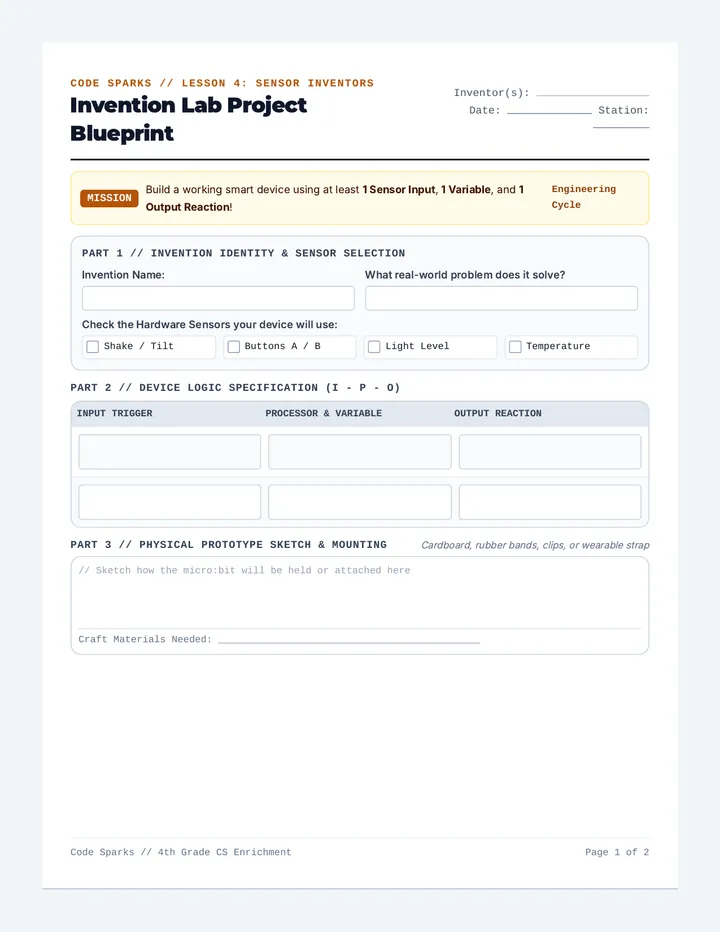
Project Blueprint Worksheet Code Sparks // Lesson 4: Sensor Inventors
Invention Lab Project Blueprint
Inventor(s):
Date: Station:
MISSION Build a working smart device using at least 1 Sensor Input , 1 Variable , and 1 Output Reaction !
Engineering Cycle
Part 1 // Invention Identity & Sensor Selection
Invention Name:
What real-world problem does it solve?
Check the Hardware Sensors your device will use:
Shake / Tilt
Buttons A / B
Light Level
Temperature
Part 2 // Device Logic Specification (I - P - O)
INPUT TRIGGER
PROCESSOR & VARIABLE
OUTPUT REACTION
Part 3 // Physical Prototype Sketch & Mounting
Cardboard, rubber bands, clips, or wearable strap
// Sketch how the micro:bit will be held or attached here
Craft Materials Needed: _____________________________________________
Code Sparks // 4th Grade CS Enrichment Page 1 of 2
Code Sparks // Lesson 4: Sensor Inventors
Testing & Expo Showcase
Verification & Lightning Pitch
Part 4 // MakeCode Block Architecture Plan
Outline your blocks in pseudo-code before building them on the screen:
▸ On Start & Setup:
▸ Event Listener / Loop:
Part 5 // Quality Assurance (QA) Test Log
Every real engineer runs tests to discover bugs. Record three test trials:
TEST #
ACTION TESTED
WHAT HAPPENED?
RESULT
Trial 1
[ ] Pass [ ] Bug
Trial 2
[ ] Pass [ ] Bug
Trial 3
[ ] Pass [ ] Bug
Part 6 // 60-Second Expo Pitch Script
Prepare your lightning presentation for the class showcase:
1. The Hook: "Our smart invention is called ____________________ and it is designed for ____________________."
2. The Tech: "It uses the ____________________ sensor to detect ____________________."
3. The Big Win: "The hardest bug we solved while coding this was ____________________."
Code Sparks // 4th Grade CS Enrichment Page 2 of 2