Web Rangers Academy Slides WEB RANGERS ACADEMY
MISSION 1: ONLINE SAFETY
Secure Your Spaceship!
Welcome, Cadets. Today you will learn to navigate the digital galaxy safely, defend against internet bugs, and earn your official Web Ranger badge.
Instructor-Led Session
PREPARE FOR LIFTOFF
The Digital Galaxy
Cadet Briefing
What is the Internet?
The internet is like an endless, magical city or space station. It lets us explore, learn, play games, and talk to family and friends all over the world!
But just like a physical city, it has streets, friendly neighbors, and places where we need to hold hands and look both ways.
Great Places
Educational games, drawing apps, and talking to grandparents.
Caution Zones
Pop-ups, chat rooms, and clicking unknown buttons.
Web Rangers Academy © 2026 Slide 2 of 6
Secret Cadet Codes
SECRET KEYS
Create a Super Password!
Your password is like a high-tech lock on your spaceship door. If someone guesses it, they can access your digital space!
The Golden Rule:
Never share your password with anyone except your parents, guardians, or teachers. Not even your best friends!
Weak Passwords
"12345" or "password" or "doggy"
Too easy for space pirates to guess!
Strong Passwords
"BluePizza#99" or "Star!Jump!42"
Mix uppercase, lowercase, numbers & symbols!
Web Rangers Academy © 2026 Slide 3 of 6
The Sharing Shield
Information Sorting
Private vs. Shareable Info
Before you post or type anything online, check it with your Cadet Shield!
Private (Keep Locked!)
Never share these without a parent's permission:
Phone Numbers
Home Address
School Name
Full Birthday
Safe to Share!
These are generally safe and fun to share online:
Favorite Color
Favorite Animal
Cool Hobbies
Favorite Books
Web Rangers Academy © 2026 Slide 4 of 6
Cyberbully Deflector
ACTION PROTOCOL
What if someone is unkind?
Cyberbullying is when someone uses the internet to be mean, scary, or exclude others. If you see it happening to you or someone else, use the Web Ranger Protocol :
1
STOP
Do not reply or argue! Angry replies make the fire bigger. Take a deep breath and close the screen.
2
BLOCK
Use blocking settings or mute buttons so they can no longer send messages or see what you are doing.
3
TELL
Show a trusted adult (parent, teacher, or counselor) what happened. They are your co-pilots and can help!
Web Rangers Academy © 2026 Slide 5 of 6
Web Ranger Graduation
FINAL PROTOCOL
The Official Pledge
Ready to Sign Your Ranger Contract?
As an official Web Ranger, you pledge to guard your passwords, shield your private information, block out unkindness, and respect all explorers in the digital galaxy!
Next Step:
Sign your physical Cadet Contract!
Web Rangers Academy © 2026 Slide 6 of 6
Web Rangers Teacher Guide Tech Explorers League • Teacher Resource
Web Rangers Teacher Guide
MISSION 1: DIGI-CITIZEN
Duration
45-60 Minutes
Target Grade
Grades 2-4
Core Concept
Teaching young learners the difference between private and shareable info, strong passwords, and active strategies to counter online unkindness (cyberbullying).
Key Objectives
• Identify and classify personal information into "Private" (lock) versus "Shareable" (unlock) categories.
• Construct a strong password containing uppercase, lowercase, numbers, and symbols.
• Recall and explain the Web Ranger action protocol for cyberbullying: STOP, BLOCK, and TELL .
Slide Delivery Guide (Slides 1–3)
Slide 1 & 2: Welcome & The Digital Galaxy
Hook: Tell students they are entering the Web Ranger Academy today! Ask: "Have you ever visited a city where you had to hold hands and look both ways before crossing?" Compare that city to the internet.
Discussion Point: Point out that the internet is amazing for discovering educational games or talking to distant family (Great Places), but safety rules are required to bypass caution zones (ads, strange messages).
Slide 3: Secret Codes (Passwords)
Teaching Key: Emphasize that passwords are high-tech locks. Ask students why we shouldn't write passwords on sticky notes and leave them on keyboards or share them with friends.
Practice Drill: Give students examples of weak passwords (e.g., "cats") and guide them to make them "super-strong" (e.g., "CatS#12!").
Tech Explorers League • Web Rangers Academy Page 1 of 2
Slide Delivery Guide (Slides 4–6)
Slide 4: The Sharing Shield
Key Concept: Clarify the difference between private information (identifying characteristics like phone, birthday, address, school) and shareable data (favorites, hobbies).
Teacher Tip: Some students think school name is safe because they love their school. Explain that showing your school name lets strangers pinpoint exactly where you are in the physical world. Always keep school name locked!
Slide 5: Cyberbully Deflector
Protocol Briefing: Explain STOP (step away, do not double down or respond), BLOCK (restrict access using program features), and TELL (communicate with parents, teachers, or administrators immediately).
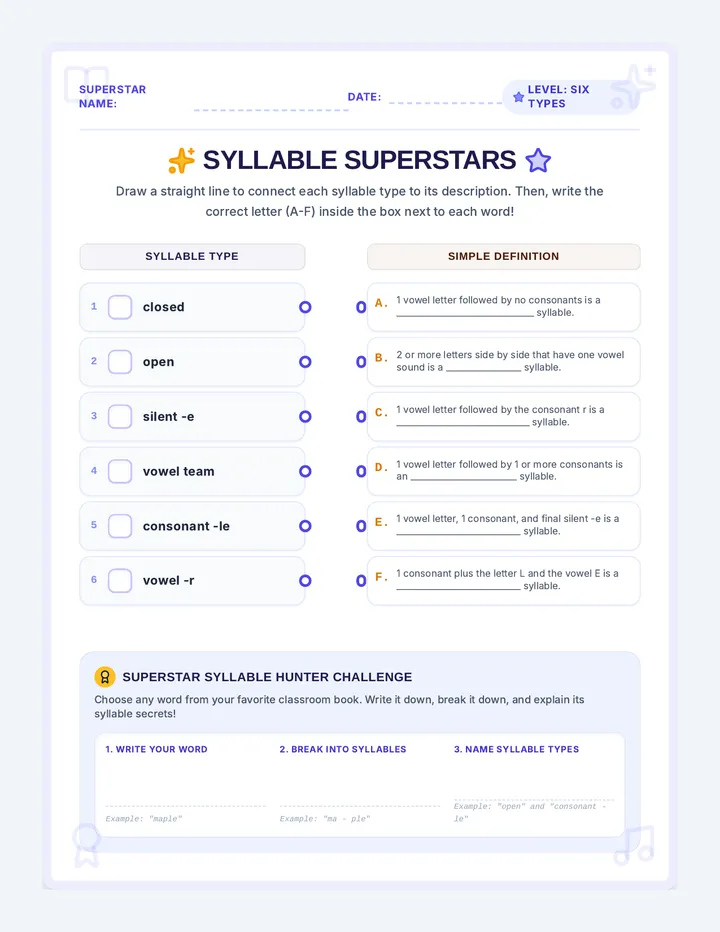
Web Rangers Rules Worksheet Web Ranger Cadet Assignment
Web Rangers Rules
CADET CHALLENGE
Cadet Name
Stardate / Date
Cadet Ship ID
1 The Sharing Shield
Check PRIVATE if the information should stay locked in your spaceship. Check SHAREABLE if it's safe to share with friends online.
Your home phone number
Private
Shareable
Your favorite dog breed
Private
Shareable
The name of your elementary school
Private
Shareable
2 Cadet Code Constructor
Build a super-strong passcode that space pirates can't guess. Remember to combine: Uppercase LETTERS , lowercase letters , Numbers (1-9) , and Symbols (!, #, $) .
Type Your Super Passcode Here:
Capital Letters
Lowercase Letters
Numbers
Symbols (!#@)
3 Kindness Deflector
Scenario: You are playing an online sandbox game. Another player starts calling you names in the chat and sending mean messages. Write what you will do in each space below:
1. STOP (What will you stop doing?)
2. BLOCK (How does it help?)
3. TELL (Who will you tell?)
The Web Ranger Cadet Pledge
"I promise to guard my super-secret passwords, shield my private information, block out cyberbullies, and stay helpful and respectful to all explorers in the digital galaxy!"
Cadet Signature
Captain (Teacher) Approval
Tech Explorers League • Web Rangers Academy Mission Assignment 1
Web Rangers Scenario Cards Unplugged Hands-On Pack • Cutting Sheet
Cut along dashed lines
Web Rangers Scenario Cards
Use these real-life dilemmas for sorting activities, small-group debates, or physical roleplays.
A
The Free Space Pet
A flashy online pop-up game says: "Get a FREE flying alien pet for your avatar! Just enter your parent's cell phone number."
RANGER QUESTIONS:
Is phone number private? What should you do instead of typing it?
B
The BFF Key sharing
Your best friend Leo asks you for your game password so he can help you build your spaceship while you are offline.
RANGER QUESTIONS:
Is sharing passwords with best friends safe? How can you say no nicely?
C
The Unkind Player
A classmate keeps posting mean and hurtful comments under another friend's video on a student sharing app.
RANGER QUESTIONS:
What is this action called? How can you use the "Tell" protocol safely?
D
The Online Friend
A player you met inside an online block building world asks you what elementary school you go to so they can visit you.
RANGER QUESTIONS:
Should you share your school name? How do you shield this information?
E
The Weird Question
While playing games on your tablet, a mystery screen appears asking: "Access to your device camera requested. Yes / No?"
RANGER QUESTIONS:
Why is this request dangerous? What is the correct choice to stay safe?
F
The Profile Picture
Your teacher asks you to pick a profile avatar. You aren't sure whether to upload a real selfie or use a drawing of a rocket.
RANGER QUESTIONS:
Which choice keeps your real face private? Why is that a great option?
Tech Explorers League • Web Rangers Academy Mission Unplugged Pack
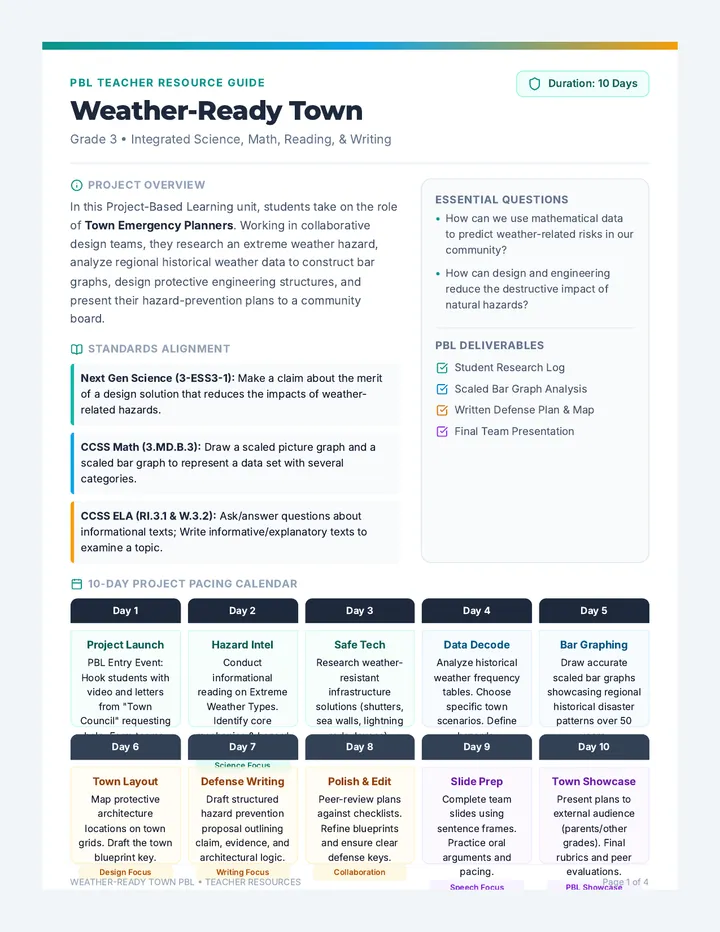
Byte Builders Slides BYTE BUILDERS WORKSHOP
MISSION 2: CORE TECH SKILLS
Master Your Machine!
Welcome, Byte Builders! Today, we unlock the secret physical powers of the keyboard, master the art of the mouse, and learn where our digital files live.
Level 1: Posture & Input Devices
START TUTORIAL
The Posture Protocol
Physical Setup
Typing Like an Expert
Before we type a single letter, we must calibrate our body. Sitting correctly protects our neck, back, and wrists so we can build all day!
Imagine a laser beam from your eyes straight to the top of the monitor. No slouching!
Sit Tall & Feet Flat on Floor
Elbows Bent at 90-Degree L-Shape
Curve Fingers Like Holding an Apple
Byte Builders Workshop © 2026 Slide 2 of 6
Keyboard Territories
INPUT CONTROLS
Three Critical Zones
The keyboard is not a random grid. It has designated territories!
Home Row
Where your fingers sleep! Left hand covers A-S-D-F , right hand covers J-K-L-; . Thumbs rest on Spacebar.
Action Keys
Special helper keys: Enter to jump to next line, Backspace to erase mistakes, Spacebar to breathe.
Modifiers
Power combos! Hold Shift to make capital letters or create symbols like ! and ? .
Byte Builders Workshop © 2026 Slide 3 of 6
Mouse Mastery
Navigation Actions
Point, Grip, and Click!
The mouse is the steering wheel of your computer screen. Learn to trigger these three actions flawlessly:
The Wrist Rule
Keep your wrist flat and floating over the desk. Do not pivot from side to side.
1x
Single Click
Press once with index finger to select or open buttons.
2x
Double Click
Tap twice super fast to open programs or folders!
Click and Drag
Hold down button, move the mouse, release to drop files!
Byte Builders Workshop © 2026 Slide 4 of 6
File Cabinets & Folders
Data Architecture
Where do our creations live?
The computer is like a digital desk with virtual filing cabinets. We stay organized by nesting our files in folders!
Byte Builders Teacher Guide Tech Explorers League • Teacher Resource
Byte Builders Teacher Guide
MISSION 2: INPUT DEVICES
Duration
45-60 Minutes
Target Grade
Grades 2-4
Core Concept
Familiarizing young learners with hardware posture, tactile keyboard zones, mouse control mechanisms (single/double click, click-and-drag), and simple digital file nesting.
Key Objectives
• Model correct typing posture (back tall, feet flat, wrists elevated, curved fingers).
• Identify keyboard territories including the Home Row, Modifier Keys, and Special Action Keys.
• Differentiate between single click, double click, and click-and-drag actions on a mouse.
Slide Delivery Guide (Slides 1–3)
Slide 1 & 2: Welcome & Posture Protocol
Modeling Routine: Do a "robot calibration" exercise. Have students sit like sloppy noodles first, then say "Calibrate!" and prompt them to sit super straight, lift wrists off desk, bent elbows at 90°, and rest fingers curved over keyboard keys.
The Apple Trick: Tell students to pretend they are holding a tiny ripe apple under each hand. This keeps fingers naturally curved instead of completely flat.
Slide 3: Keyboard Territories
Key Concept: Introduce the home row (the middle row starting with F and J which have tactile bumps). Have students run their fingers across F and J to feel the physical bumps. Explain that these bumps are "home anchors" so we don't have to look down at the keyboard.
Tech Explorers League • Byte Builders Workshop Page 1 of 2
Slide Delivery Guide (Slides 4–6)
Slide 4: Mouse Mastery
Tactile Practice: Model holding the mouse like a sleeping hamster. index finger on left button, middle finger on right. Teach: Single Click (point and press once), Double Click (tap twice rapidly like a woodpecker), Click-and-Drag (hold the left button down while traveling across the desk, then release).
Slide 5: File Cabinets & Folders
The Filing Cabinet Analogy: Explain that a computer has large "filing cabinets" (hard drives), full of "folders" (yellow envelopes), which contain "files" (the actual drawings and homework). Draw this hierarchy on the whiteboard.
Student Activity Execution
Distribute Byte Builders Quest Worksheet . Guide them through the physical/tactile coloring and matching activities:
Activity 1: Keyboard Mapping
Using three crayon colors, have students shade the Home Row, Special Actions (Enter, Space, Backspace), and Modifiers (Shift). Verify they do not color randomly.
Byte Builders Quest Worksheet Byte Builder Apprentice Assignment
Byte Builders Quest
CORE BUILD SKILLS
Builder Name
Today's Date
Station #
1 Posture Calibration Check
Sit at your computer station. Have a partner check your physical posture. Tick the checkbox when you successfully calibrate:
Back is straight, tall like a tower.
Elbows bent at 90-degree angle.
Fingers curved over QWERTY keys.
2 Keyboard Territory Mapping
Color-code the important keys on your keyboard map: Yellow = Home Row, Teal = Action Keys (Enter, Back, Space), Indigo = Shift Keys
Tab Q W E R T Y U I O P Bksp
Caps A S D F G H J K L ; Enter
Shift Z X C V B N M , . Shift
Spacebar
3 Mouse Action Match
Draw a line matching the action to its function:
Single Click
Double Click
Click and Drag
Moves a file from desk to recycling bin.
Selects a menu item or button.
Opens a program or folder rapidly.
4 Folder Tree Builder
Challenge: Put a file named "Spacecat.png" inside a folder named "Art Projects" , which sits inside a folder named "Schoolwork" . Draw how these three items nest inside each other:
Tech Explorers League • Byte Builders Workshop Mission Assignment 2
Byte Builders Challenge Cards Unplugged Hands-On Pack • Cutting Sheet
Cut along dashed lines
Byte Builders Challenge Cards
Engaging, physical, and kinesthetic pair/group exercises to master computer mechanics offline.
1
Posture Detective
Take turns typing a sentence. Your partner is the "Posture Detective" and must monitor your physical setup!
DETECTIVE CHECKLIST:
Are elbows at 90-degree 'L' shape? Is their back straight? Are their feet flat on the floor?
2
The Sleeping Apple
Place your fingers over the home row (A-S-D-F and J-K-L-;). Keep your thumbs resting lightly on the Spacebar.
THE DRILL:
Pretend you have a fragile, ripe apple resting under each palm. Curve your fingers so you don't squash it!
3
The Woodpecker Click
Hold your computer mouse. Have a partner whisper: "Single!" or "Double!" or "Drag!"
THE DRILL:
Perform the click action super-fast. For double clicks, tap twice instantly like a woodpecker searching for bugs!
4
Directory Architect
Take 3 sticky notes. Write "School", "Science Project", and "Earth_Drawing.png" on them.
THE CHALLENGE:
Stack the notes physically on top of each other to show which one nests inside the other!
5
Blindfold Typist
Close your eyes. Use your fingers to search for the physical tactile bumps on the keyboard.
THE DRILL:
Can you find the "F" and "J" keys purely by touch? Give yourself a Builder point if you can locate them under 3 seconds!
6
Mouse Lift Reset
Pretend your cursor is stuck at the very right edge of the screen, but your physical mouse is already falling off your desk.
THE TRICK:
LIFT your physical mouse, put it back in the middle of your mousepad. Notice how your virtual cursor didn't move!
Tech Explorers League • Byte Builders Workshop Mission Unplugged Pack