A comprehensive, 50/50 split presentation and practical walkthrough of NotebookLM. Designed to equip professionals with hands-on document synthesis skills, prompt libraries, and robust technical preparation for executive questioning.
A comprehensive technical certification sequence designed to teach commercial coffee equipment technicians how to demystify electricity, safely troubleshoot components, and master electrical systems.
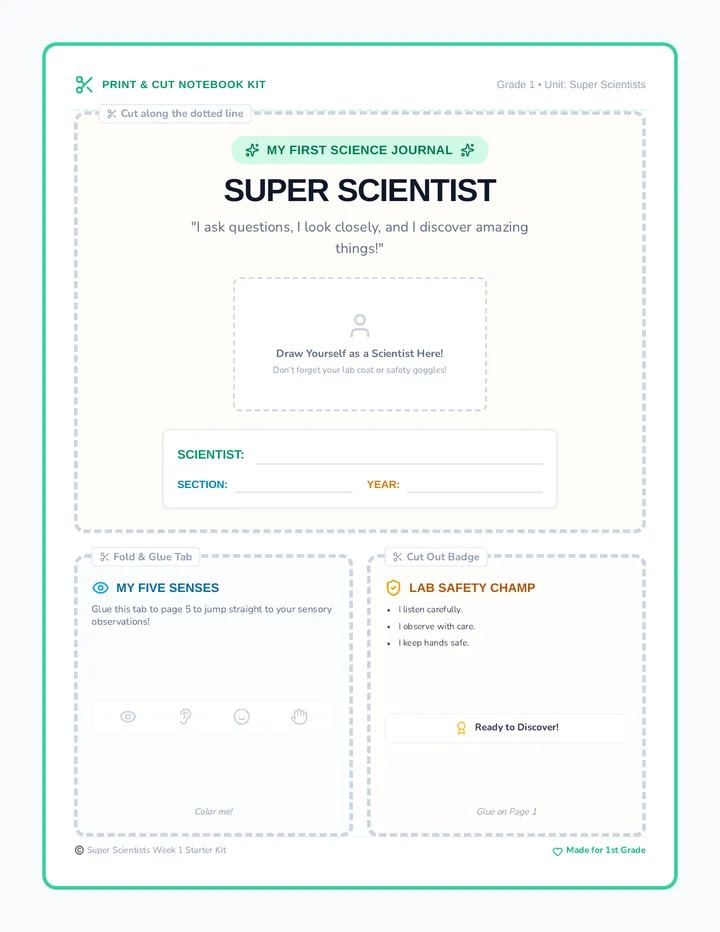
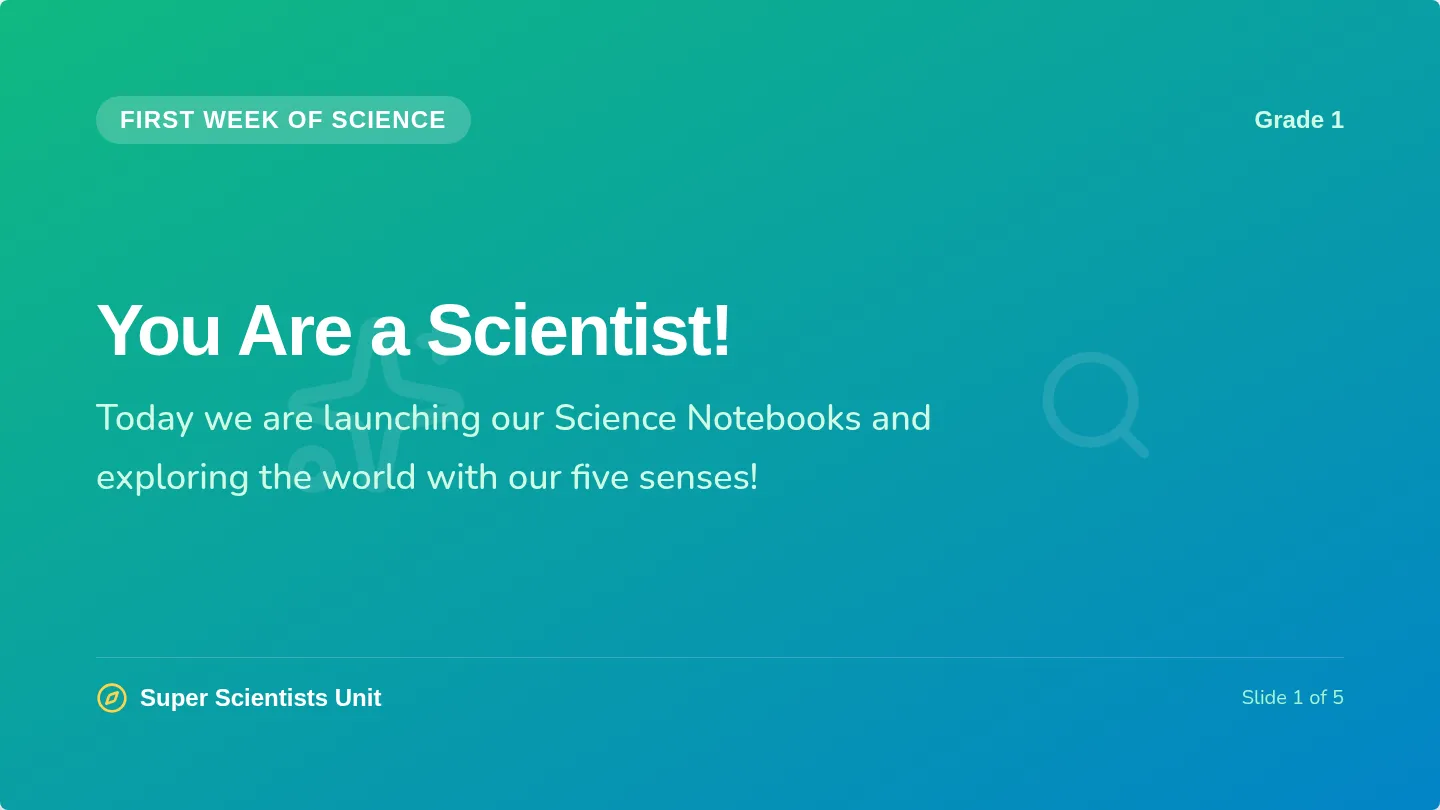
An introductory first-week science unit for 1st graders to explore scientific identity, observation, and the five senses through interactive notebooks.
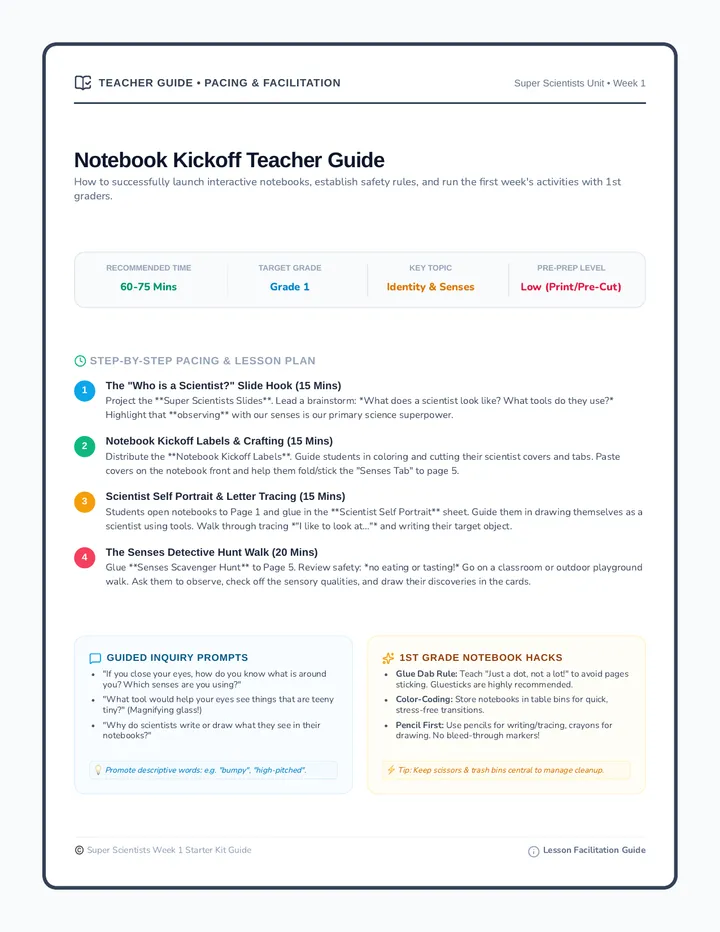
A comprehensive guide for teachers detailing how to set up science notebooks, facilitate the first week's activities, and prompt sensory observations in 1st grade.
A comprehensive teacher professional development and model lesson plan sequence. It equips educators with hands-on mineral testing protocols, inquiry-based (3D) NGSS teaching strategies, geological vocabulary support, and formative assessment tools for grades 4-8.
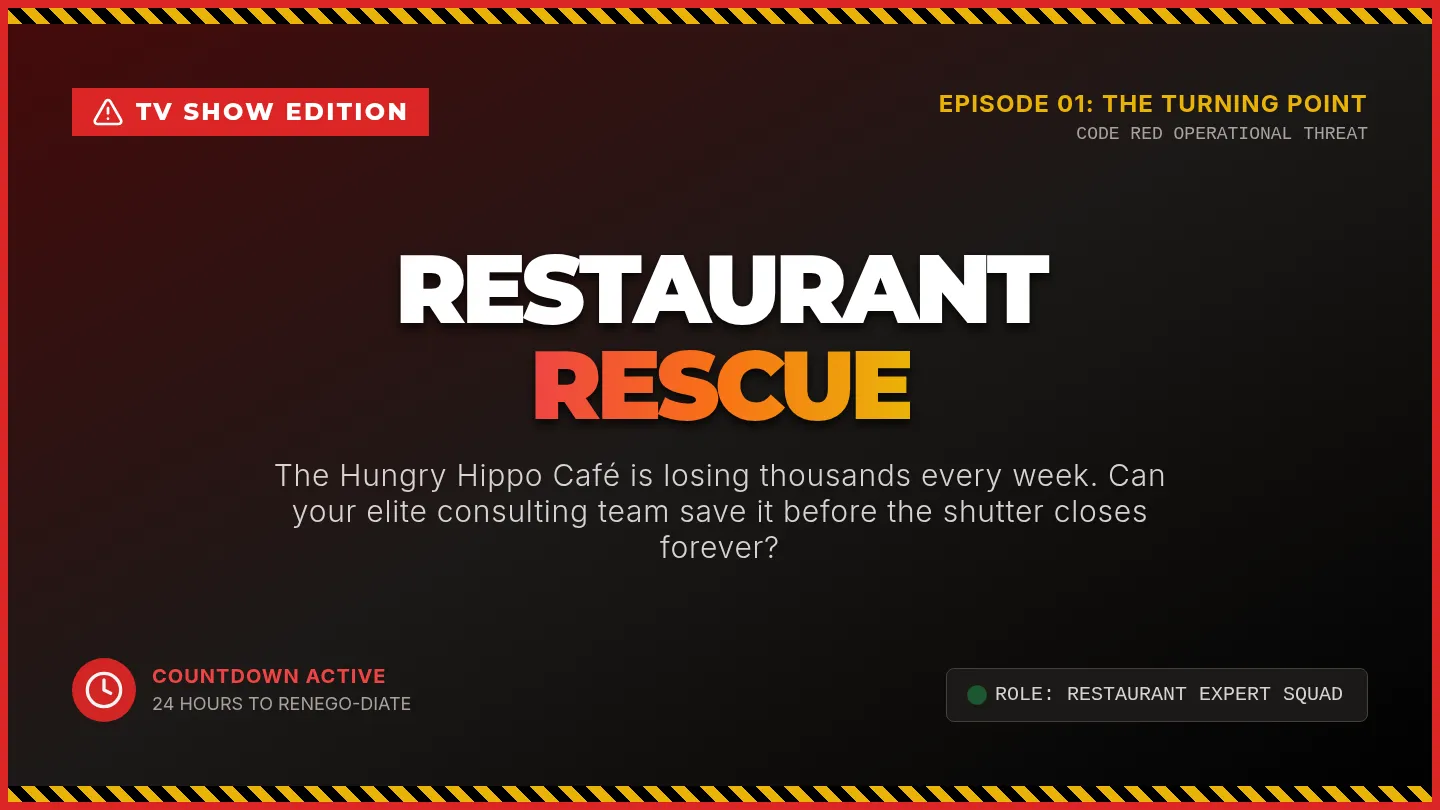
A dramatic, interactive problem-solving game disguised as a restaurant makeover reality TV show. Students act as Restaurant Rescue Experts investigating "The Hungry Hippo Café" to uncover and solve issues in restaurant operations, food safety, customer service, and budget.
An interactive slide deck introducing first graders to what a scientist is, the five senses as their primary scientific tools, and notebook organization.
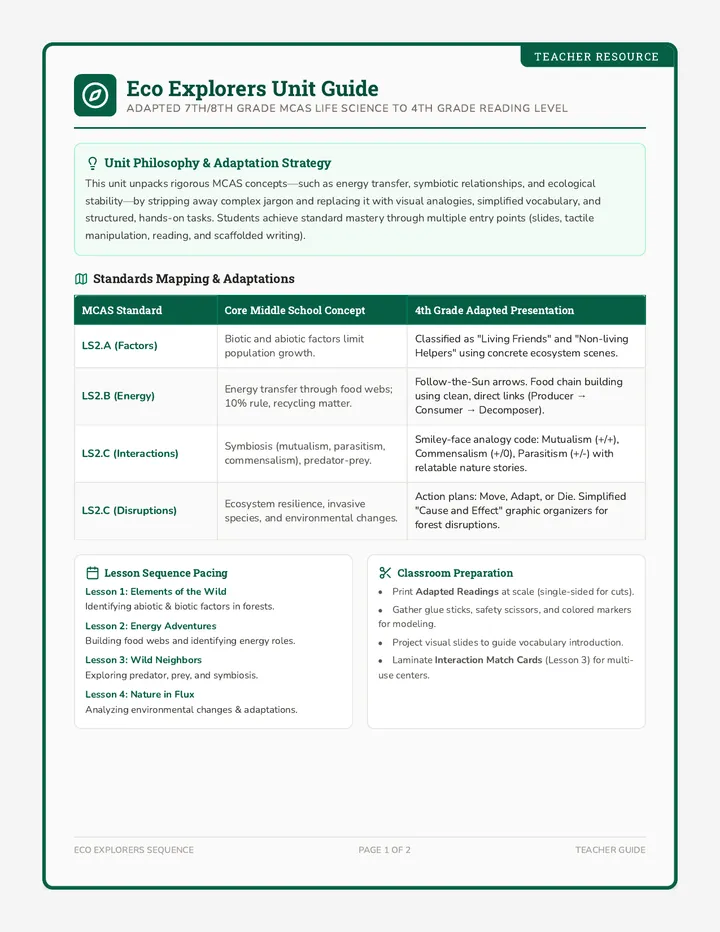
An interactive, highly visual ecosystem unit designed for 7th/8th grade MCAS standards but adapted to a 4th-grade reading and comprehension level. The unit explores abiotic/biotic factors, energy flow, interactions, and disruptions through hands-on activities, adapted readings, visual slides, and scaffolded assessments.
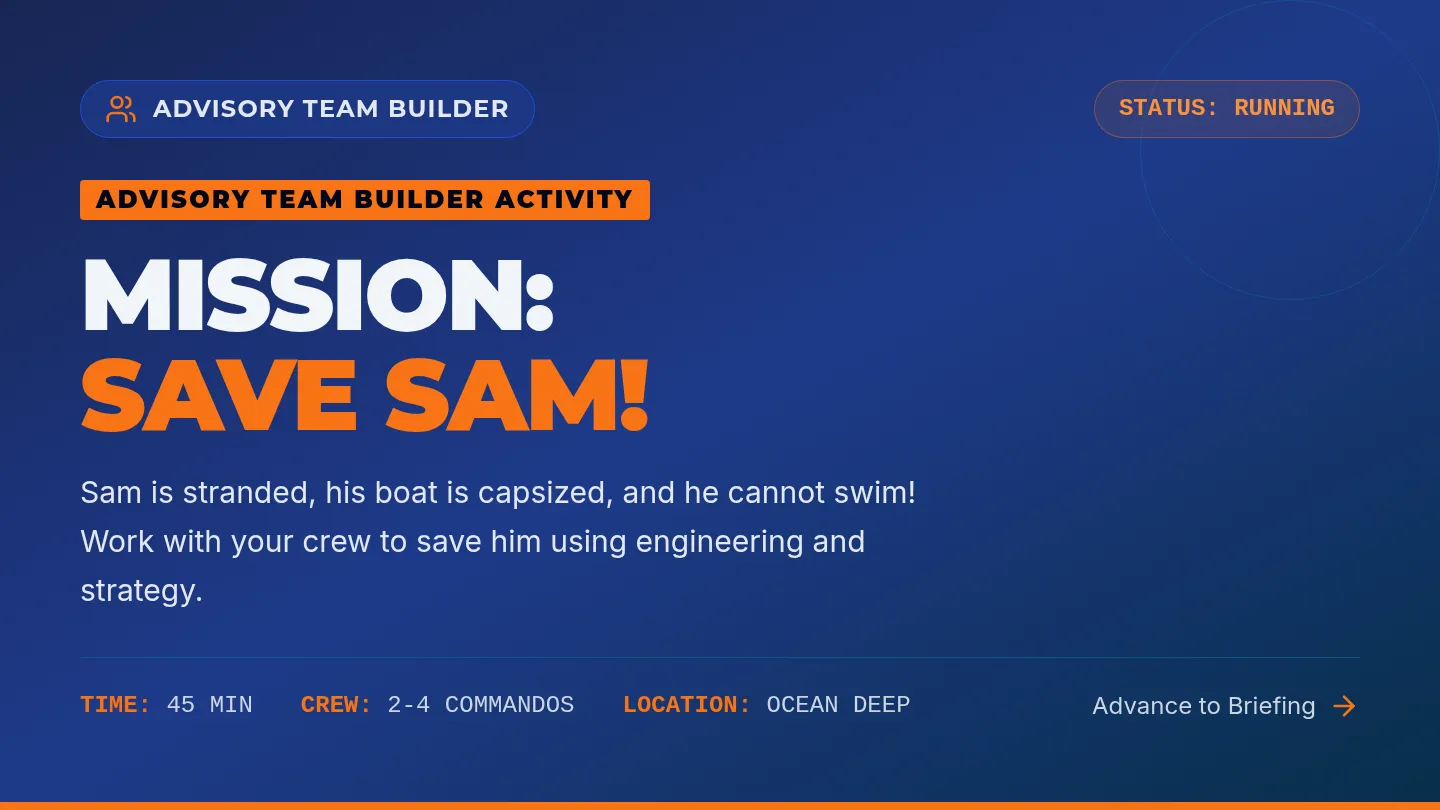
An introductory STEM and cooperative learning lesson where students work in teams to save Sam, a gummy worm stranded on a capsized boat, using only paperclips to retrieve and equip his life preserver.
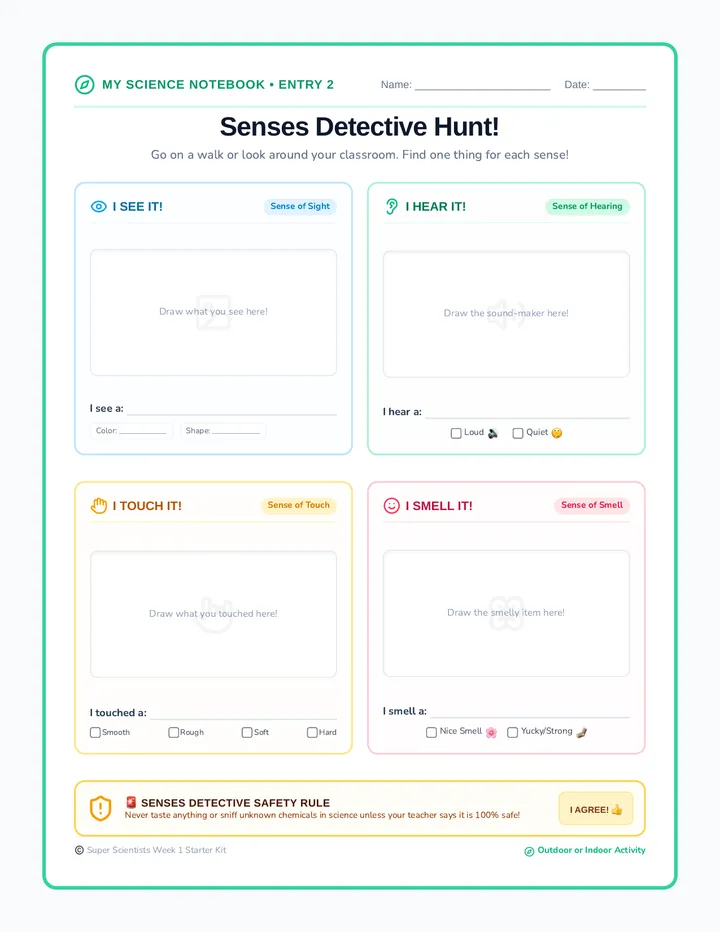
A five senses classroom and outdoor scavenger hunt sheet designed for 1st graders to record sensory observations with drawings and simple descriptive words.
A highly visual 4-day science unit exploring ocean habitats and depth zones. Tailored for differentiated instruction for 3rd grade and nonverbal 7th grade students using Boardmaker-style symbols, color-coded matching, and visual check comprehension.
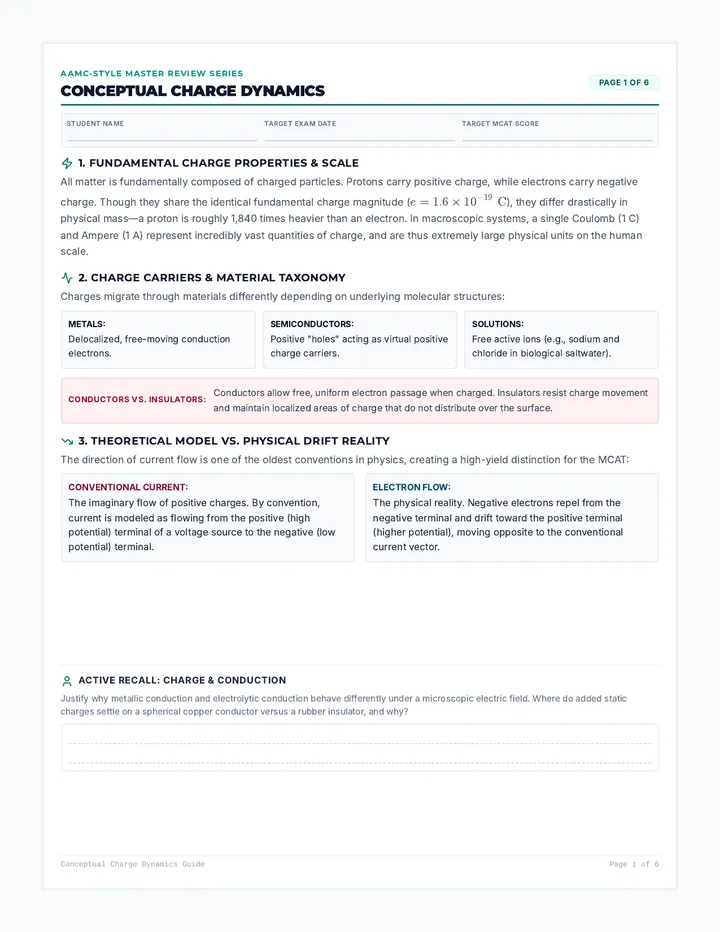
A high-yield, conceptual MCAT preparation lesson covering electrostatics, magnetism, and circuits. This lesson integrates core physical science principles with biological systems (like action potentials and MRI) and provides intuitive mental math shortcuts without relying on heavy mathematical formulas.
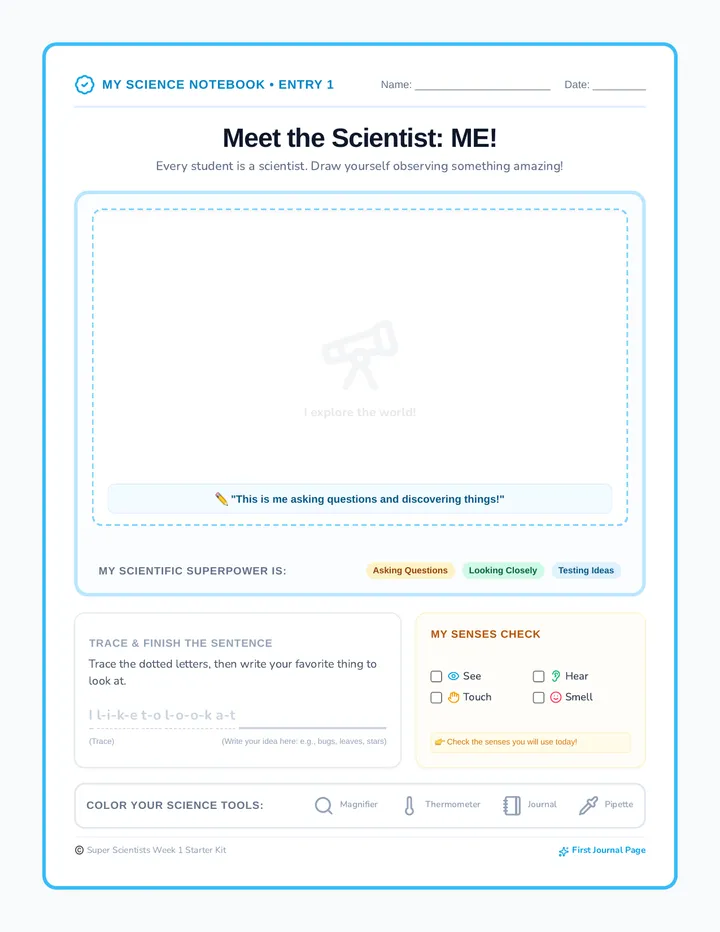
An interactive journal page for students to draw their self-portrait as a scientist, practice observational tracing, and choose their sensory-scientific tools.