Formula Fun Lesson Plan Formula Fun: Sheets
Lesson Plan • 7th Grade Technology
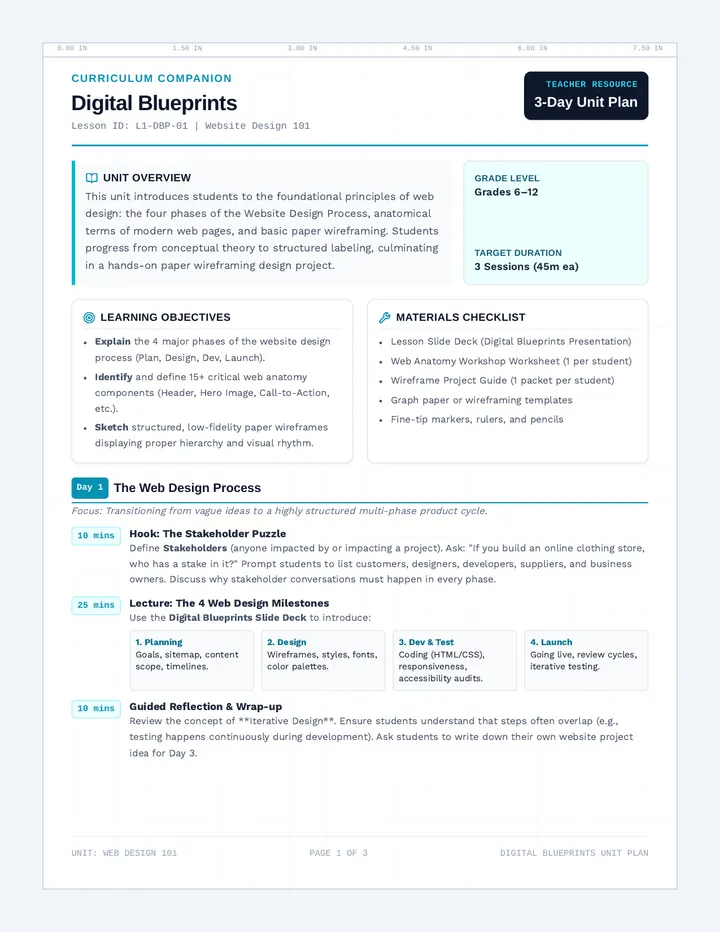
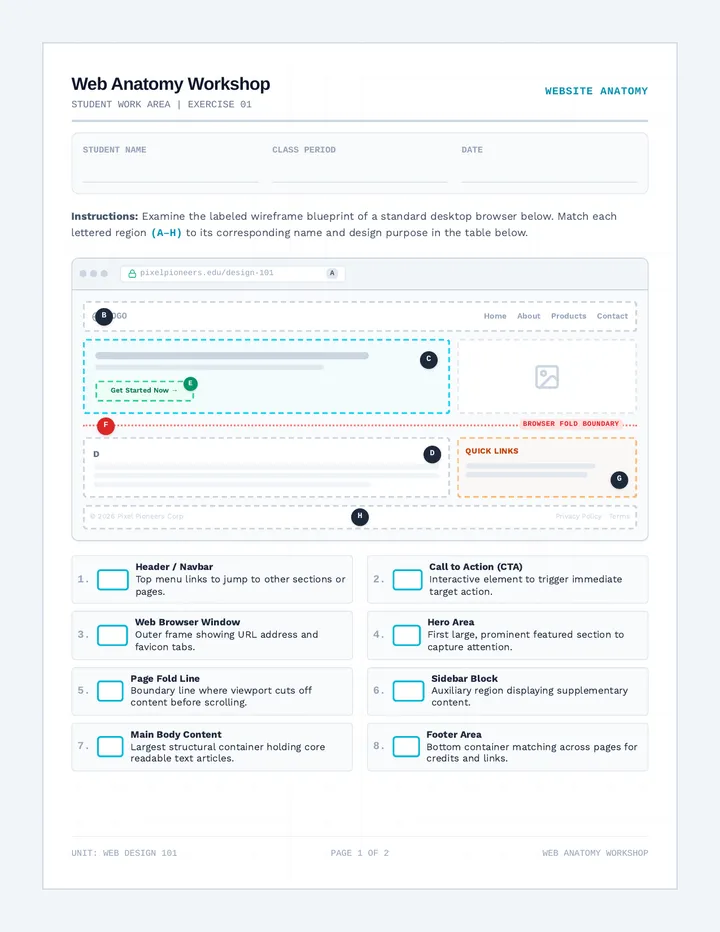
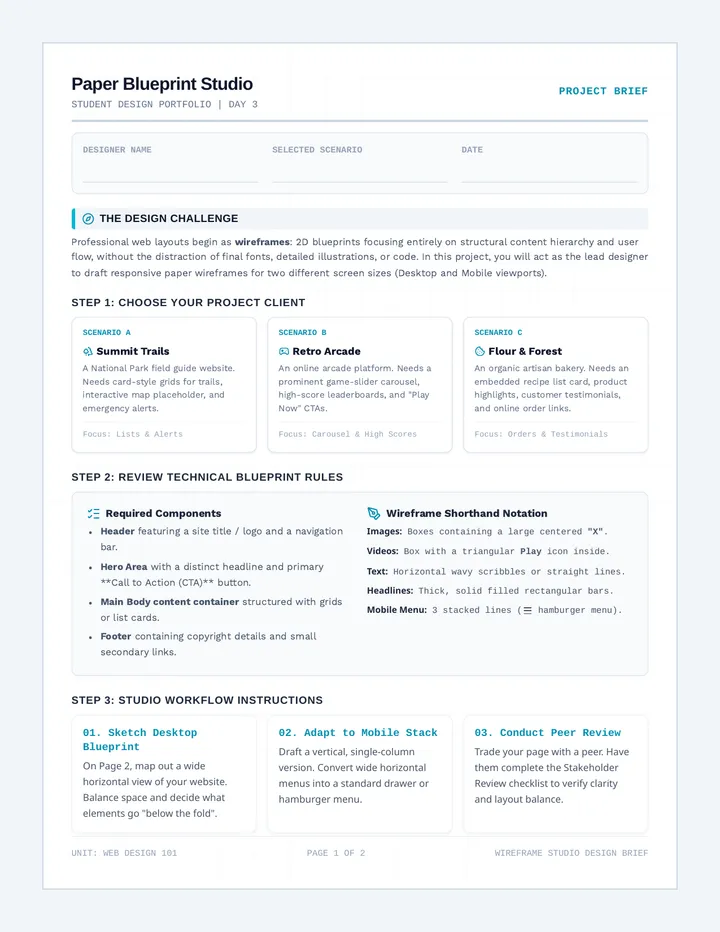
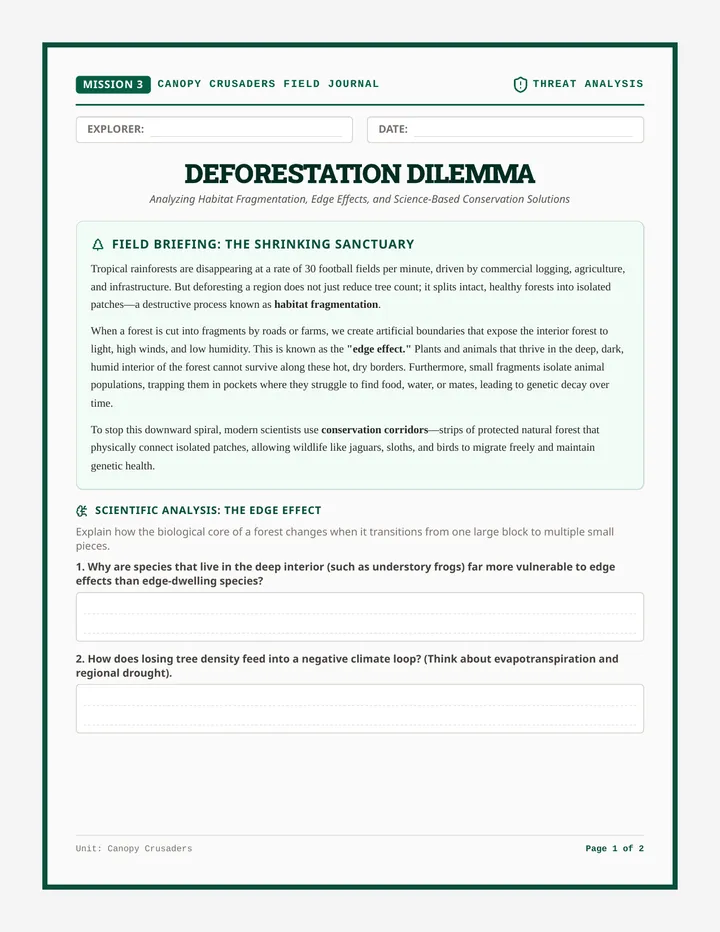
Duration: 45 Minutes
Topic: Basic Formulas & Sorting
Lesson Overview
Understanding these formulas helps students efficiently manage and interpret data in digital spreadsheets, a crucial skill for future academic and professional tasks. It simplifies data analysis and improves problem-solving abilities.
Objective
Students will be able to identify and apply basic Google Sheets formulas (COUNT, AVERAGE, SUM) and the SORT function to analyze and organize data within a spreadsheet.
Approach
Hands-on application and guided practice using live digital environments and structured activity sheets.
Materials & Preparation
Required Resources
Google Sheets access (one per student)
Formula Fun Slide Deck
Formula Fun Teacher Script
Google Sheets Warm Up
Sheets Formula Activity & Answer Key
Sheets Formula Discussion Guide
Teacher Prep (15 min)
• Review the Slide Deck and Script to familiarize yourself with the flow.
• Ensure all student devices have internet and Google Sheets access.
• Data Setup: Create a sample Sheet with the Sports Day data pre-filled (or be ready to have students type it in).
• Print physical copies of the Activity and Warm-Up if not using digital versions.
Instructional Timeline
10 Minutes
Warm-Up & Introduction
• Students complete the Google Sheets Warm Up reflecting on prior spreadsheet experience.
• Use the Formula Fun Slide Deck to introduce objectives and the "magic" of formulas.
• Briefly define COUNT , AVERAGE , SUM , and SORT .
25 Minutes
Guided Practice & Activity
• Lead a live demo for each formula following the Formula Fun Script.
• Students open Google Sheets and follow along with basic data entries.
• Distribute the Sheets Formula Activity.
• Students work on applying formulas to the "School Sports Day" dataset. Circulate to provide 1-on-1 support.
10 Minutes
Discussion & Wrap-Up
• Facilitate a class discussion using the prompts from the Sheets Formula Discussion guide.
• Review key takeaways: When do we use SUM vs. AVERAGE? Why is SORT helpful?
• Assign any unfinished activity parts as homework.
Teacher Pro-Tips
"Remind students that all formulas MUST start with an equals sign (=) or they won't work!"
"If COUNT shows zero, check if they are trying to count text instead of numbers."
"Highlight the importance of selecting the WHOLE range when sorting to keep data rows together."
Google Sheets Warm Up Warm-Up: Formula Intro
Name:
Date:
Ready to analyze?
Think about any time you've used Google Sheets, Microsoft Excel, or another spreadsheet program. Answer the questions below to get your brain in "Data Mode"!
1
What's one thing you've done with a spreadsheet?
2
If you know any spreadsheet formulas, what's one you've heard of or used?
3
If you don't know any, what's something you wish a spreadsheet could do automatically for you? Formula Fun Slide Deck 7th Grade Tech
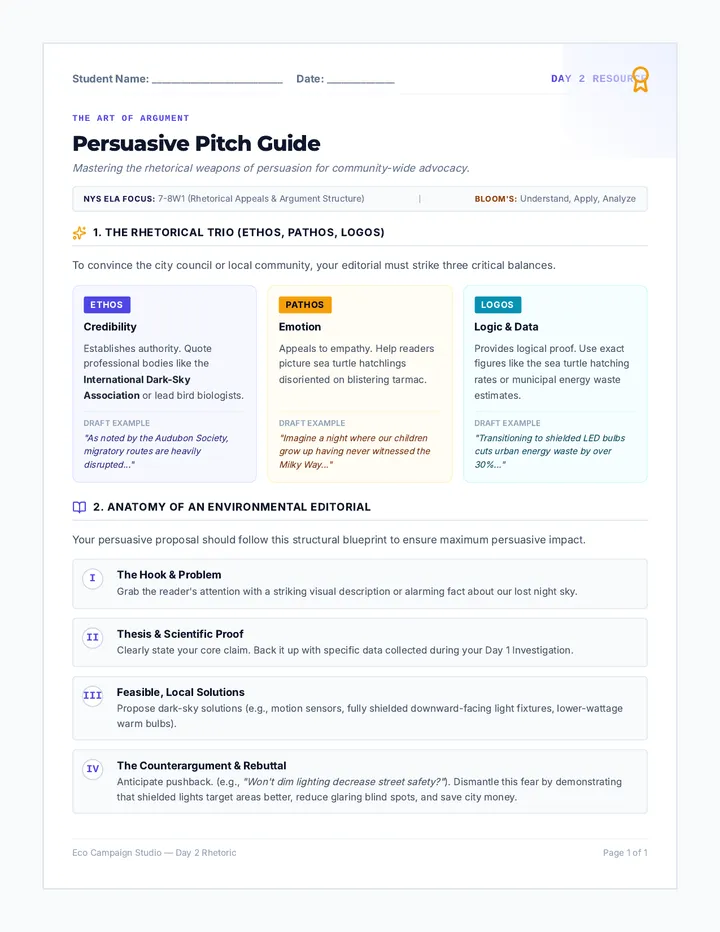
Formula Fun: Sheets
Unlock the power of your data with COUNT, AVERAGE, SUM, and SORT!
What are Formulas?
Spreadsheets aren't just for typing lists. They are powerful calculators!
"Formulas are smart commands that tell the spreadsheet to calculate or organize for you."
=SUM(A1:A10)
Always start with =
COUNT: How Many?
Counts how many cells in a selected range contain numbers .
When to use:
Counting items sold
Counting student entries
Example Formula
=COUNT(A2:A10)
(Counts numbers in cells A2 through A10)
AVERAGE: The Middle
Calculates the mean (typical value) of a group of numbers.
When to use:
Finding class test averages
Finding typical daily temperatures
Example Formula
=AVERAGE(B2:B10)
(Finds the mean of numbers in B2 to B10)
SUM: The Total
Adds up every number in the selected range of cells.
When to use:
Calculating total shopping cost
Adding up total game points
Example Formula
=SUM(C2:C10)
(Adds all numbers in cells C2 through C10)
SORT: Get Organized
Arranges your data in a specific order (A-Z, Z-A, 1-100, etc.)
How to do it:
1. Select your data range.
2. Go to Data > Sort Range.
3. Choose your column and order.
Name (A-Z) Score Amy 85 Zeke 92
Time to Practice!
Now it's your turn to apply these formulas to the School Sports Day dataset.
1
Open Sheets
2
Type Data
3
Run Formulas
Great Work!
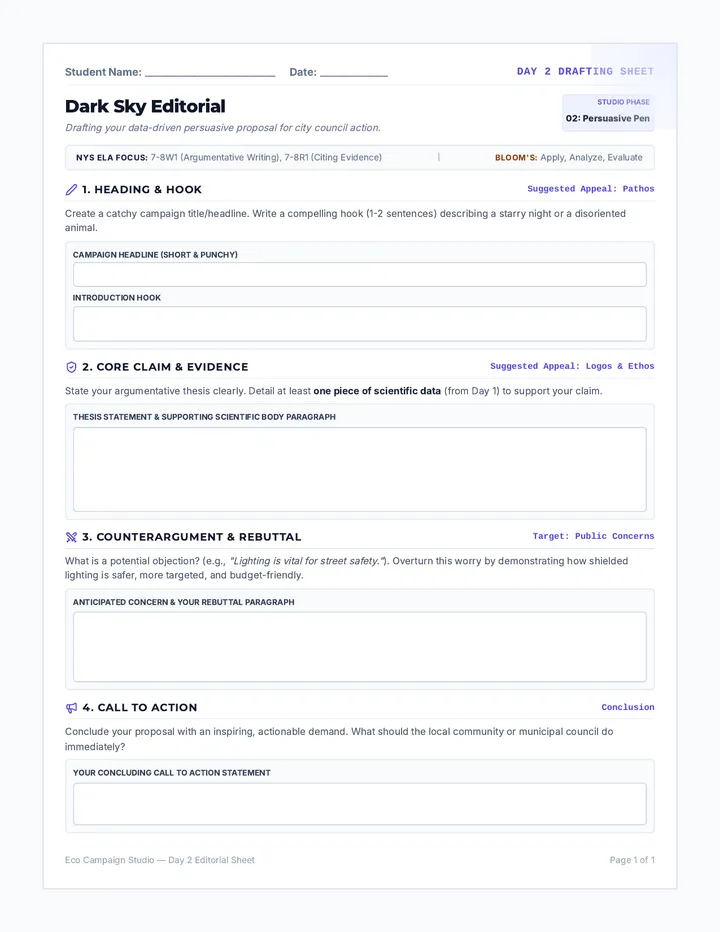
Formula Fun Teacher Script Instructional Script
Formula Fun: Sheets • 7th Grade Tech
Teacher Copy
Part 1
Warm-Up & Introduction (10 min)
Display Slide 1: Welcome
"Good morning/afternoon, everyone! Today, we're going on an exciting adventure into the world of Google Sheets. We're going to become 'Formula Fun' experts!"
"First, let's get our brains warmed up. I've handed out a quick Google Sheets Warm Up . Please take about 3 minutes to answer those questions. Think about your past experiences—even if you've never used a formula before, think about what you wish a computer could do for you automatically."
[Allow 3 minutes for completion, then call on 2-3 students to share]
Display Slide 2: What are Formulas?
"You're all hitting on something important: spreadsheets are amazing tools for organizing and analyzing data. But they're not just for typing lists or making pretty tables. The real magic happens with formulas !"
"Formulas are like smart commands. Think of them as tiny programs inside a cell that do the math for you. Today, we're going to learn four super useful tools: COUNT, AVERAGE, SUM, and SORT."
Part 2
Guided Practice (25 min)
Display Slide 3: COUNT
"Let's start with COUNT. Imagine you have a list of 500 student names. You don't want to count them by hand! COUNT tells you how many cells have numbers in them."
Demo Step: Have students type 10, 20, 30 in cells A1:A3. Then type =COUNT(A1:A3) in A4.
Display Slide 4: AVERAGE
"Next is AVERAGE. We use this all the time for grades! It finds the 'middle' or the mean of your numbers. Instead of adding and dividing yourself, you just tell the Sheet which cells to look at."
Demo Step: Students type different scores in B1:B3. Use =AVERAGE(B1:B3) in B4.
Display Slide 5: SUM
"SUM is our total-maker. If you're building a shopping list or counting up game points, this is your best friend. It simply adds every number in the range together."
Display Slide 6: SORT
"Finally, SORT. This isn't a math formula, but it's a critical function. If your data is a mess, you can alphabetize names or rank scores from highest to lowest in just two clicks."
Display Slide 7: Time to Practice
"Now it's your turn. Open the Sheets Formula Activity . You'll enter data for a school sports day and use your new skills to find the winners and the totals!"
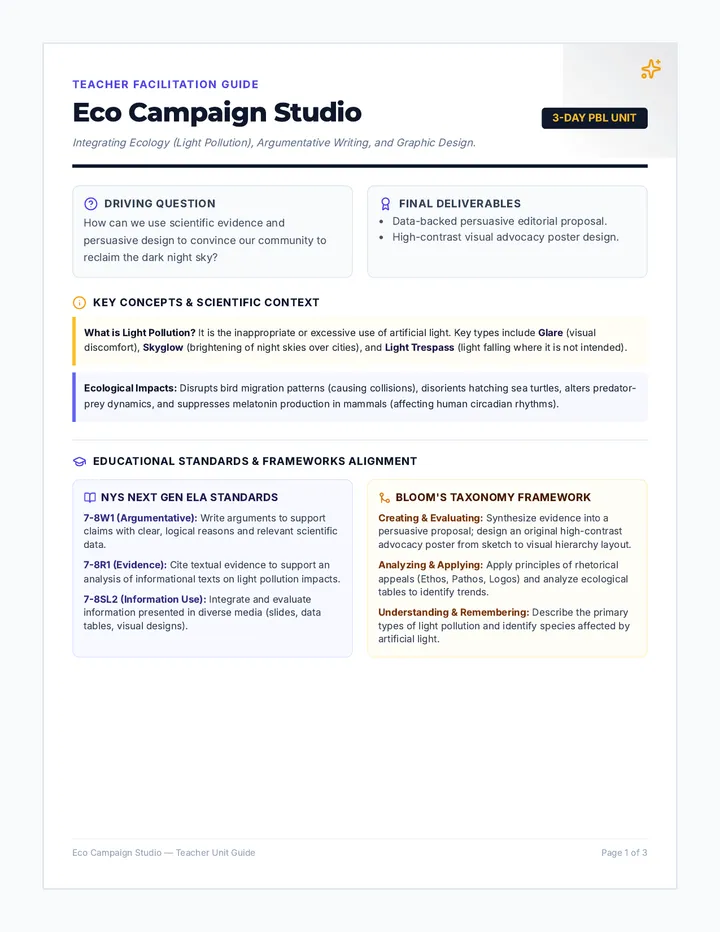
Sheets Formula Activity Activity: Sports Day Data
Apply your COUNT, AVERAGE, SUM, and SORT skills!
Name
Date
1
Set Up Your Data
Open a new Google Sheet and enter the following data starting in cell A1 .
Athlete Name (A) Event (B) Score (C) Maya Sprint 12 Ben Long Jump 4 Chloe Sprint 13 David Shot Put 8 Emily Long Jump 5 Frank Sprint 11 Grace Shot Put 9 Henry Long Jump 3 Ivy Sprint 14 Jack Shot Put 7
2
Apply the Formulas
1. COUNT: How many scores are recorded in total for all events?
Formula Used
Answer
2. AVERAGE: What is the average score across all events?
Formula Used
Answer
3. SUM: What is the total sum of all scores from all events?
Formula Used
Answer
3
Sort Your Data
1. Sort by Athlete Name (A to Z)
Steps you took
What changed in your Sheet?
2. Sort by Score (Highest to Lowest)
Steps you took
What changed in your Sheet?
Challenge!
Formula Master Challenge
Can you find the highest score using a formula (MAX) or the lowest score (MIN)? They work just like SUM!
Highest Score Formula
Lowest Score Formula
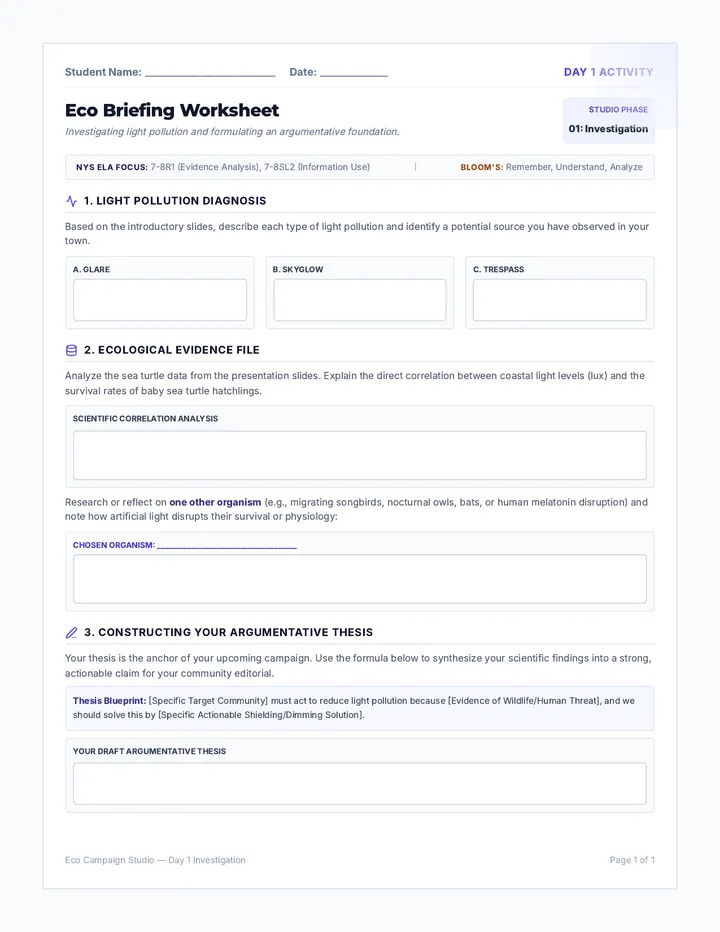
Sheets Formula Discussion Guide Class Discussion
Reflecting on Formula Fun
Name:
Date:
1 Reflection on Formulas
Which formula (COUNT, AVERAGE, or SUM) did you find the easiest to use? Why?
Which one do you think you'll use the most in the future, and for what purpose?
2 Sorting Power
When we used the SORT function, what was the biggest advantage you noticed? How did it make the data easier to understand?
Can you think of a situation where sorting data would be absolutely essential?
3 Real-World Connections
Beyond sports, where else in real life might people use these formulas? Think about businesses, science, or personal use.
How do you think using formulas and sorting data makes people more efficient at their jobs?
4 Challenges & Learning
Was there anything tricky or confusing about using these formulas or the sort function at first?
What advice would you give to a friend who is just starting to learn about Google Sheets formulas?
Sheets Formula Activity Answer Key Answer Key: Sports Day Data
Teacher Reference Only
Answer Key
2
Apply the Formulas
1. COUNT: How many scores are recorded in total for all events?
Formula Used
=COUNT(C2:C11)
Answer
10
2. AVERAGE: What is the average score across all events?
Formula Used
=AVERAGE(C2:C11)
Answer
8.6
3. SUM: What is the total sum of all scores from all events?
Formula Used
=SUM(C2:C11)
Answer
86
3
Sort Your Data
1. Sort by Athlete Name (A to Z)
Steps you took
Highlighted A1:C11. Clicked "Data" > "Sort Range" > "Advanced range sorting options". Checked "Data has header row". Selected "Athlete Name" and "A to Z".
What changed?
Ben moved to the top row (Row 2). Jack moved to Row 7. Every row stayed together (Ben is still matched with Long Jump and Score 4).
2. Sort by Score (Highest to Lowest)
Steps you took
Selected A1:C11. Data > Sort Range > Advanced options. Sort by "Score" and order "Z to A".
What changed?
Ivy (Score 14) moved to Row 2. Henry (Score 3) moved to Row 11.
Formula Master Challenge
Highest Score Formula
=MAX(C2:C11)
Lowest Score Formula
=MIN(C2:C11)