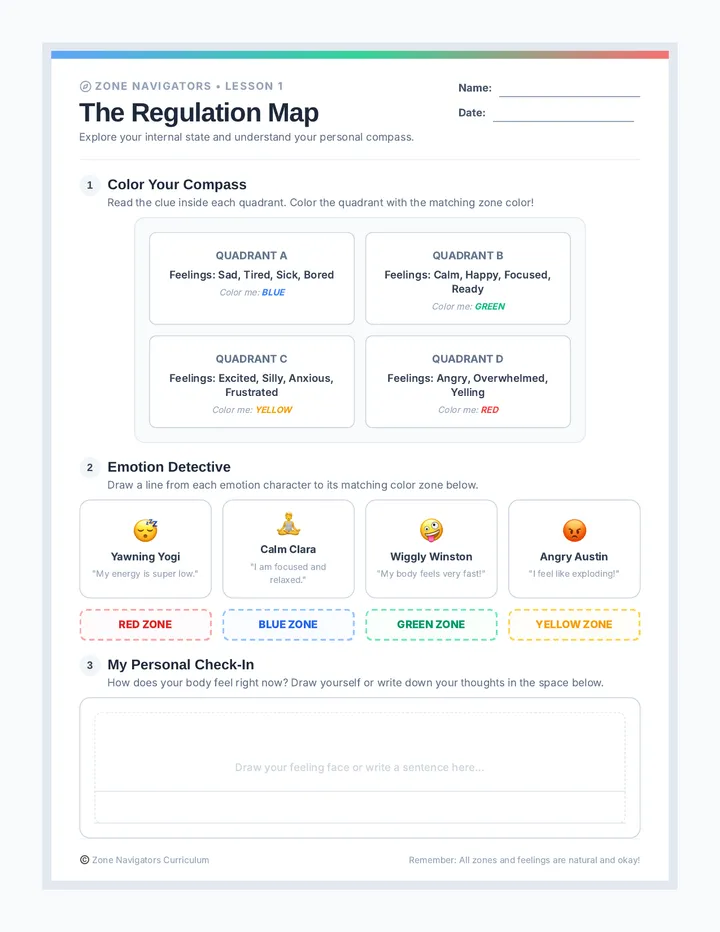
Safety Signal Sorting Worksheet Signal Sorting
Lesson 1: Traffic Light Safety Rule
Name:
Date:
How to Play:
Look at the online pictures below. Use your crayons to color the traffic light for each one!
Green = Safe
Yellow = Ask
Red = Stop
School Learning Game
"Free Toys!" Pop-up
A Scary Picture
Video with Mom or Dad
Remember: If you see a Red light, tell a grown-up right away!
Traffic Light Safety Slides Safety Signals
How to be a Safe Web Explorer!
The 3 Safety Signals
Go!
Websites and games that a grown-up says are okay.
Slow!
Ask a grown-up before you click something new.
Stop!
Turn off the screen and tell a grown-up right away.
Green Light: Safe Zones
School Reading Apps
Shows chosen by Mom or Dad
Red Light: Danger!
A website that makes you feel scared or sad.
A button that pops up and won't go away.
A stranger asking for your name or where you live.
Red Light, Green Light!
Stand up! When your teacher reads a safe scenario, RUN in place. When it's tricky, FREEZE!
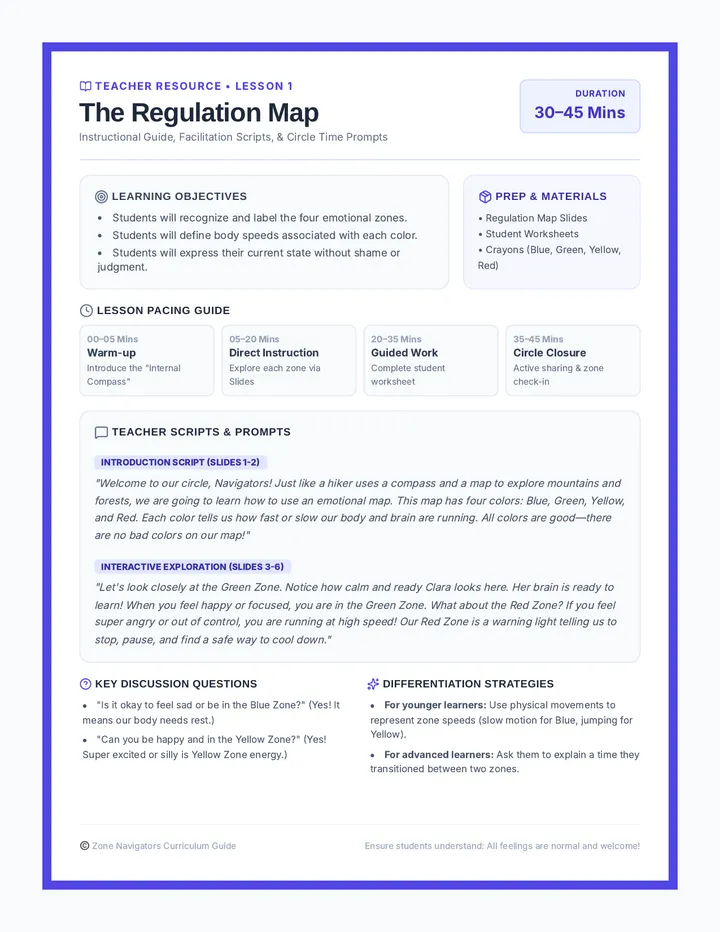
Traffic Light Safety Teacher Guide Teacher Guide
Lesson 1
Traffic Light Safety
Time
30-45 Minutes
Key Skill
Safety Classification
Objective
Students will categorize online scenarios into Green (Safe), Yellow (Caution/Ask), and Red (Stop/Tell) safety signals.
The Hook: Safety Sprint
Activity: "Safety Signal Sprint"
Have students stand in an open area.
Explain that they will "run" (in place) when they hear a Green Light scenario and "freeze" when they hear a Red Light scenario.
Scenario Examples:
"Playing a game with your teacher on the iPad." (Run!)
"A big box pops up and asks for your name." (Freeze!)
"Watching a video Mom picked for you." (Run!)
"A scary face shows up on the screen." (Freeze!)
Instructional Steps
Step 1: Introduction (10m)
Use the Safety Signals Slides to define Green, Yellow, and Red. Emphasize that grown-ups are our "safety coaches."
Step 2: Guided Discussion (10m)
"What if you see a button that says 'Free Candy' but you don't know it? Is that Green or Yellow?"
Explain that Yellow means 'Stop and Ask.' We don't click until we check with a grown-up.
Step 3: Worksheet Practice (15m)
Distribute the Signal Sorting Worksheet . Read each scenario icon aloud and have students color the corresponding light together.
Kid-Friendly Terms
Grown-Up
Parent, teacher, or trusted adult.
Safe Zone
Apps/sites that our adults say are okay.
Tricky Treasure Slides Tricky Treasure
Spotting Things That Are Not What They Seem!
The "Too Good" Trap
Free!
Does it look like a wonderful gift?
It might be a "Red Light" Trick!
Spot the "Pop-Up"
X
YOU WON!!
Click here to get your 1,000 Free Toys!
CLICK ME!
Is it Real or a Trick?
Math Adventure Game
Found on your school website.
REAL
Giant Mystery Cake
Appeared out of nowhere!
TRICK
Wait & Tell!
If a screen says you "Won" something big, or asks you to "Click Fast"...
STOP and Tell your Grown-Up!
Real or Trick Worksheet Real or Trick?
Lesson 2: Spotting Online Scams
Name:
Date:
Is it a Trick?
Some things on the screen try to trick us! Look at the pictures. Draw a RED CIRCLE around the things that look like a Trick .
A Math Game
In your classroom
FREE!
"Free Toy" Pop-Up
Appeared suddenly
"You Won Money!"
A flashing box
Library Book Site
Chosen by teacher
If it's a Trick, STOP and Tell!
Spotting Scams Teacher Guide Teacher Guide
Lesson 2
Spotting Online Tricks
Time
35-45 Minutes
Key Skill
Critical Viewing
Objective
Students will recognize that some online content (pop-ups, ads) is meant to trick users and that "too good to be true" offers are safety warnings.
The Hook: The Magic Box
Materials: A decorated box (labels like "FREE CANDY" or "MAGIC TOYS") that is actually empty.
Show the box to the class with excitement. "Class, look! I found this box. It says there are free toys inside for everyone! Do you believe it?"
Open the box to reveal it is empty.
Discussion: "How did you feel when you saw the label? How did you feel when you saw it was empty? Sometimes the internet has boxes just like this."
Instructional Steps
1. Define "Pop-Up" (10m)
Use the Tricky Treasure Slides to show examples. Explain that pop-ups are like uninvited guests who jump in front of what you are doing.
2. The "Too Good" Test (10m)
"If a screen says you won a million dollars, but you didn't even play a game... is that real or a trick?"
Teach the phrase: "If it looks too good to be true, it's a trick for me and you!"
3. Real or Trick Worksheet (15m)
Lead students through the Real or Trick Worksheet . Discuss why the "free gift" pop-up is a trick while the "math game" is real.
Teacher Tips
Avoid using the word "liars"—focus on the concept of a "trick" or "scam" as a safety warning.
Encourage students to physically show a "Stop" sign with their hands when they see a trick on the slides.
Masks and Avatars Slides Who is it?
Learning About Avatars and Online Strangers
The Online Mask
An Avatar is a picture people use online.
"It's like wearing a costume on your screen!"
You Can't Always Tell!
On the Screen
Cute Kitten
In Real Life
A Stranger
"Just because the picture is nice, doesn't mean the person is a friend."
My Safety Circle
Family at Home
Teachers at School
Friends I Know in Person
The Big Rule
Never talk to Online Strangers without a parent or teacher!
"Strangers are just people we don't know yet."
Friend or Stranger Cards Identity Match
Lesson 3: Avatars vs. Real Life
Instructions:
Cut out the cards below. With a partner, decide if the picture shows a Friend you know in real life, or a Stranger you only see on a screen!
My Teacher
Kitten Avatar
On screen
My Mom/Dad
Robot Hero
On screen
Classmate
Mystery Mask
On screen
Friend Area
Stranger Area
Identity Check Lesson Guide Teacher Guide
Lesson 3
The Avatar Mask
Time
30-40 Minutes
Key Skill
Identity Awareness
Objective
Students will understand that online pictures (avatars) can hide a person's real identity and will learn the rule of never talking to online strangers.
The Hook: Behind the Mask
Hide behind a large card, a puppet theater, or a door.
Speak in a different voice (e.g., high-pitched, like a robot, or like a cat).
Ask students: "Can you see me? Do you know who I am just by hearing this silly voice?"
Step out. Discussion: "Just like I was hiding my face, people online use pictures to hide their faces. We call these 'Avatars.'"
Instructional Steps
1. Slides: The Online Mask (10m)
Show the Masks and Avatars Slides . Focus on the slide comparing the cute kitten avatar to a real-life stranger. Emphasize that "nice pictures don't always mean nice people."
2. Defining "Stranger" (5m)
"A stranger is someone we haven't met in person with our grown-ups."
Explain that even if a stranger says "Hi" or "I like your games," we still don't talk to them.
3. Friend or Stranger Sorting (15m)
Give pairs the Friend or Stranger Cards . Have them sort cards into "People I know" vs "Screen People."
The Big Takeaway
Always ask a grown-up before you ever type a message or say "Hi" to a picture on the screen.
Pause and Ask Slides Pause and Ask
What to do when the screen gets "Tricky"!
Don't Just Click!
Sometimes we see a button and our finger wants to CLICK IT FAST.
But tricky pop-ups want you to click fast!
Wait!
Step 1: Pause
Hands Off the Screen!
1
Take your hands away from the mouse or tablet.
2
"Freeze like a statue!"
Step 2: Ask
Raise Your Hand
Ask your Teacher or Parent:
"I found a tricky light. Can you help me?"
Freeze Play!
Pretend you are playing a fun game. When your teacher says TRICKY LIGHT, you must throw your hands up and FREEZE!
Screen Freeze Practice Sheet Freeze & Focus
Lesson 4: Muscle Memory Practice
Name:
Date:
Tricky Light!
A mysterious box just popped up.
Color the Pause Button BLUE
?
What do you do next?
Take your hands away
Ask a Grown-Up!
The Click Stop Teacher Guide Teacher Guide
Lesson 4
Pause and Ask
Time
40-50 Minutes
Key Skill
Self-Regulation
Objective
Students will demonstrate the "Pause and Ask" technique by physically moving their hands away from a device and seeking adult help when encountering a digital safety signal.
The Hook: Fast Tapping Game
Materials: Paper tablets or just the student's desk surface.
Have students "drum" or tap quickly on their desks like they are playing a fast game.
Tell them to keep tapping until you say the secret word.
Suddenly shout "FREEZE!" and hold up a Red Light card (or hand).
Students must immediately throw their hands into the air (jazz hands style) and stop tapping.
Discussion: "How hard was it to stop tapping? Sometimes our fingers want to keep clicking, even when we see a Red Light. We have to practice our 'Pause' button!"
Instructional Steps
1. Slides: The 2-Step Rule (10m)
Use Pause and Ask Slides . Teach the two steps: 1) Hands Off, 2) Raise Hand/Ask. Physically model this multiple times.
2. Skill Workshop (15m)
Have students sit with their tablets (or paper tablets). Pretend to play a game. Call out different "tricky" scenarios (e.g., "A scary face!", "A box that won't go away!"). Have students practice the full routine: Hands up -> Turn to a neighbor (acting as the grown-up) -> Ask for help.
3. Screen Freeze Practice Sheet (15m)
Students color the "Pause" button on their Practice Sheet . This solidifies the visual cue of what to do when they feel that "tricky" feeling.
Teacher Insight
Some students may feel "in trouble" if they see a Red Light. Reassure them: "You aren't in trouble for seeing a tricky light. You are a SUPER HERO for pausing and telling!"
Safe Surfer Simulation Slides Safe Surfer Quest
Time to show what you know!
Your Mission
You are going to navigate through the Digital Garden.
To get your badge, you must choose the GREEN path and avoid the RED traps!
Mastery Reward
Challenge #1: The Gift
"YOU WON A FREE PUPPY!"
What do you do?
Click the puppy
Pause and Ask
Challenge #2: The Message
RobotGuy says: "Hi! What's your name?"
What do you do?
Tell him your name
Don't talk to strangers
I Am A Safe Surfer!
I will follow the Traffic Lights, spot the Tricks, and always Pause and Ask!
Mission Accomplished
Safe Surfer Map Activity Safe Surfer Map
Lesson 5: Navigation Challenge
Name:
Date:
The Mission:
Draw a path through the Digital Garden! Stay on the GREEN safe path. Do not click the Red Traps!
START
"Free Gift!"
Library App
Stranger
School Game
Pop-Up
Family Video
FINISH
Great job! You navigated the garden safely.
Safe Surfer Certificate Safe Surfer Award
This badge of safety is proudly given to:
For mastering the rules of the internet!
Signals
Tricks
Pause
Teacher Signature
Date
Safety Simulation Final Guide Teacher Guide
Lesson 5
Safe Surfer Simulation
Time
45-60 Minutes
Key Skill
Mastery & Application
Objective
Students will apply all learned safety rules (Traffic Lights, Tricks, Strangers, Pause/Ask) in a simulated environment to earn their "Safe Surfer" certification.
The Hook: Obstacle Course
Preparation: Set up 3 "stations" in the room representing the Garden Path.
Station A: A sign that says "FREE CANDY!" (Trap) and a sign that says "Library Books" (Safe).
Station B: A puppet (Stranger) and a photo of the teacher (Known).
Station C: A tablet showing a "Pop-Up" image.
Students must walk the "Green Path" by choosing the safe icons and doing the "Pause" reflex at Station C.
Simulation & Assessment
1. Simulation Slides (15m)
Show Safe Surfer Simulation Slides . Use these as a whole-class review. For each scenario, have the class vote on the safe choice by pointing to the "Green" or "Red" side of the room.
2. The Map Challenge (15m)
Distribute Safe Surfer Map Activity . This is the individual assessment. Check if students successfully draw a path that avoids all 3 red traps (Gift, Stranger, Pop-Up).
3. Graduation (15m)
"You have all proven that you know how to stay safe in the Digital Garden!"
Hand out the Safe Surfer Certificates . Have students write their names (or assist them) and take a class photo with their "badges"!
The Safe Surfer Promise
Encourage students to take their certificates home and show their "Safety Coaches" (parents) what they learned.