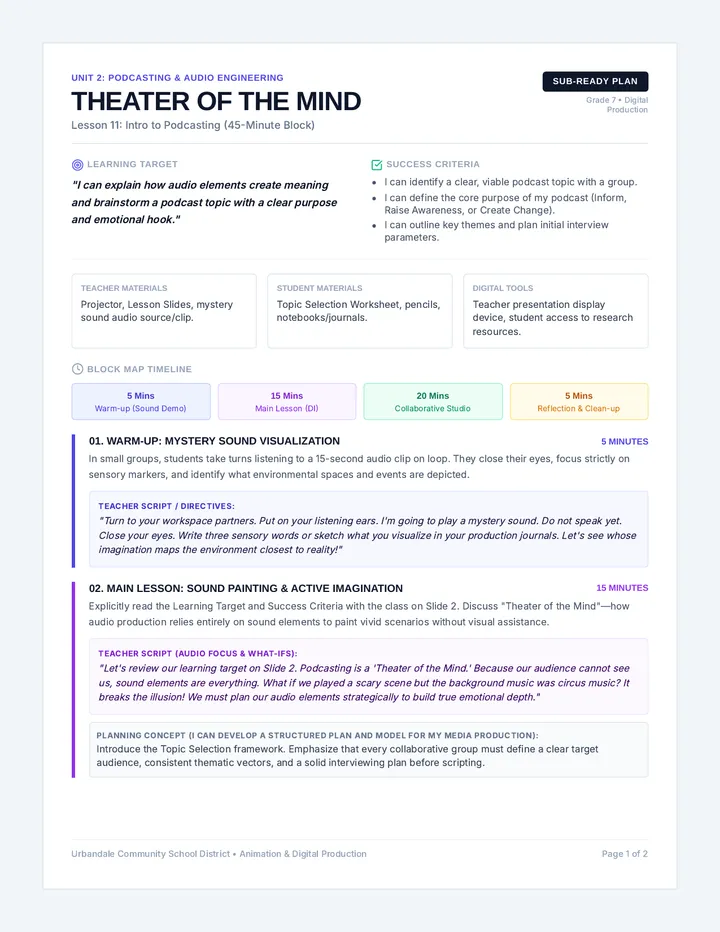
Low Poly Stegosaurus Lesson Plan Low-Poly Stegosaurus
Lesson Plan • 3D Modeling Studio
Grade Level 7th Grade
Duration
15 Minutes
Subject
Digital Art / Tech
Goal
Intro to Blender
WHY THIS MATTERS
Learning 3D modeling introduces students to digital art, design, and critical thinking. It helps them understand how virtual objects are created, fostering creativity and problem-solving skills relevant in technology and art fields.
PREPARATION
Ensure all student computers have Blender installed and ready.
Review the Slide Deck and Teacher Script .
Familiarize yourself with basic Blender navigation (Orbit, Pan, Zoom).
Prep Time: 10 mins
MATERIALS
PC/Mac with Blender
Slide Deck
Instructional Script
LEARNING OBJECTIVE
Students will be able to identify basic low-poly modeling concepts and apply fundamental Blender tools to create a simple low-poly Stegosaurus model.
LESSON STAGES
1
Introduction & Hook
2 MIN
Start with video game context. Define 'low-poly' style. Show slides 1-2.
2
Interface & Basic Tools
3 MIN
Navigation (Orbit, Pan, Zoom) and basic transformations (G, S, R).
3
Modeling the Body
5 MIN
Scale the base cube. Use Loop Cuts (Ctrl+R) and Extrusion (E) for head/tail.
4
Legs and Back Plates
3 MIN
Add new cubes (Shift+A). Position and scale for blocky legs and back plates.
5
Wrap-up & Share
2 MIN
Quick progress tour. Review key tools. Encourage future play.
Modeling Status: Ready
Rendered with Blender Studio Essentials
Low Poly Stegosaurus Slide Deck 7TH GRADE DIGITAL ART
Welcome to
3D Modeling!
Have you ever wondered how video game characters or animated objects are made? Today, we're going to find out by creating our own!
Teacher Note: Welcome students and introduce the exciting world of 3D modeling. Ask a hook question to get them thinking.
What is Low-Poly?
It's an art style in 3D modeling that uses a small number of polygons (flat surfaces) to create models.
"Think classic video games or modern stylized art!"
Minimal Geometry
Teacher Note: Explain what 'low-poly' means – using fewer polygons for a stylized look. Show examples of simple character models.
Meet Blender!
THE TOOL OF THE PROS
Blender is a free, powerful 3D creation suite.
Artists, animators, and game developers use it worldwide!
Teacher Note: Introduce Blender as the software we'll be using. Highlight its accessibility and professional power.
Navigating Blender
ORBIT
Middle Mouse Button (MMB)
PAN
Shift + MMB
ZOOM
Mouse Scroll Wheel
Teacher Note: Guide students to open Blender. Point out the 3D viewport. Demonstrate basic navigation techniques.
Basic Tools: G, S, R
G
MOVE (GRAB)
Select an object and drag it anywhere.
S
SCALE
Make your shapes bigger or smaller.
R
ROTATE
Spin your objects around.
Teacher Note: Show them how to select the default cube and use the basic transform tools.
Step 1: The Body
1 Start with the default Cube.
2 Press S + X to stretch length.
3 Press S + Z to flatten height.
Create a long, flat shape for the main dino torso!
Stego Body
Teacher Note: Start building. Show how scaling on specific axes (X and Z) transforms the cube into a body.
Pro Tools: E & Ctrl+R
EXTRUDE
E
"Pull out" new shapes from your faces. Use this for the NECK and TAIL.
LOOP CUT
Ctrl
+ R
Add new "segments" to your model to make it more detailed.
Teacher Note: Enter Edit Mode (Tab). Demonstrate creating the head/neck and pointy tail.
Legs for Our Dino!
Shift + A
Add 4 new cubes!
Scale them down small.
Position them as blocky legs.
Keep it simple and low-poly!
Teacher Note: Demonstrate adding new cubes for legs and positioning/scaling them.
Spiky Back Plates
Add small cubes, flatten them, and place them along the spine.
1
2
3
4
5
Space them evenly!
Teacher Note: Show them how to add cubes and flatten them (S + Z) for the plates. Emphasize symmetry and spacing.
MISSION ACCOMPLISHED
Great Work,
Junior Modelers!
You just created a 3D dinosaur! Today you mastered:
Low-Poly Art
Blender UI
Grab/Scale/Rotate
Extrude/Loop Cuts
Keep Creating.
Teacher Note: Conclude the lesson by asking students to share their creations. Summarize key concepts.
Low Poly Stegosaurus Script Instructional Script
Low-Poly Stegosaurus
Blender 3D Modeling • Grade 7
Version 1.0
Production Date: Jan 17, 2026
SAY: Dialogue prompts
DO: Demonstrations/Actions
SLIDE: Visual cues
01
Introduction & Hook
2 MINUTES
SAY
"Good morning/afternoon, everyone! I have a question for you: Have you ever wondered how characters and objects in your favorite video games or animated movies are actually made? Think about games like Minecraft, or certain cartoon styles. How do artists create those cool 3D worlds and characters?"
DO
Pause for a few responses. Look for mentions of polygons or cubes.
SAY
"Today, we're going to get a taste of being 3D artists! We're going to dive into the world of 3D modeling and create our very own low-poly Stegosaurus! 'Low-poly' simply means using a smaller number of shapes to create a stylized, often blocky look. It's a great way to learn the basics."
SLIDE
Refer to Slide Deck: Slides 1-2
02
Blender Interface & Basic Tools
3 MINUTES
SAY
"The program we'll be using is called Blender . It's a professional tool that many artists and animators use, and it's completely free! Let's get it open on your computers. Once it's open, you'll see a screen that might look a bit complex, but don't worry, we'll only focus on a few key things today."
NAV
"First, let's learn how to look around. Imagine you're holding a camera. To orbit around your object (spin the camera), press and hold your Middle Mouse Button (MMB) and drag. Try it out! To pan (move side-to-side), hold Shift and MMB and drag. To zoom , use your scroll wheel."
TOOLS
"Now, let's look at our default cube. We can do three main things: Move, Scale, and Rotate . Press 'G' to Grab and move. Press 'S' to Scale and resize. Press 'R' to Rotate. Try all three on your cube now."
SLIDE
Refer to Slide Deck: Slides 3-4
03
Modeling the Stegosaurus Body
5 MINUTES
SAY
"Excellent! Let's turn this cube into a body. Select your cube. Press 'S' then 'X' to make it longer. Then press 'S' then 'Z' to make it flatter. Now we need a head and tail using the tool."