Implementation of AAC device navigation, symbol-word communication, and speech recognition for text editing. Builds proficiency in keyboard shortcuts, text-to-speech reading supports, and digital organization through productivity apps and calendars.
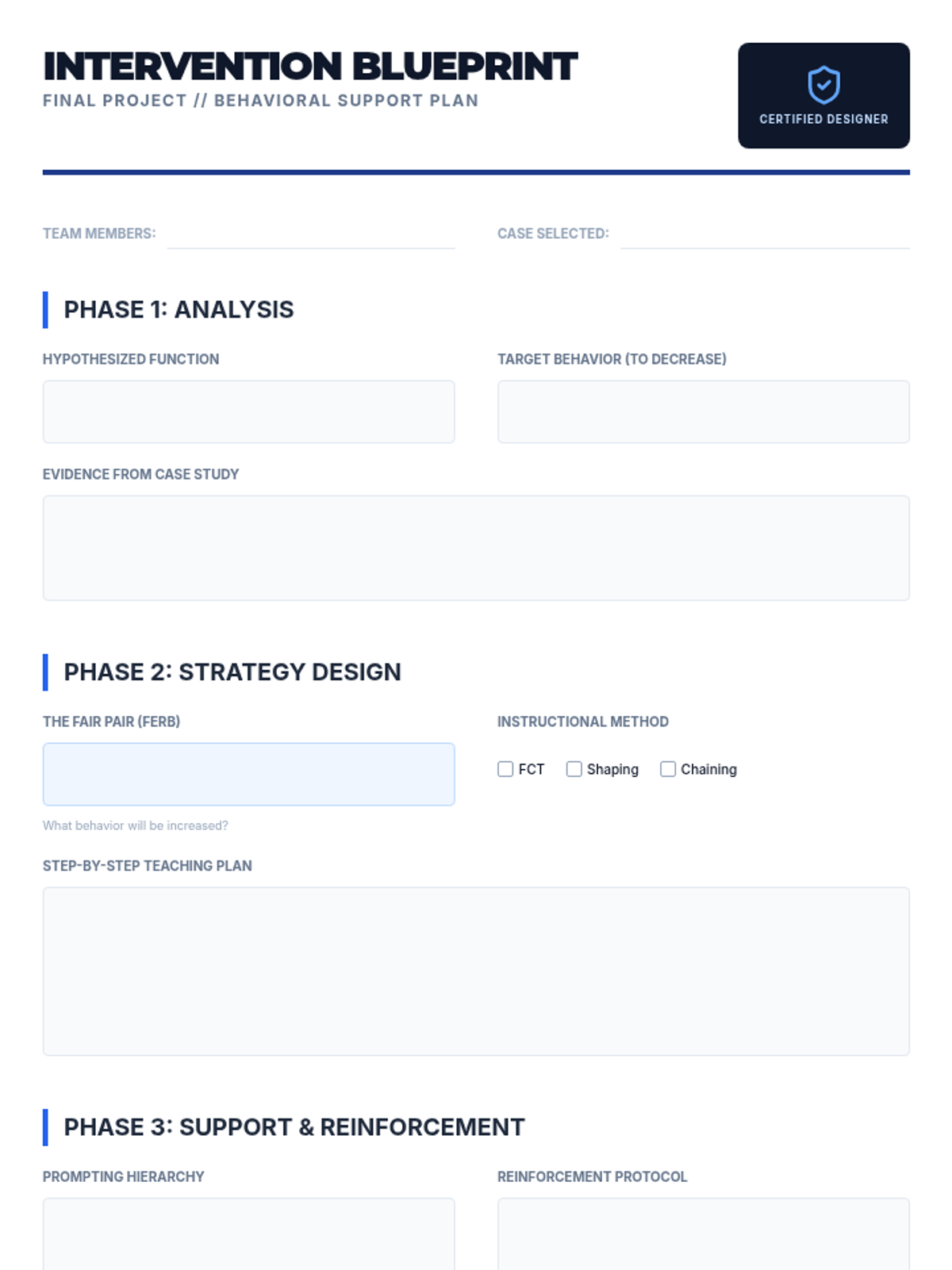
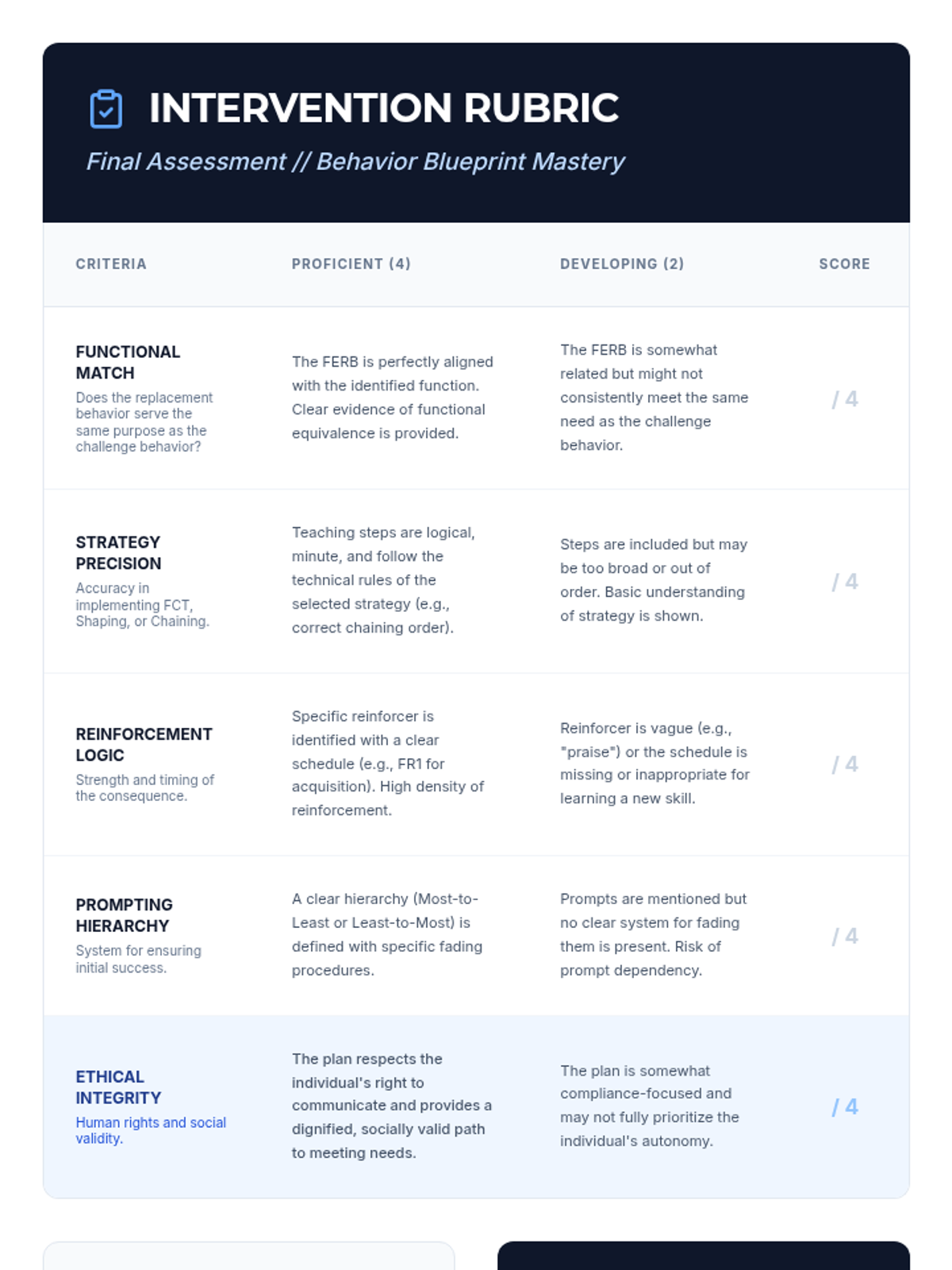
A culminating workshop where students synthesize their learning to create a full teaching plan for a replacement behavior, including prompts and reinforcement schedules.
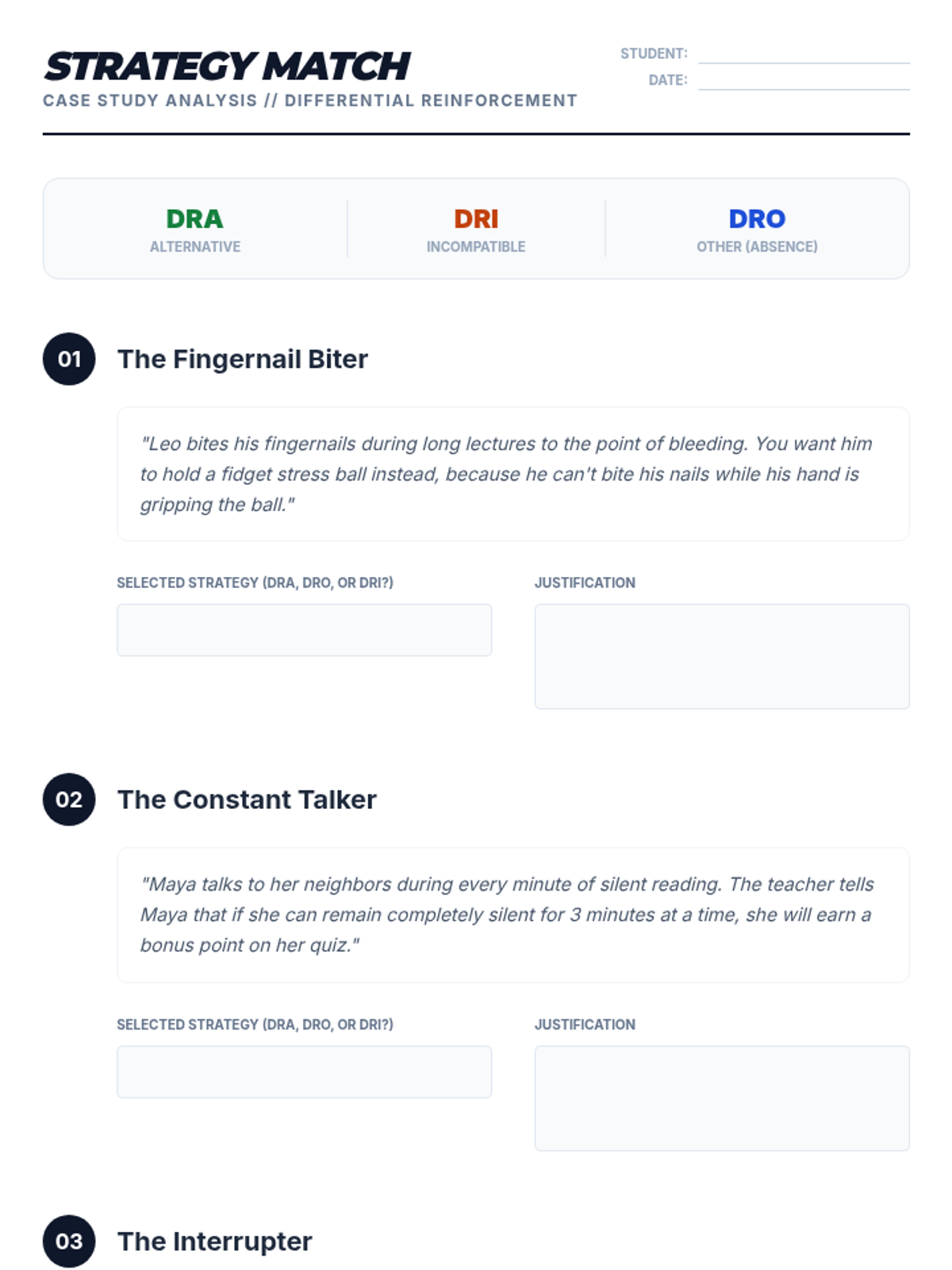
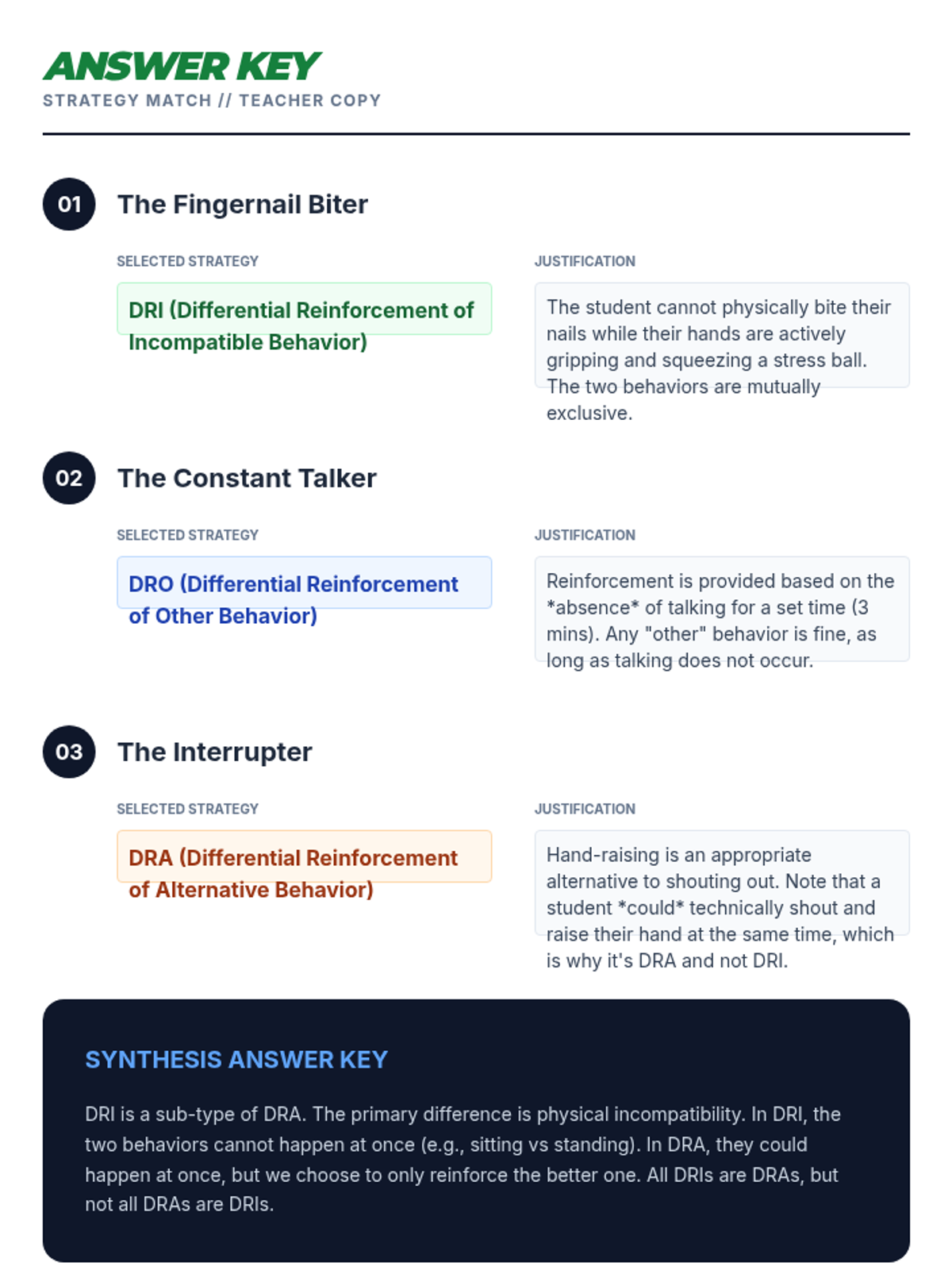
Comparative analysis of DRA, DRO, and DRI reinforcement strategies. Students learn to select the most effective strategy based on the topography and function of behavior.
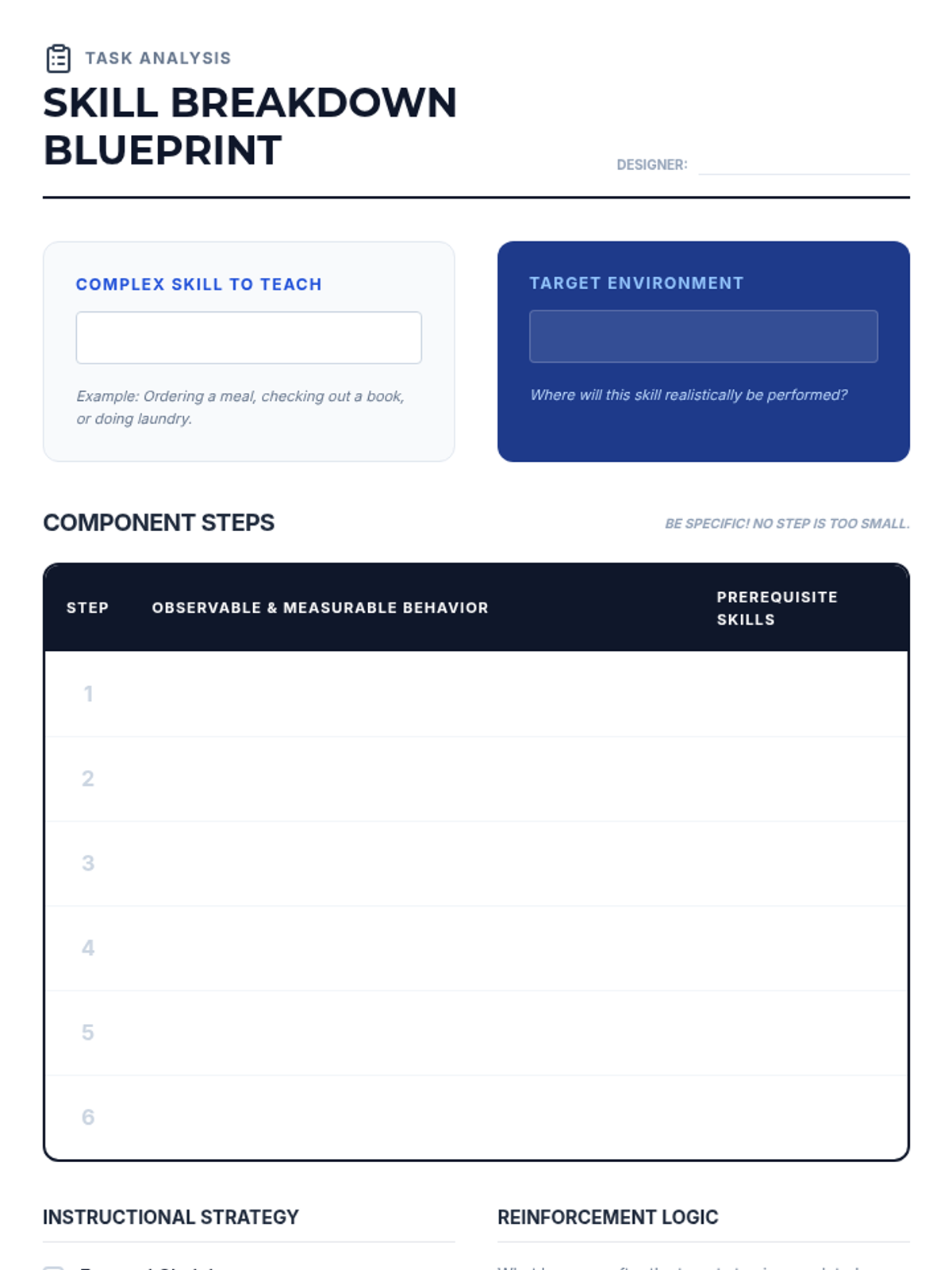
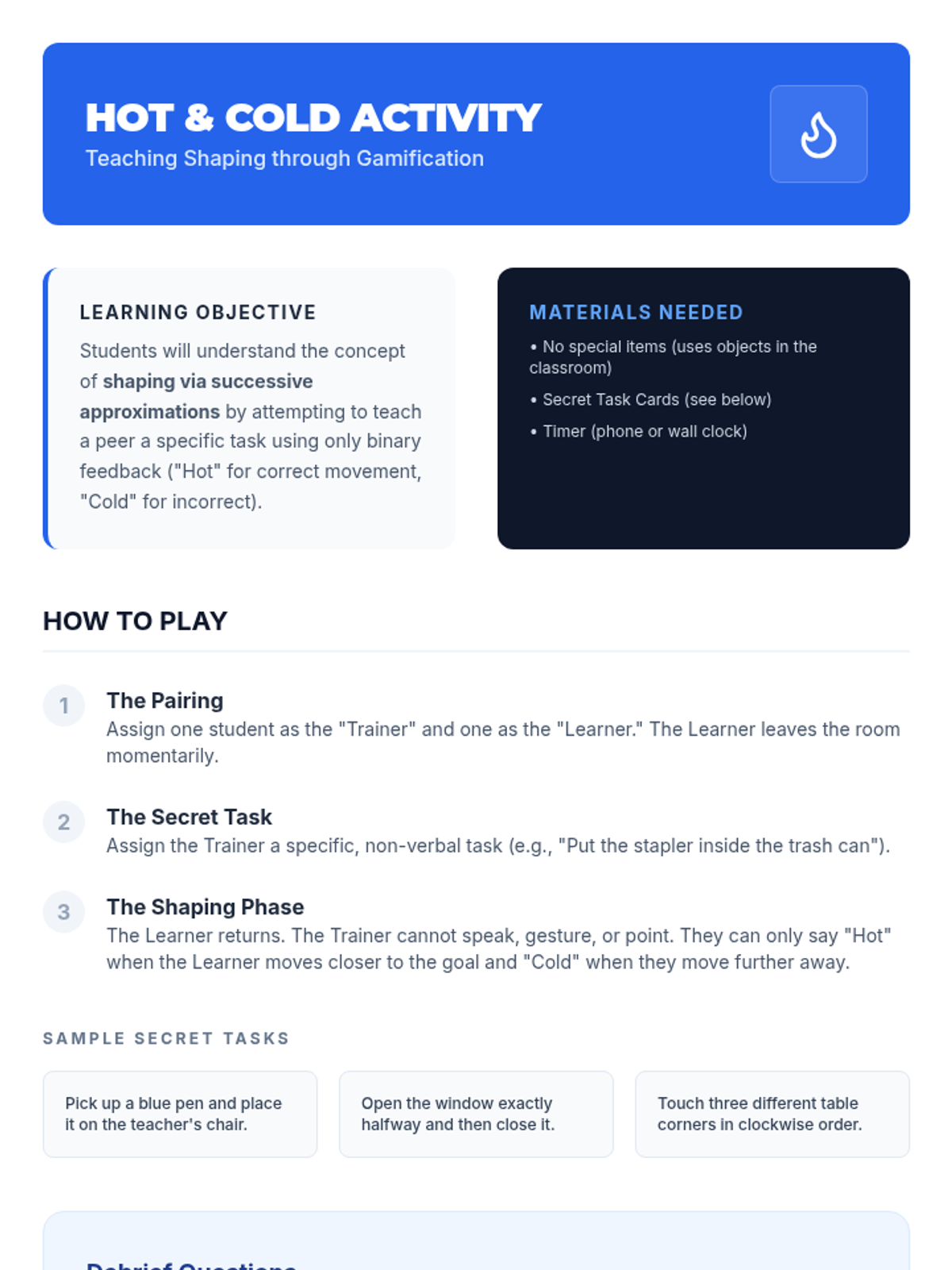
Detailed instruction on how to teach complex behaviors through task analysis, chaining, and the use of shaping to reinforce successive approximations.
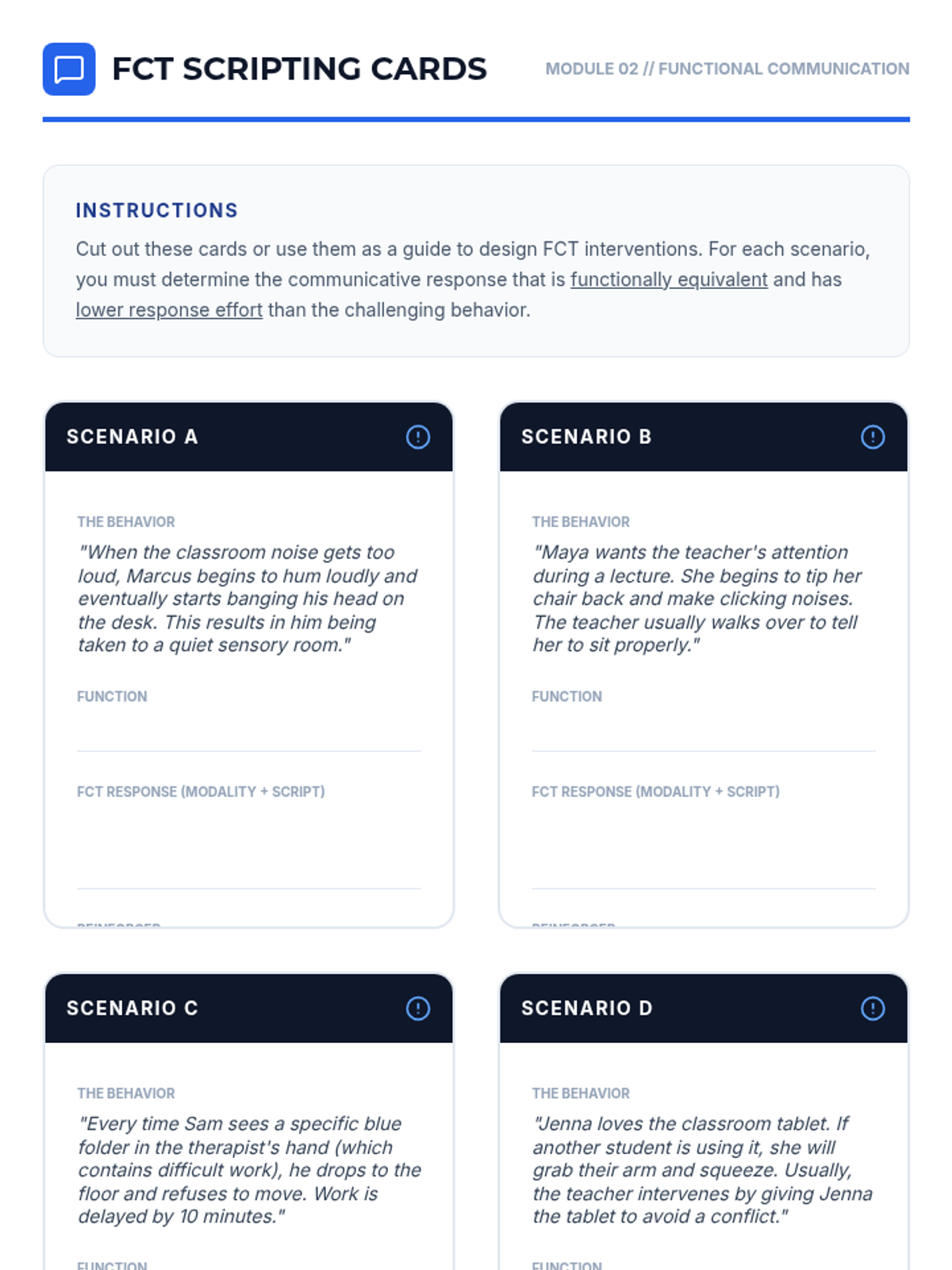
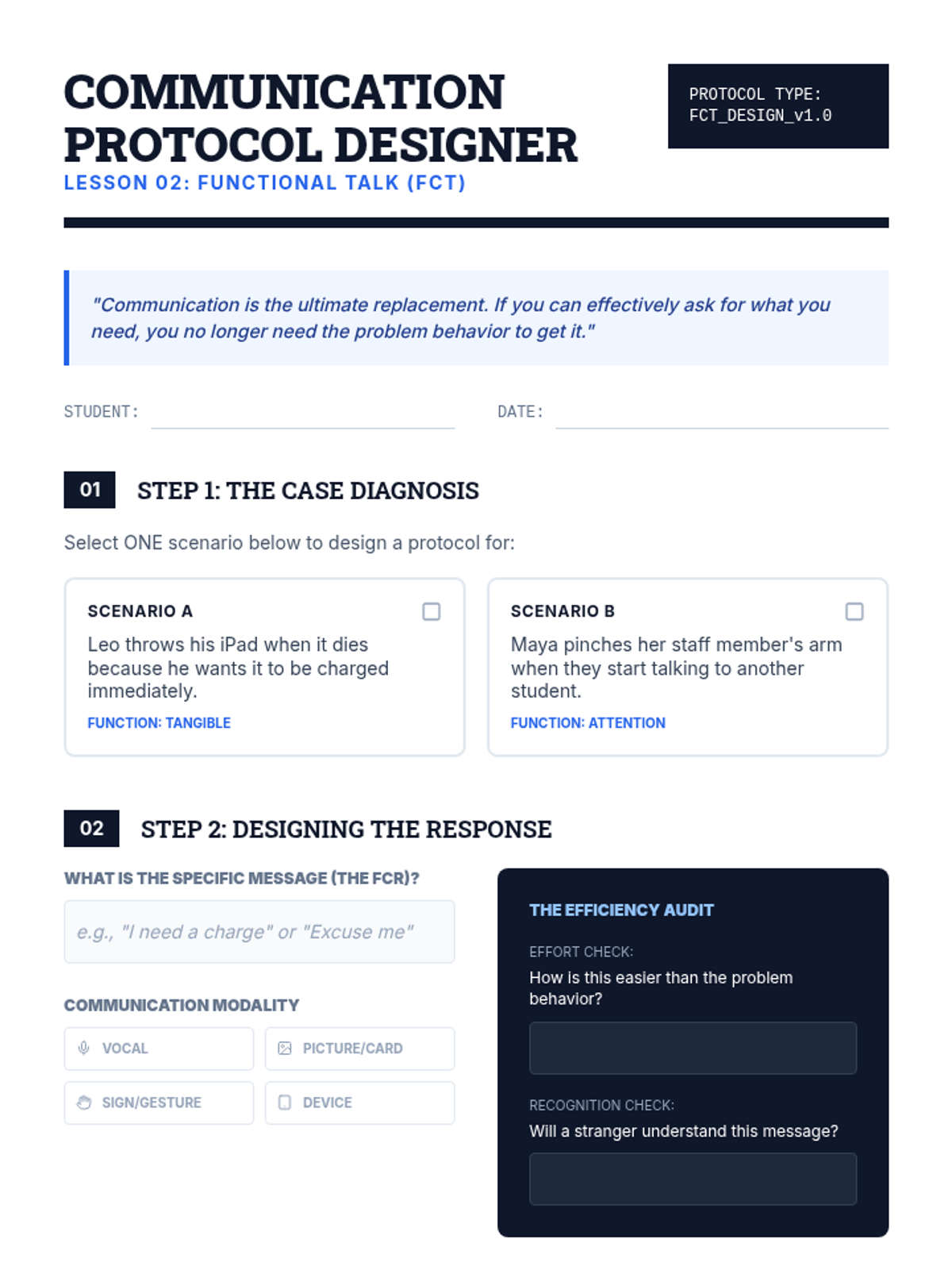
Exploration of Functional Communication Training (FCT) as a primary replacement strategy. Students learn to identify communicative functions and script appropriate responses.
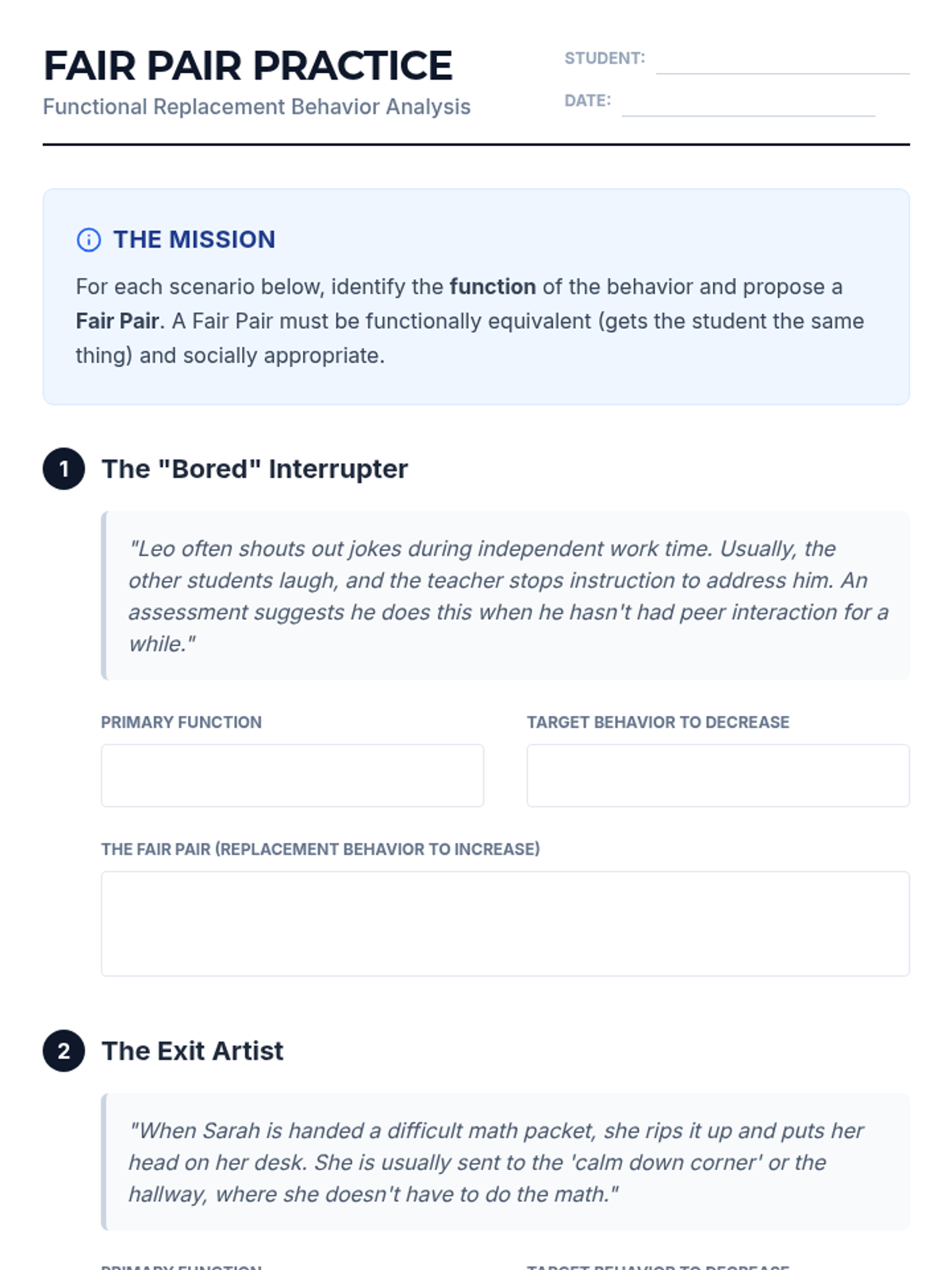
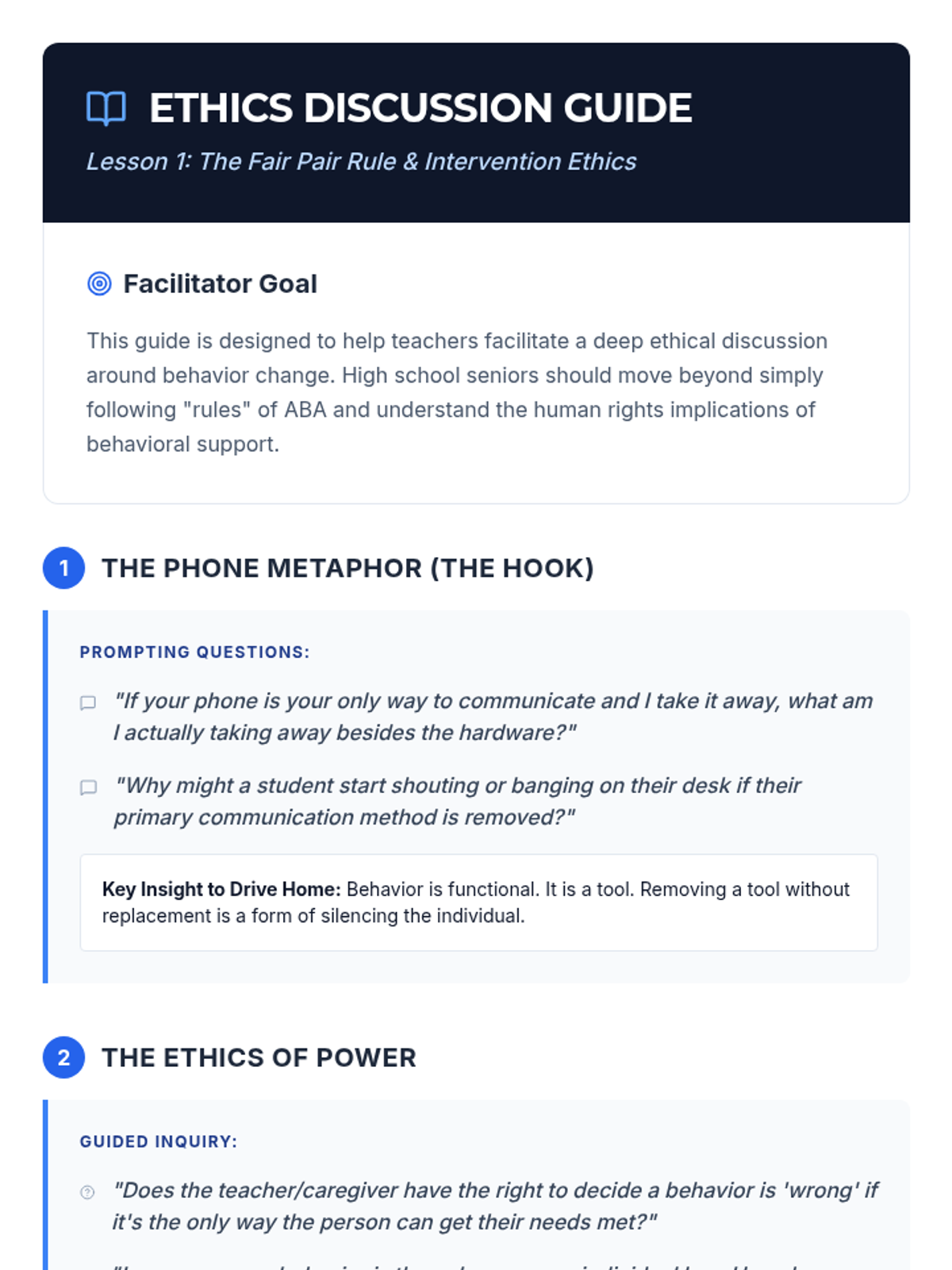
Introduction to the Fair Pair Rule and the ethics of behavior replacement. Students learn that reducing a behavior requires increasing a functionally equivalent alternative.
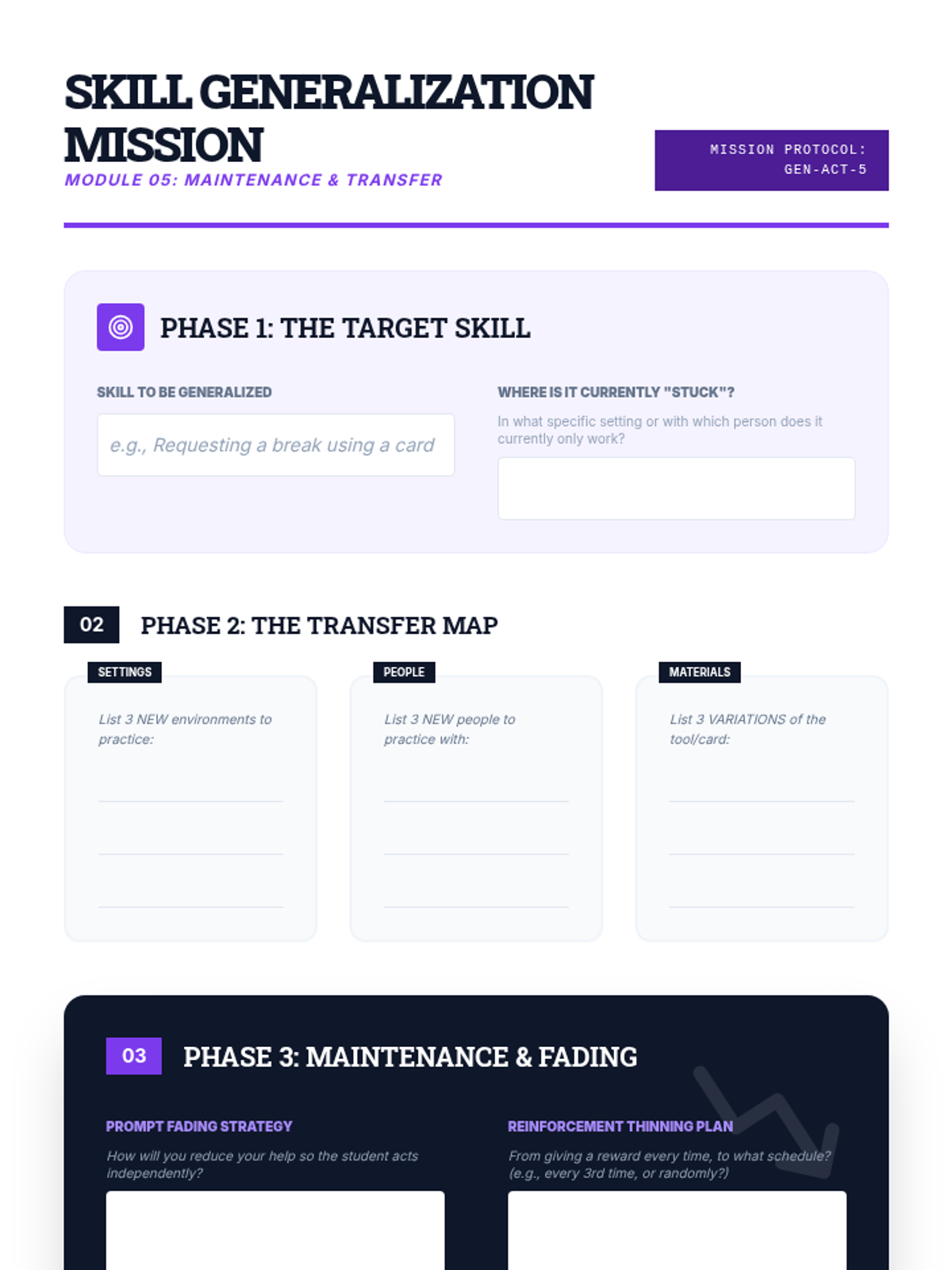
Focuses on the long-term success of interventions through generalization and maintenance planning. Students learn to fade prompts and move to natural reinforcement.
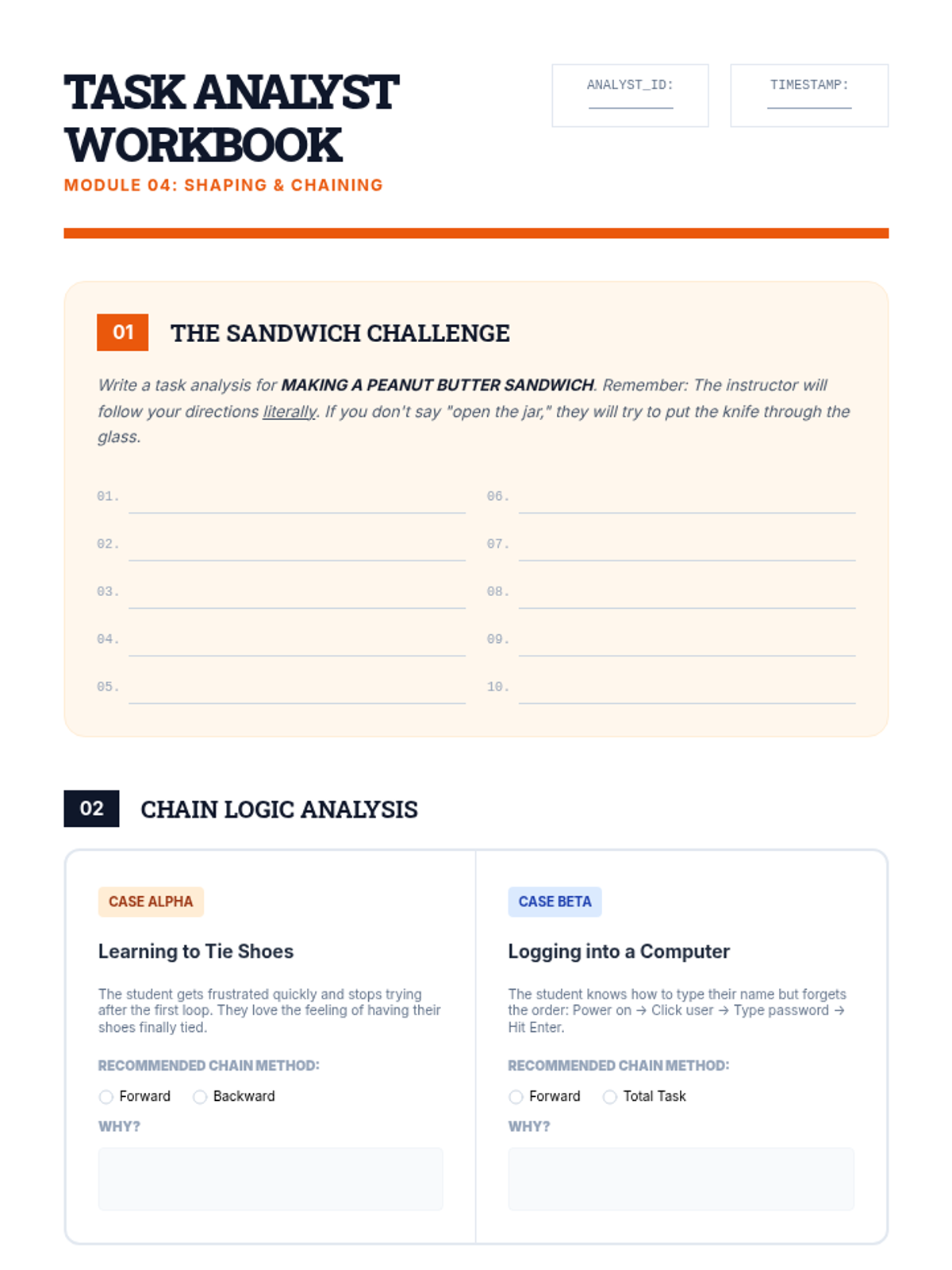
Technical instruction on task analysis, shaping, and chaining. Students learn to break down complex skills and reinforce incremental progress.
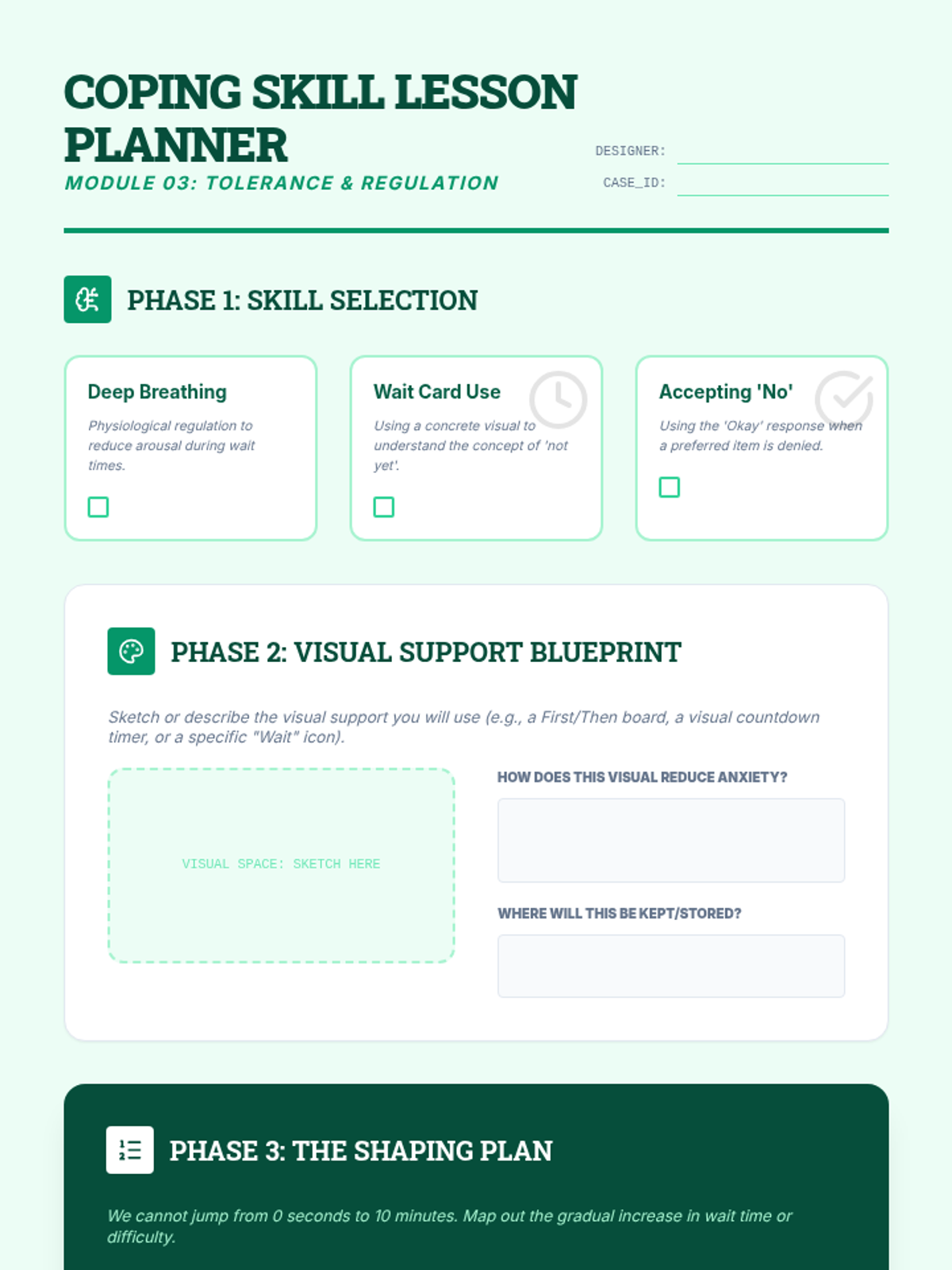
Covers teaching self-regulation and tolerance for delay or denial. Students develop visual supports and protocols for teaching waiting and accepting 'no.'
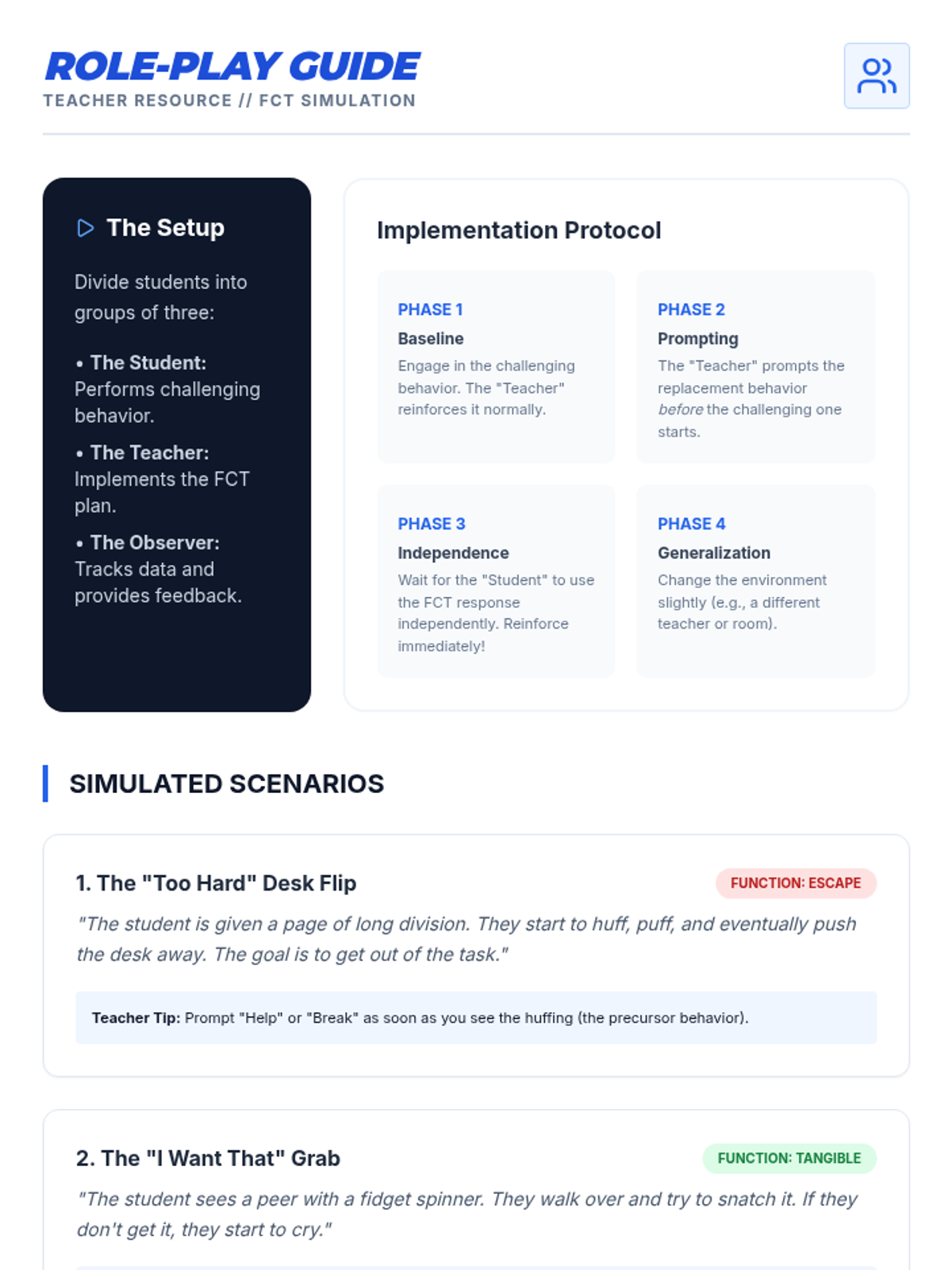
Focuses on Functional Communication Training (FCT) as a primary replacement strategy. Students design communication protocols to replace maladaptive behaviors across different functions.
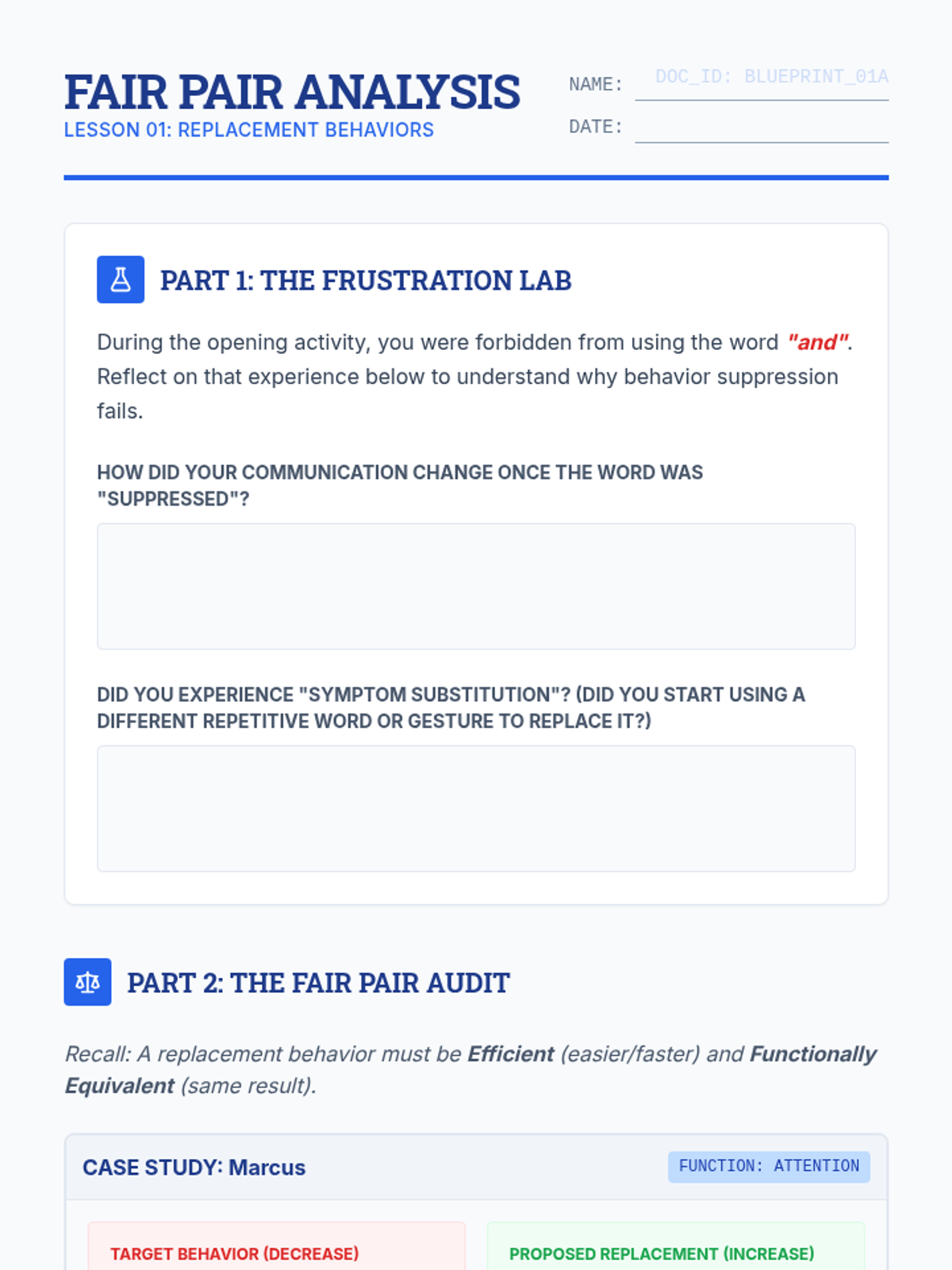
Introduces the ethical imperative of teaching replacement behaviors using the 'Fair Pair' rule. Students explore why behavior suppression fails and how to select behaviors that are functionally equivalent.
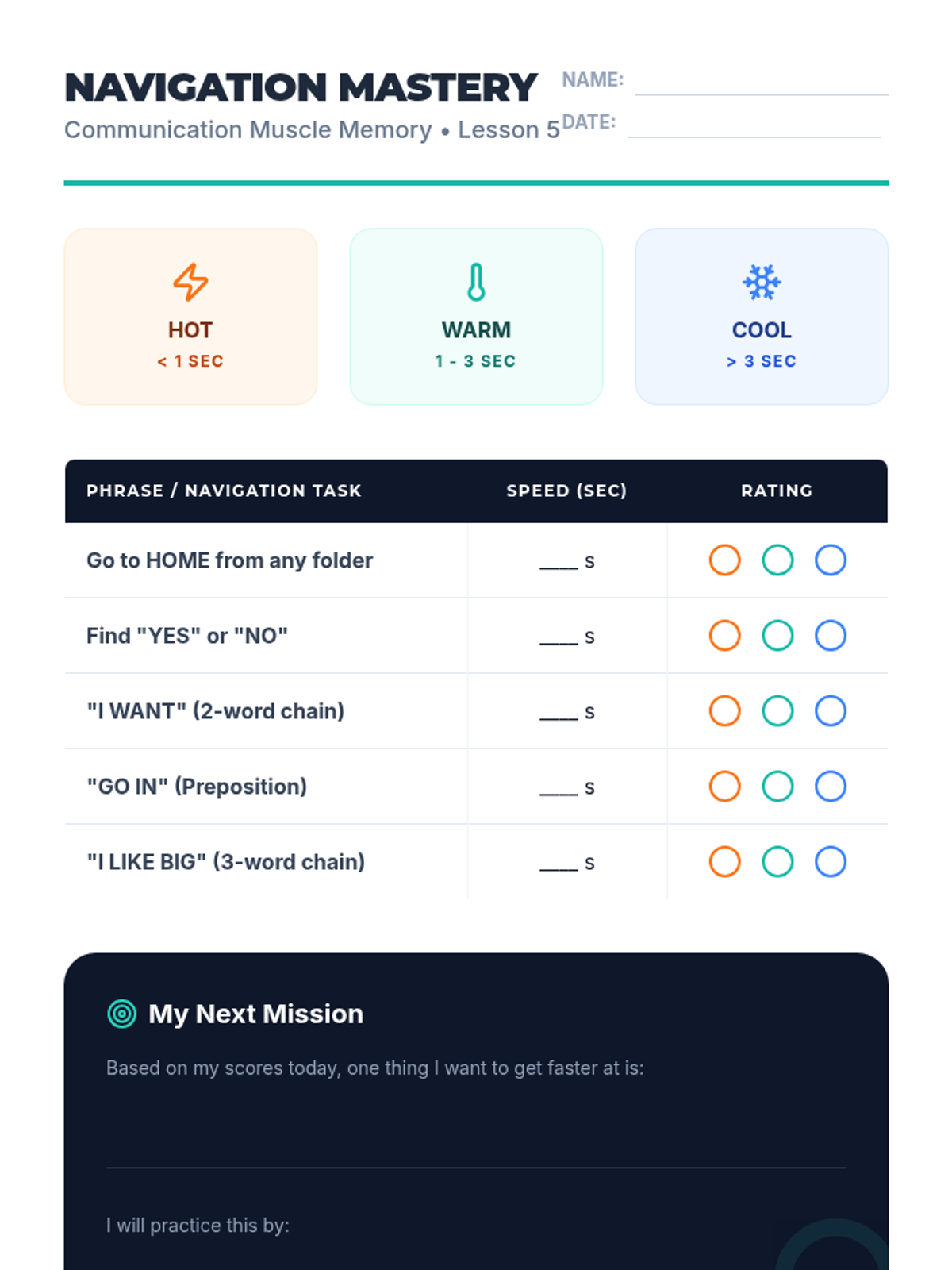
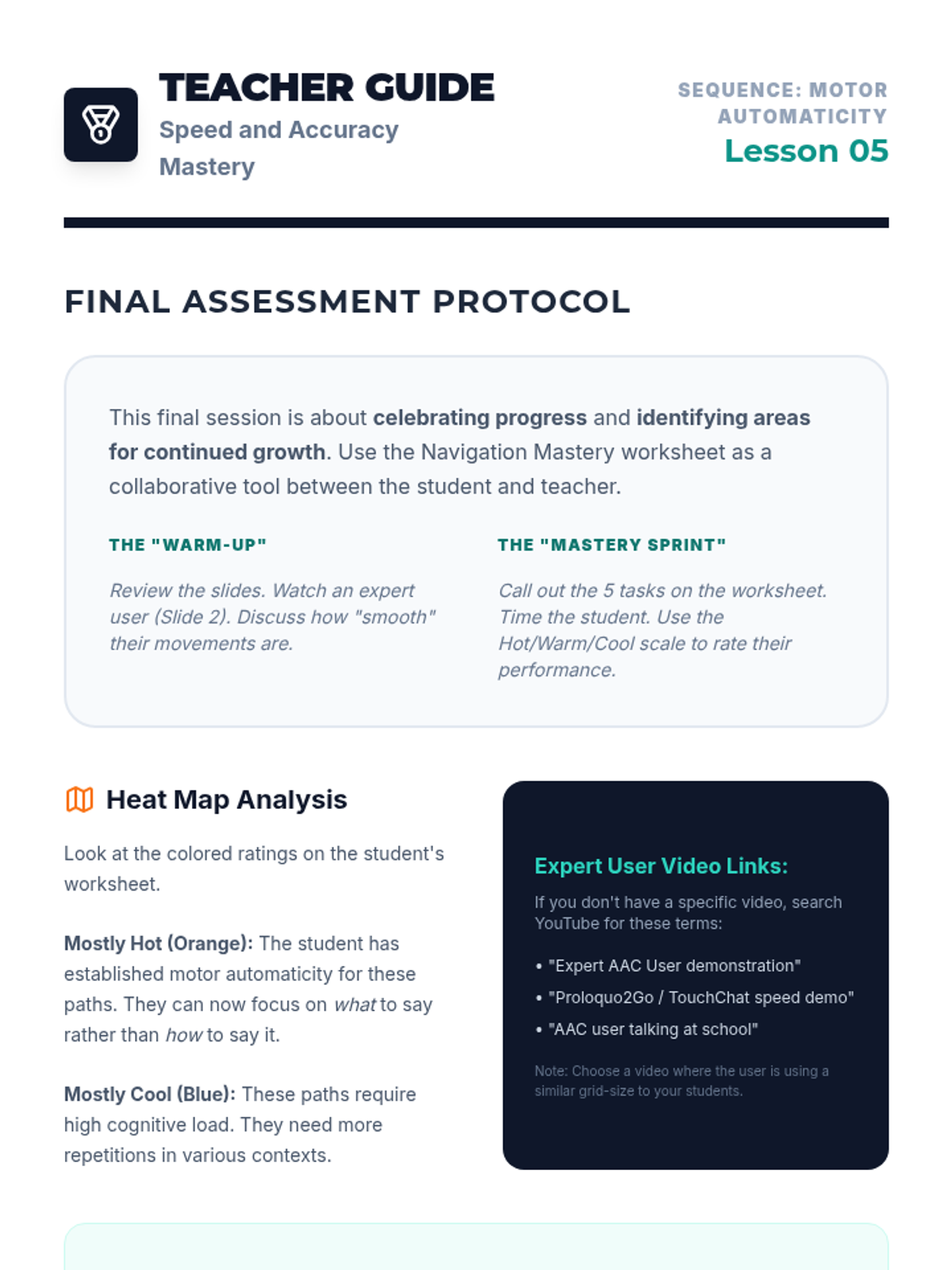
A culminating session where students measure their navigation speed and accuracy, set future goals, and analyze their growth as efficient communicators.
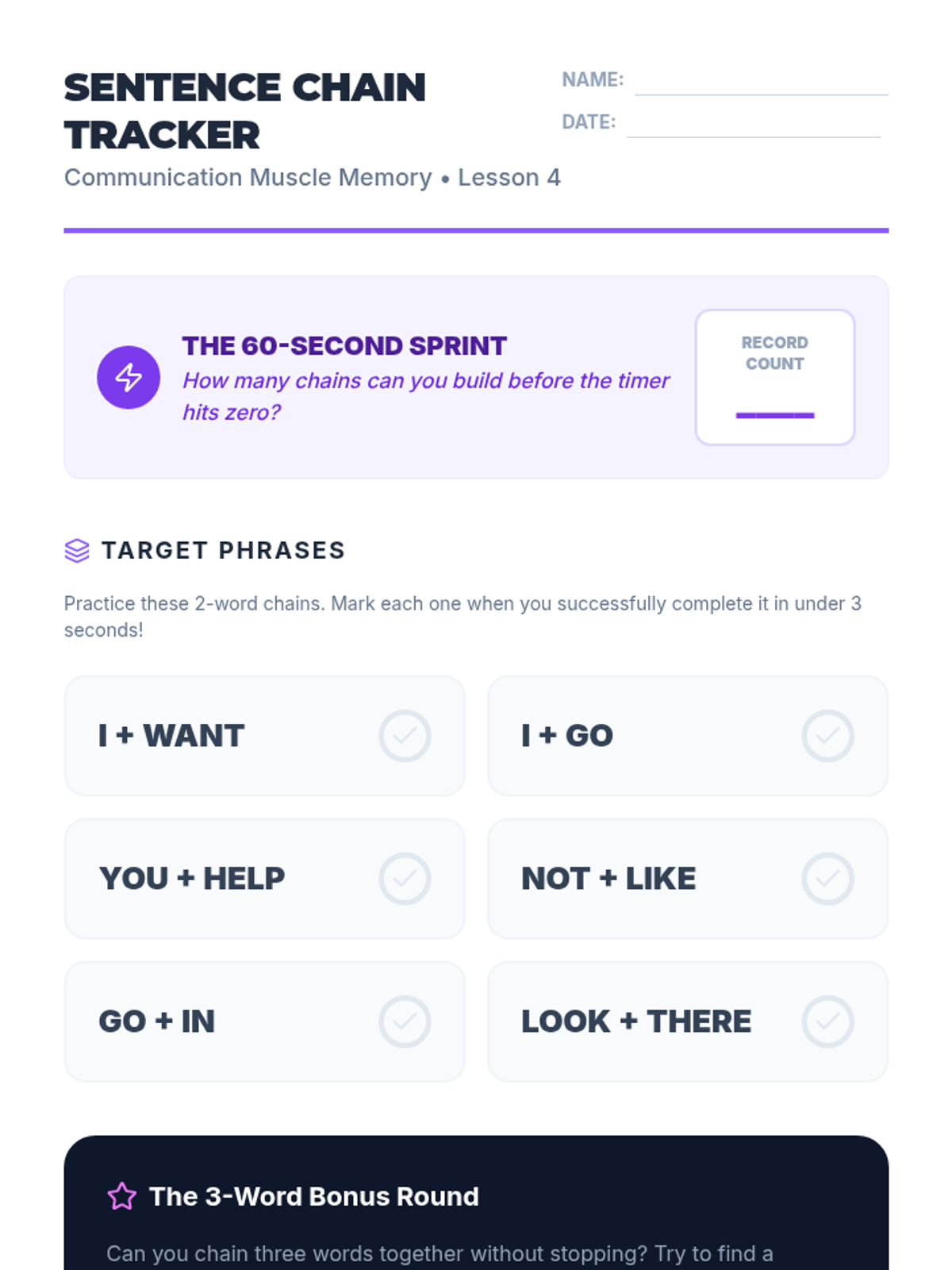
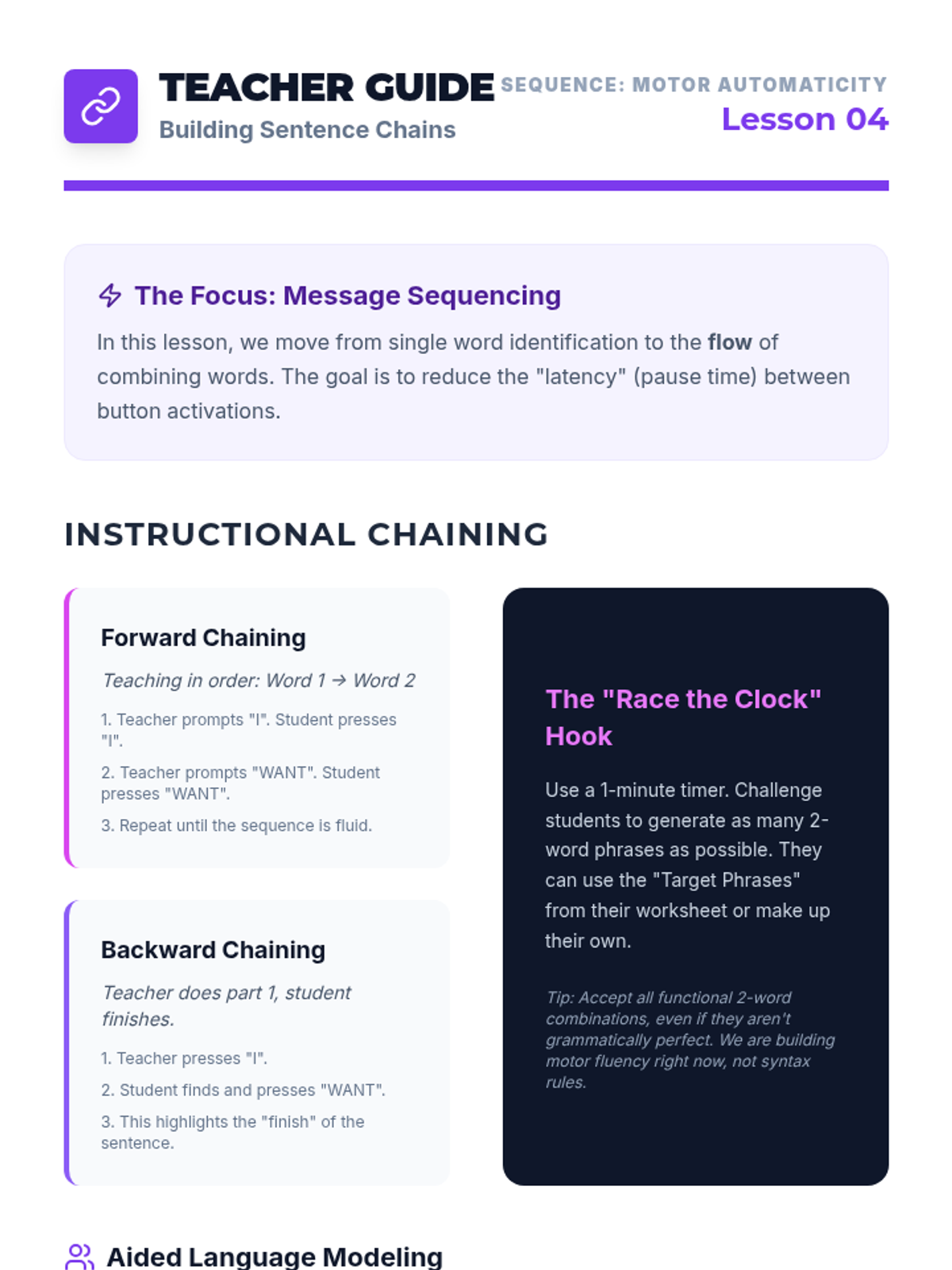
Students practice the motor patterns required to sequence multiple icons together, building fluency and reducing the time between activations.
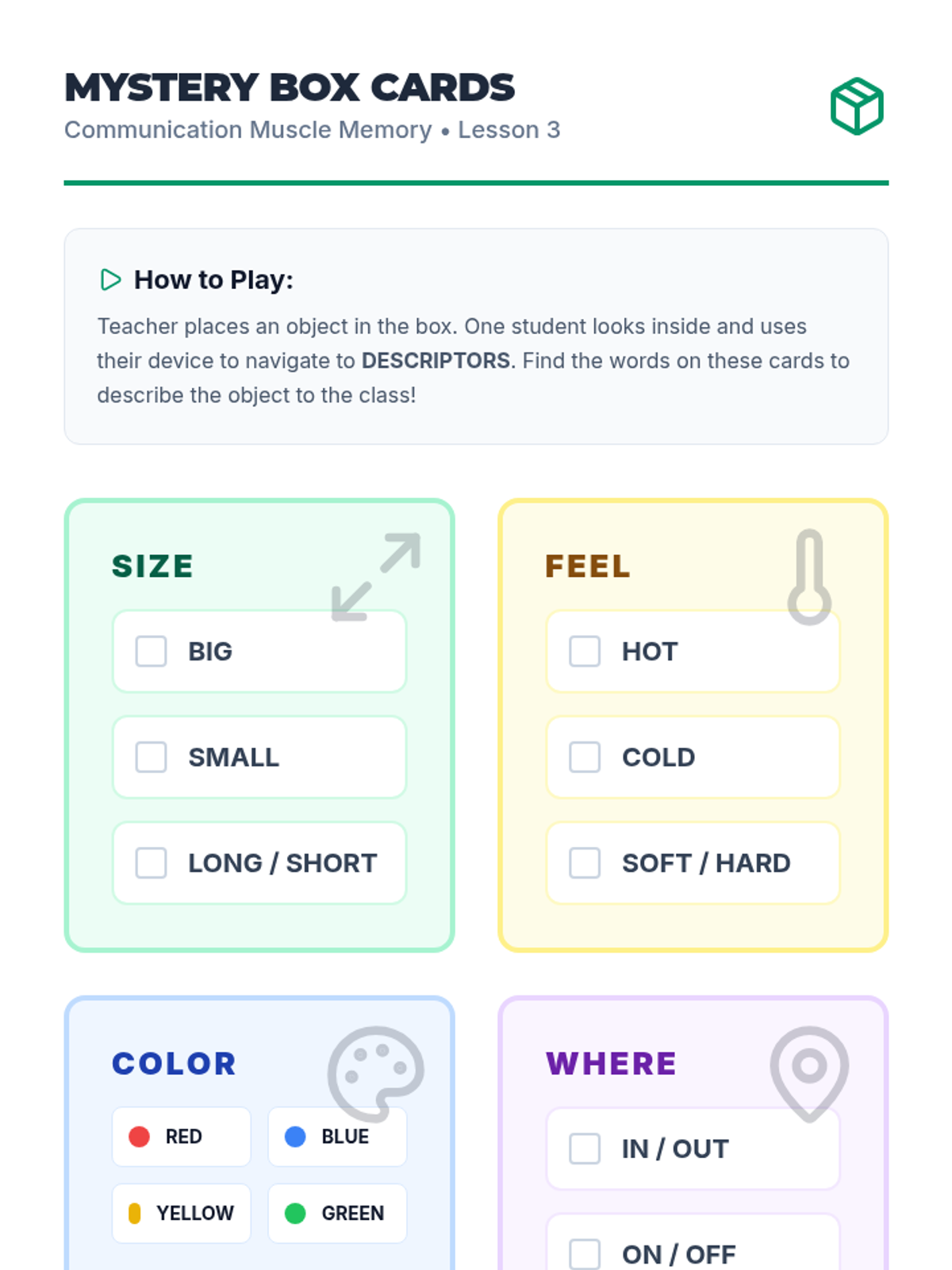
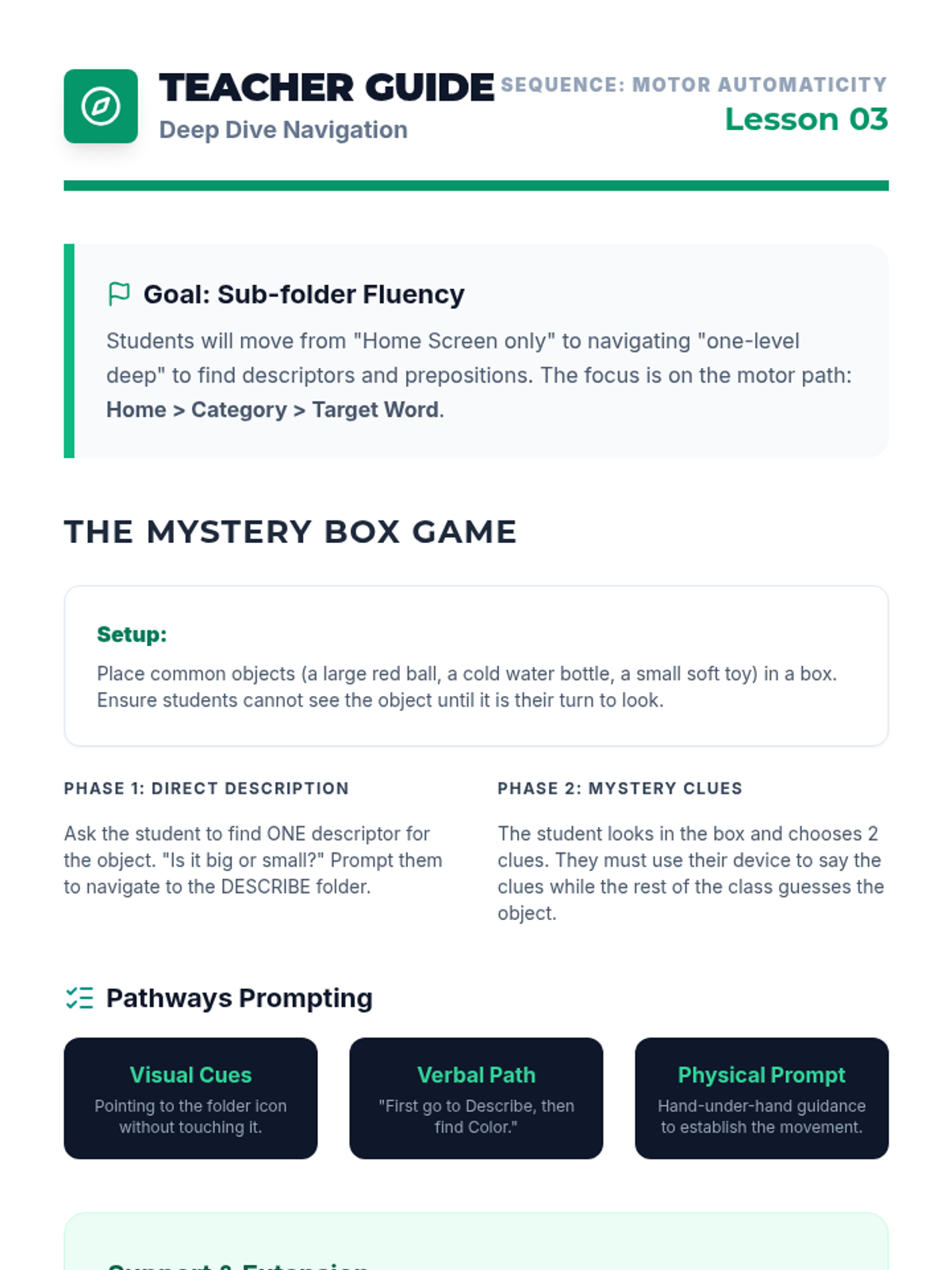
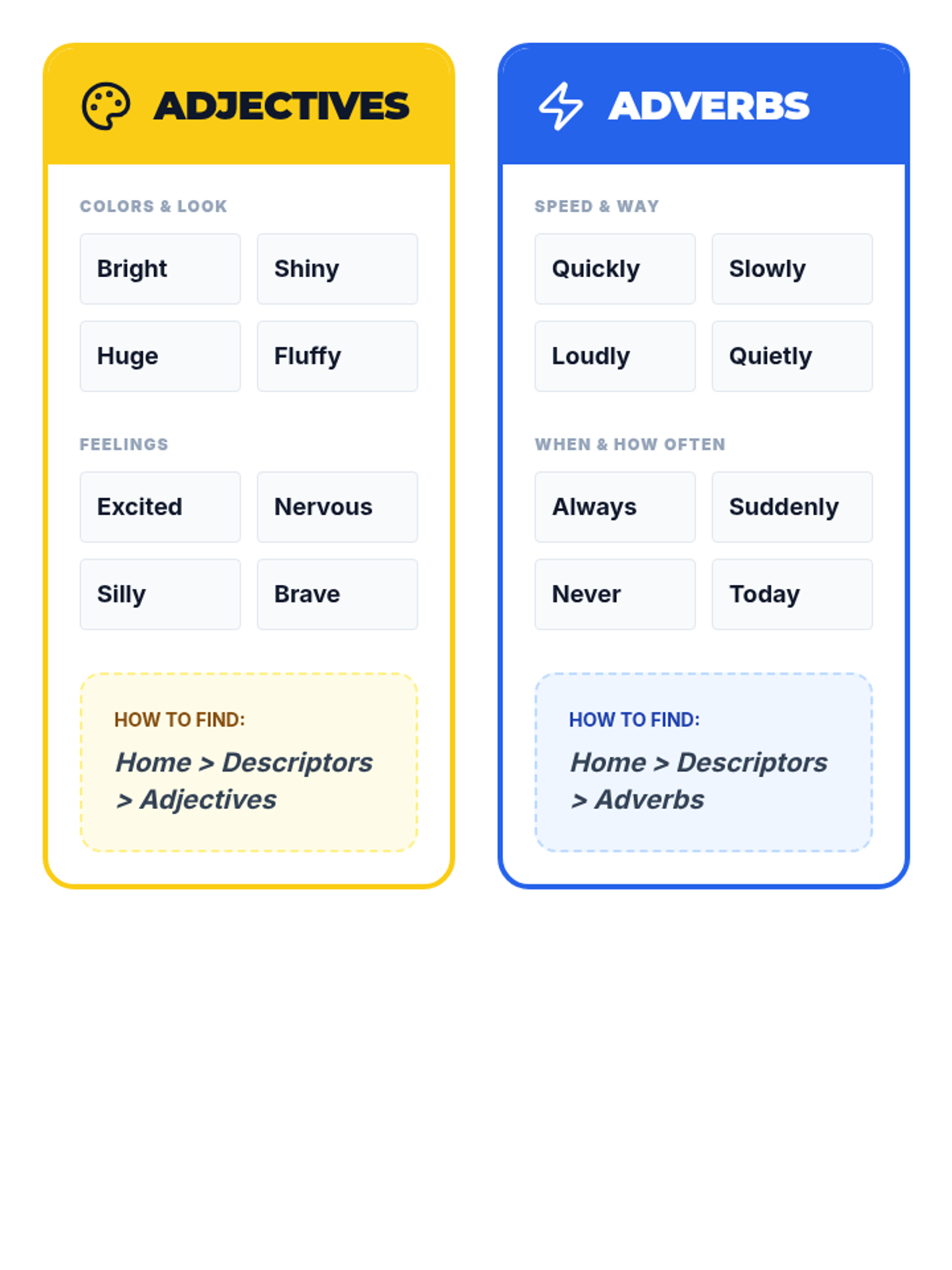
Focuses on navigation pathways for adjectives and prepositions, using descriptors to expand message complexity through gamified interaction.
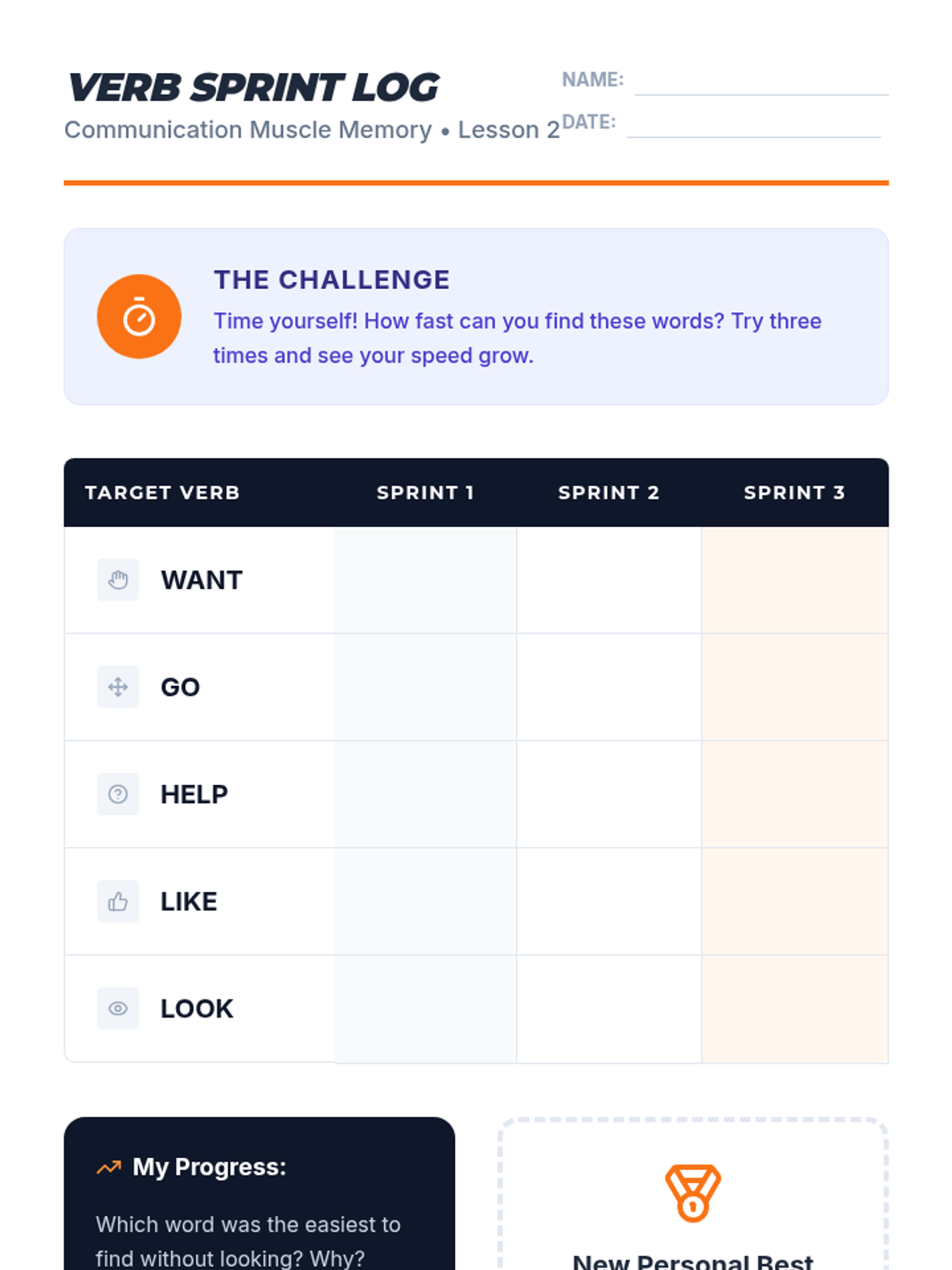
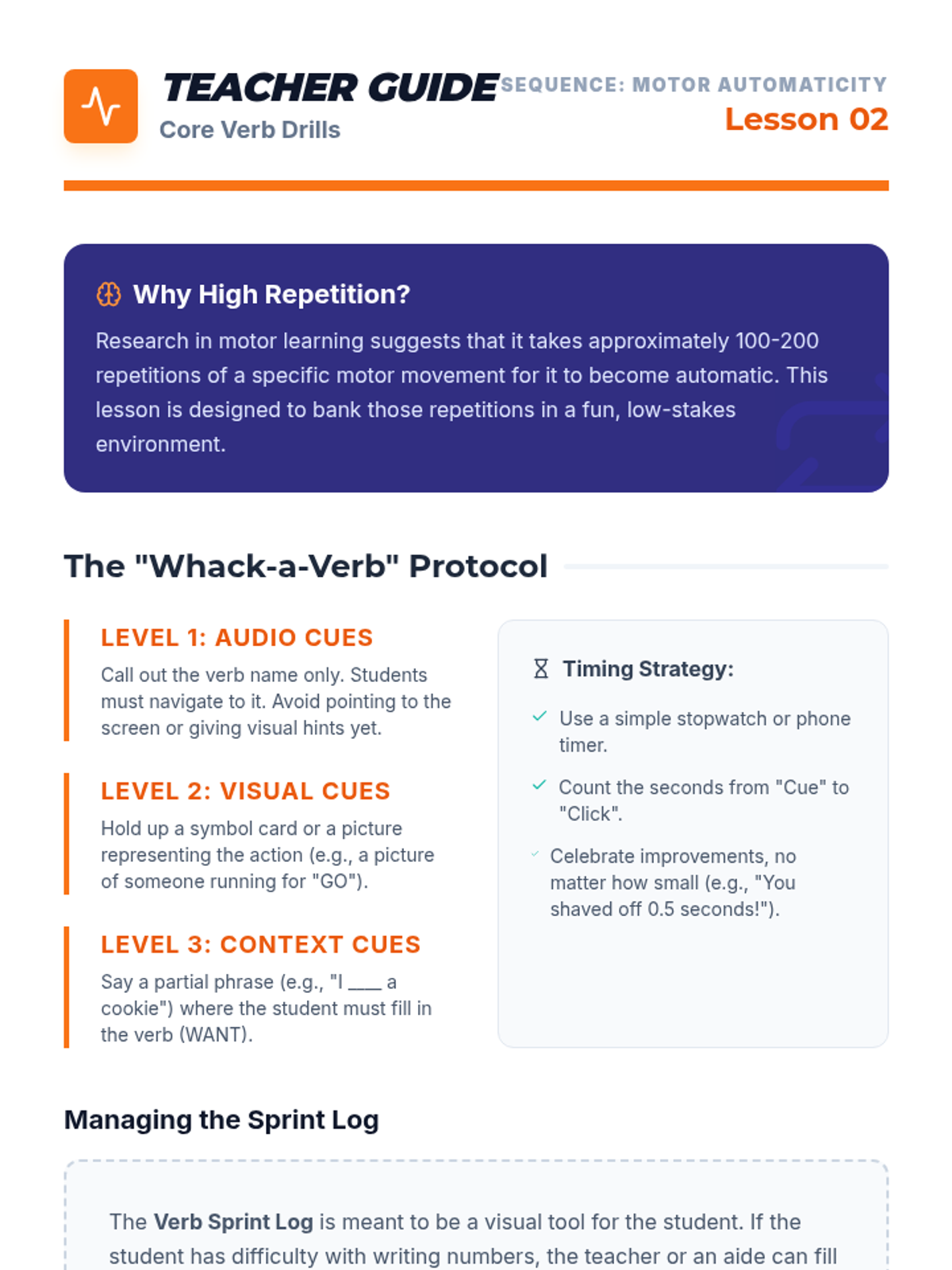
Students participate in high-repetition timed drills to locate common action verbs, transitioning knowledge from short-term memory to motor planning.
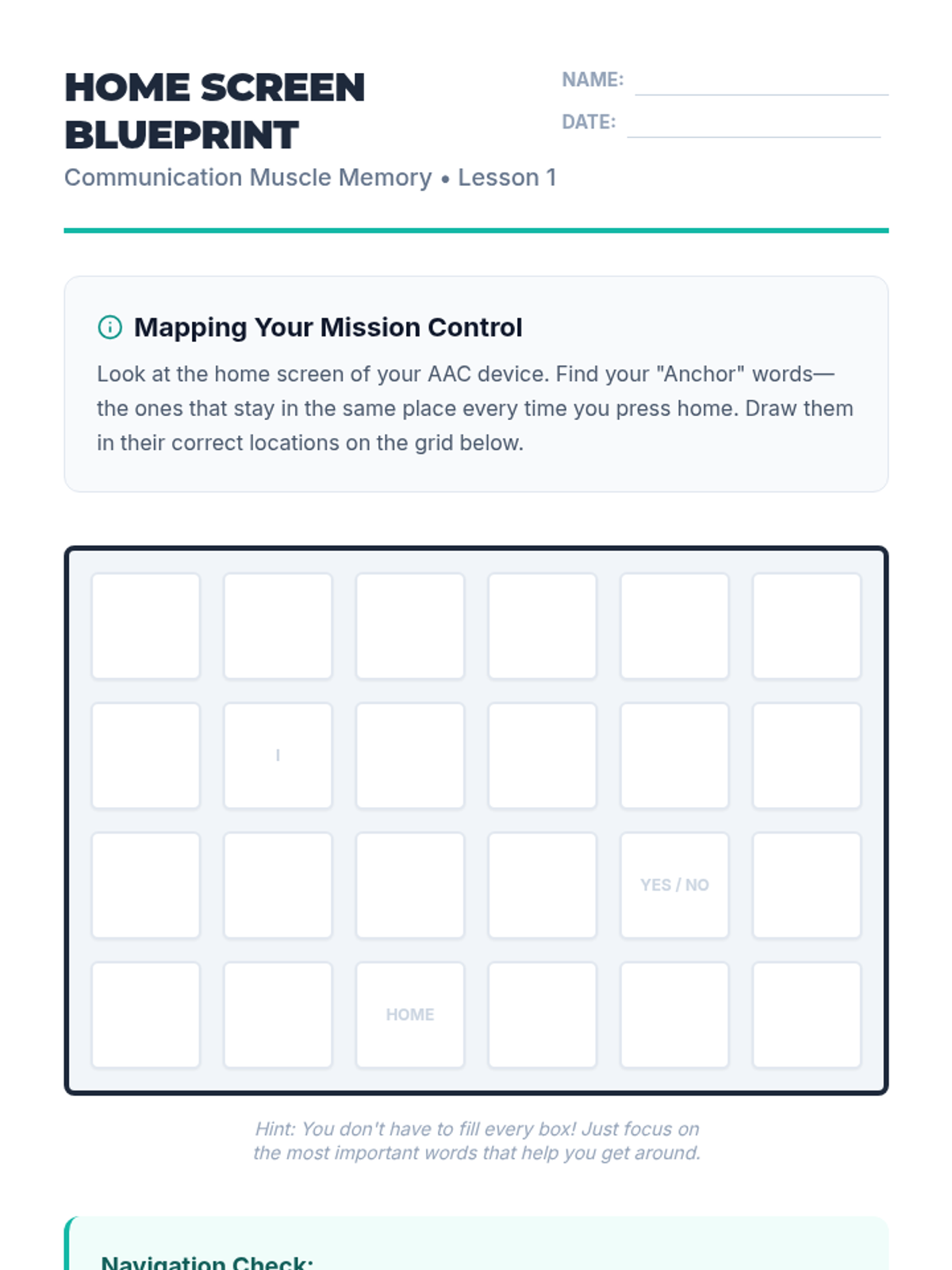
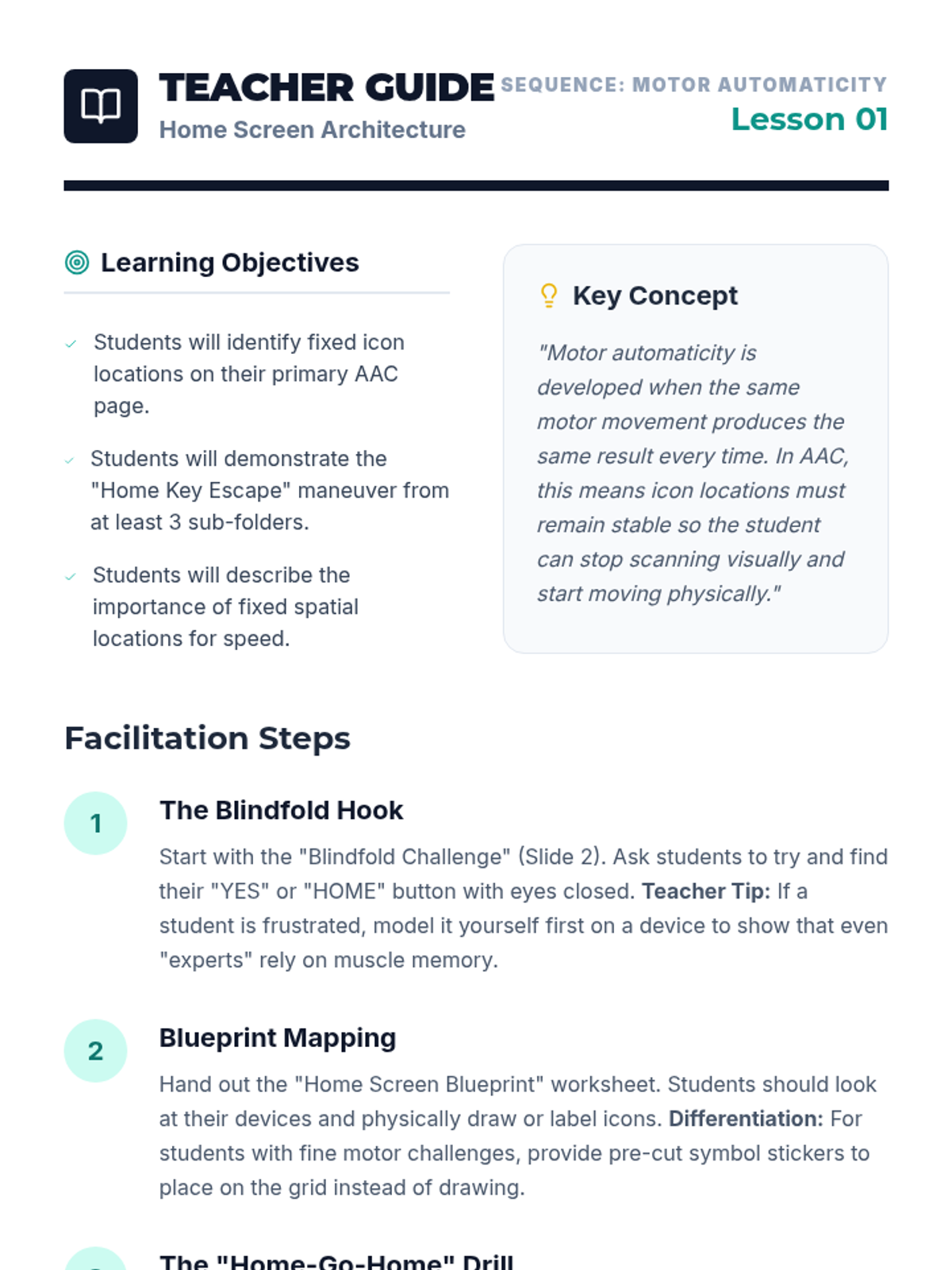
Students explore the layout of their device's main page to identify fixed locations of core words and practice returning to 'home' from sub-folders.
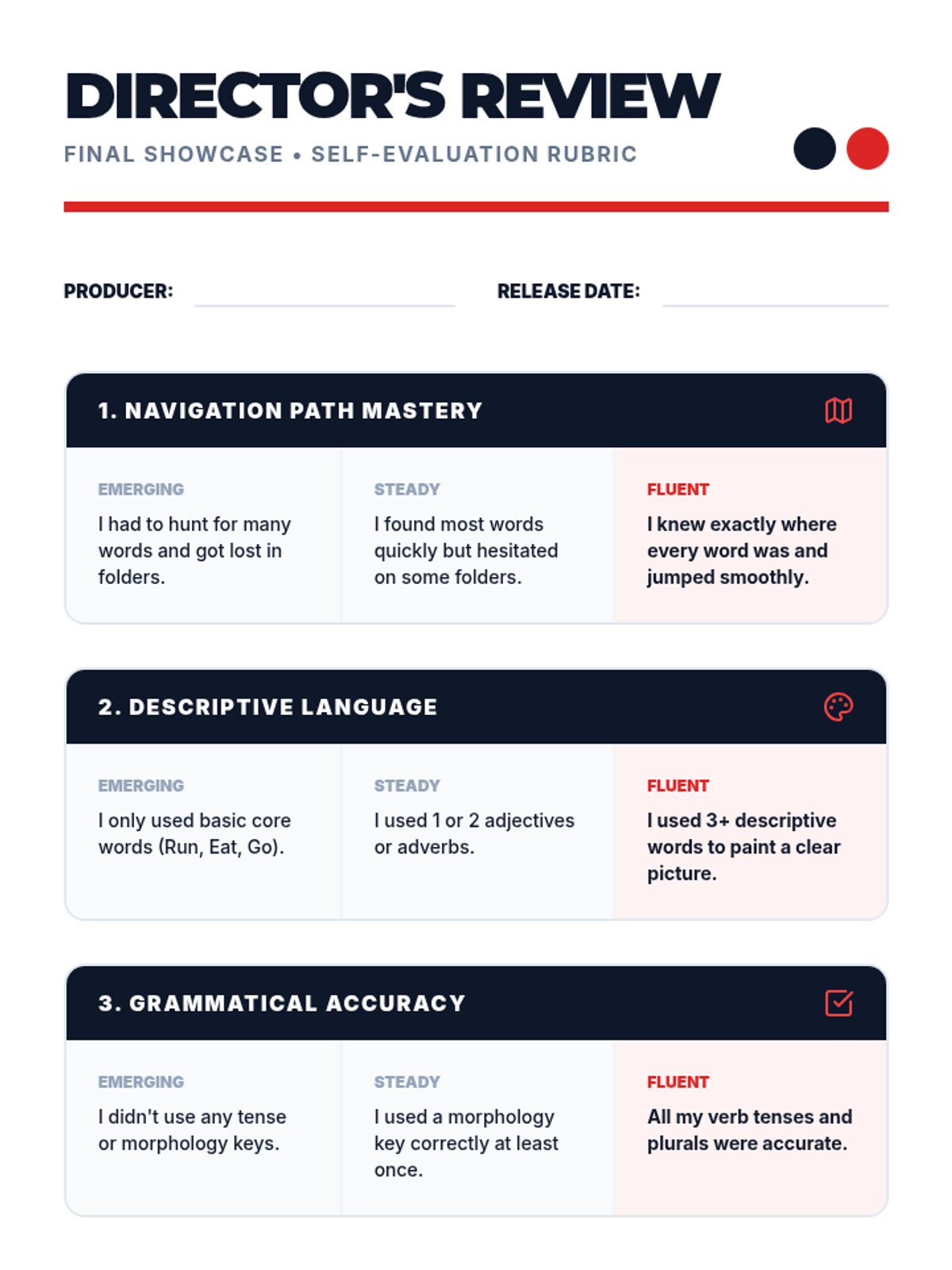
Students record a final version of their narrative and use a self-evaluation tool to reflect on their navigation fluency and storytelling clarity.
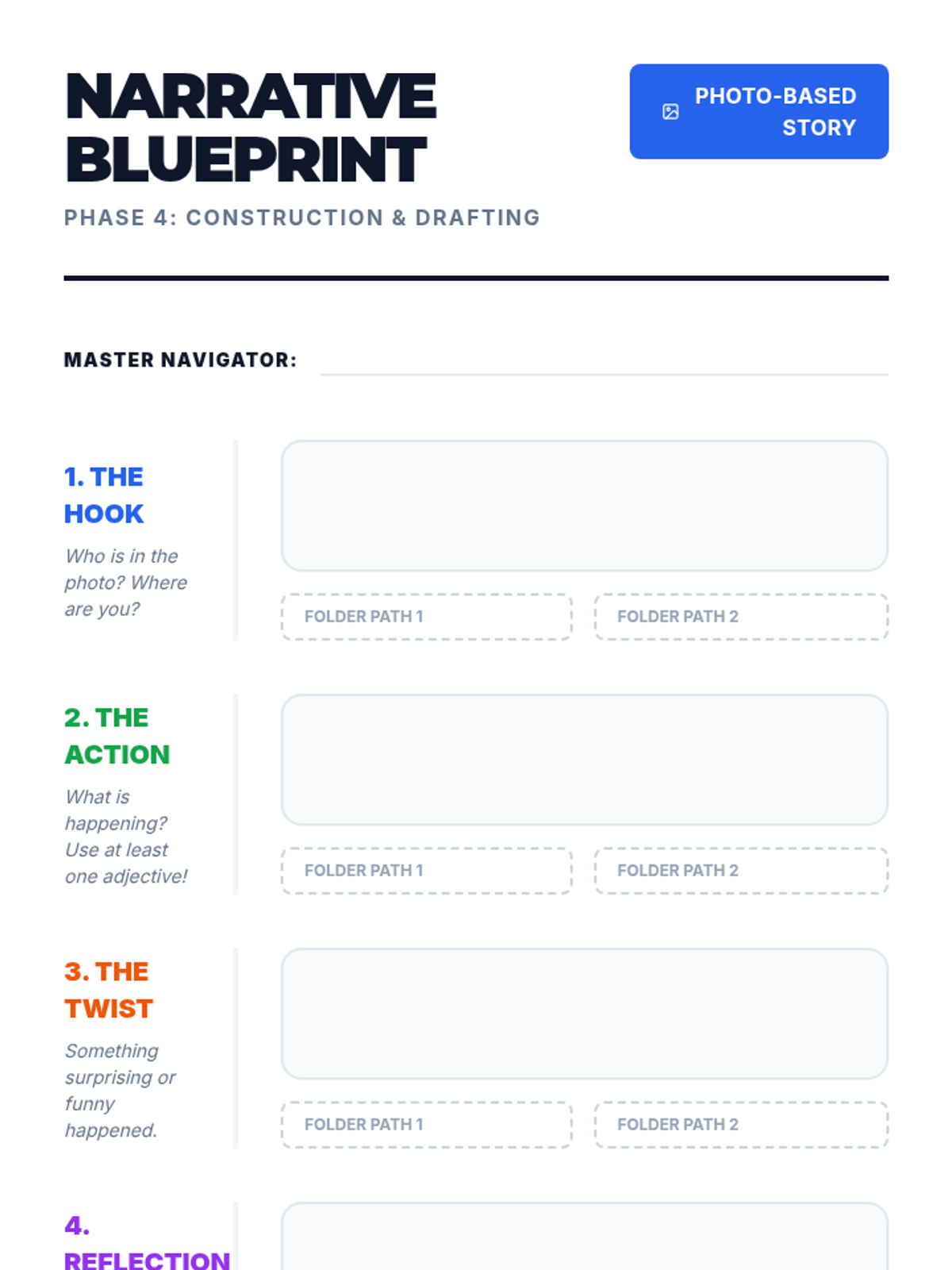
Students draft personal narratives and practice the motor sequences required to jump between core and fringe vocabulary folders.
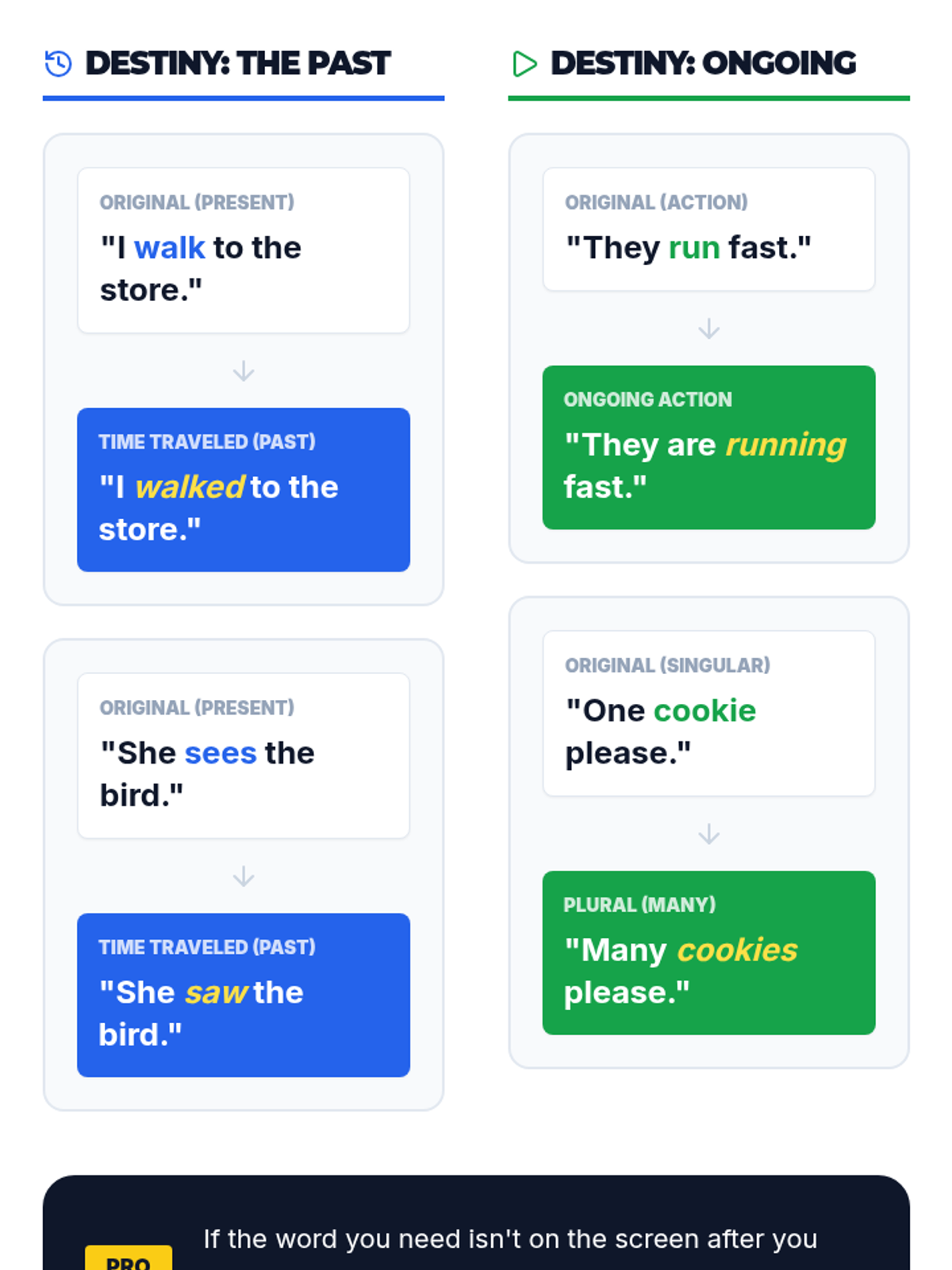
Students explore morphology tools on their devices to apply correct verb tenses and plurals, ensuring grammatical accuracy in their storytelling.
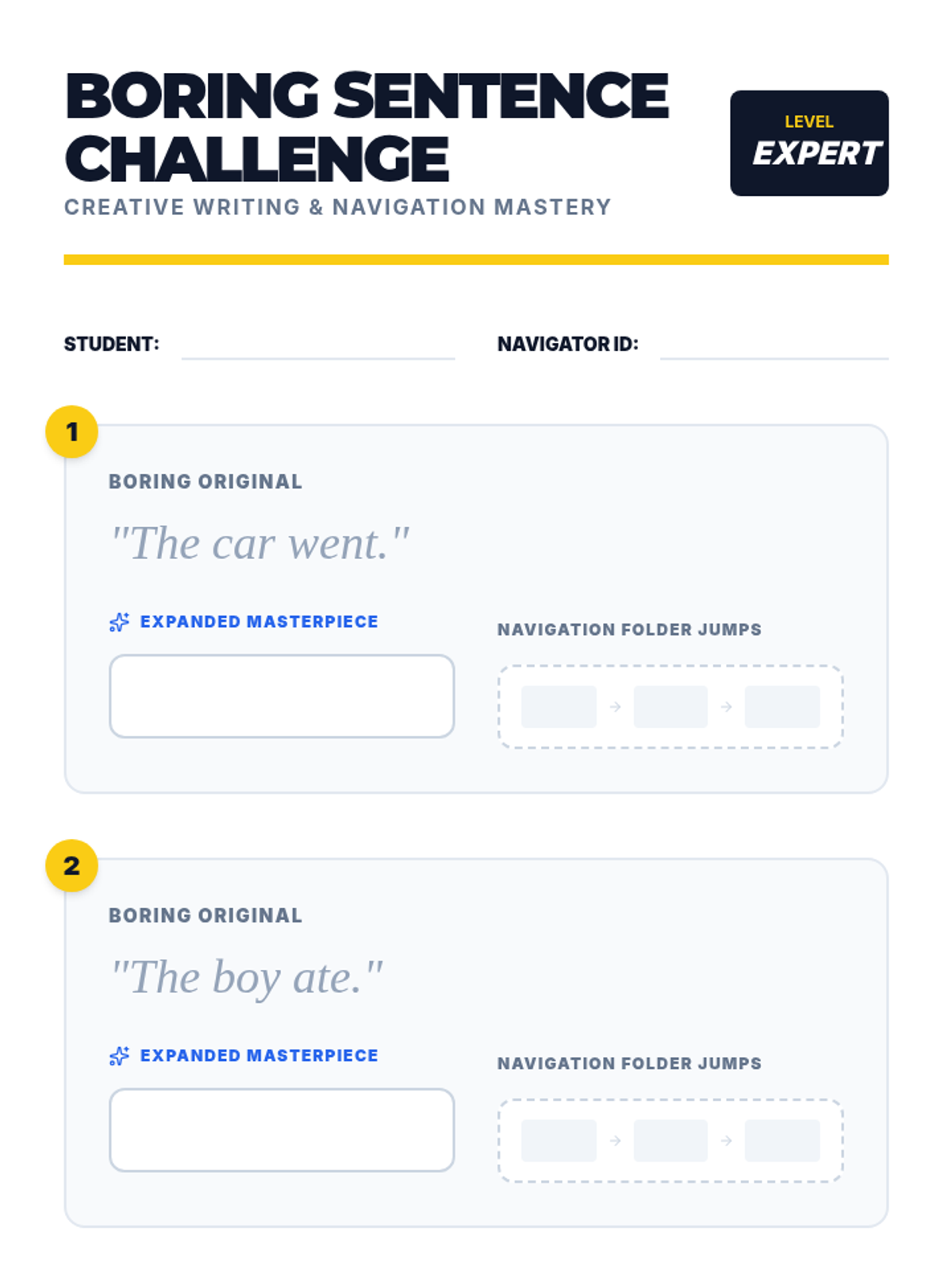
Focuses on expanding simple sentences by navigating to descriptive folders (adjectives and adverbs) to add depth and color to AAC communication.
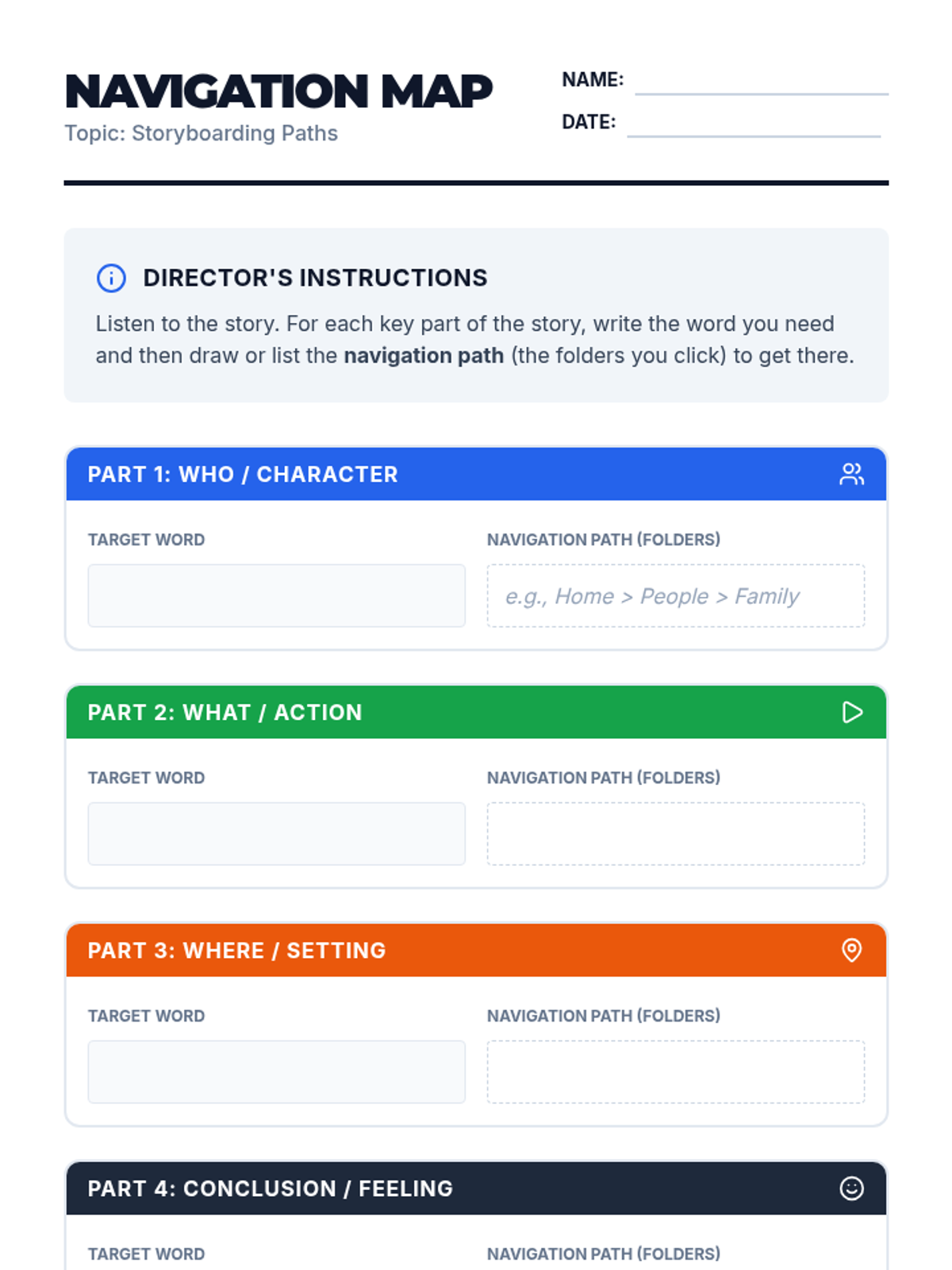
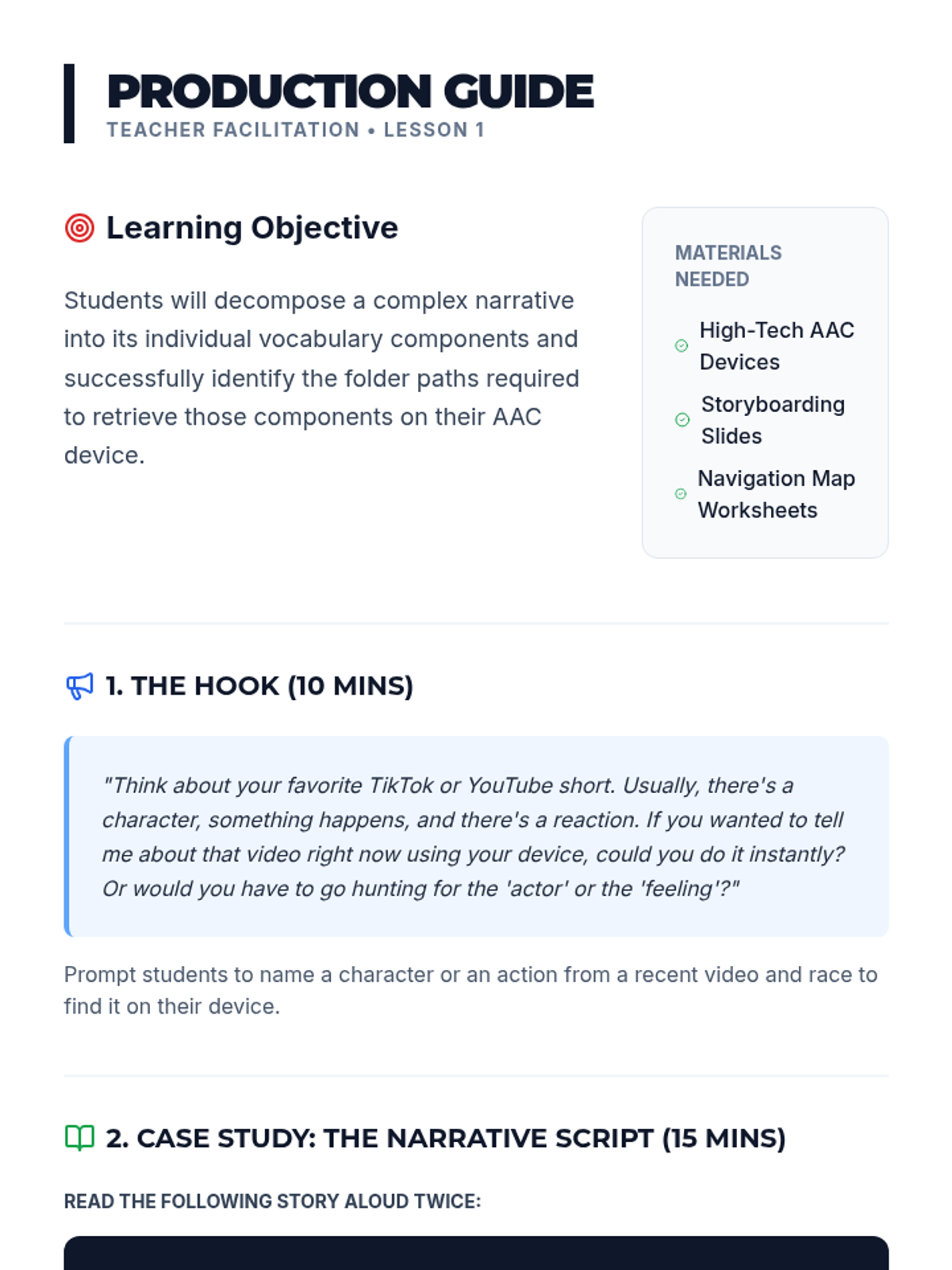
Students deconstruct a narrative into navigation paths, identifying the specific folders (people, actions, places) needed to retell a story using their AAC device.
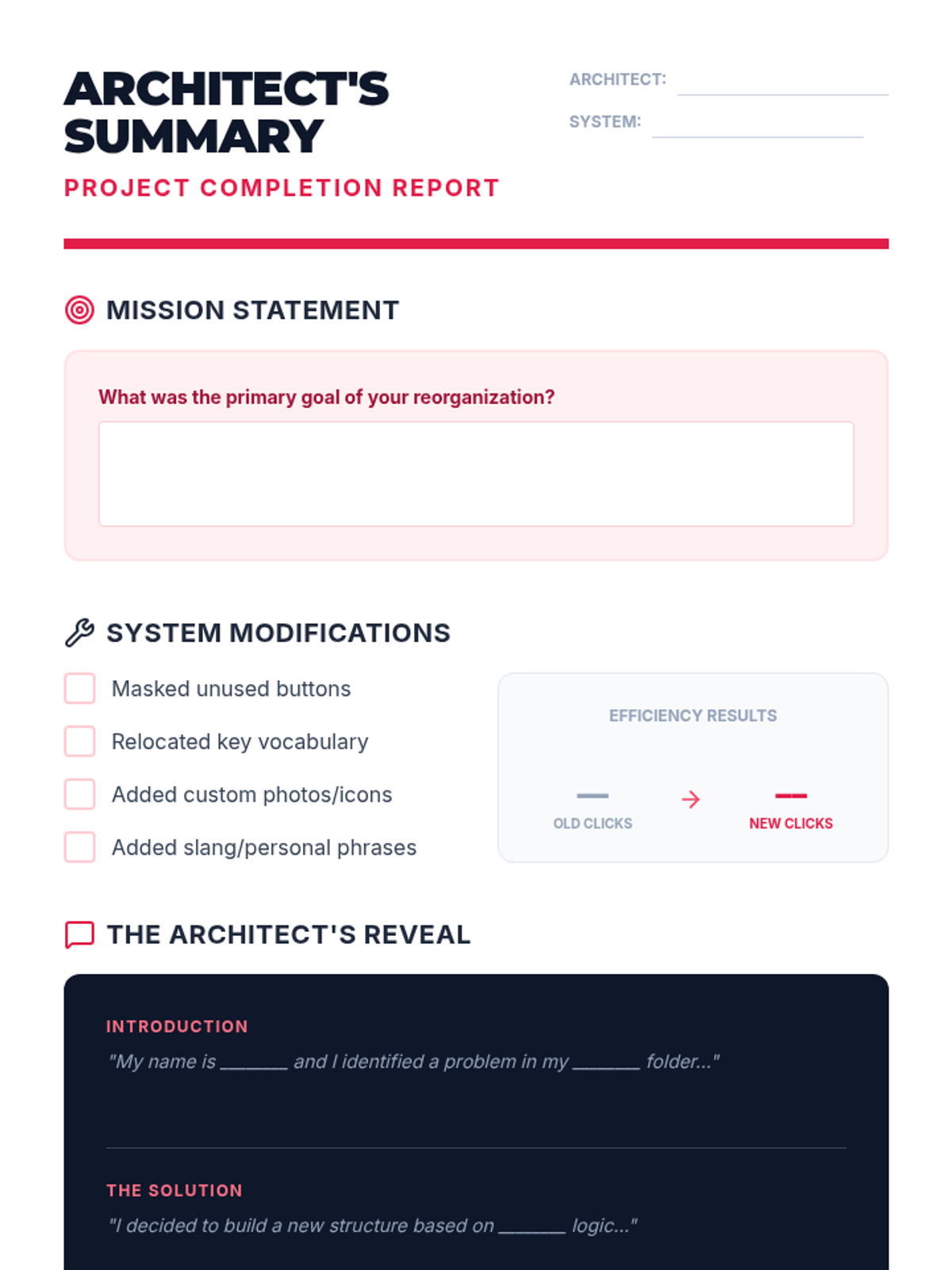
Students present their customized pages, explaining the logic behind their changes and demonstrating improved communication speed.
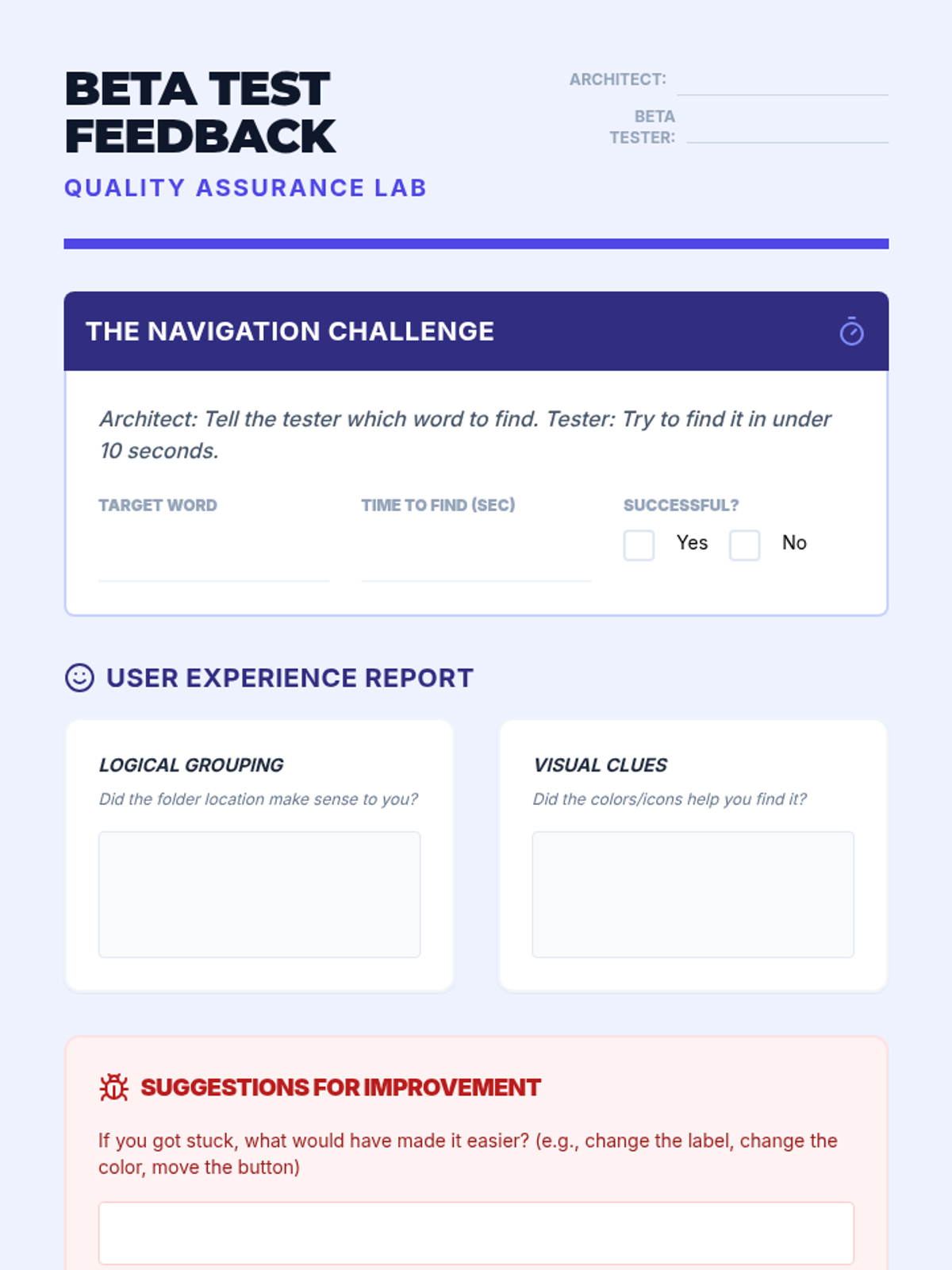
Students test each other's new folder structures to provide feedback on the intuitiveness of the navigation paths.
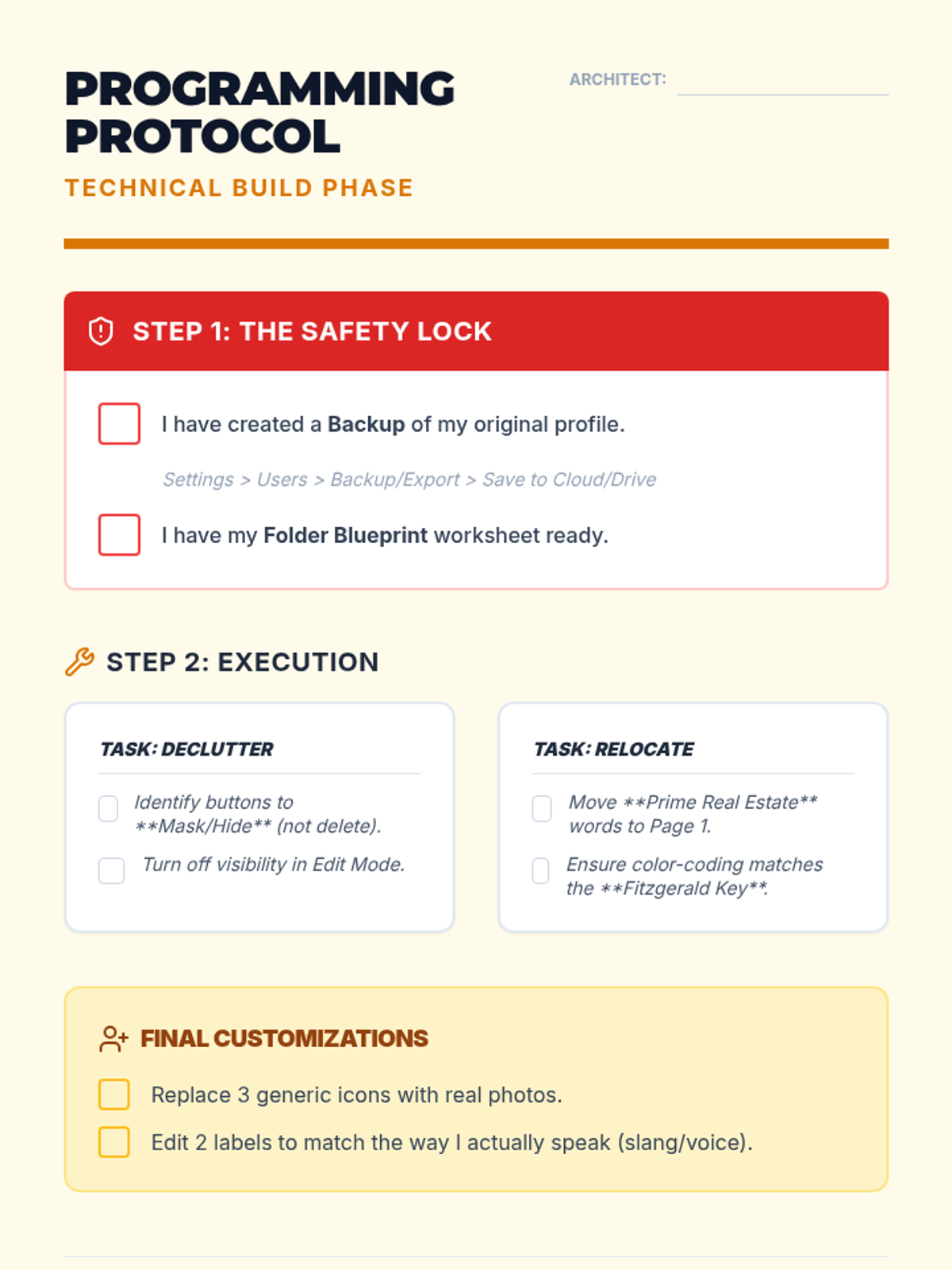
Learners engage in the technical skill of editing buttons or masking unused icons to declutter pages and customize personal folders.
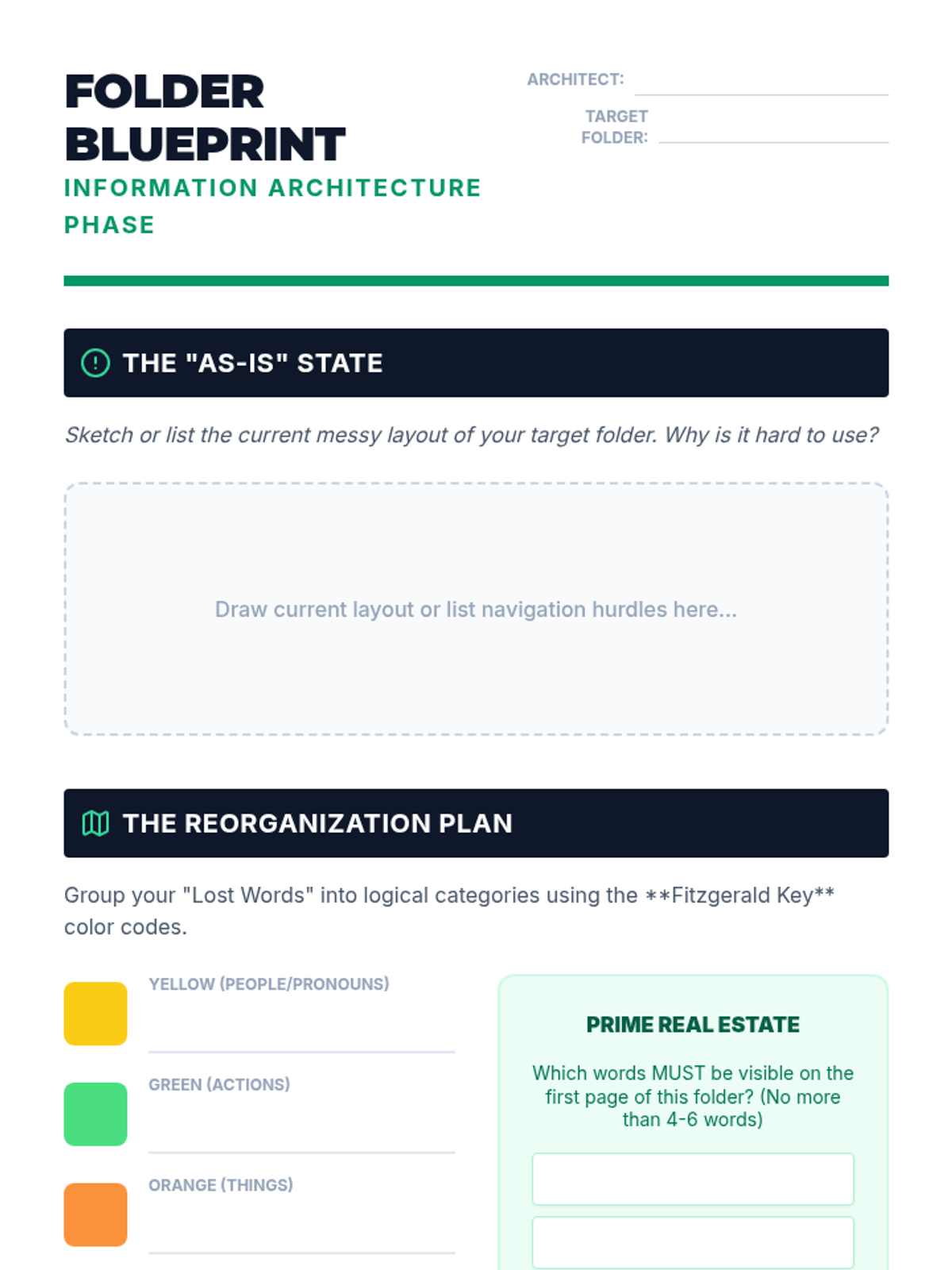
Students learn principles of information architecture, such as color-coding (Fitzgerald Key) and frequency of use, to plan a reorganization of a specific messy folder.
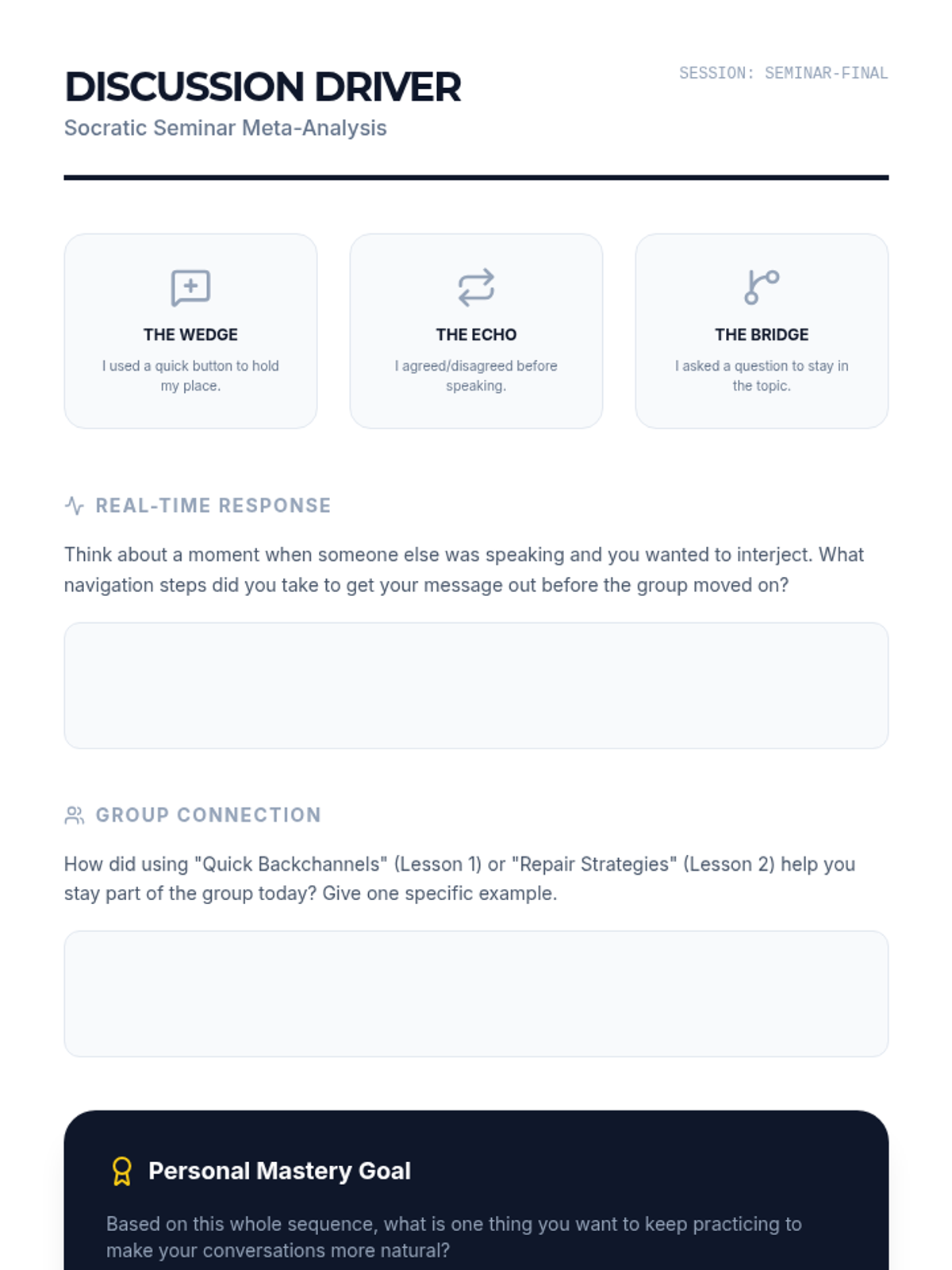
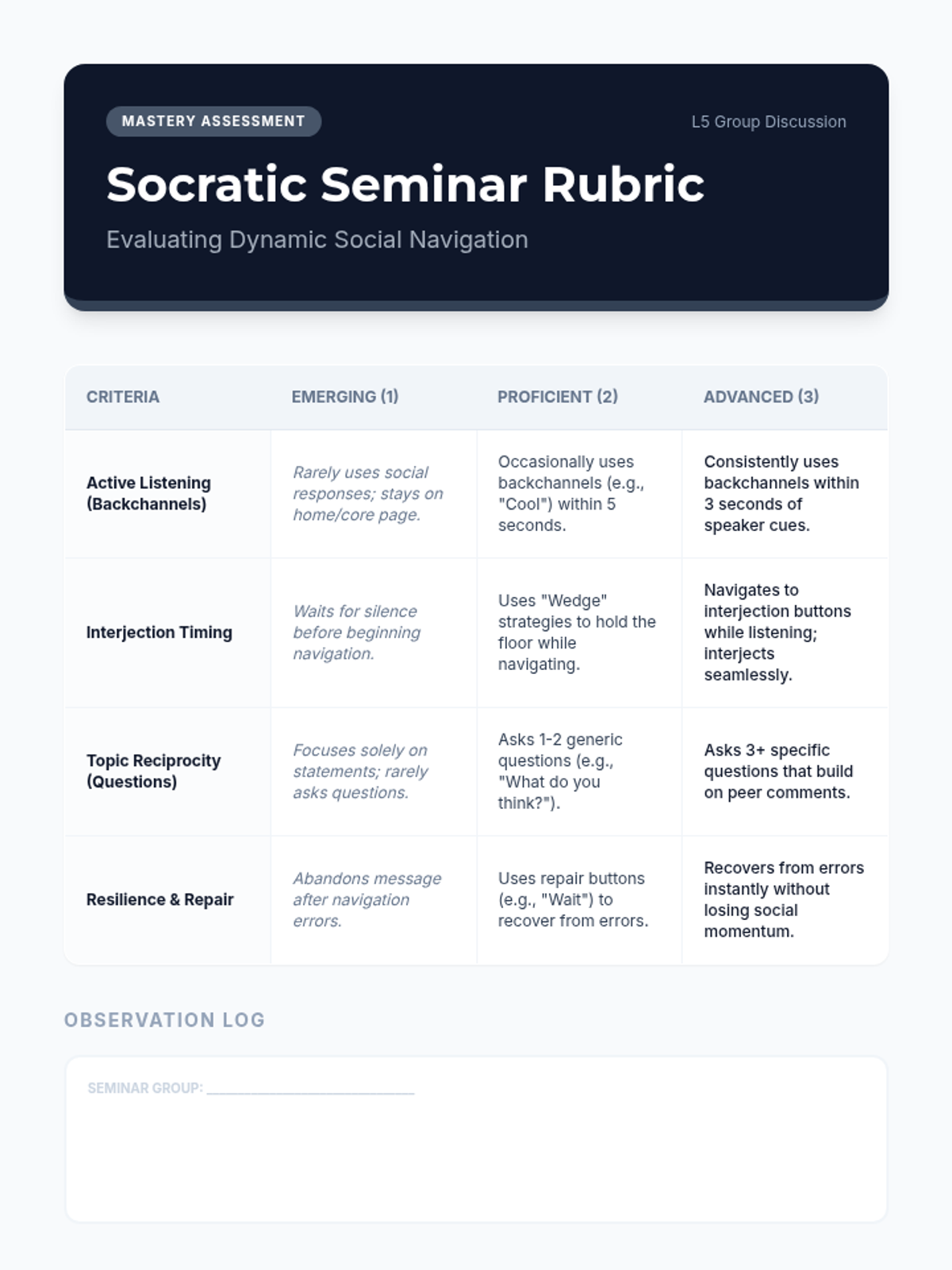
A Socratic seminar where students use their devices to interject, agree, or disagree in real-time, demonstrating mastery of navigation speed.
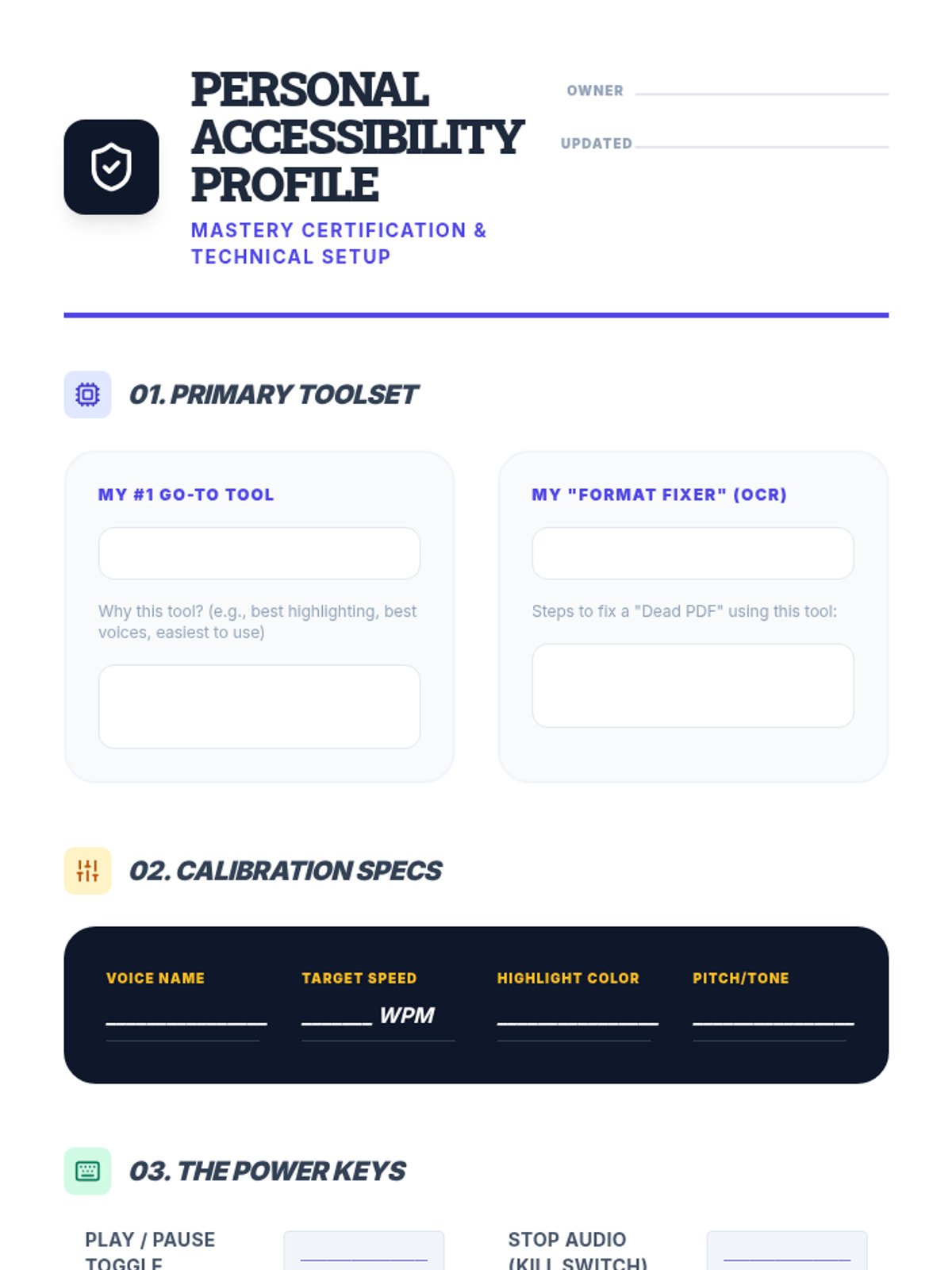
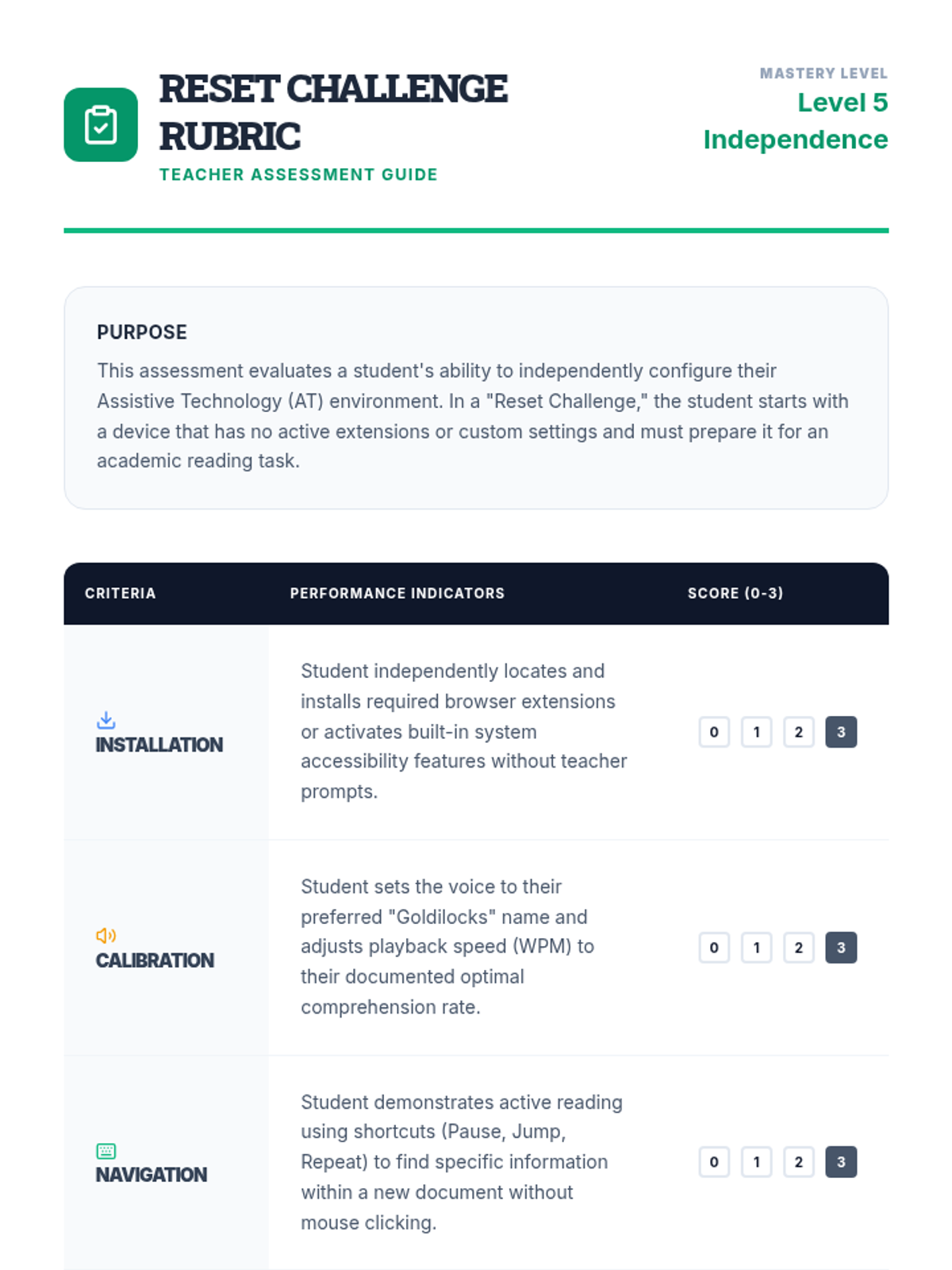
Students synthesize their preferences into a 'Personal Accessibility Profile' document that lists their preferred tools, settings, and strategies. They demonstrate mastery by configuring a 'clean' device to their specifications within a set time limit.
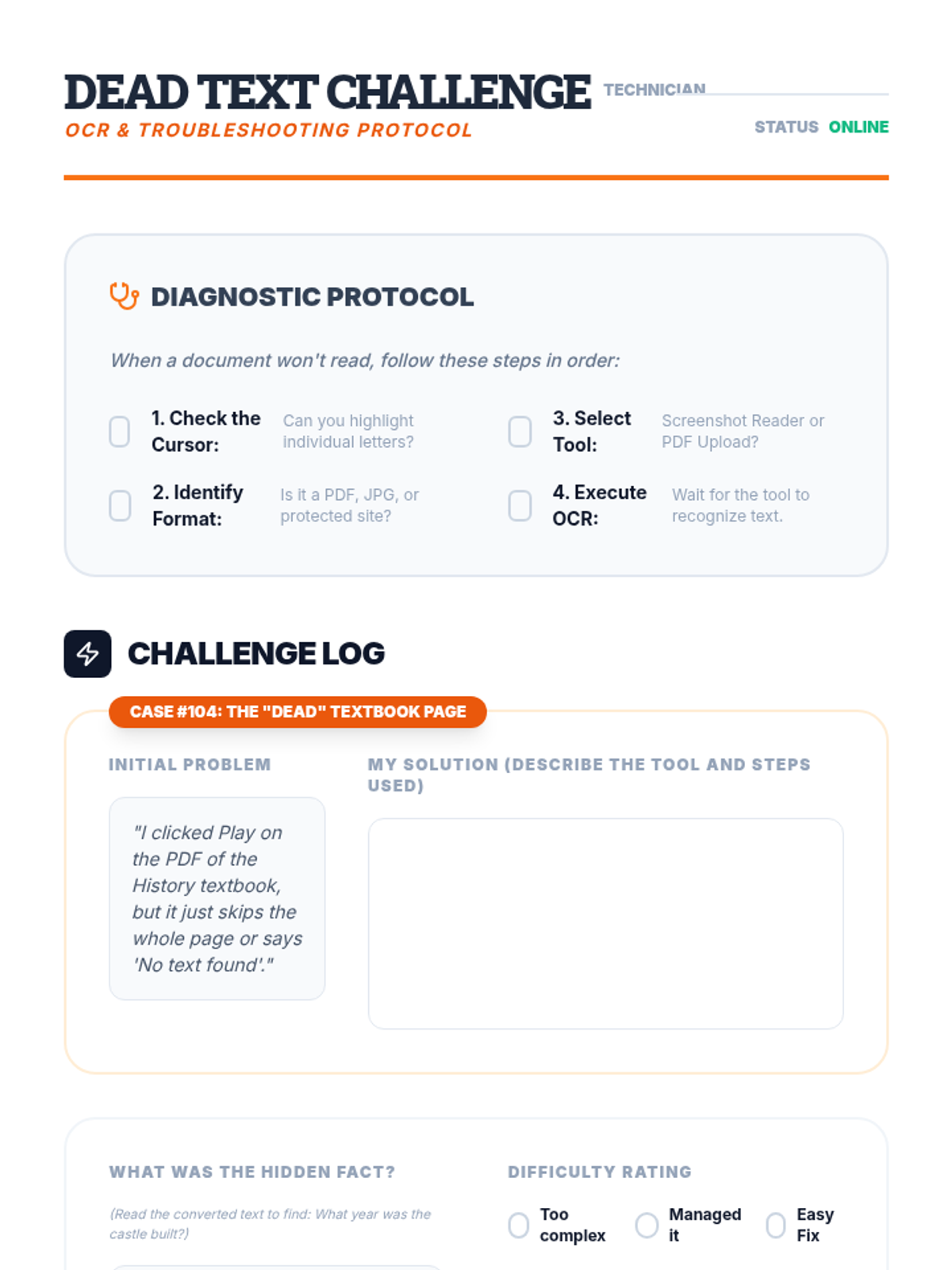
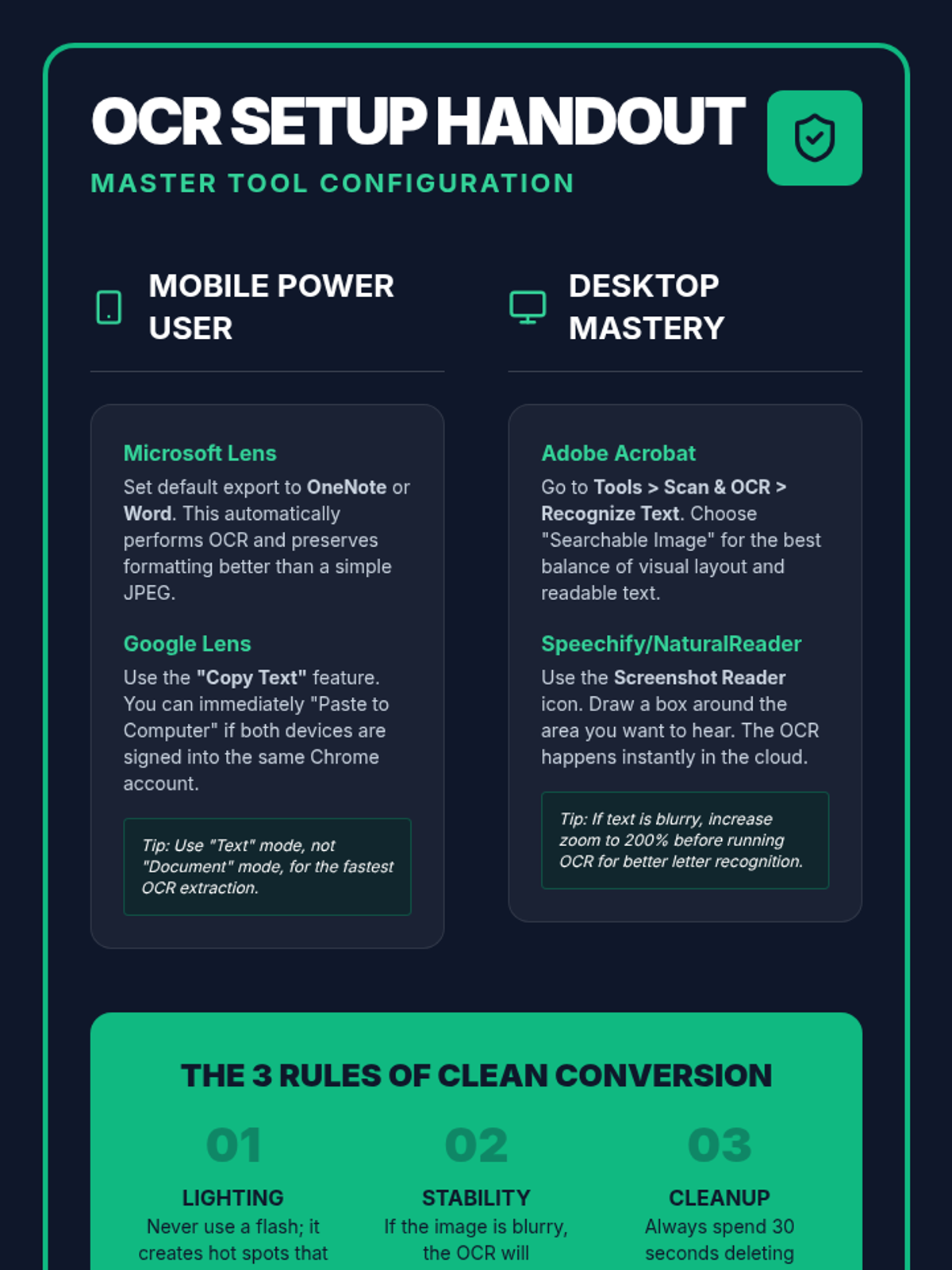
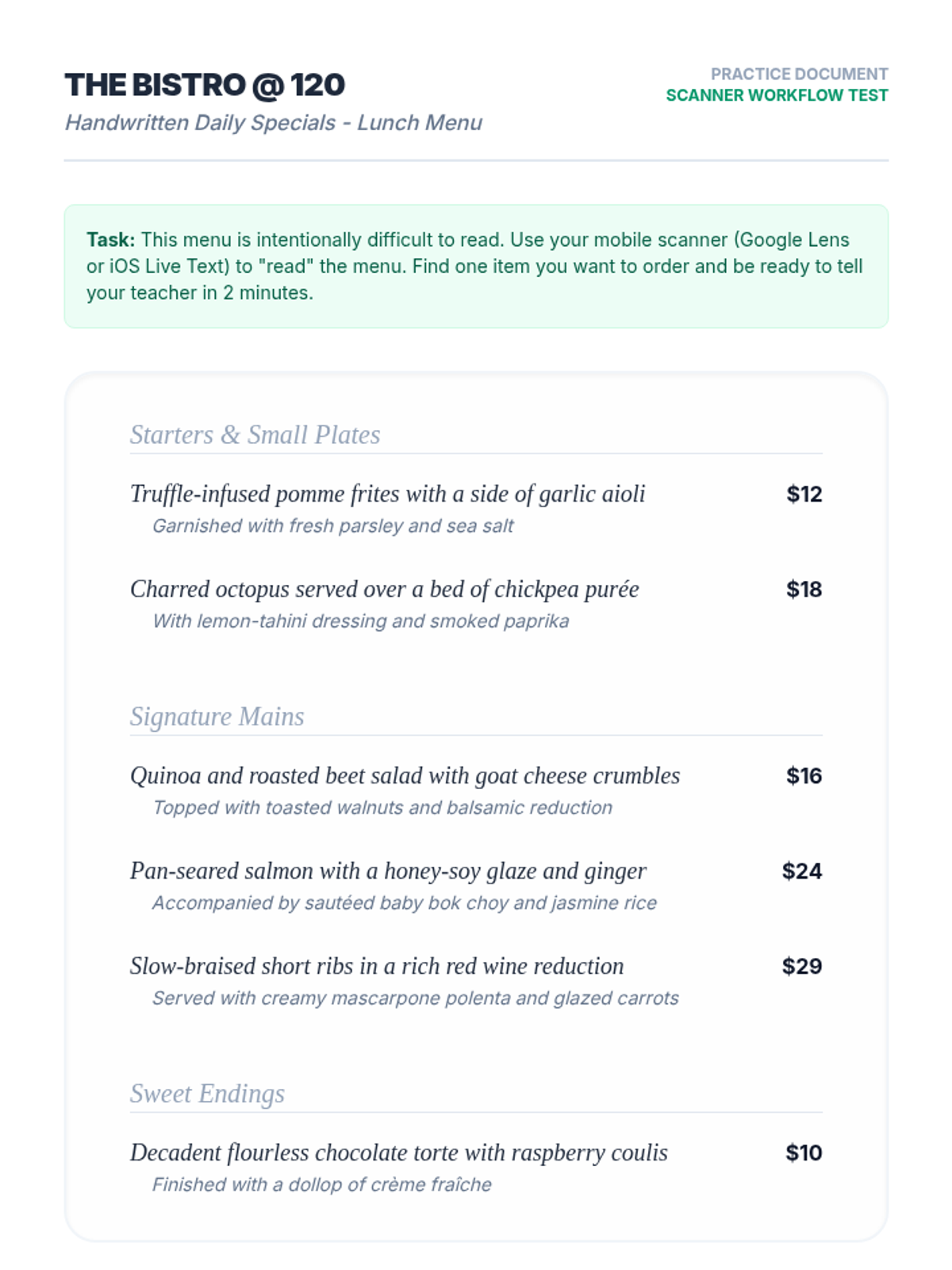
This lesson addresses common barriers, such as inaccessible PDFs or text embedded in images, by teaching students to use OCR (Optical Character Recognition) tools. Students practice converting 'dead text' into readable formats compatible with their TTS software.
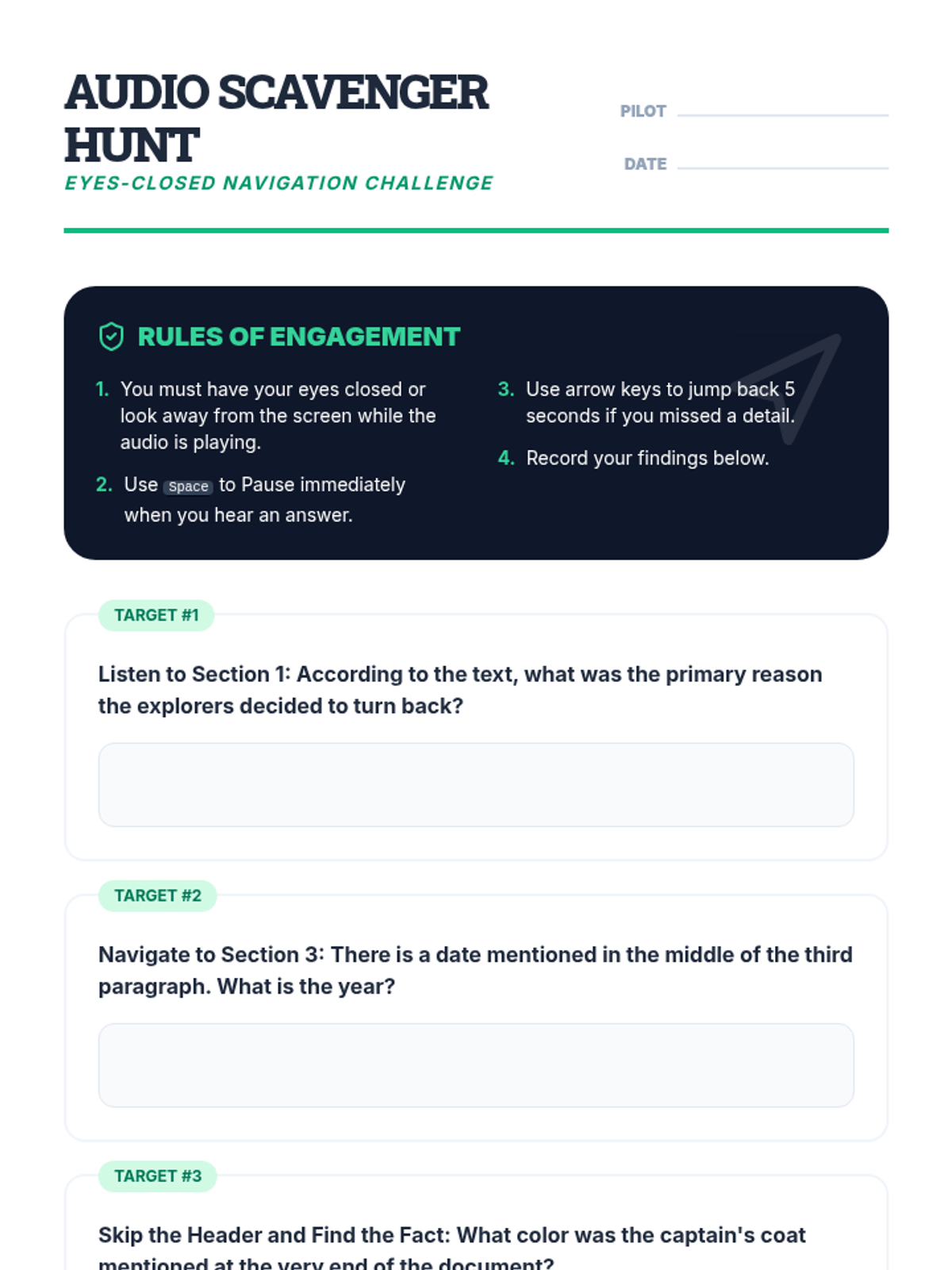
Students learn to control the flow of information by using navigation shortcuts to skip headers, repeat sentences, and jump between paragraphs. The lesson focuses on moving beyond passive listening to active navigation required for academic reading.
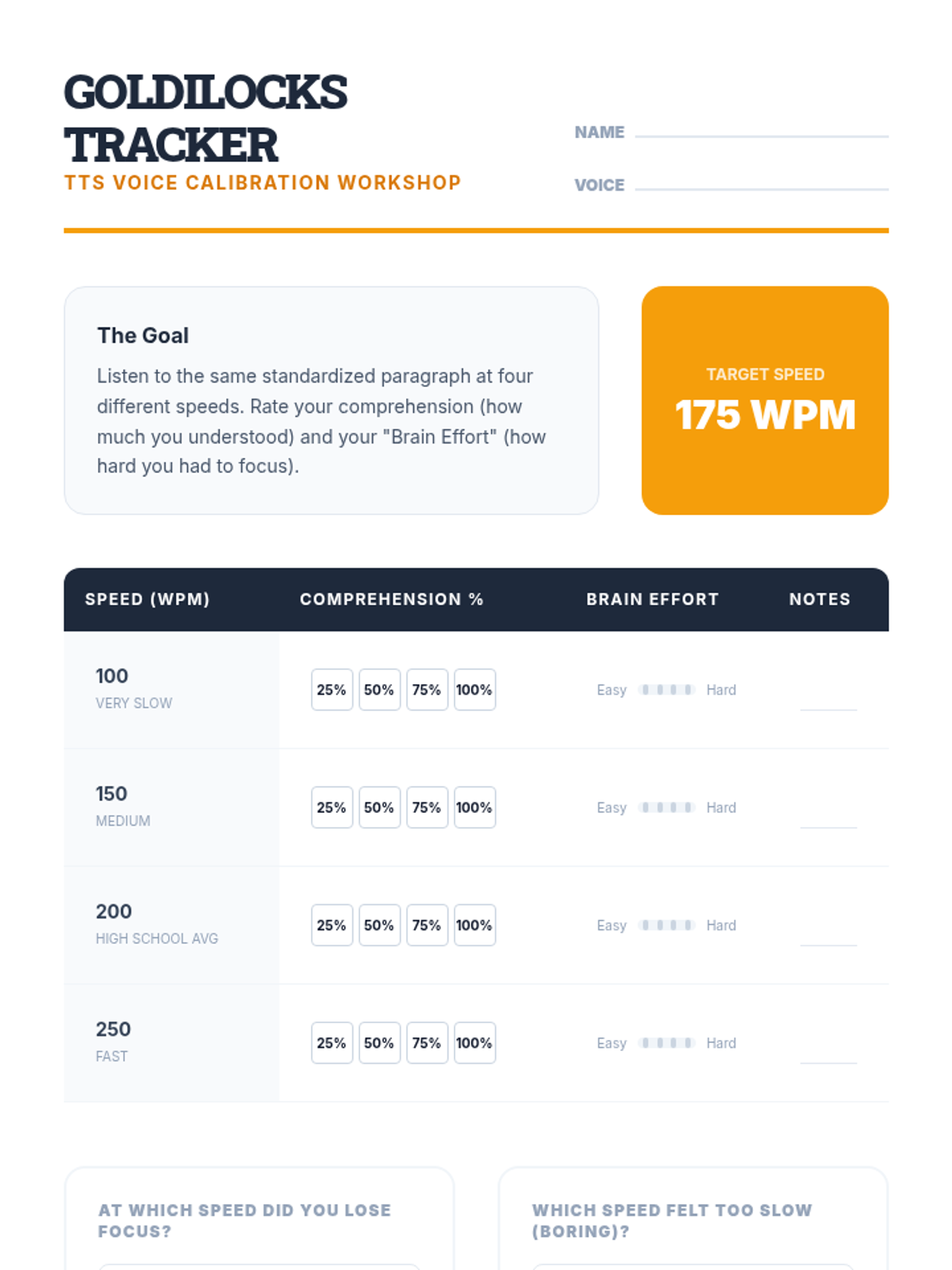
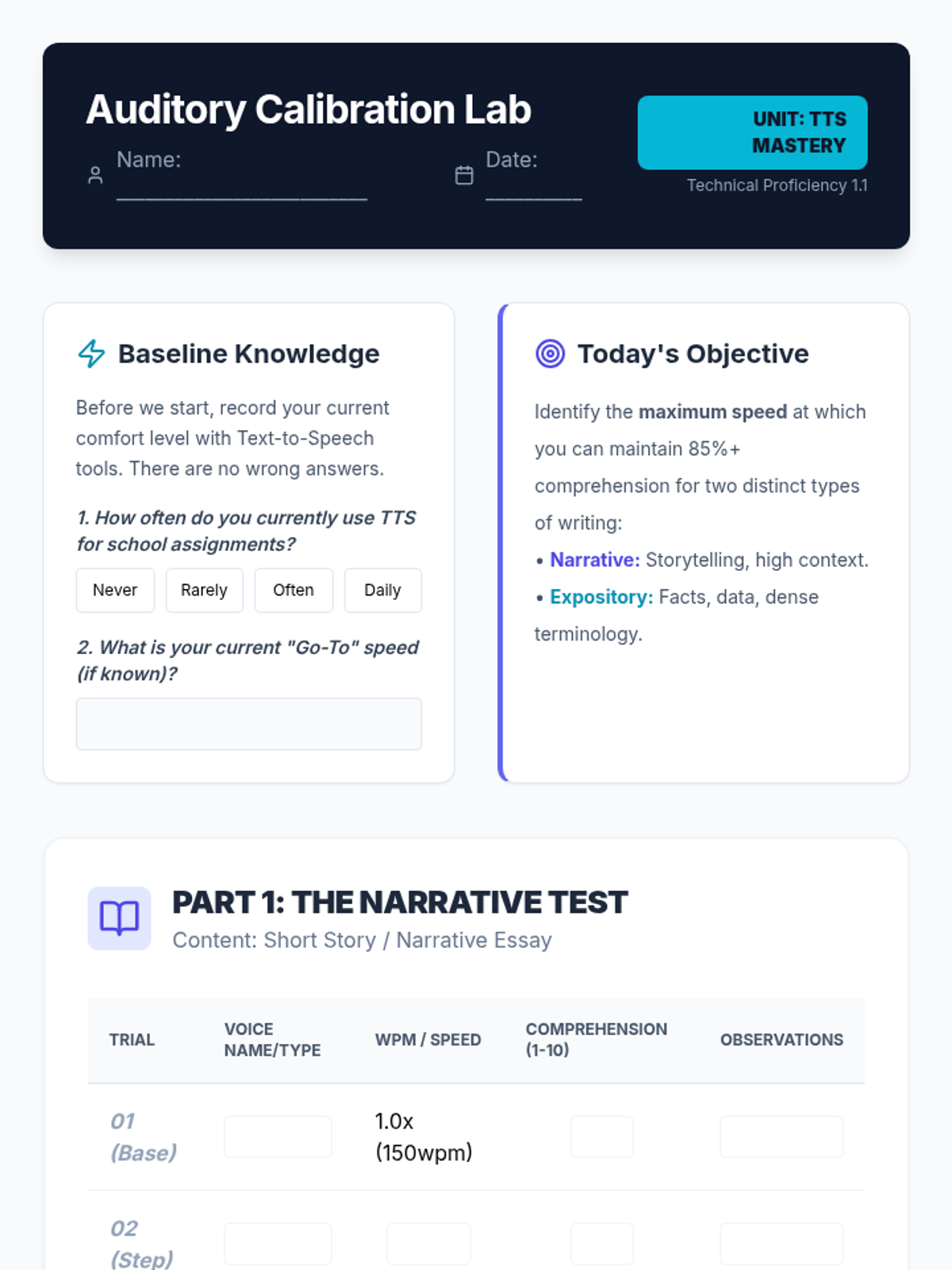
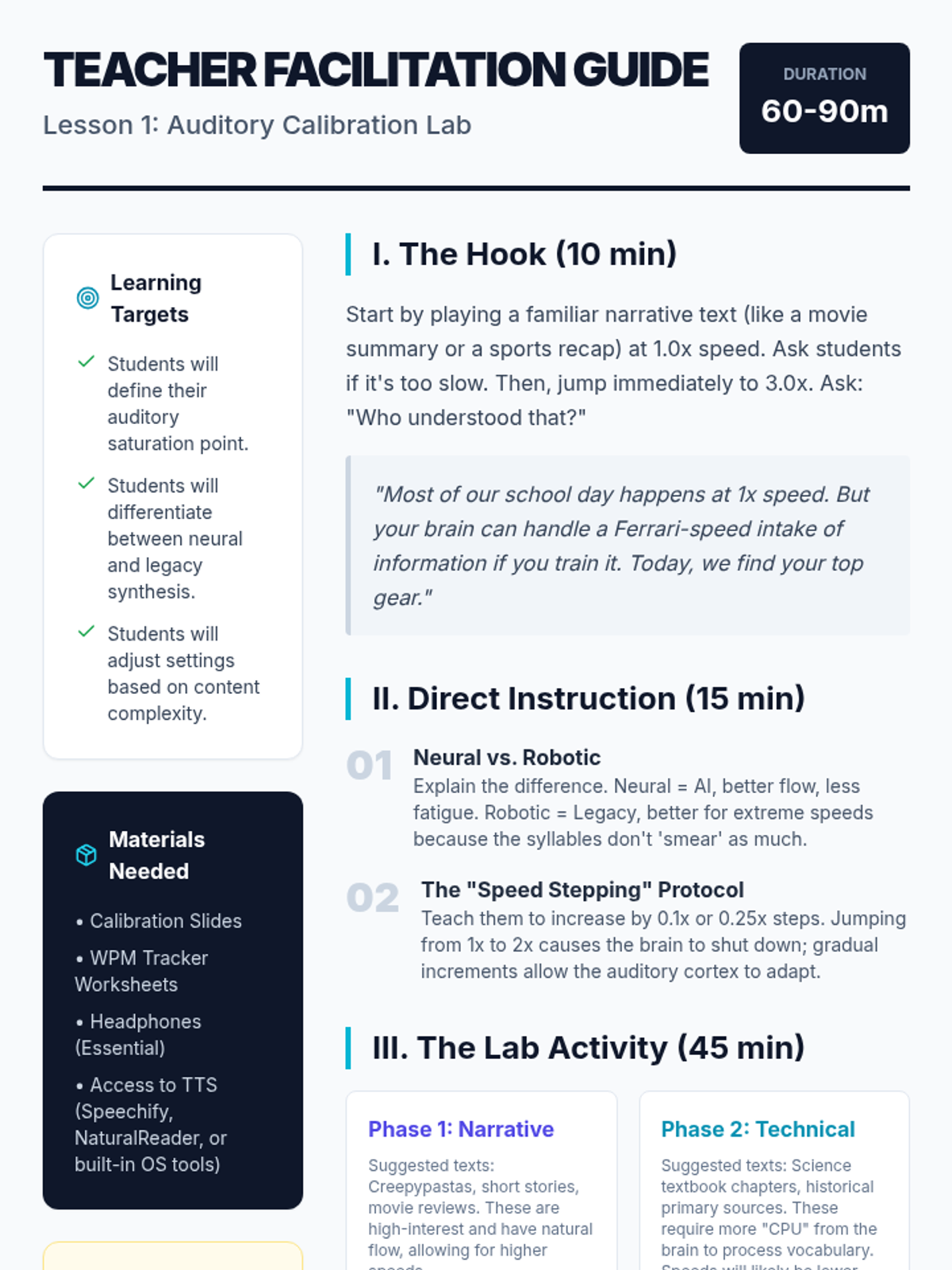
In this technical workshop, students experiment with voice synthesis options and playback rates to determine their optimal comprehension speed. Students track their understanding of a standardized text at various words-per-minute settings to find their 'Goldilocks' zone.
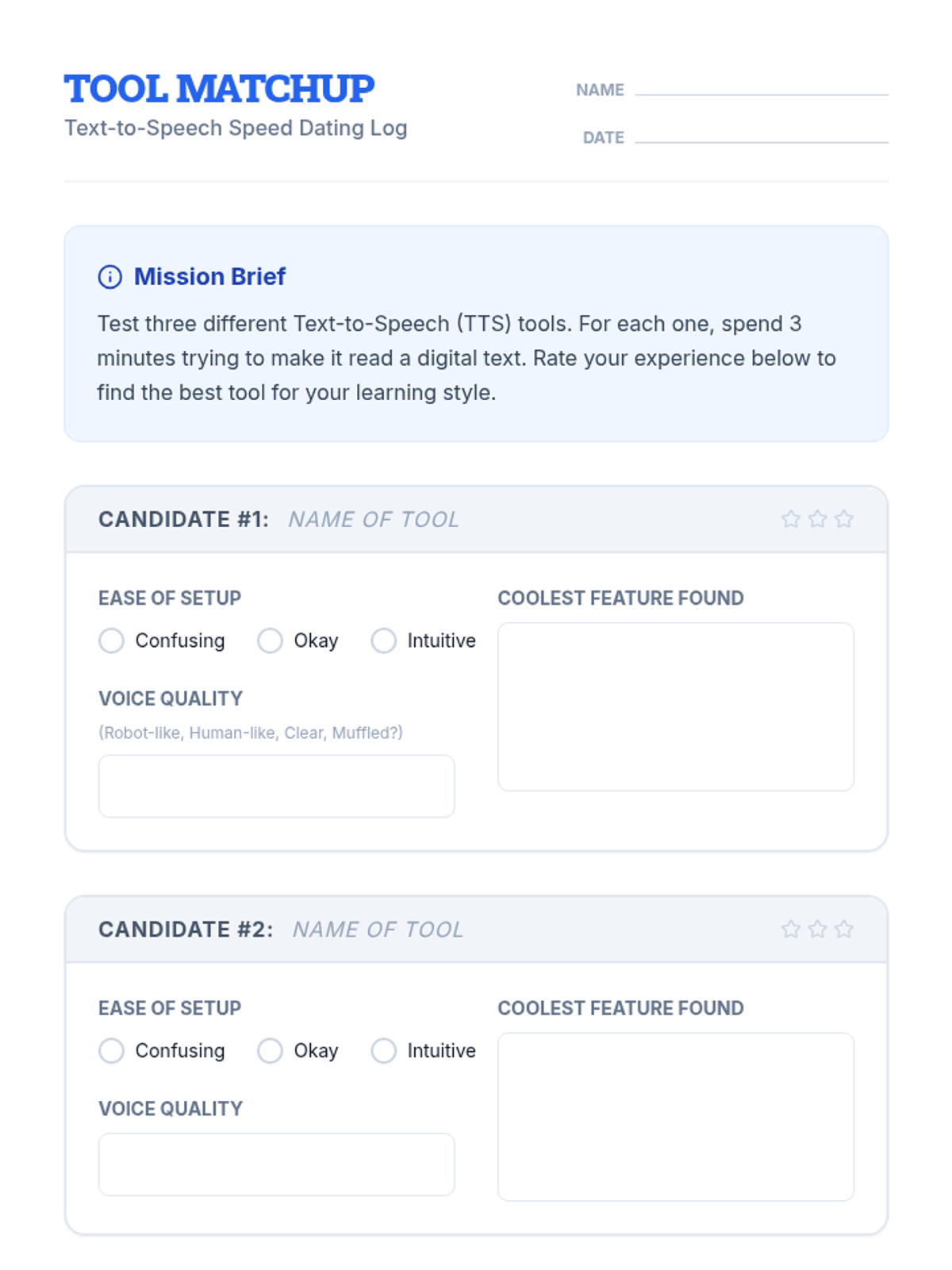
Students explore and compare various TTS tools, extensions, and built-in features to find the platform that best fits their learning style and device.
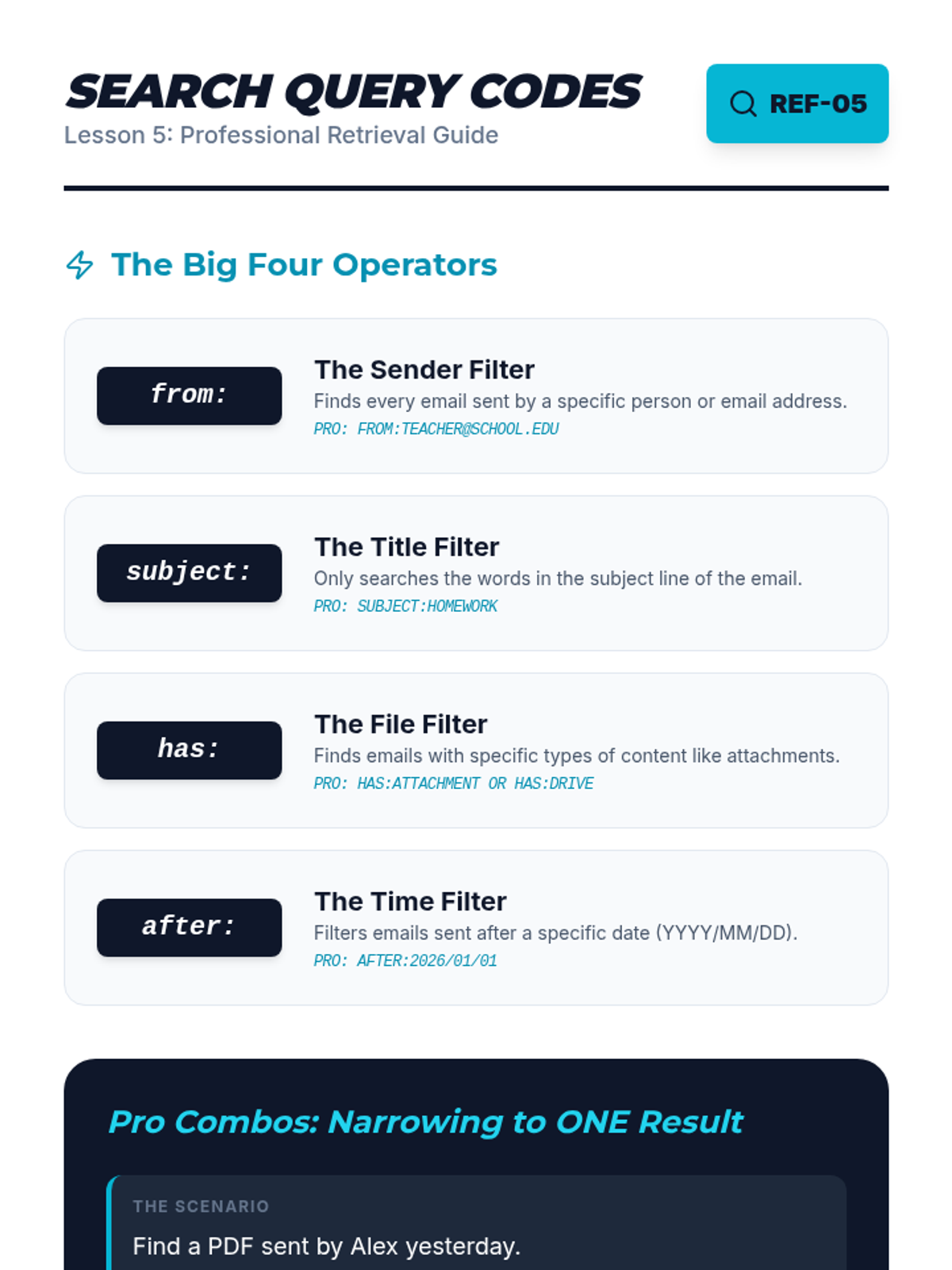
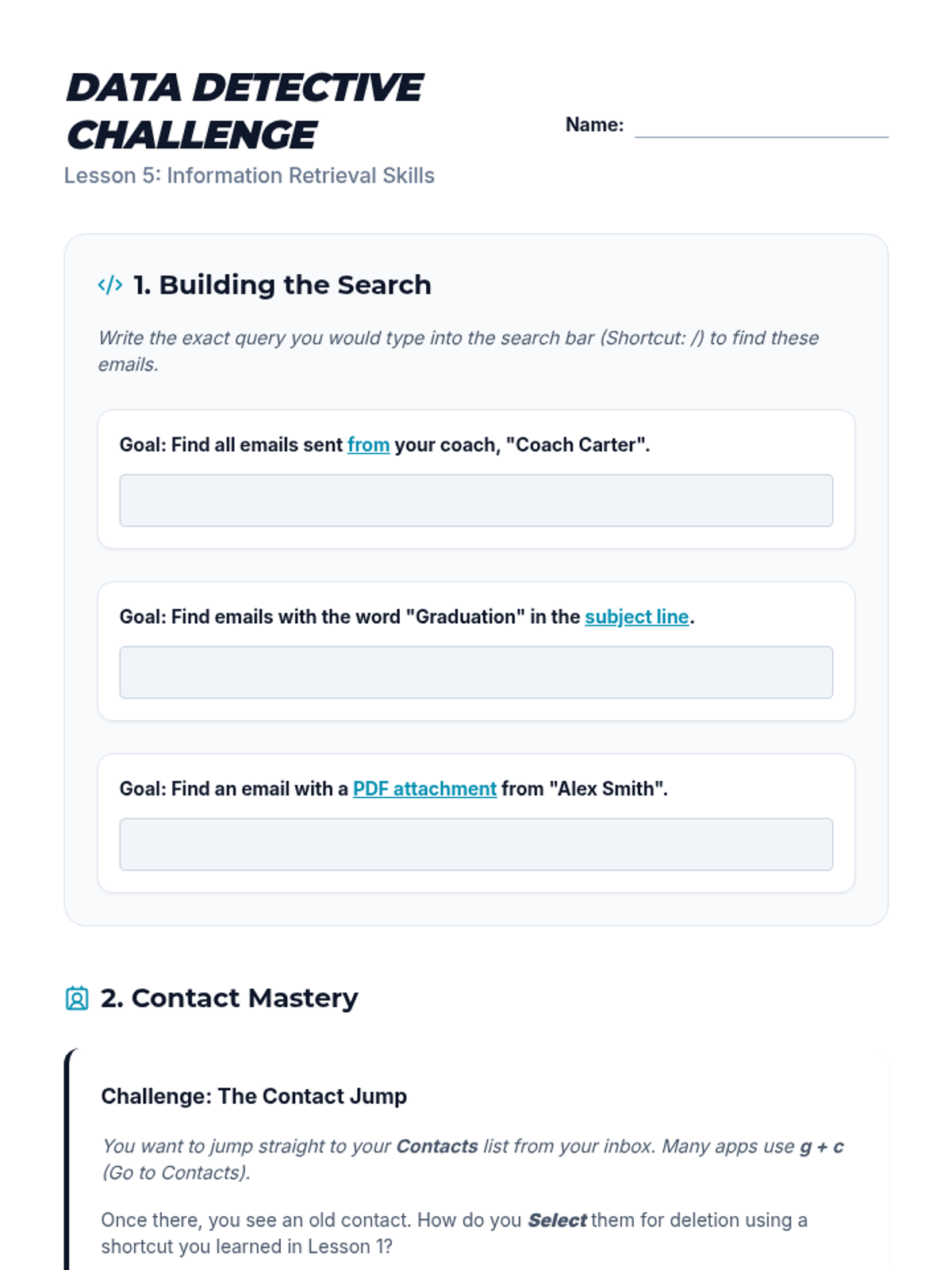
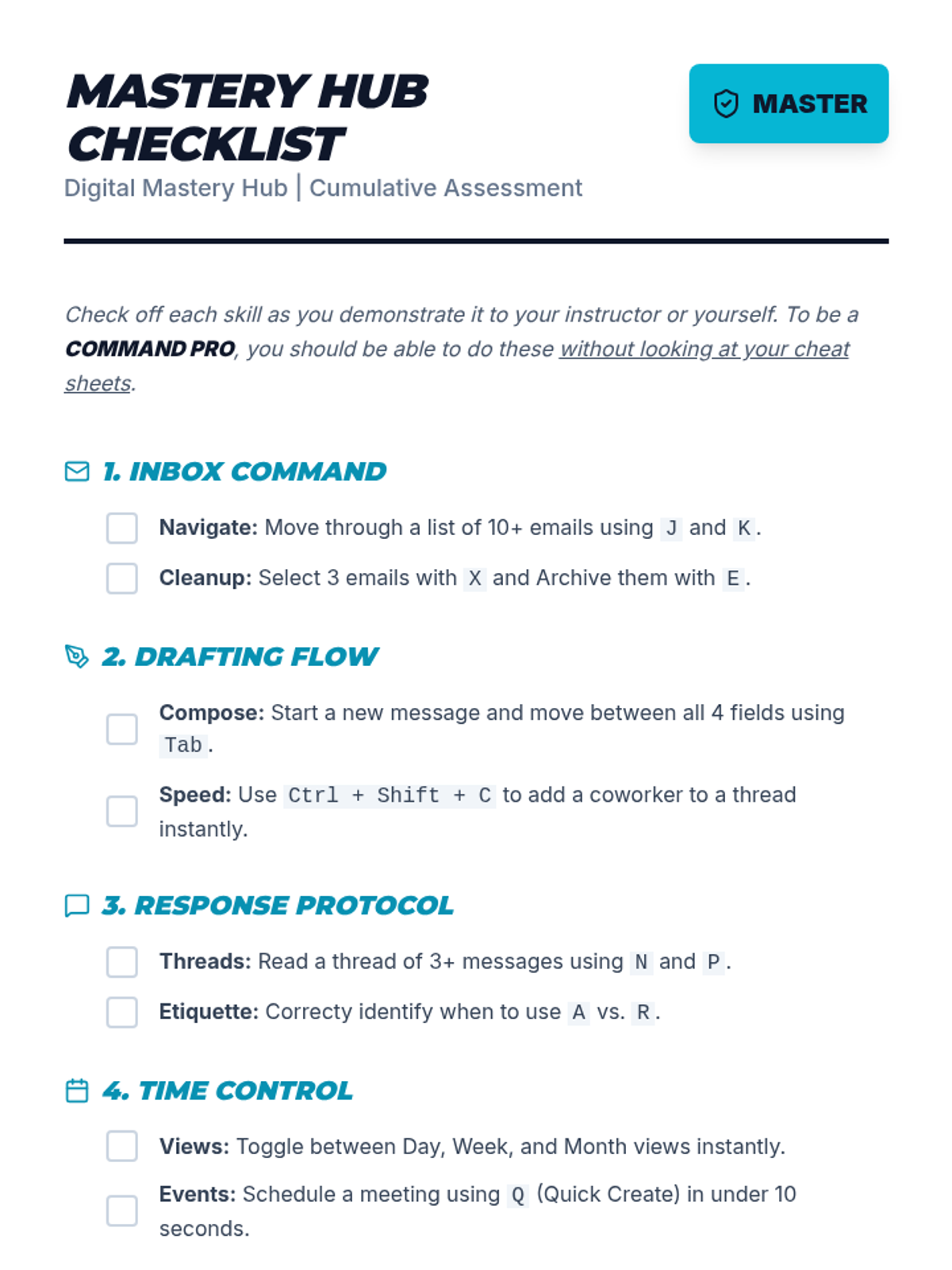
Covers advanced retrieval techniques using search operators and the management of digital contact lists, culminating in a mastery assessment of all keyboard navigation skills.
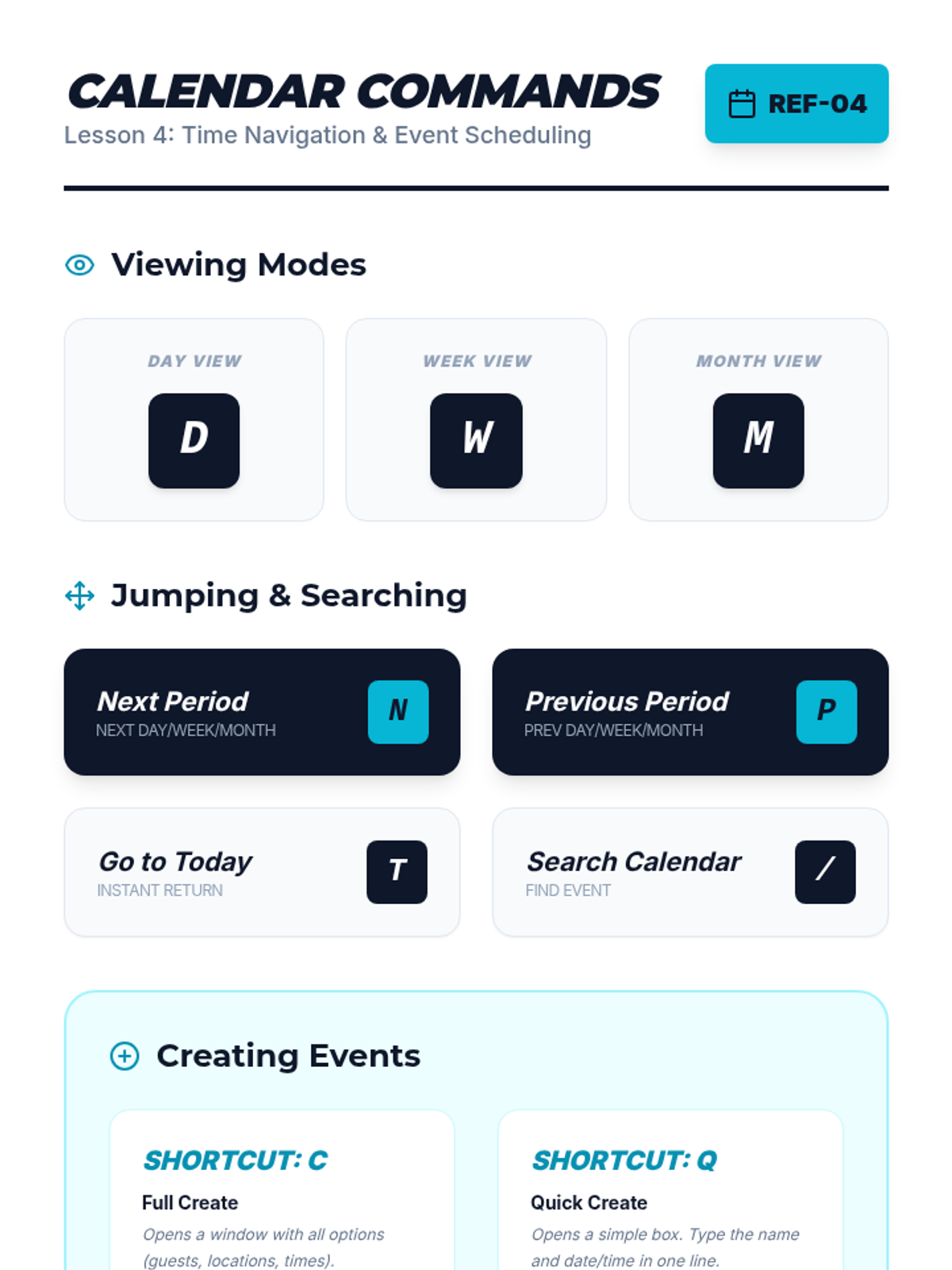
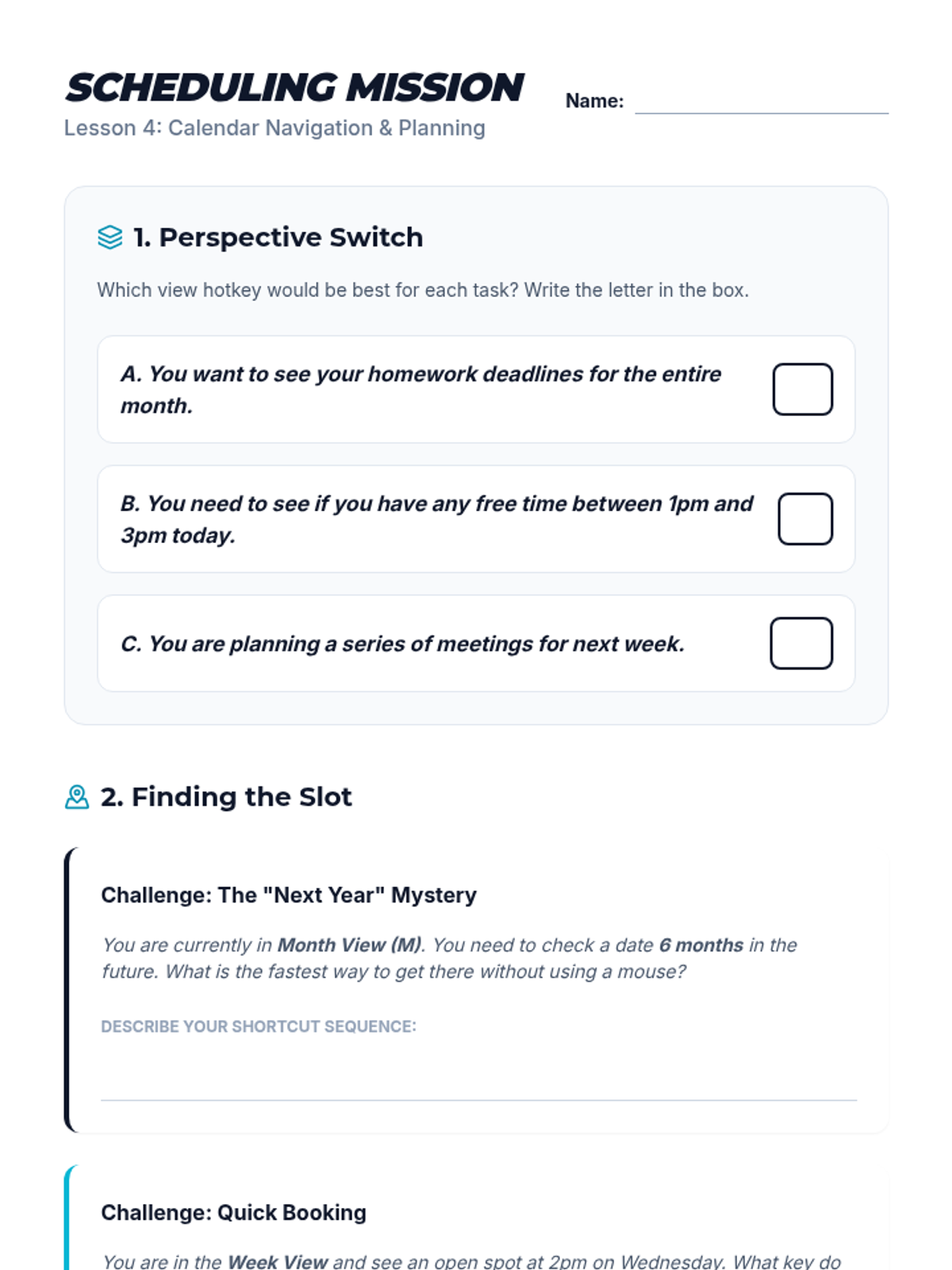
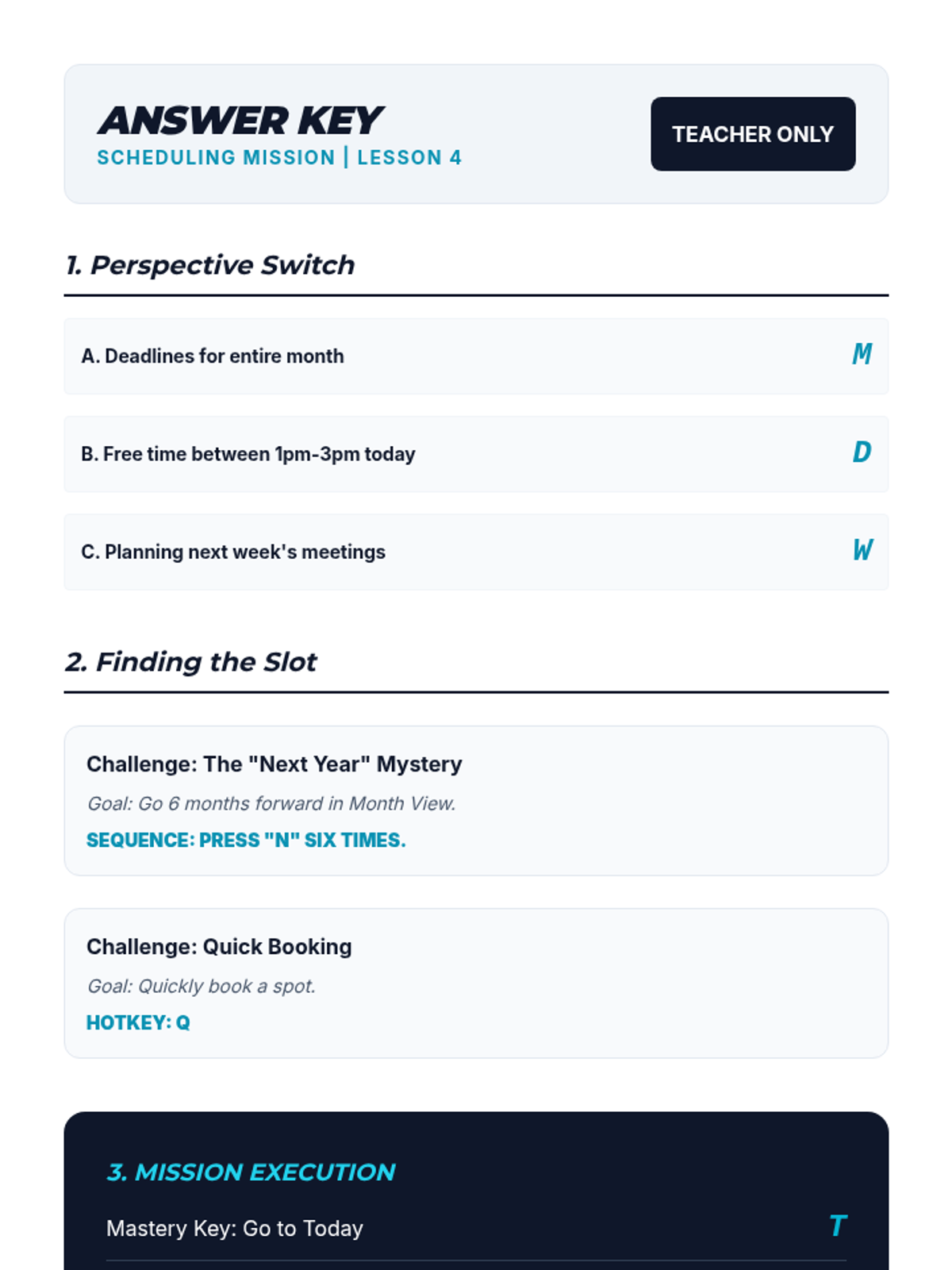
Students transition to calendar management, learning to switch views (Day/Week/Month) and schedule events using keyboard-driven forms and time selection shortcuts.
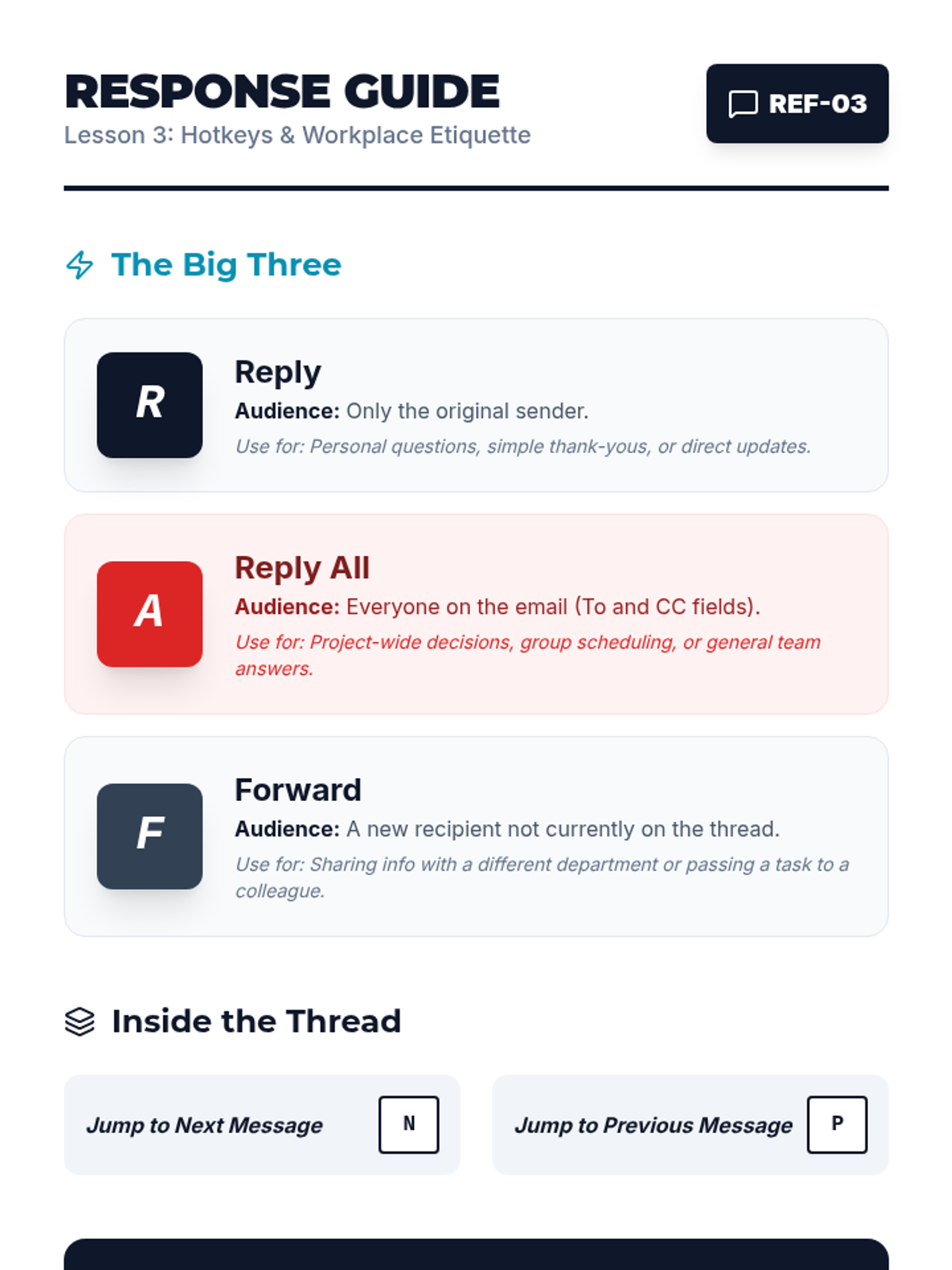
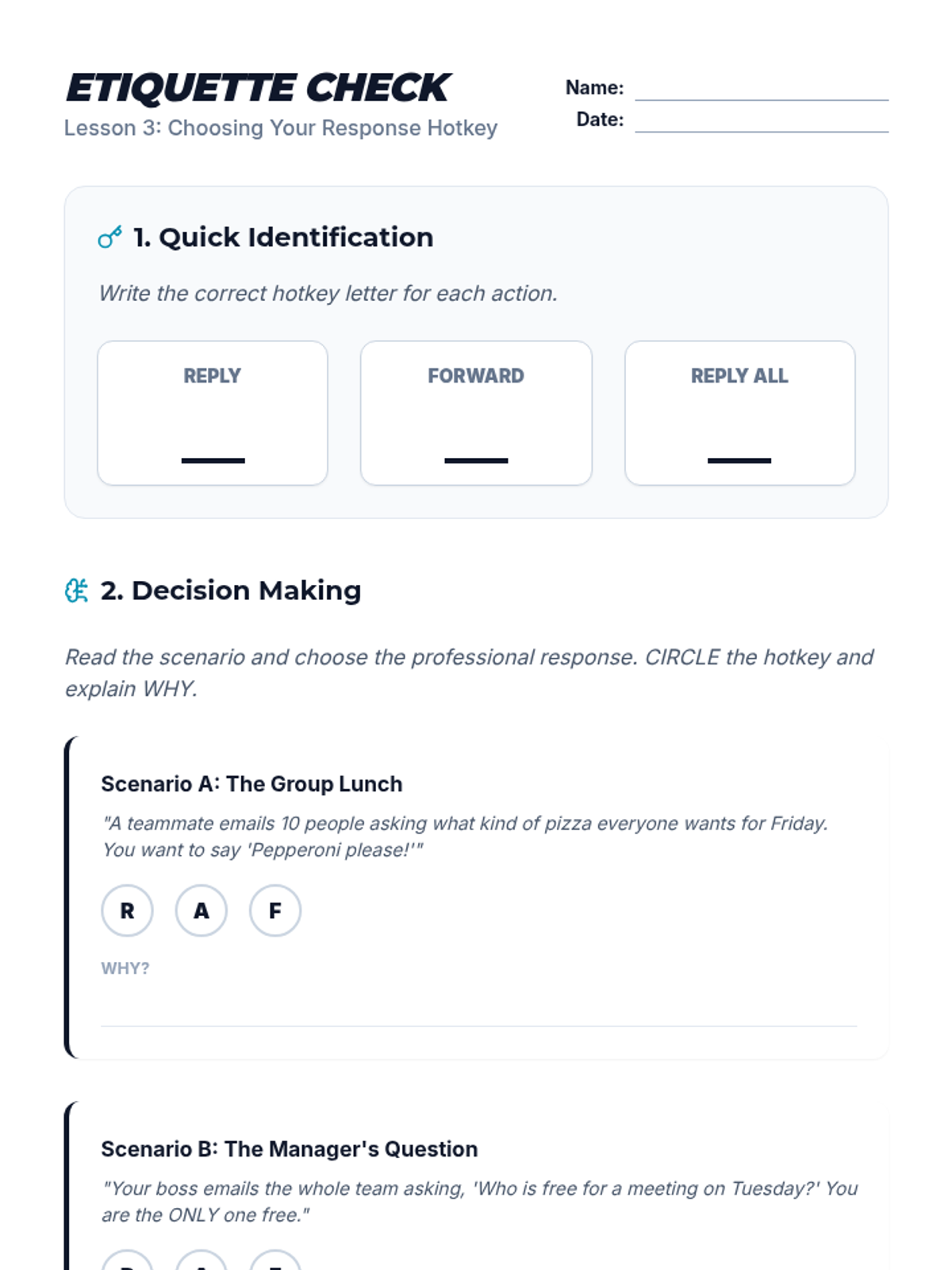
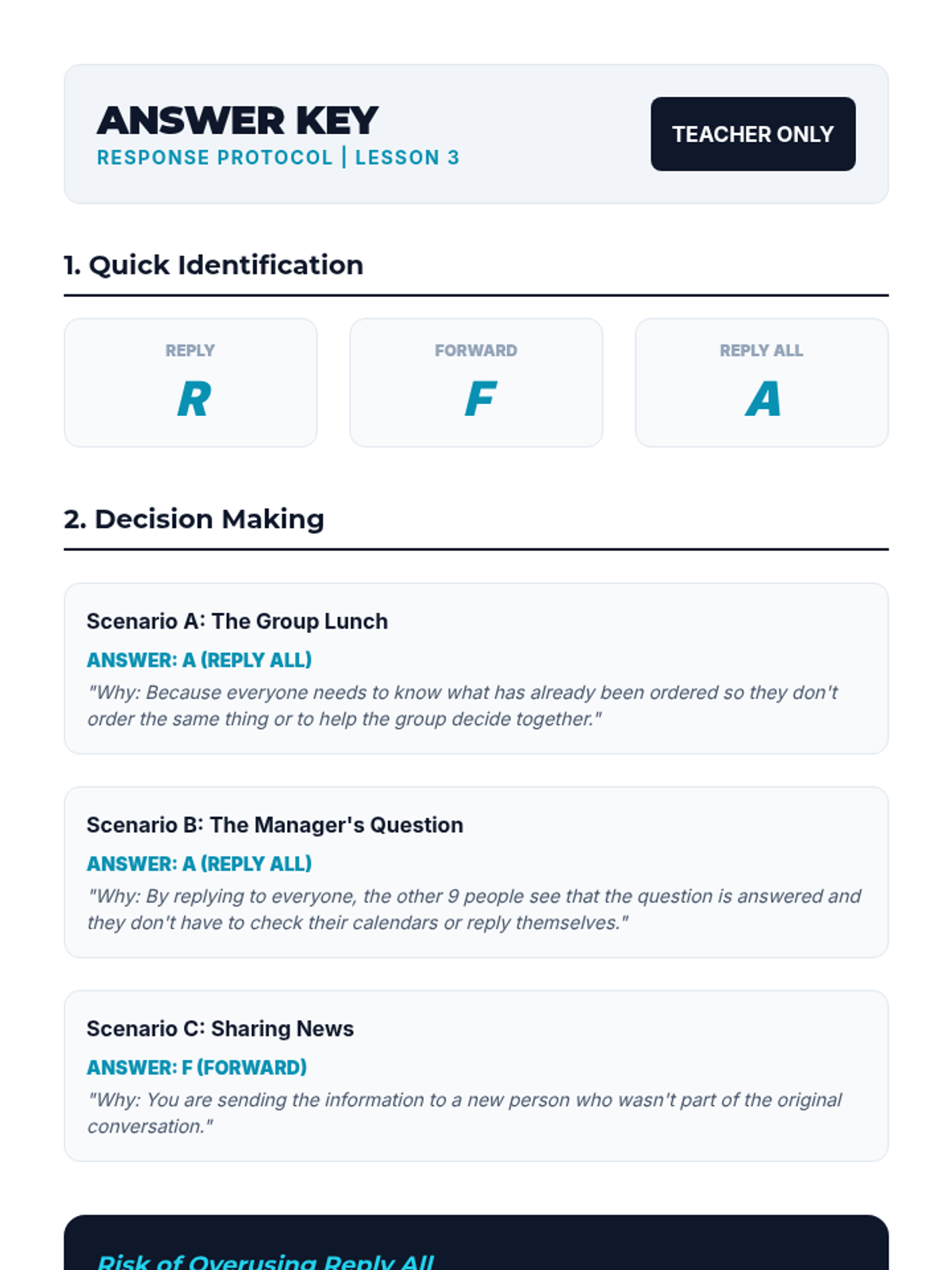
Teaches the critical distinction between reply types and how to navigate email threads using keys. Includes workplace etiquette regarding 'Reply All' and professional forwarding practices.
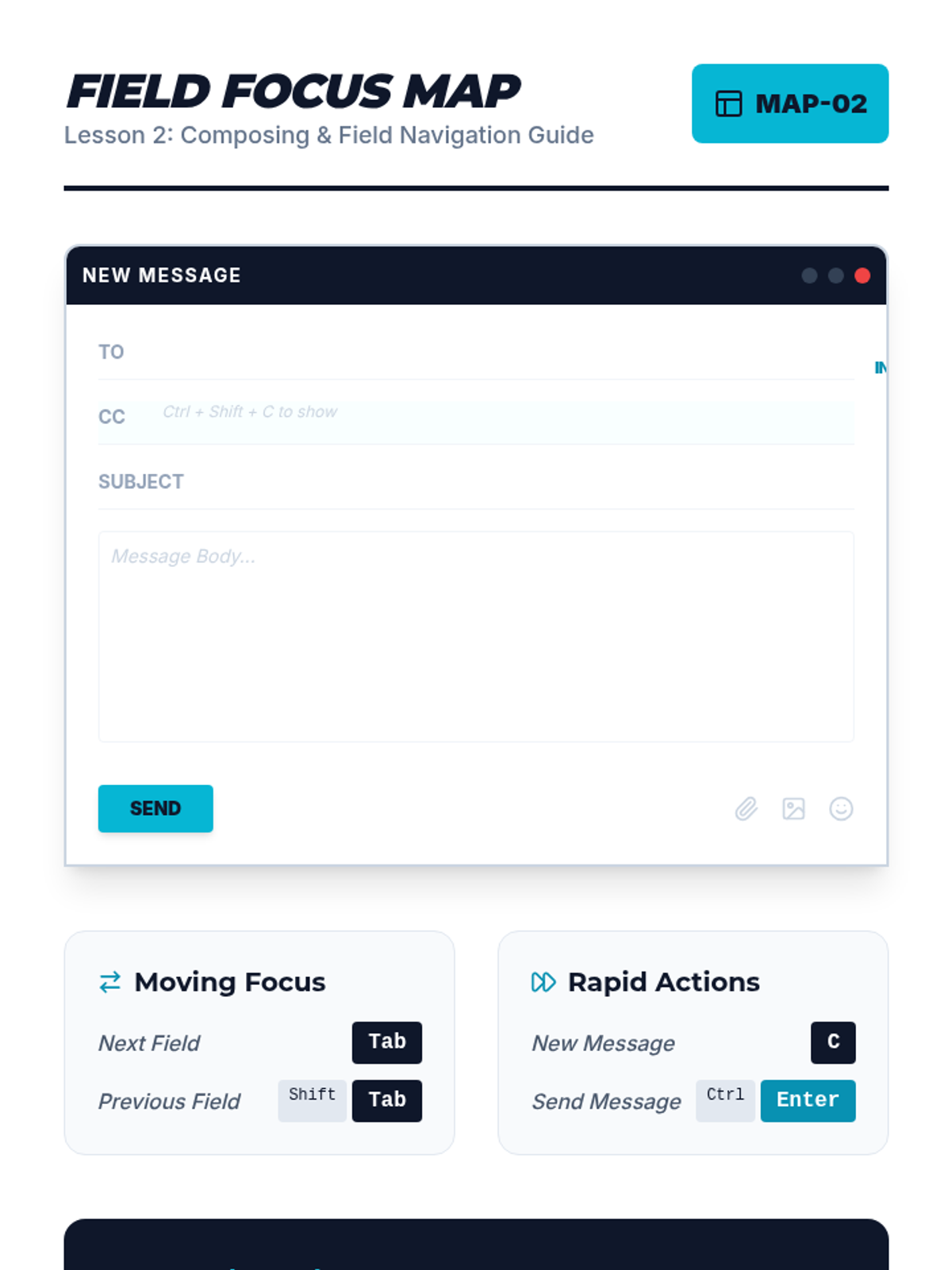
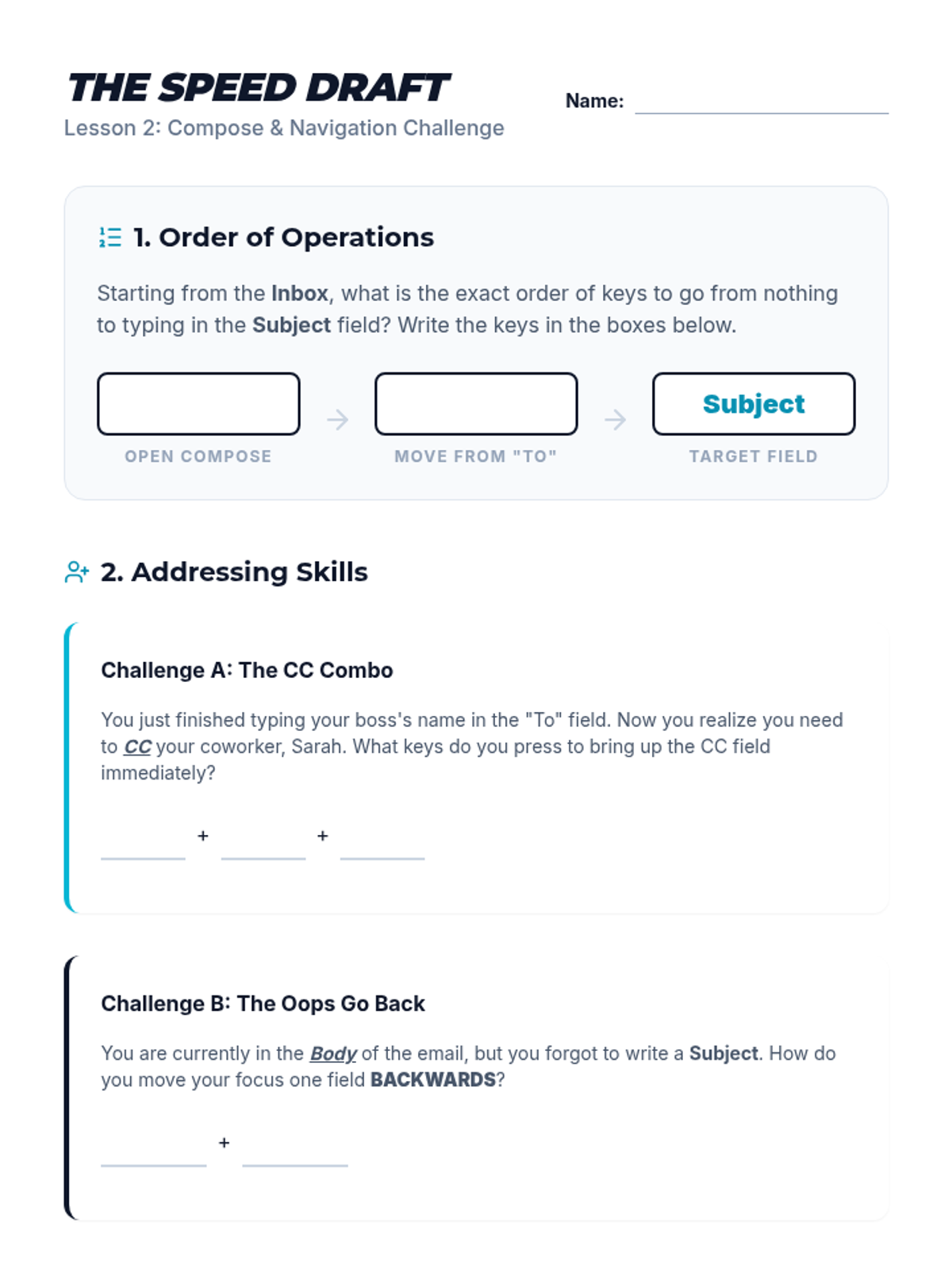
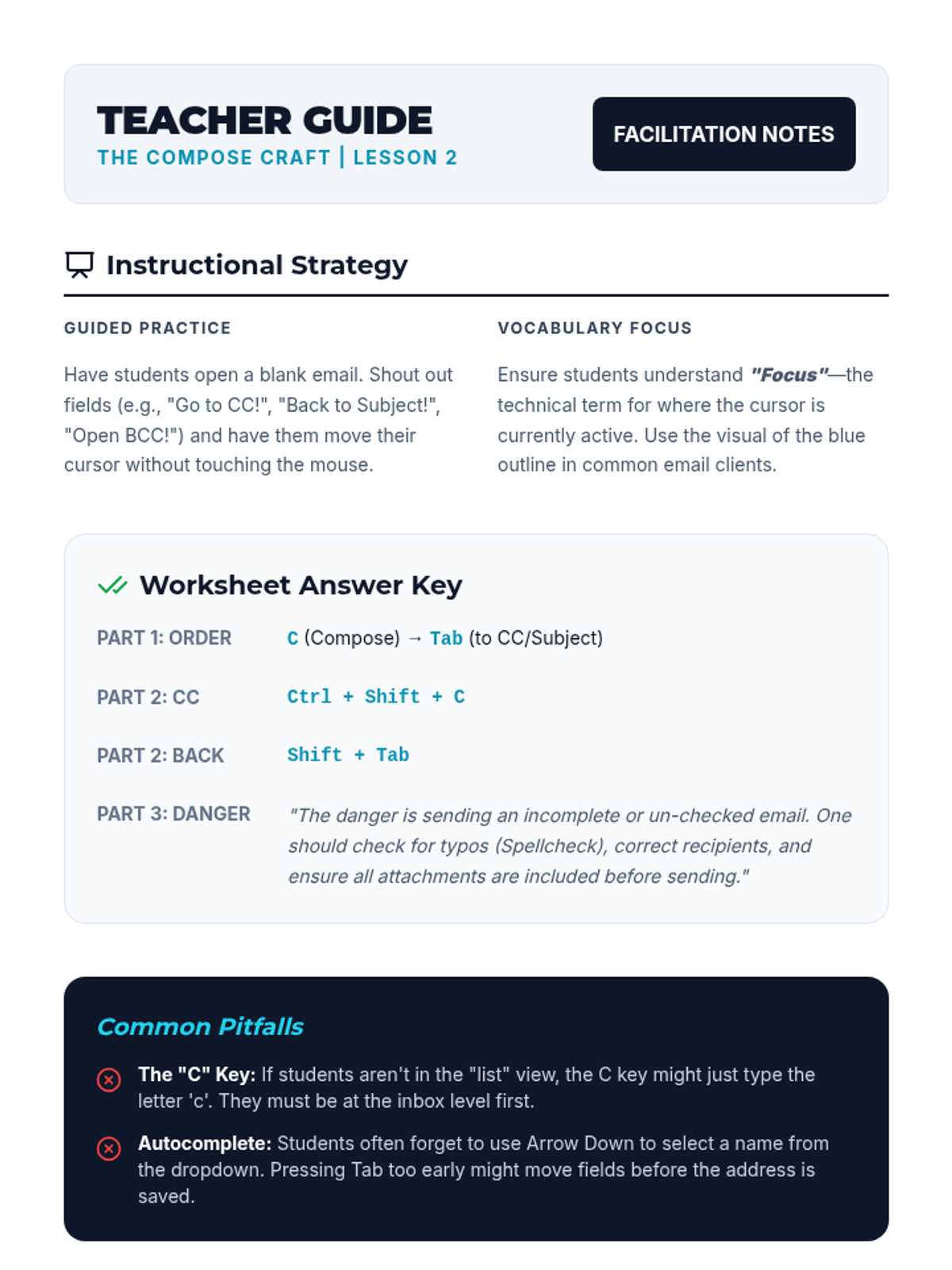
Focuses on the mechanics of drafting professional messages, moving between form fields (To, CC, Subject, Body) using Tab and Shift+Tab, and utilizing keyboard shortcuts to send and spellcheck.
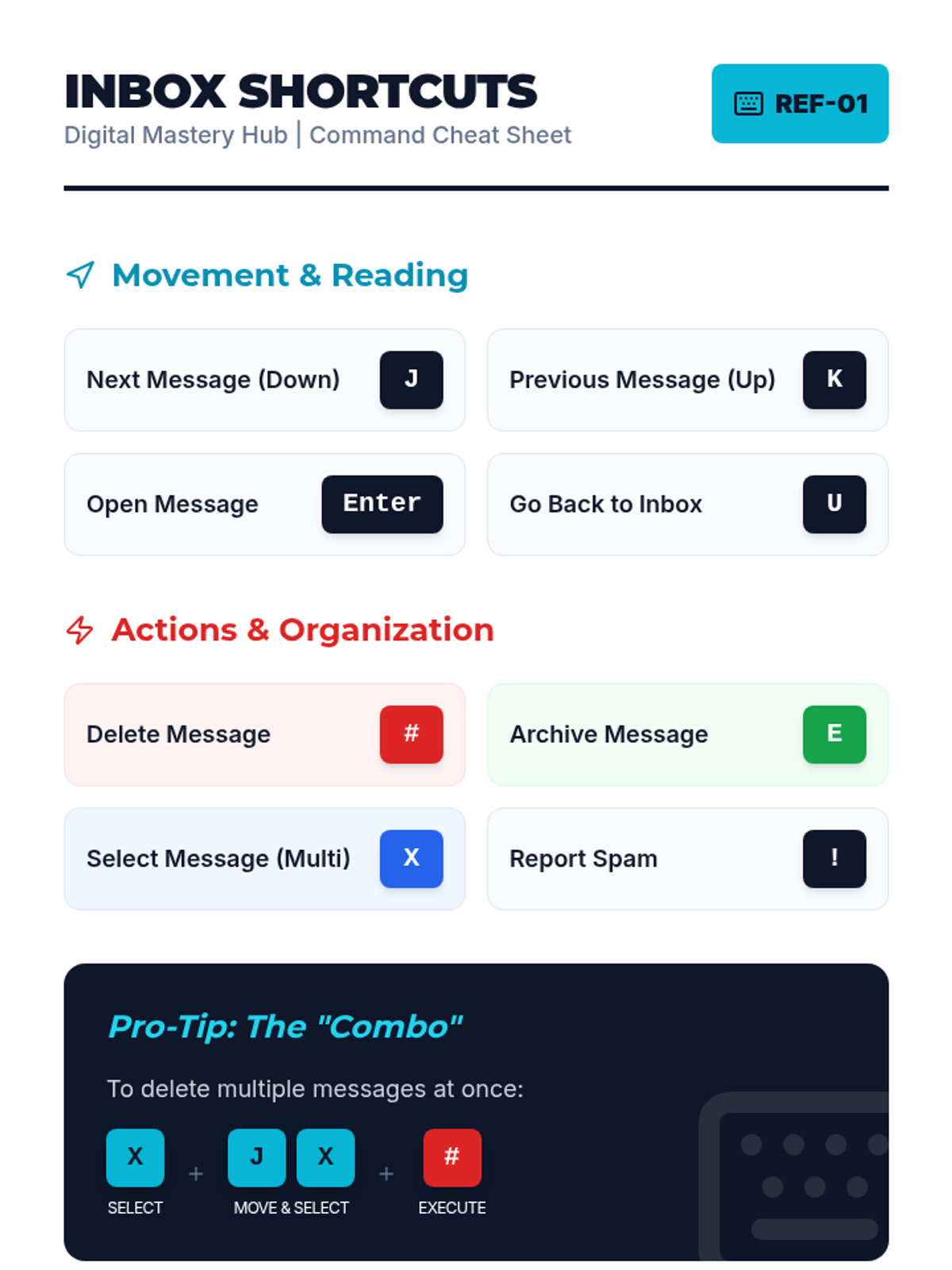
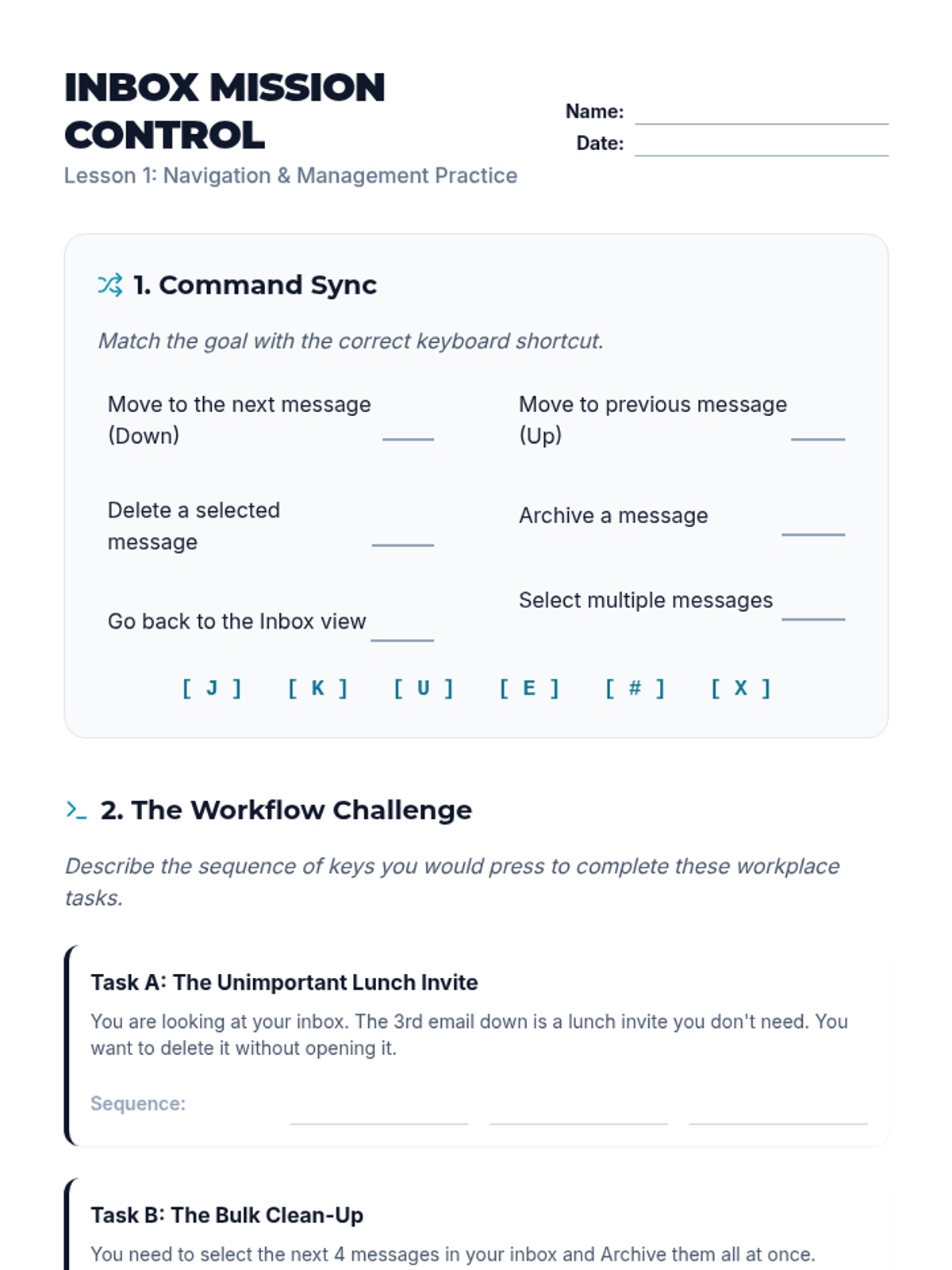
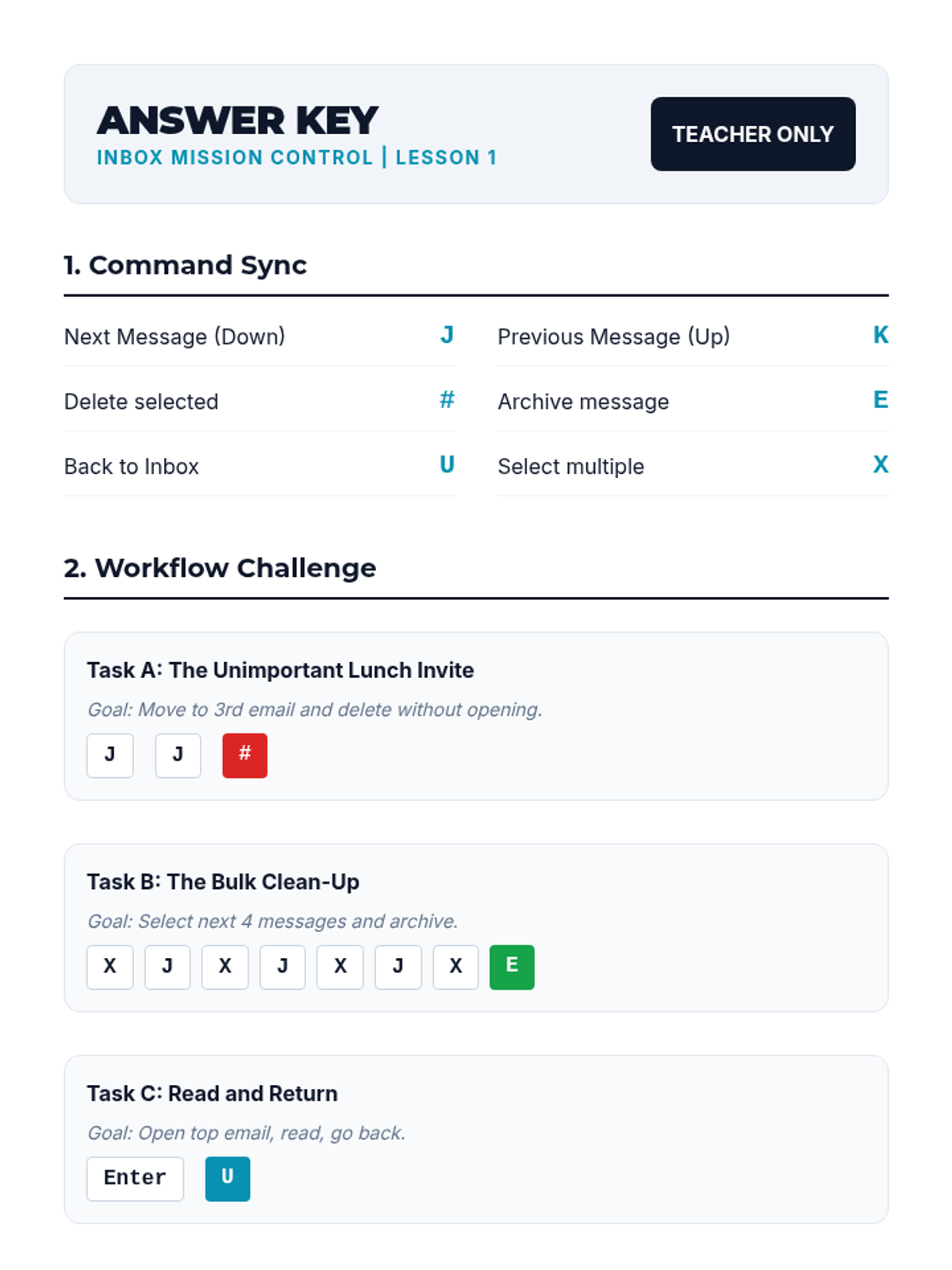
Students learn to navigate a digital inbox, perform bulk actions, and manage message status using keyboard shortcuts. The lesson focuses on maintaining an organized professional workspace through efficient navigation techniques.
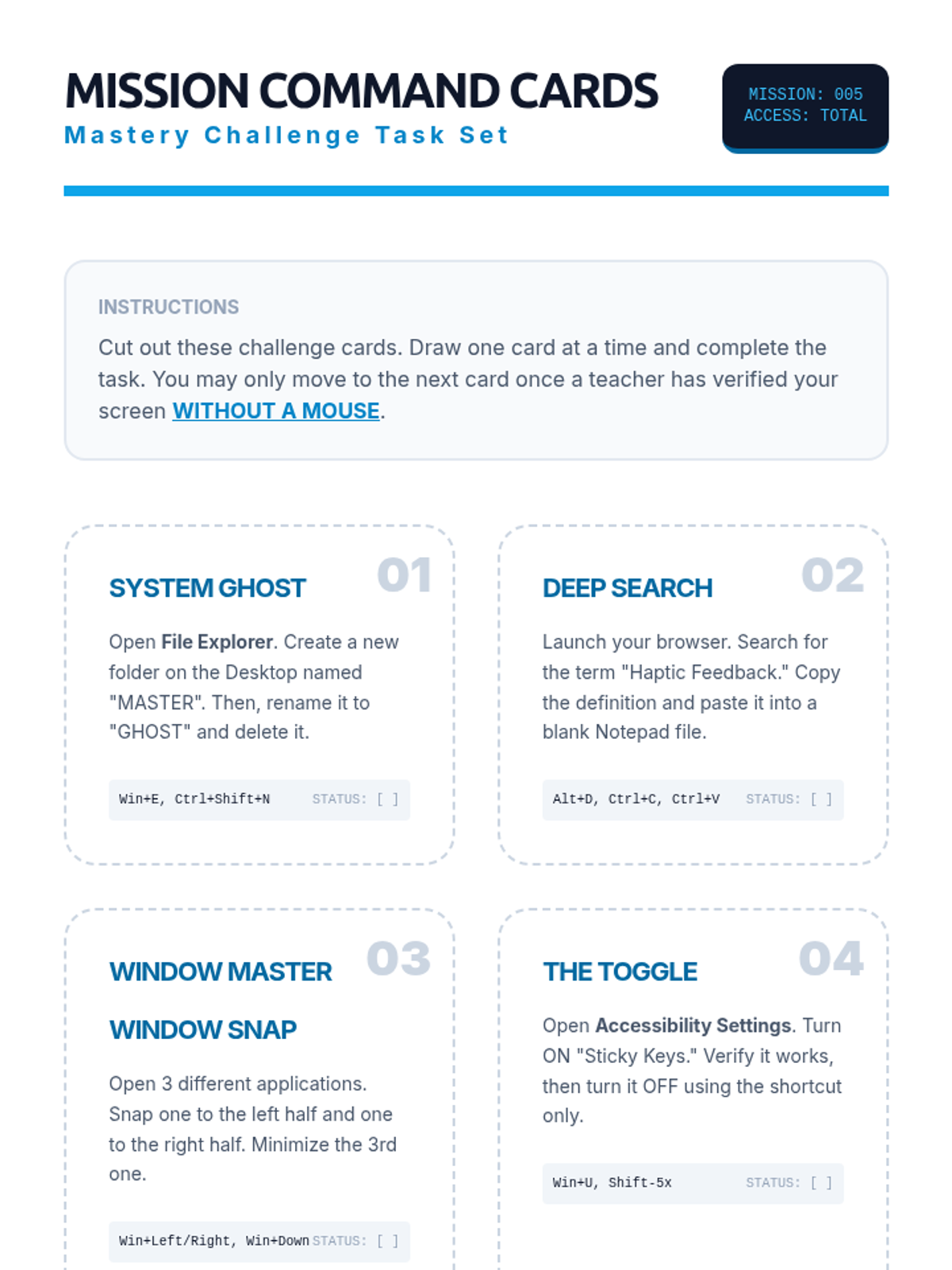
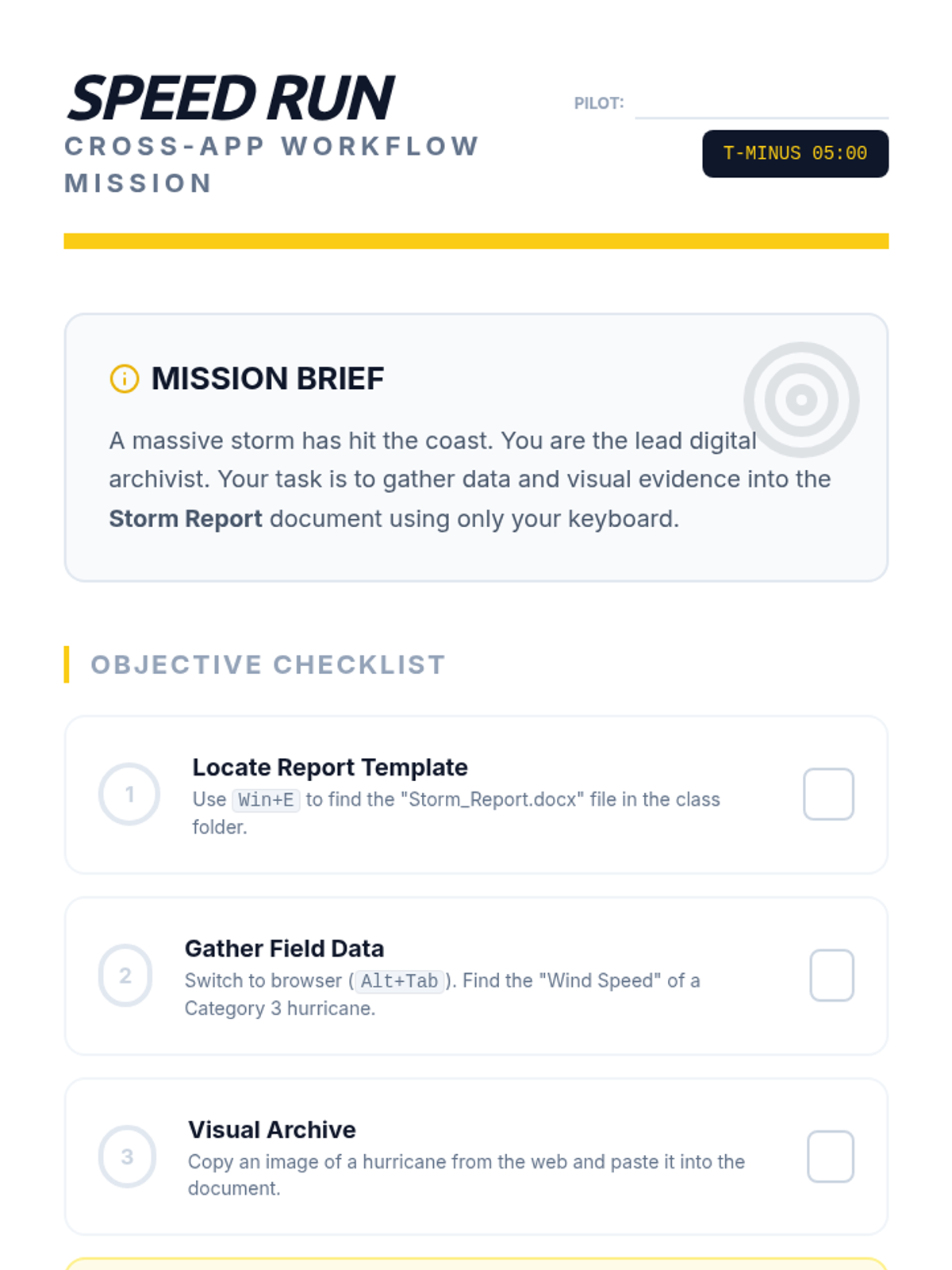
A final mastery challenge where students must complete a complex series of tasks across the operating system with their mouse unplugged.
A high-intensity practice session focused on switching between applications and managing data without using a mouse.
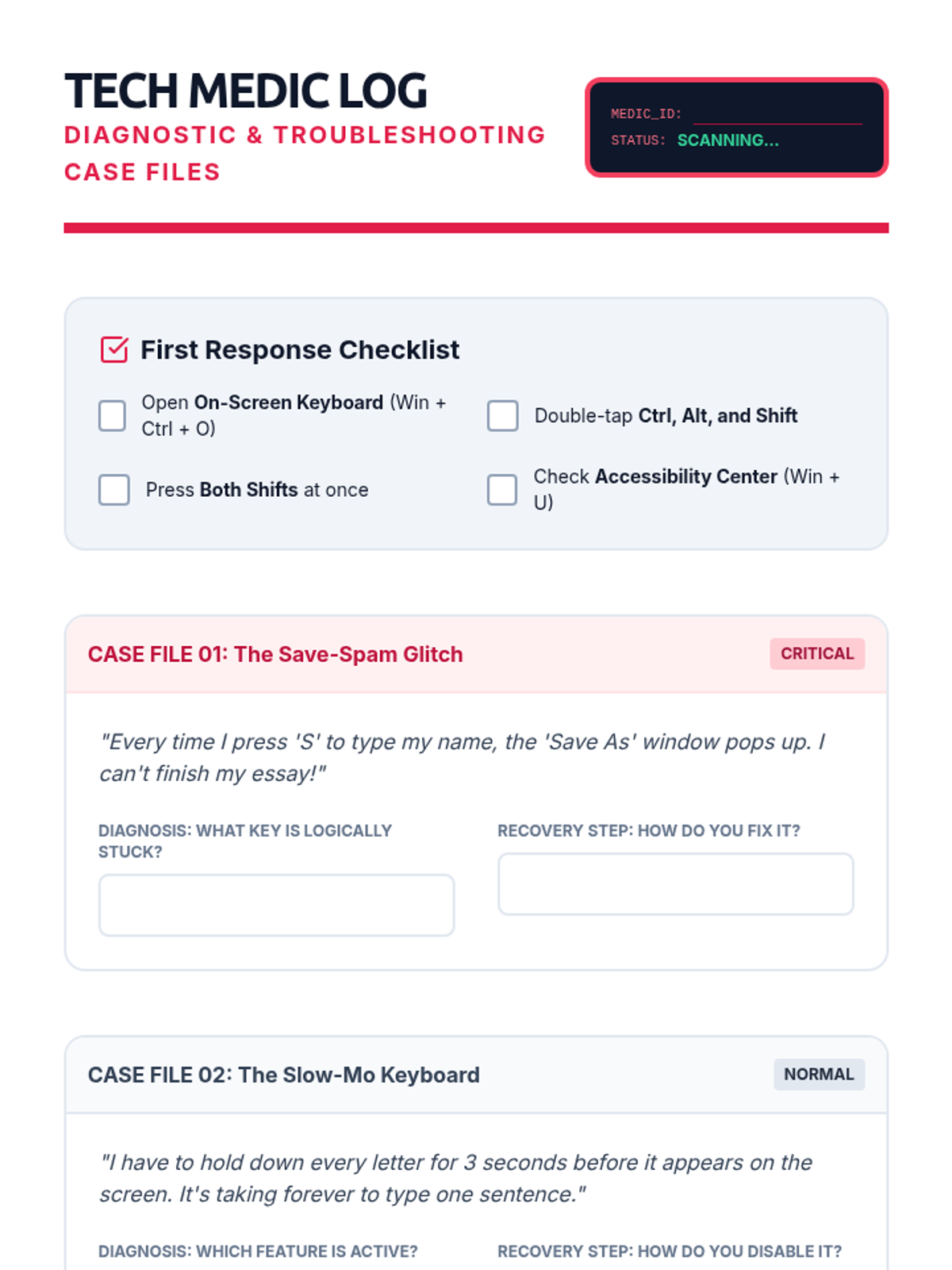
Students learn to diagnose and fix keyboard software issues, using the On-Screen Keyboard and resetting accessibility features.
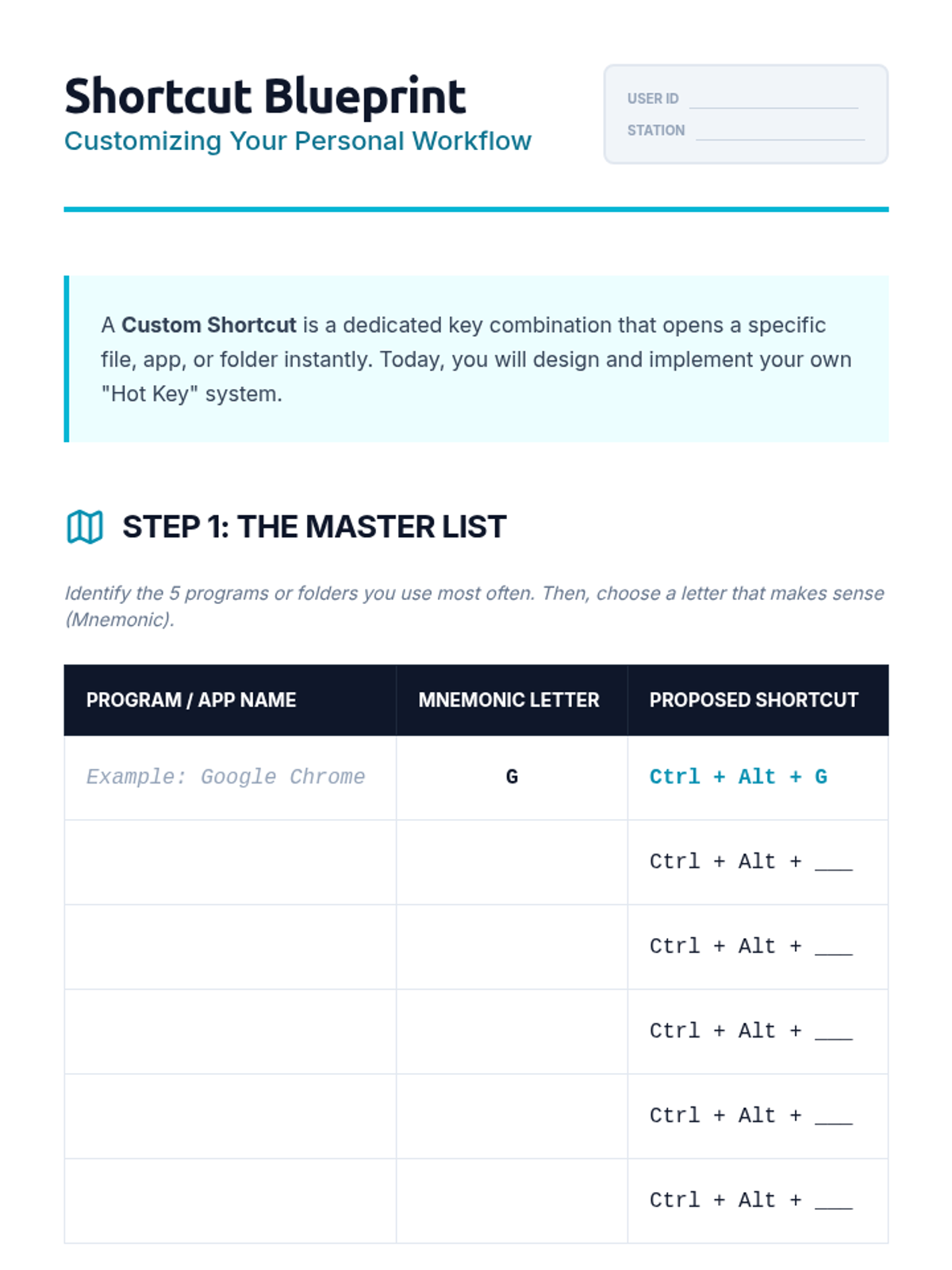
Students learn to create and map their own keyboard shortcuts to personalize their workflow and increase efficiency.
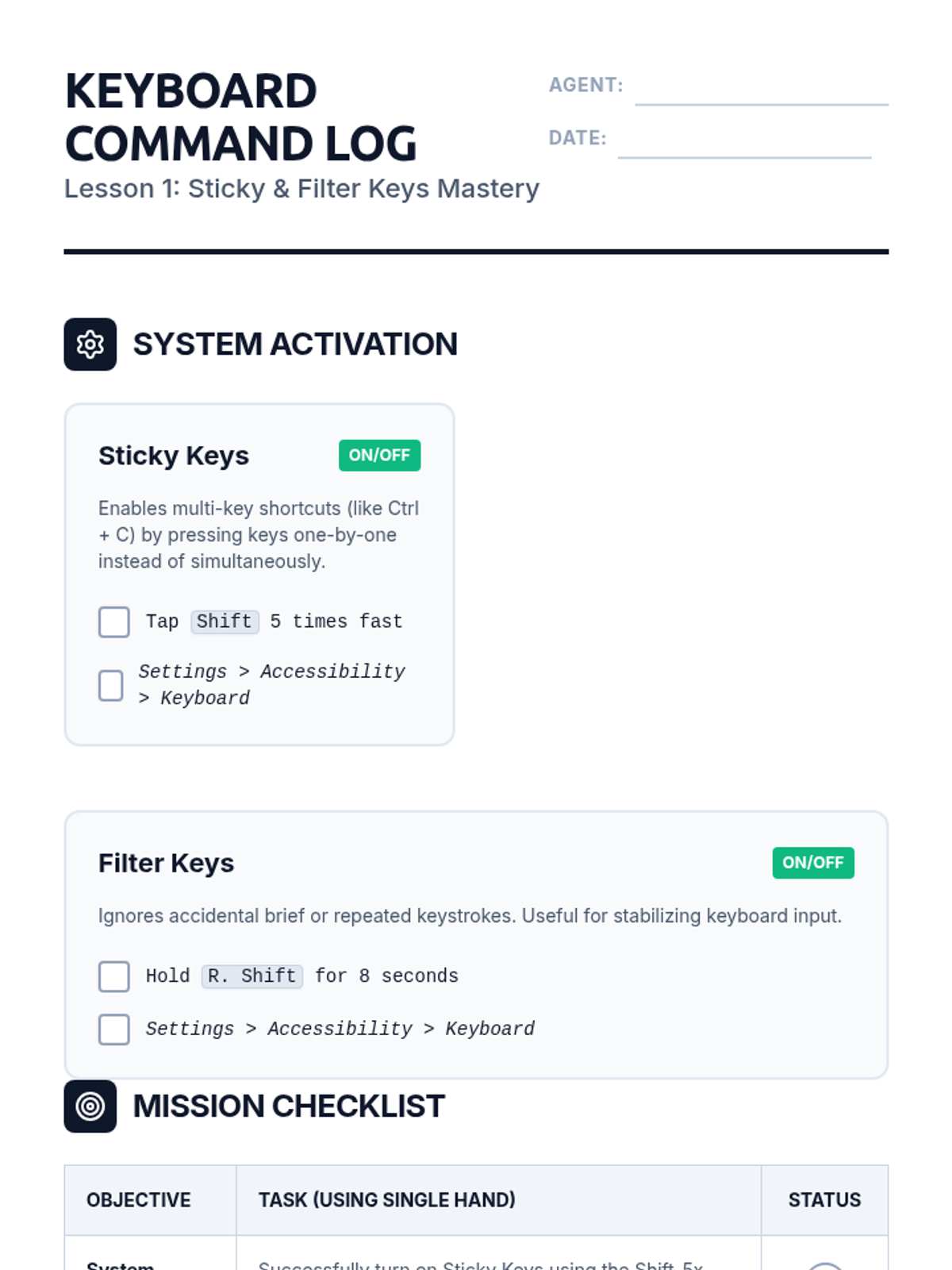
Students explore OS accessibility settings, learning how to activate and use Sticky Keys and Filter Keys to assist with physical keyboard navigation.
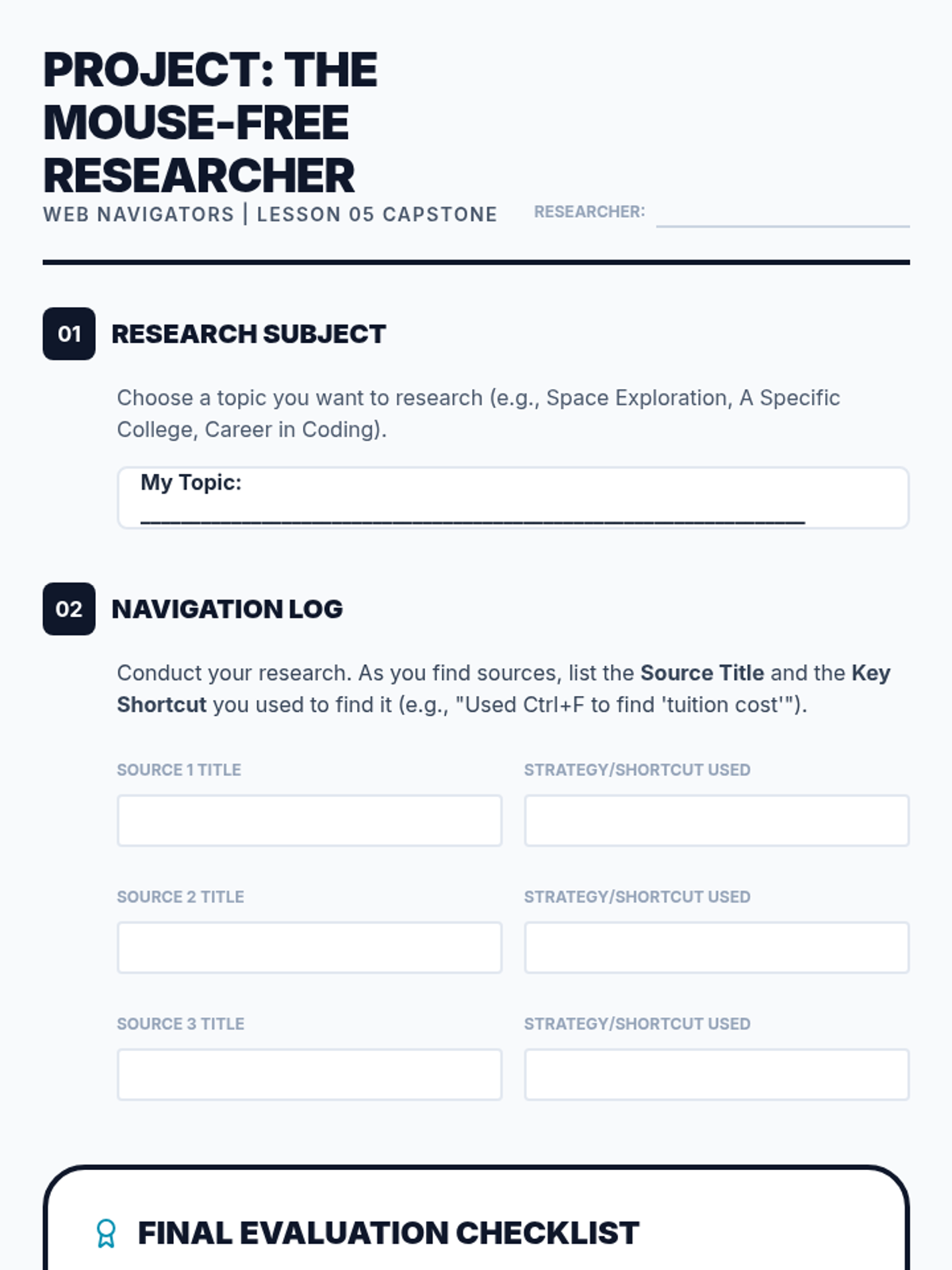
A culminating project where students apply all learned shortcuts to conduct a research task entirely mouse-free, resulting in a compiled list of sources.
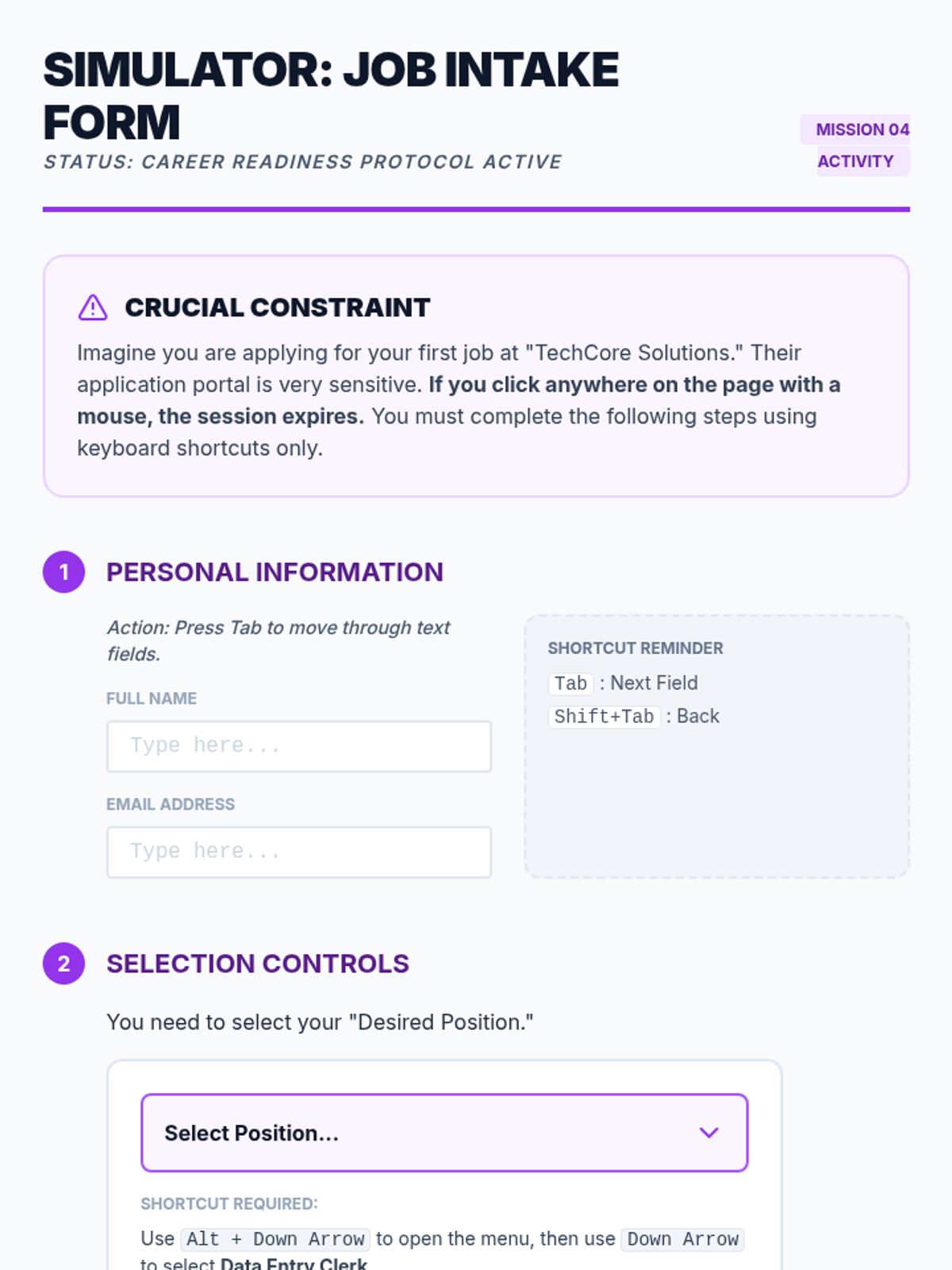
Prepares students for complex web interactions like college or job applications by teaching them to navigate and interact with forms, dropdowns, and checkboxes via keyboard.
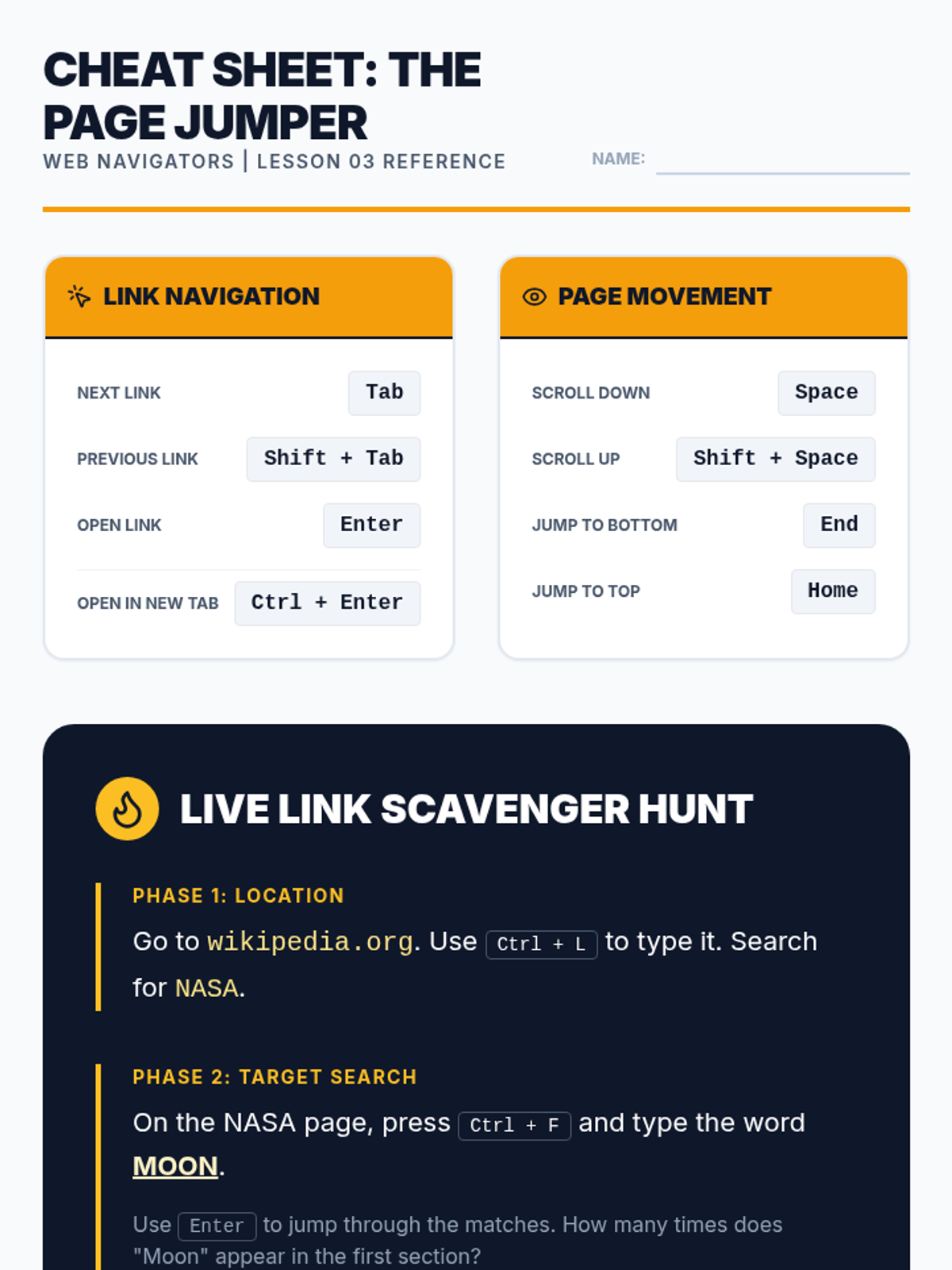
Teaches techniques for moving through webpage content, including tabbing through links, scrolling with the keyboard, and using 'Find' to locate specific text.
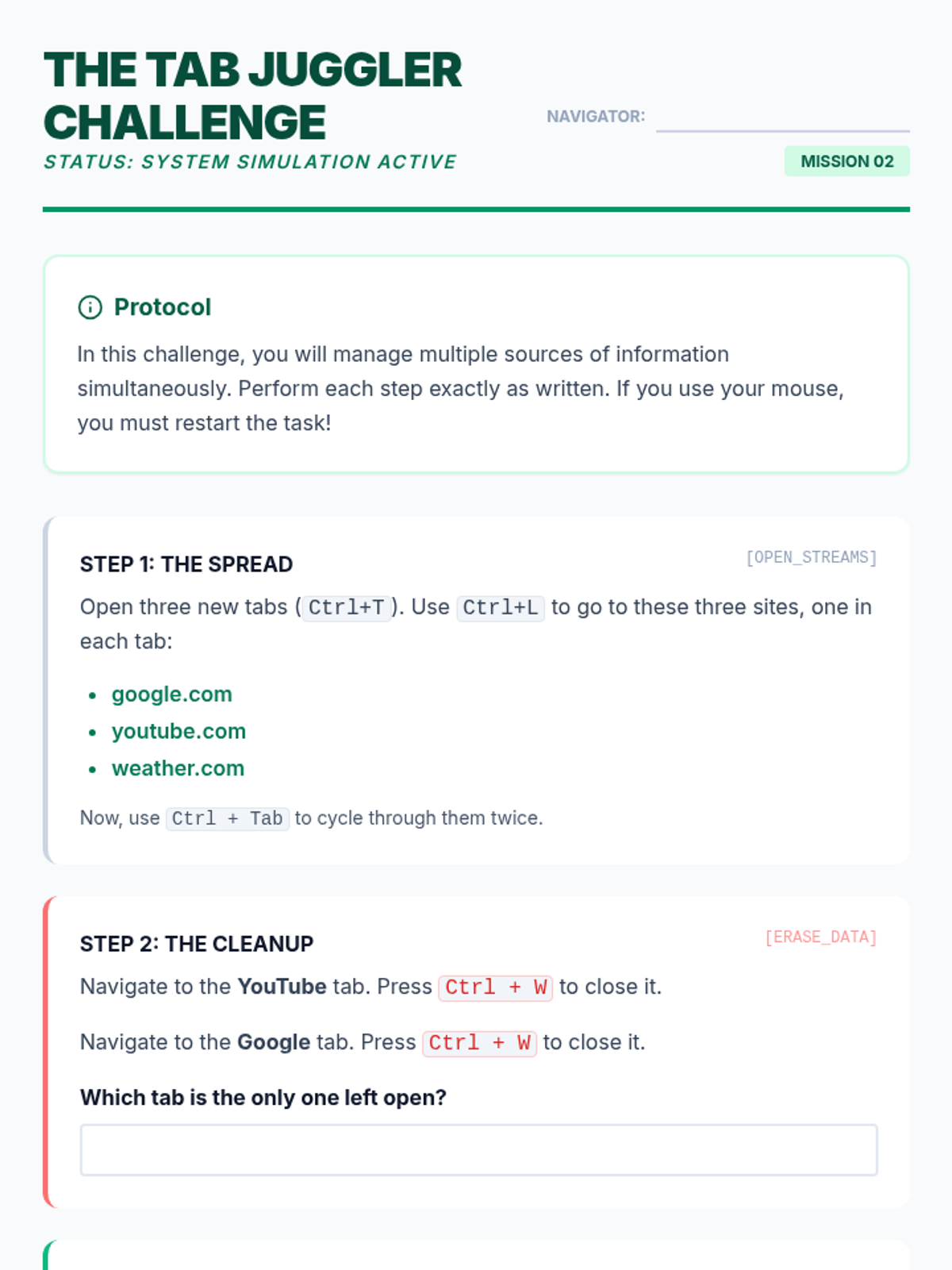
Focuses on efficient multi-tasking by teaching students to open, close, restore, and toggle between browser tabs and windows using essential keyboard commands.
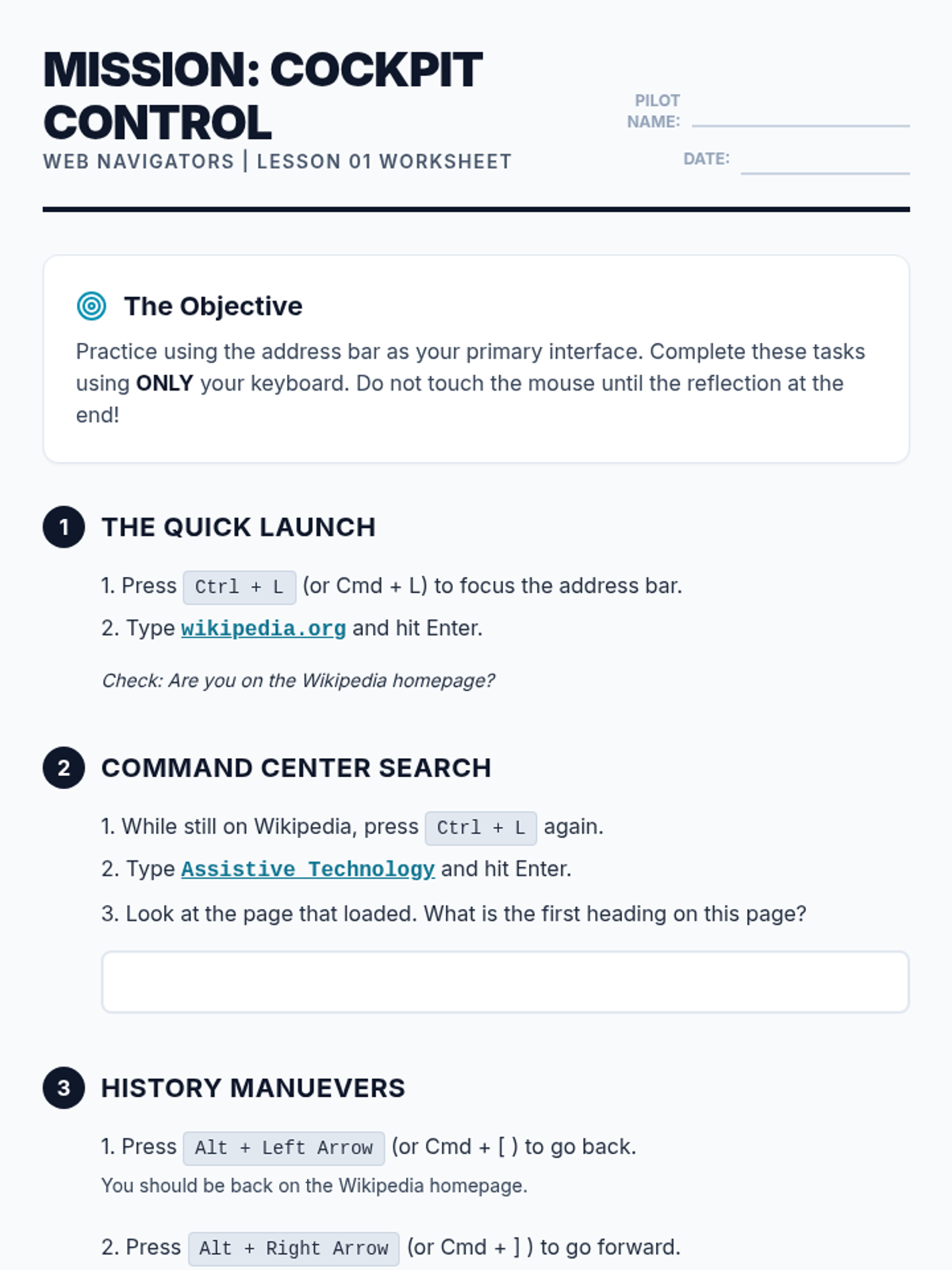
Students master the browser's address bar as a primary command center, learning to jump to URLs, search instantly, and manage page refreshes and history without using a mouse.
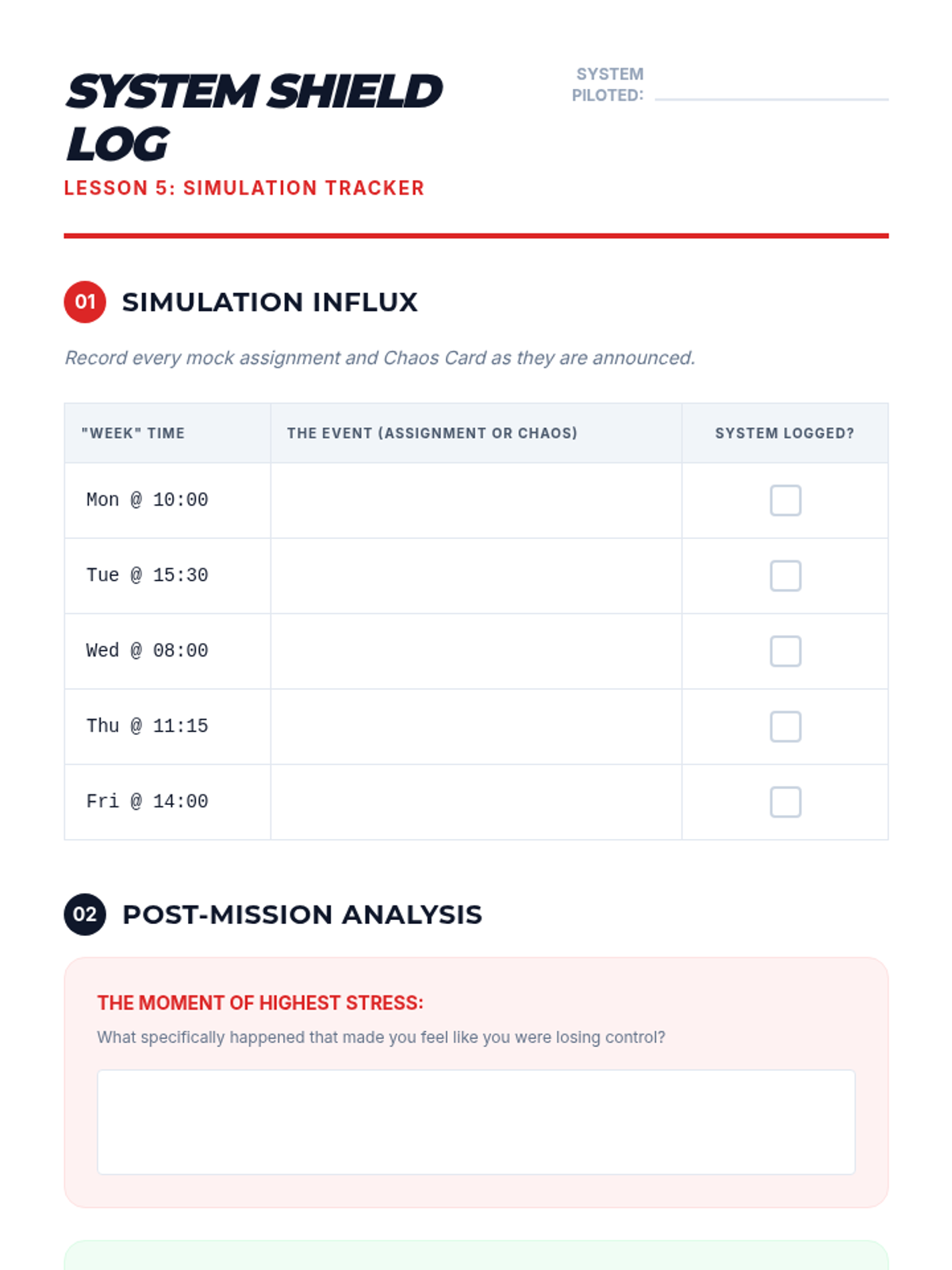
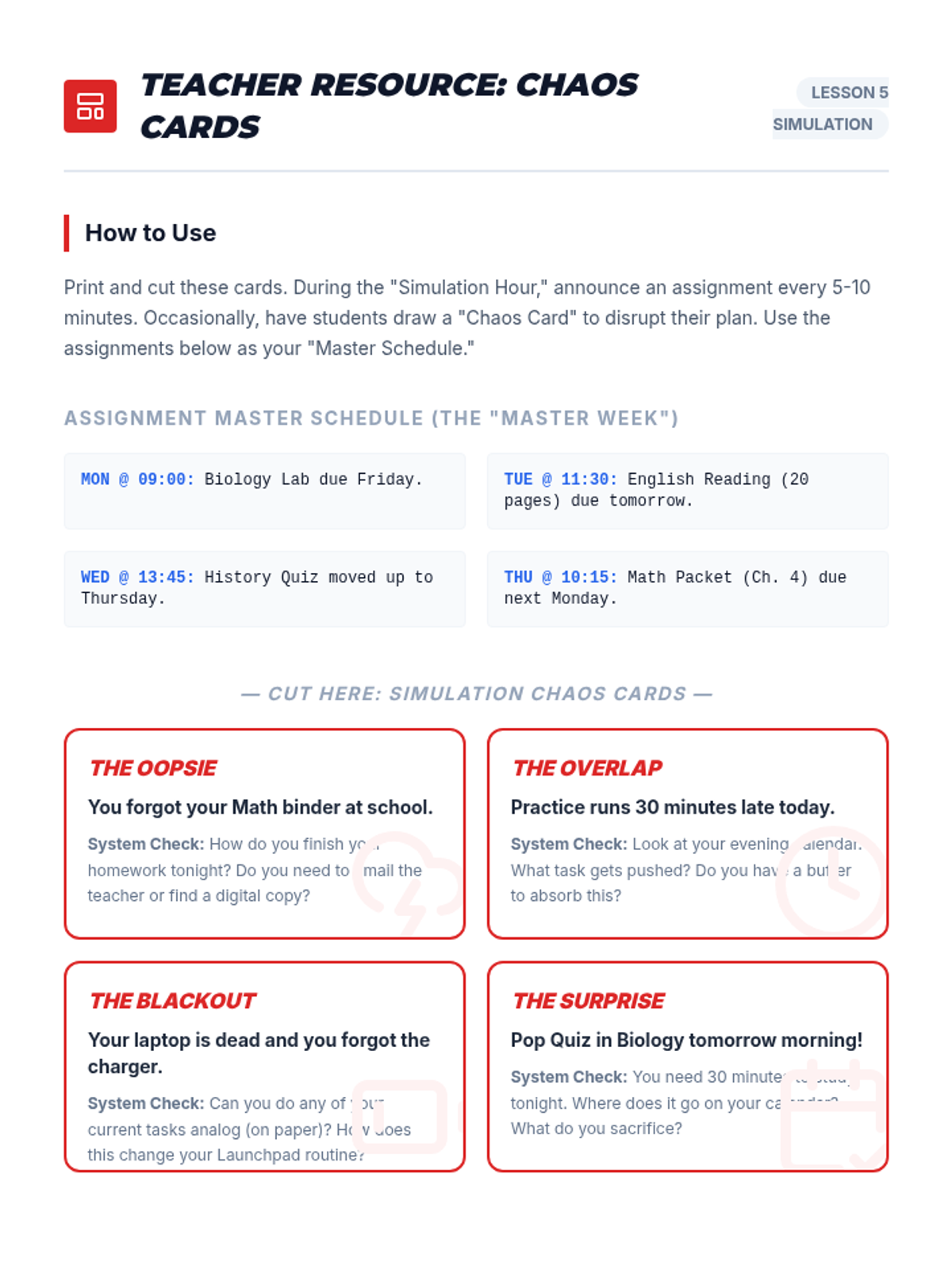
Students put their systems to the test with a 'Simulated Week' activity involving mock assignments and surprise events, followed by reflection.
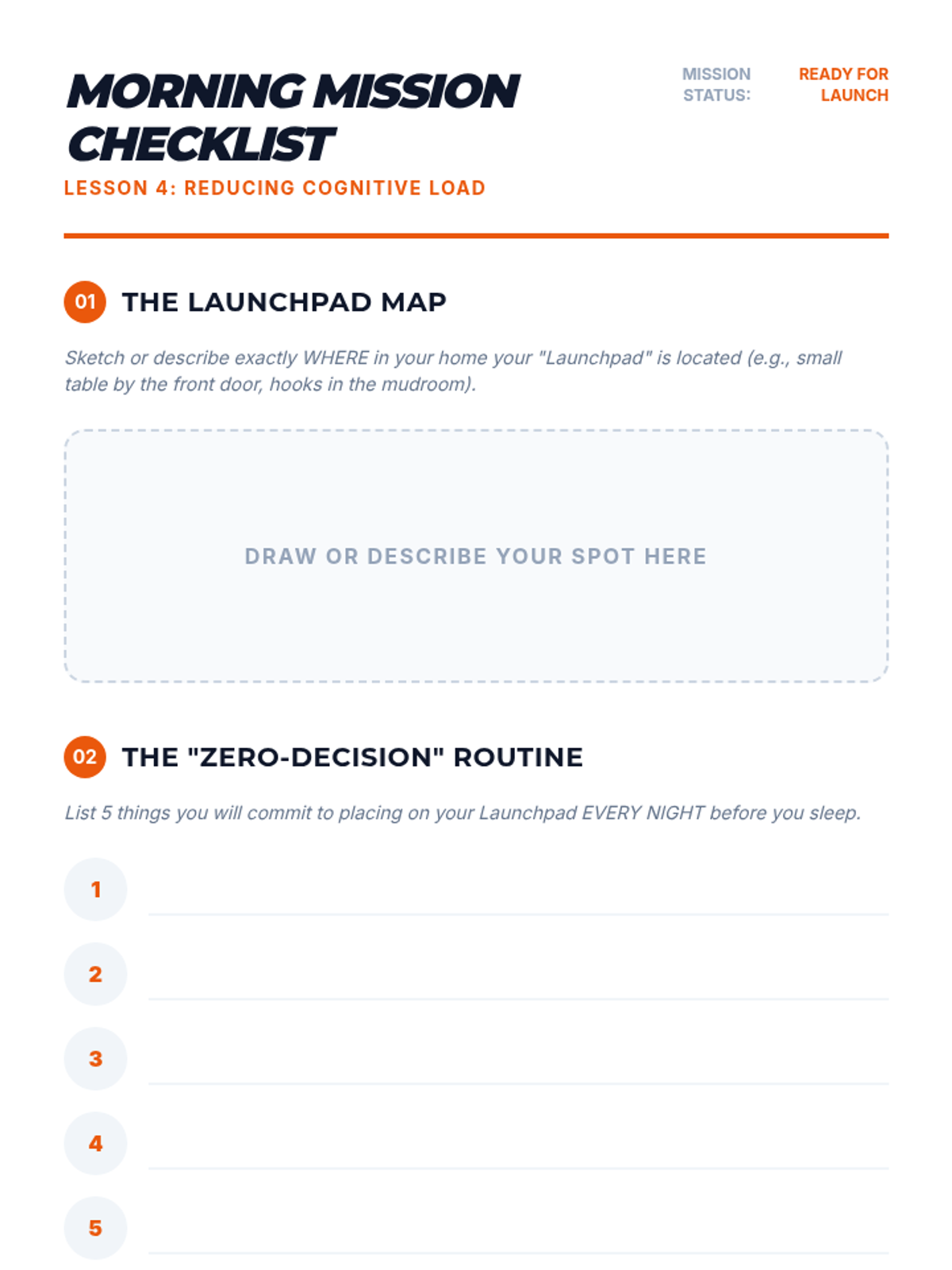
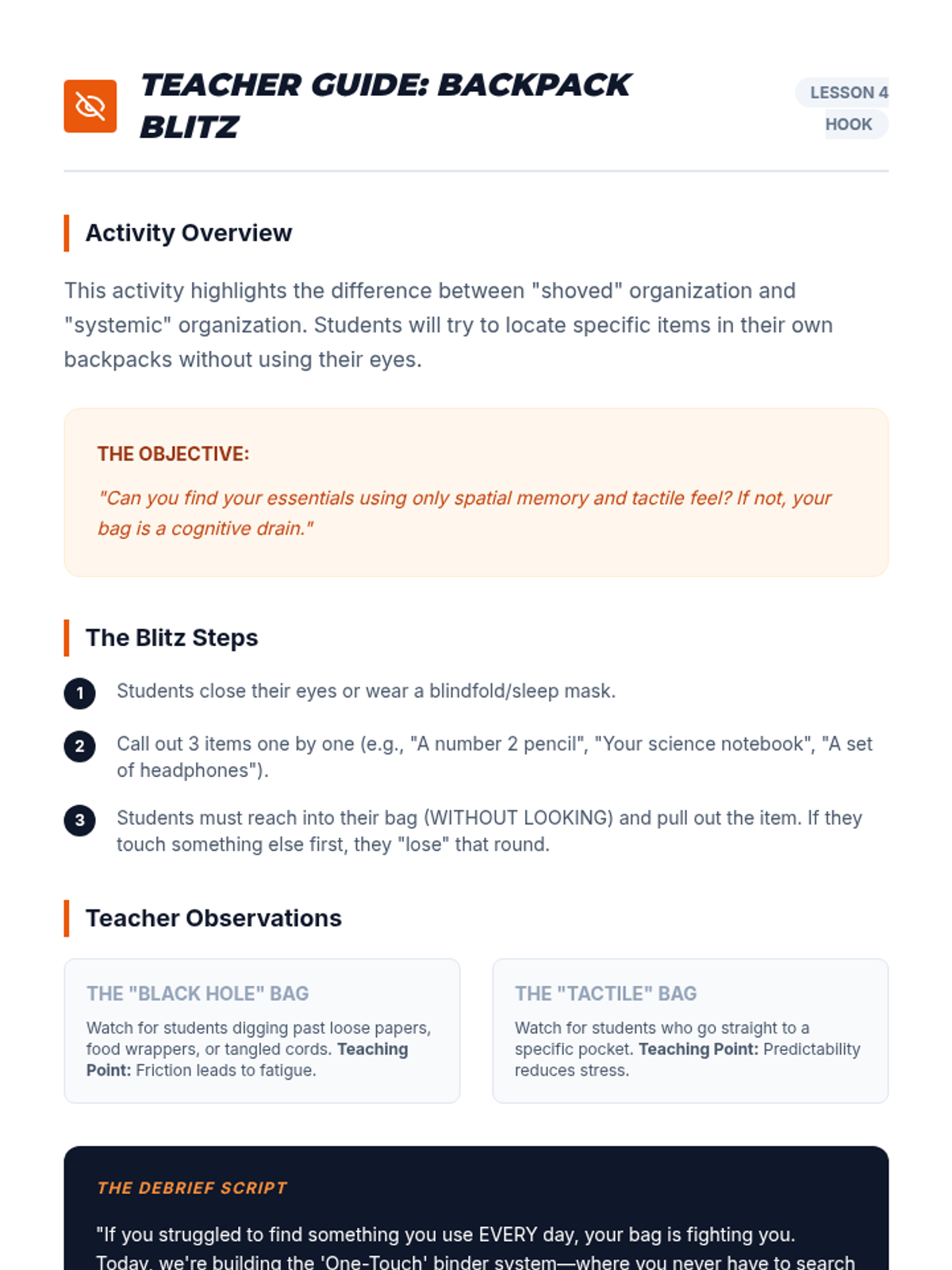
Students develop systems for physical materials, including binder organization and a 'launchpad' routine to reduce morning cognitive load.
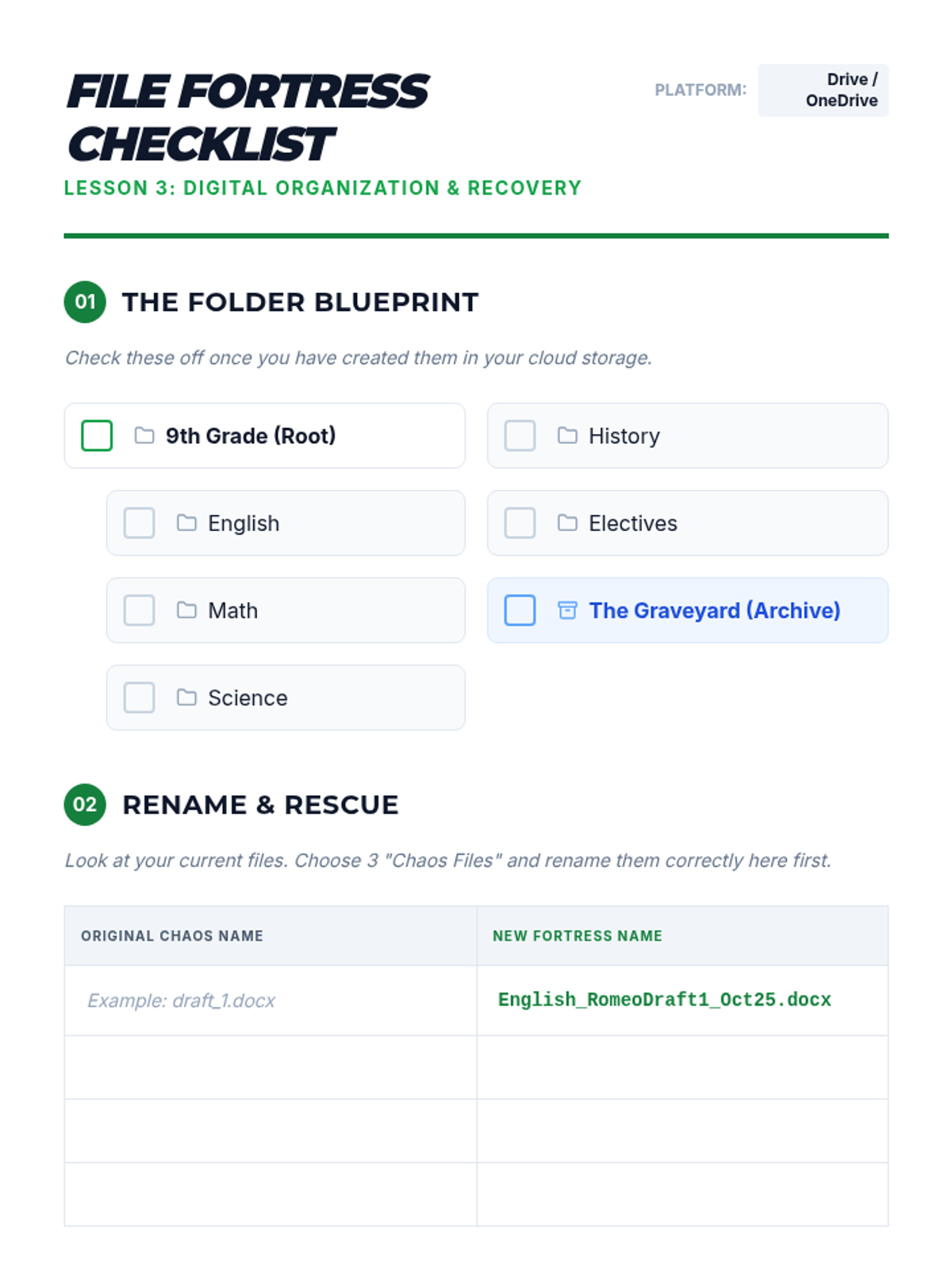
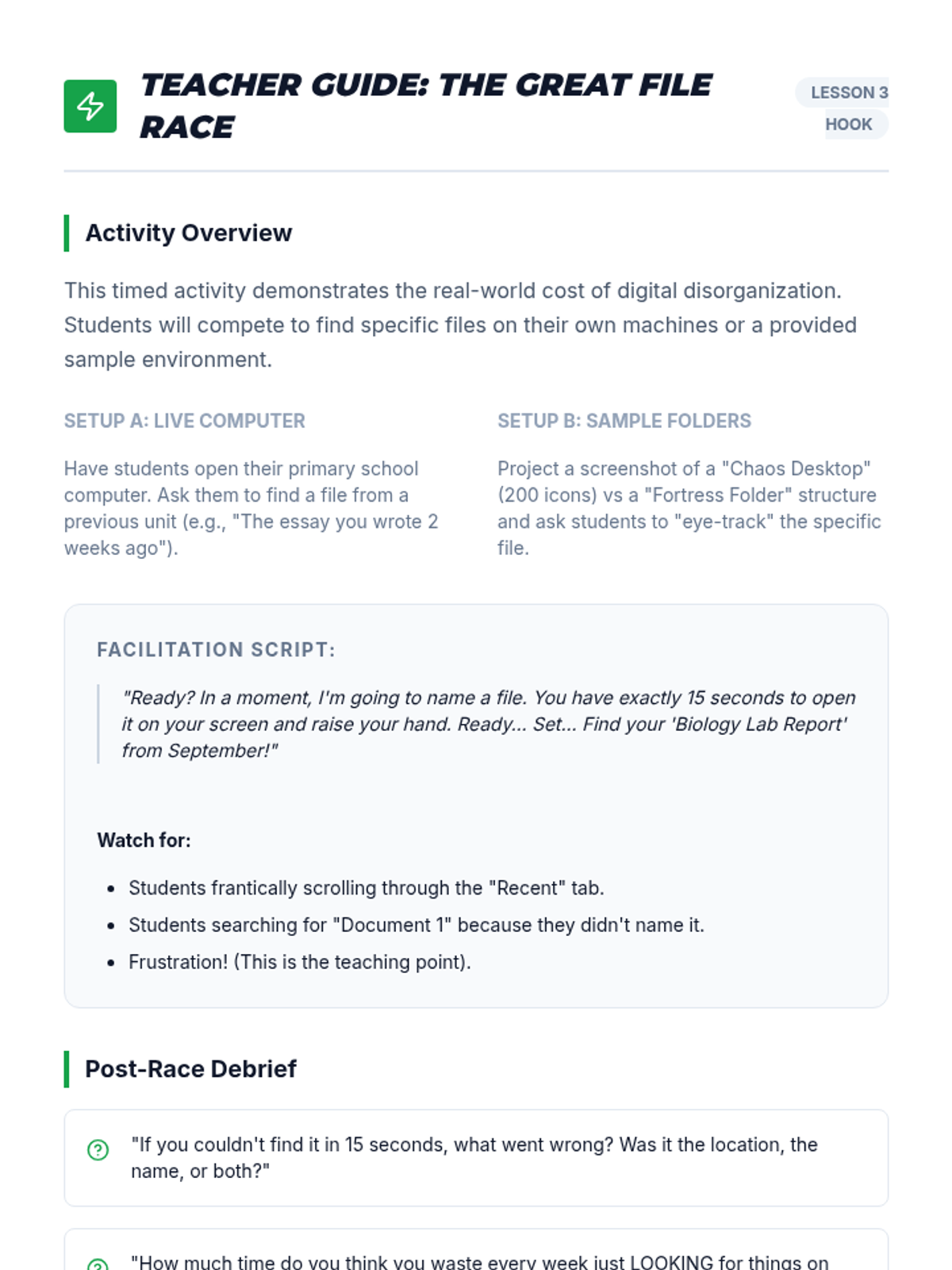
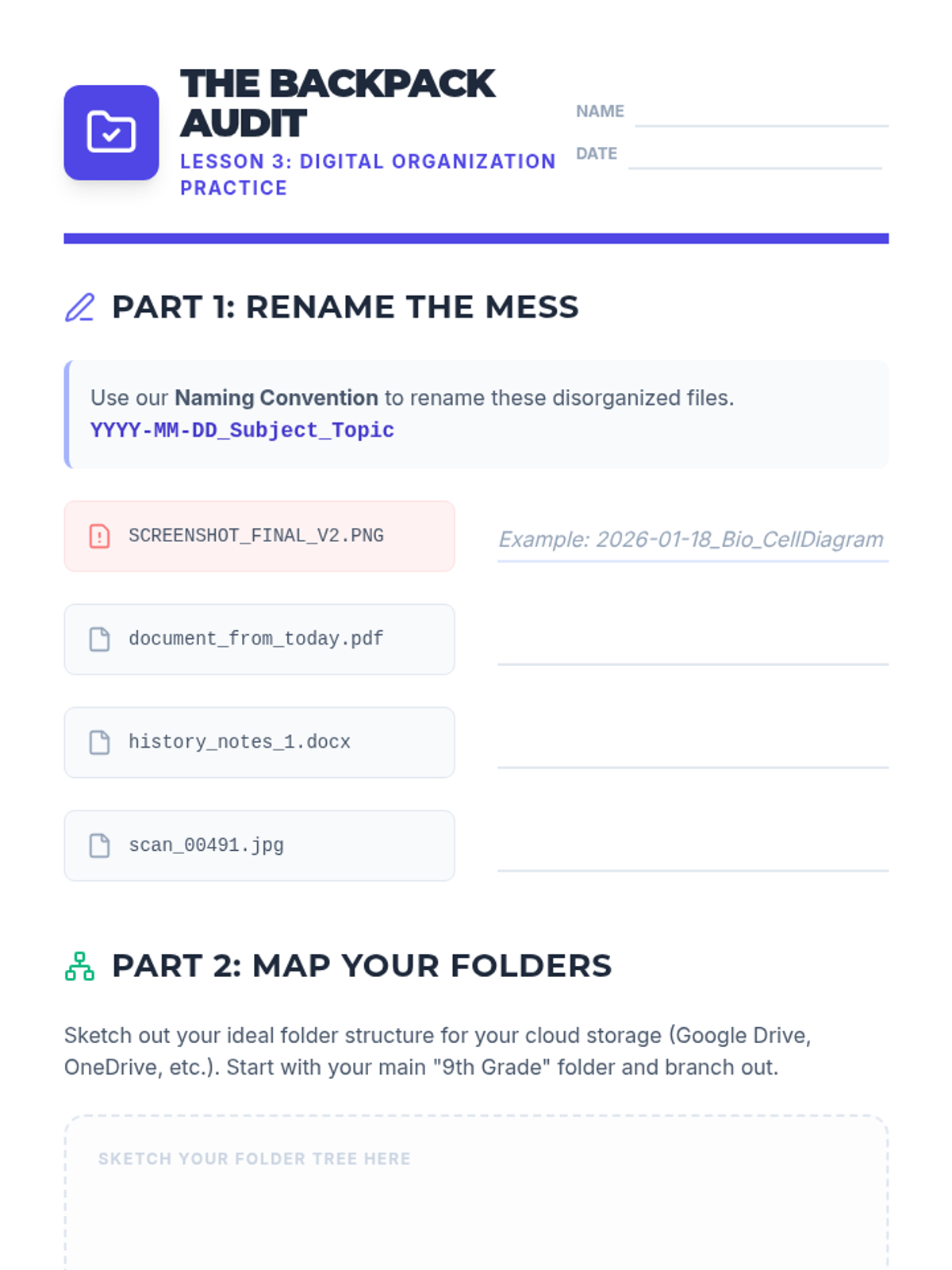
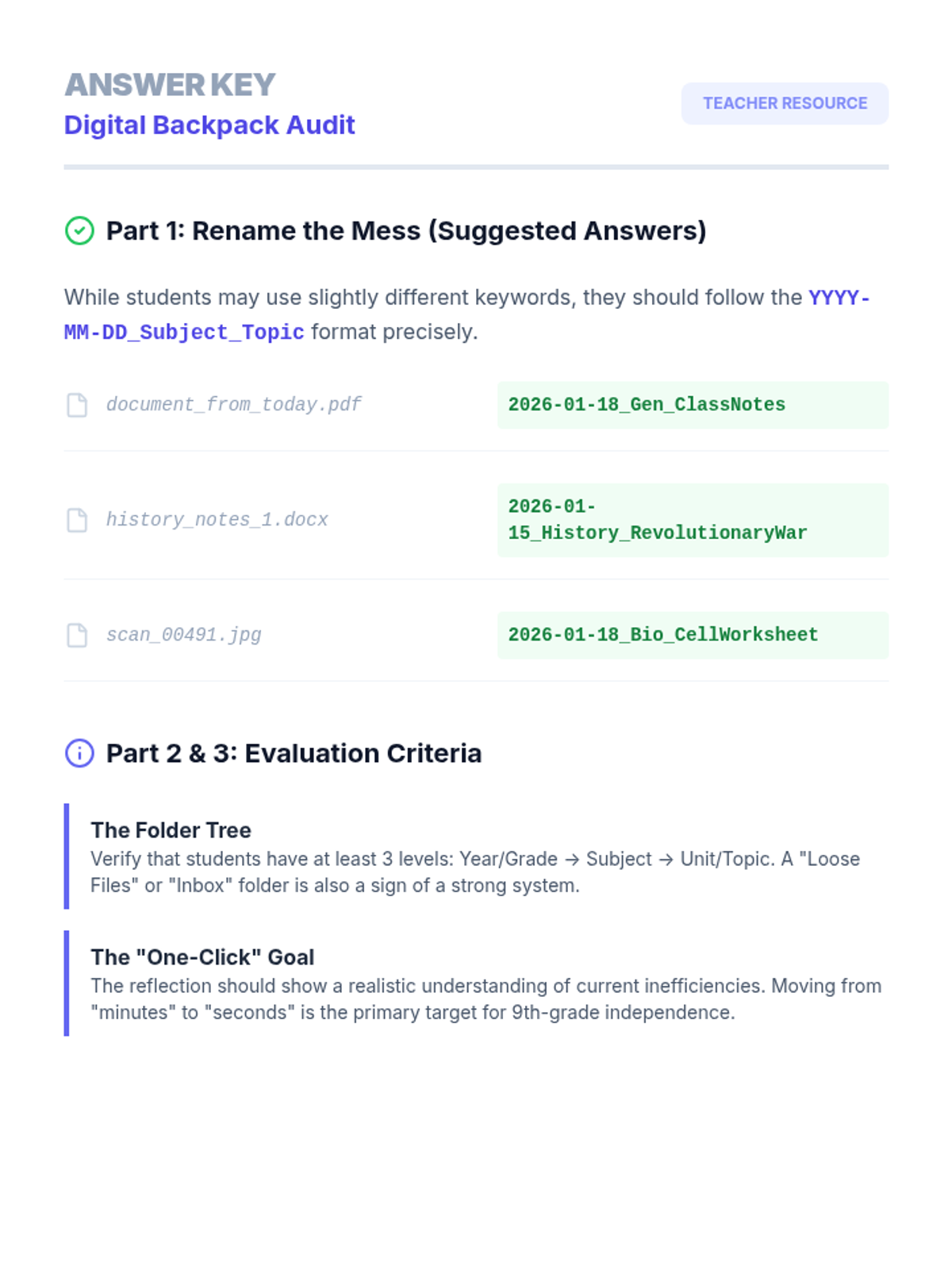
Students learn naming conventions and folder hierarchies for digital storage, focusing on quick retrieval to avoid the 'missing homework' cycle.
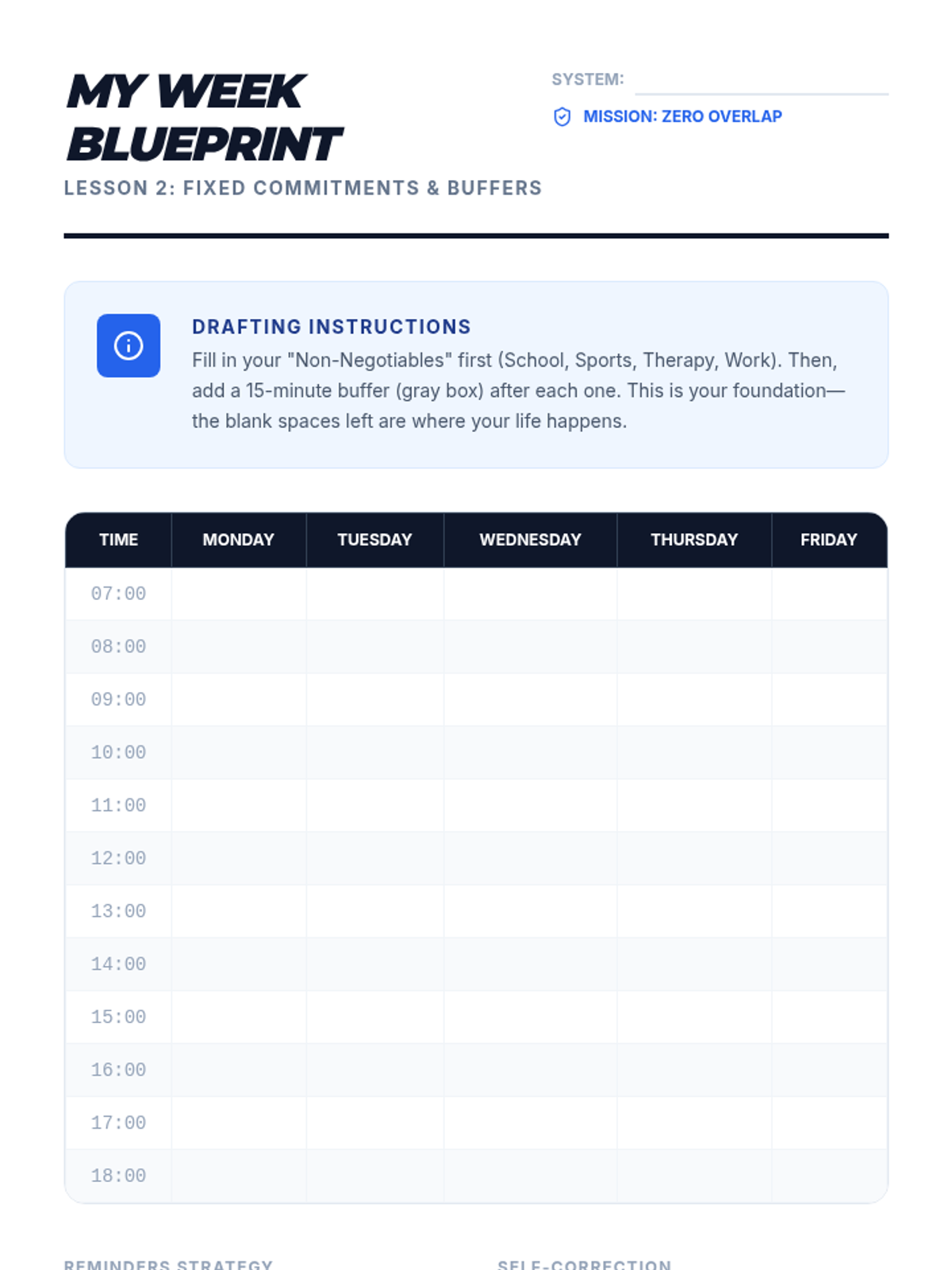
A workshop where students populate a calendar with fixed commitments, learning to set effective reminders and buffers for transition times.
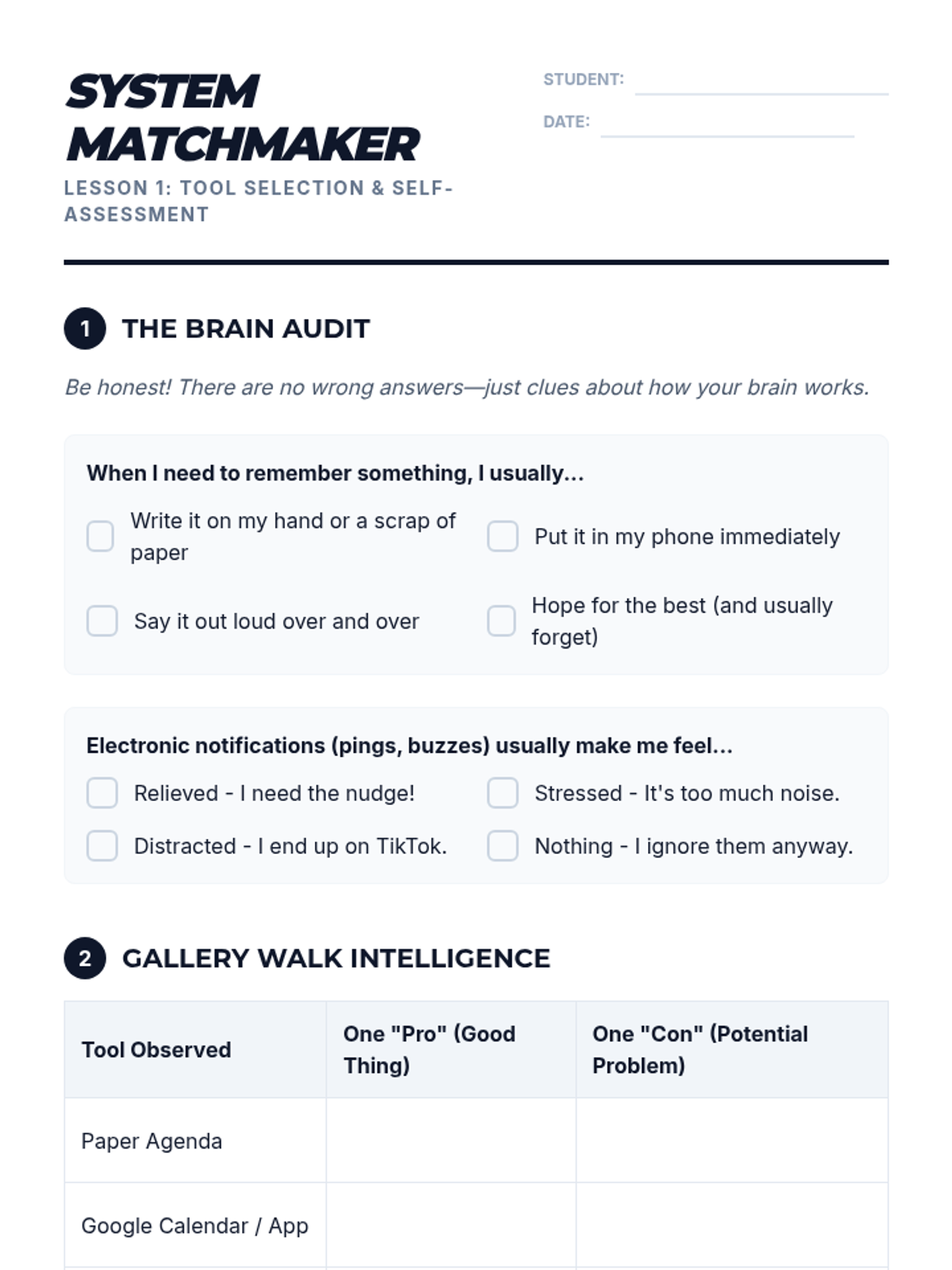
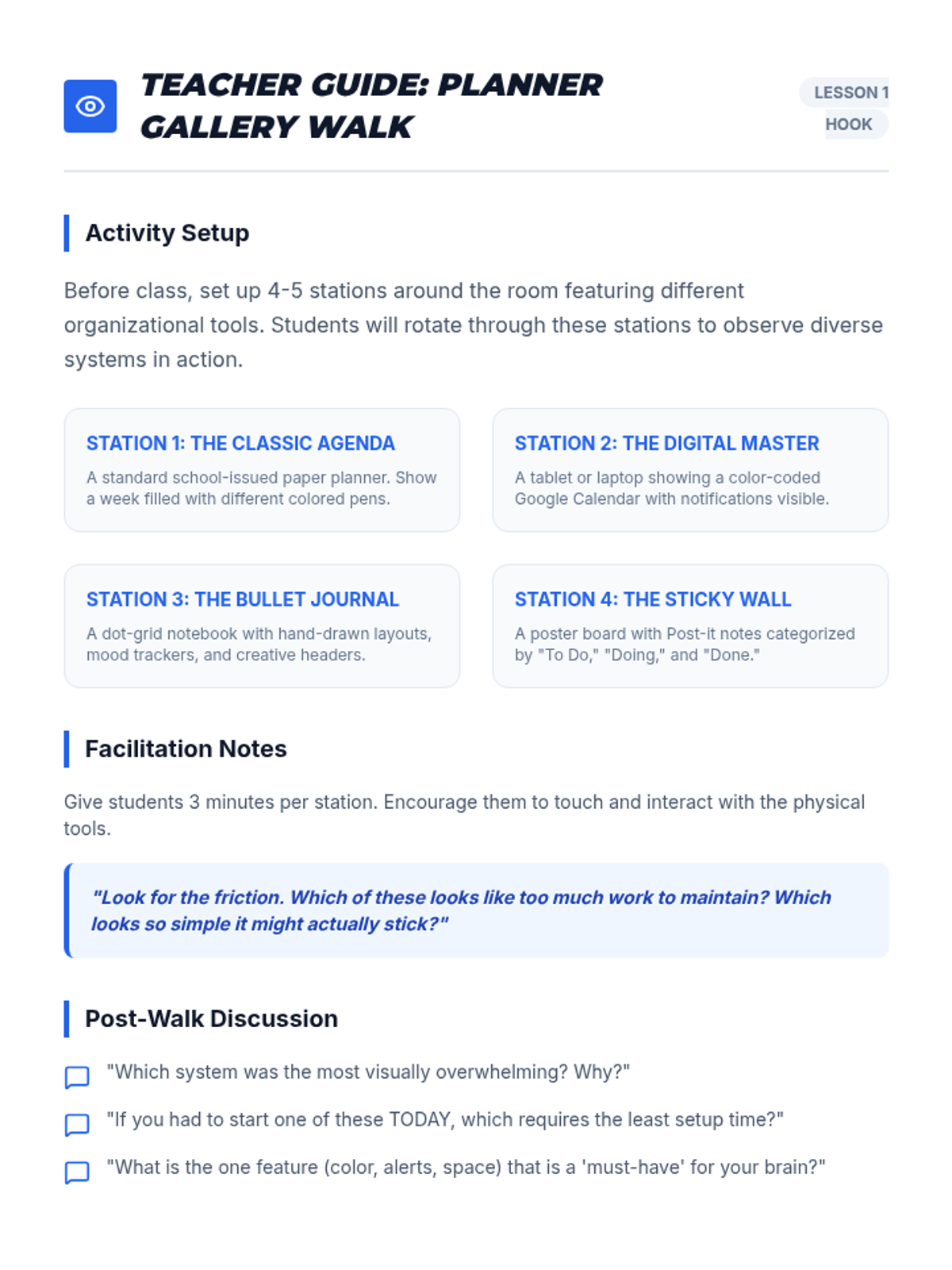
Students explore various planning tools, from paper agendas to apps, evaluating the pros and cons of each based on their own processing styles and accessibility needs.
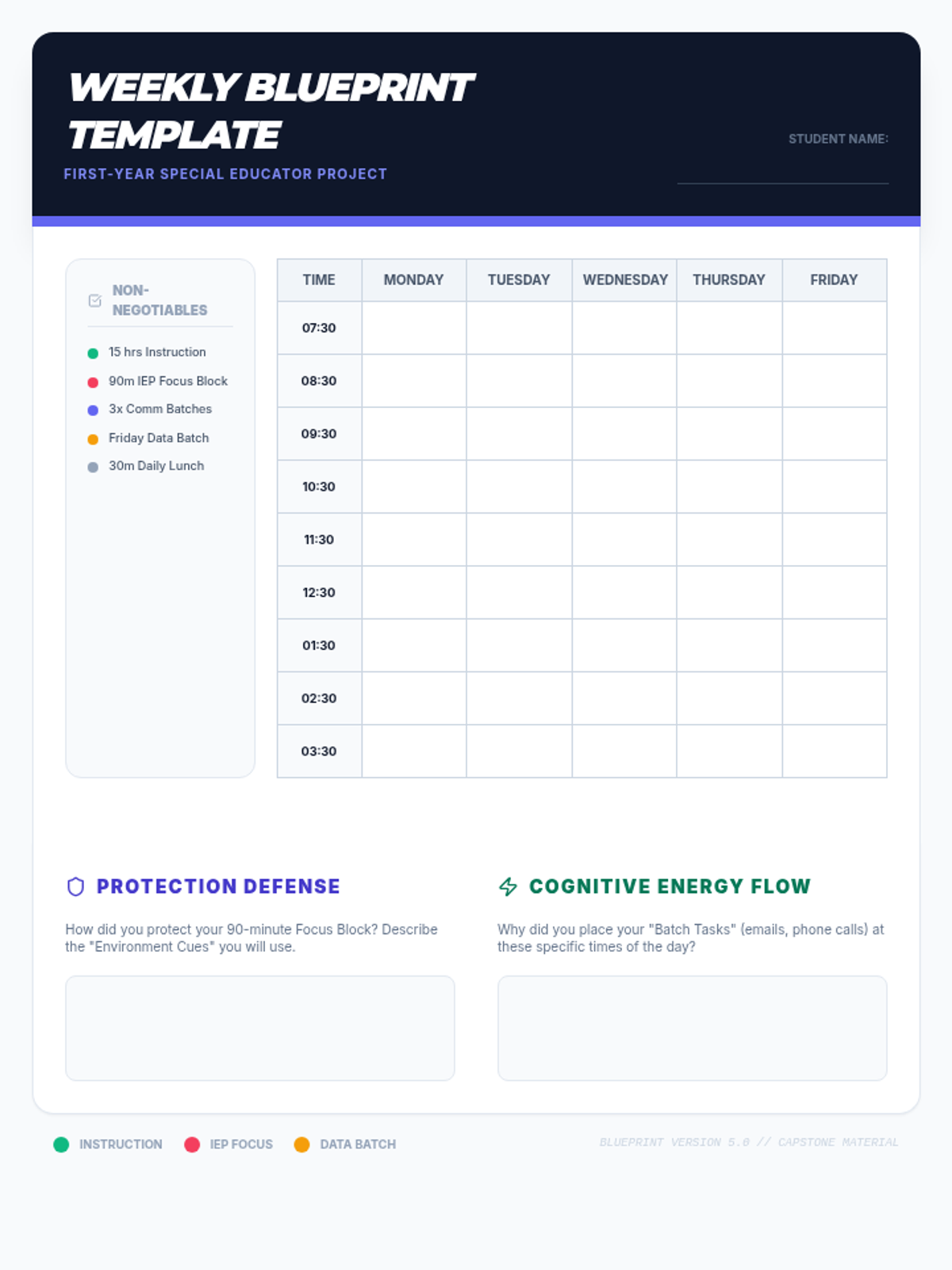
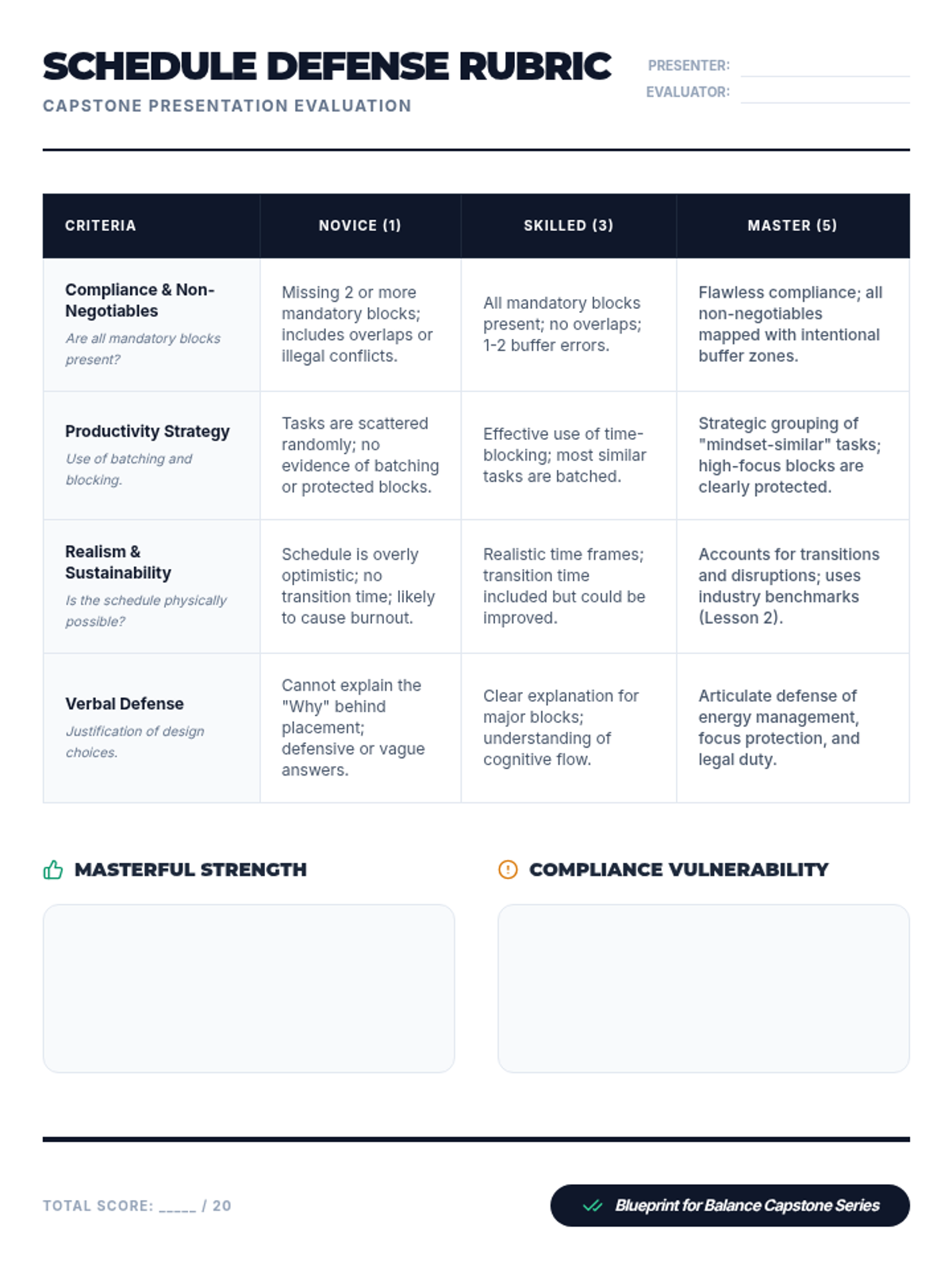
The capstone of the sequence where students design and defend a 'Perfect Week' schedule template that balances instruction with mandatory administrative time.
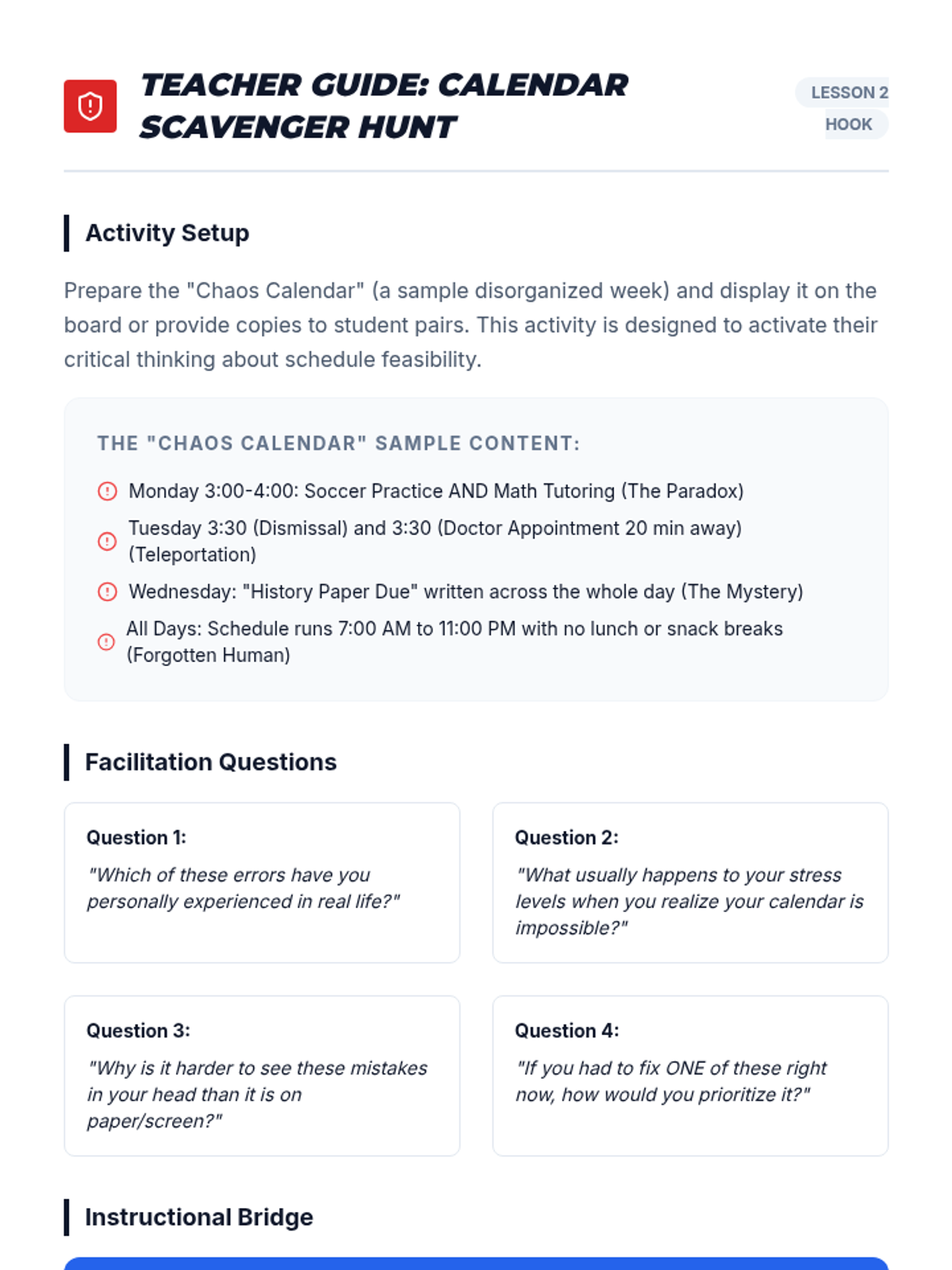
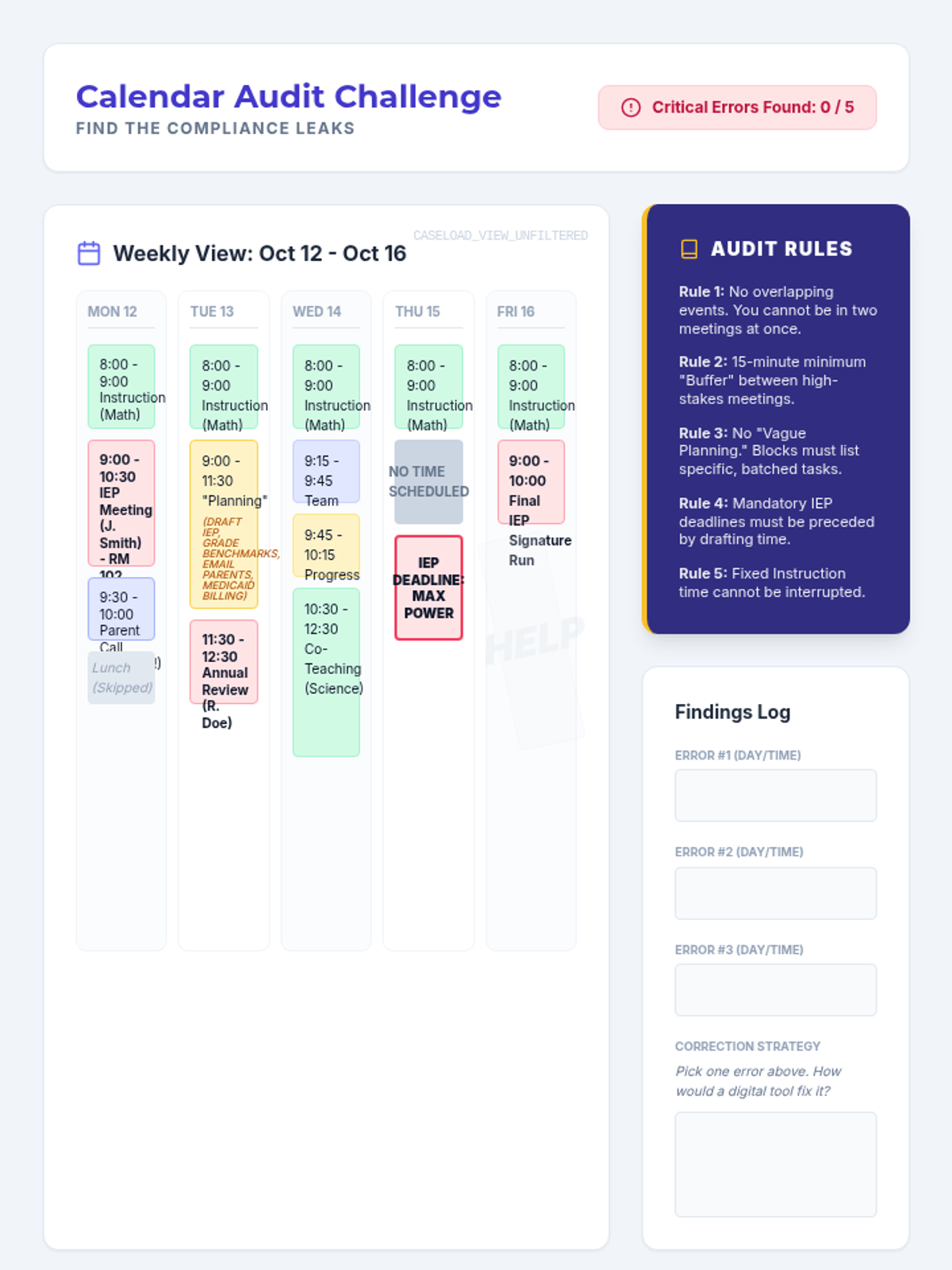
An exploration of digital platforms for organization, featuring a calendar audit where students identify critical compliance errors in a messy schedule.
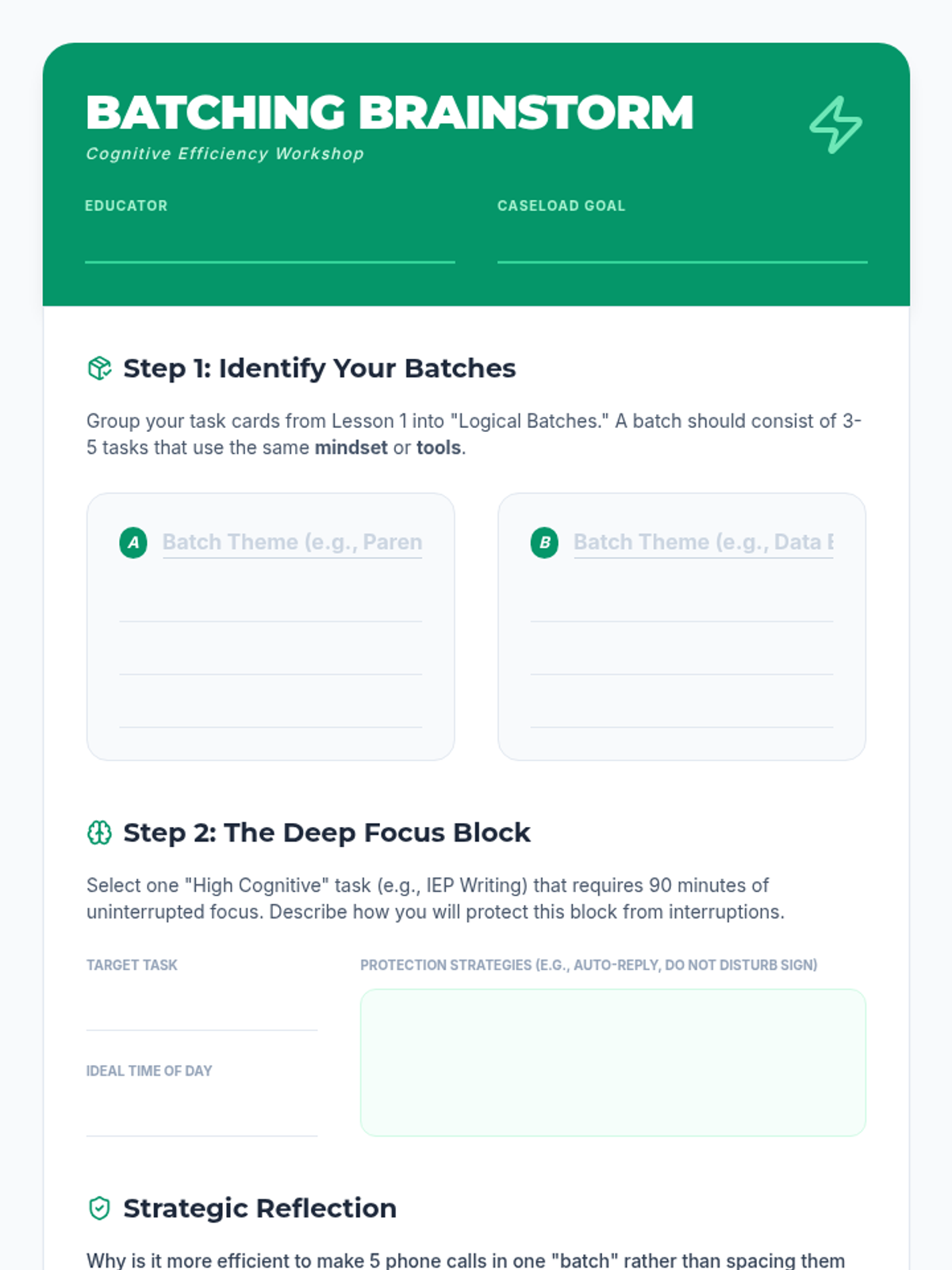
Focuses on cognitive efficiency by introducing time-blocking and task-batching techniques specifically for IEP development and caseload management.
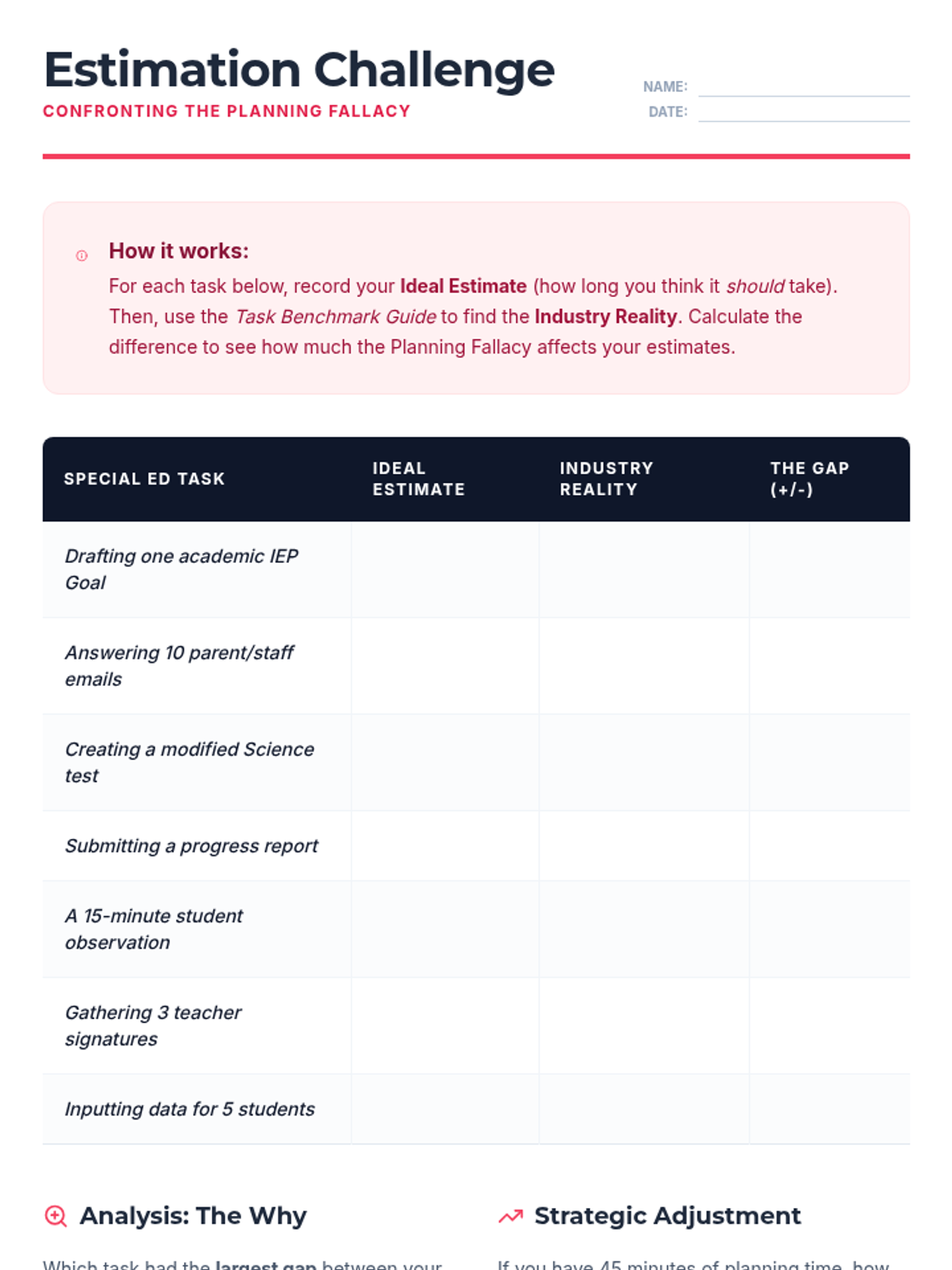
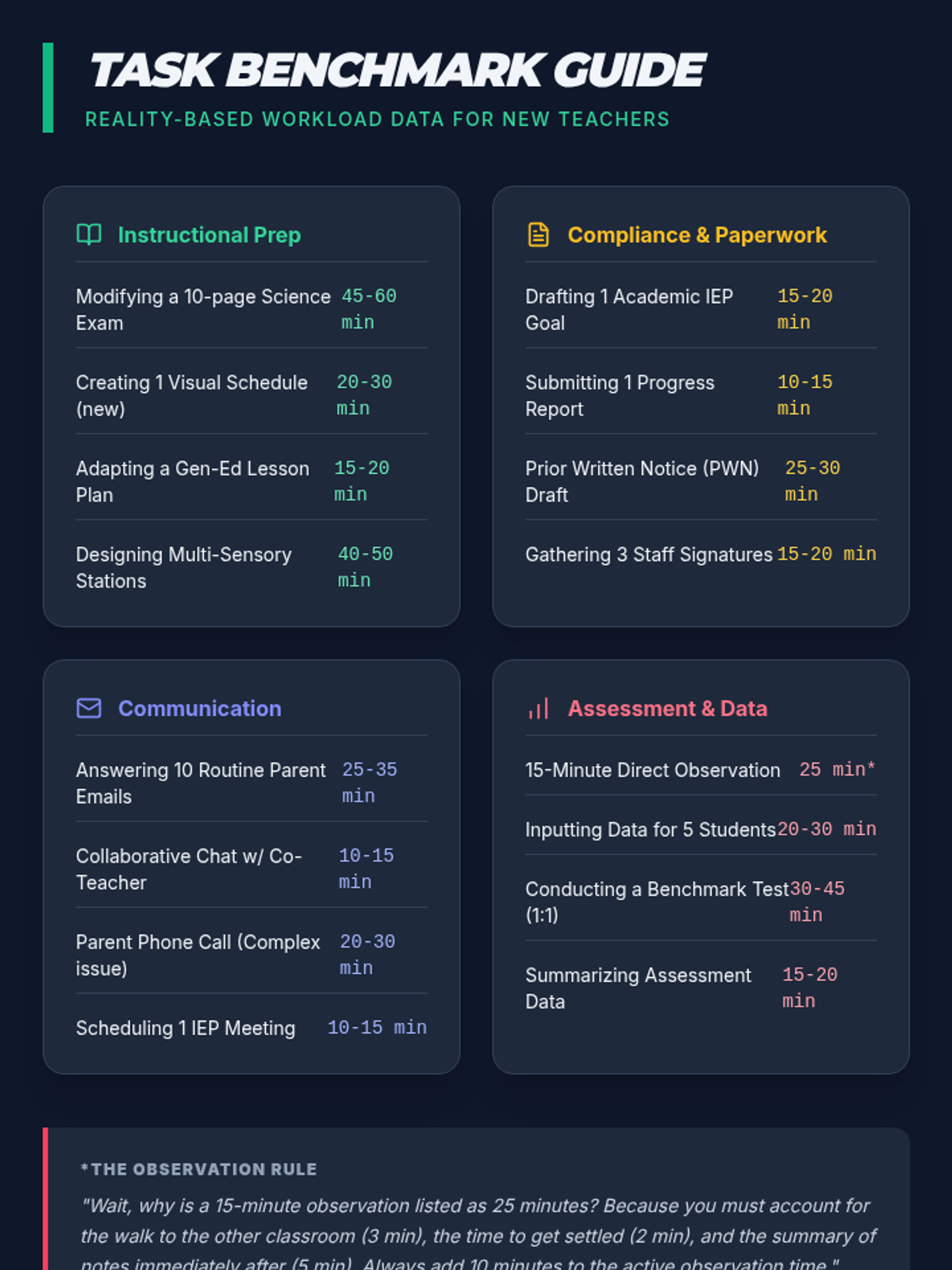
Students tackle the 'planning fallacy' by estimating task durations and comparing them to real-world teacher data, learning to account for transitions and interruptions.
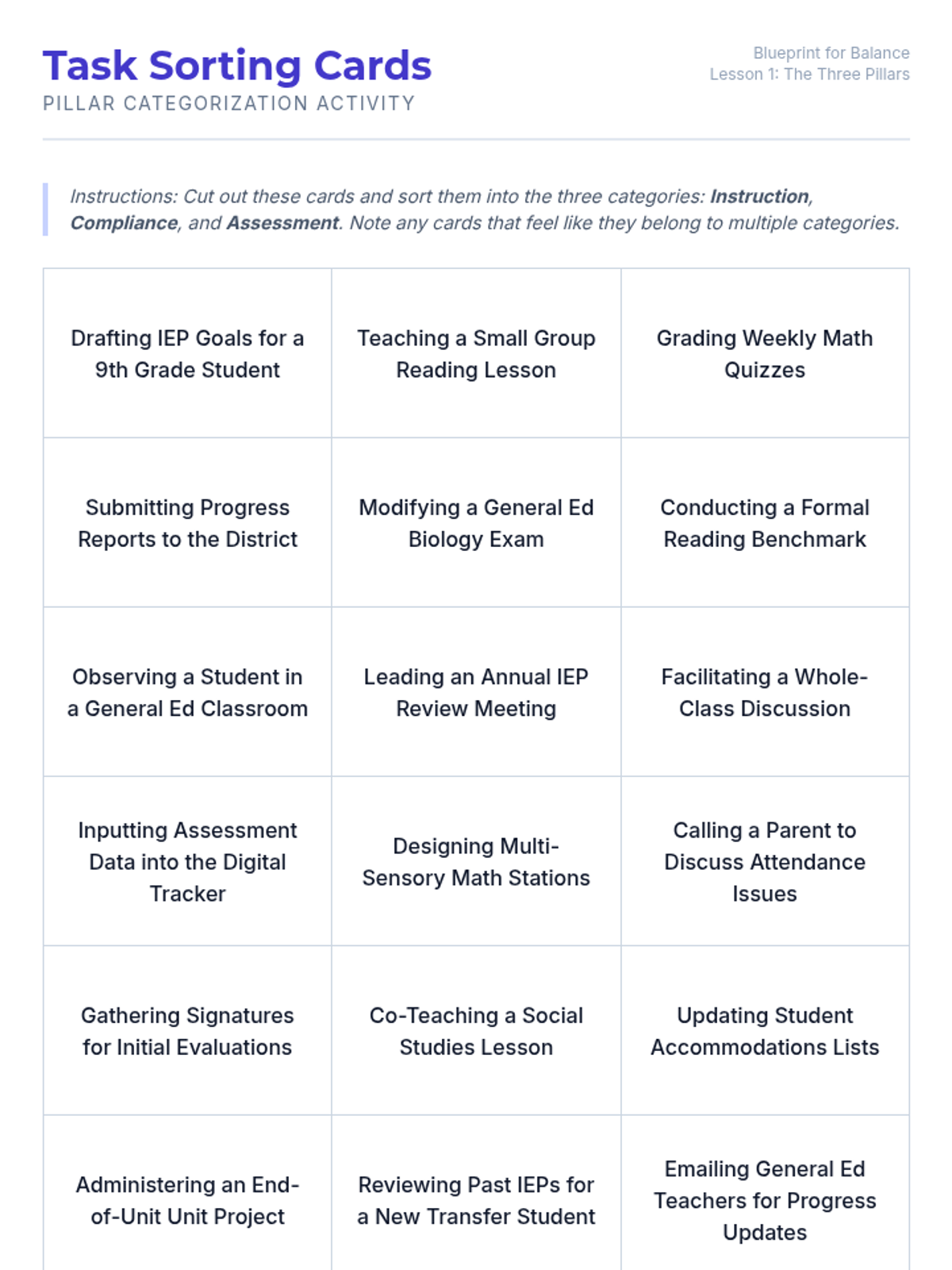
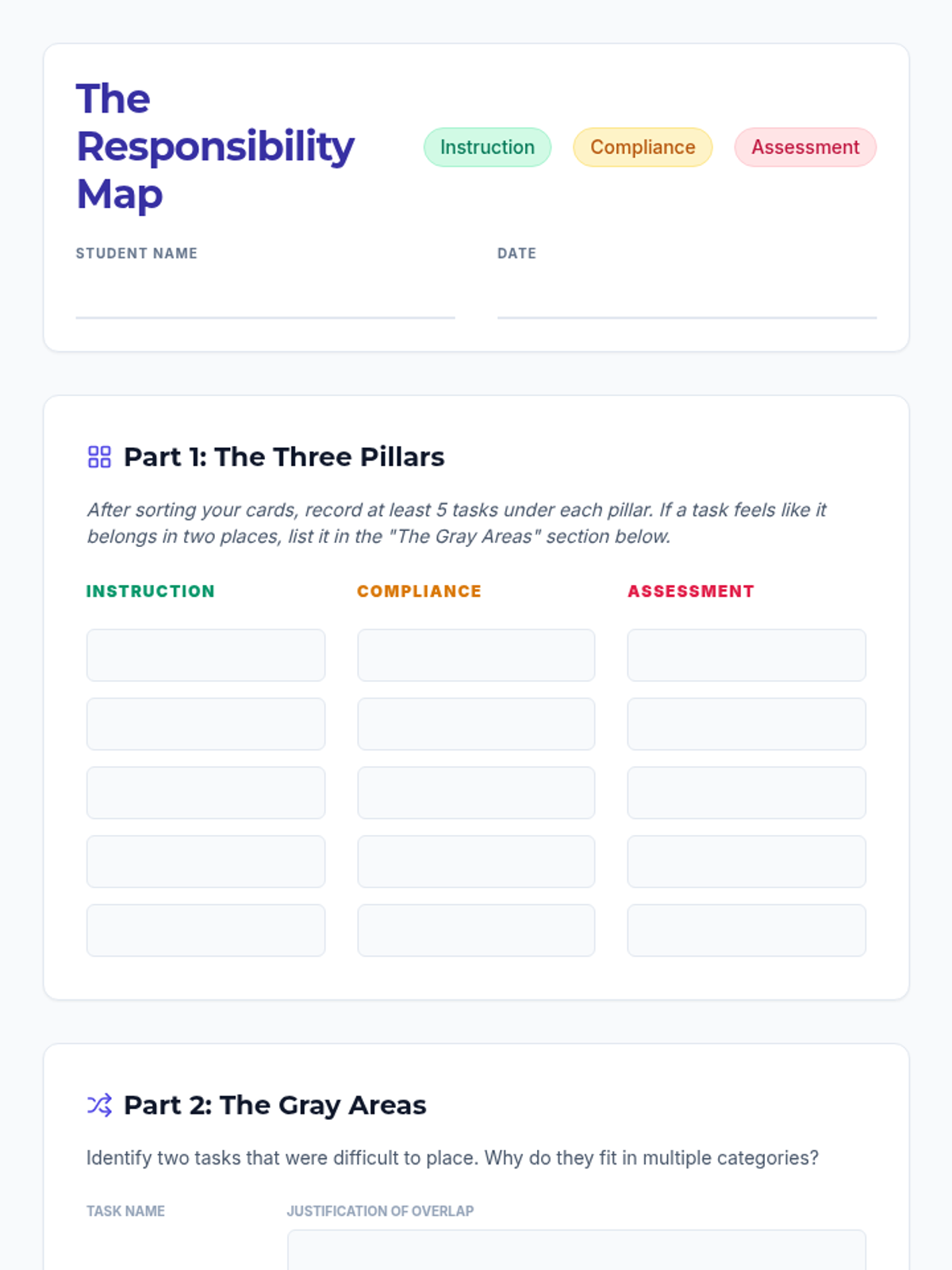
Students analyze the three pillars of special education (Instruction, Compliance, Assessment) and sort common teacher tasks to understand the diverse demands of the role.
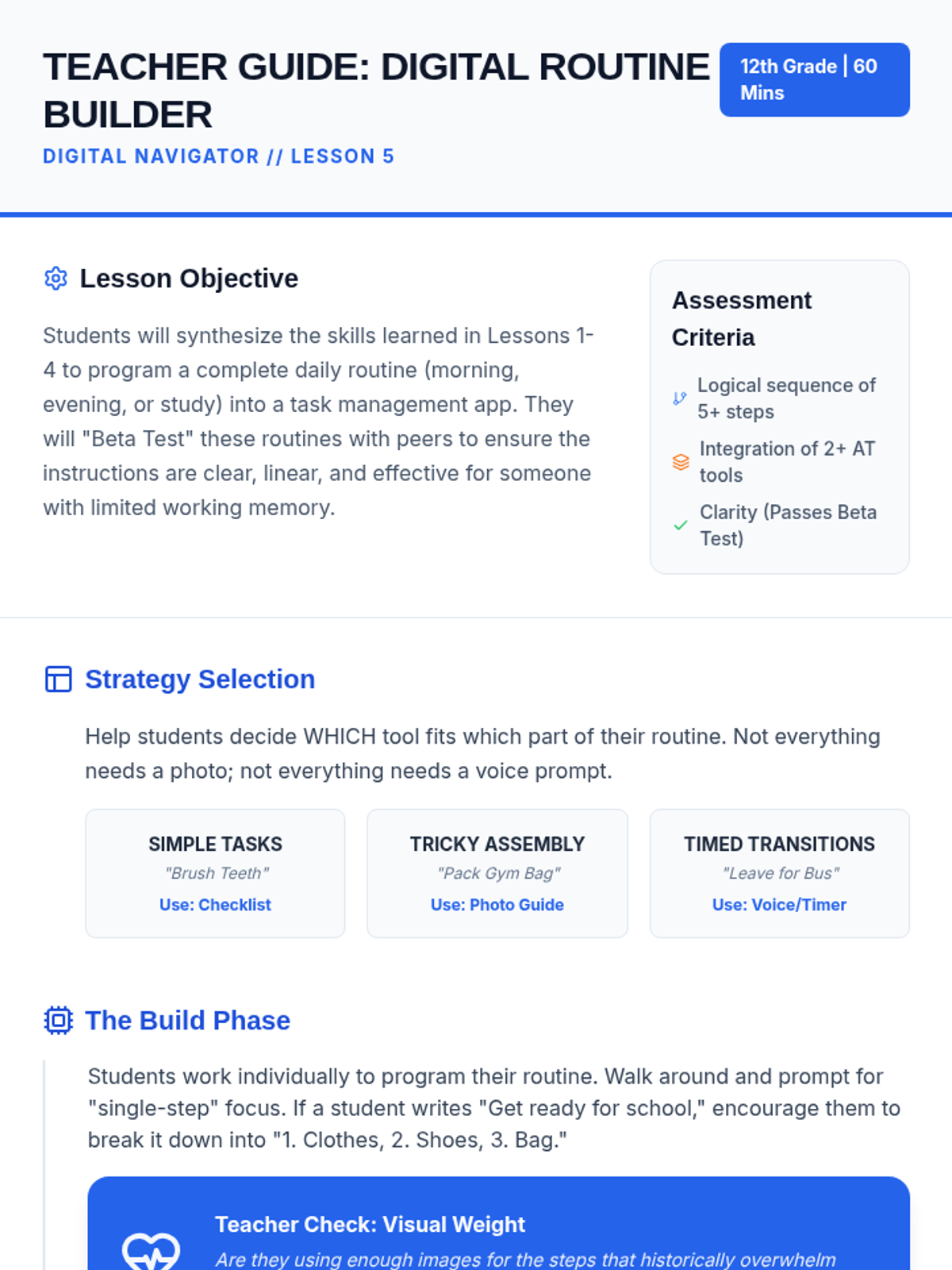
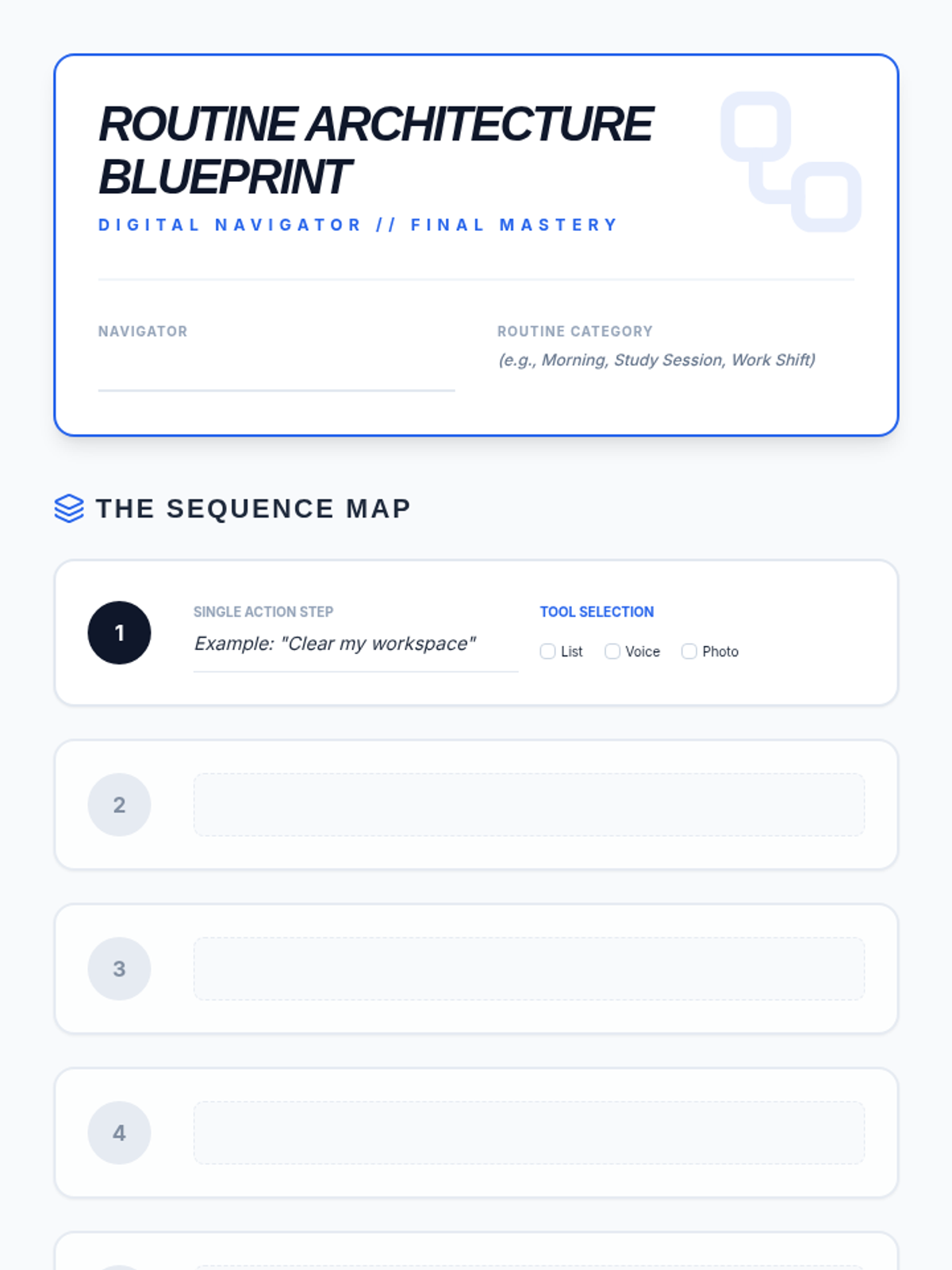
Students synthesize their learning by programming a full daily routine into a task management app and testing it for clarity and functionality.
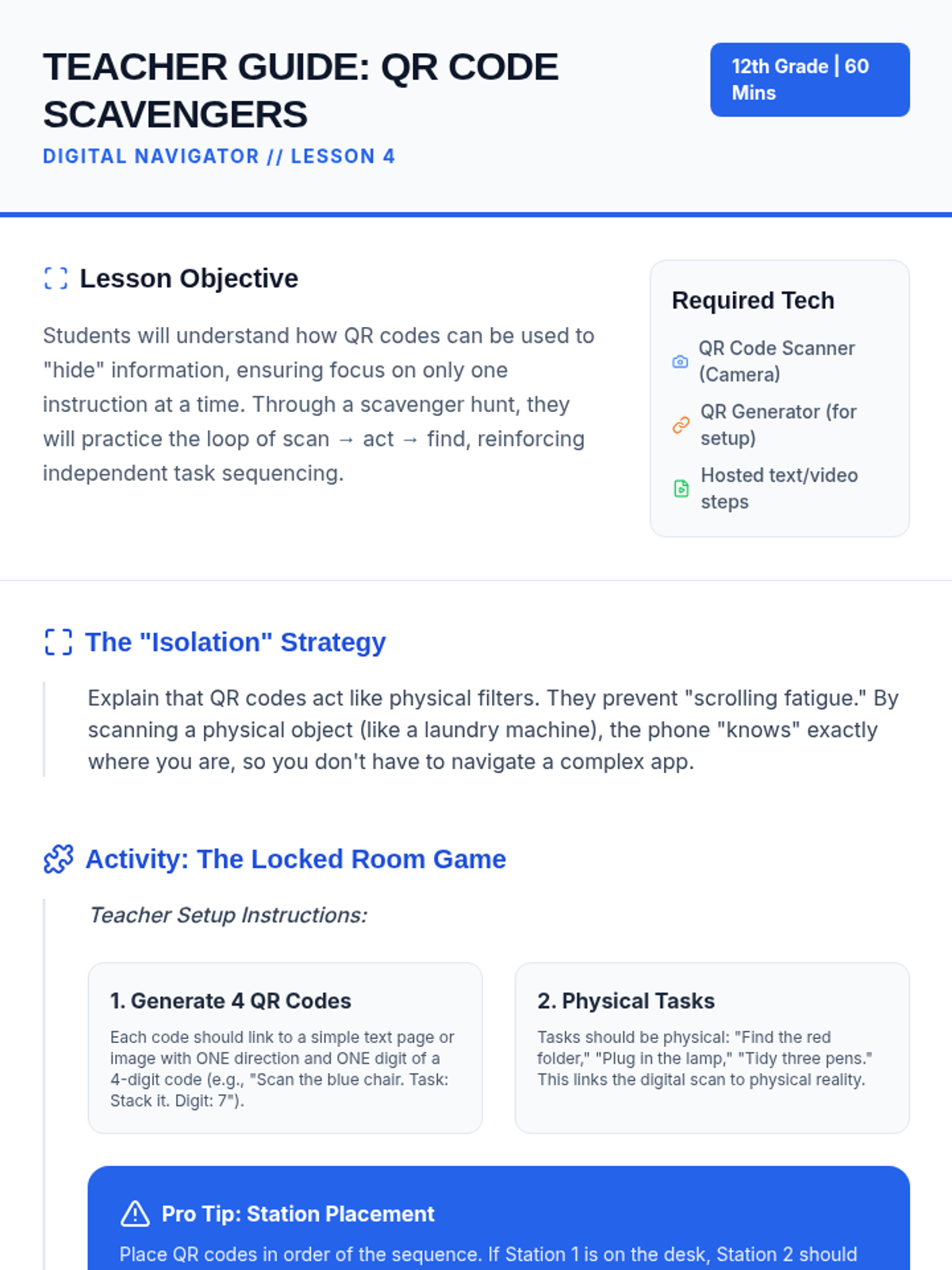
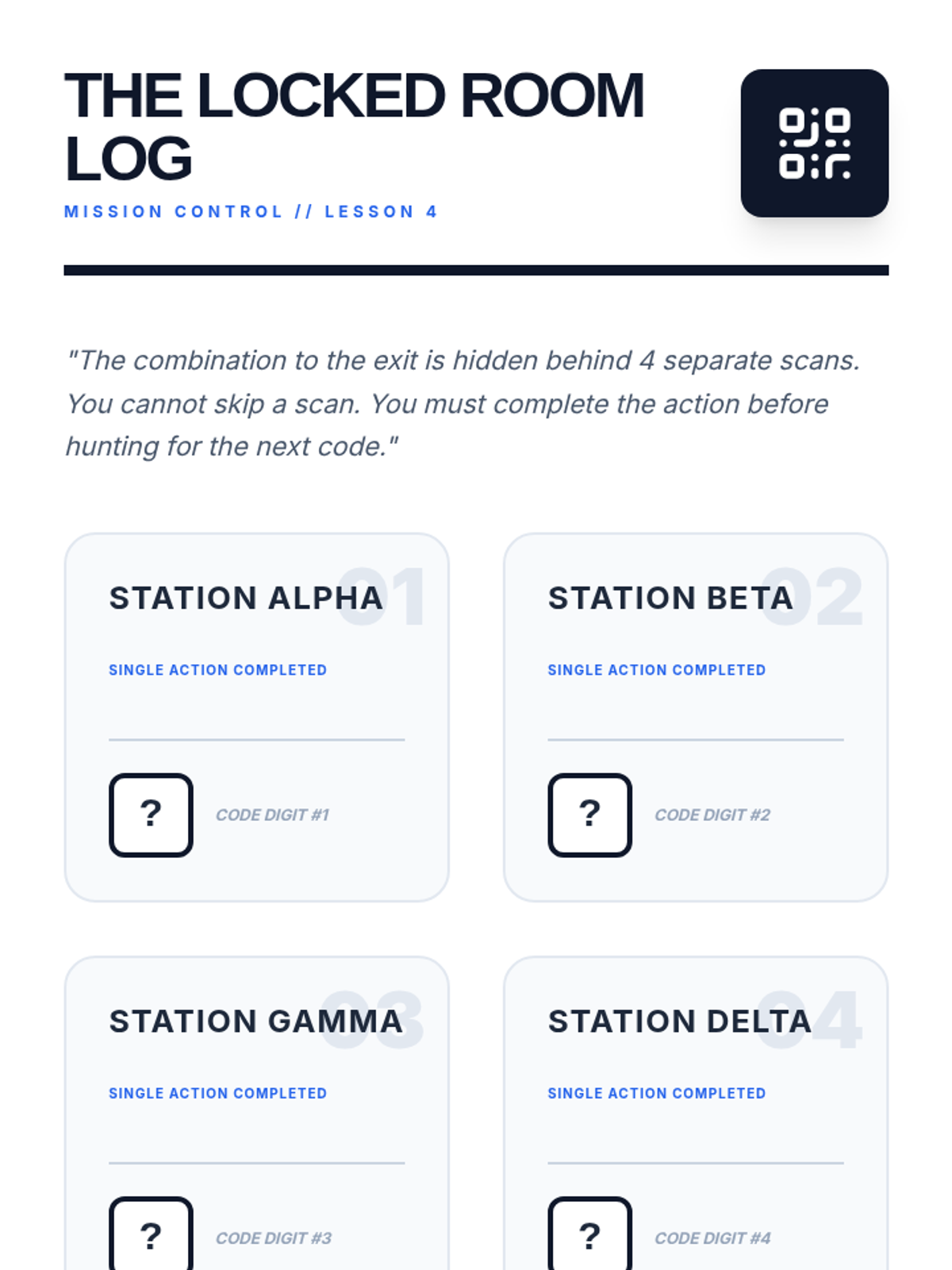
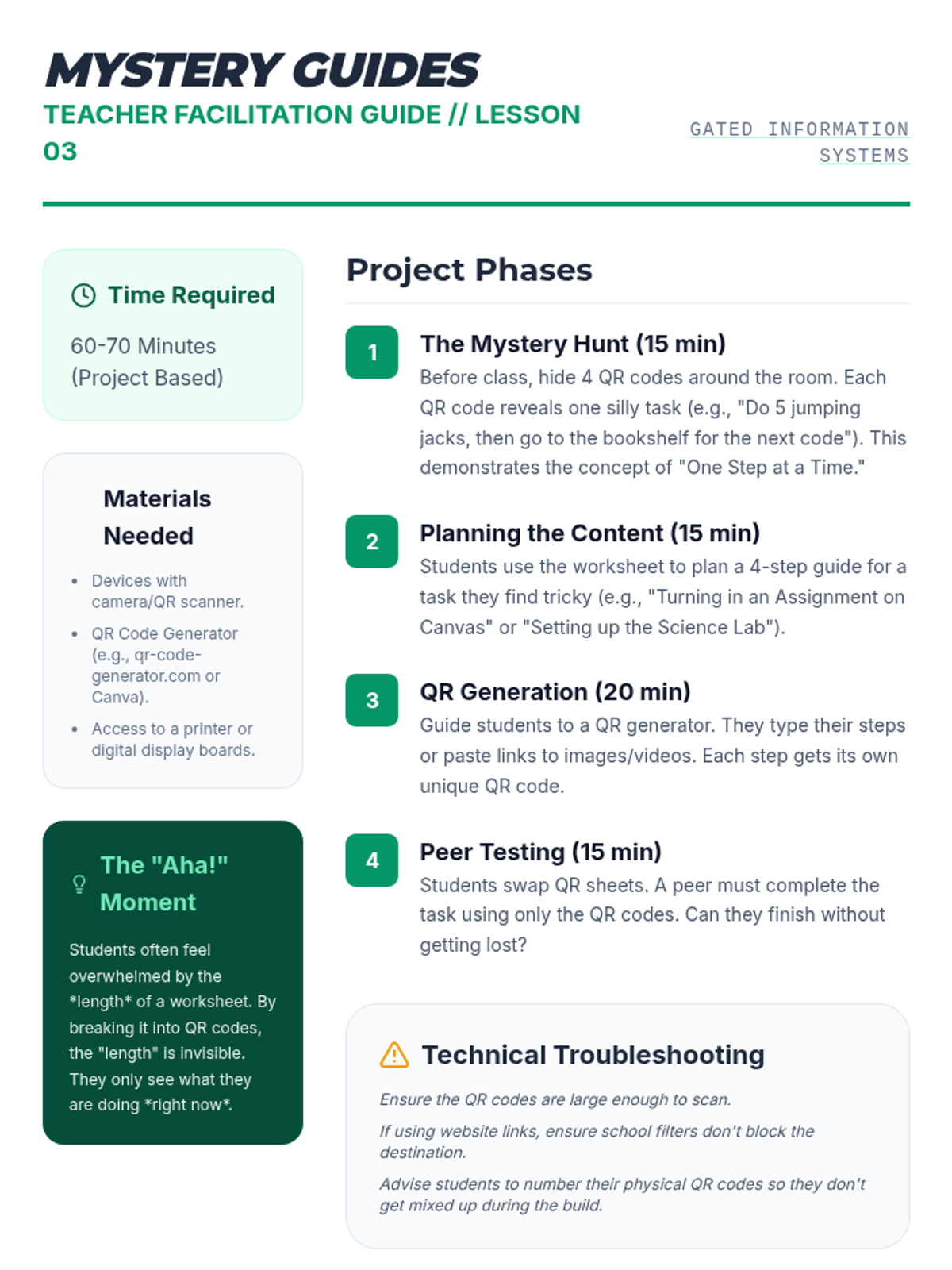
A game-based exploration of using QR codes to isolate single instructions, ensuring students complete one step before moving to the next.
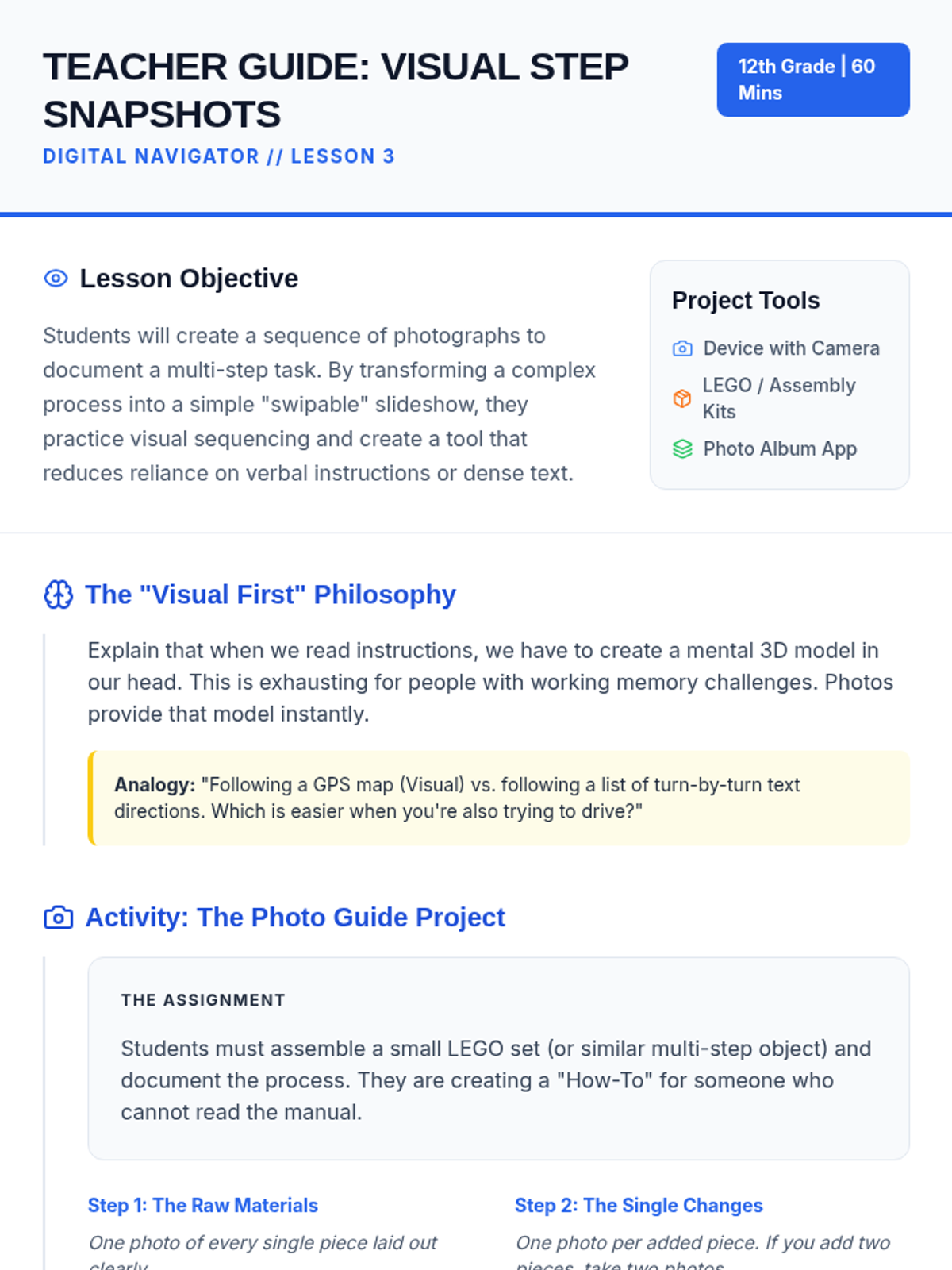
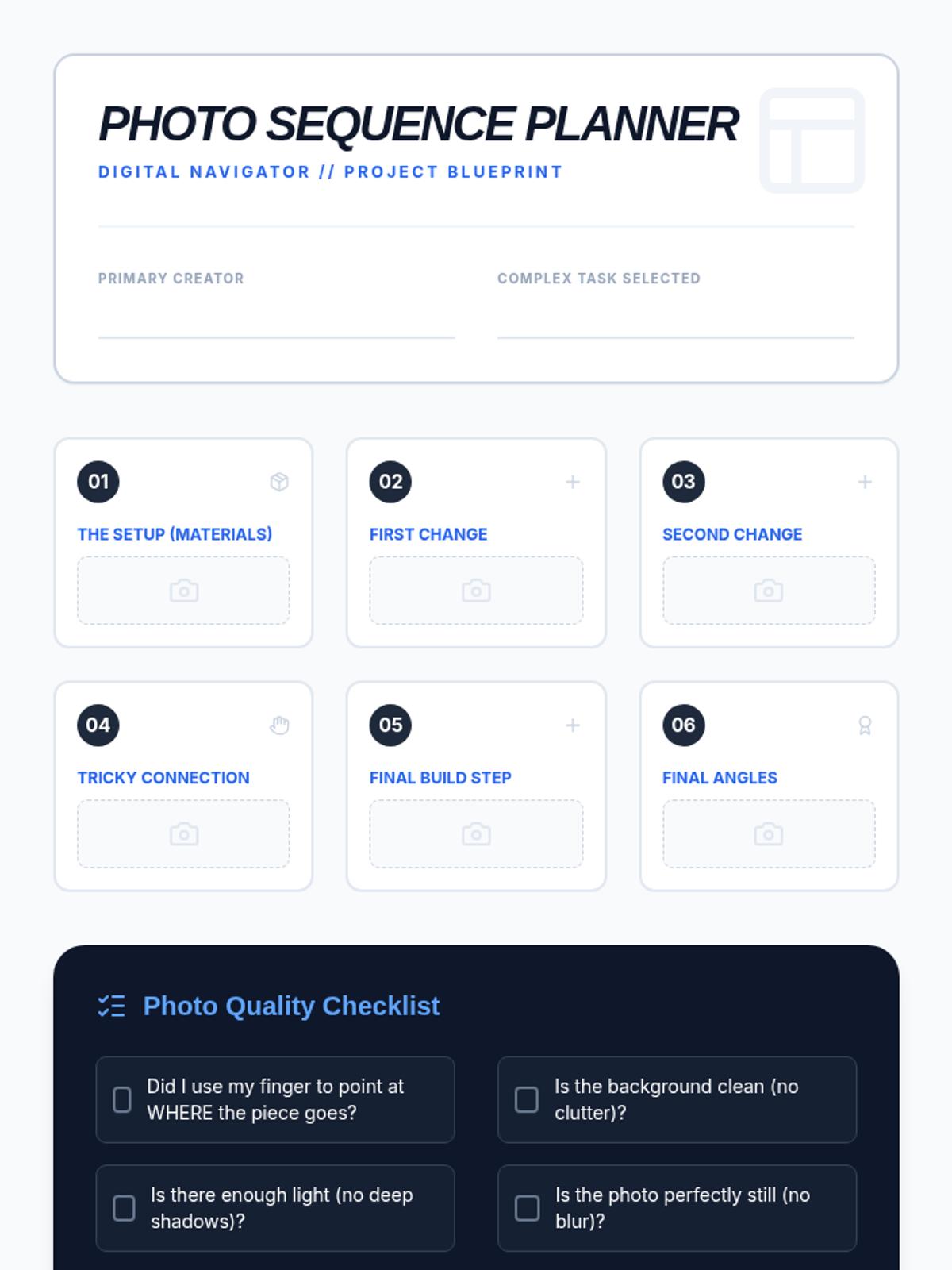
Students create visual, step-by-step guides using photography to transform complex processes into a simple series of swipable images.
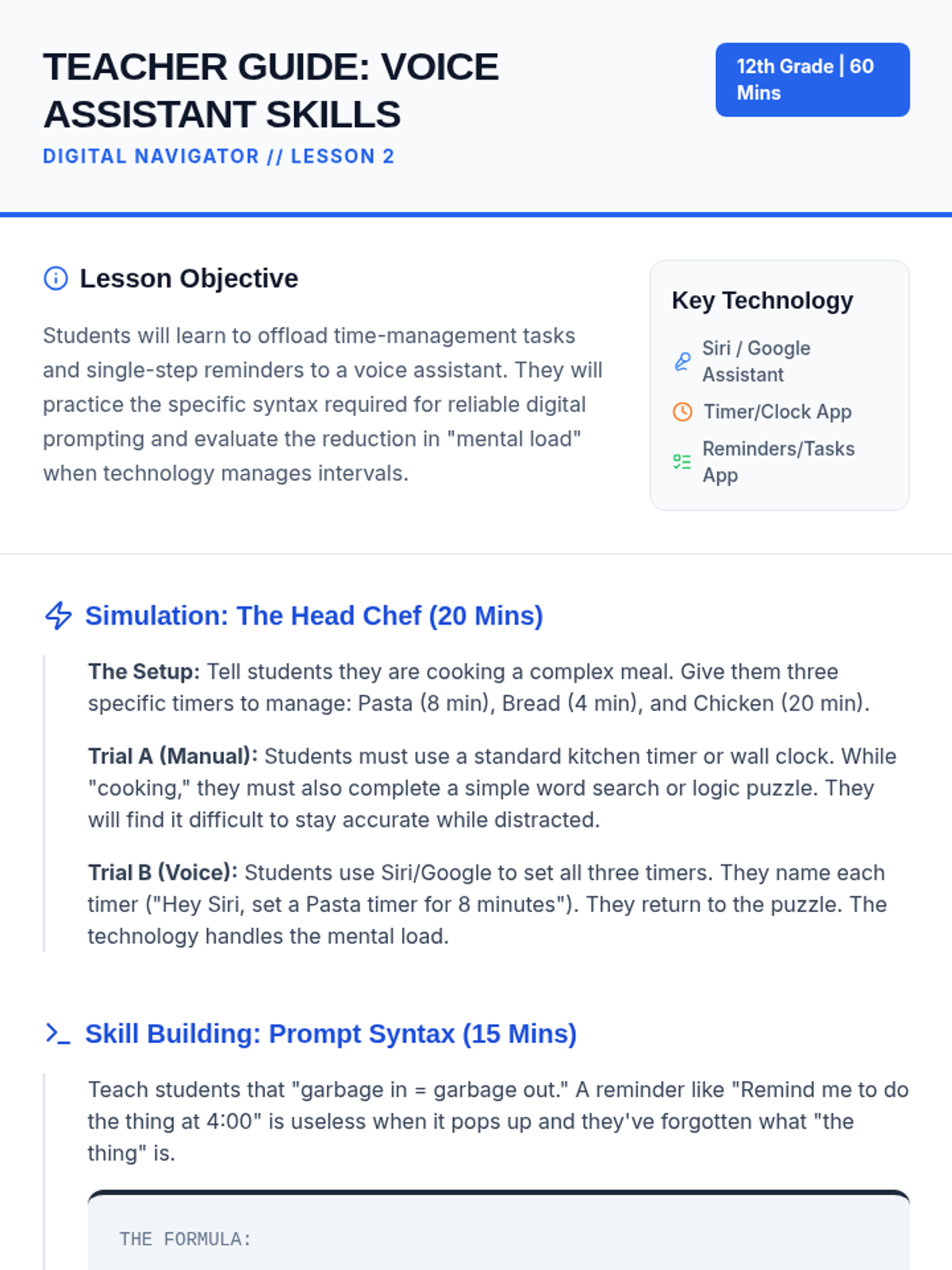
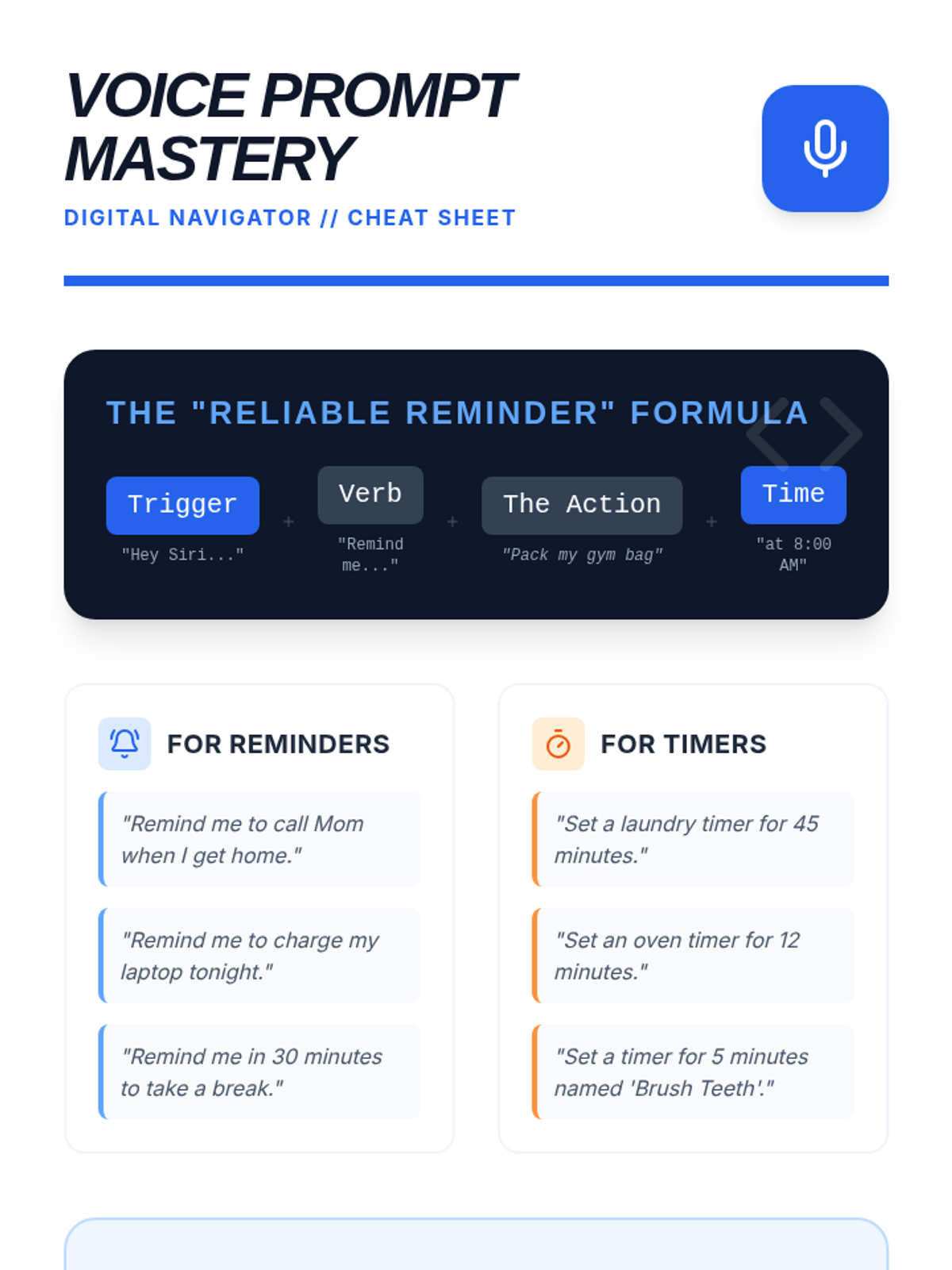
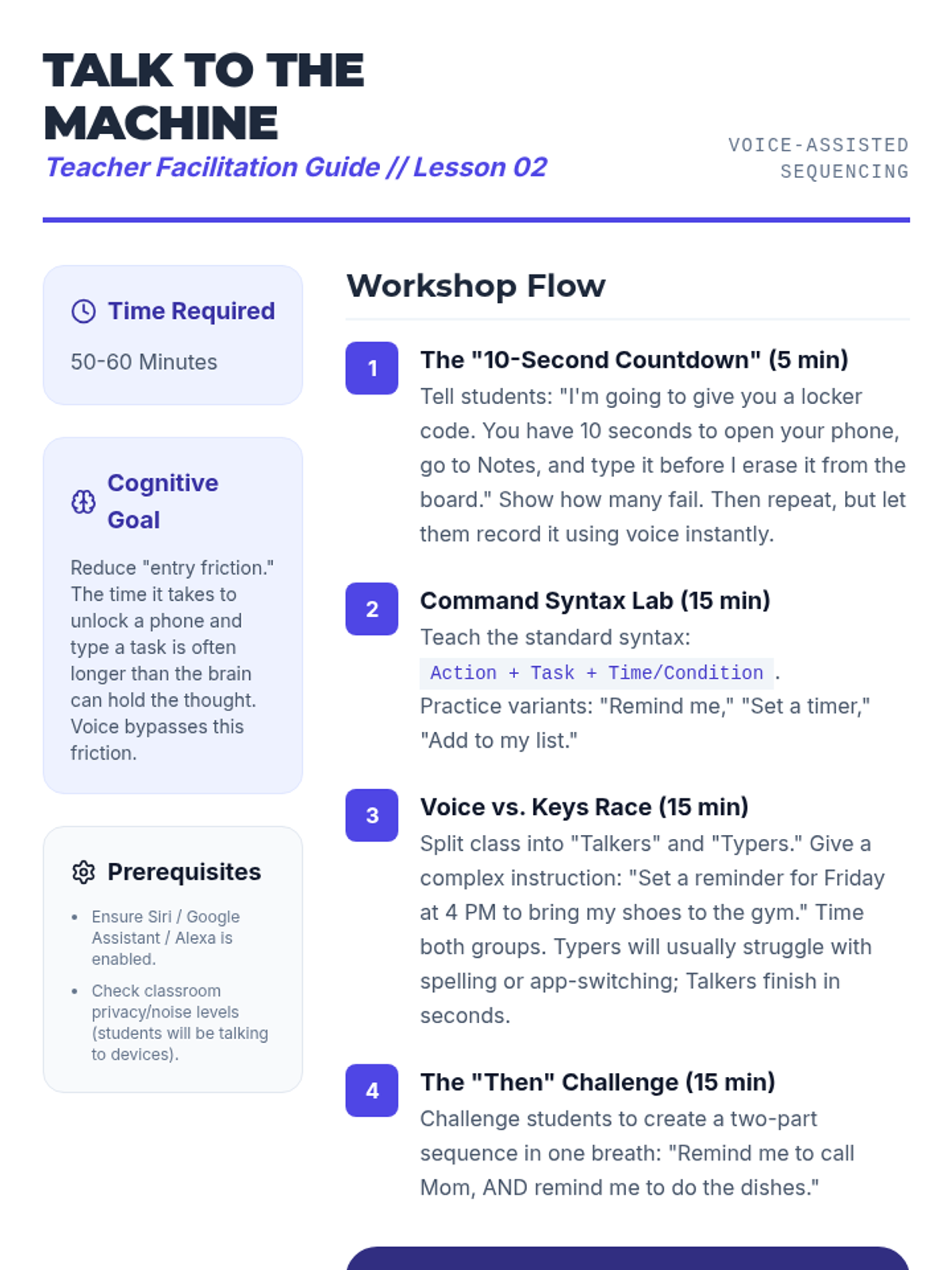
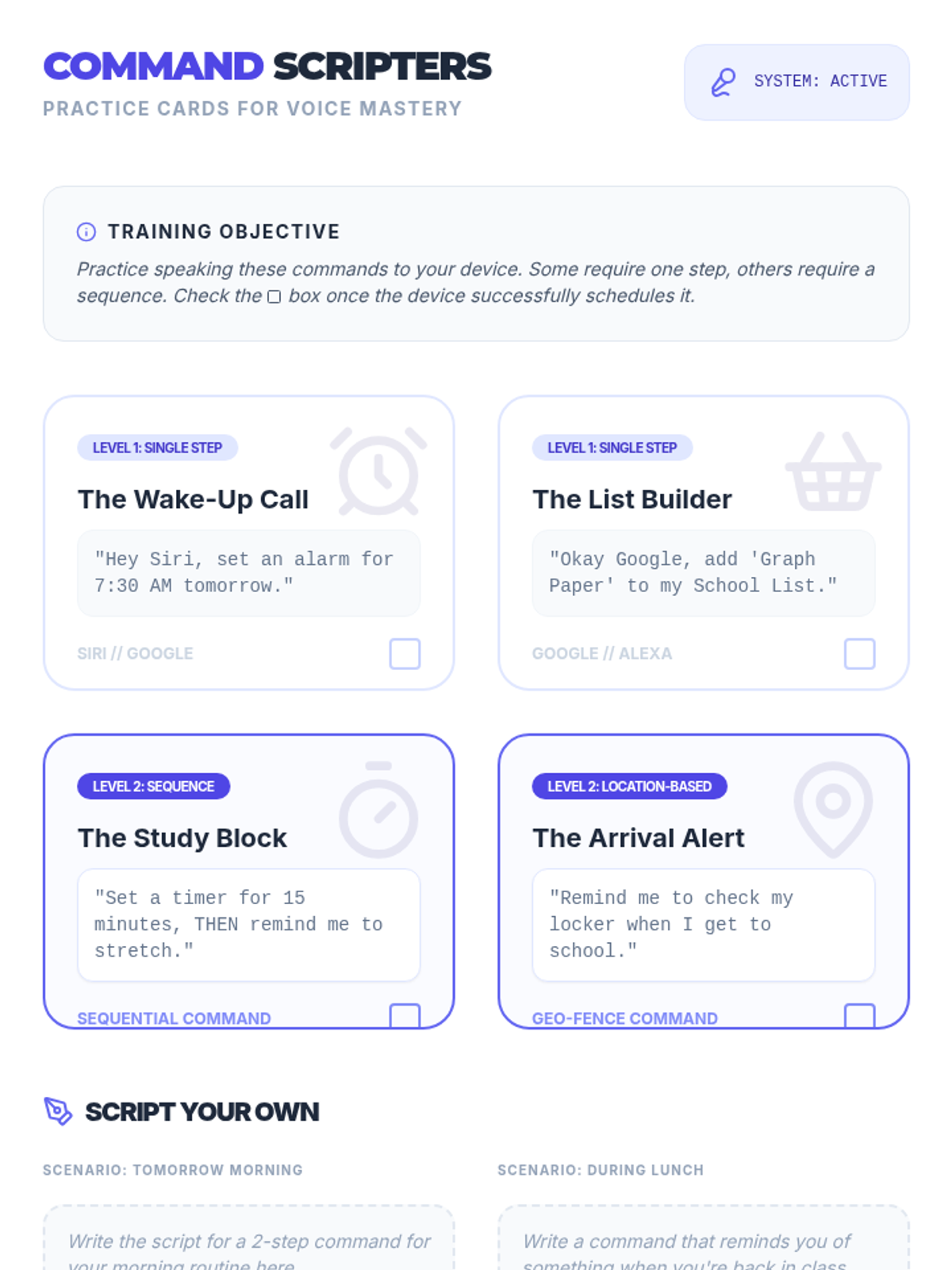
Learners practice using voice-activated technology to set reminders and timers, offloading the mental effort of time management to digital assistants.
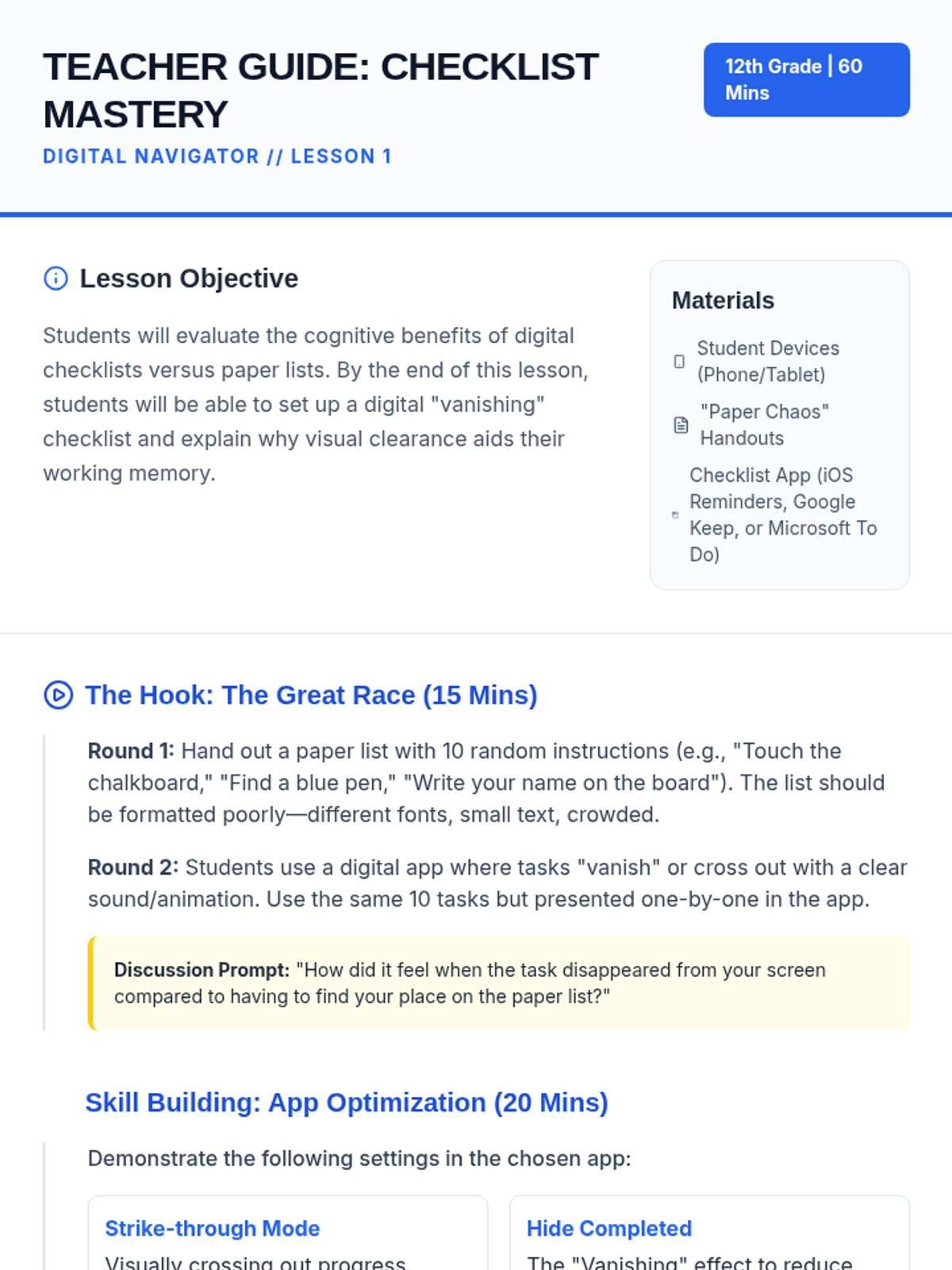
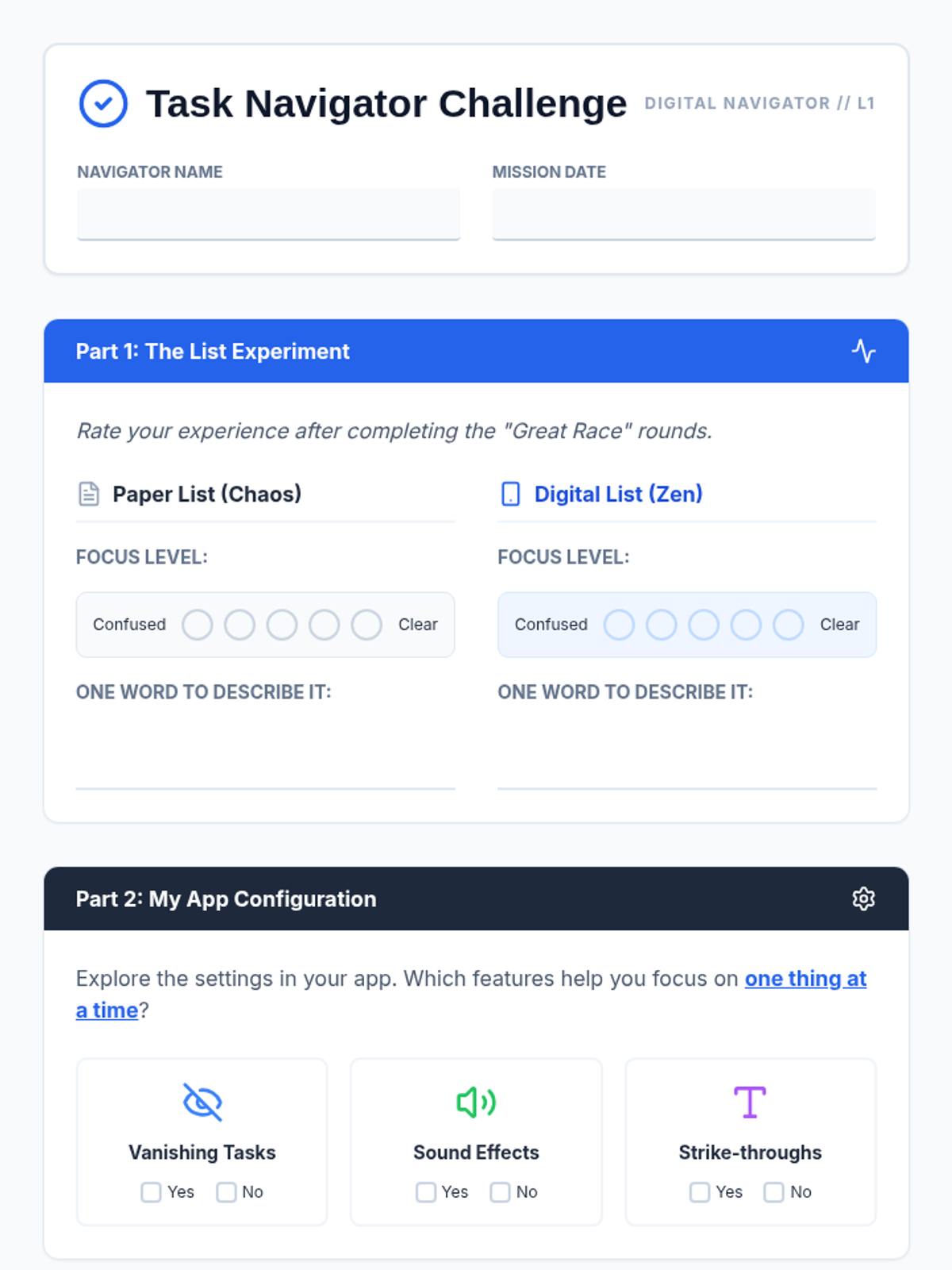
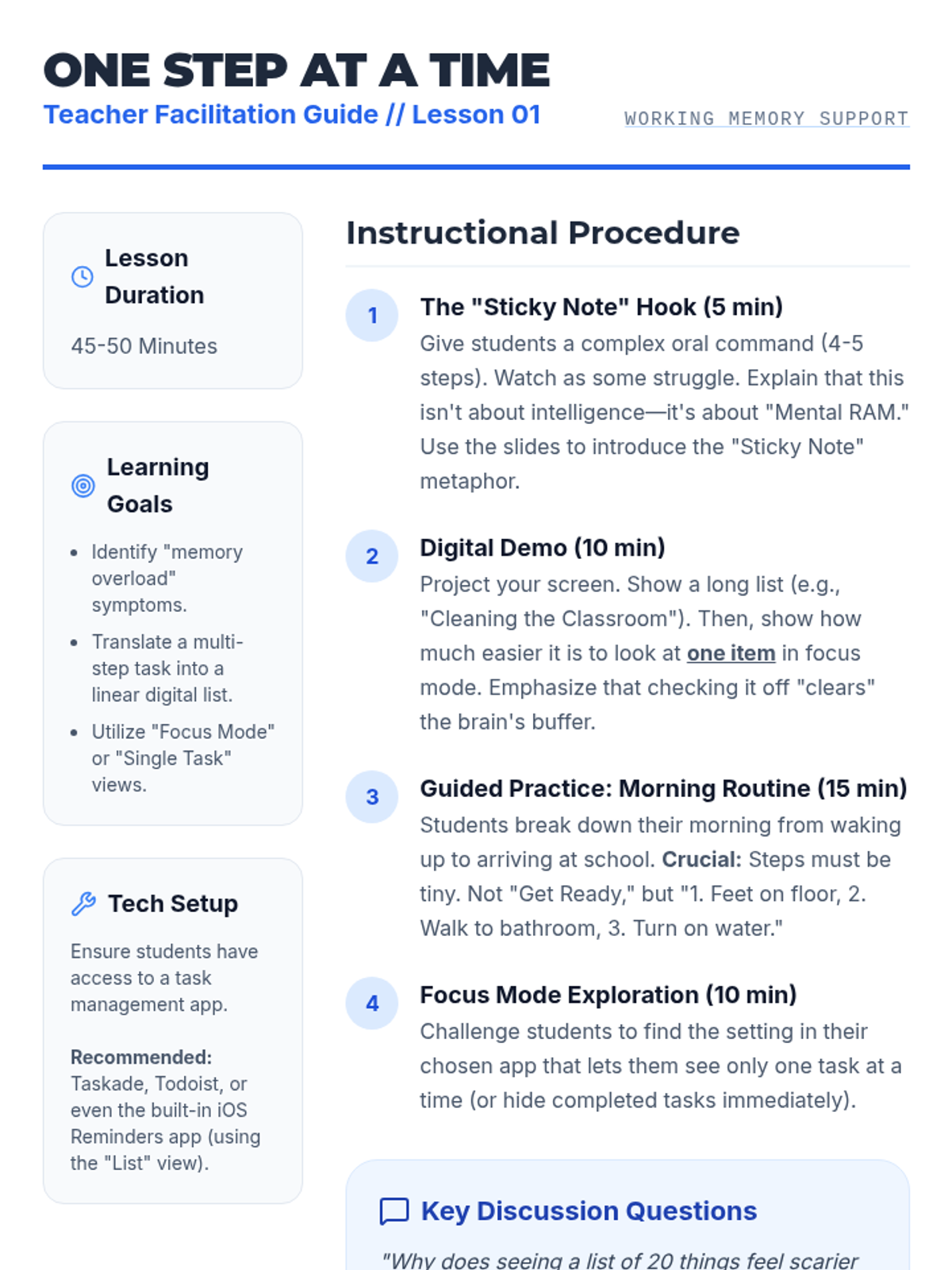
Students compare paper and digital checklists to understand how 'strike-through' and 'vanishing' features reduce cognitive load and help focus on one task at a time.
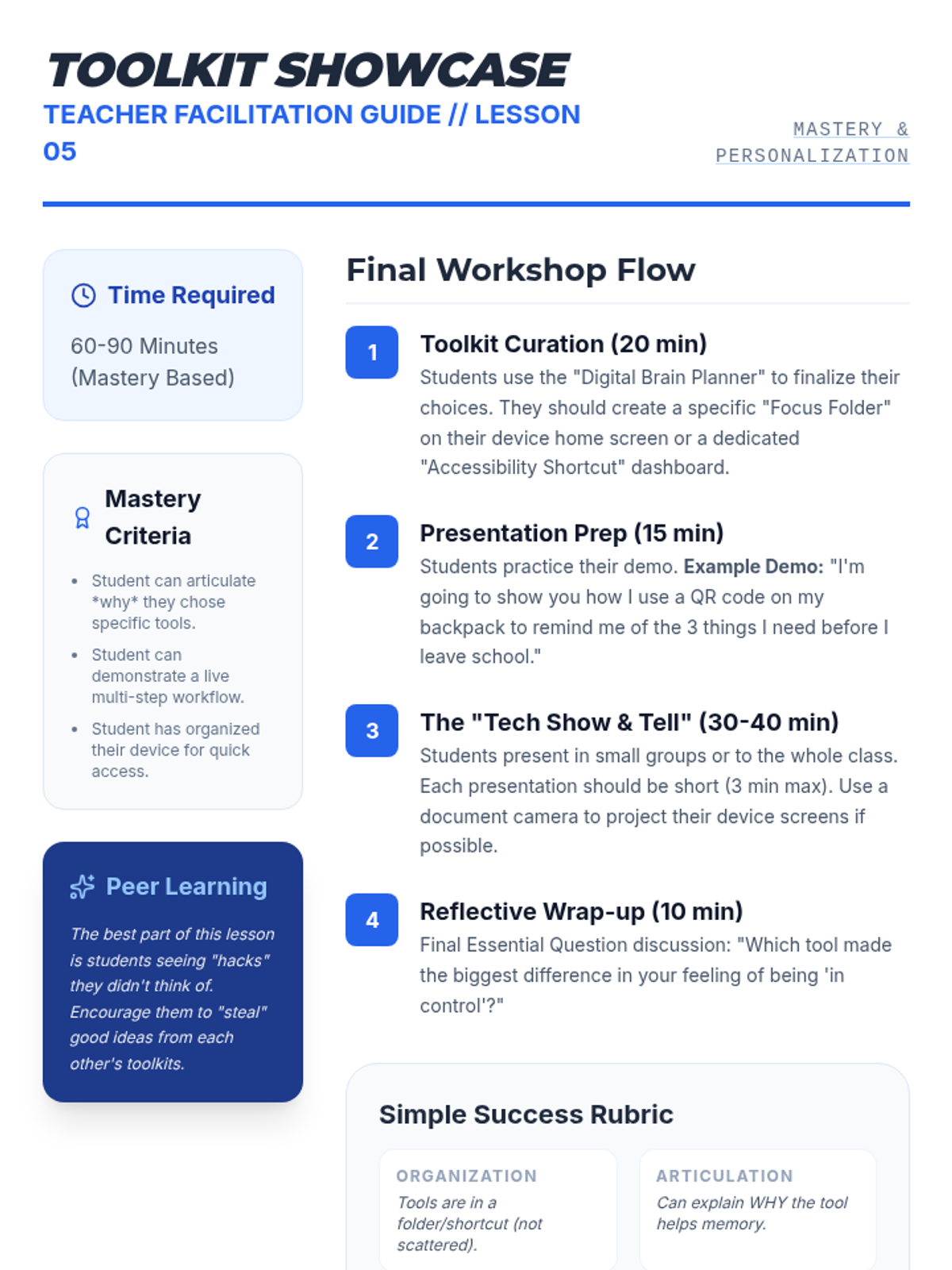
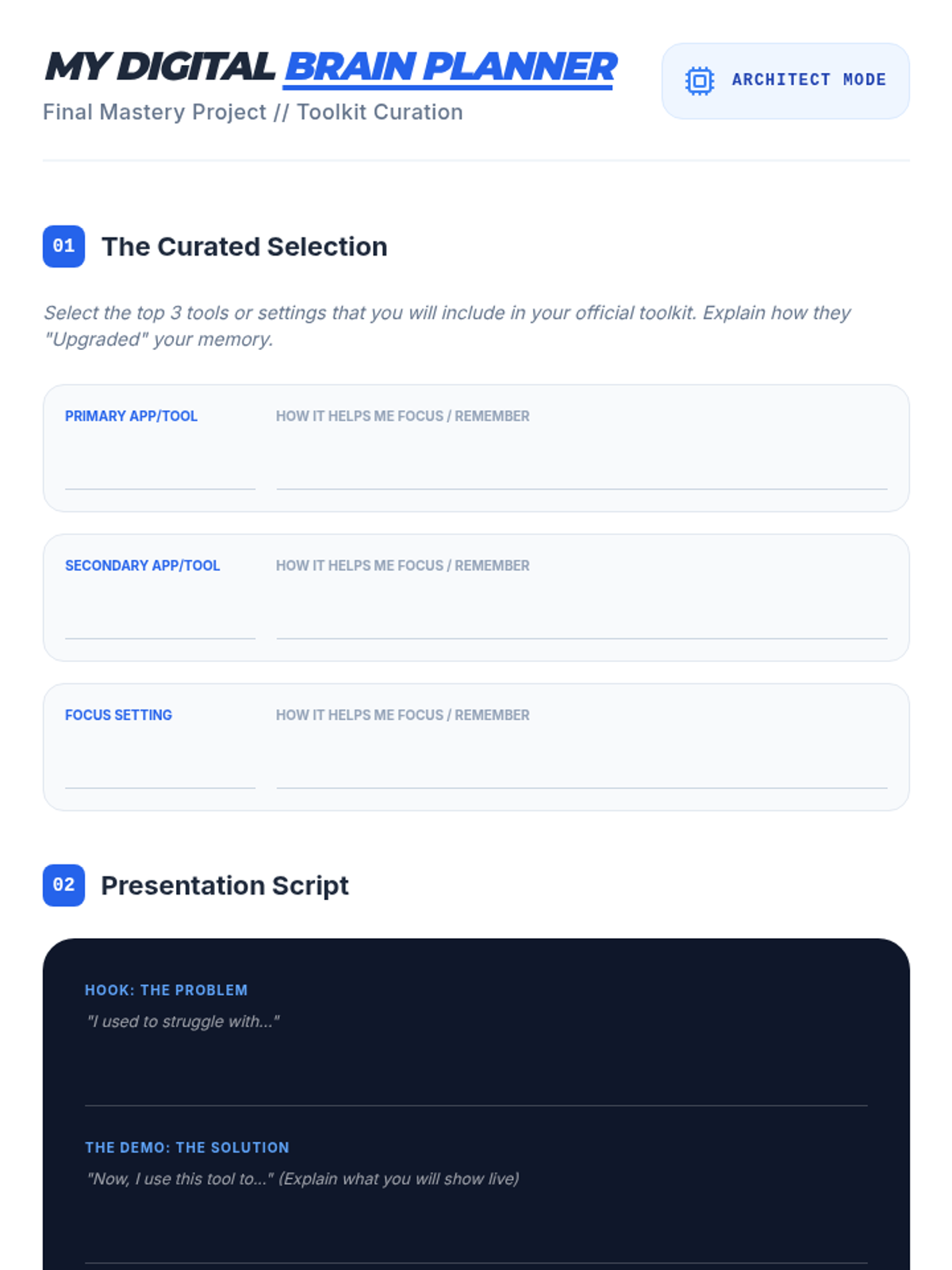
Students compile their favorite tools into a personalized digital support toolkit. They demonstrate their chosen features to the class, reinforcing their personal strategies for working memory support.
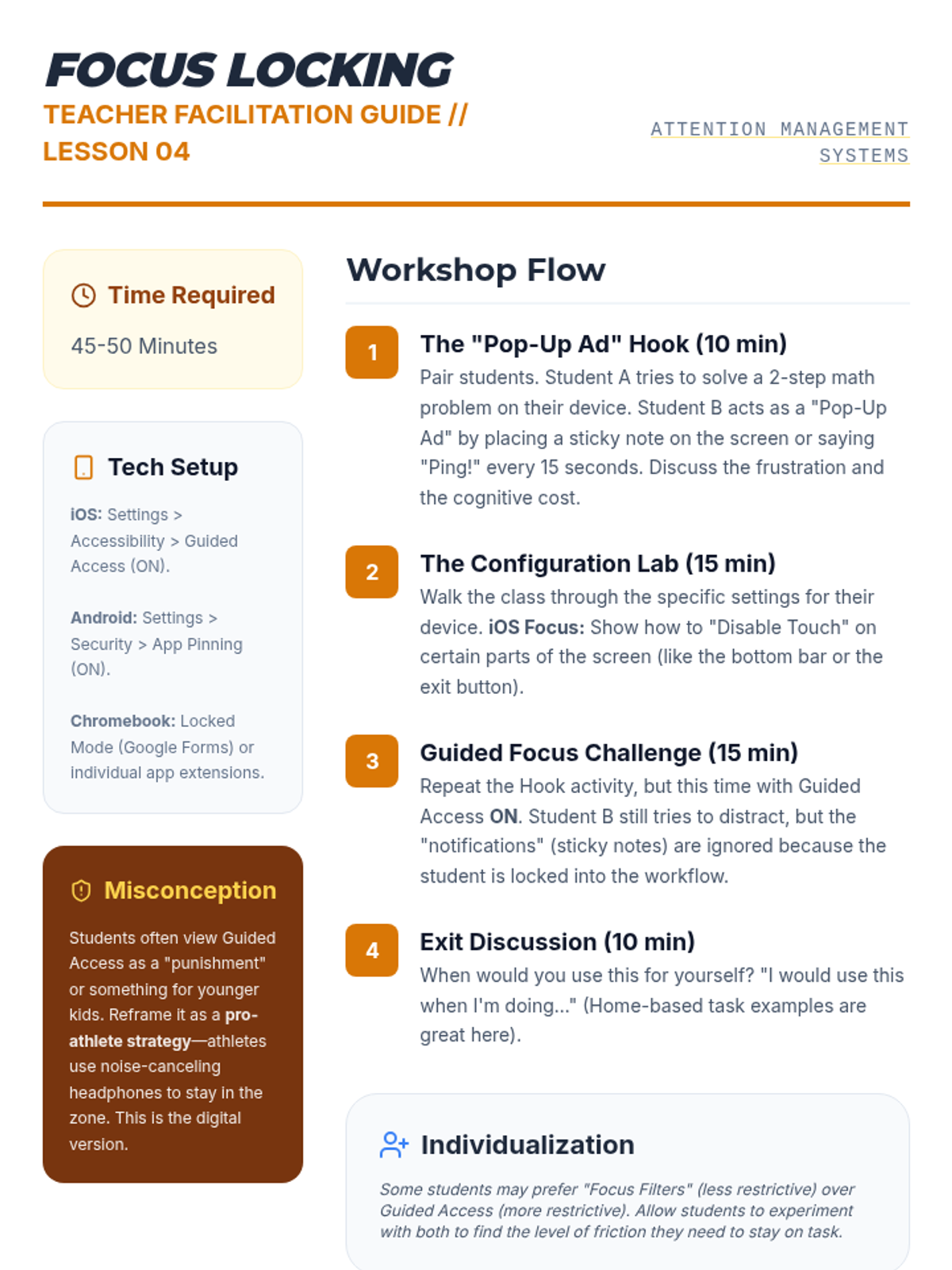
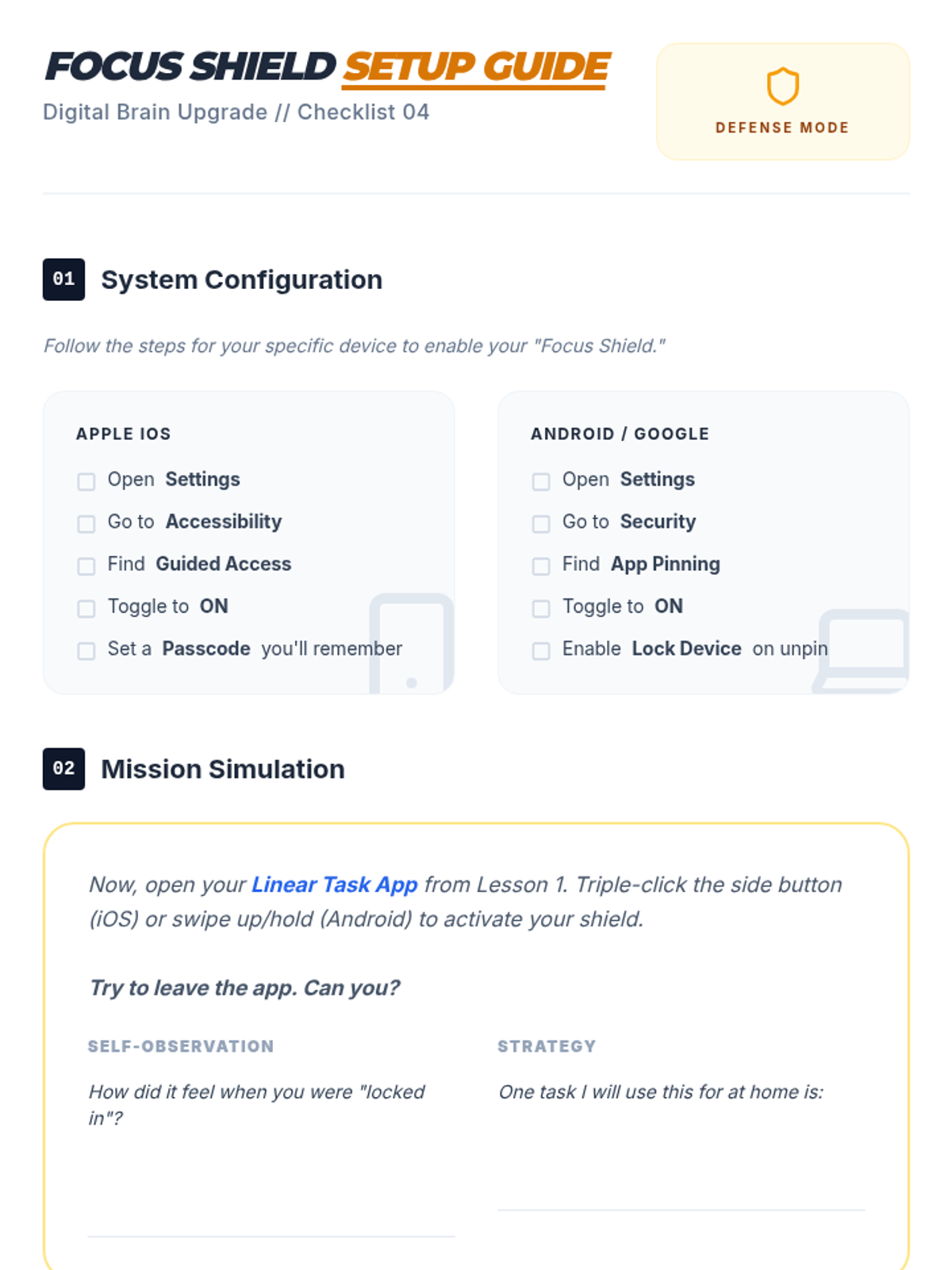
Students learn to use Guided Access and similar focus features to lock their devices into single apps. This environment control supports sustained attention on single-step tasks.
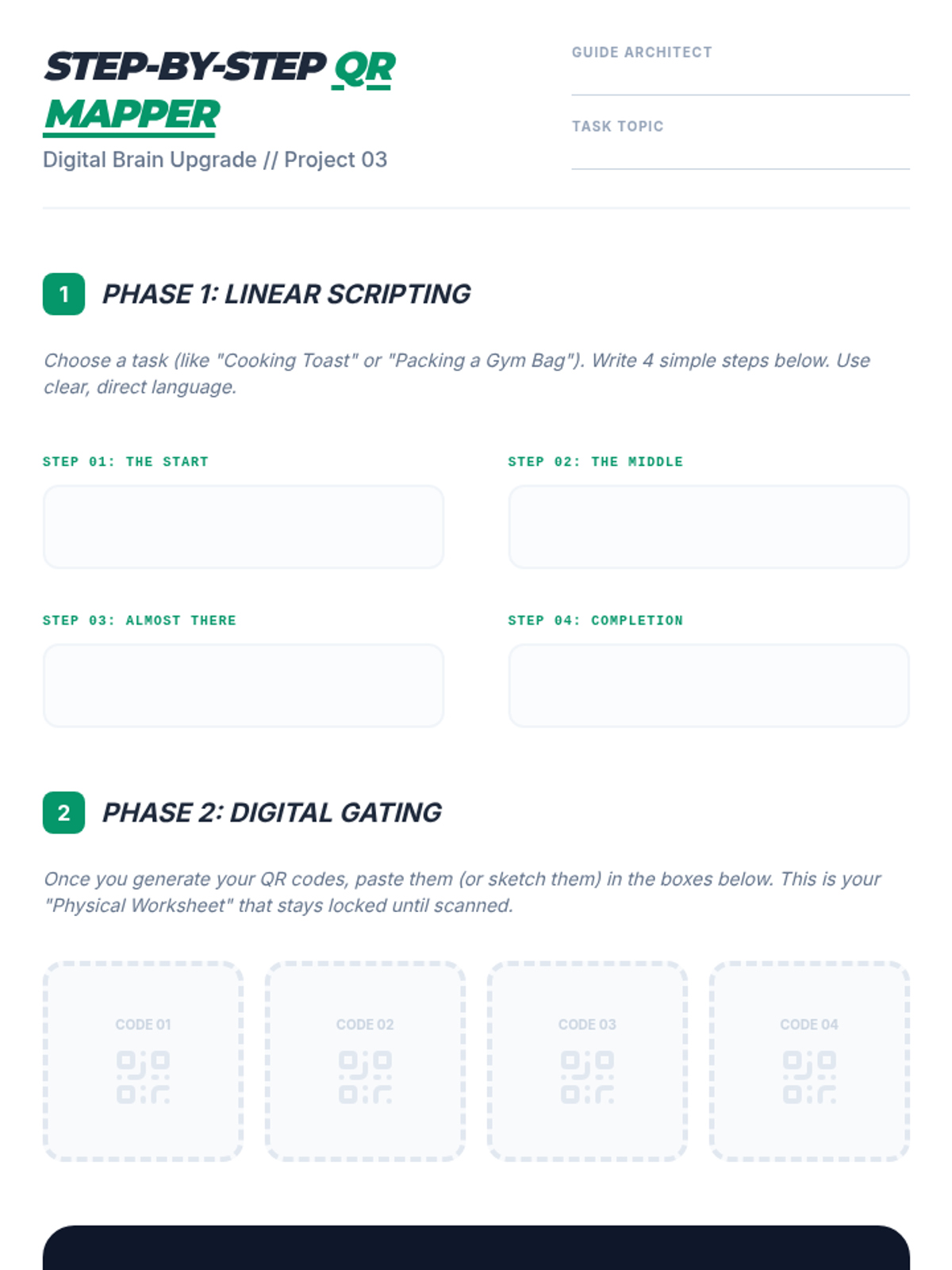
Students design a step-by-step guide where each instruction is hidden behind a QR code. This physicalizing of digital information ensures they only process one piece of data at a time.
Students practice using voice assistants to create sequential reminders. This hands-free approach helps students articulate tasks and offload them to an external memory system immediately.
Students explore digital task management apps to create linear workflows. They practice 'focus mode' to ensure only one task is visible at a time, reducing the overwhelming nature of long lists.
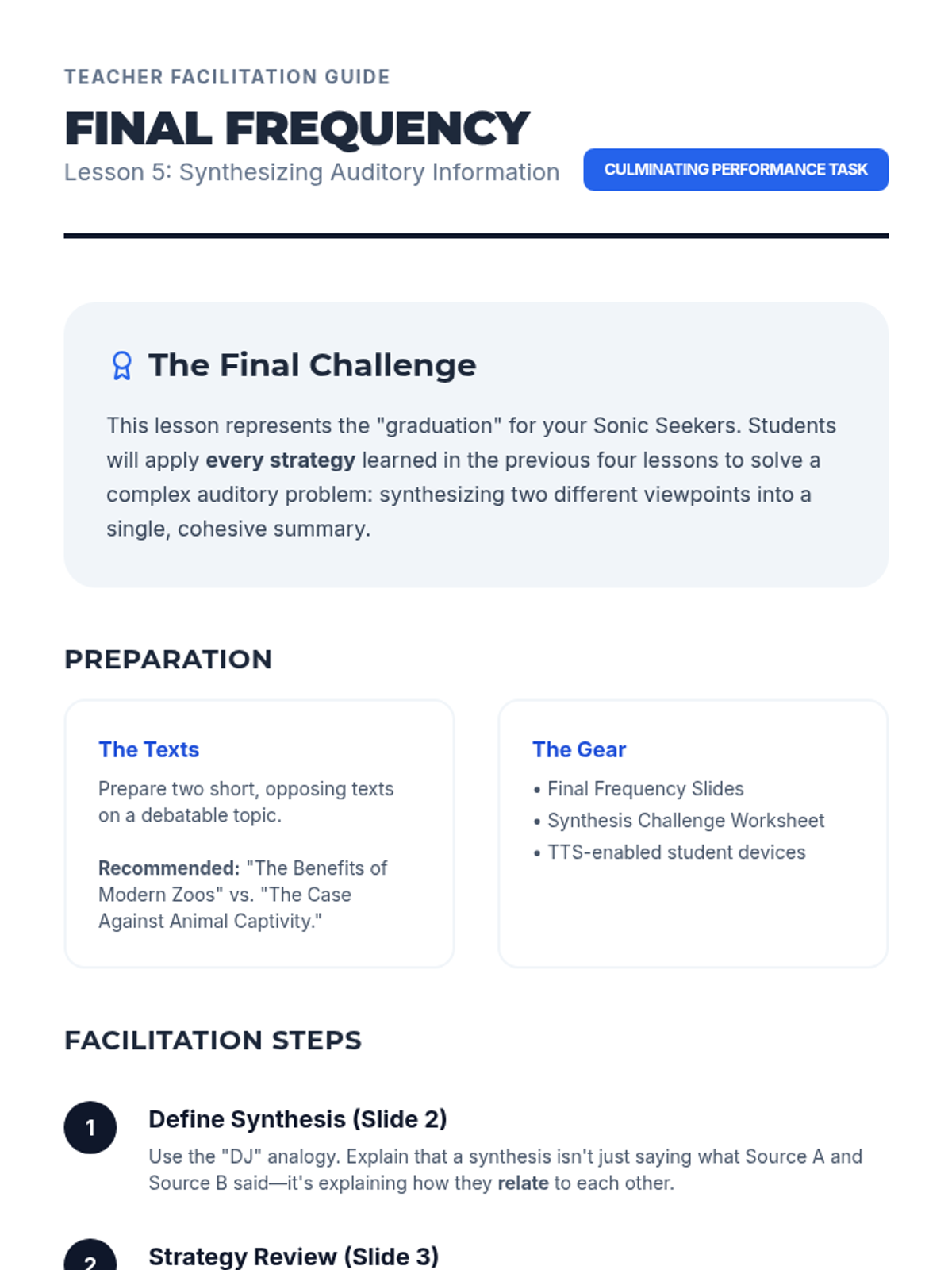
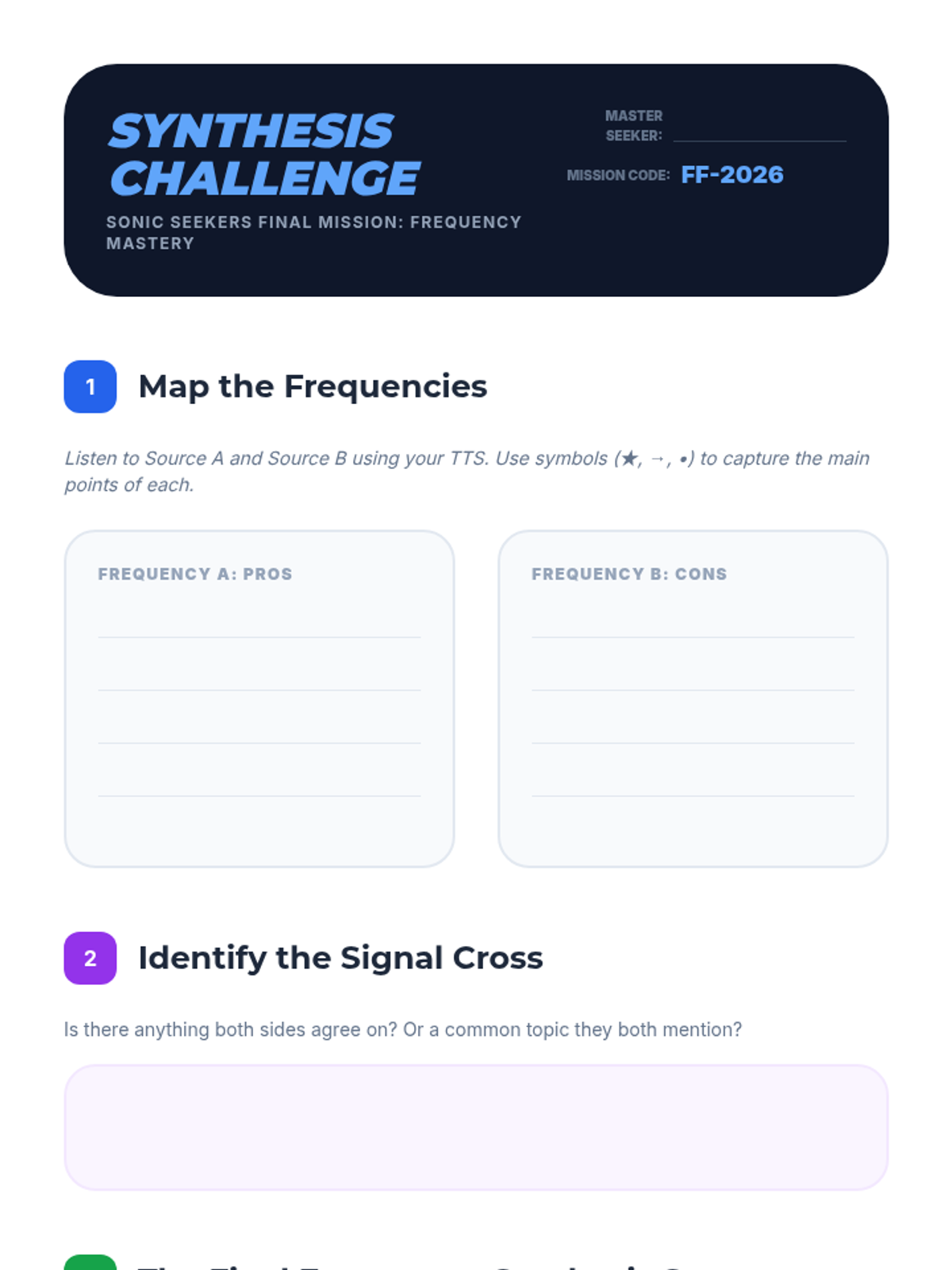
Students listen to two contrasting viewpoints on a topic using TTS and synthesize the information into a coherent summary. This tests their ability to maintain focus and organize auditory information over a longer duration.
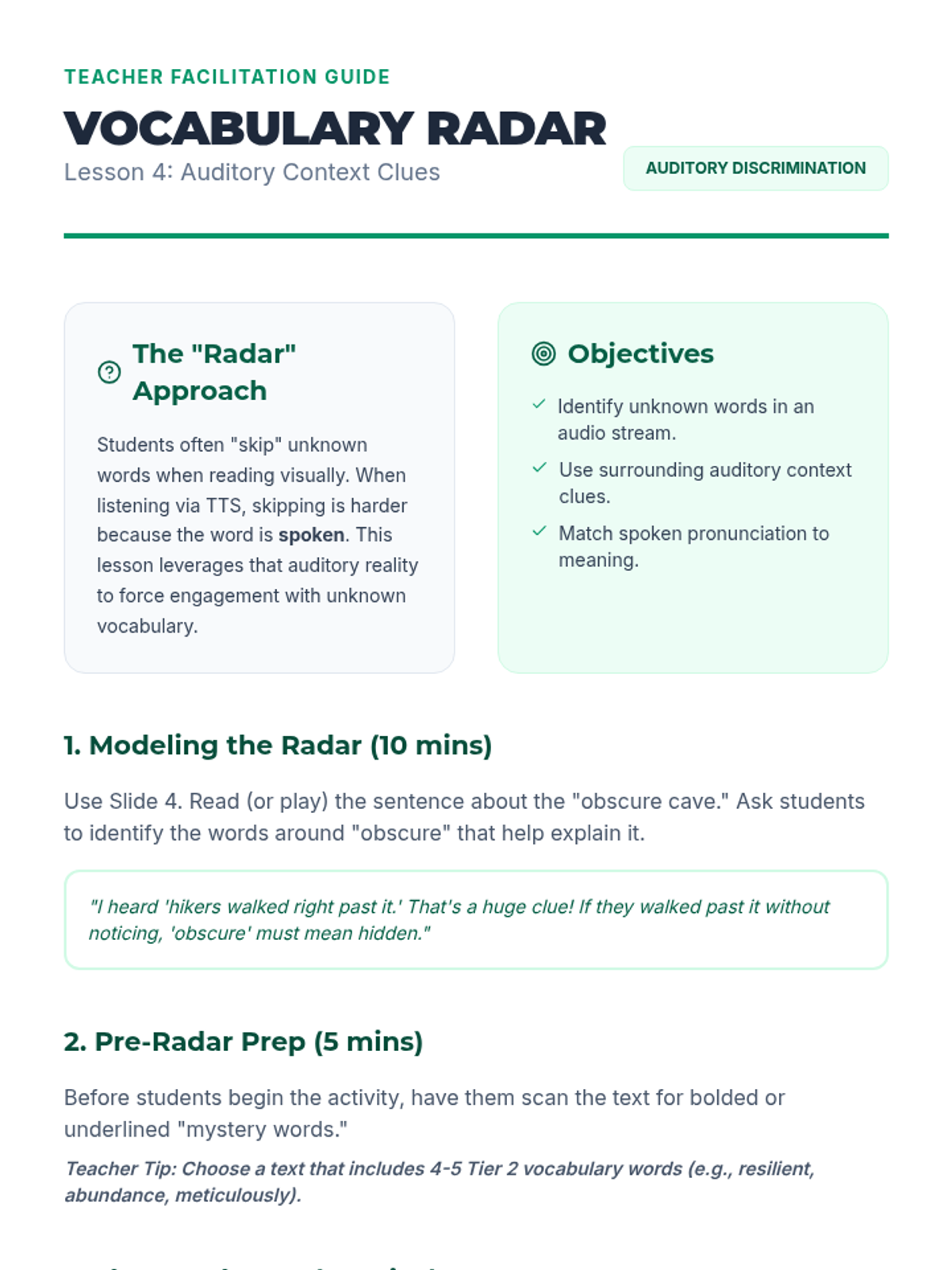
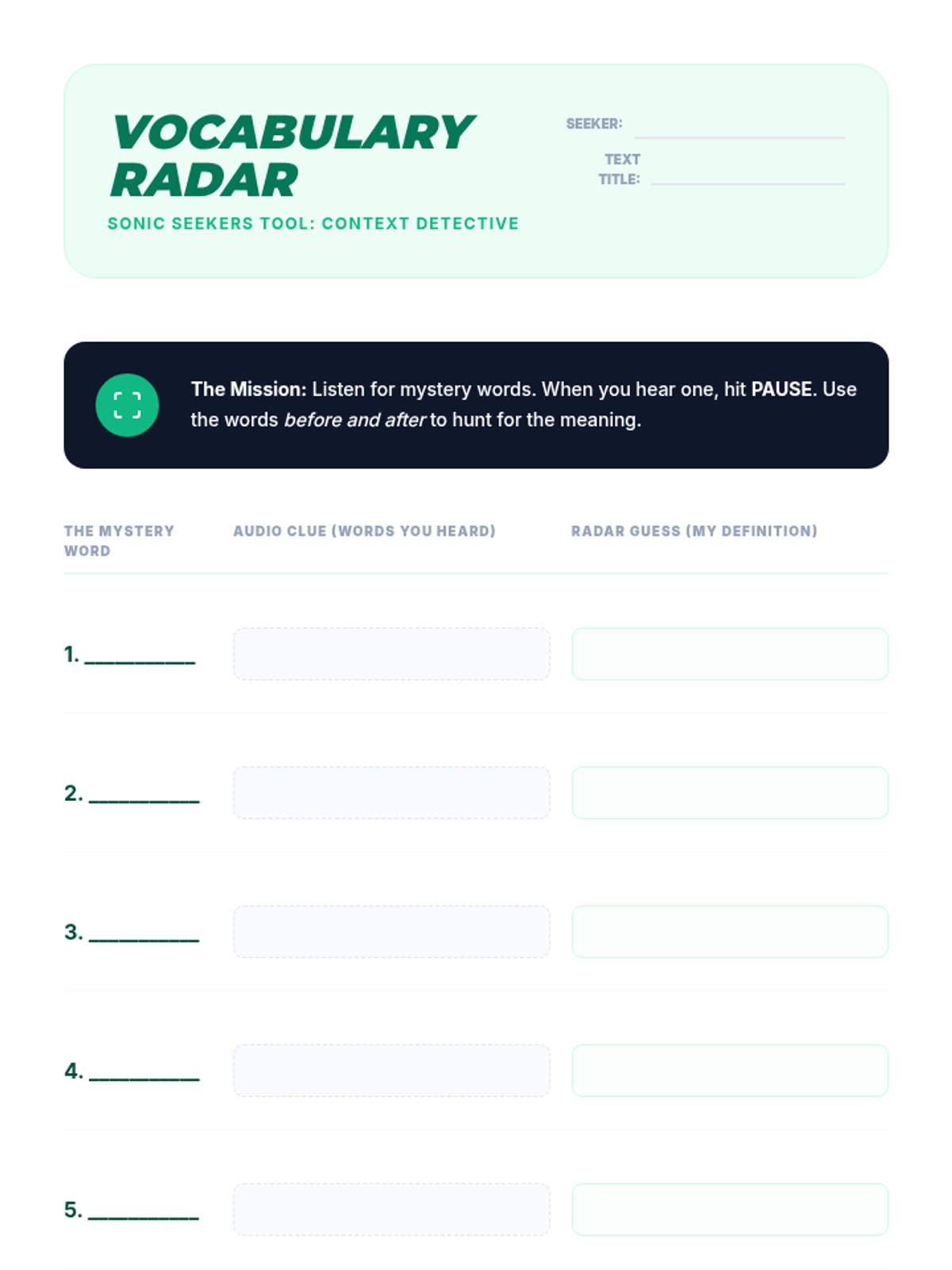
Students encounter challenging vocabulary words within a text. They use TTS to hear proper pronunciation and use context clues from the audio flow to define words before checking definitions.
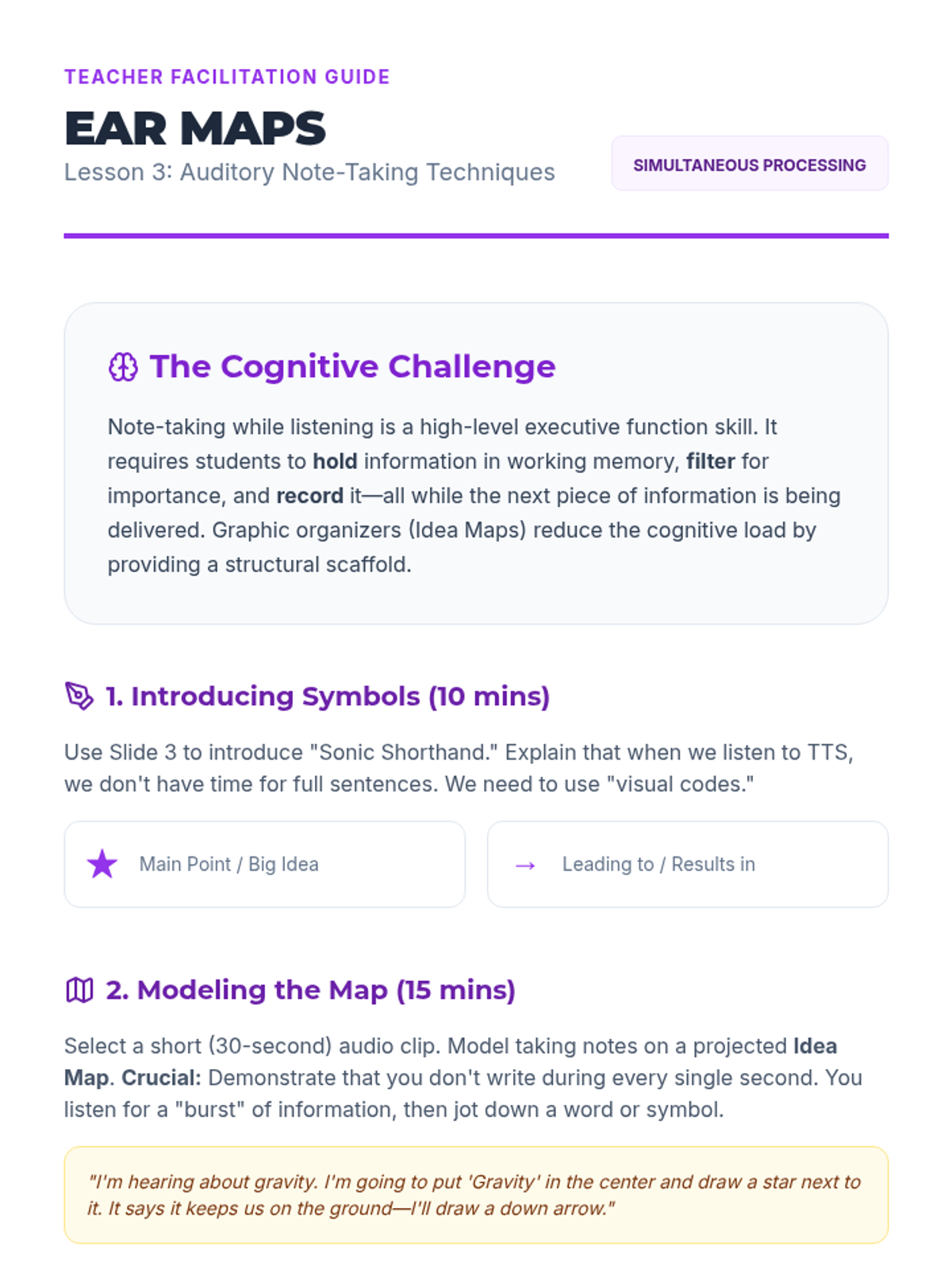
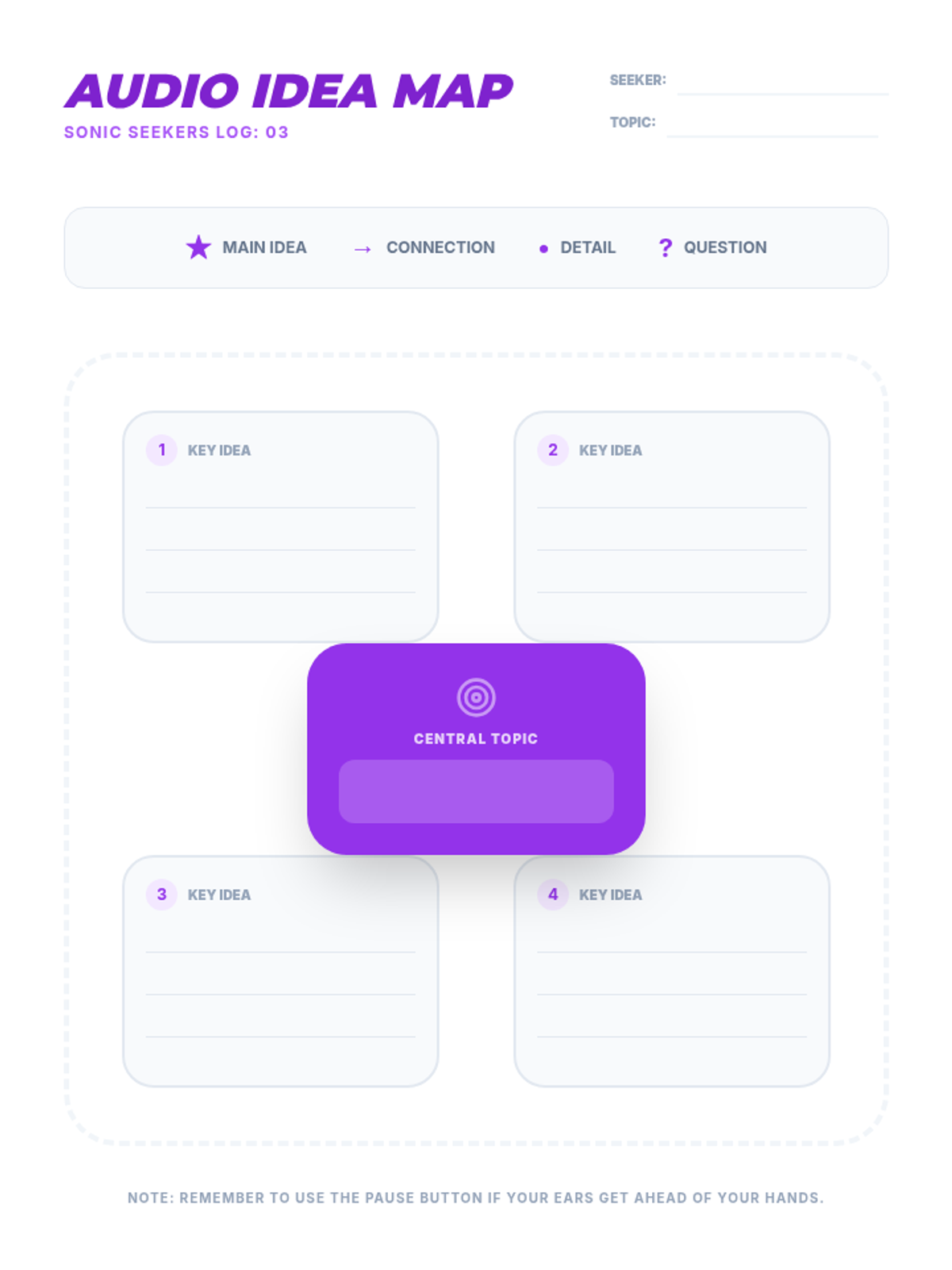
This lesson introduces graphic organizers designed for auditory learners. Students practice listening to a TTS-read article and simultaneously mapping out key ideas and supporting details.
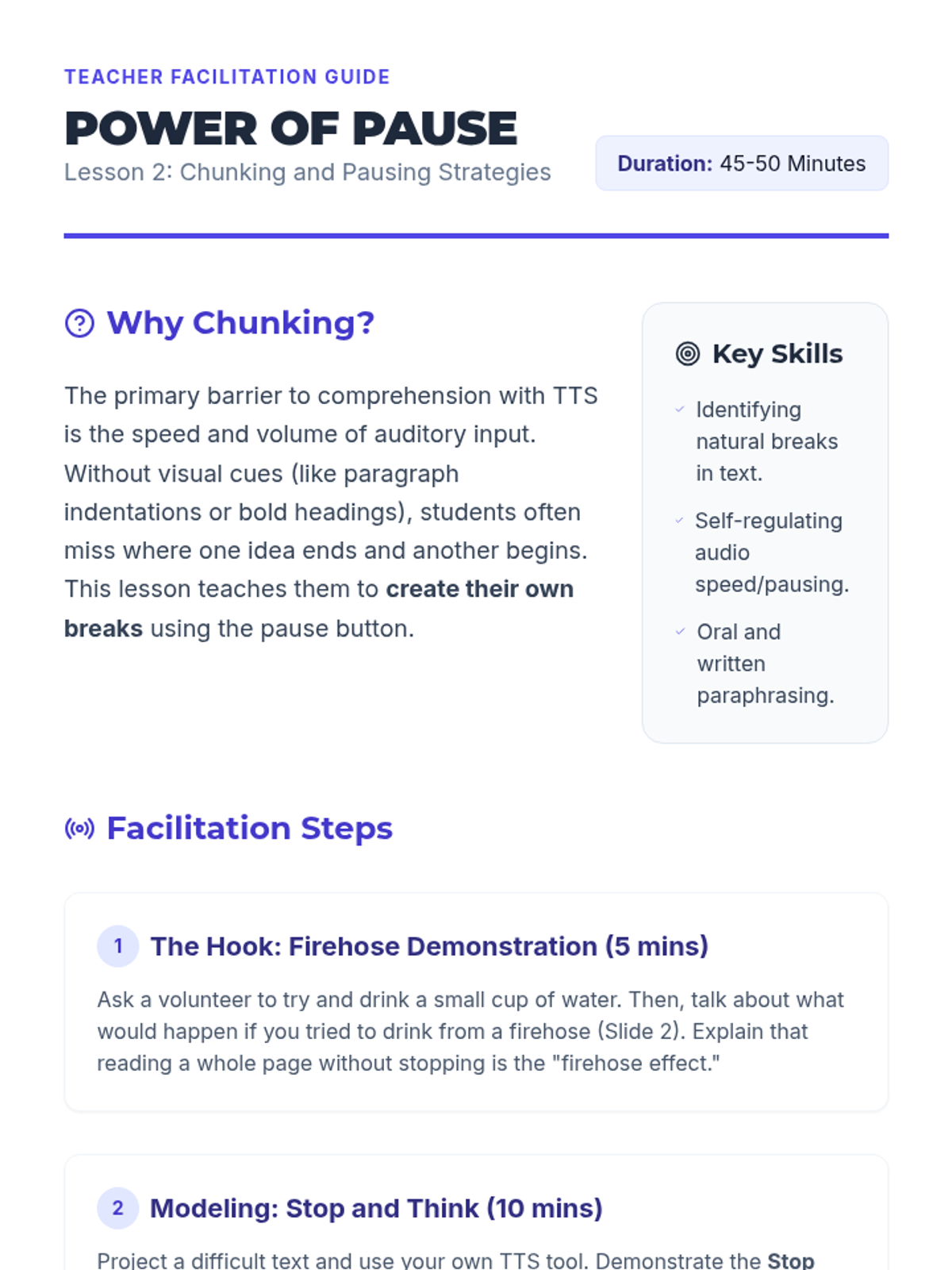
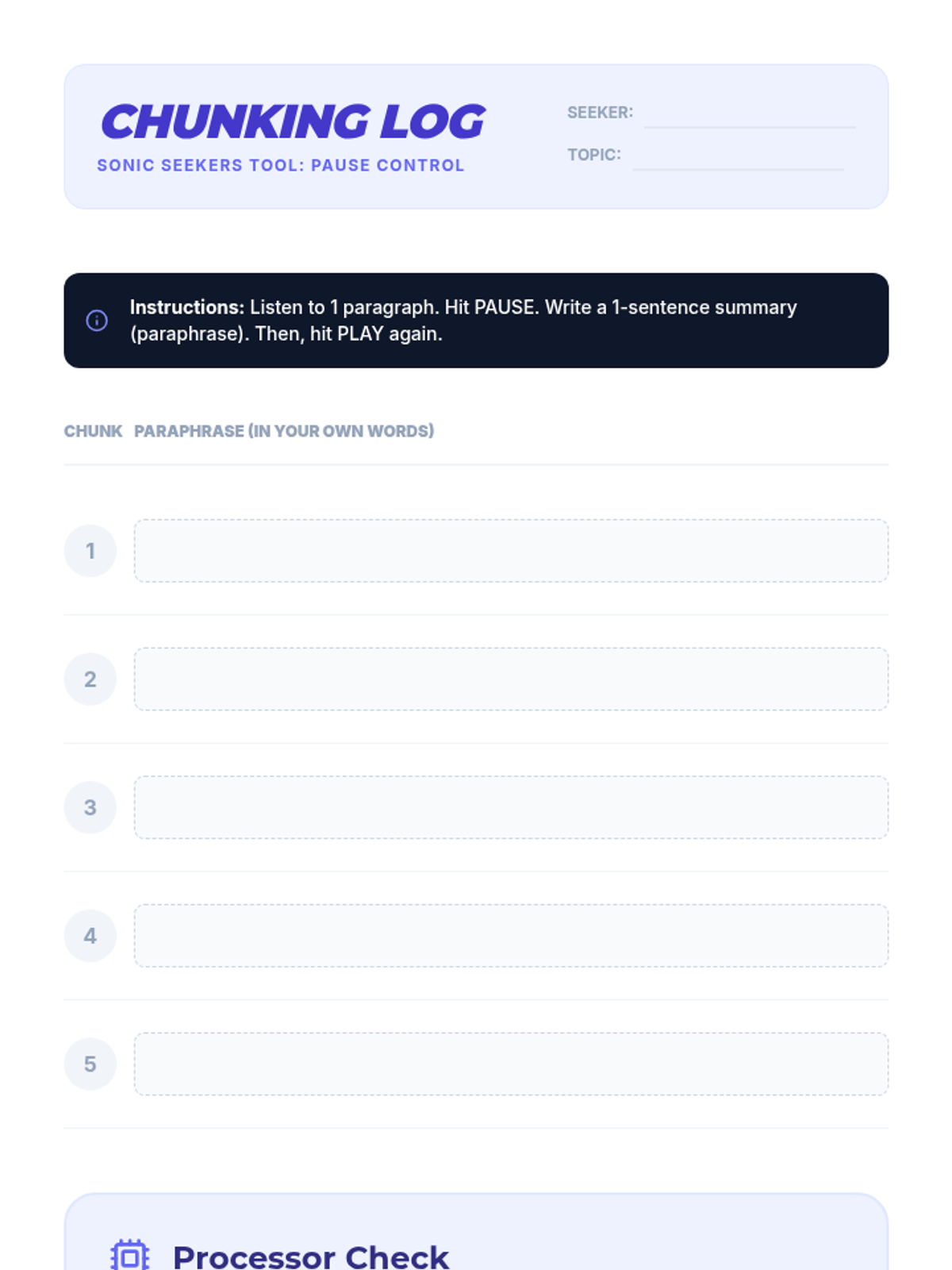
Students learn the 'Stop and Think' method, using the pause button to break dense text into manageable chunks. They practice paraphrasing orally or in writing after every segment played by the TTS tool.
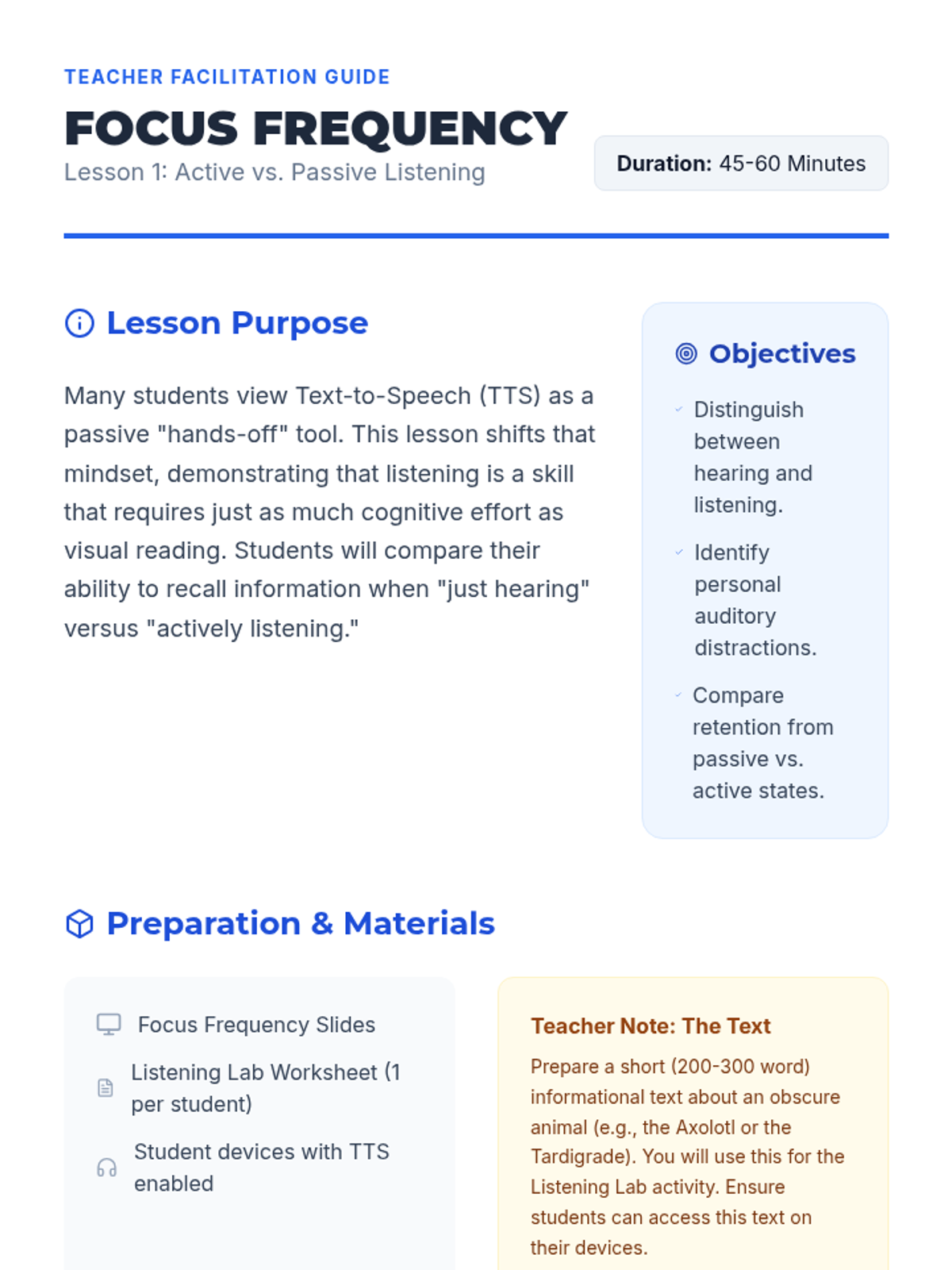
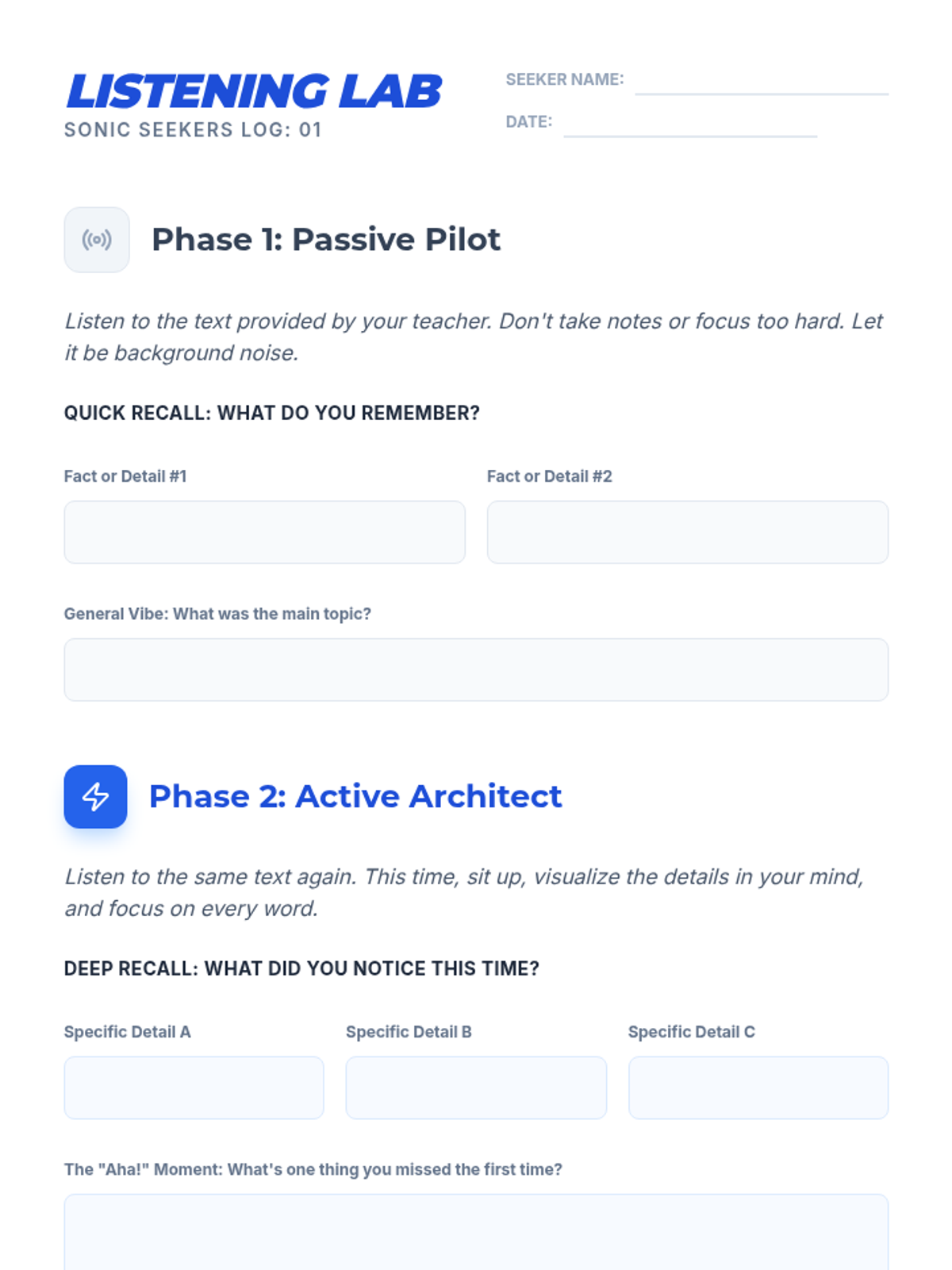
Students compare retention when passively listening to TTS versus active engagement. They identify distractions and brainstorm environments and behaviors that support deep listening.
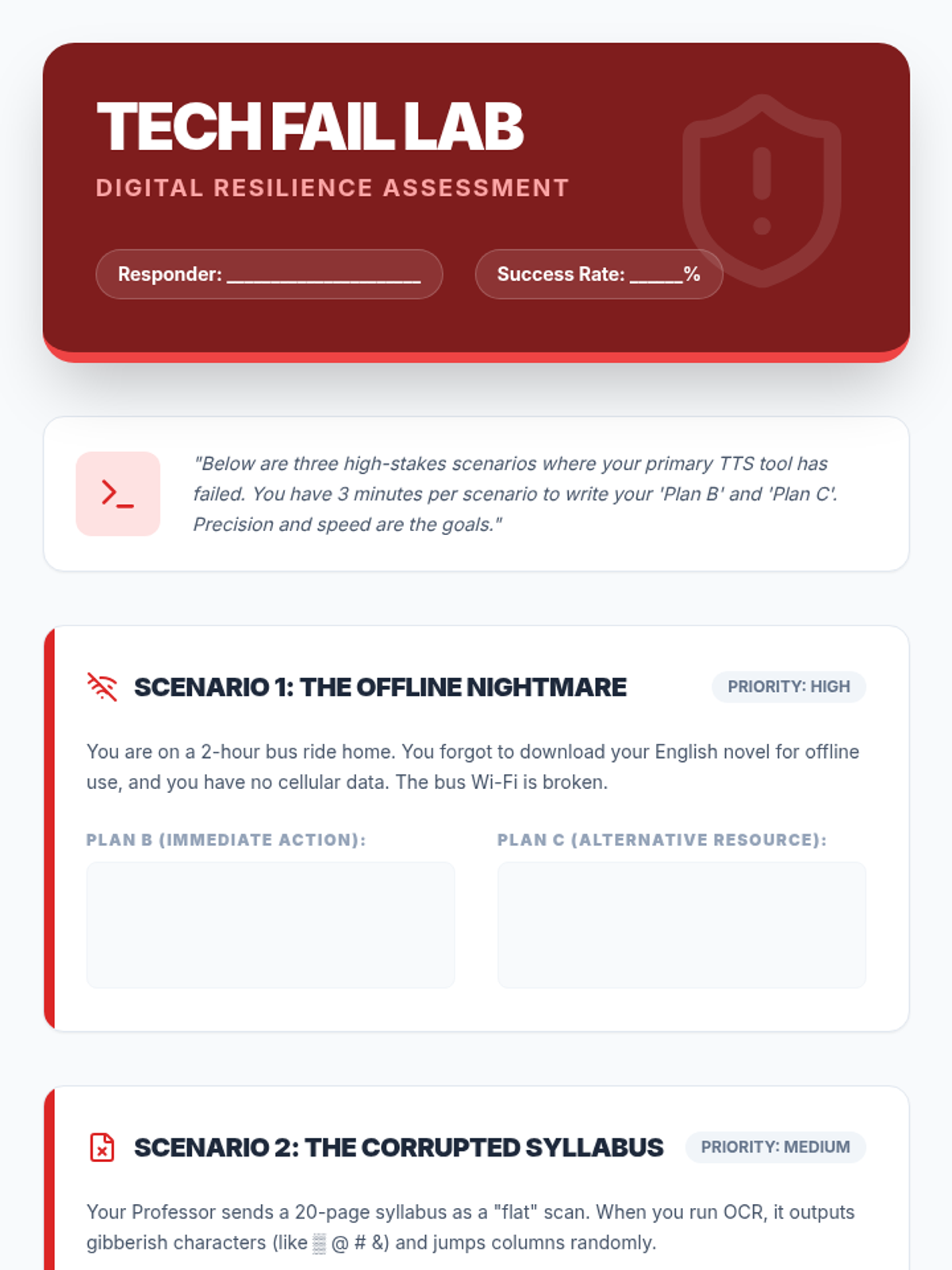
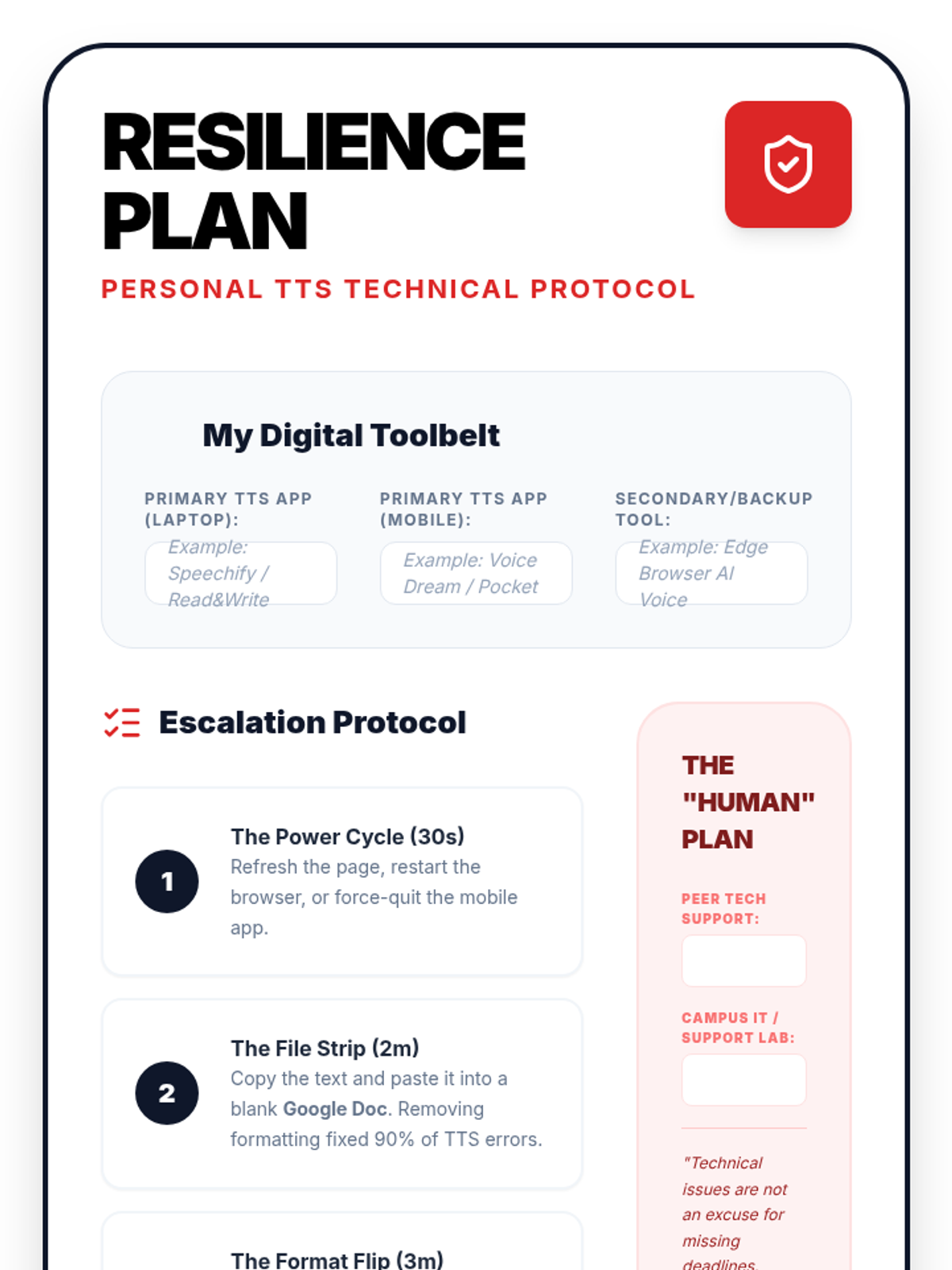
In this final lesson, students practice solving common TTS technical failures. They develop 'digital resilience' by creating backup plans for high-stakes academic situations.
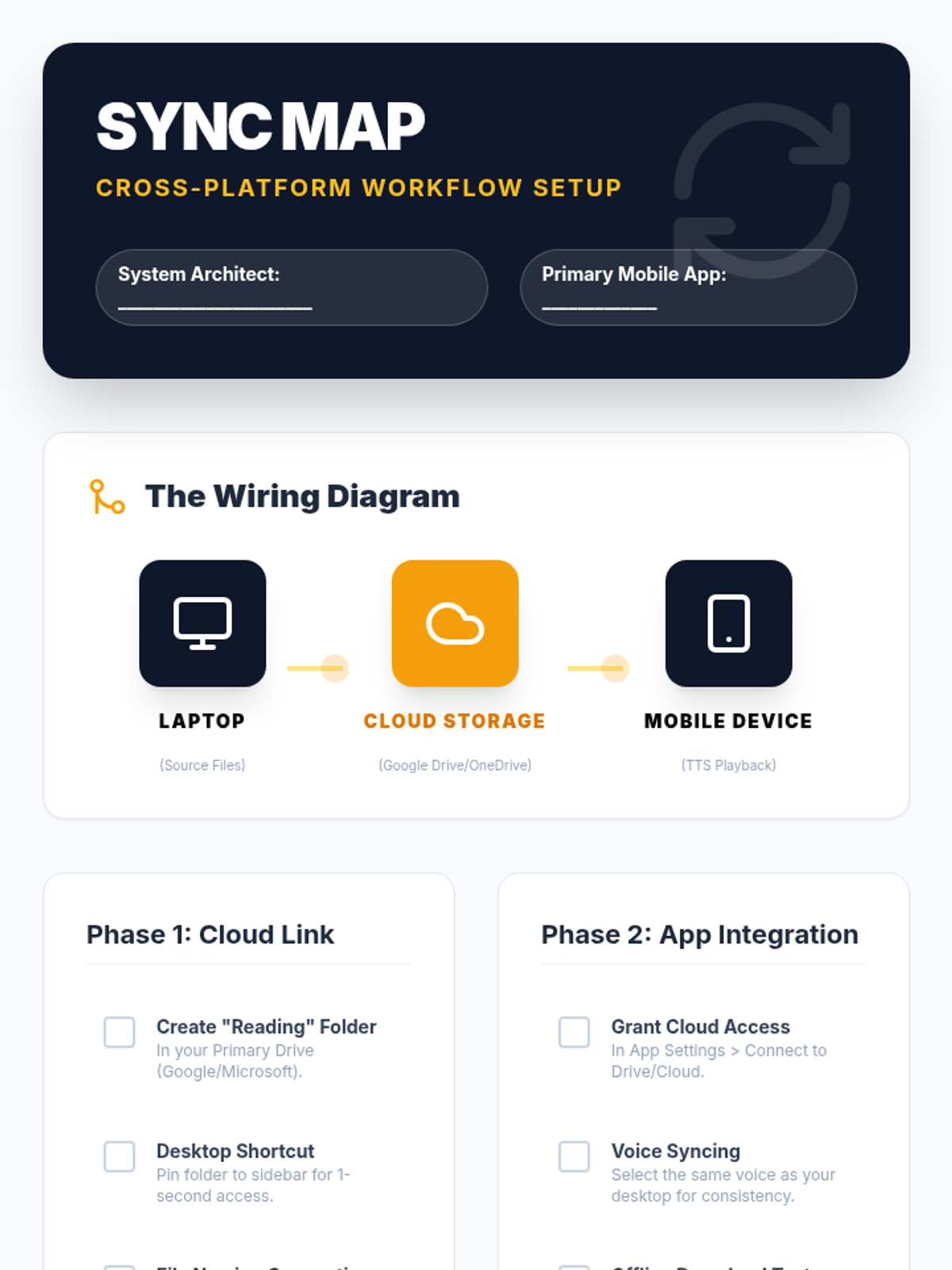
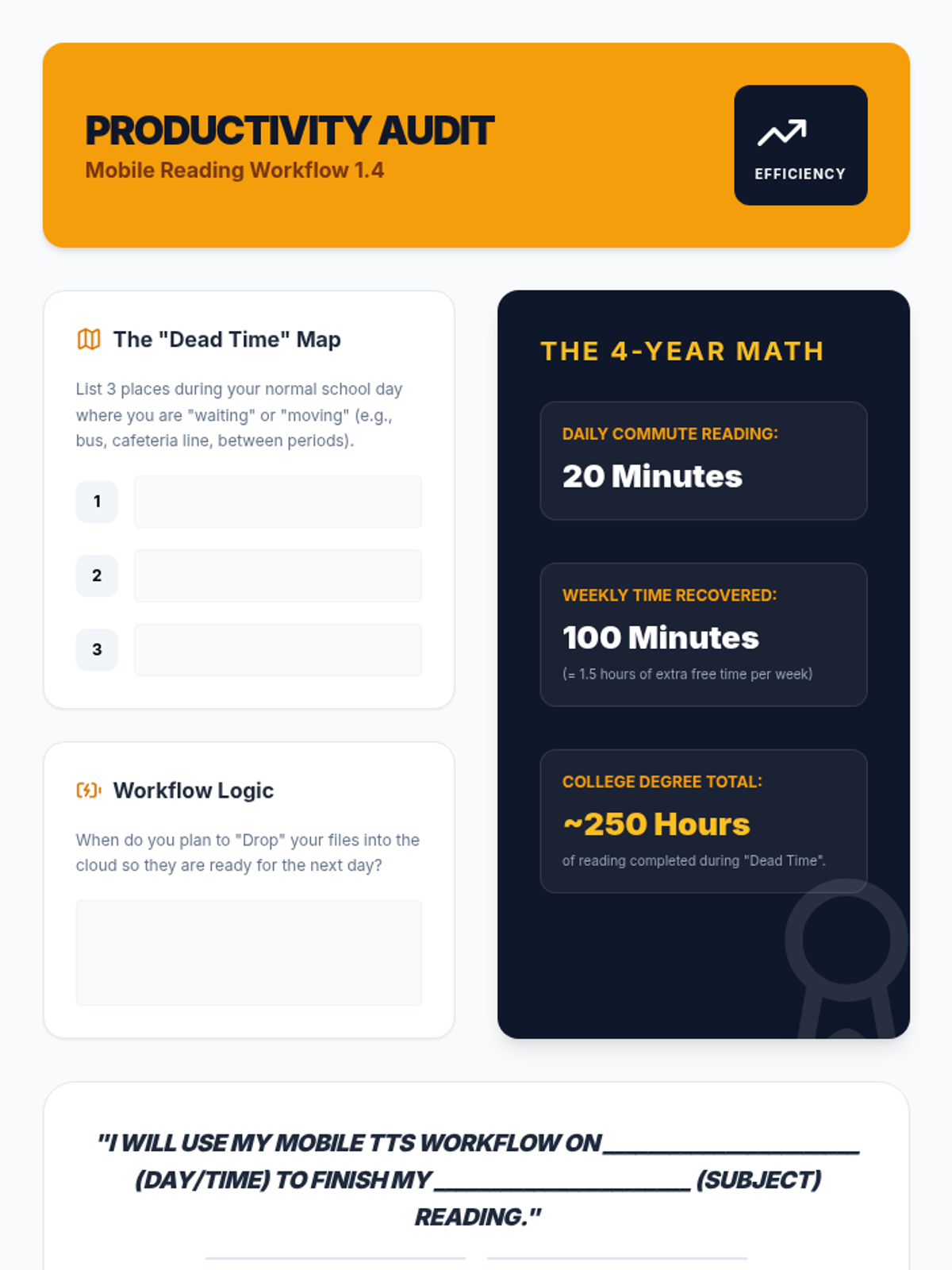
Students set up mobile reading ecosystems, syncing their computer-based reading lists with mobile devices for on-the-go learning and effective time management.
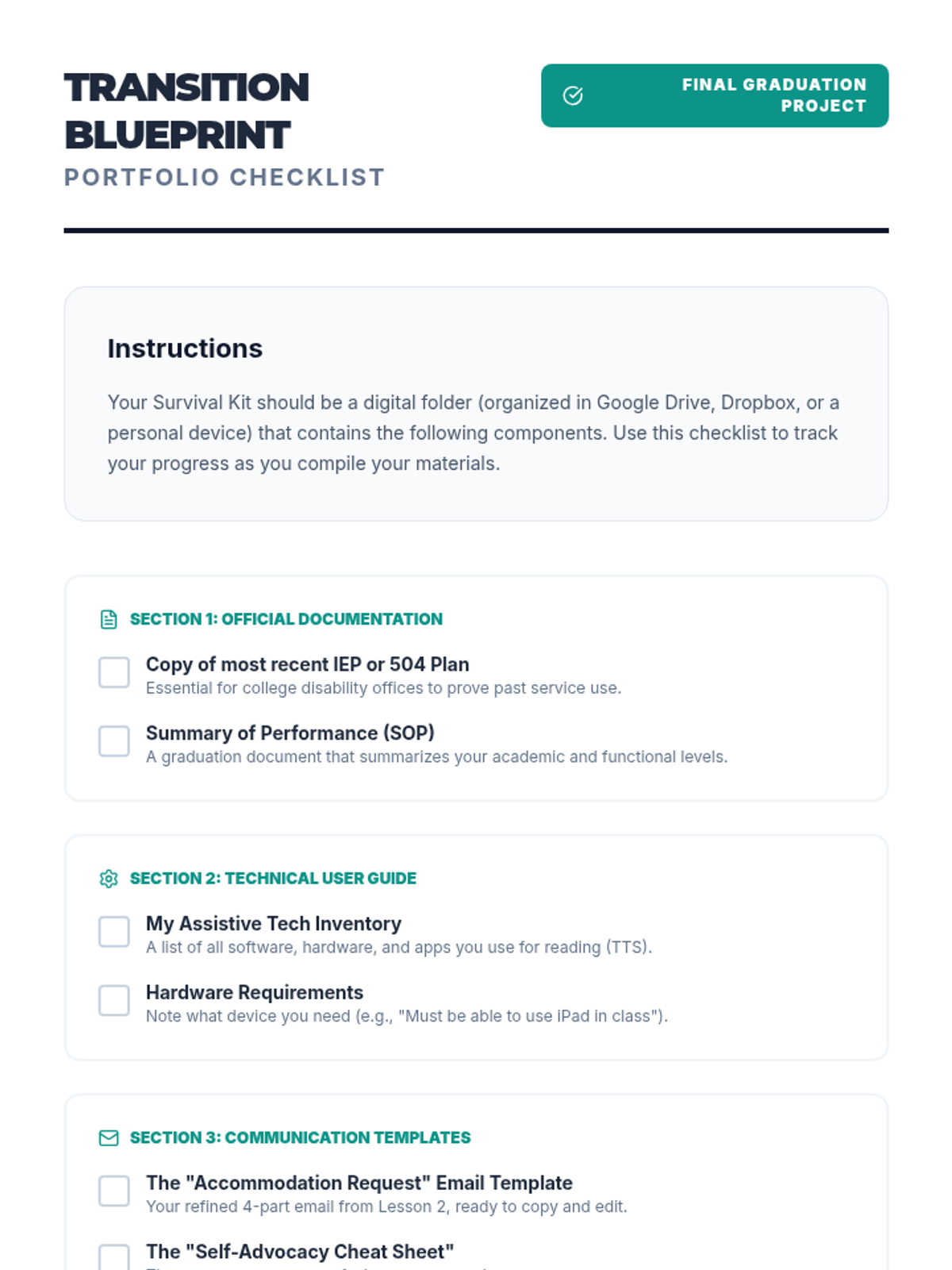
In this culminating lesson, students compile a digital portfolio listing their preferred software, proof of diagnosis/need, and templates for requesting accommodations.
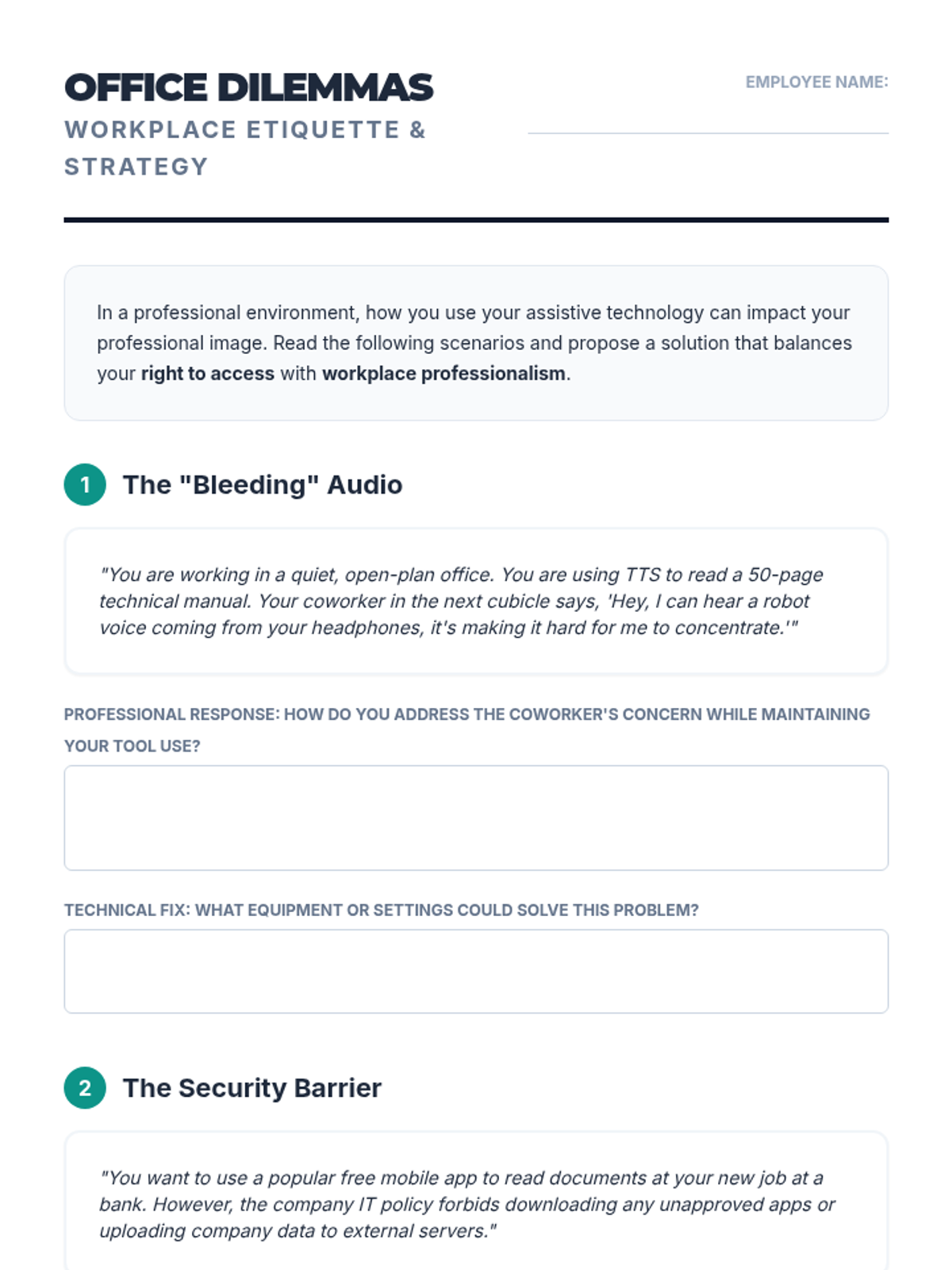
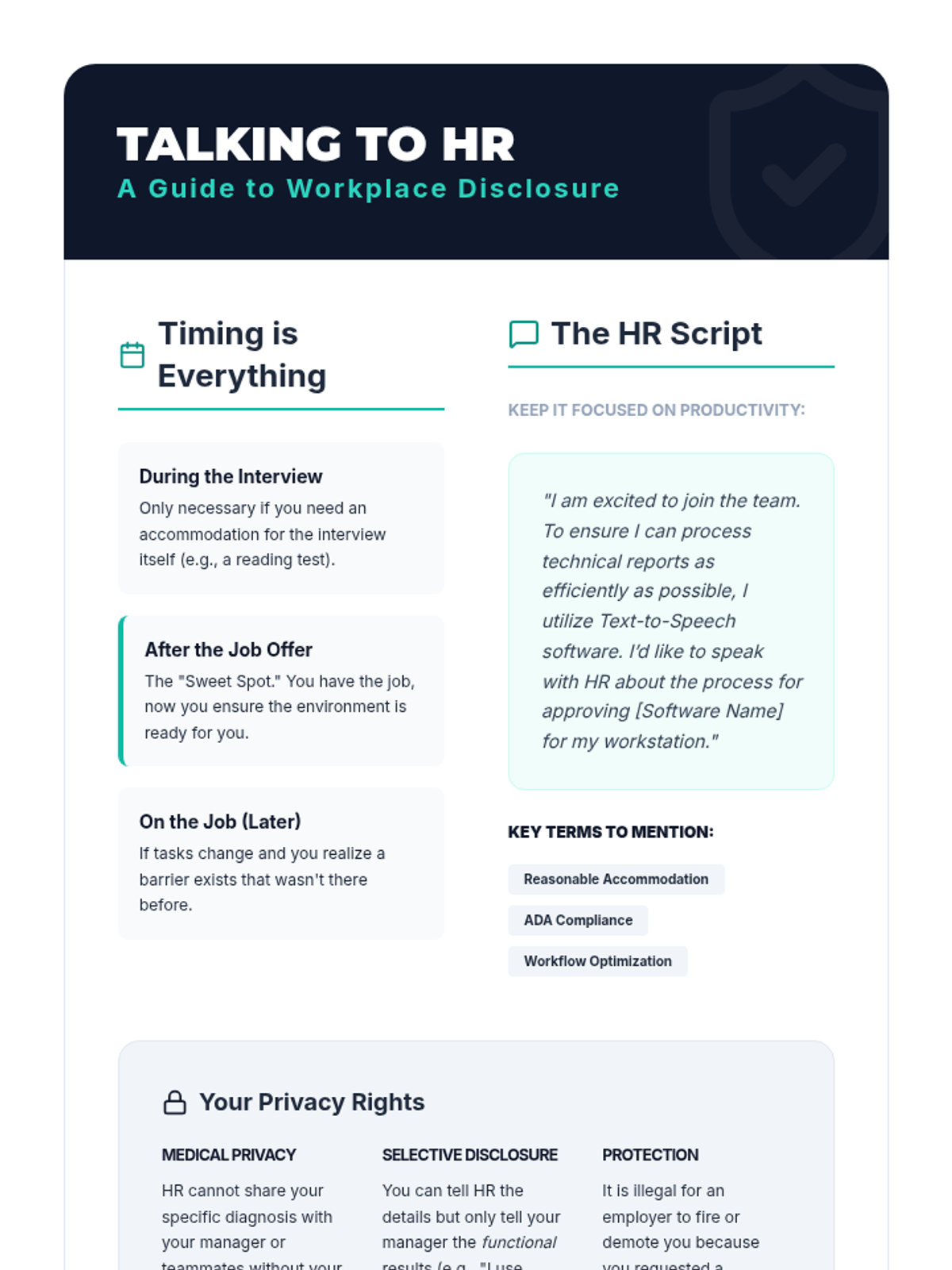
Students explore how TTS is perceived and utilized in corporate environments versus academic ones. They analyze workplace scenarios involving confidentiality, open-office etiquette, and disclosure to HR.
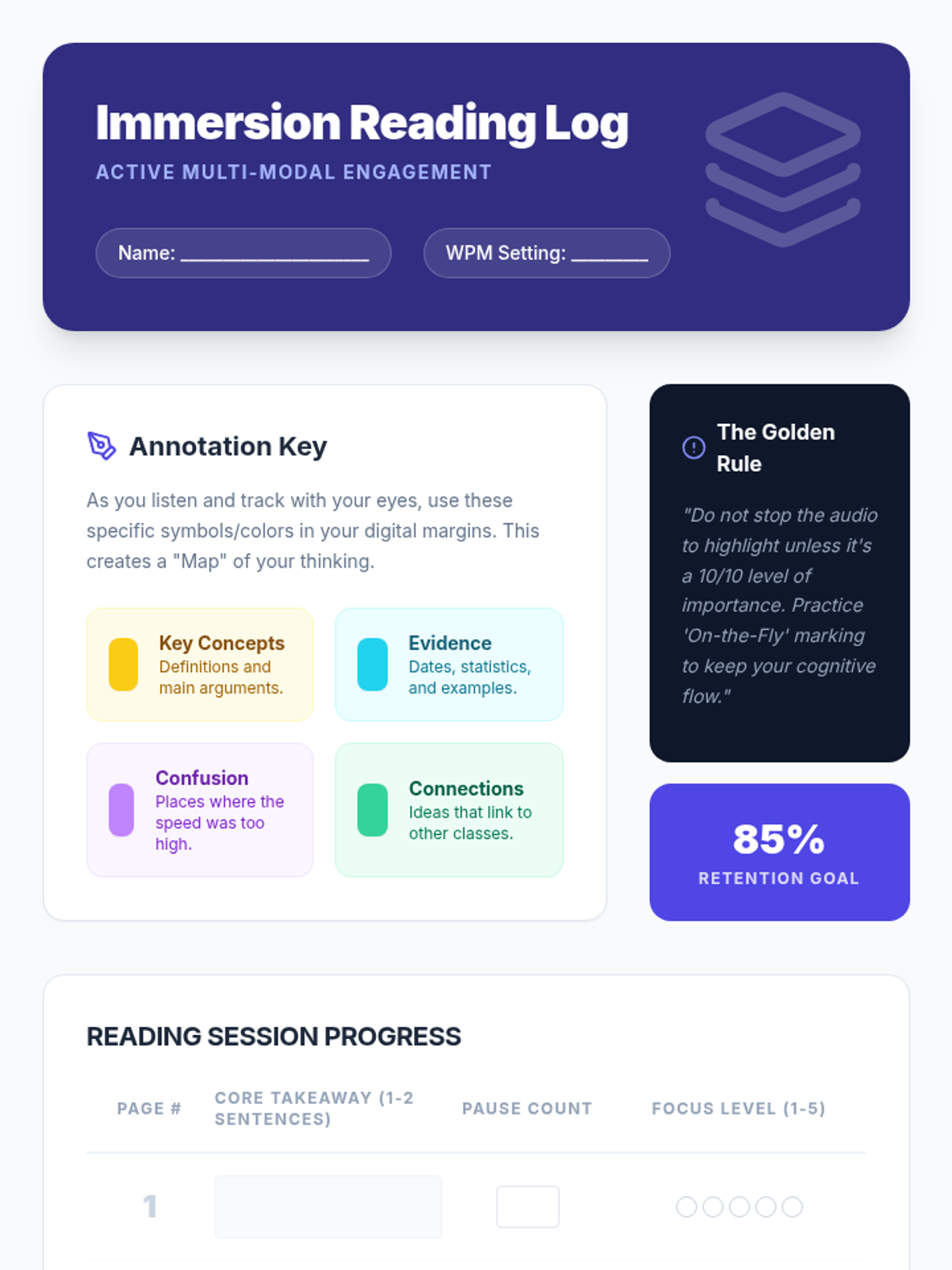
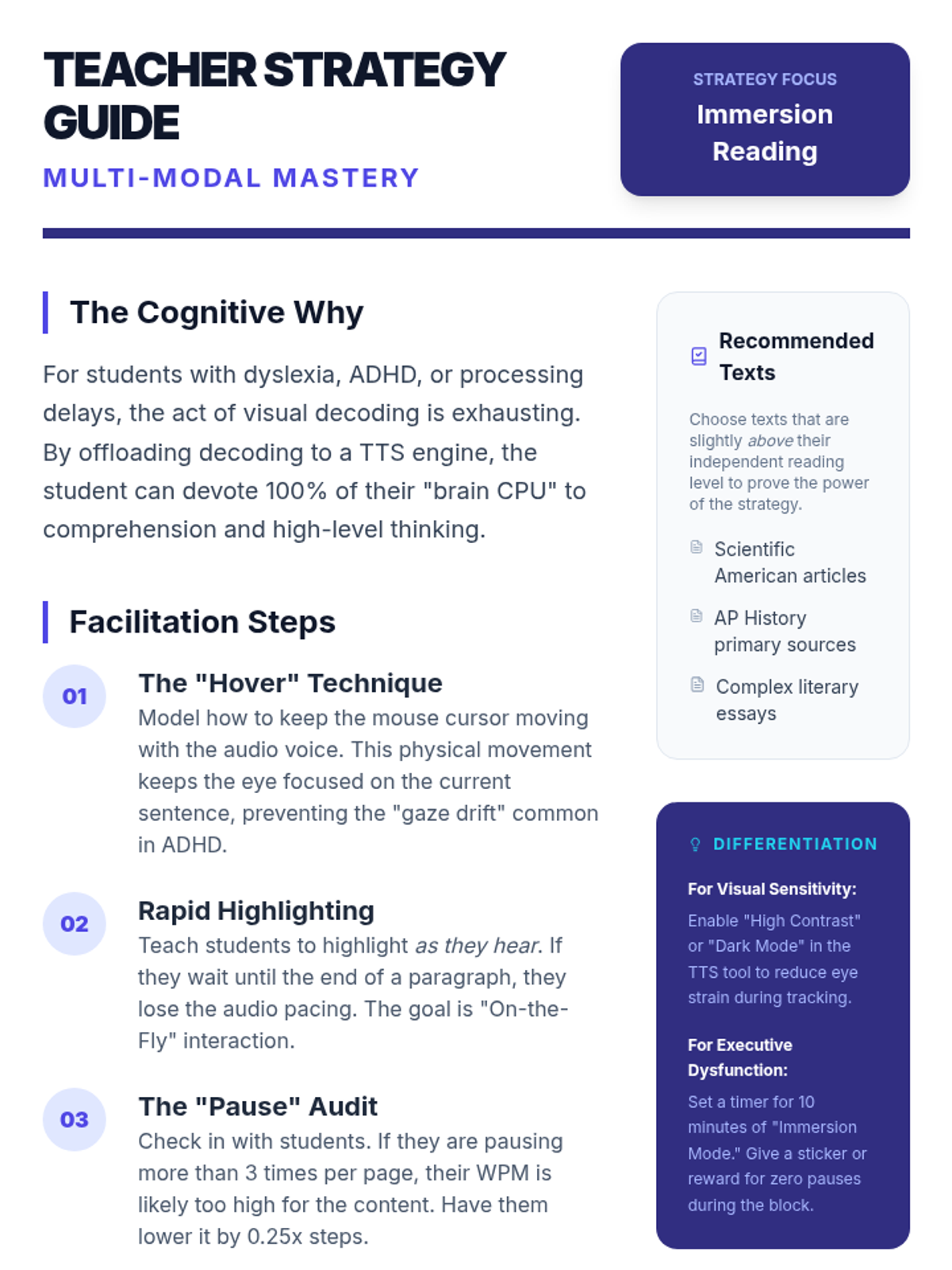
This lesson focuses on 'immersion reading'—the simultaneous use of auditory and visual input. Students learn to use digital annotation tools to mark up text while listening.
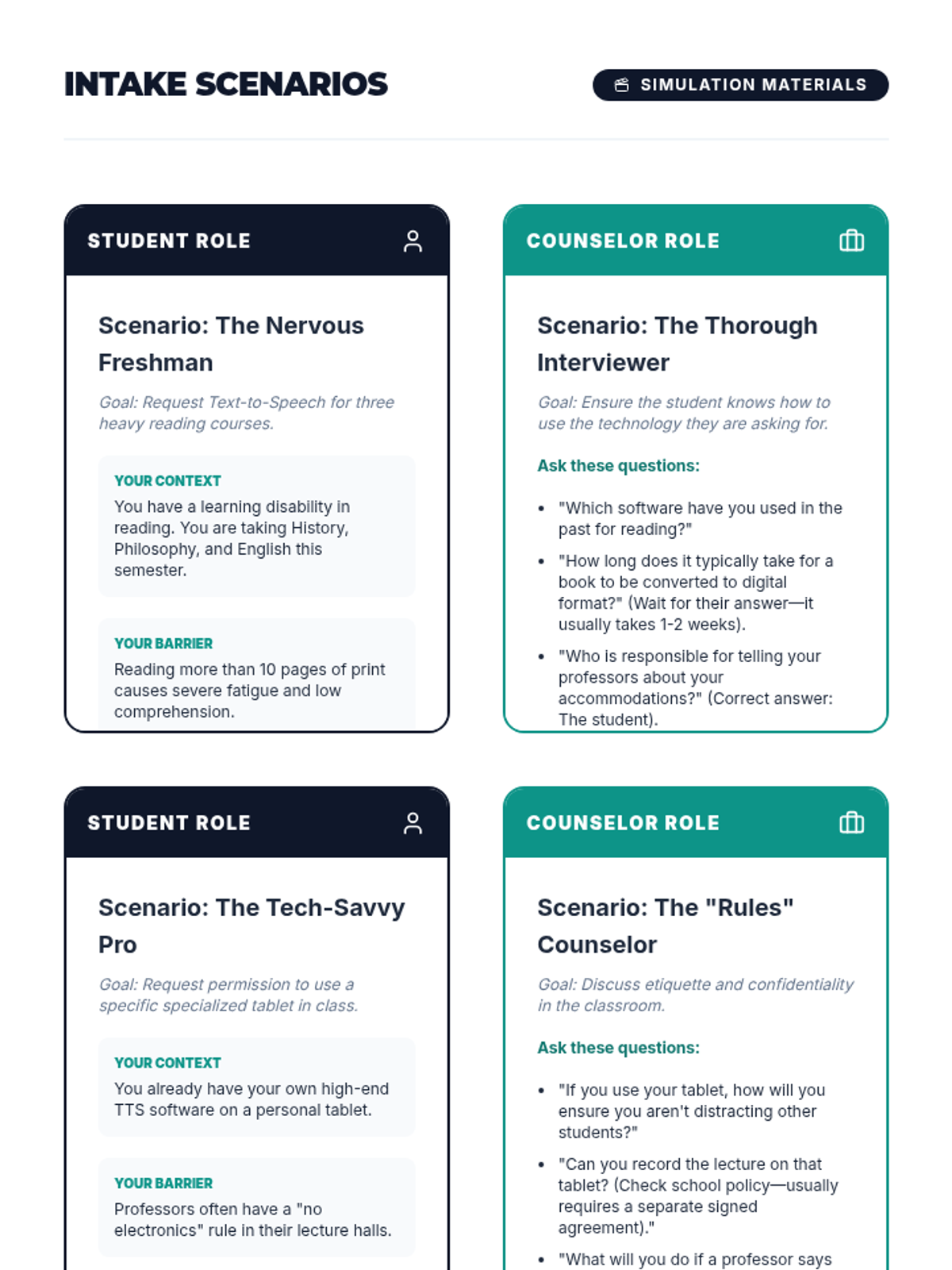
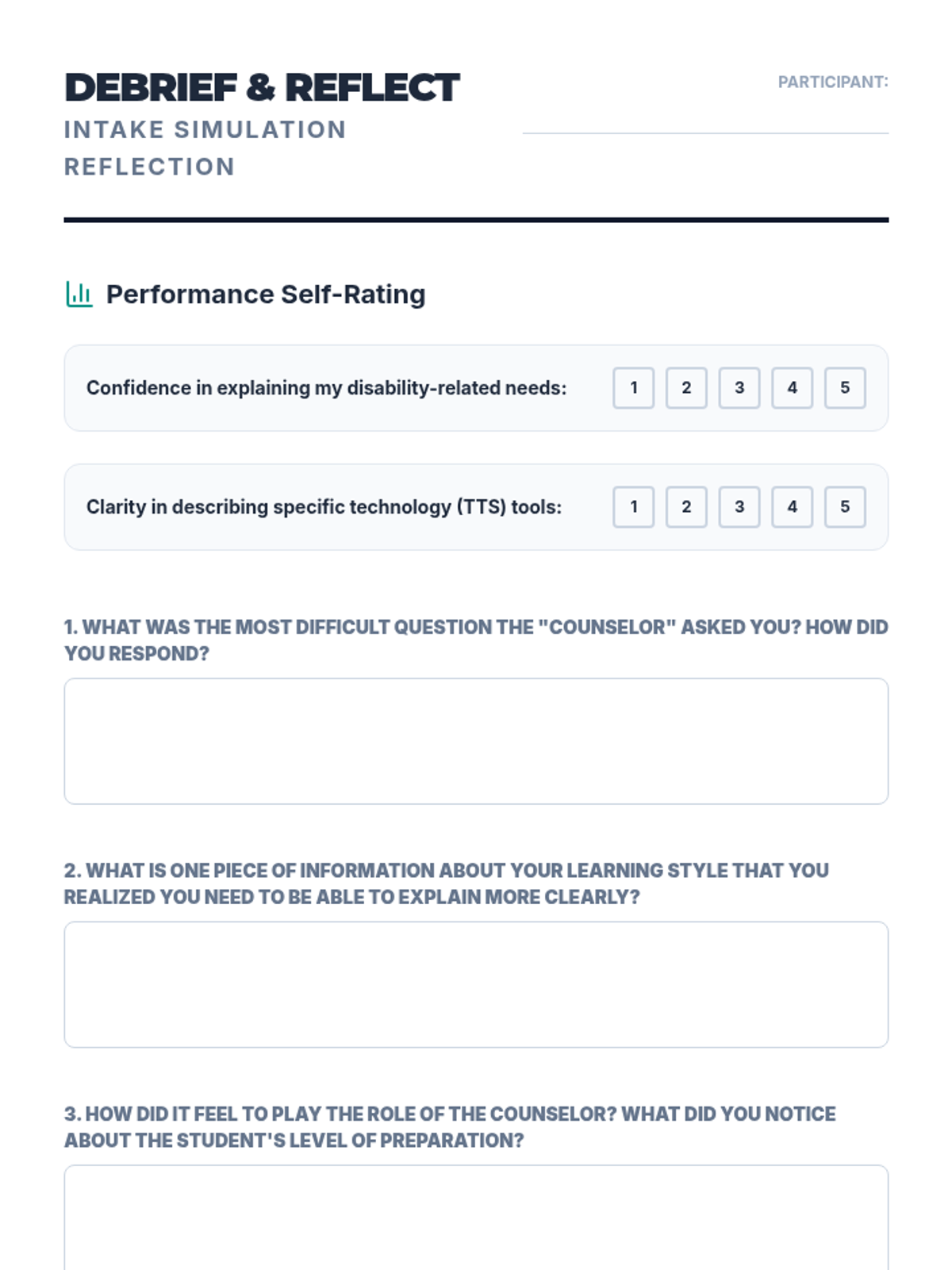
Using role-play, students practice the intake interview process common in college disability support centers. One student plays the counselor, the other the student explaining their need for TTS software and digital formats.
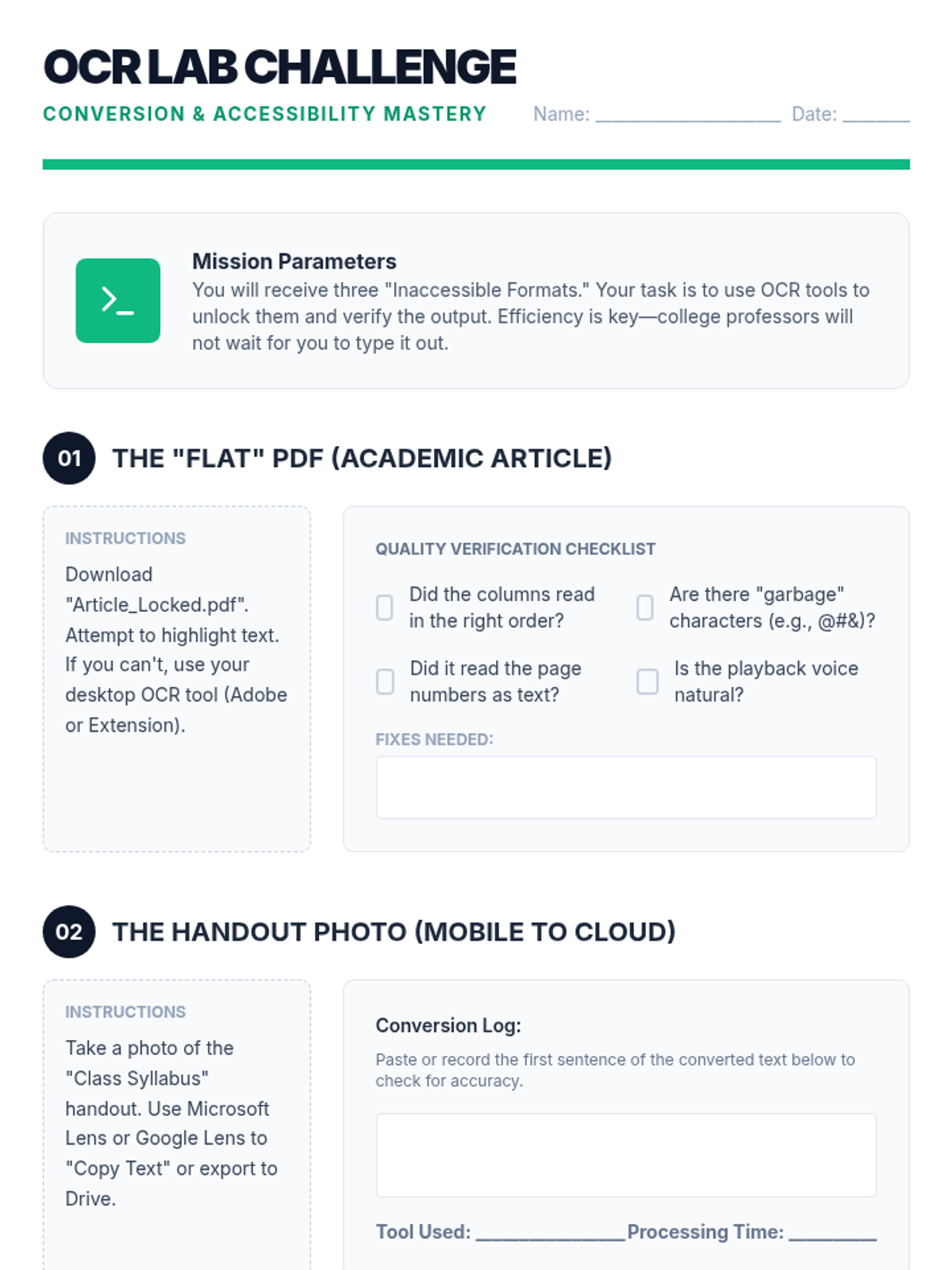
Students tackle inaccessible text formats using Optical Character Recognition (OCR). They will learn to convert images and flat PDFs into editable, readable text for TTS tools.
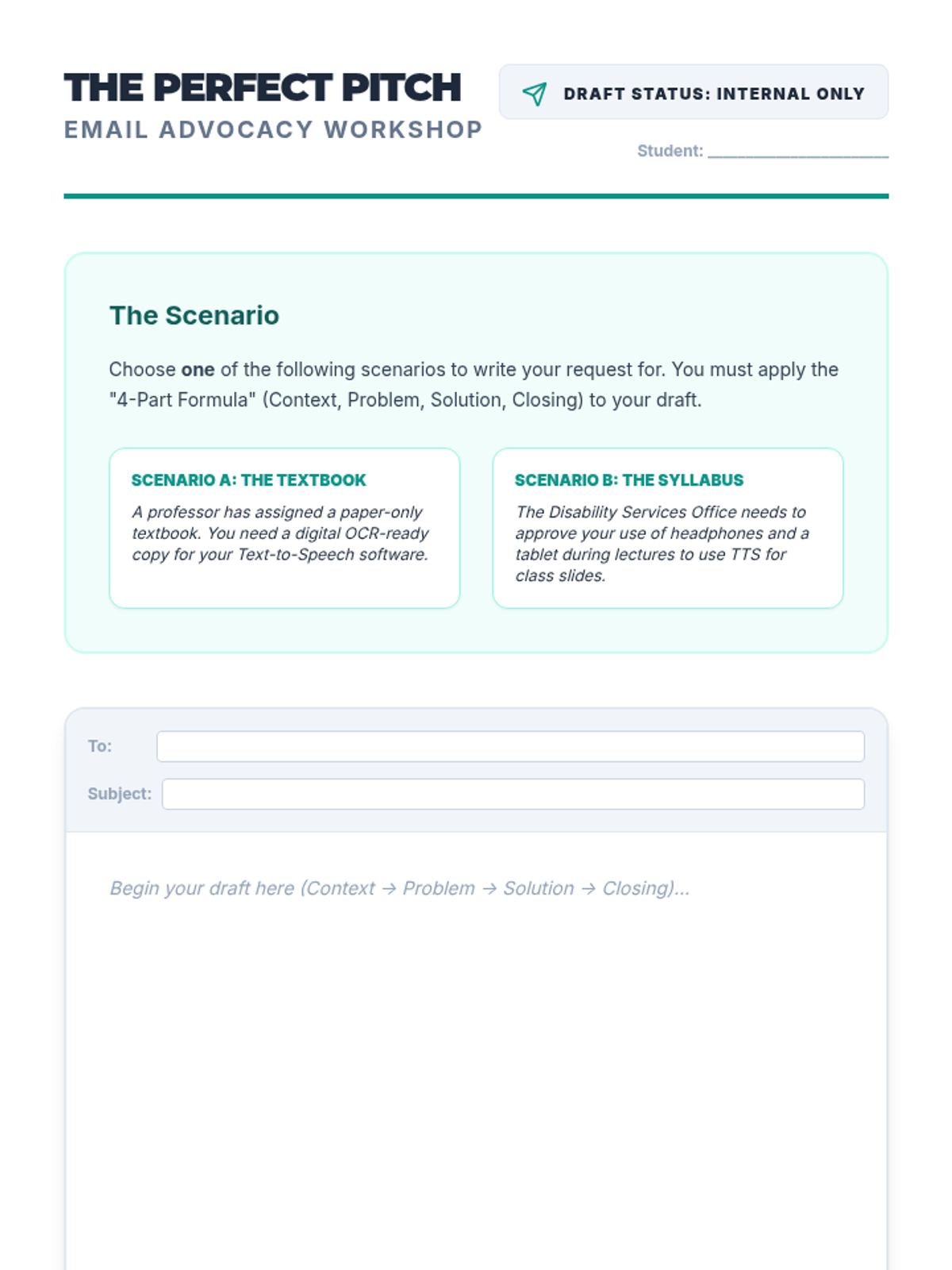
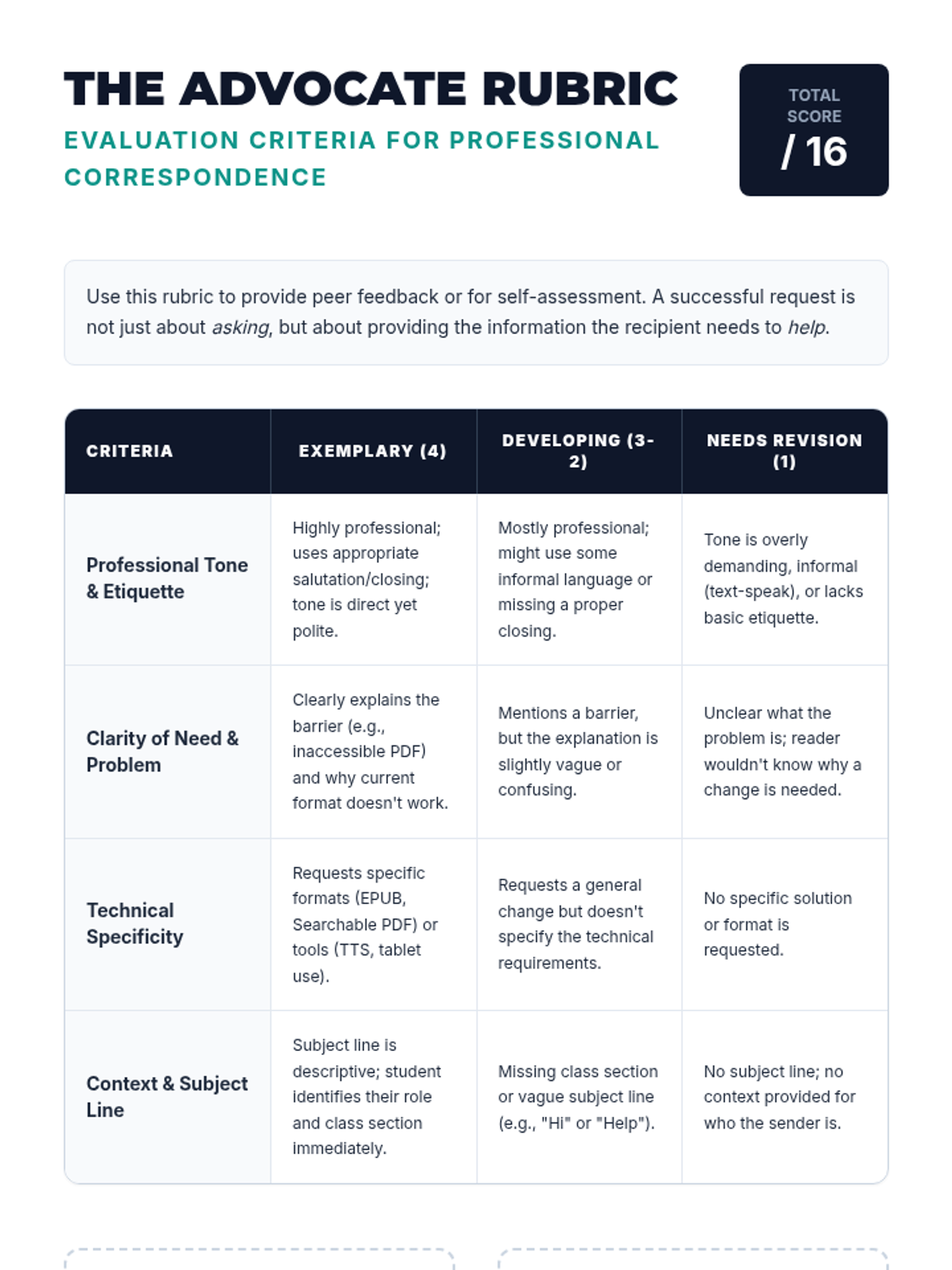
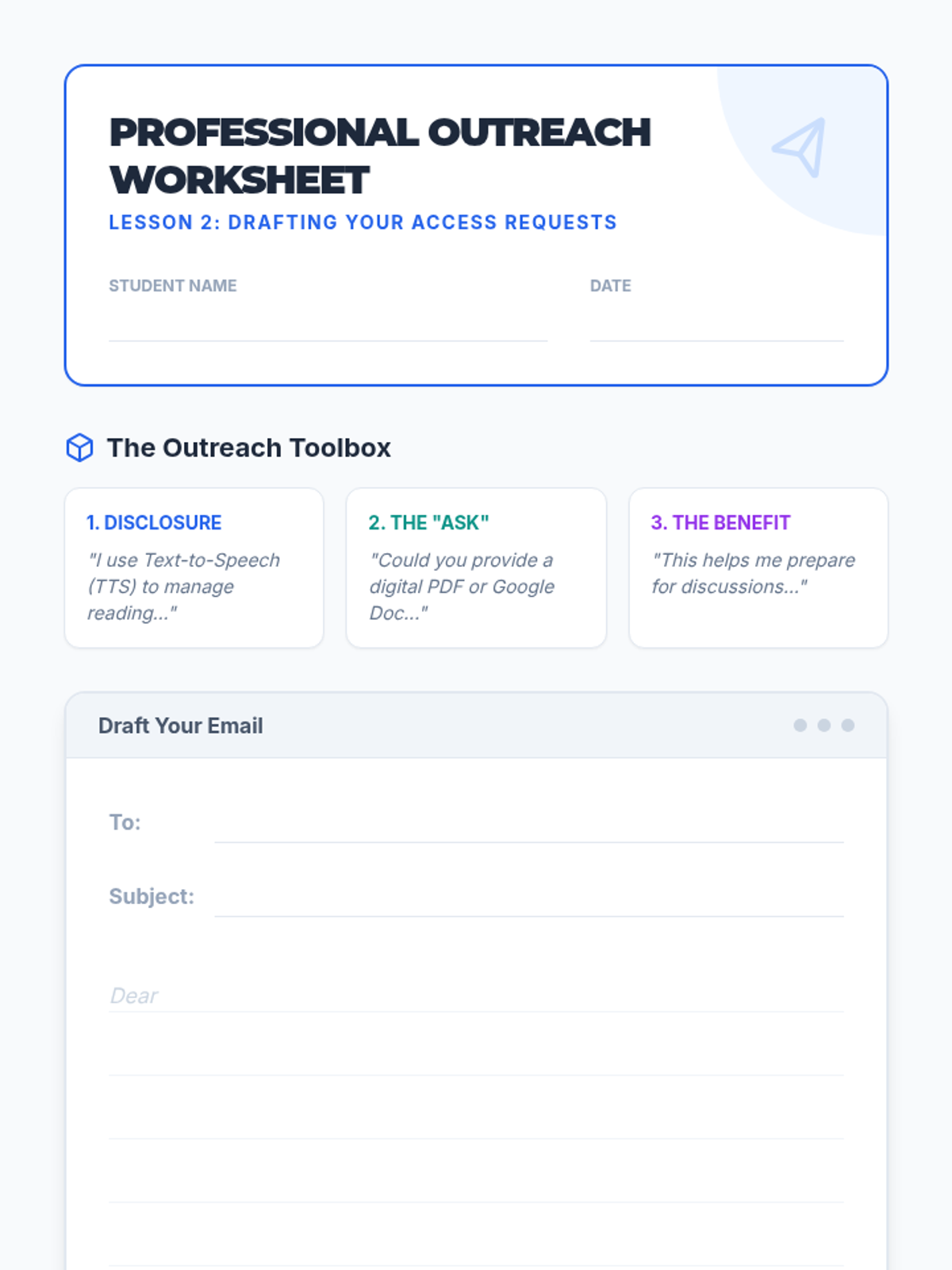
Students draft professional emails and scripts to request digital text formats from professors or disability service offices. They focus on professional tone, clarity of need, and specific technical requirements.
Students explore the impact of voice selection and playback speed on comprehension. They will determine their personal 'sweet spot' for different genres, learning to maximize efficiency without sacrificing retention.
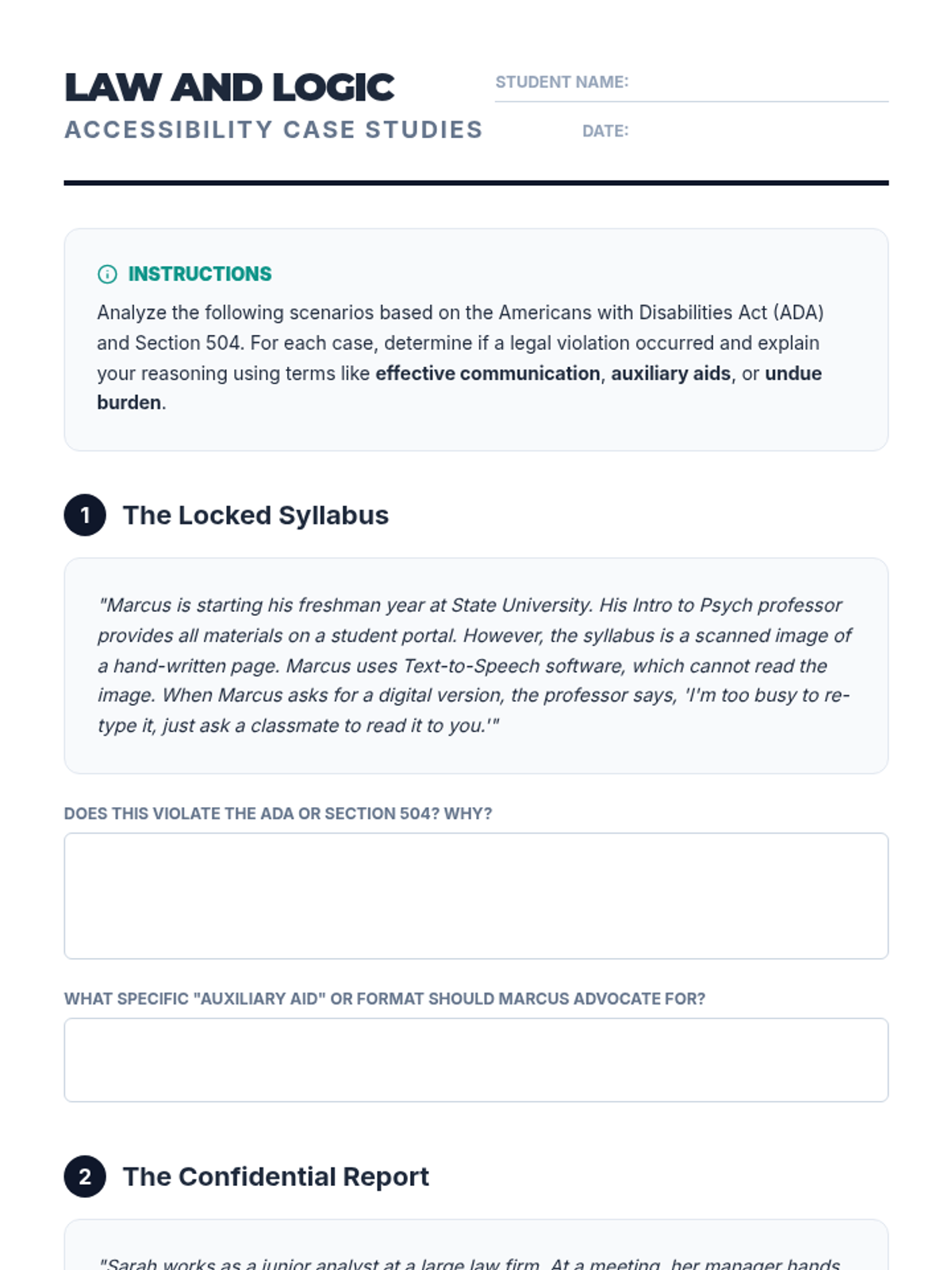
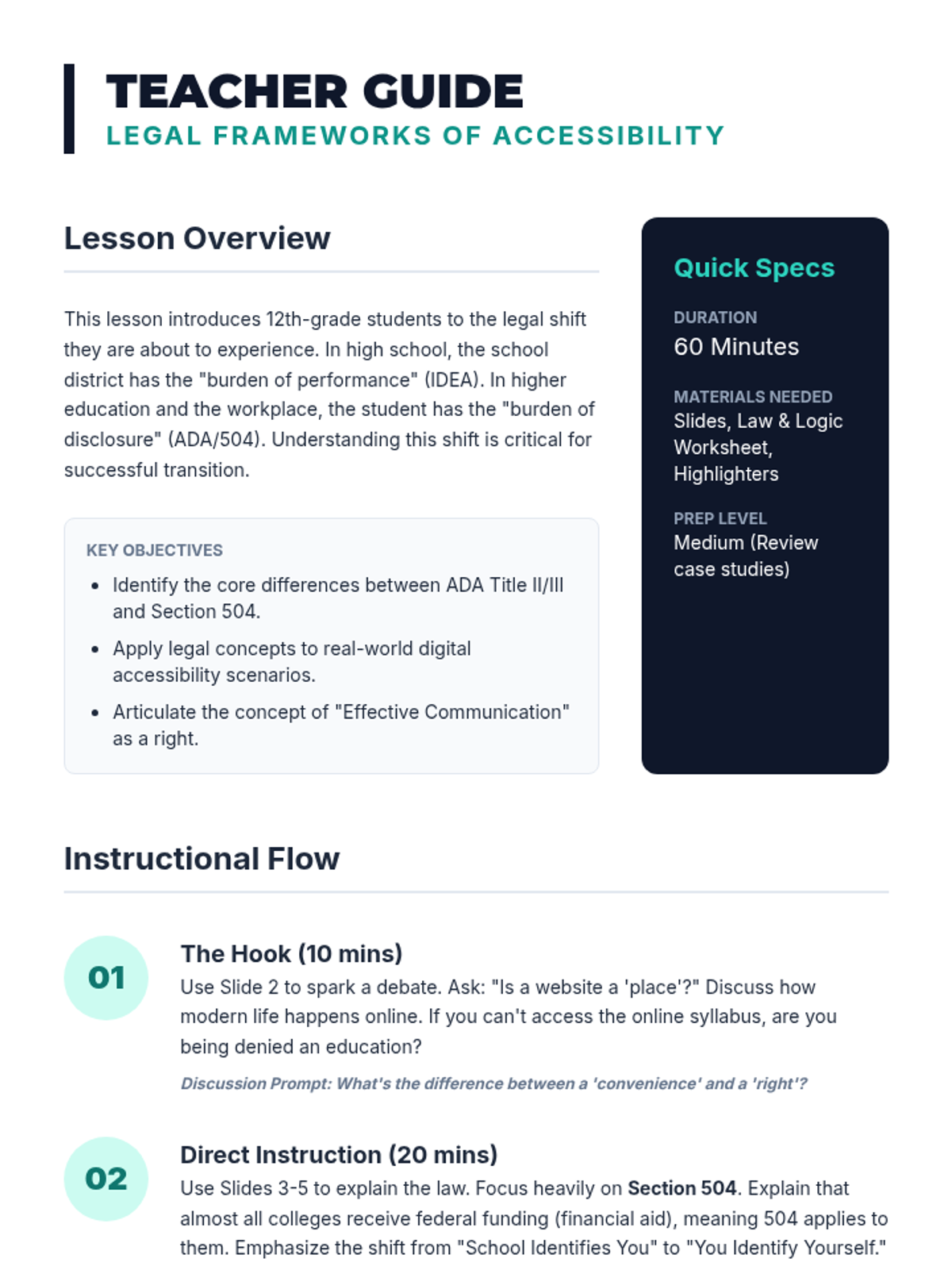
Students examine the Americans with Disabilities Act (ADA) and Section 504 to understand their legal rights regarding accessible text and assistive technology. They will analyze case studies of accessibility lawsuits to understand the legal obligation of institutions to provide digital formats.
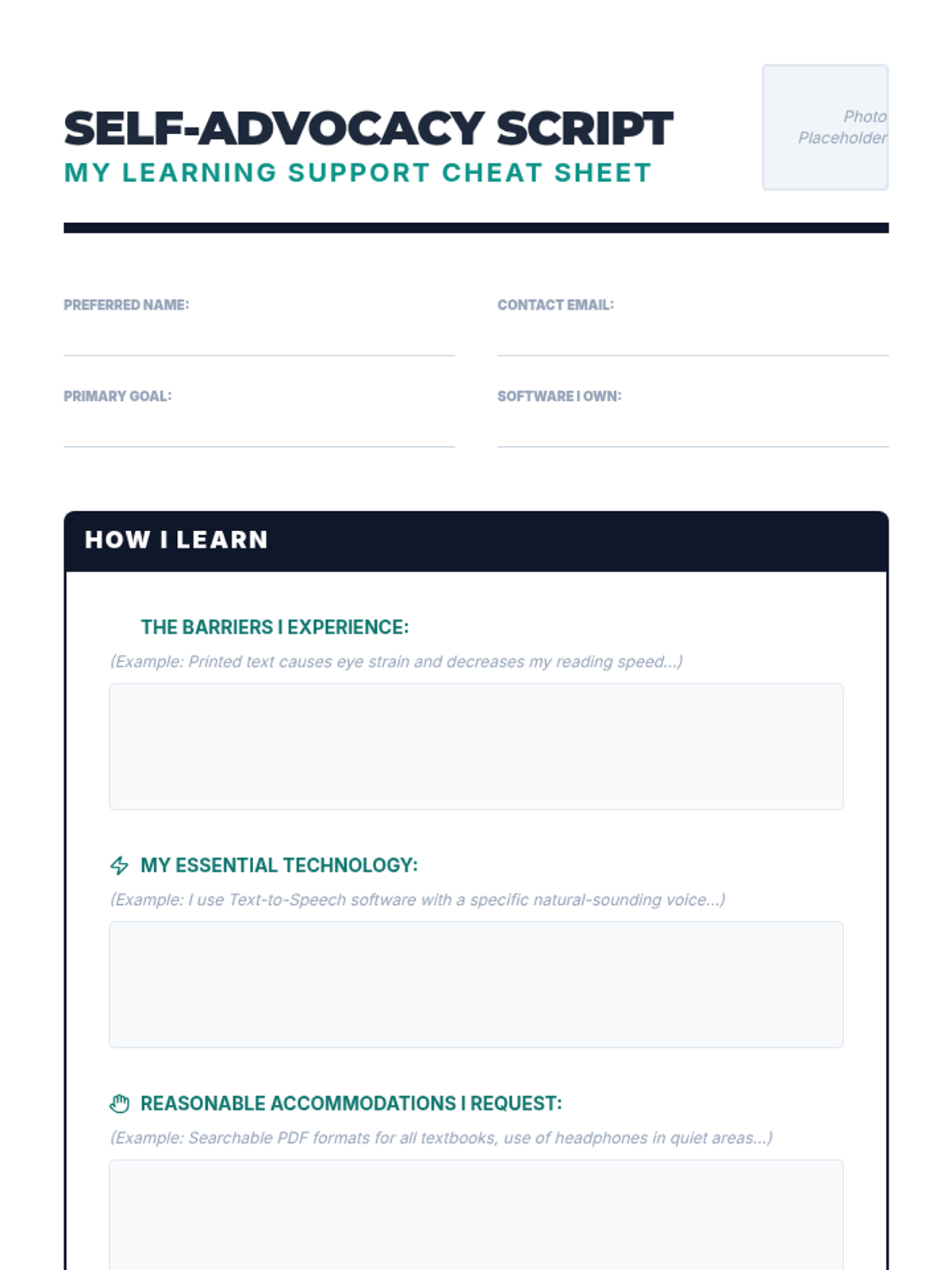
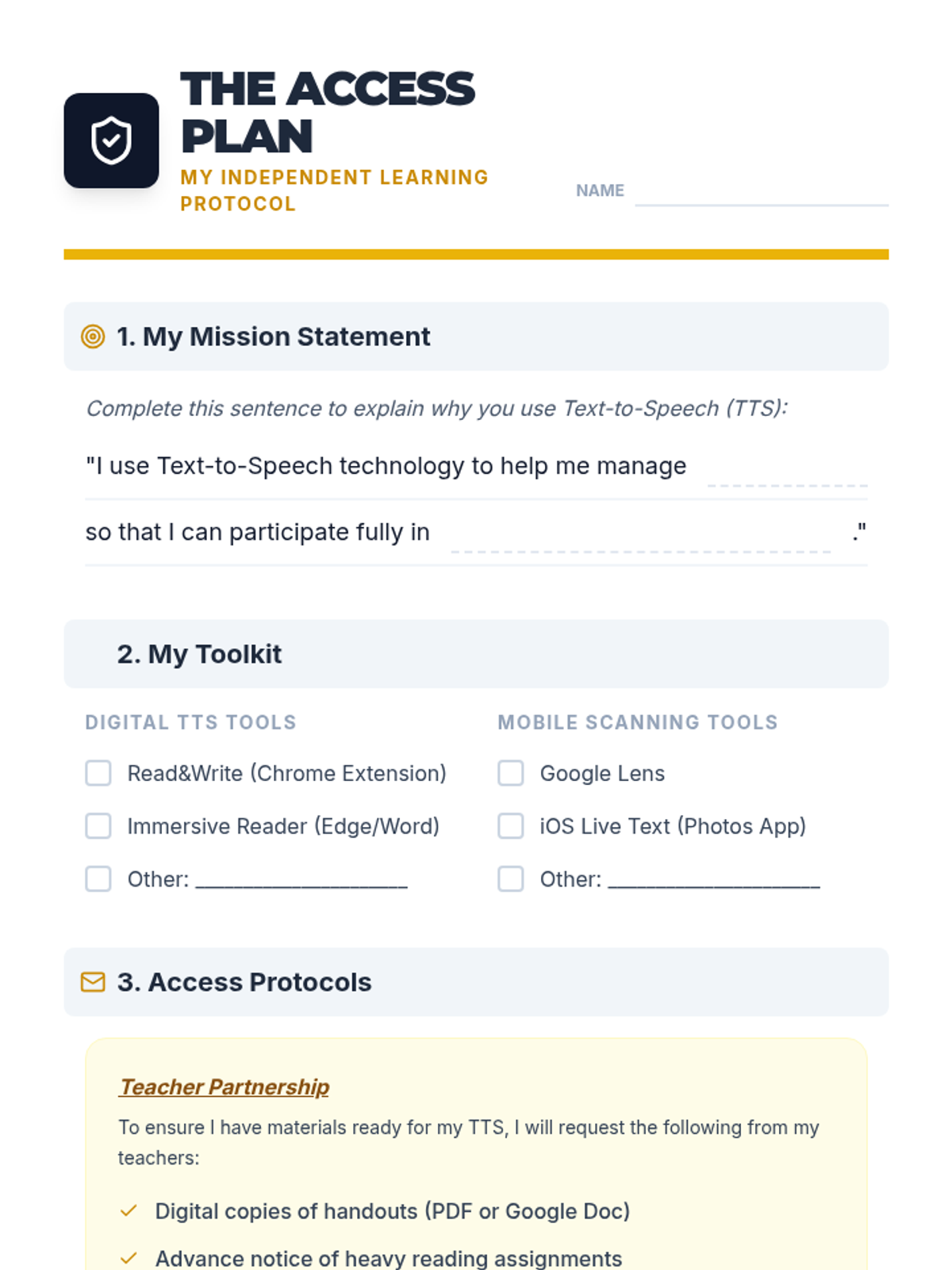
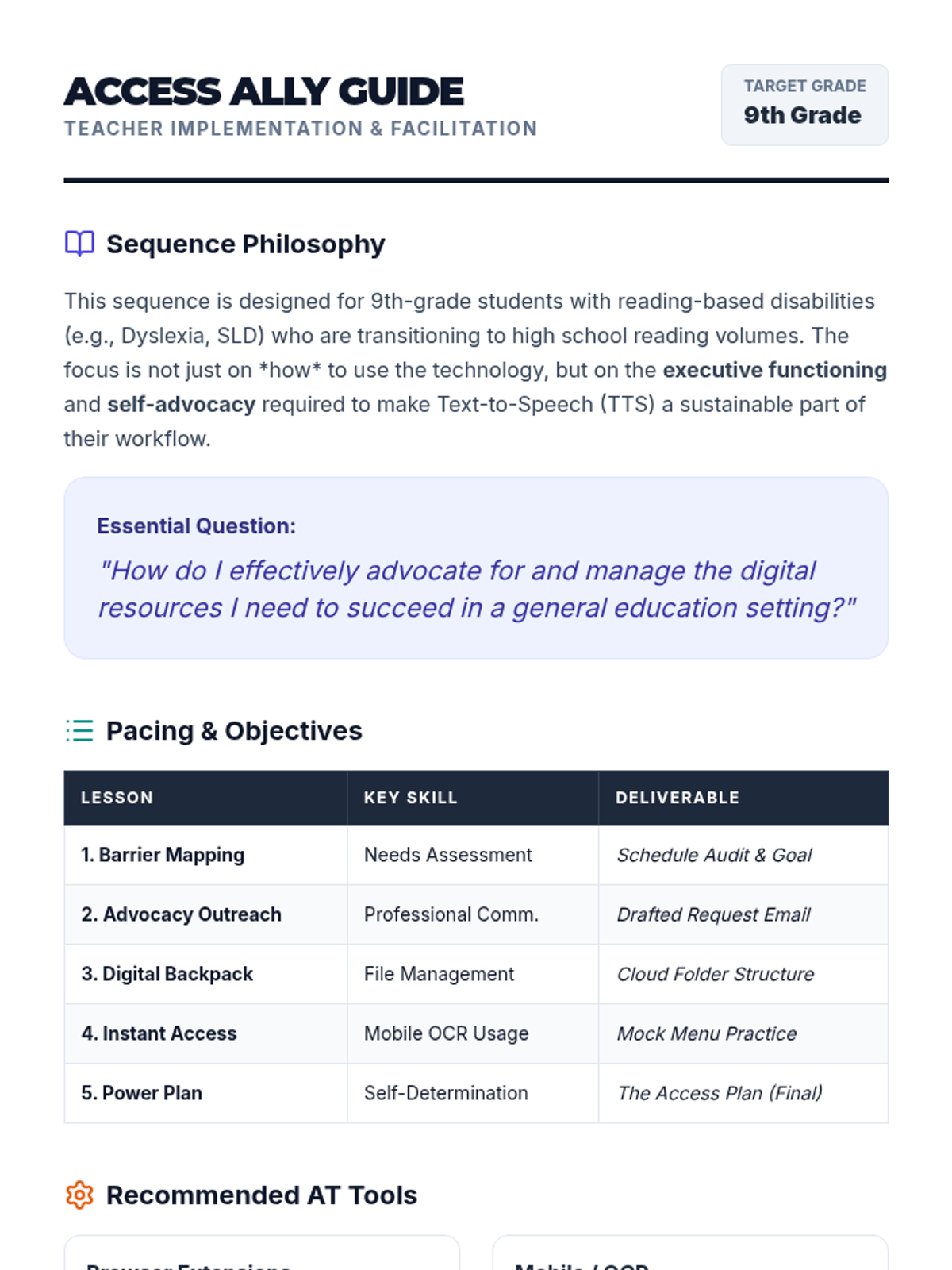
Culminating project where students synthesize their learning into a one-page 'Access Plan' and practice presenting it to teachers or IEP team members.
Students master the use of mobile OCR (Optical Character Recognition) apps to convert physical handouts into digital, speech-ready text on the fly.
Focuses on the executive functioning skills needed to organize digital files for easy use with TTS. Students develop naming conventions and cloud storage systems to keep their 'digital backpack' accessible.
Students learn the components of professional communication to request digital versions of classroom materials. They practice drafting emails that clearly articulate their need for accessible text.
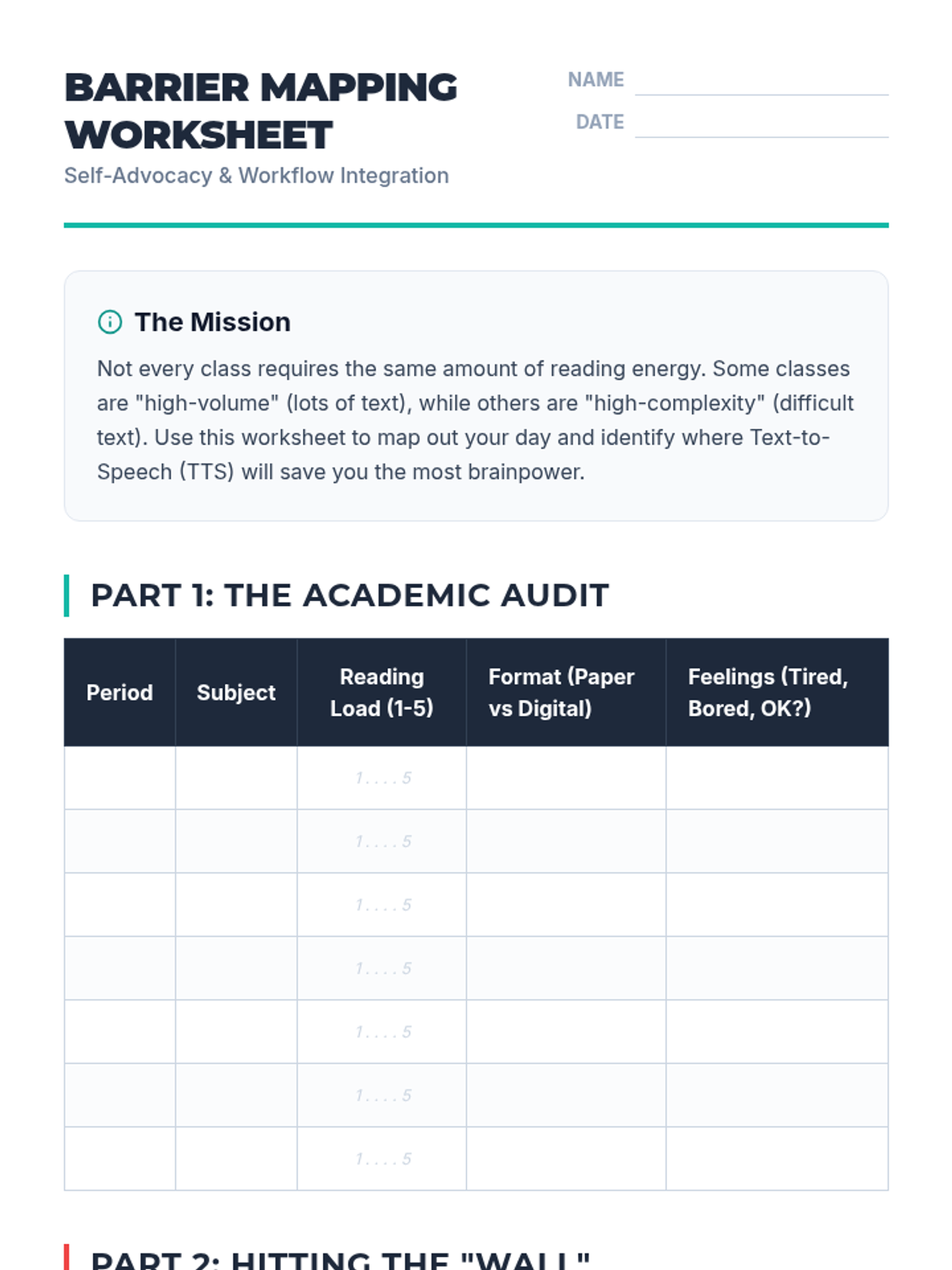
Students analyze their class schedules to identify high-volume reading tasks and pinpoint where Text-to-Speech (TTS) will provide the most benefit. They create a visual 'Barrier Map' to guide their advocacy efforts.
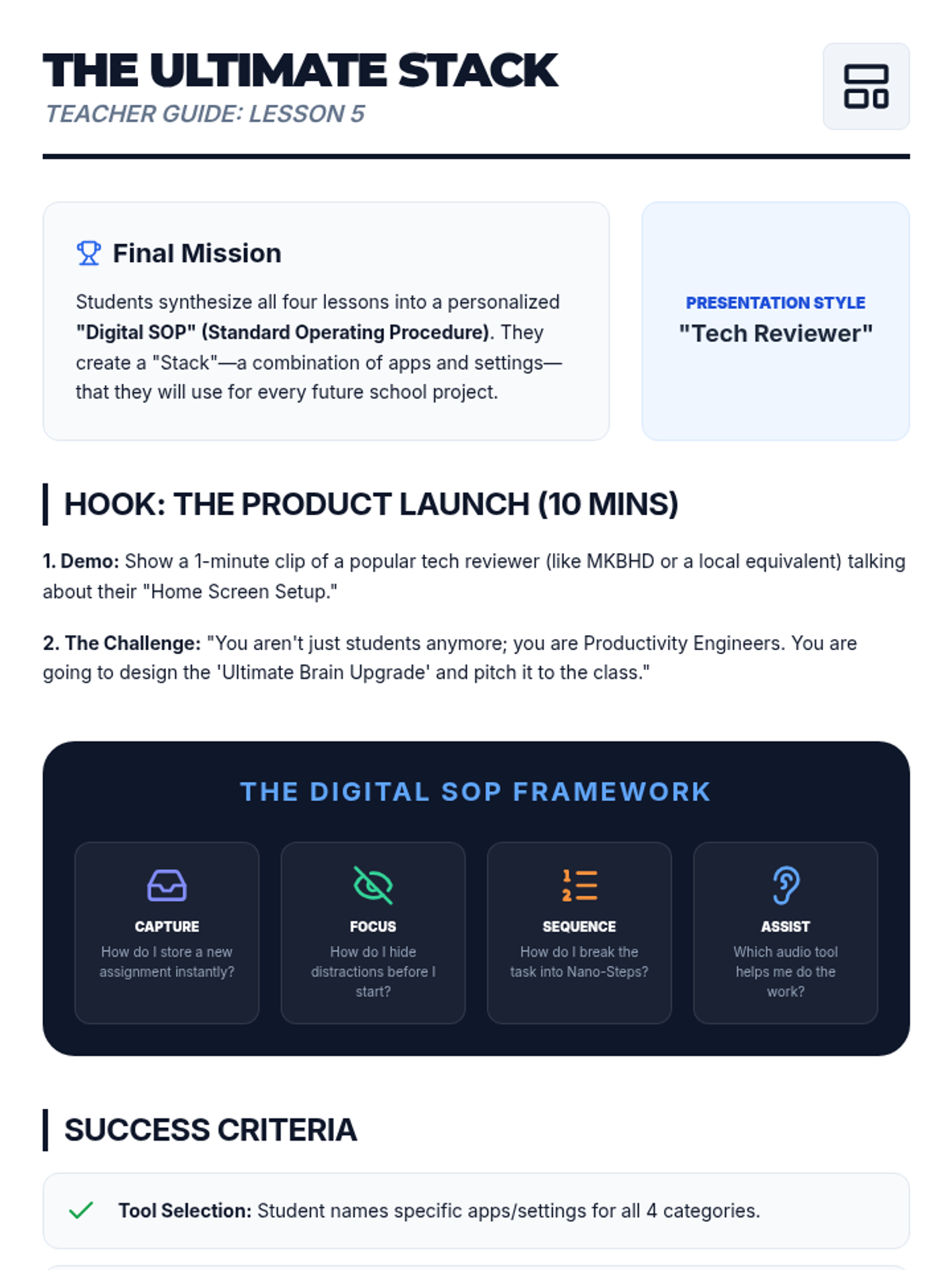
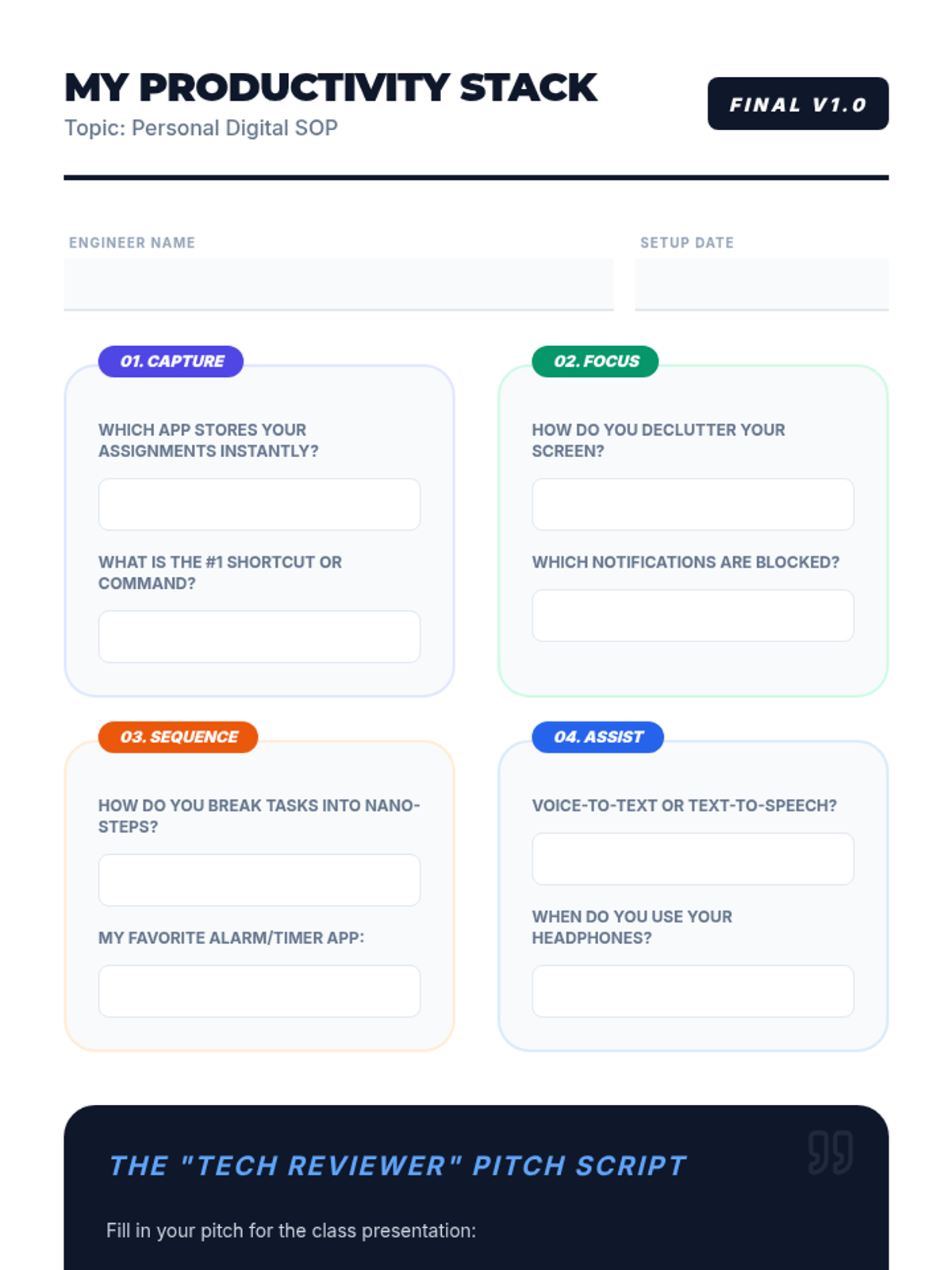
Students synthesize their learning by selecting their favorite digital tools and creating a personalized Standard Operating Procedure (SOP) for school projects, presented in a 'Tech Reviewer' style.
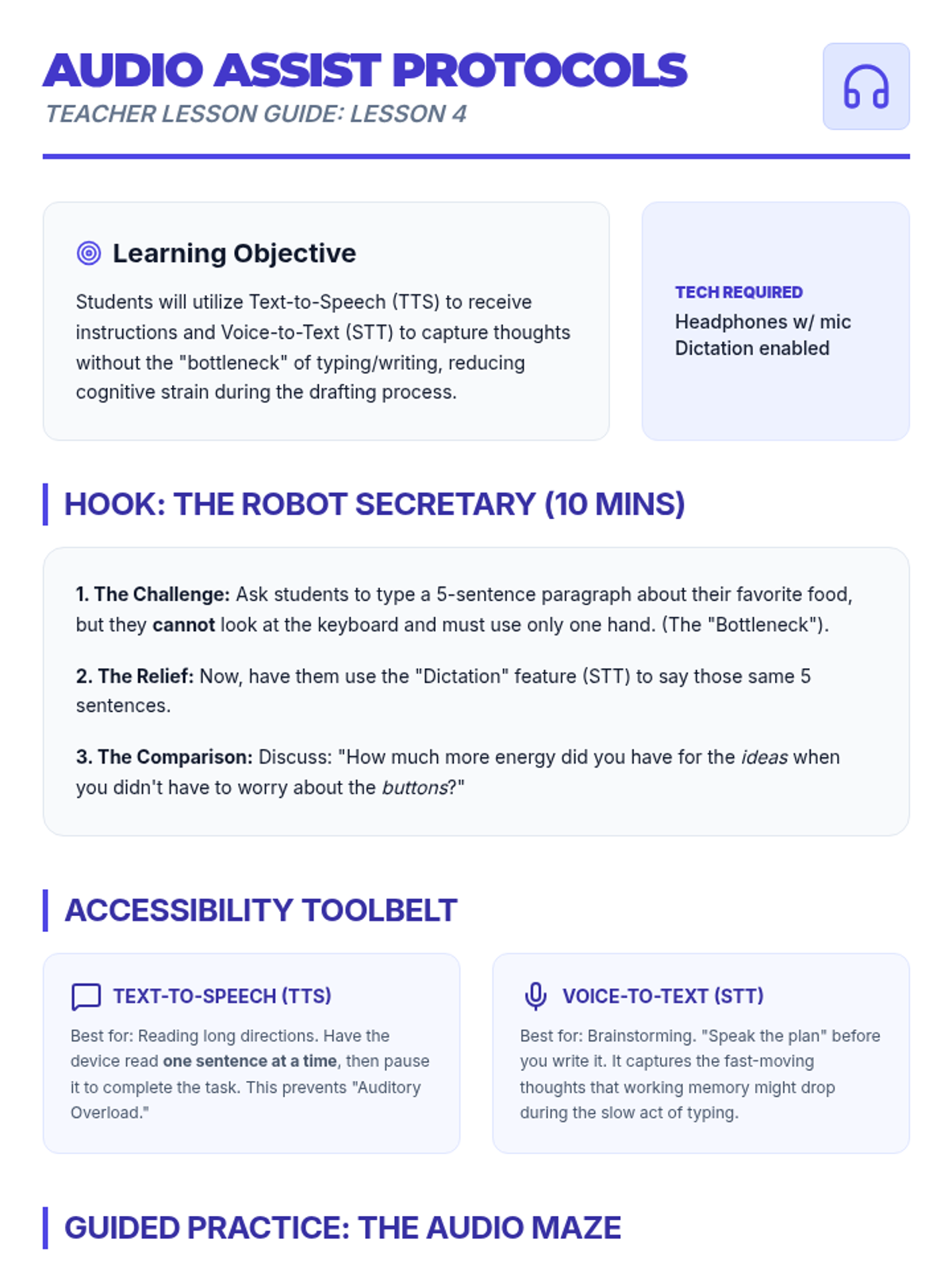
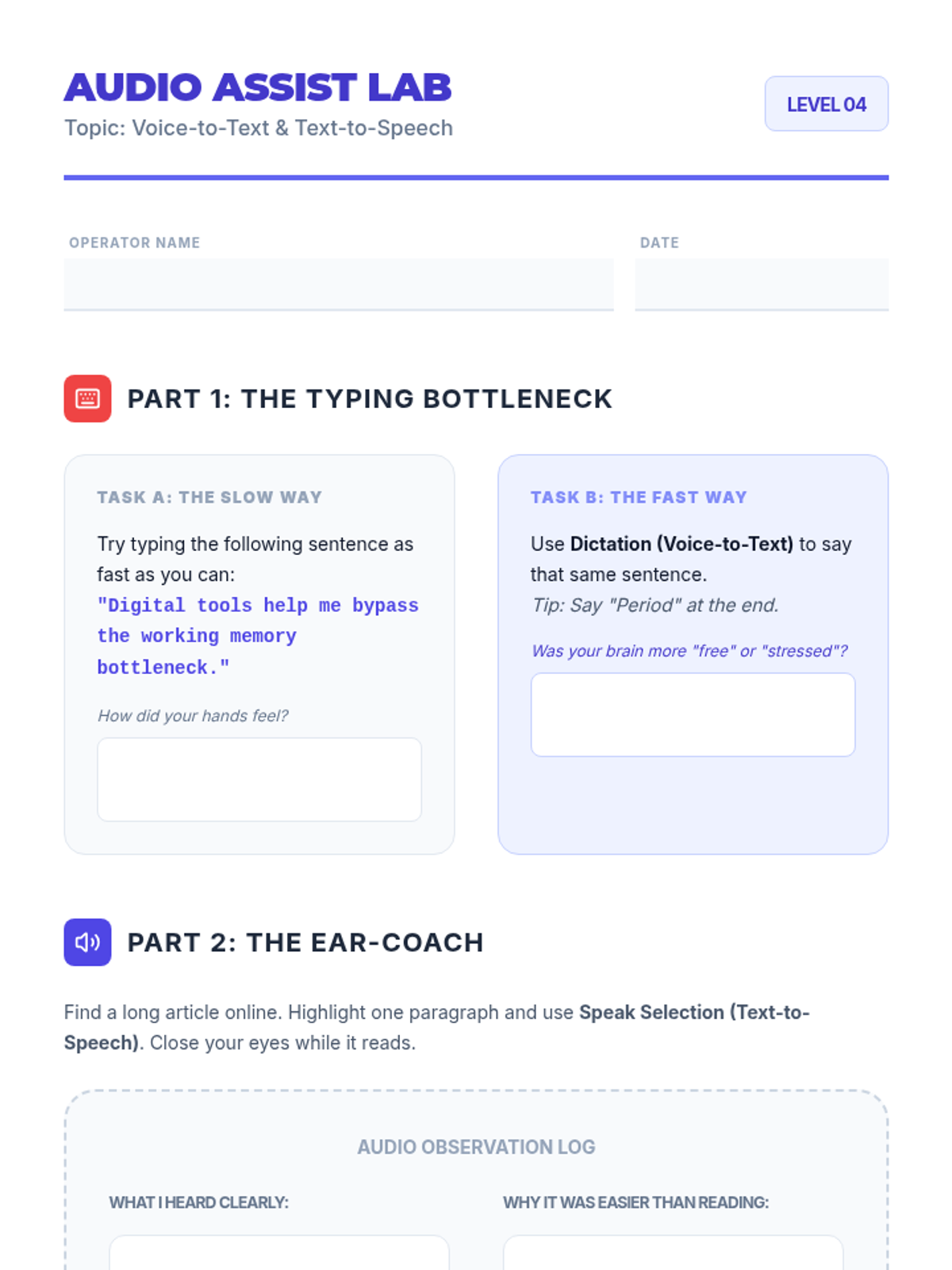
Students explore text-to-speech and voice-to-text tools to assist with auditory processing and task execution, practicing dictating and listening to instructions one step at a time.
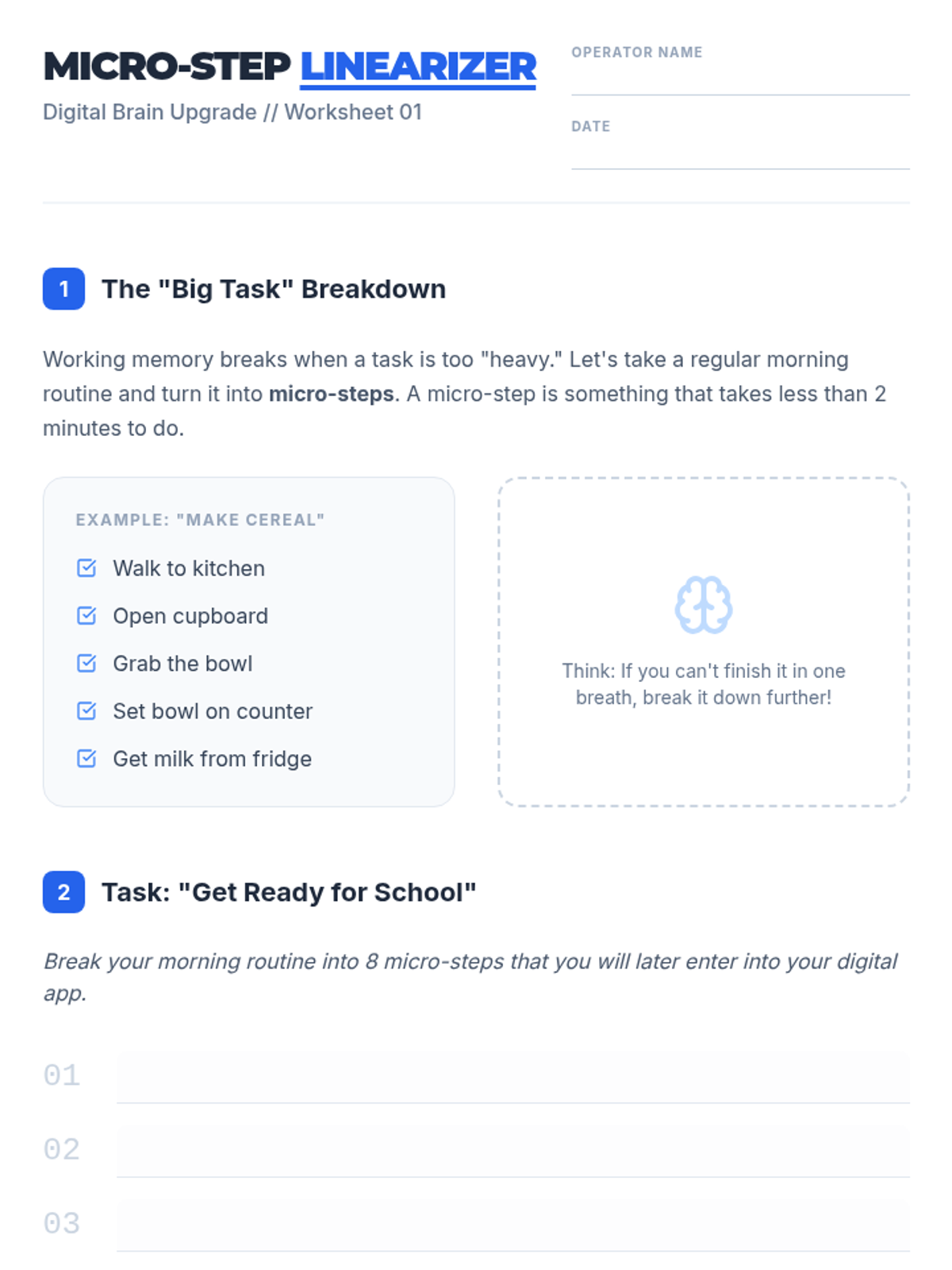
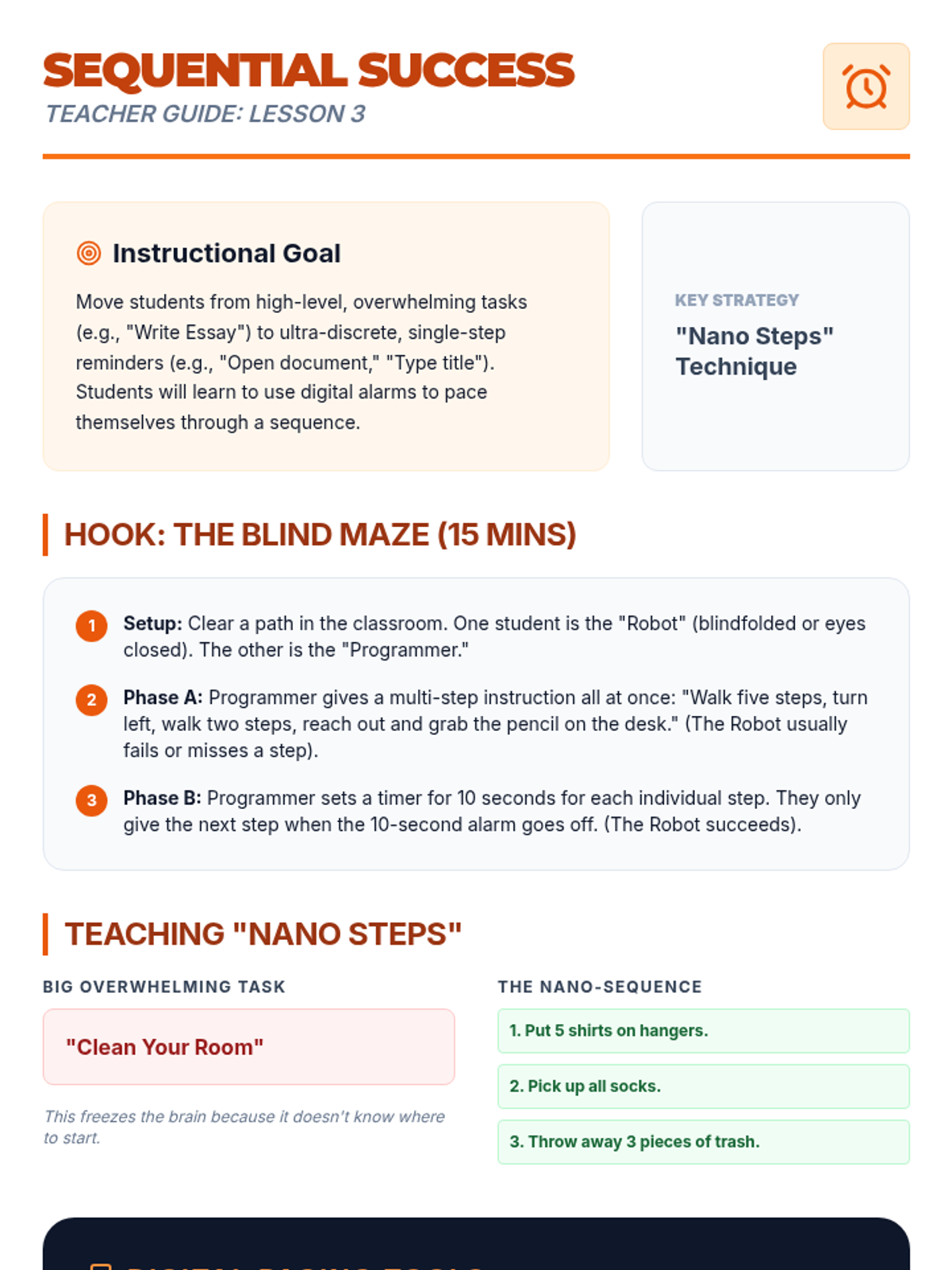
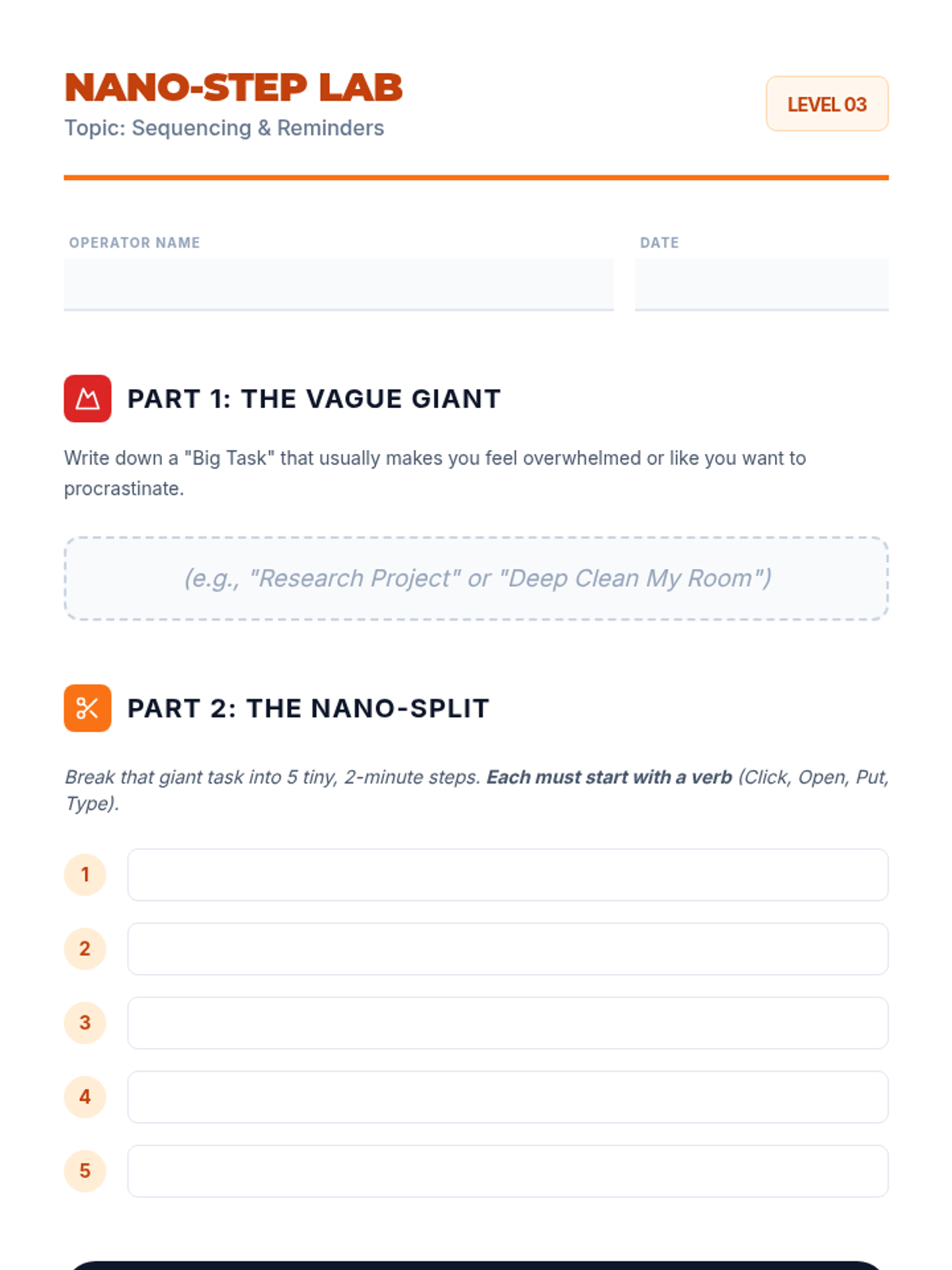
Students practice breaking down large, overwhelming tasks into micro-steps ('Nano Steps') and setting sequential digital reminders to guide them through a process.
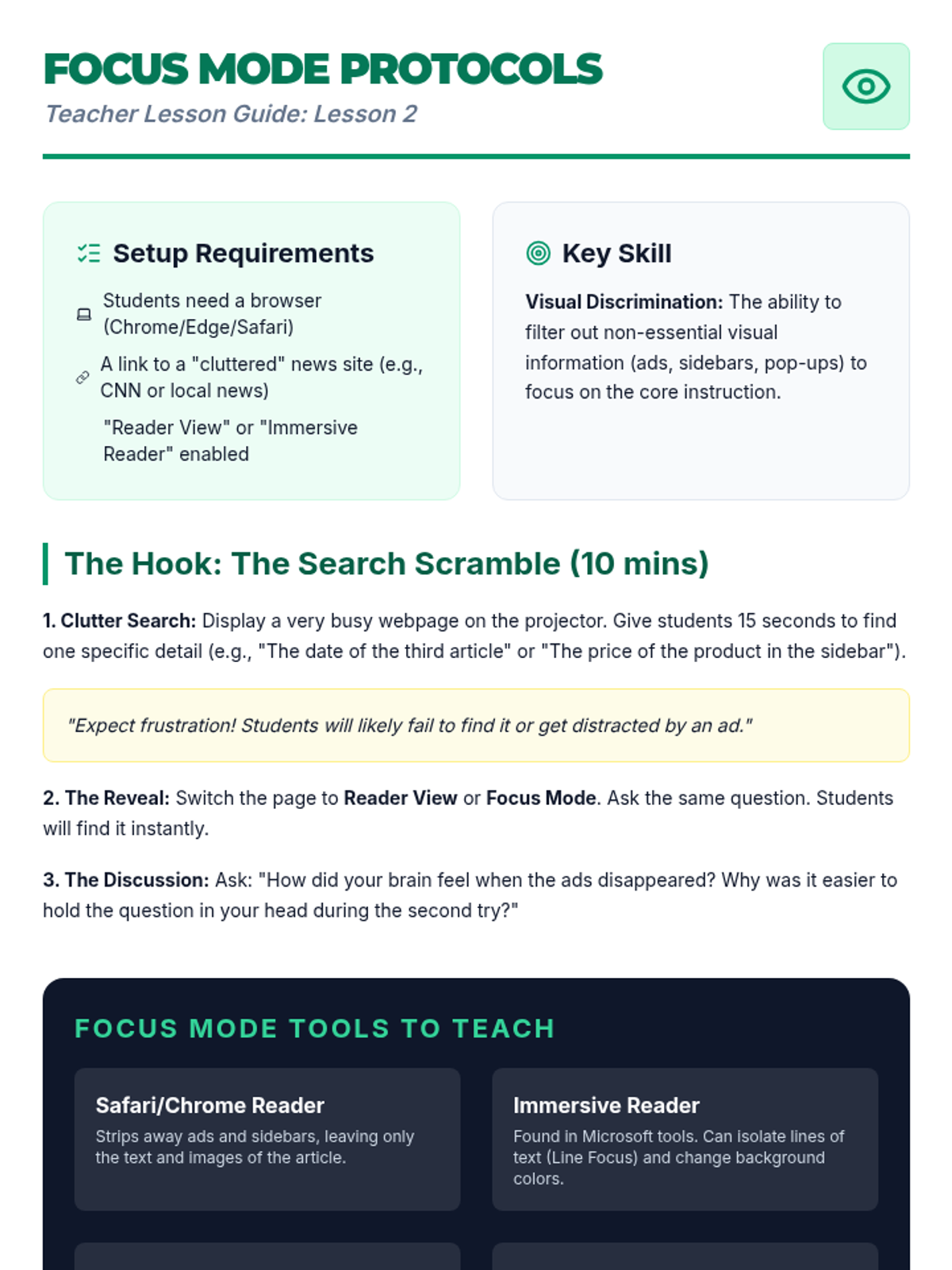
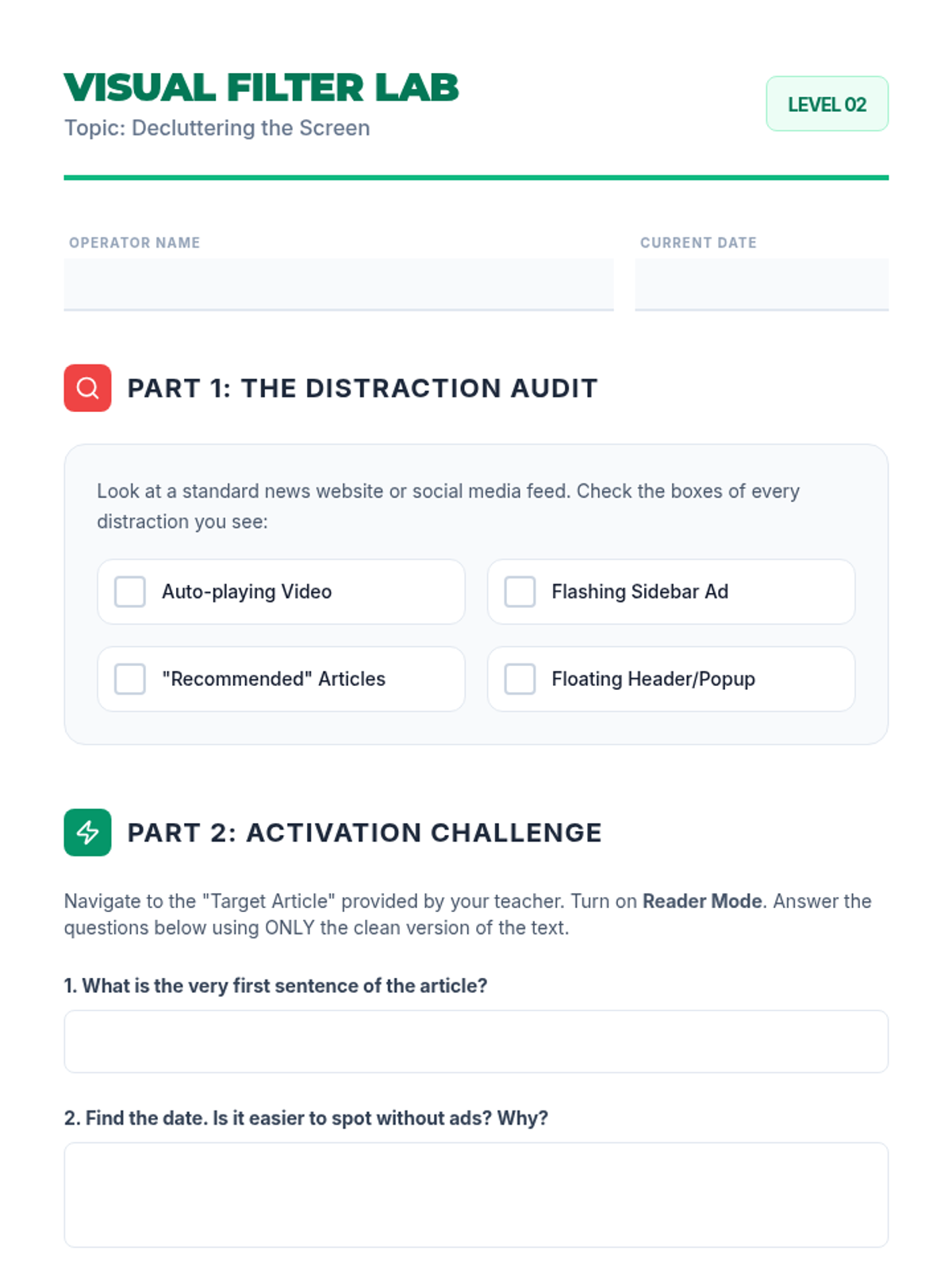
Students learn to use 'focus view' and task isolation tools to eliminate digital distractions. They practice finding information in cluttered versus clean environments and learn to isolate single steps of a process.
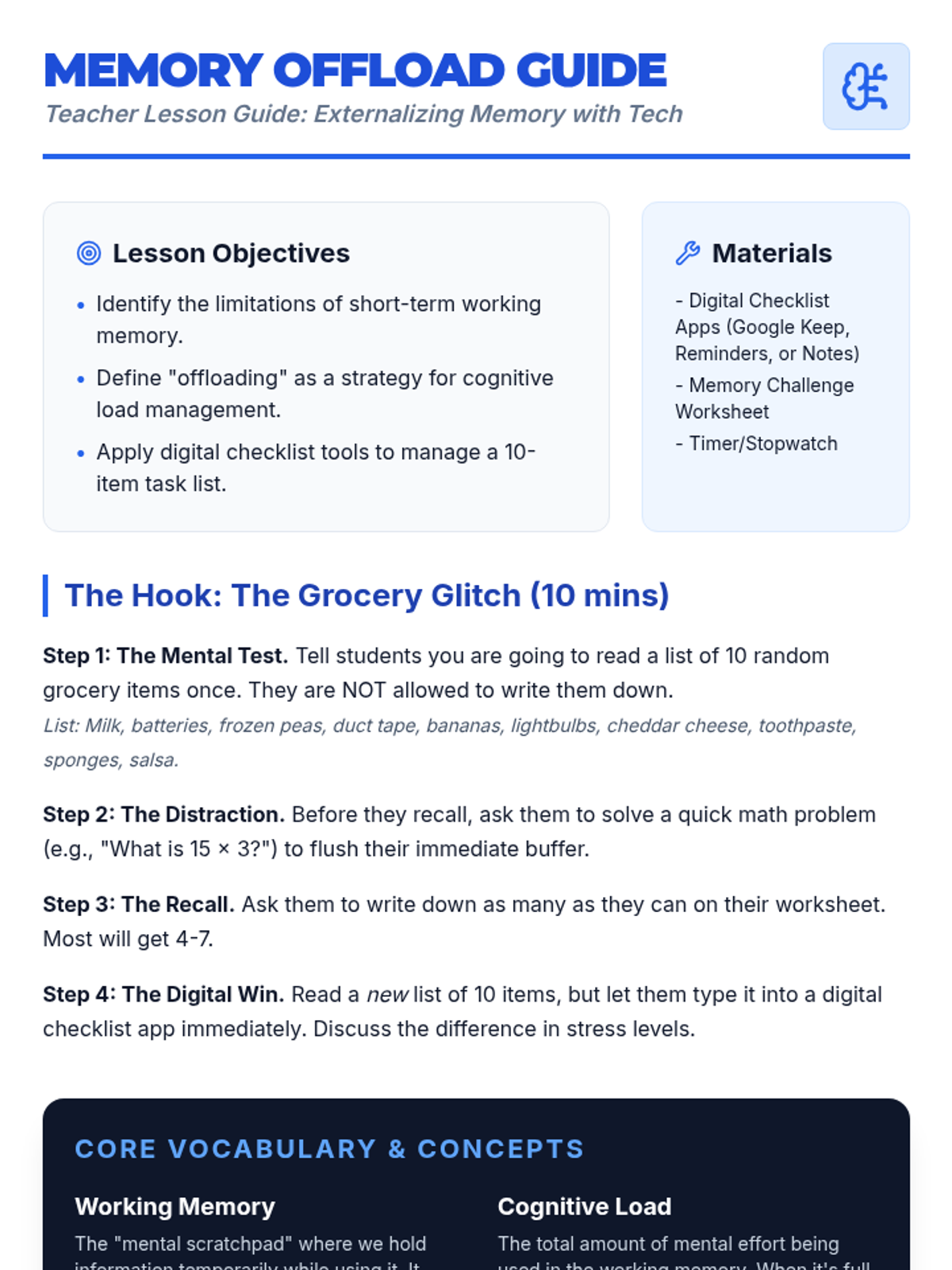
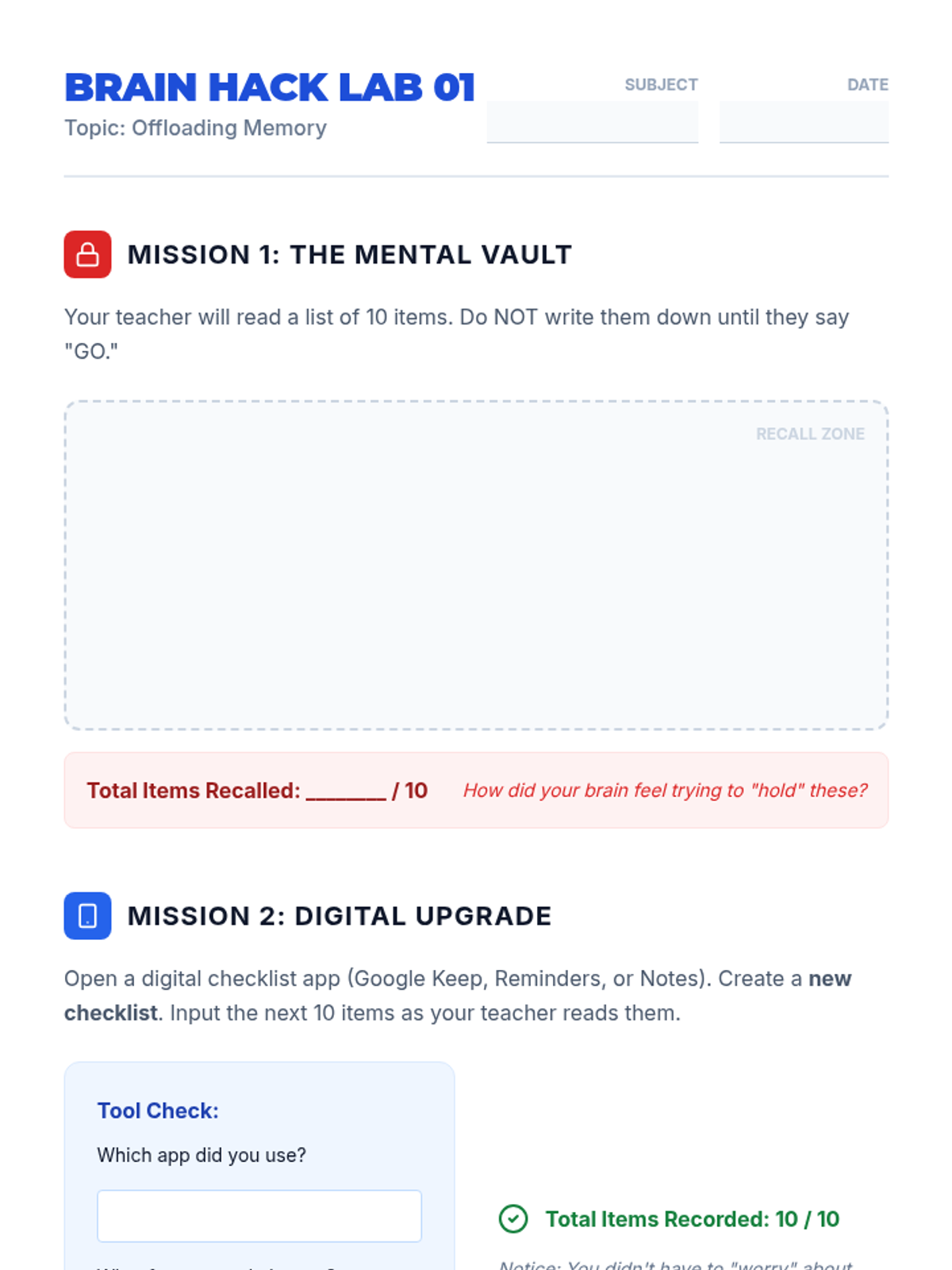
Students explore the concept of 'offloading' cognitive load by comparing mental recall with digital checklists. They learn how externalizing memory reduces stress and increases accuracy for multi-step tasks.
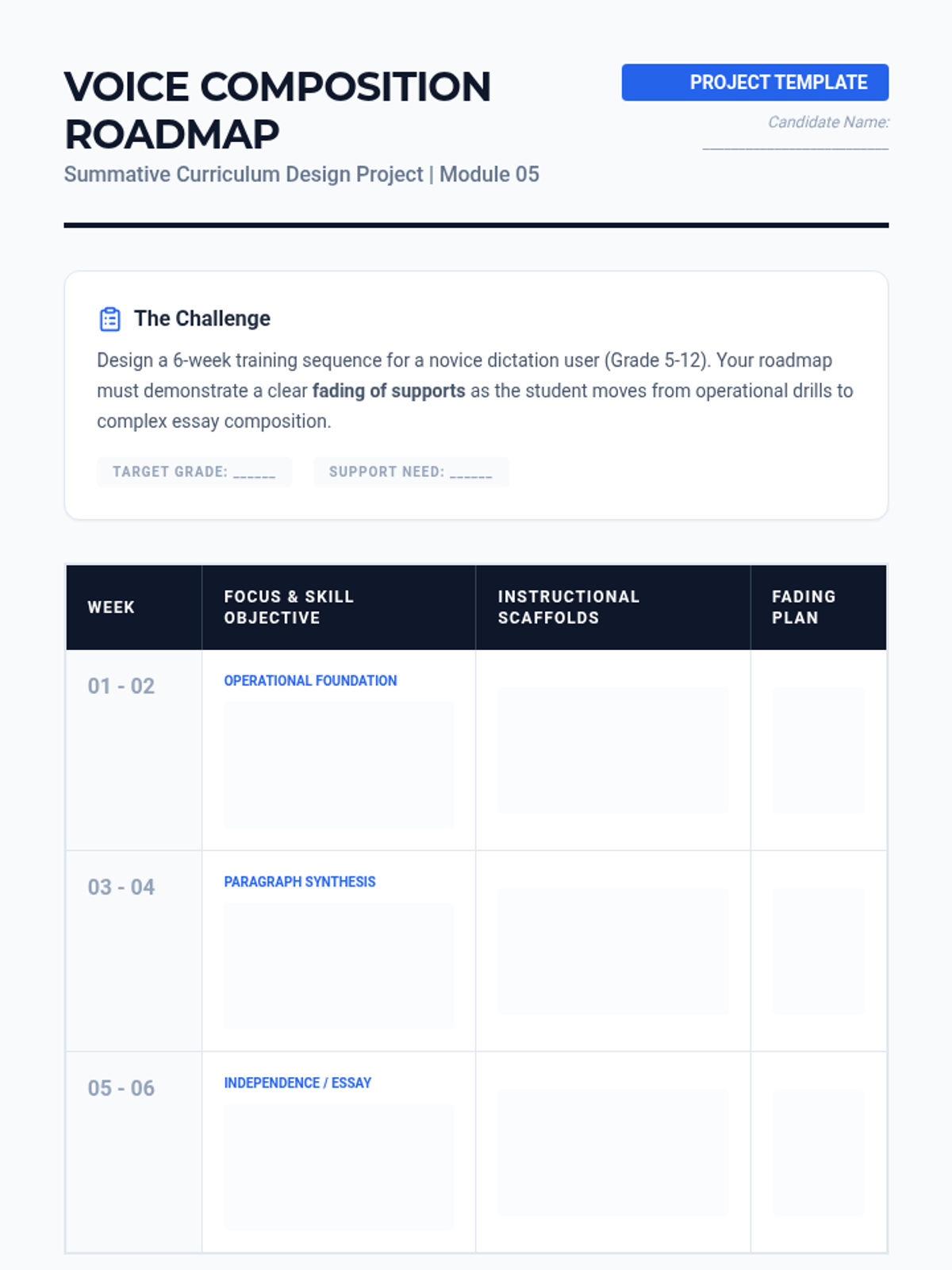
Assemble a multi-week implementation plan moving from single sentences to full paragraphs. Incorporates feedback loops and fading supports.
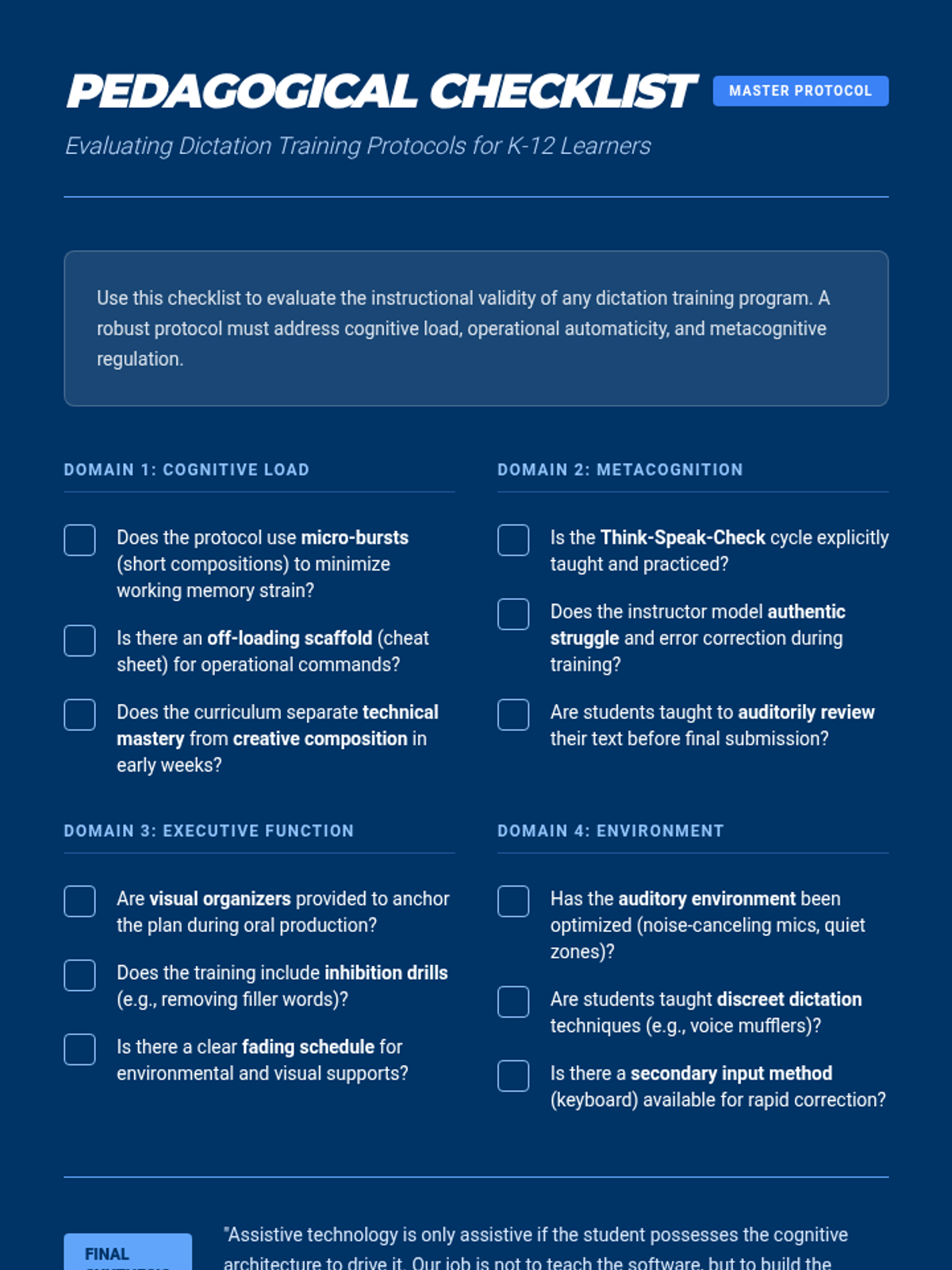
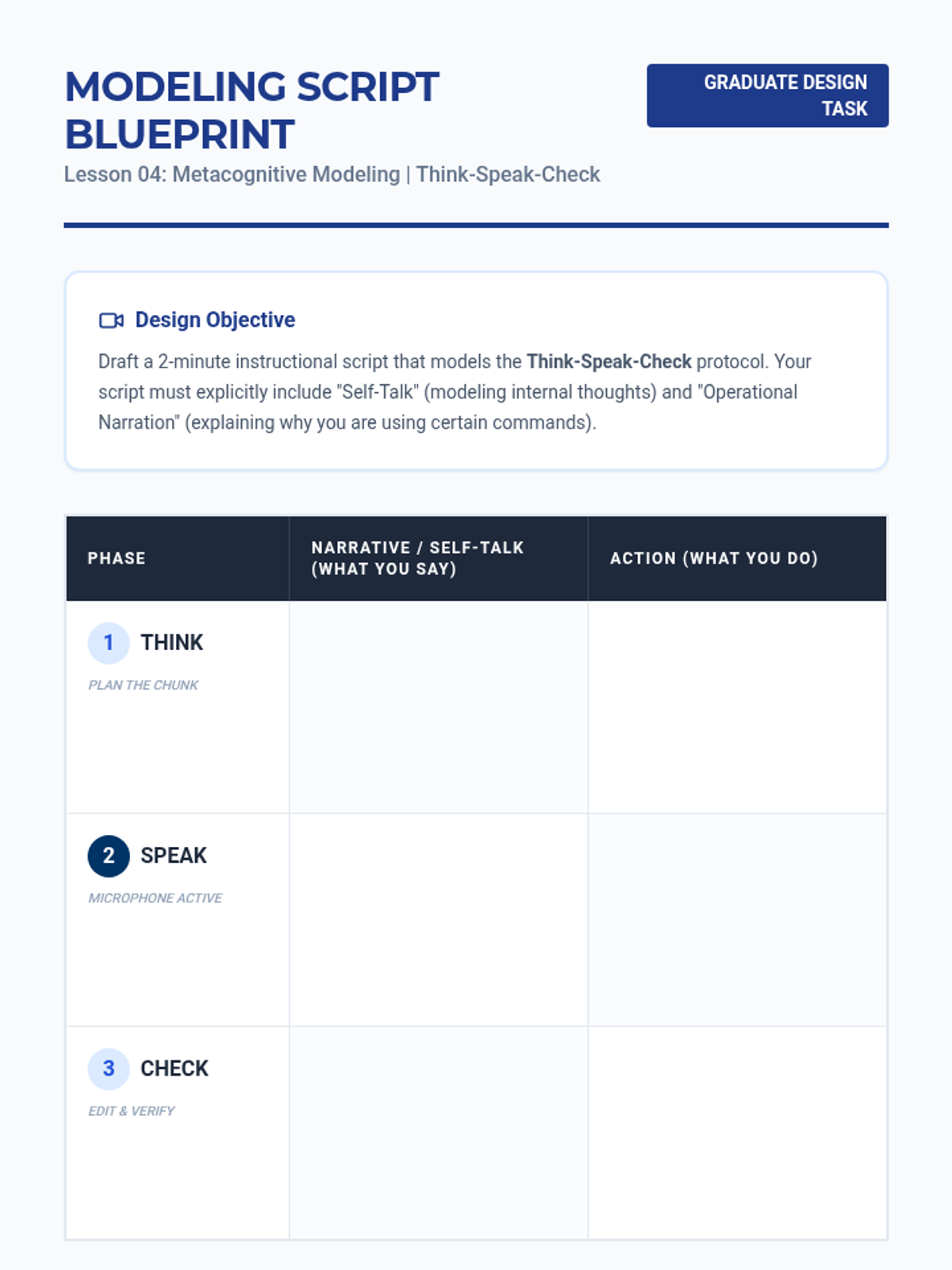
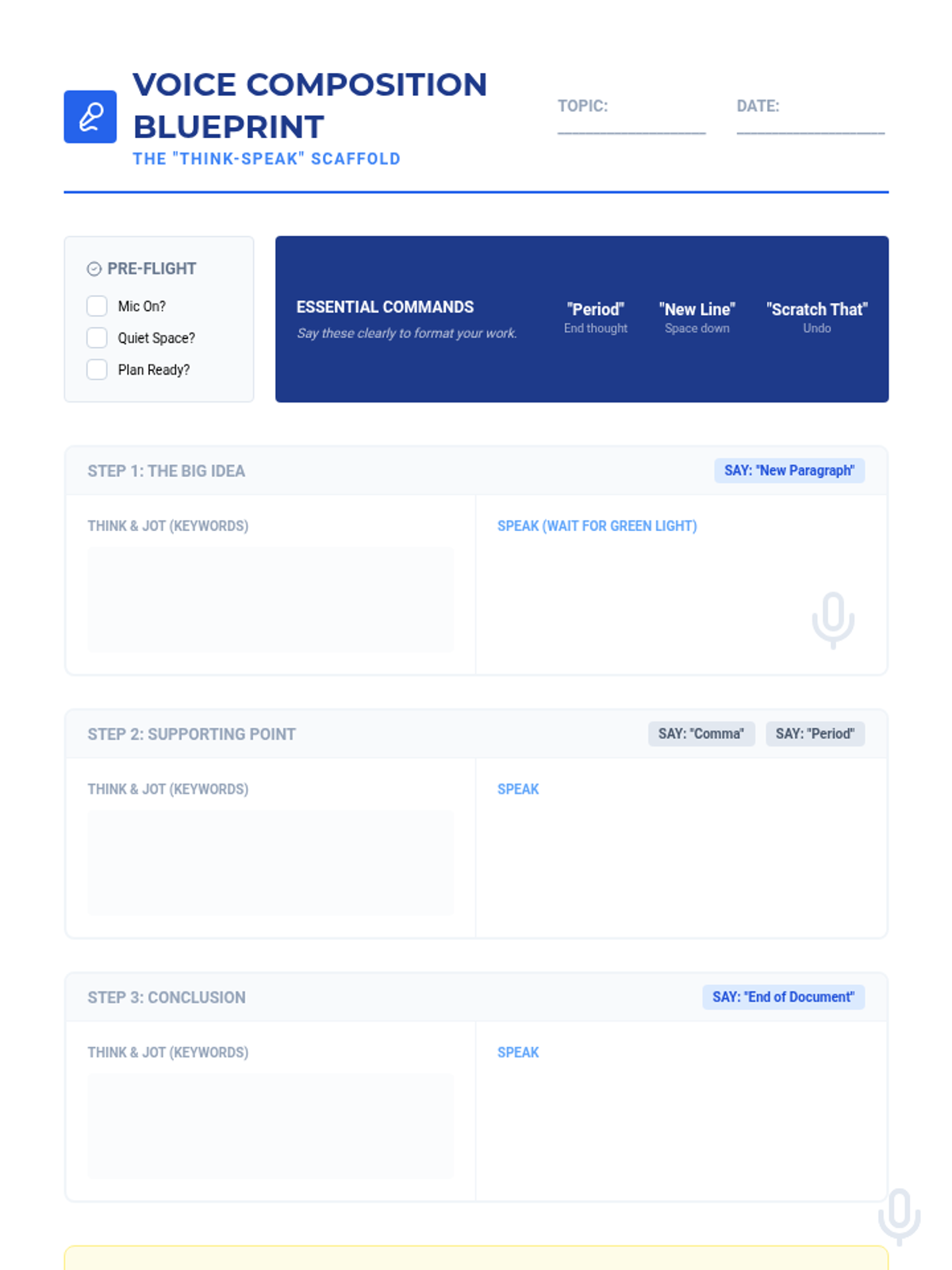
Practice modeling the iterative 'Think-Speak-Check' process. Participants create video models or scripts demonstrating self-talk and regulation during dictation.
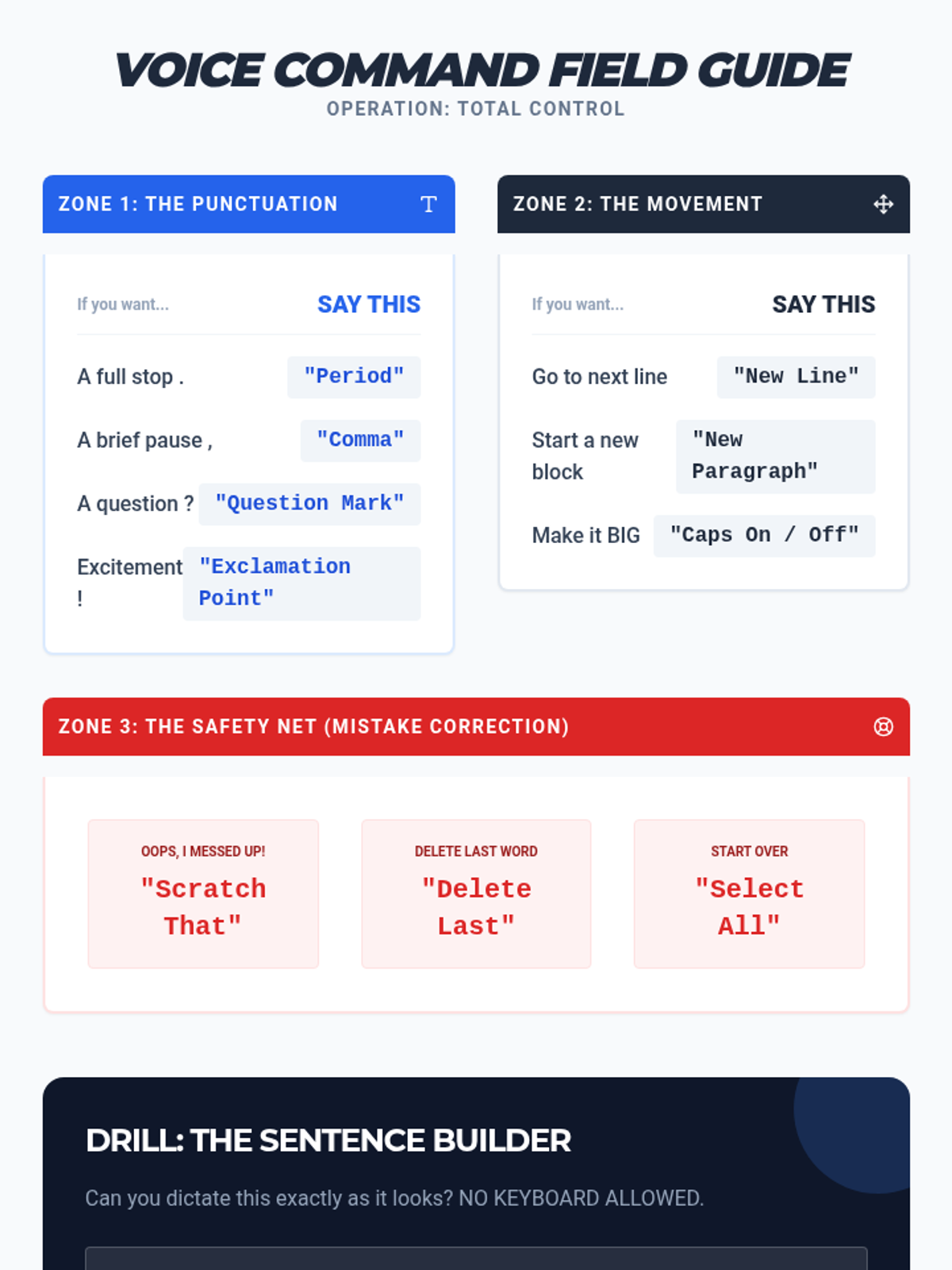
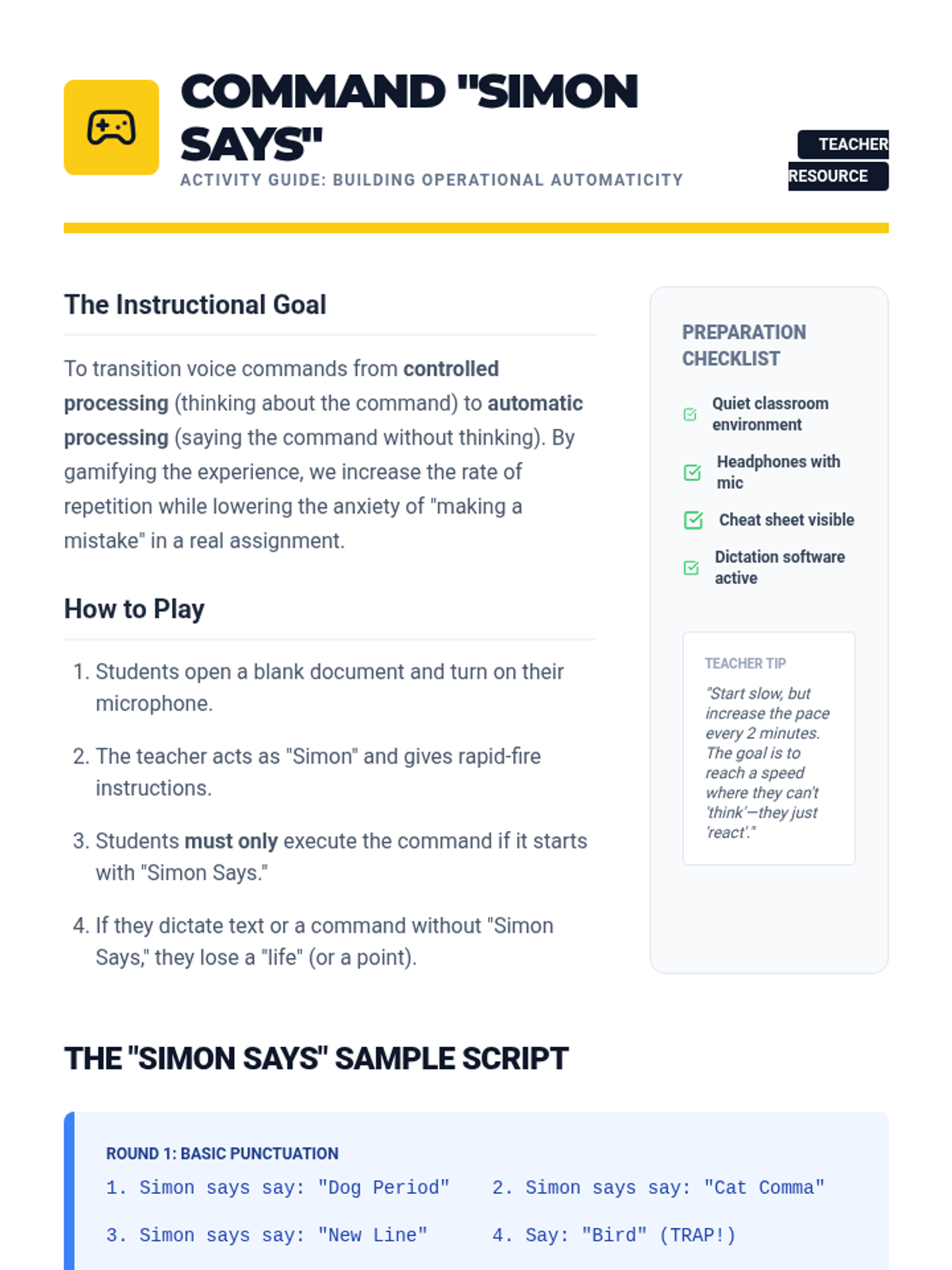
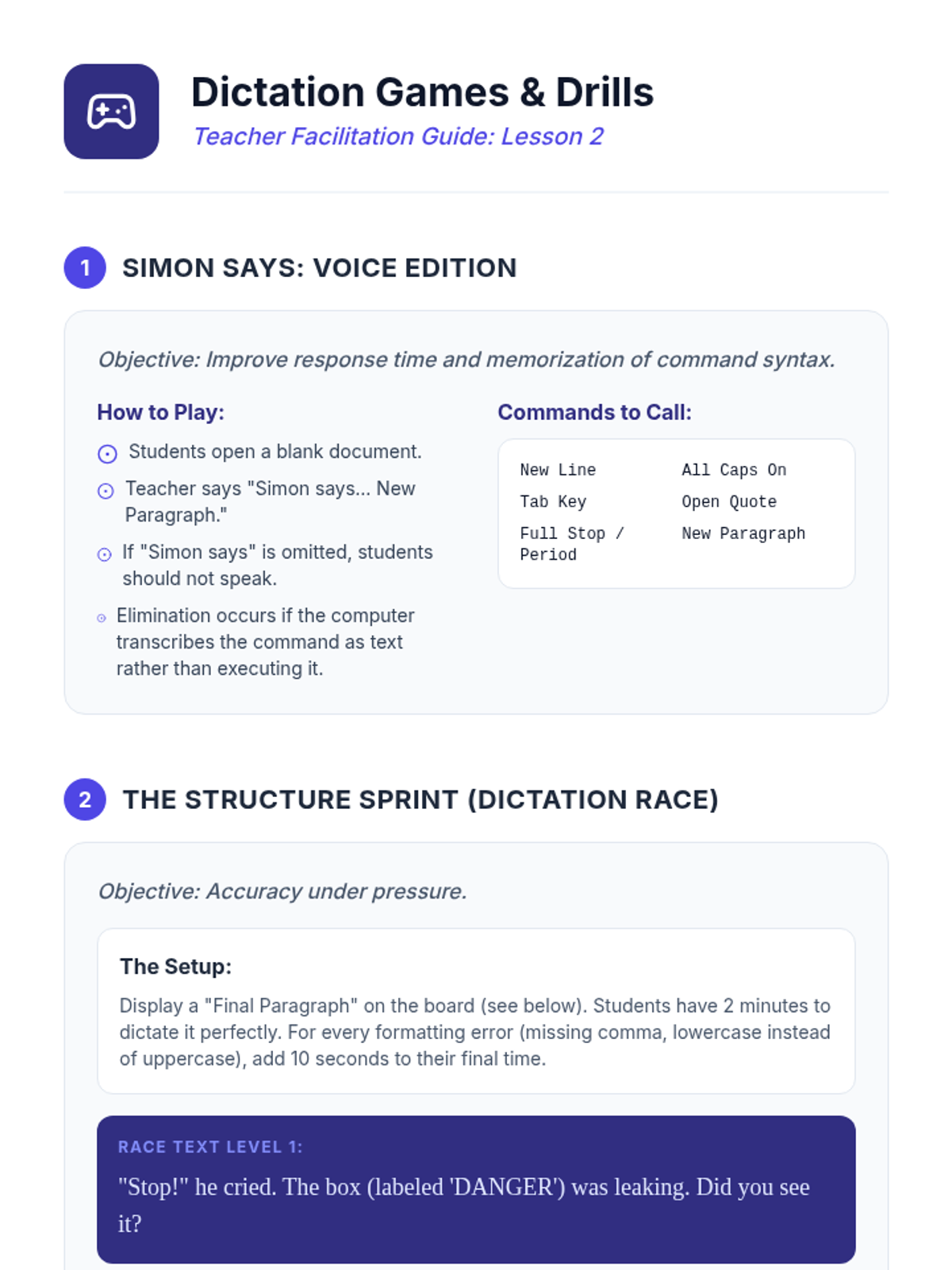
Develop drills and games for mastering voice commands for punctuation and formatting. Includes a 'Simon Says' style game for operational competence.
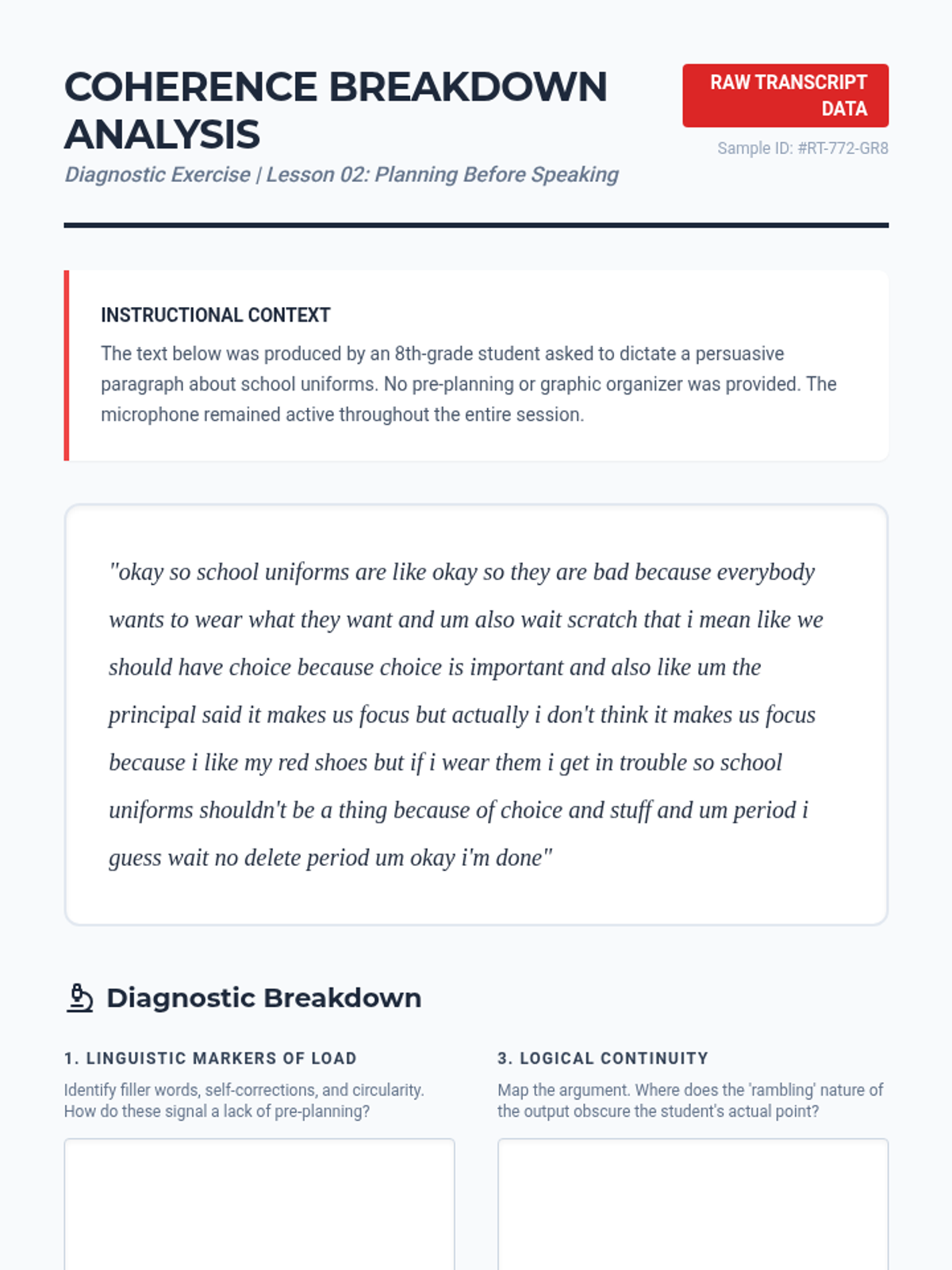
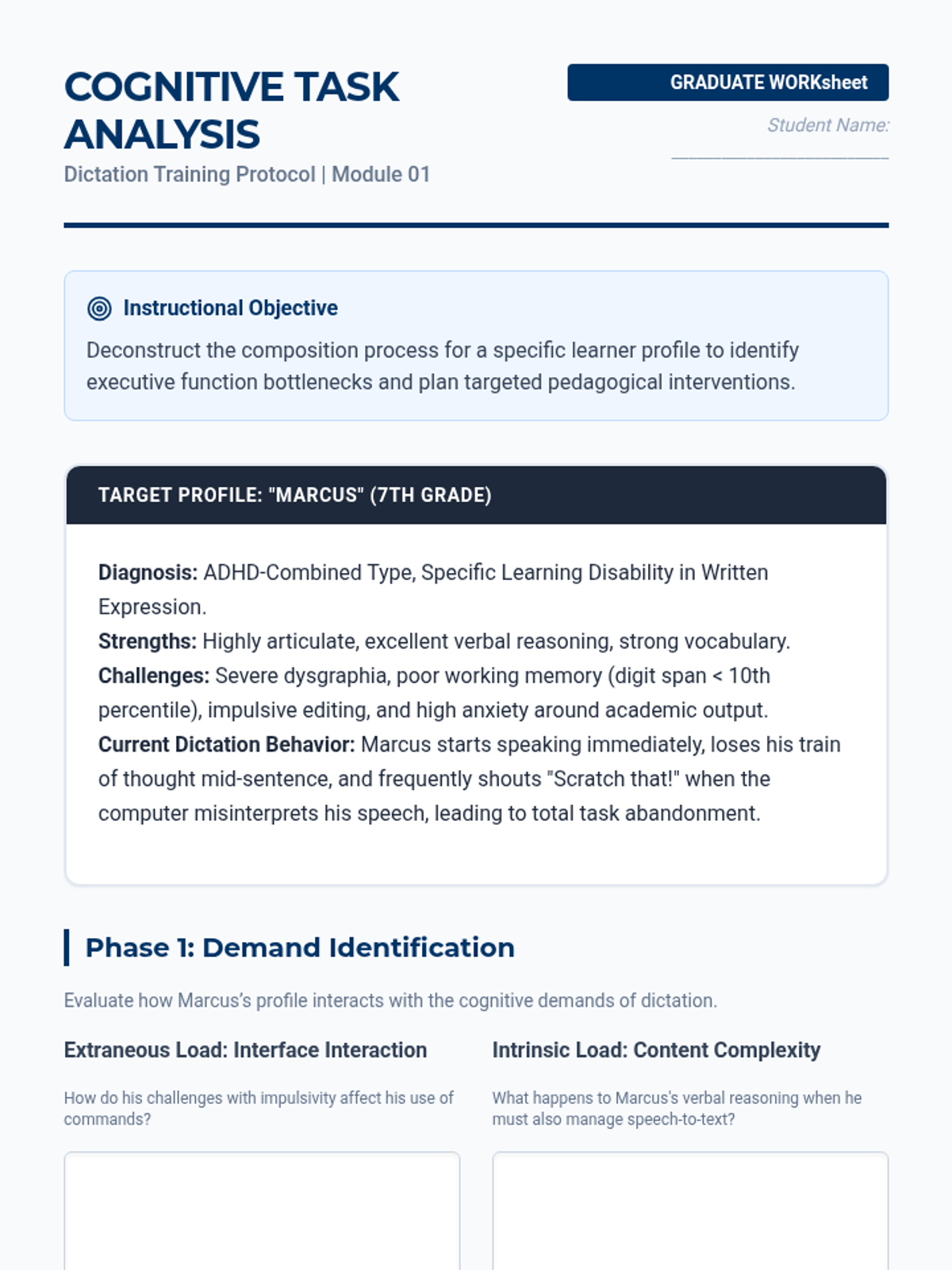
Focus on teaching pre-planning strategies for dictation. Participants design graphic organizers tailored for voice-to-text workflows and analyze breakdown in coherence in rambling texts.
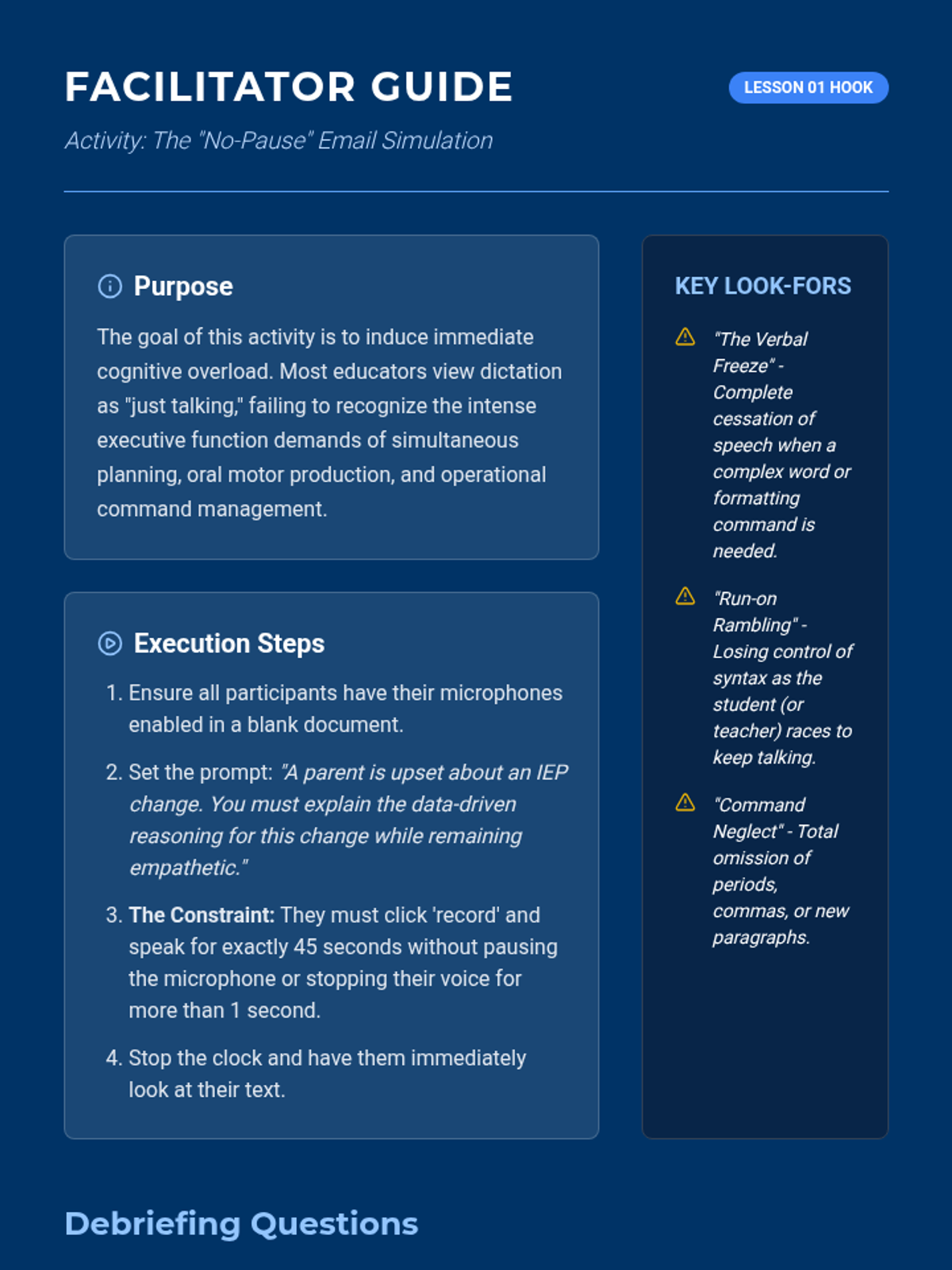
Examine the cognitive science behind oral composition and identify executive function demands. Participants attempt to dictate a formal email without pausing to highlight the cognitive strain of 'writing by voice'.
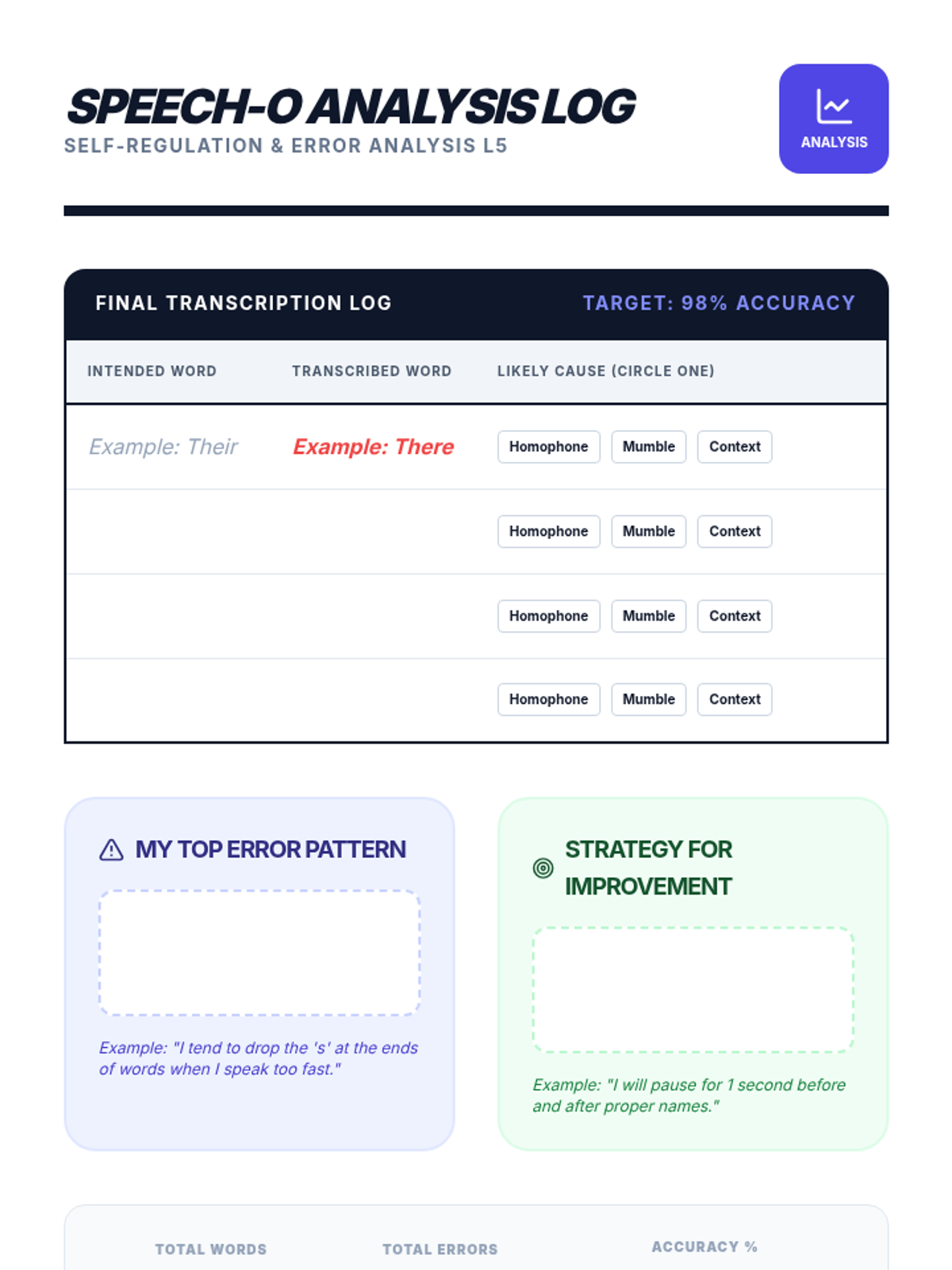
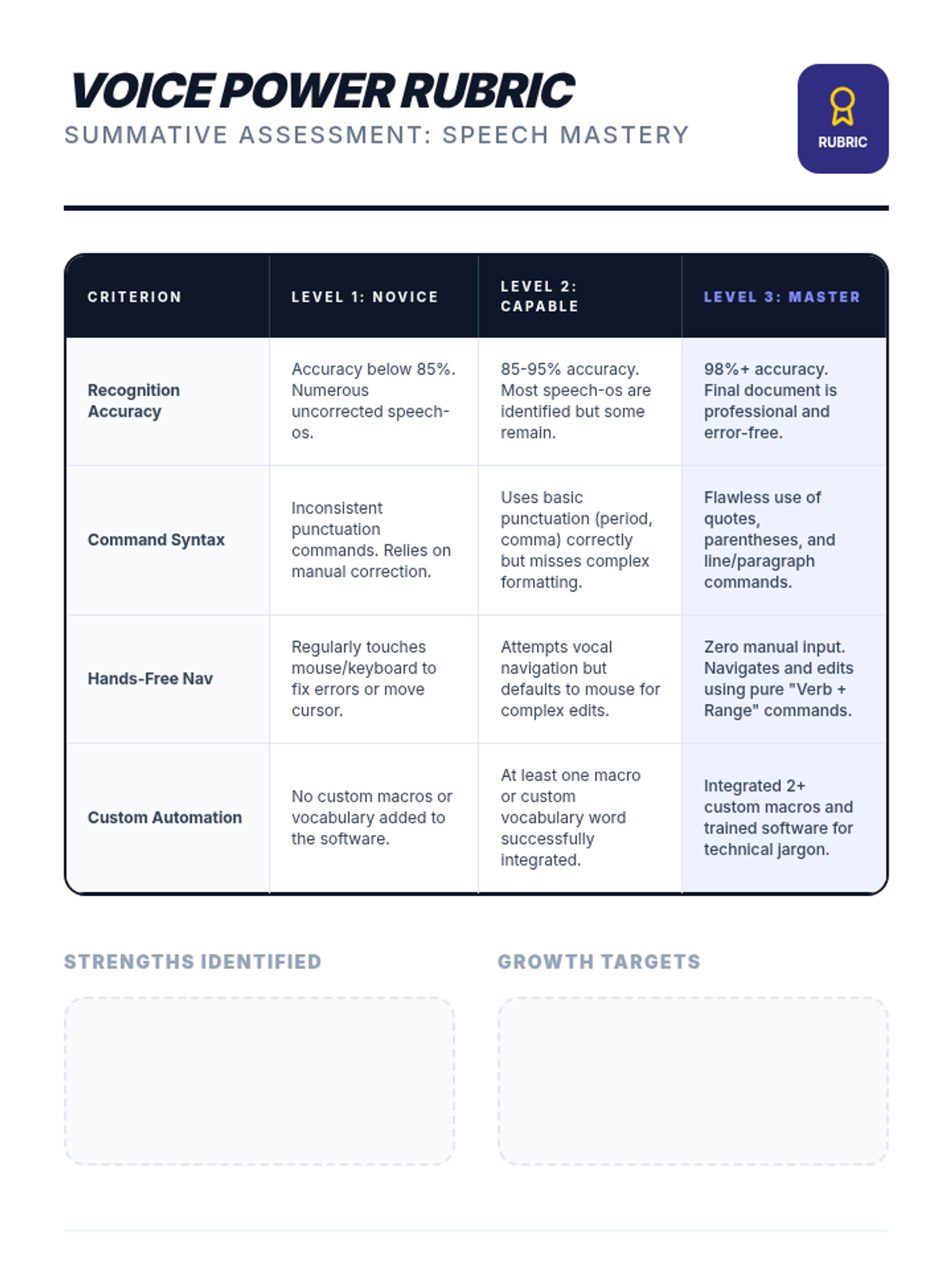
Synthesis of all skills into a cohesive proofreading and correction workflow, analyzing 'speech-os' and refining speaking pace for high-stakes writing.
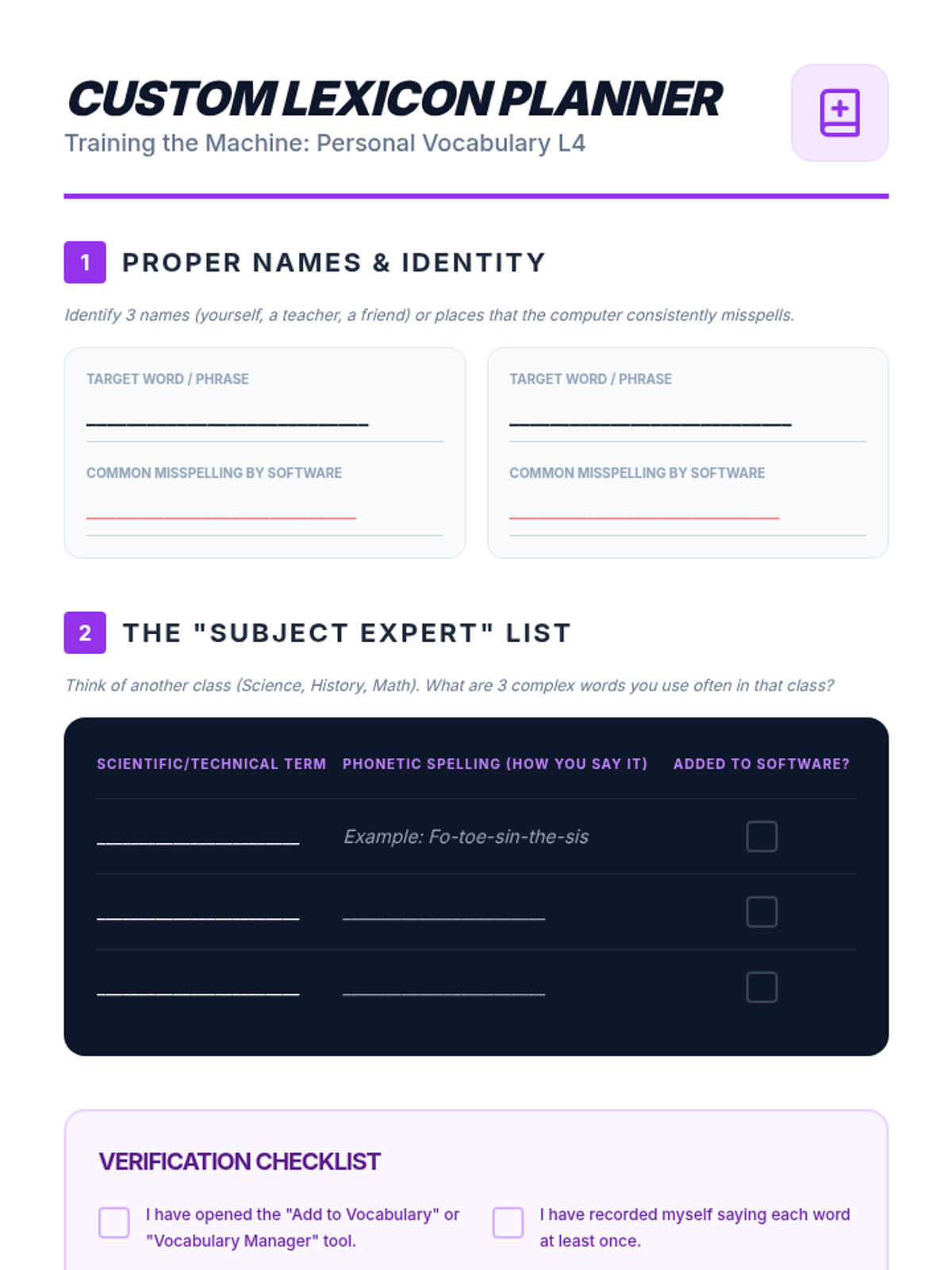
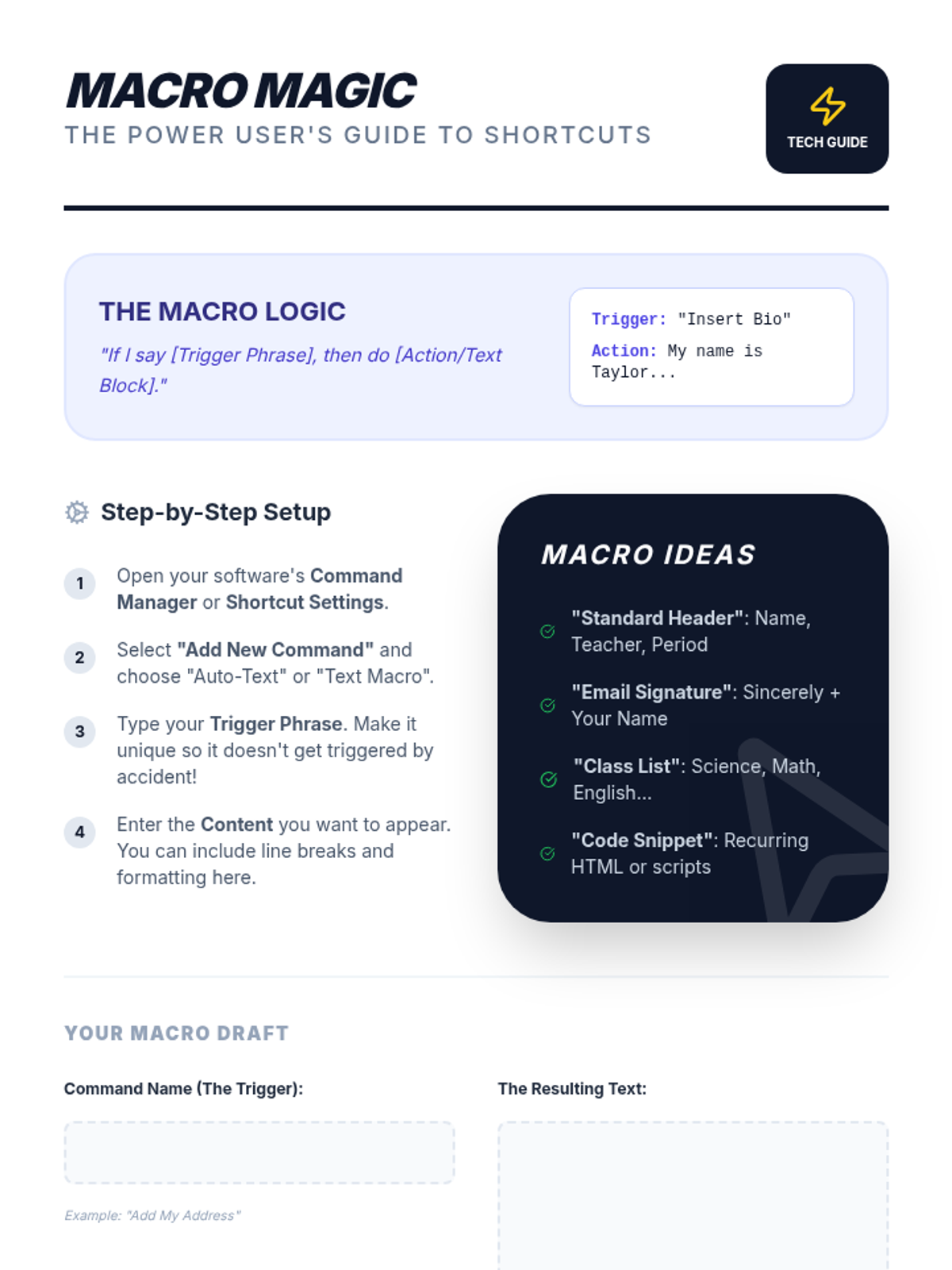
Students learn to add custom technical jargon and create voice macros to automate recurring tasks like signatures and headers.
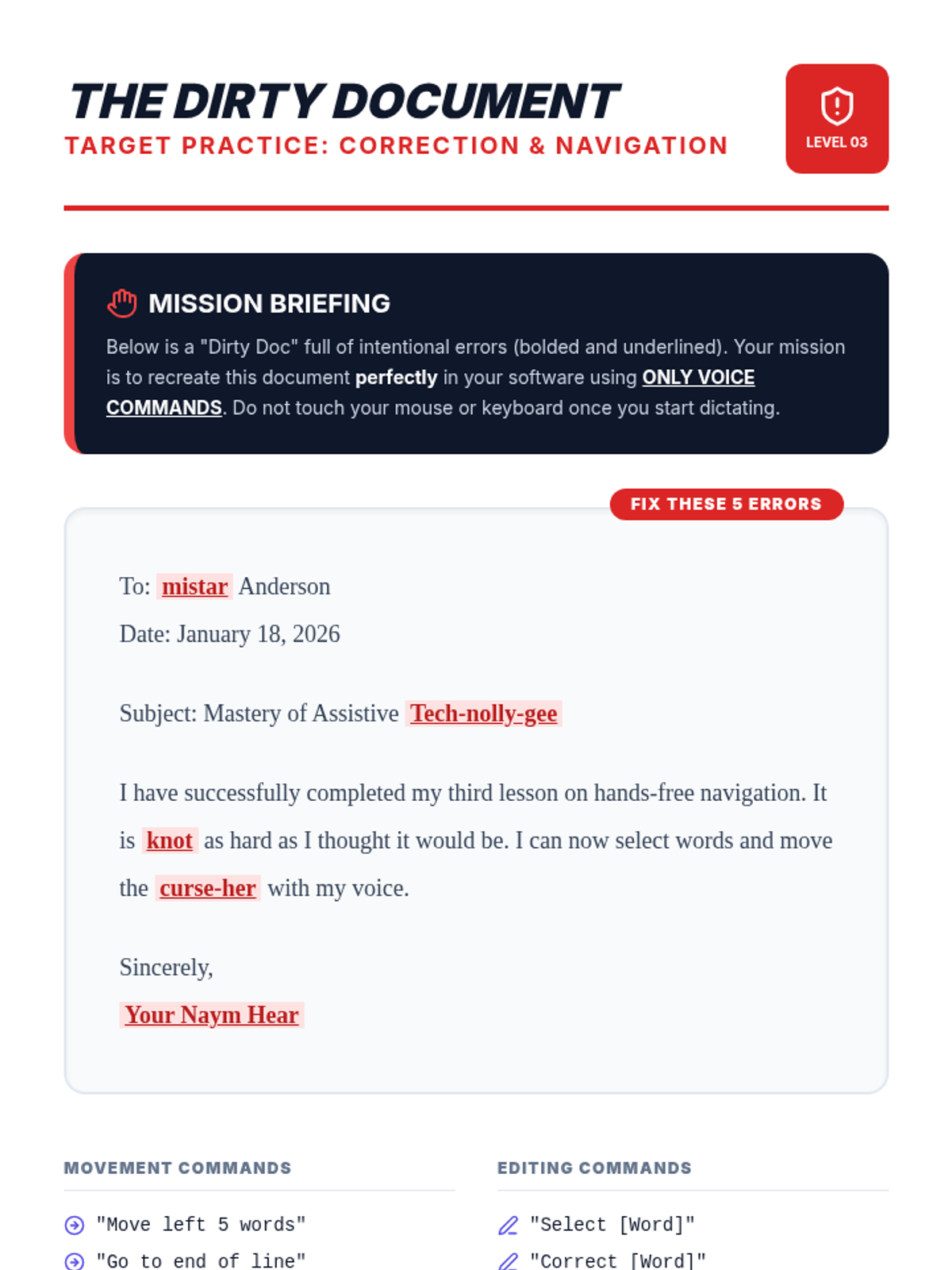
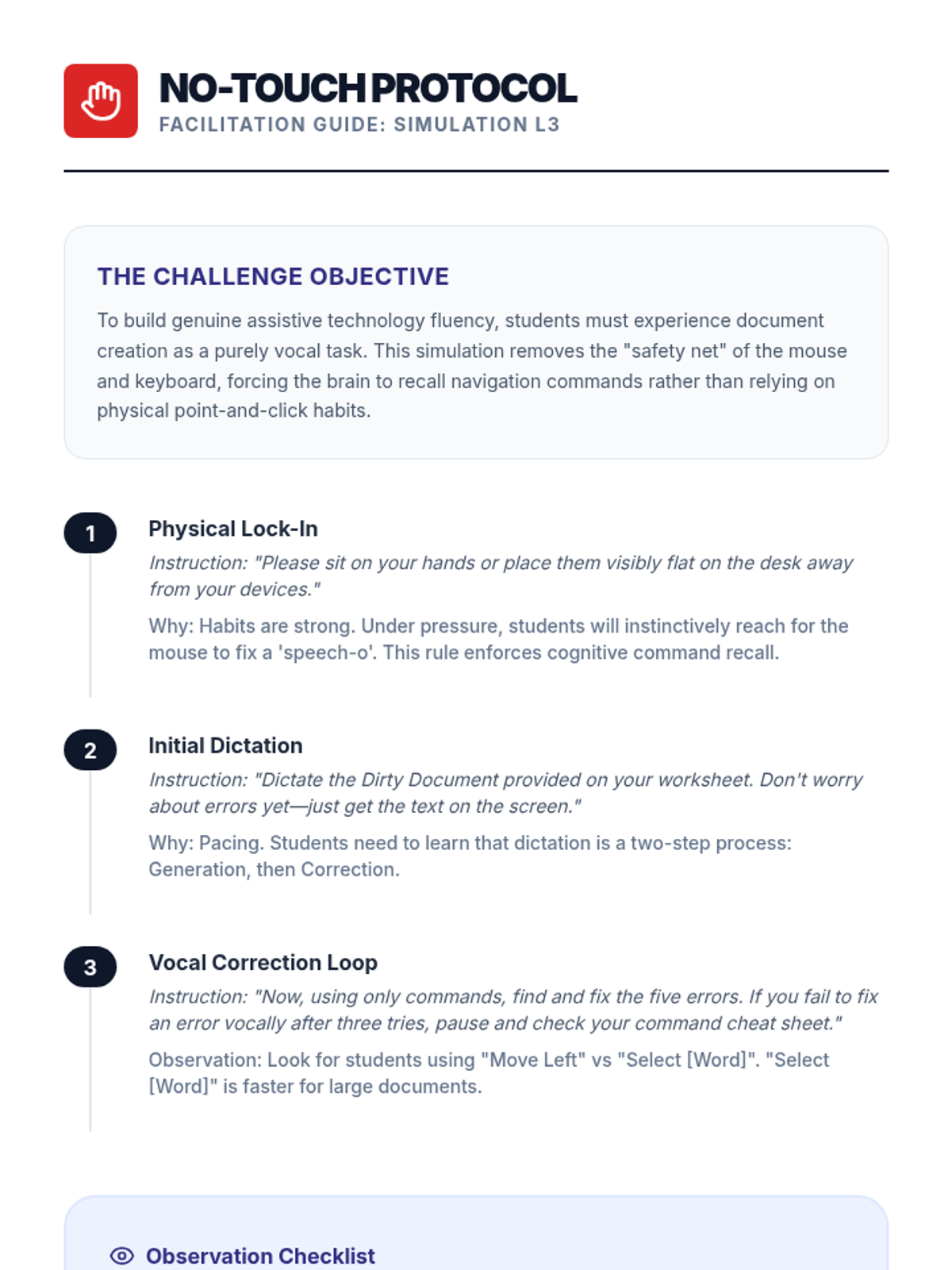
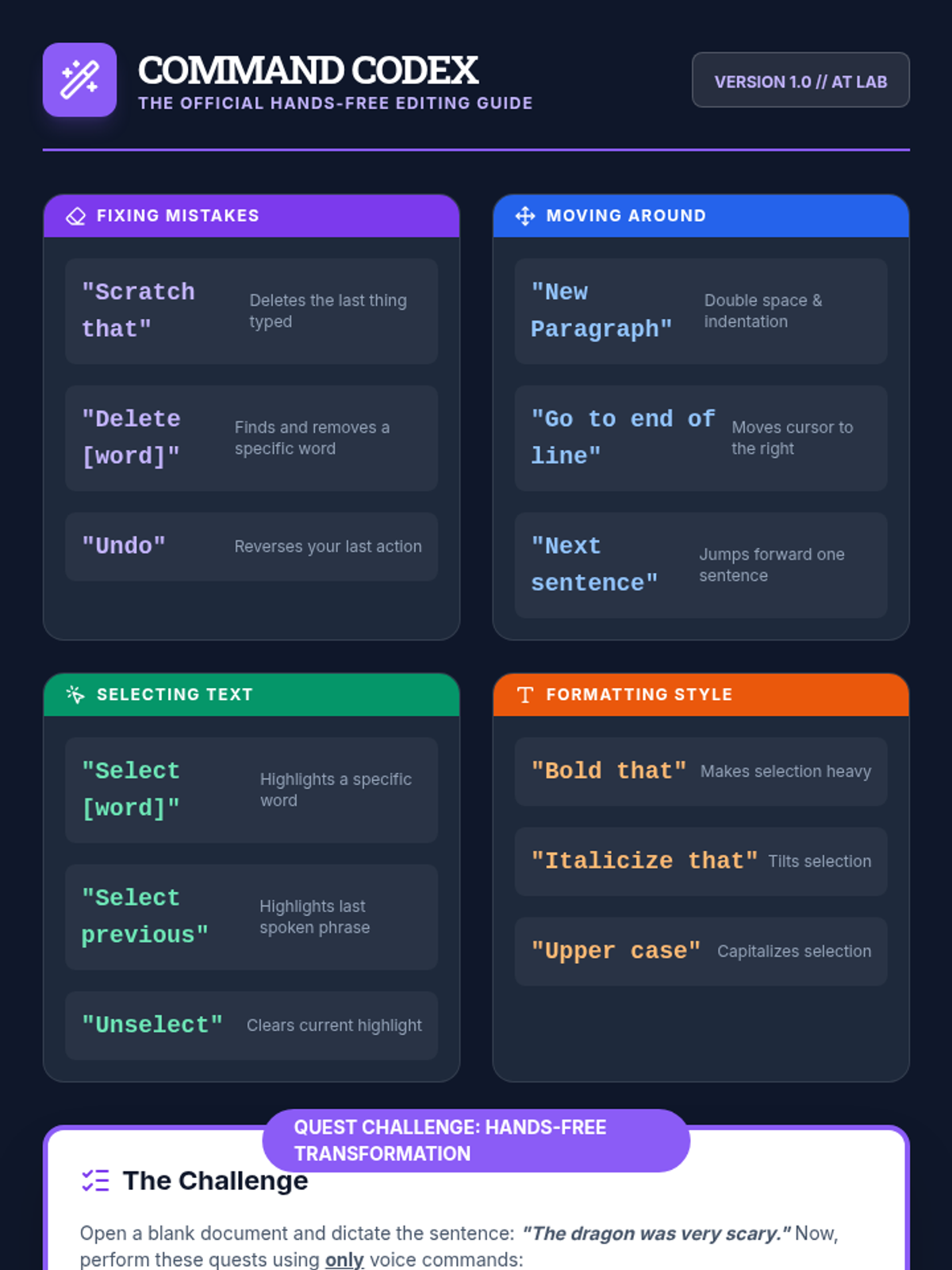
Students learn to edit and navigate documents using only voice commands, practicing the 'No-Touch Challenge' to build assistive technology fluency.
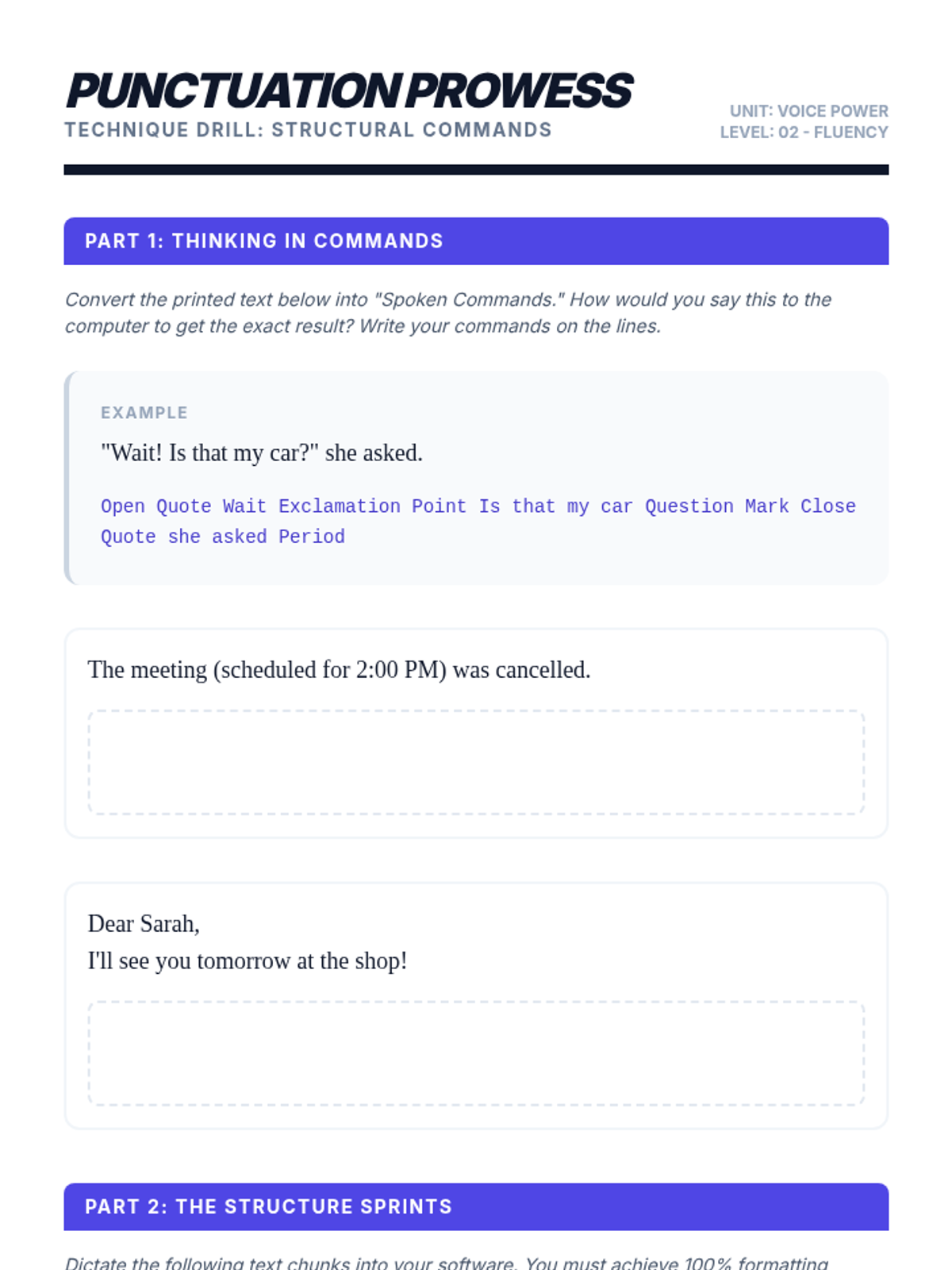
Focuses on structural commands including punctuation, line breaks, and capitalization to ensure dictated text is properly formatted from the start.
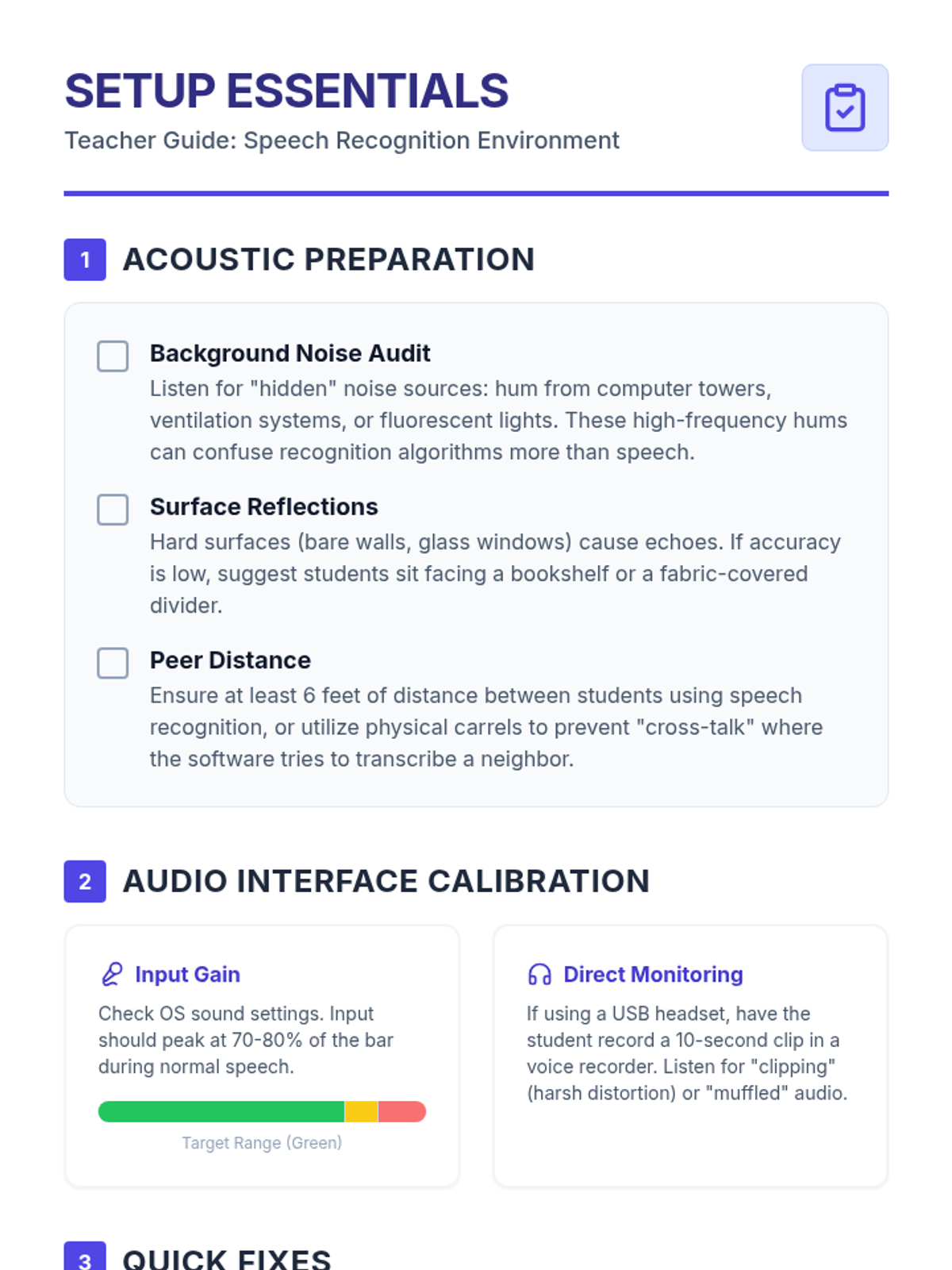
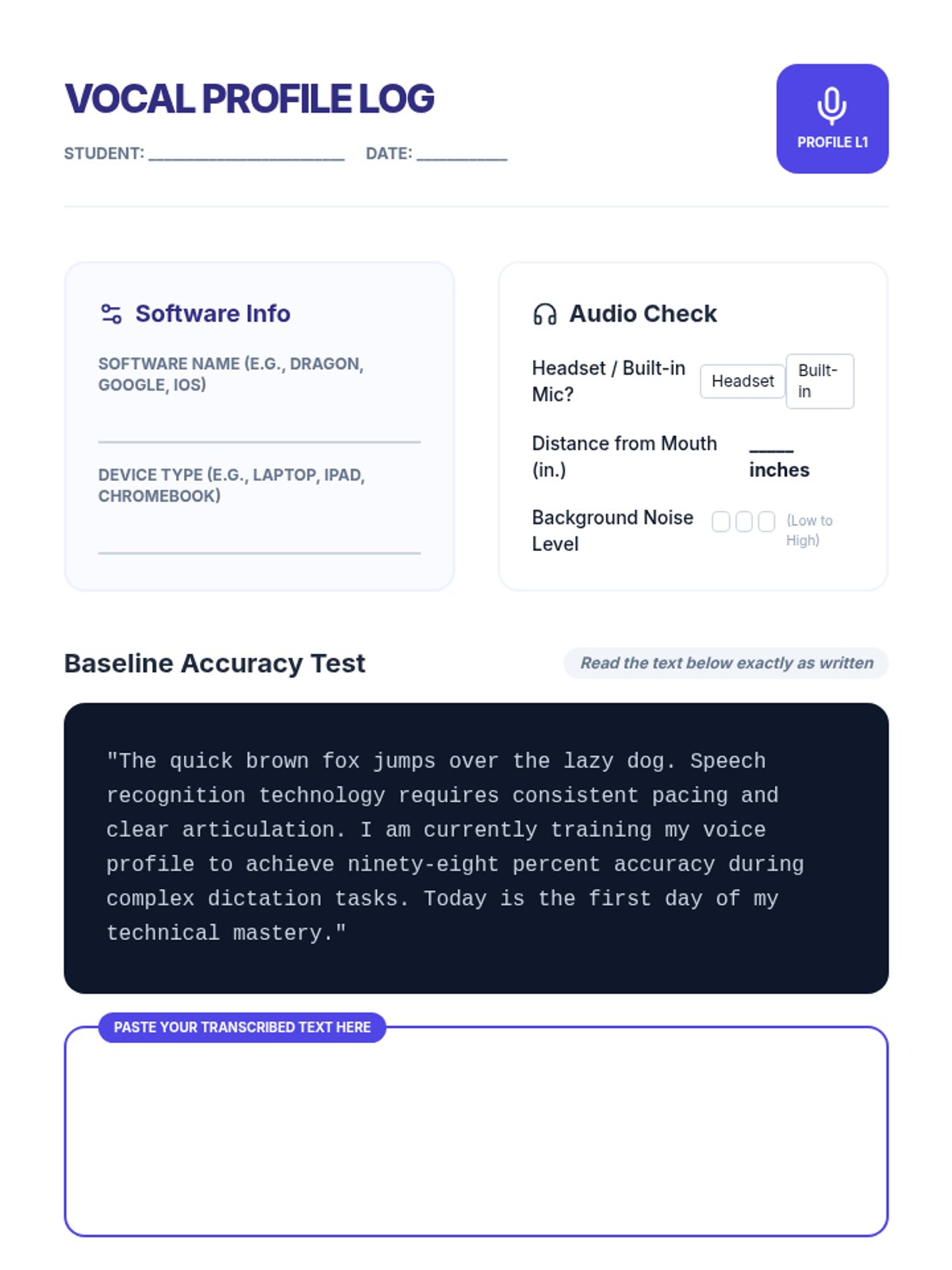
Students explore the initial setup phases of various speech recognition tools, learning to train software and manage environmental factors for maximum accuracy.
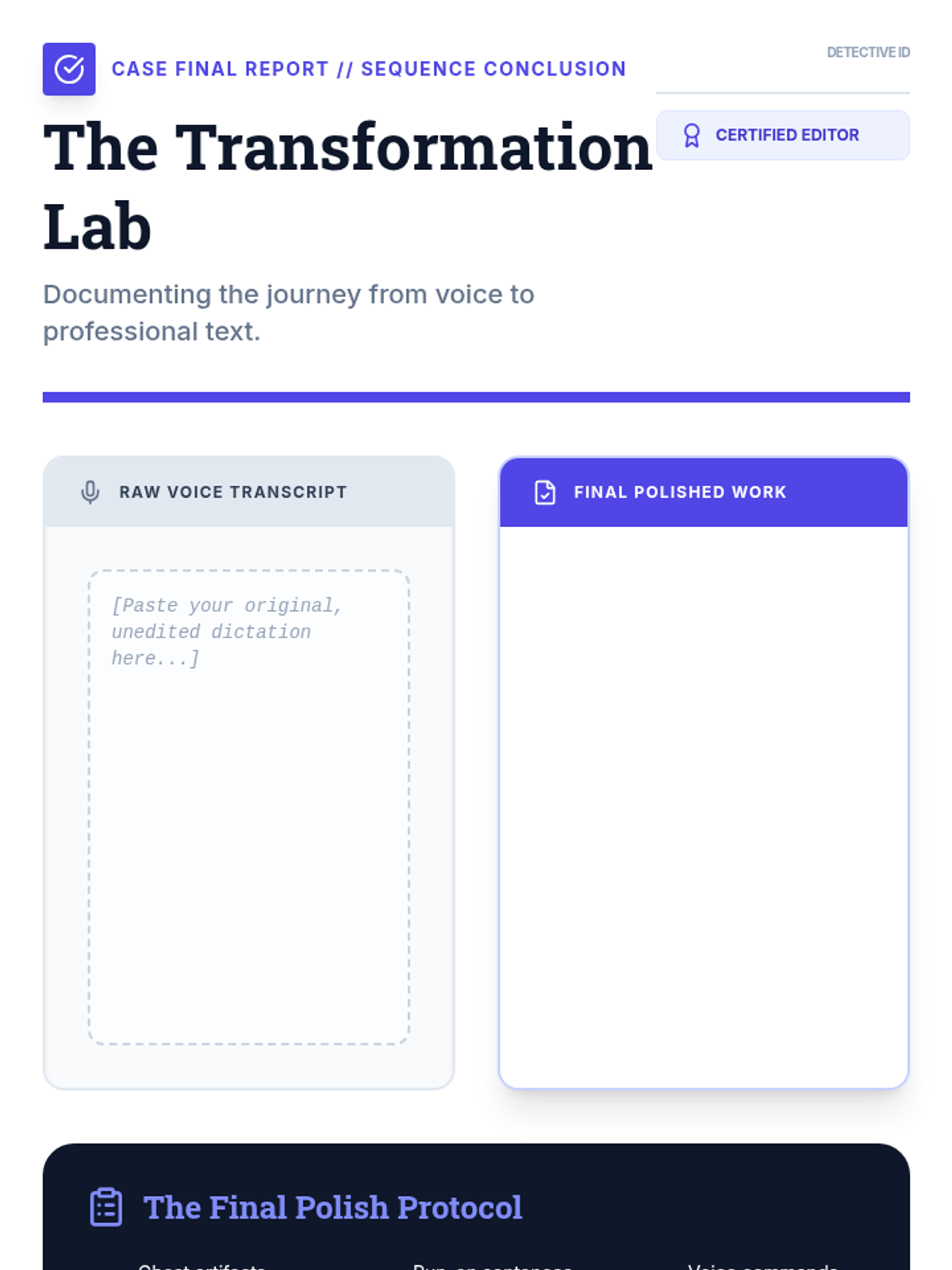
The sequence concludes with final document formatting and a comparison of raw vs. polished work, celebrating the student's progress as an editor.
Students master advanced voice commands to edit and navigate text hands-free, increasing independence and efficiency in the editing process.
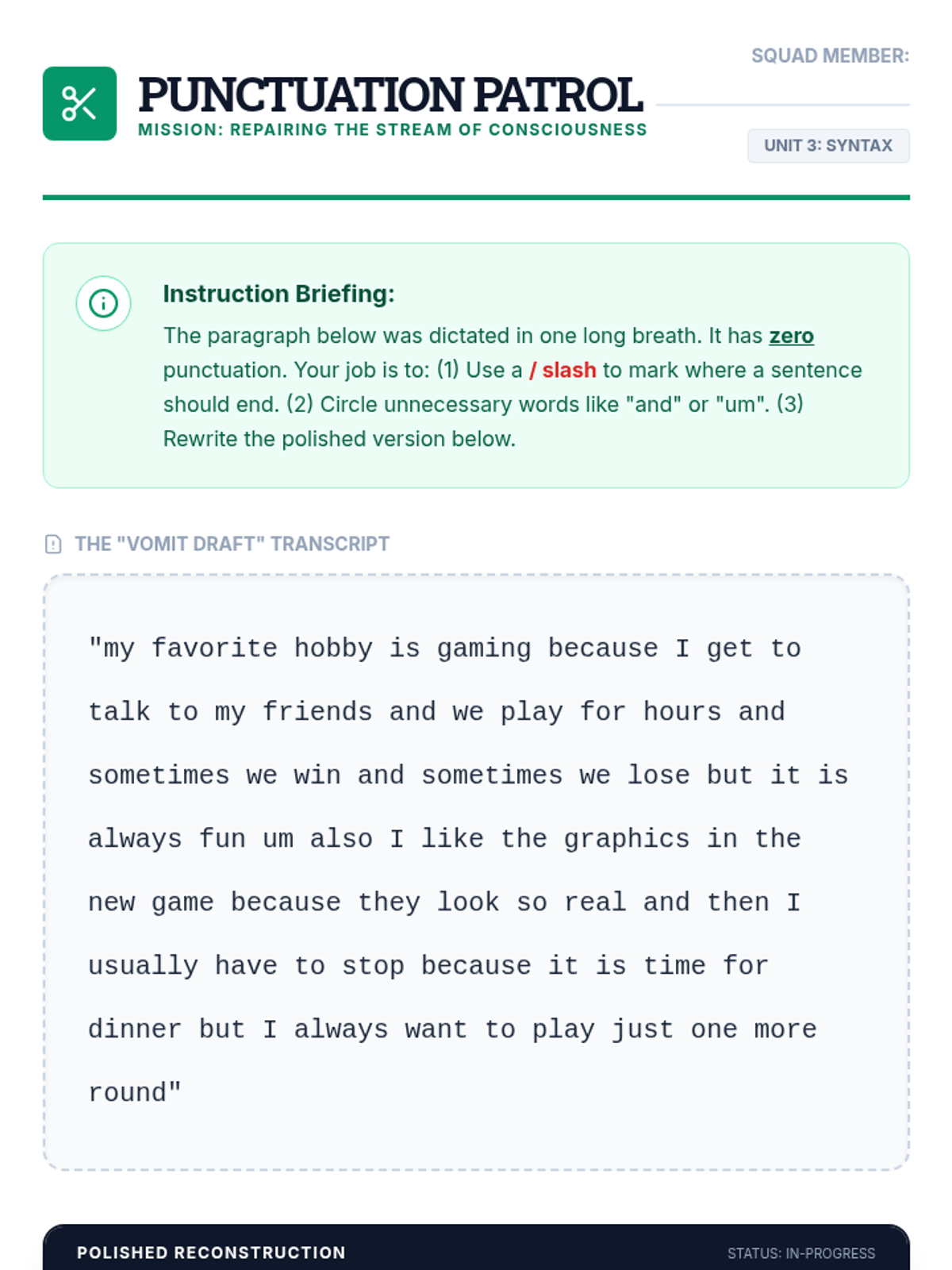
Students learn to transform 'stream of consciousness' dictated text into structured writing by identifying run-on sentences and adding punctuation and transitions.
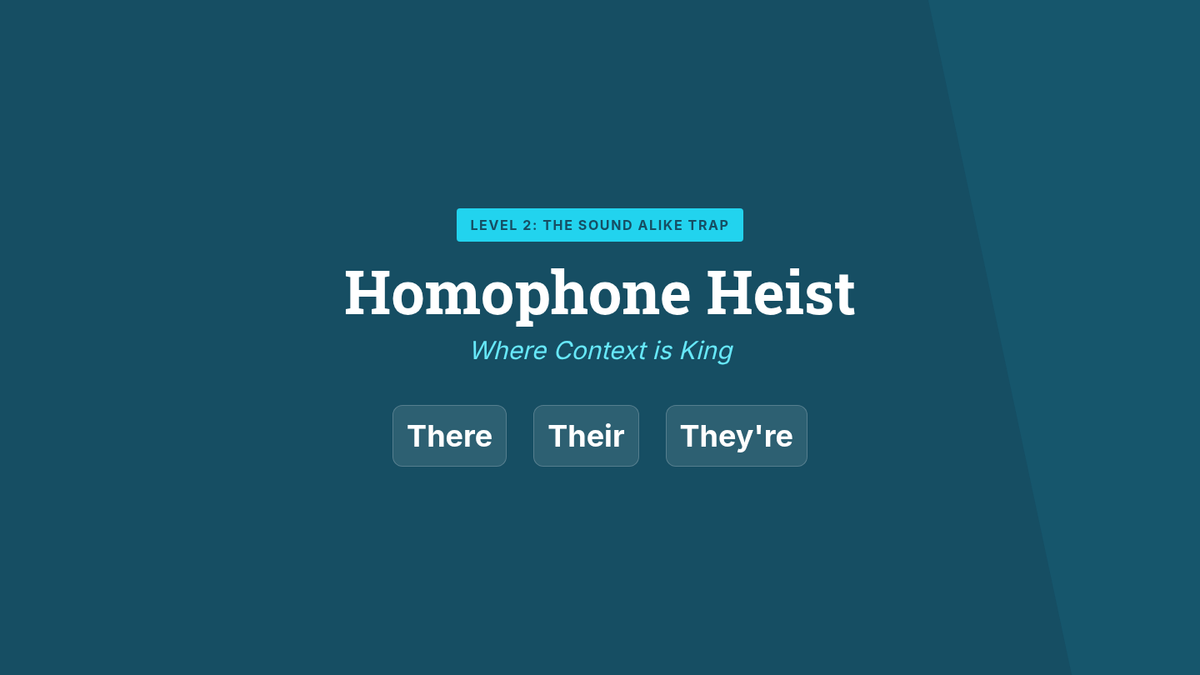
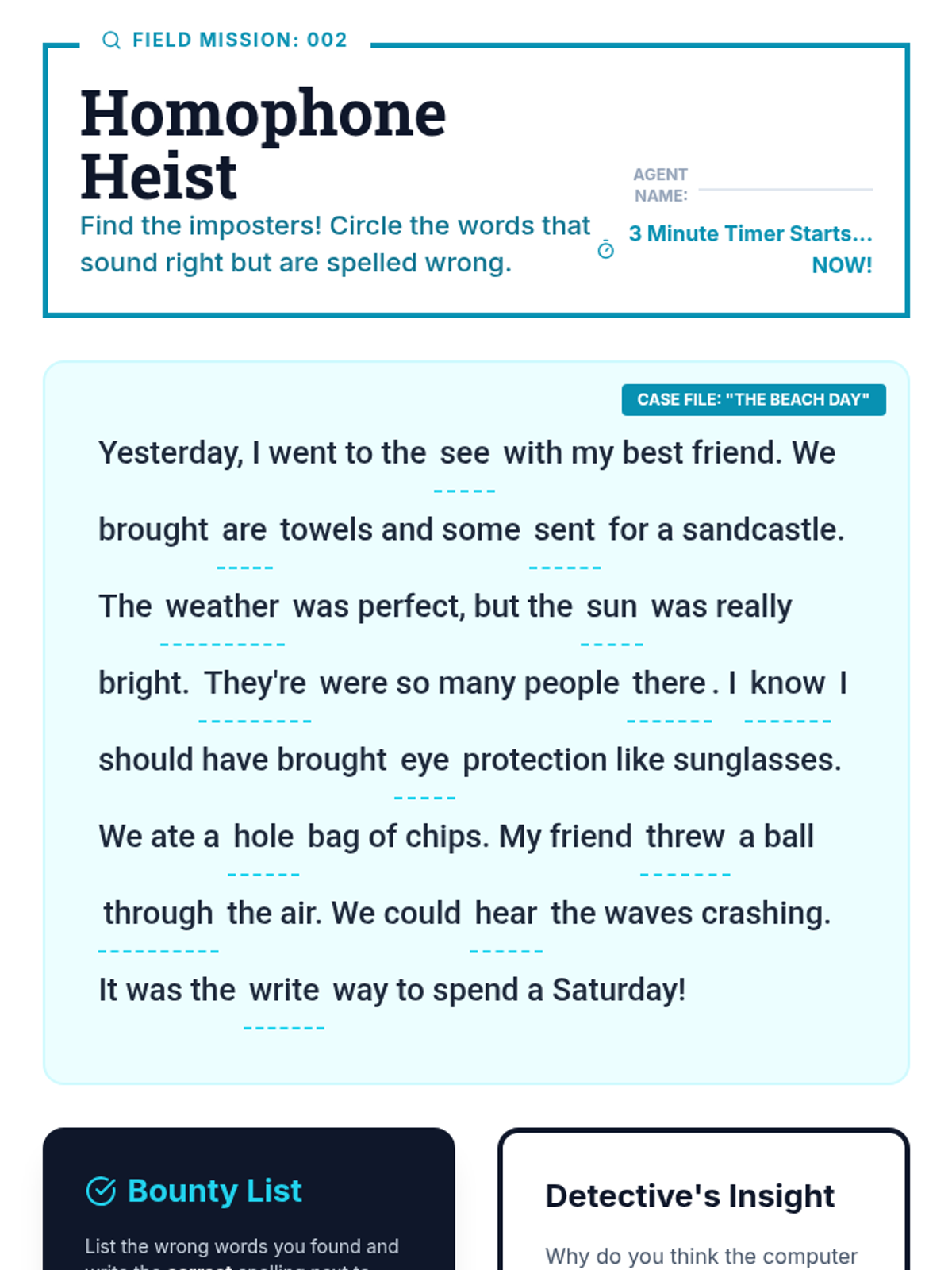
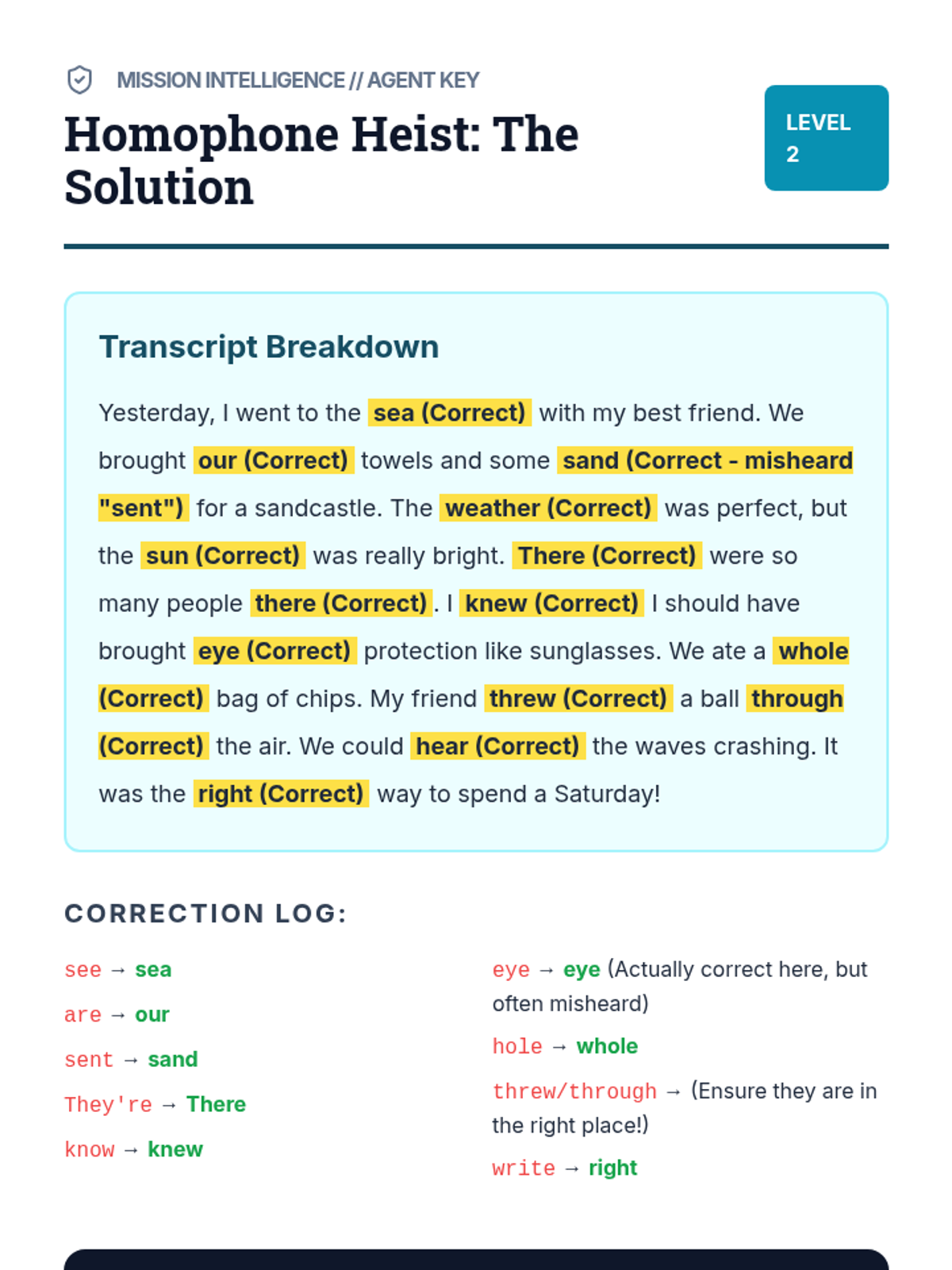
A focused lesson on context-based corrections, specifically targeting homophones that sound the same but are spelled differently, which are frequent pitfalls in dictation.
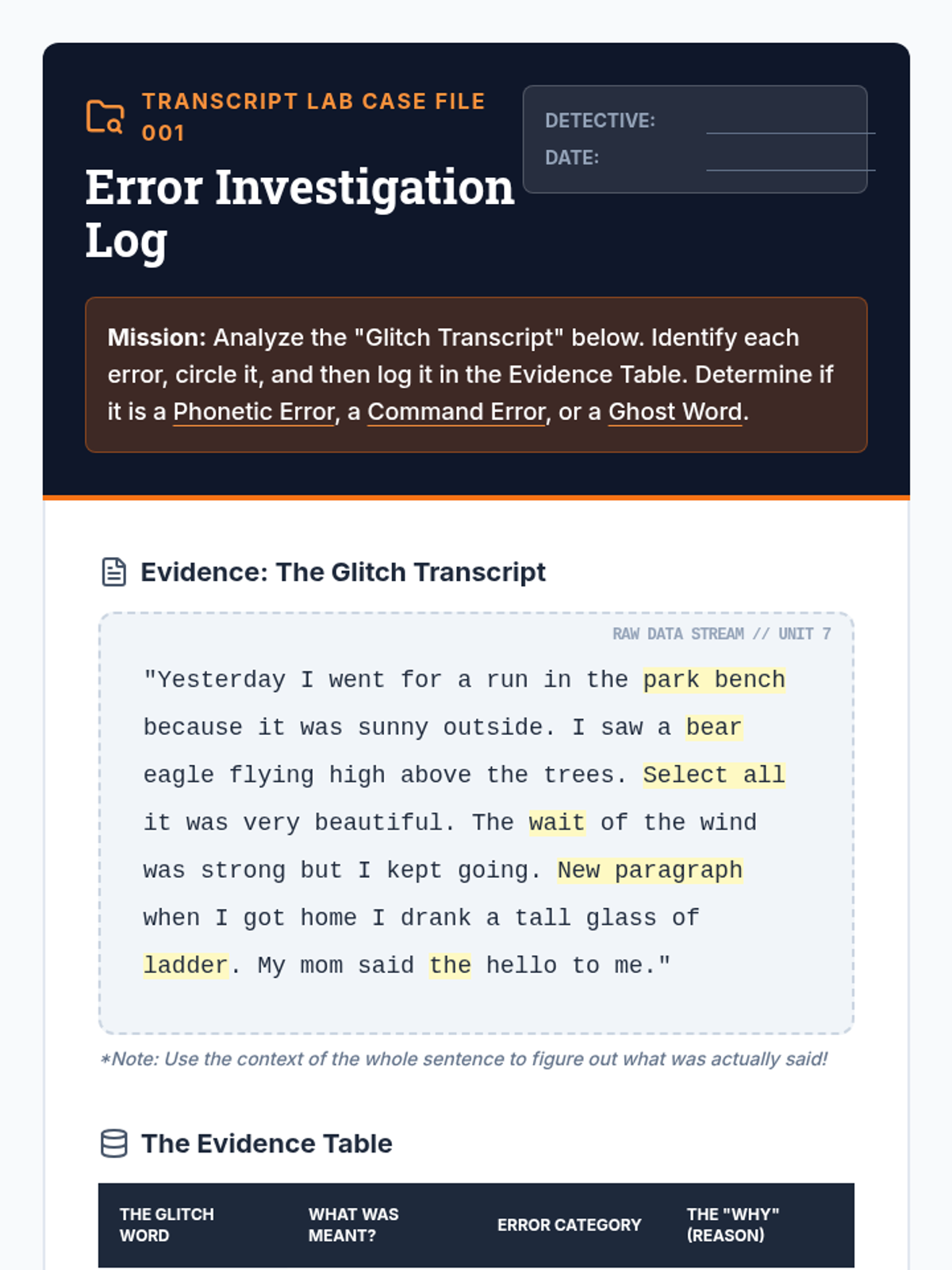
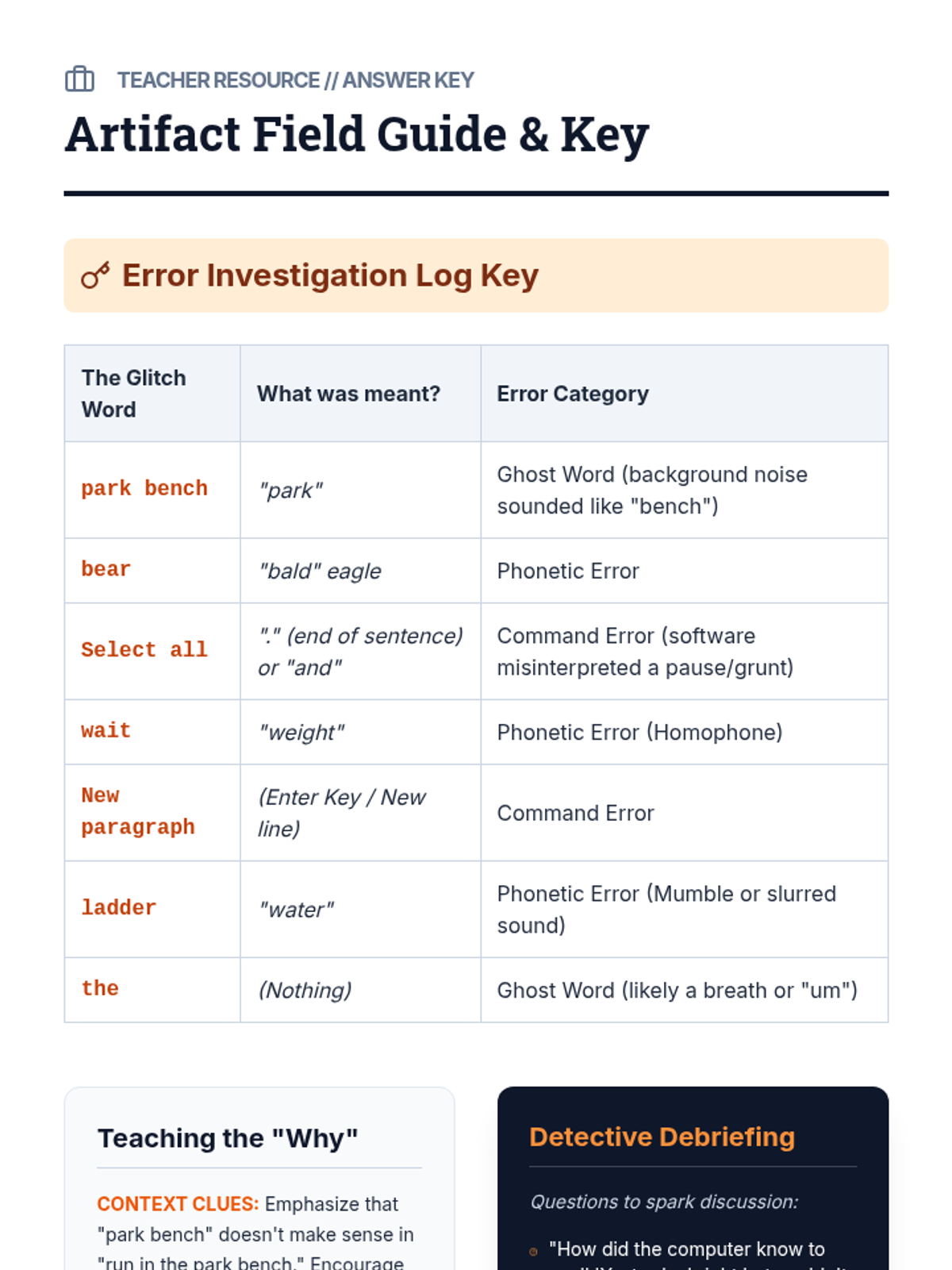
Students analyze raw transcripts to identify common 'ghost in the machine' errors, such as misheard words and unintentional commands, categorizing them to understand why software makes mistakes.